Activating your virtual card and connecting it to Apple Pay/Google Wallet
Modified on Tue, 22 Sep at 3:51 PM
With the mobile app, you can view your virtual cards at any time and add them directly to your digital wallet.
Step 1: Download the app
Download the app to your smartphone:
 Open the Apple App Store and install the Unzer app. Open the Apple App Store and install the Unzer app. |  Open the Google Play Store and install the Unzer app. Open the Google Play Store and install the Unzer app. |
 |  |
Step 2: Sign in and connect your account
- Open the app.
- Sign in with your login credentials.
- Connect the app to your existing account.
Once you have signed in successfully, your available cards are displayed automatically in the wallet overview.
Step 3: Select a virtual card
- Open the Wallet section.
- Select the desired virtual card.
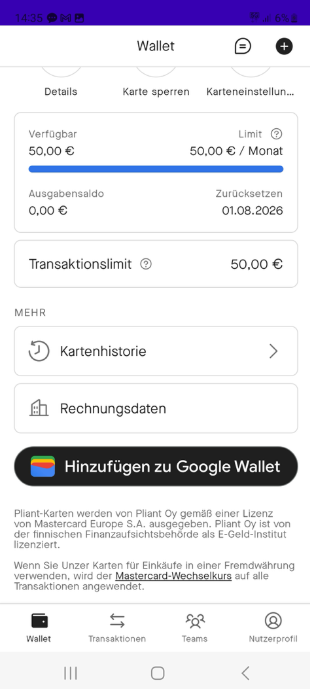
- Scroll down on the card details page.
Step 4: Add the card to Apple Wallet or Google Wallet
At the bottom of the page you will find the relevant button:
- “Add to Apple Wallet” on iPhone
- “Add to Google Wallet” on an Android device
Tap the relevant button.
Step 5: Follow the on-screen instructions
After you tap the button, you will automatically be guided through the required steps. Confirm the entries and notifications in your wallet to activate the card.
Done
Once activation is complete, your virtual card is immediately available in Apple Wallet or Google Wallet and can be used for contactless payments.
Note: If the add button is not visible, scroll all the way down on the card details page. The wallet function is located there.
Was this article helpful?
That’s Great!
Thank you for your feedback
Sorry! We couldn't be helpful
Thank you for your feedback
Feedback sent
We appreciate your effort and will try to fix the article