CCV PAX A920 - Card Reader Test
Modified on Wed, 4 Feb at 9:09 AM
You are unable to process contactless payments on your CCV PAX A920? For example, do you receive the error message “Transaction canceled” when inserting the card?
To rule out or identify a mechanical defect, start the card reader test.
This step-by-step instruction will show you how to perform the card reader test.
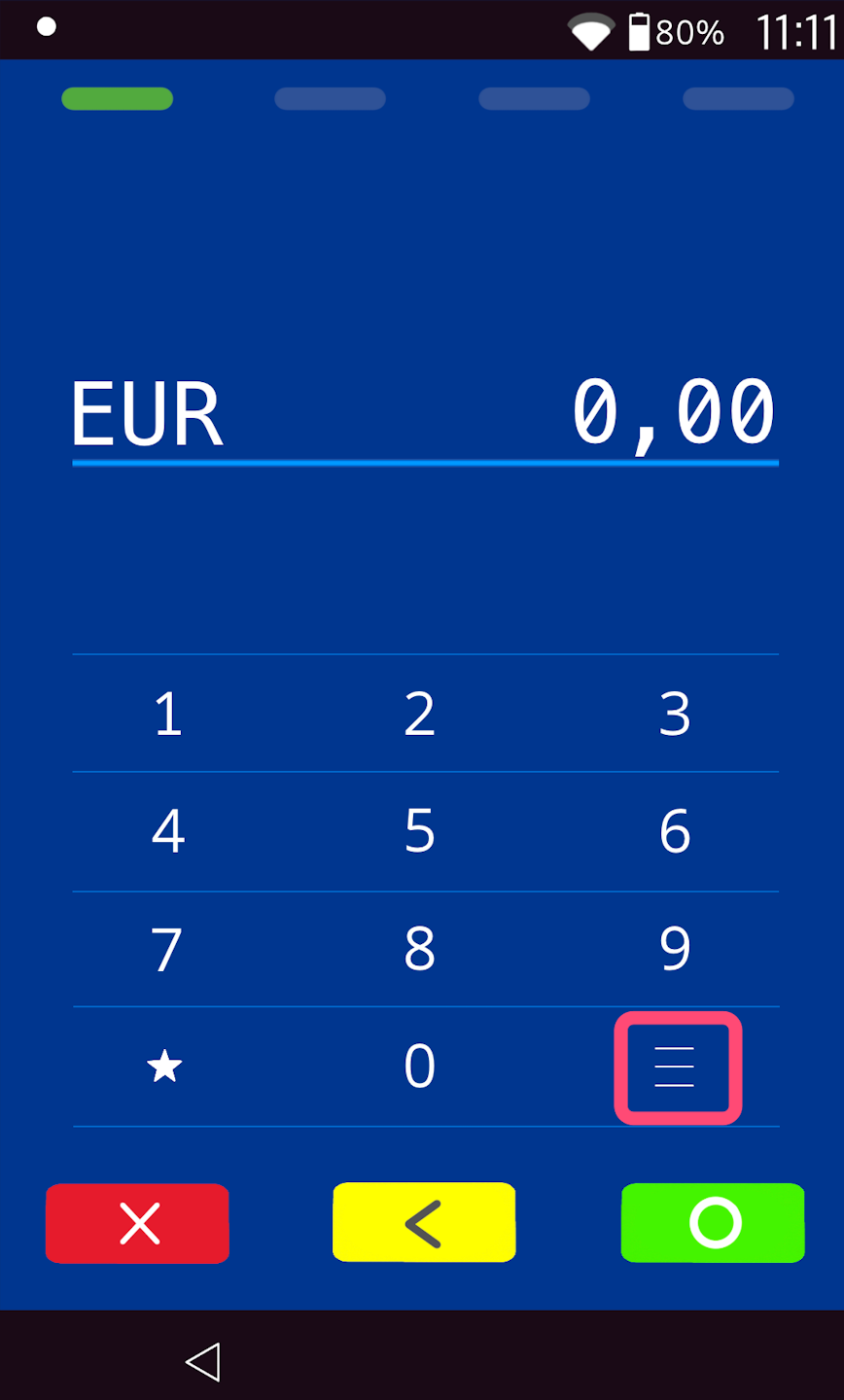
Menu button
Please tap the button with the 3 horizontal lines at the bottom right.
PIN entry
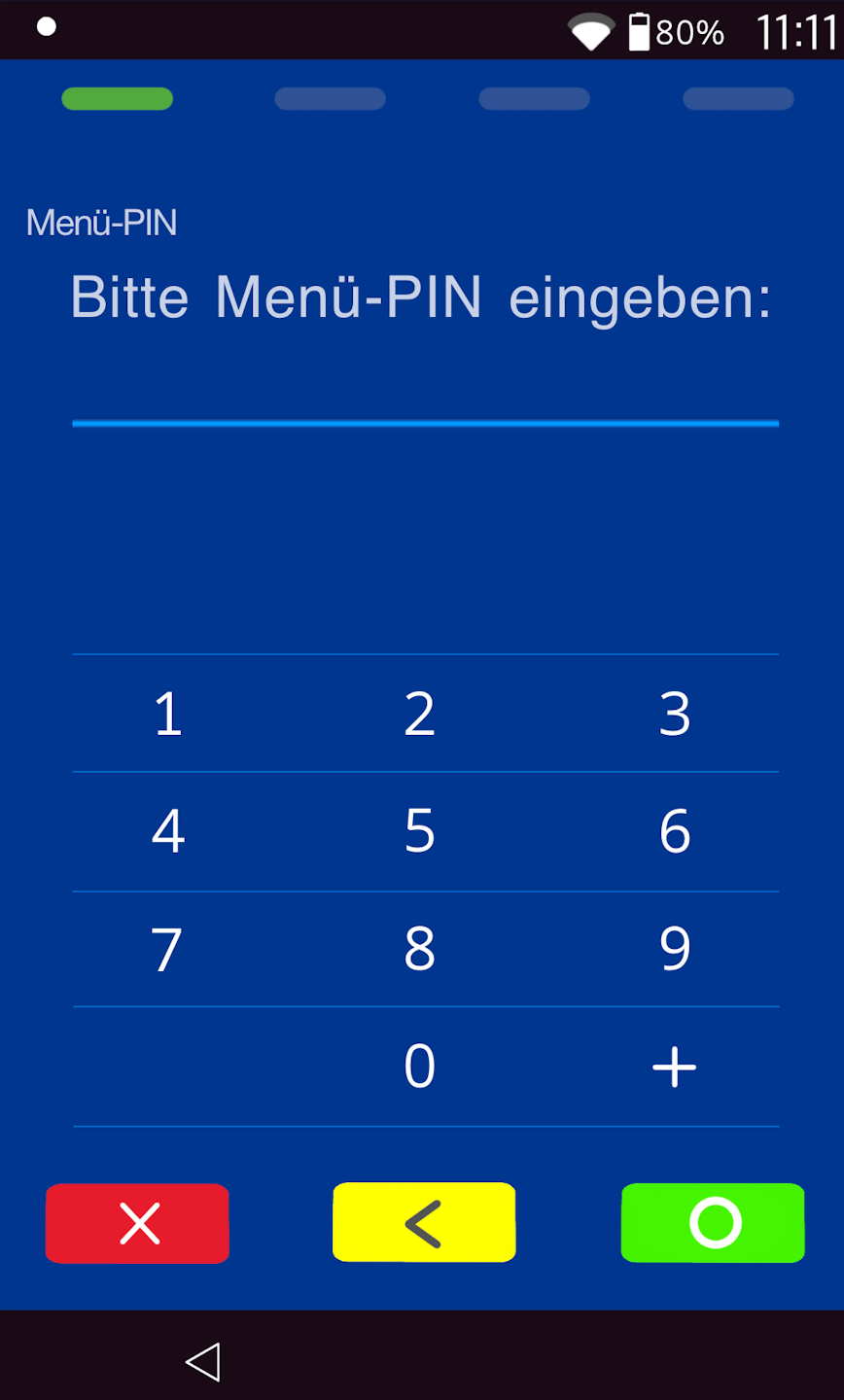
Please now enter your merchant PIN.
You can find the terminal ID on your merchant receipts or on the POS interface.
    Terminal IDs starting with 68xxxxxx: 111111
    Terminal IDs starting with 526xxxxx: 0123
Please confirm the entry by pressing the green OK button.
Information
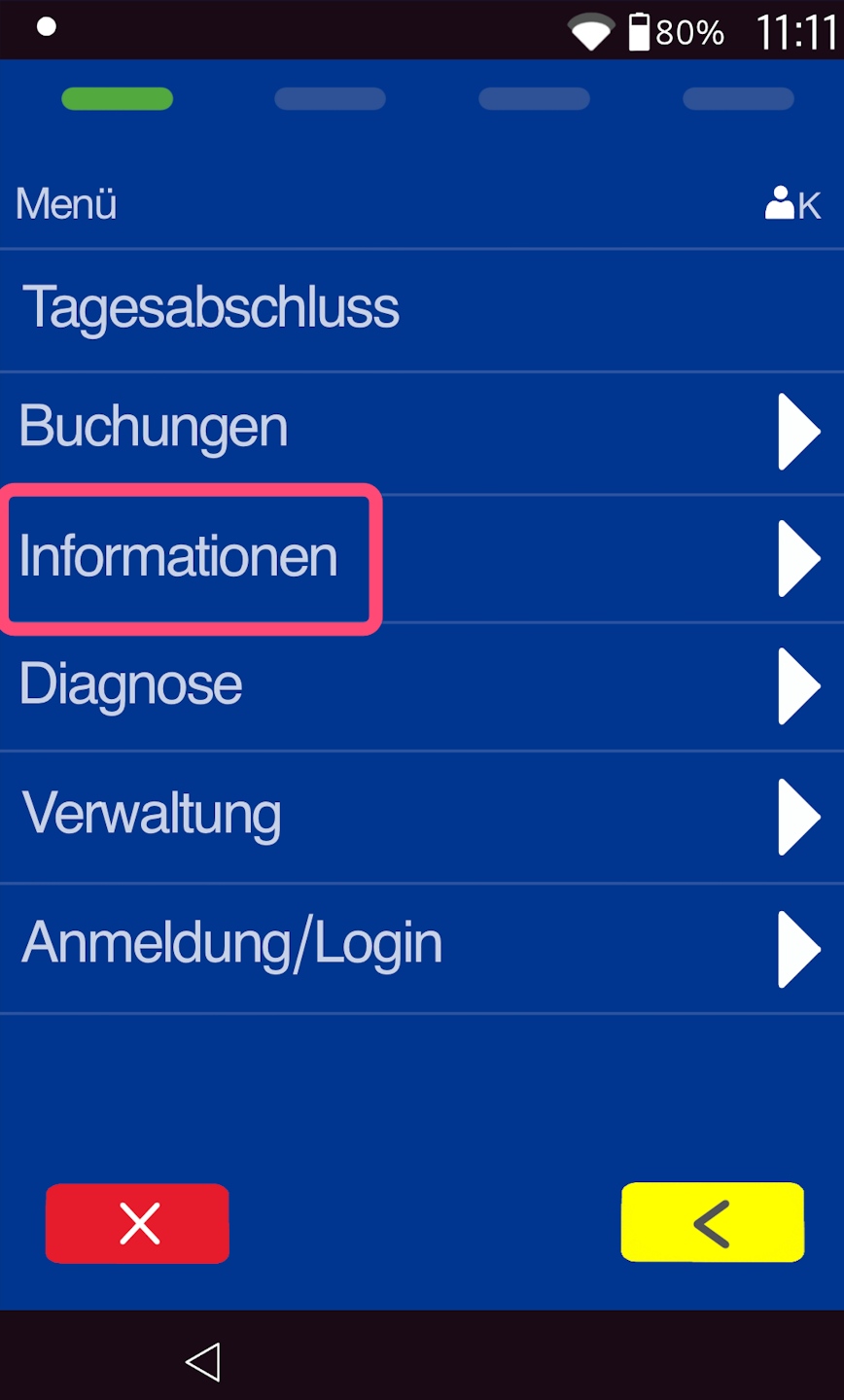
Please select the "Information" button.
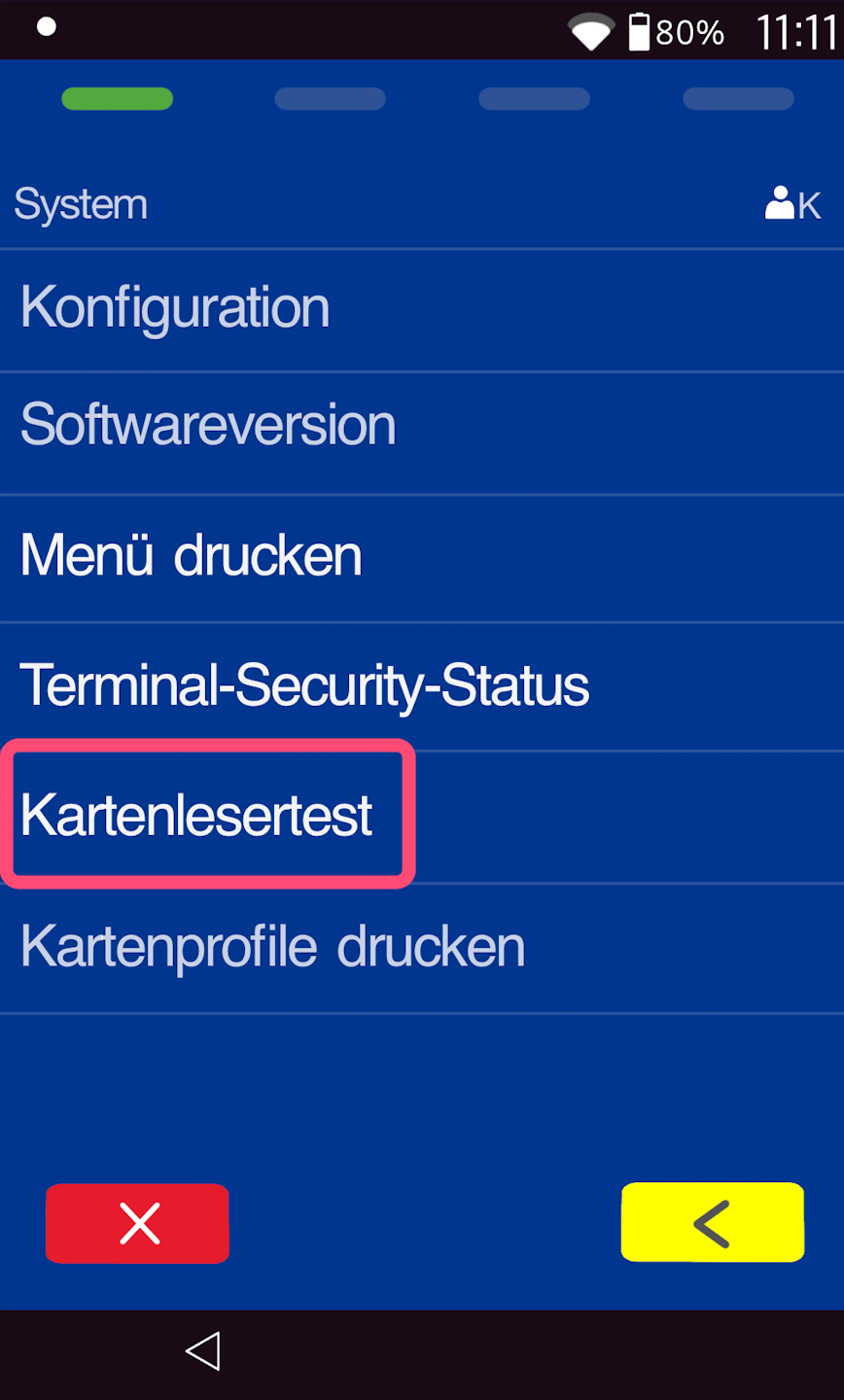
System
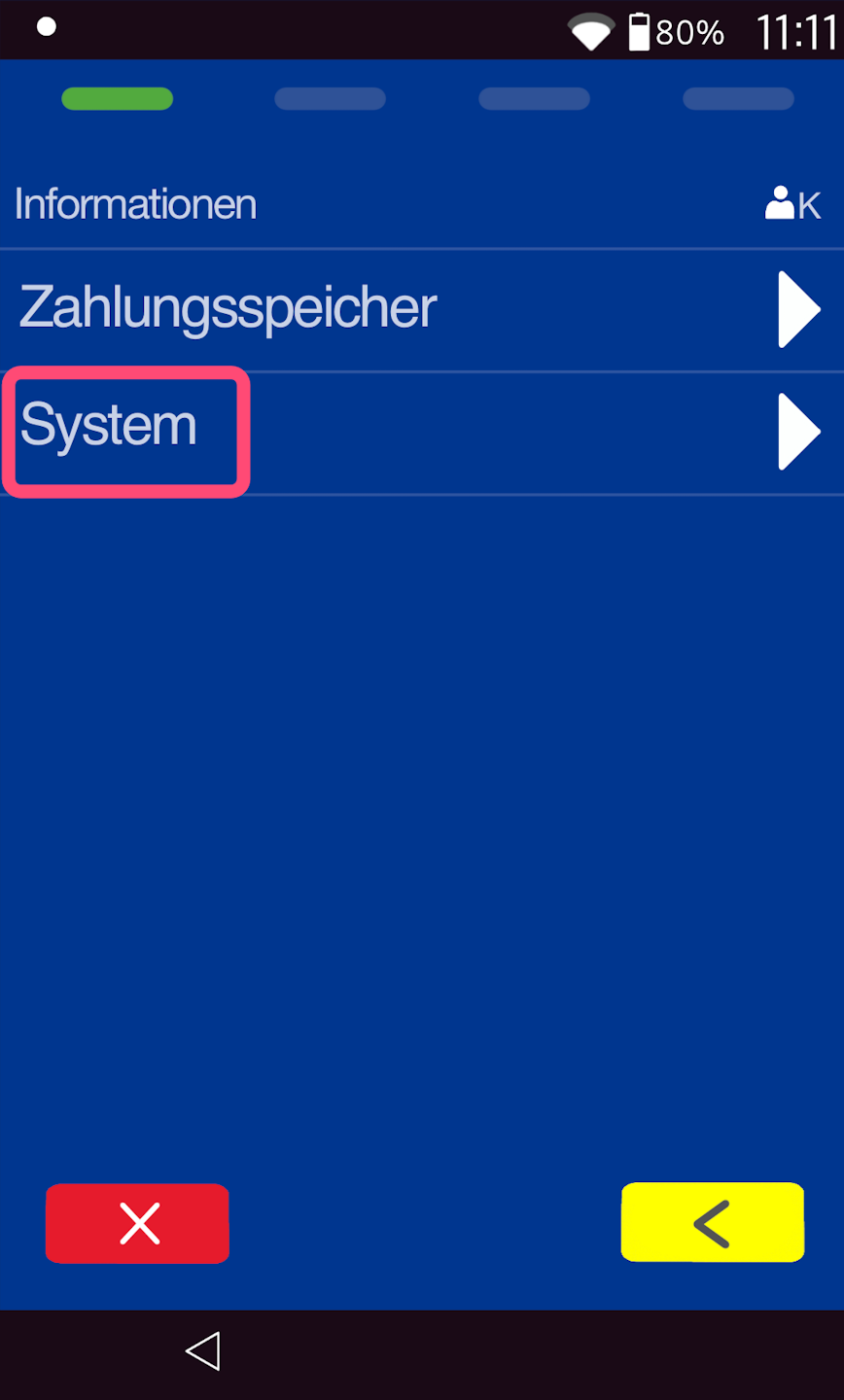
Please select "System".
Card Reader Test
By selecting the card reader test, you can now test the following options one after the other:
Step 1: Magnetic stripe (on the right side)
Step 2: Chip card reader (by inserting)
Step 3: Contactless reader (by tapping)
The result will be printed for you.
Track 1: OK
Track 2: OK
Track 3: Error
are values that reflect the standard function.
If Track 1 and/or Track 2 are shown with an error, the card reader is likely defective. Please contact our technical support via the contact form.
Was this article helpful?
That’s Great!
Thank you for your feedback
Sorry! We couldn't be helpful
Thank you for your feedback
Feedback sent
We appreciate your effort and will try to fix the article
