CCV PAX A920 - Activating the Additional Information
Modified on Wed, 4 Feb at 9:10 AM
You can add either a custom or fixed 21-character alphanumeric additional information field to each payment receipt. In this guide, we will show you how to activate this option on your CCV PAX A920 card reader.
This additional information is commonly used when you want to include, for example, the corresponding invoice number or reservation number on the payment receipt.
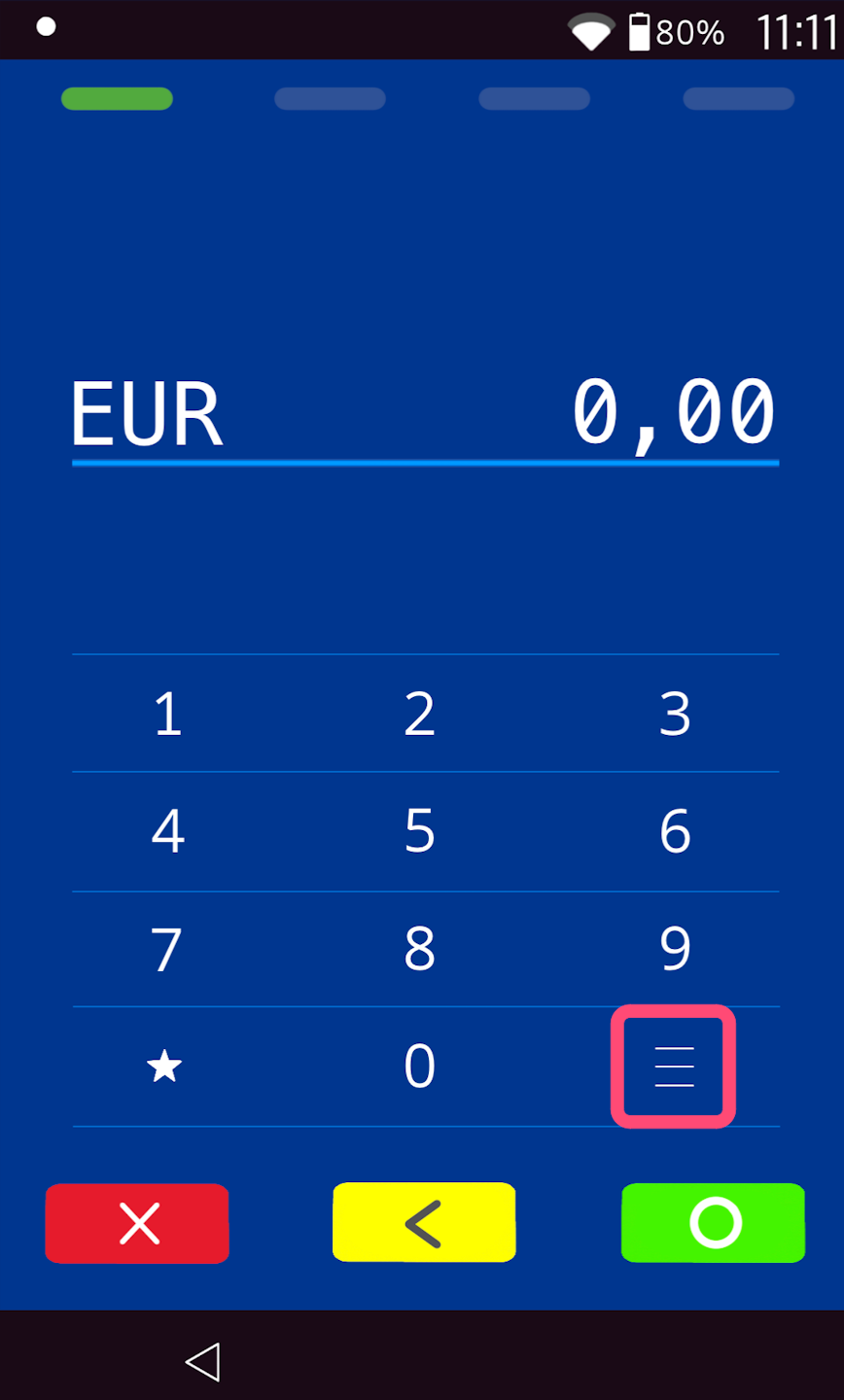
Menu Button
Please tap the button with the three horizontal lines at the bottom right.
PIN Entry
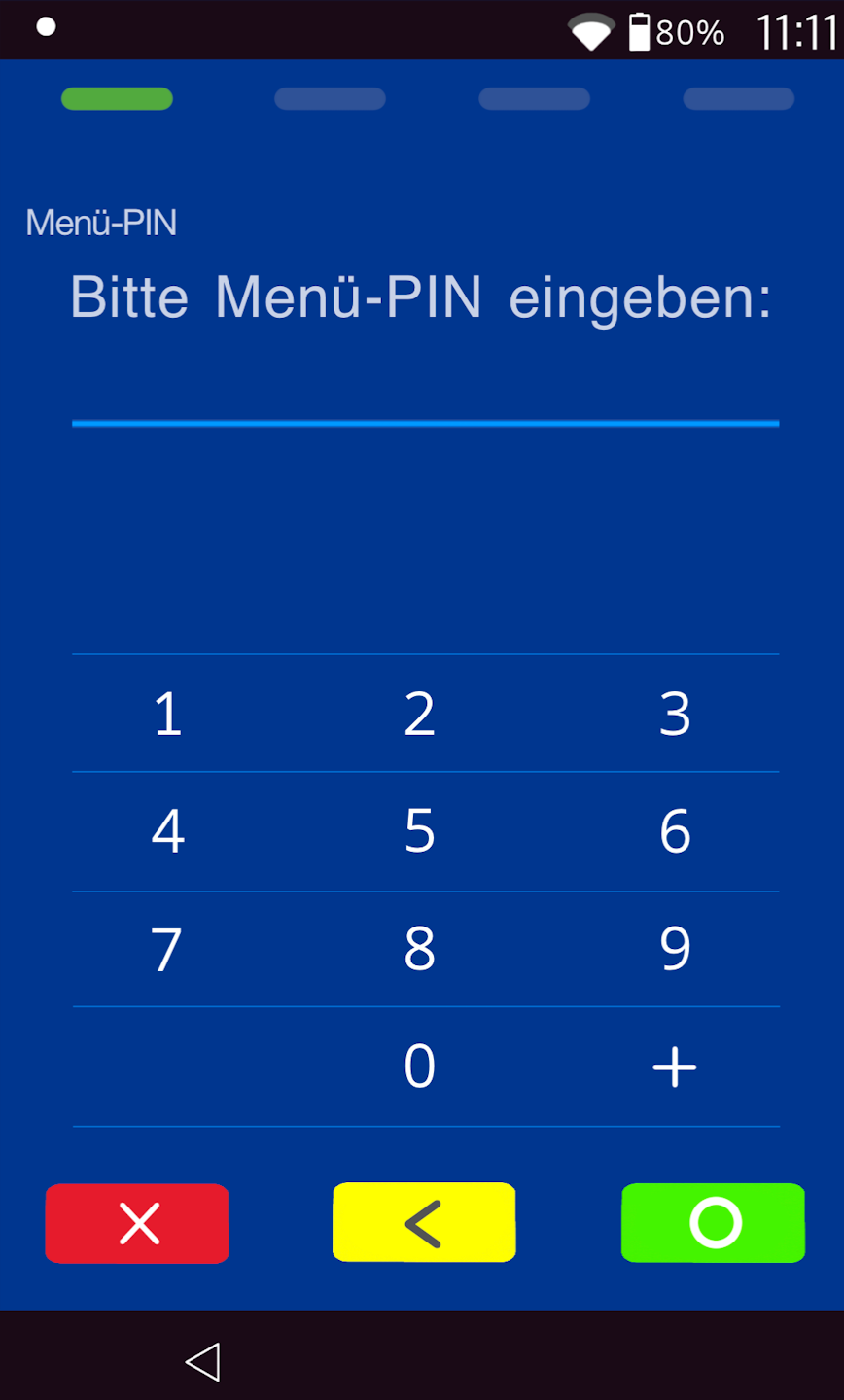
Please now enter your merchant PIN.
You can find the terminal ID on your merchant receipts or on the cash register report.
Terminal IDs starting with 68xxxxxx: 111111
Terminal IDs starting with 526xxxxx: 0123
Please confirm the entry with the green OK key.
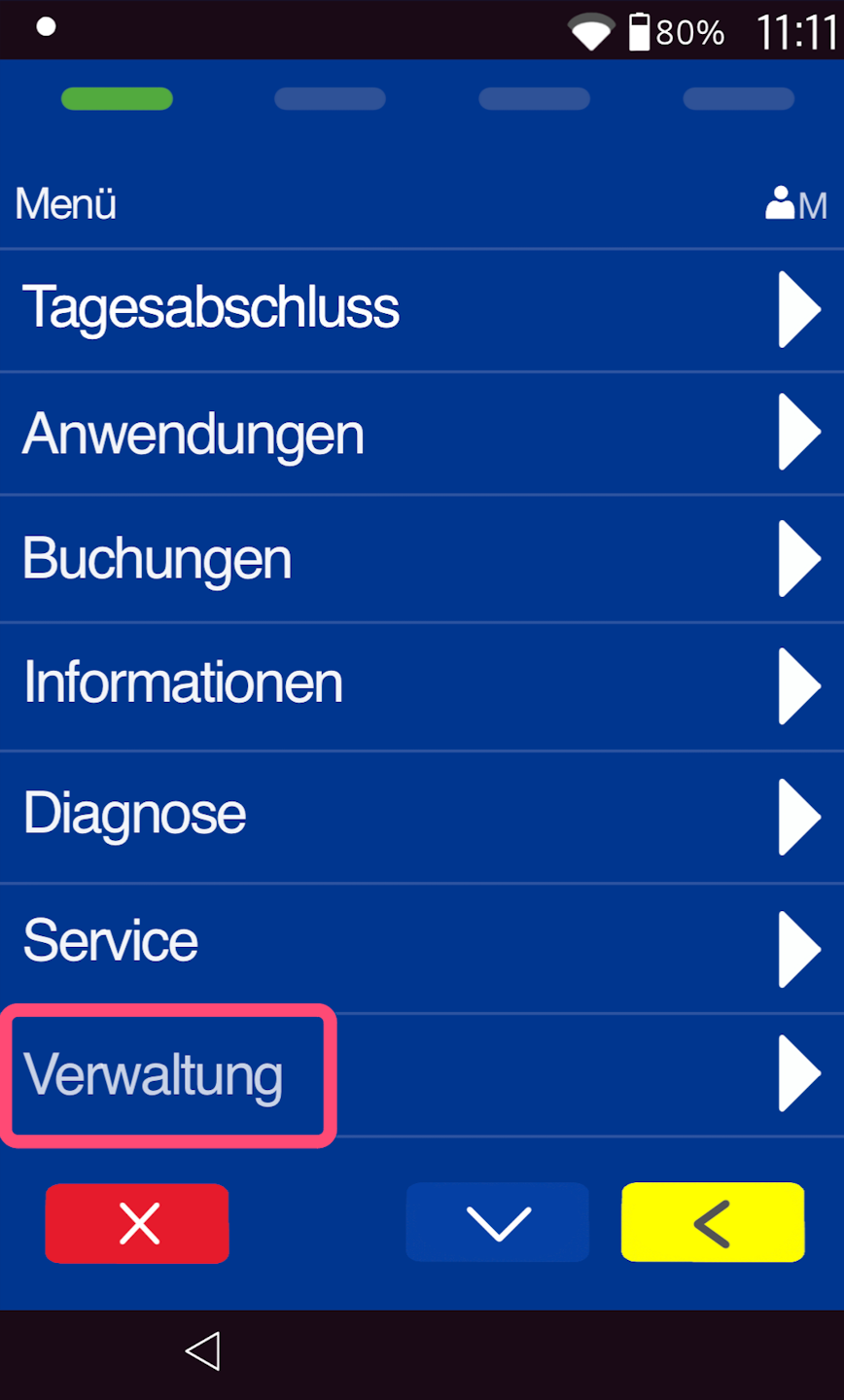
Administration
Please select the menu item Administration.
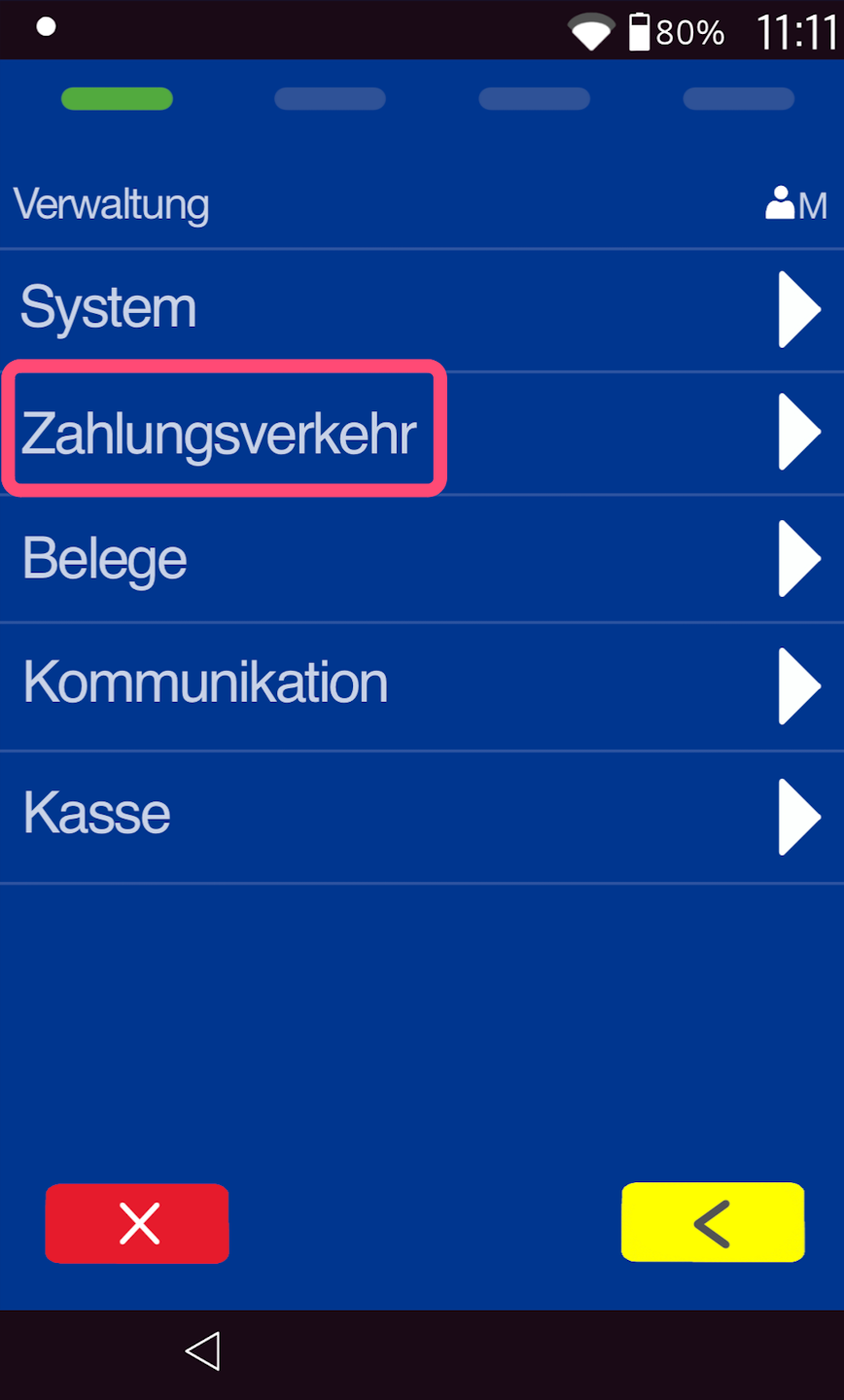
Transactions
Please select the menu item Transactions here.
Additional Information
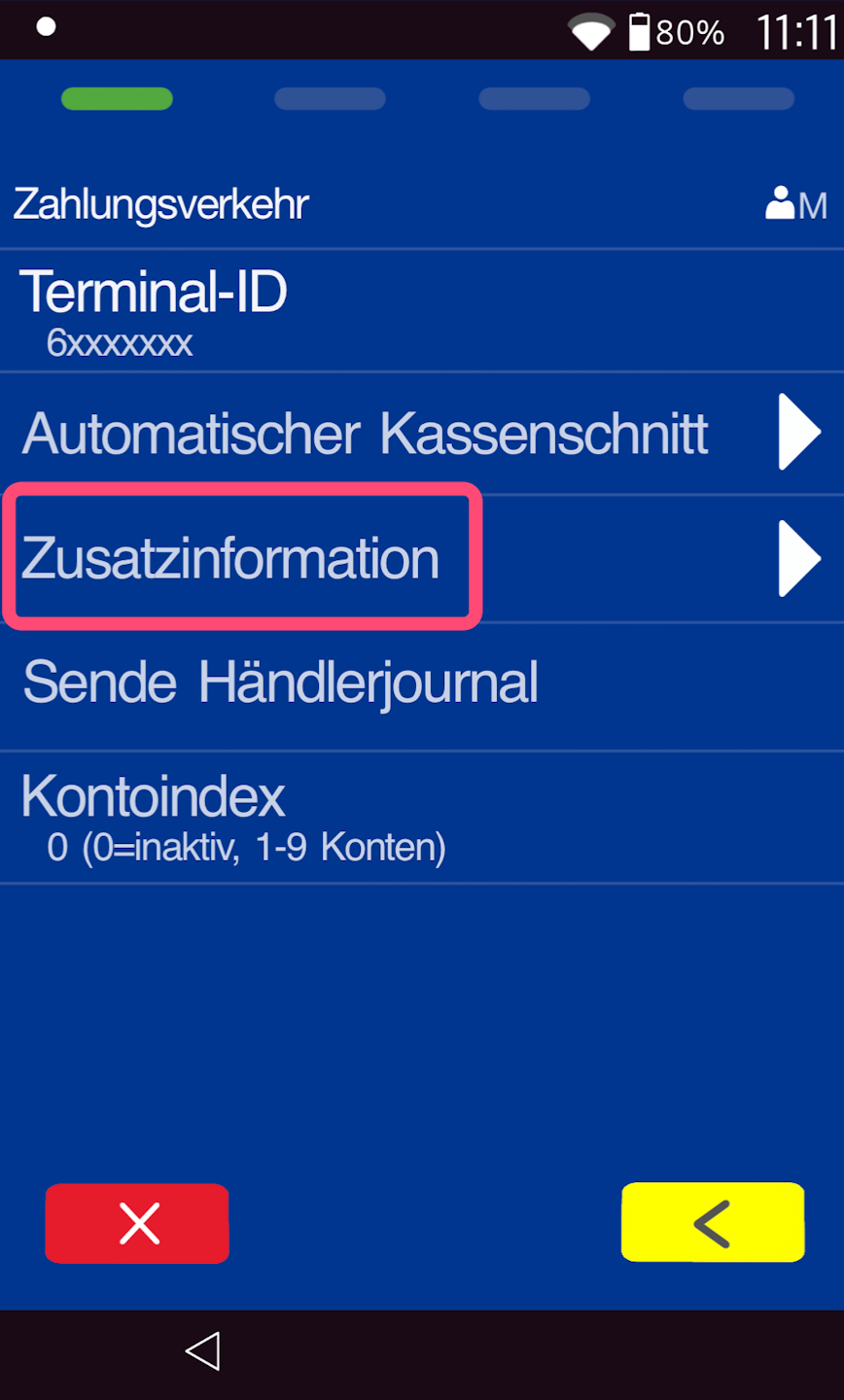
Please select the menu item Additional Information here.
Activation
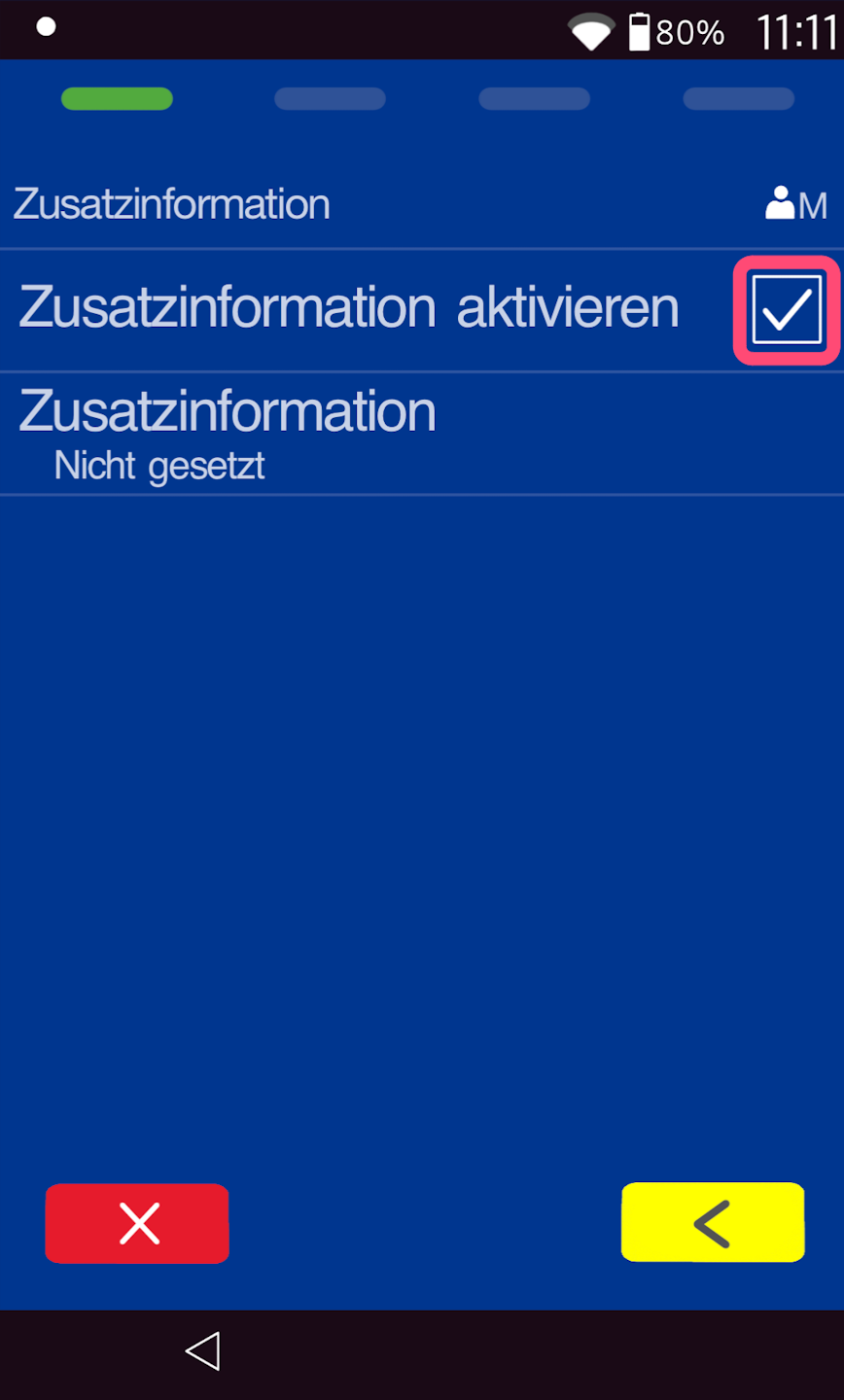
By tapping the small checkbox on the right side, the additional information feature is activated.
You can choose between the following options for the additional information:
* A fixed additional information that will appear on all payment receipts.
* A variable additional information that you can enter individually during each transaction.
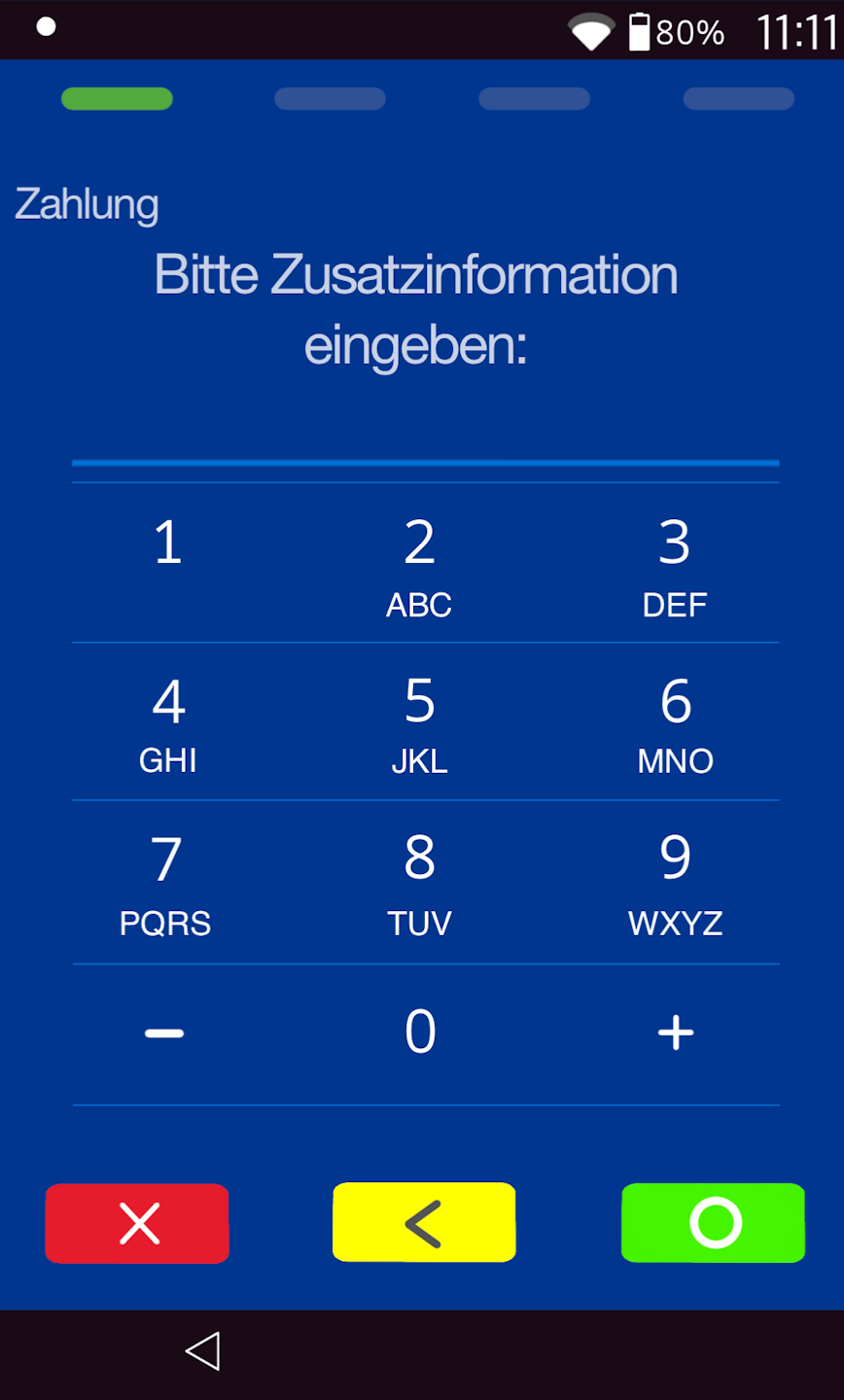
In Fig. 2, you can see how to enter the additional information after entering the payment amount.
Entry of a 21-character alphanumeric string is possible.
Upper and lower case letters appear by tapping multiple times.
Was this article helpful?
That’s Great!
Thank you for your feedback
Sorry! We couldn't be helpful
Thank you for your feedback
Feedback sent
We appreciate your effort and will try to fix the article
