CCV PAX A920 - Detailed POS Report
Modified on Thu, 29 Jan at 11:10 AM

Here you will learn how to activate or deactivate the "Detailed POS Report" function on your CCV PAX A920 card reader.
The detailed POS report shows you all receipt numbers along with the corresponding receipt totals.
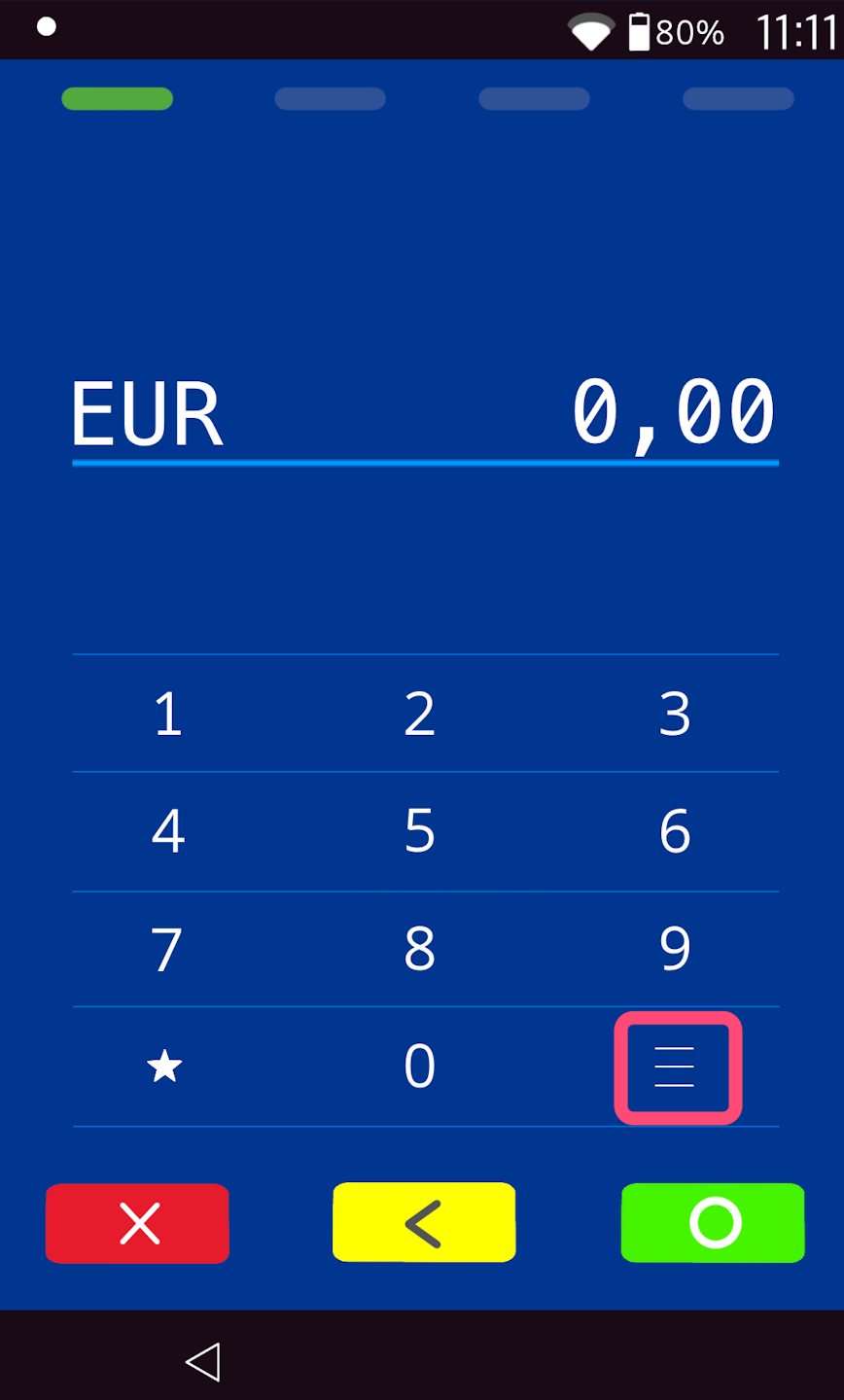
Menu button
Please tap the button with the 3 horizontal lines at the bottom right.
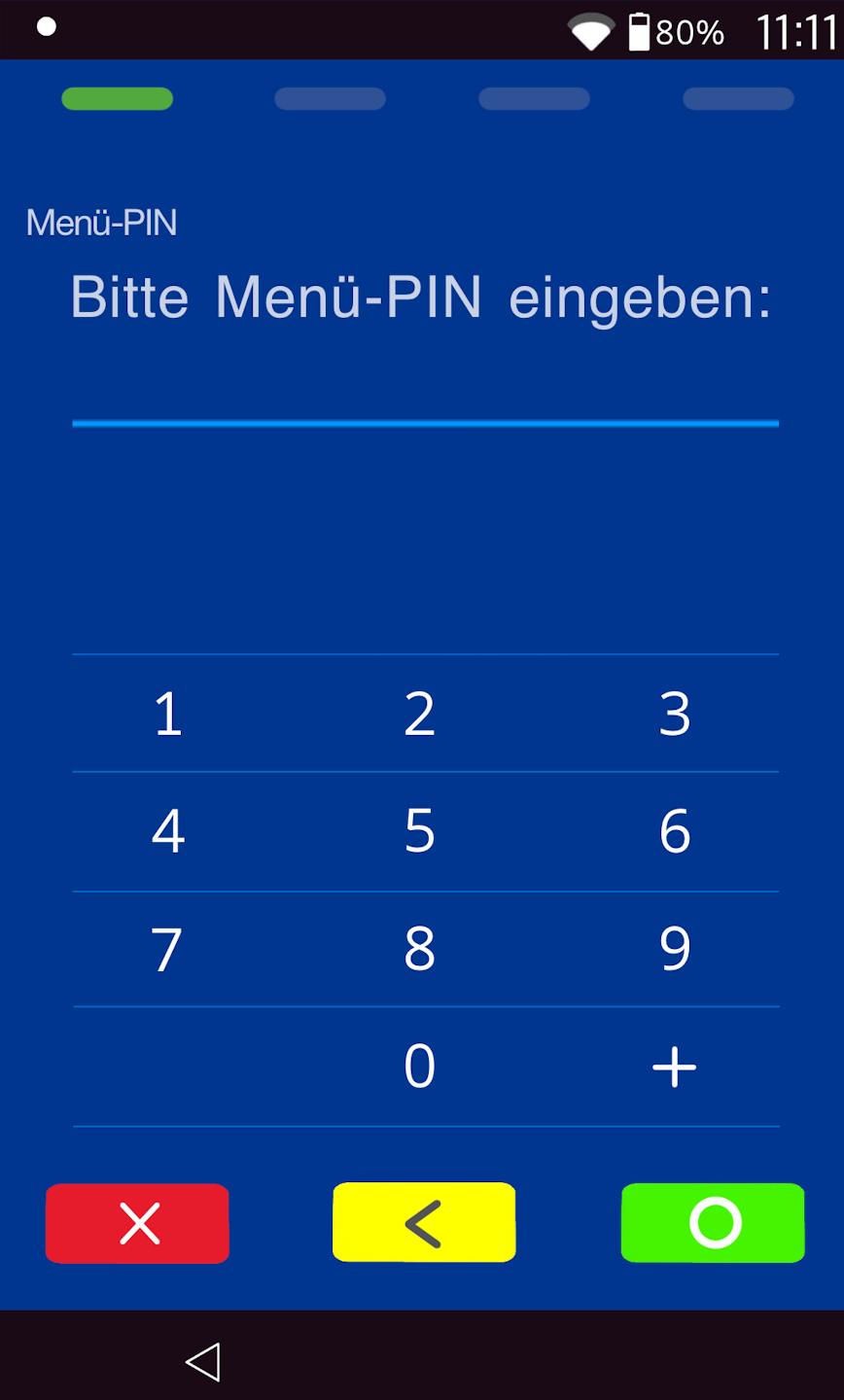
PIN entry
Please now enter your merchant PIN.
You can find the terminal ID on your merchant receipts or on the POS interface.
    Terminal IDs starting with 68xxxxxx: 111111
    Terminal IDs starting with 526xxxxx: 0123
Please confirm the entry by pressing the green OK button.
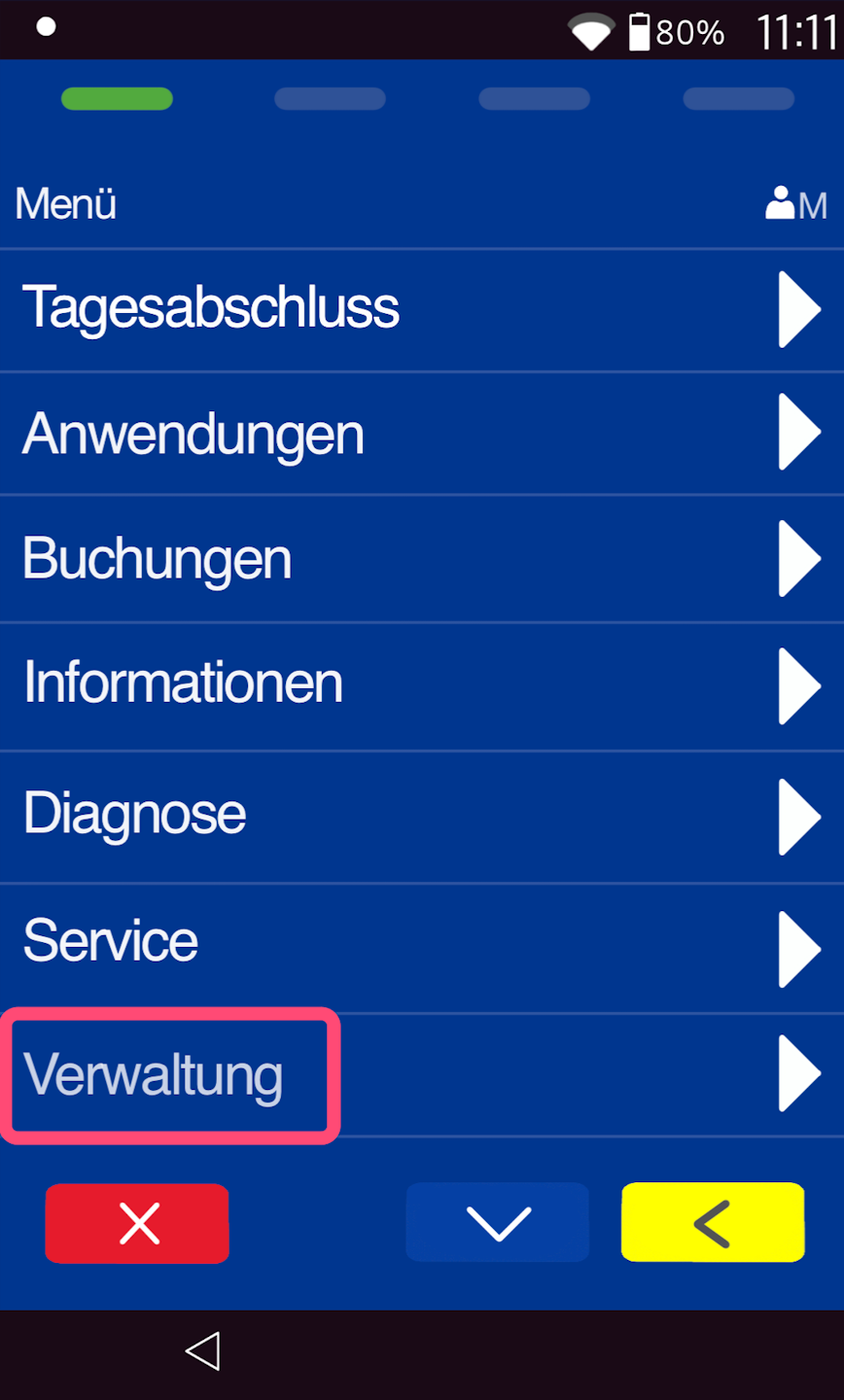
Administration
Please select the "Administration" button.
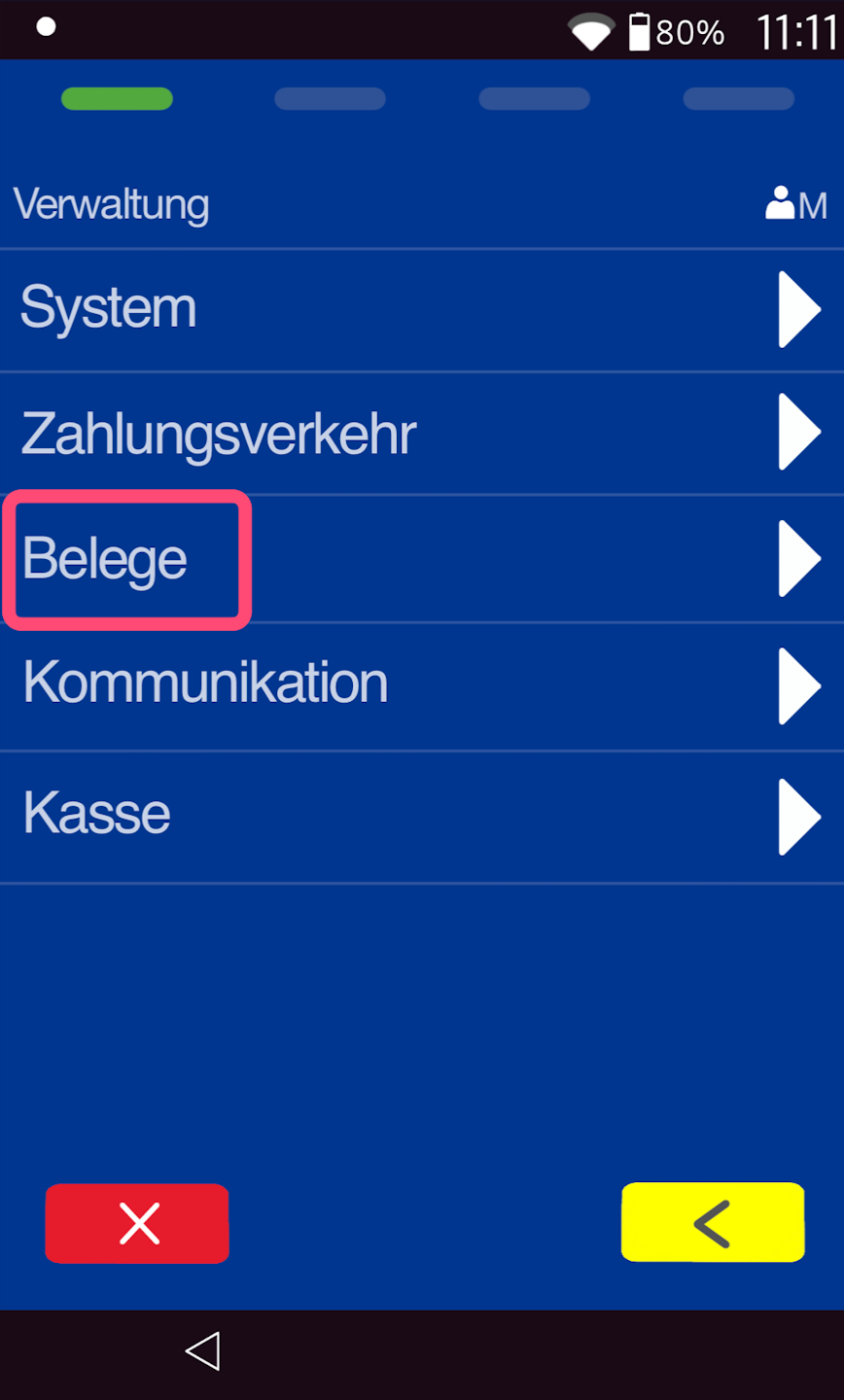
Receipts
Please select the "Receipts" menu item.
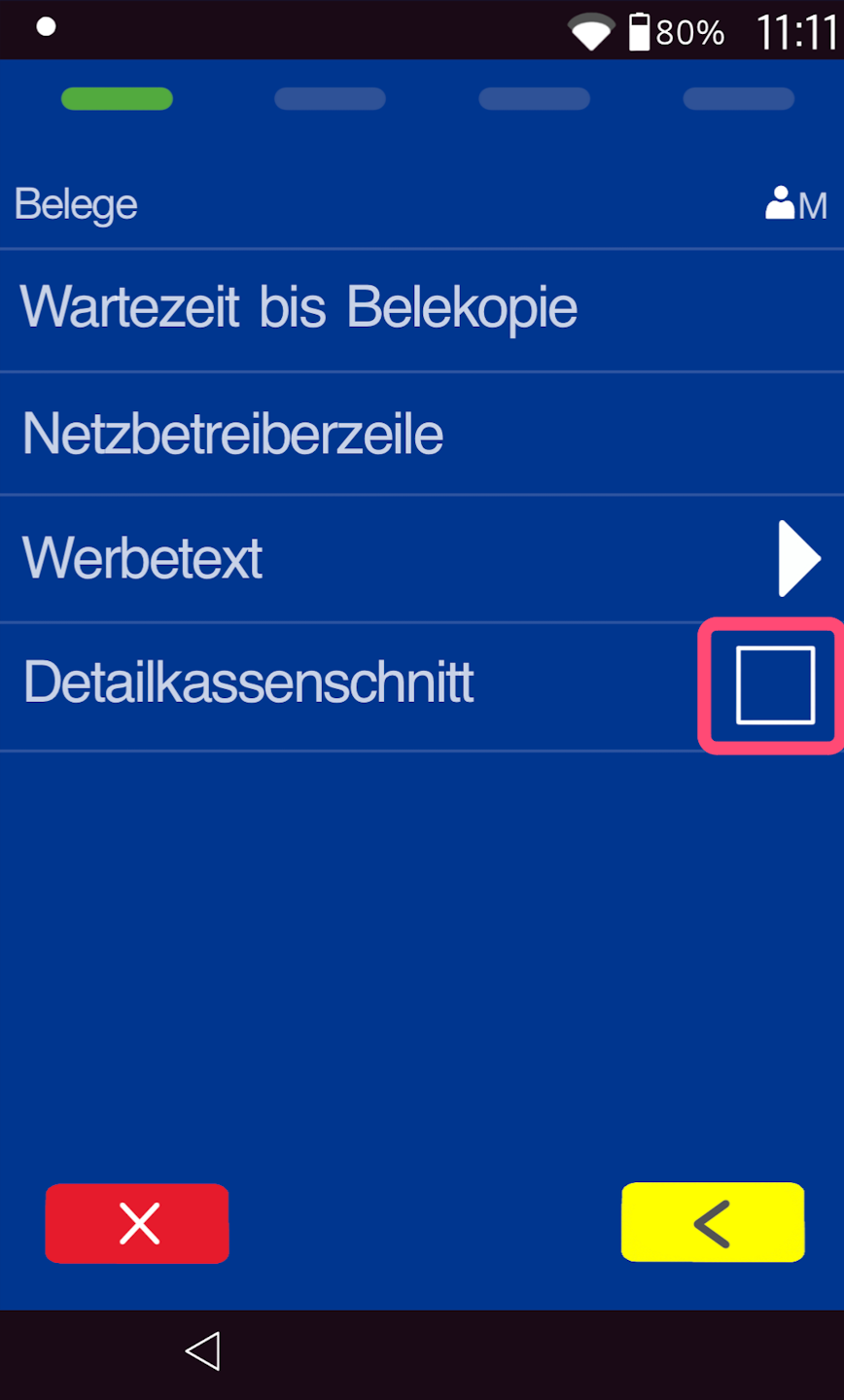
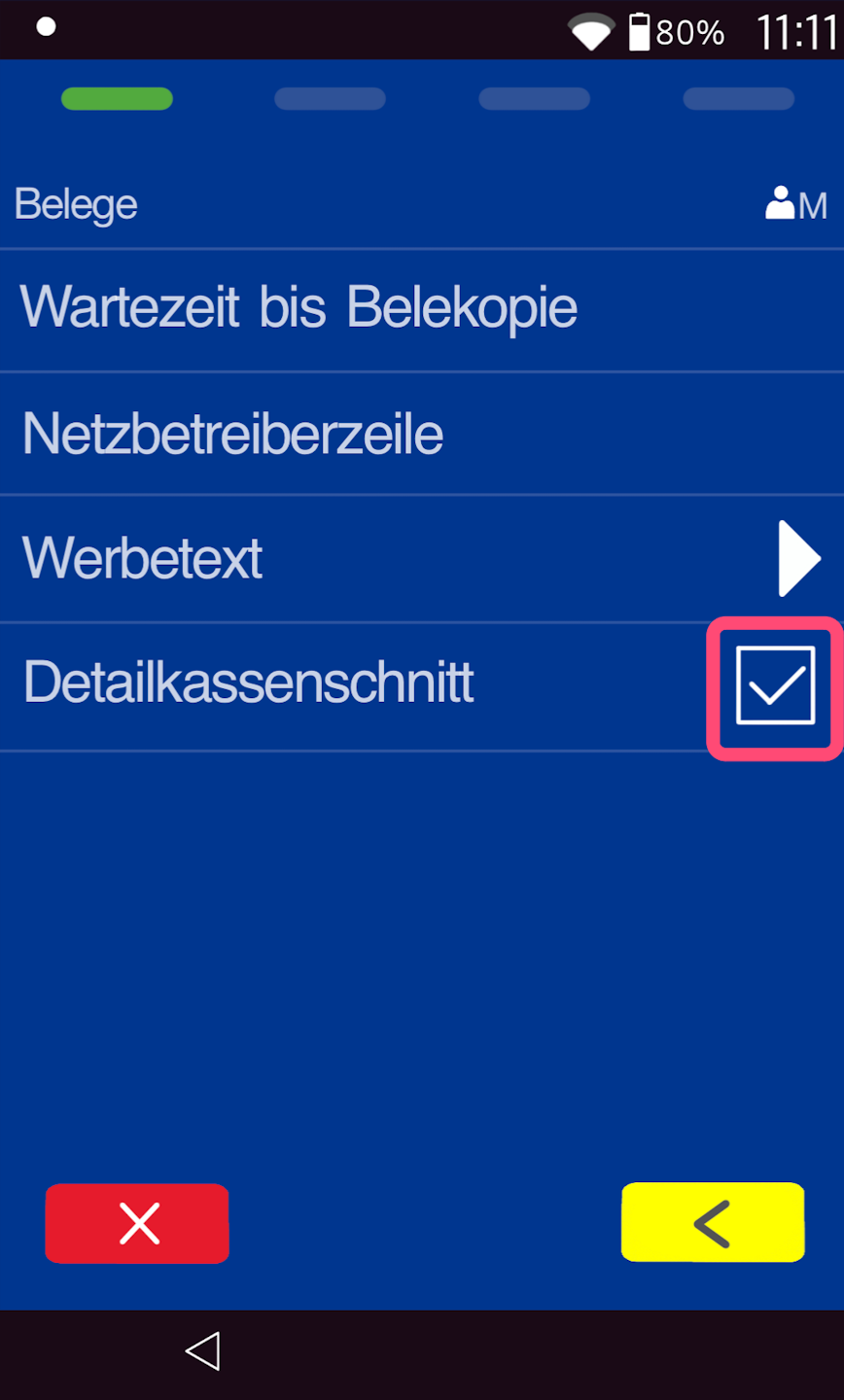
Detailed POS Report Activation / Deactivation
You can activate the detailed POS report by tapping the checkbox. A checkmark will now appear. The detailed POS report is activated (Fig. 2).
If you wish to deactivate the detailed POS report, simply tap the checkbox again. The checkmark will be removed.
Was this article helpful?
That’s Great!
Thank you for your feedback
Sorry! We couldn't be helpful
Thank you for your feedback
Feedback sent
We appreciate your effort and will try to fix the article
