CCV PAX A920 - Setting up your POS system connection
Modified on Wed, 4 Feb at 9:09 AM
In this tutorial, we would like to show you how to set up your CCV PAX A920 for POS system integration with your cash register system.
When you first set up your CCV PAX A920 card reader, the POS interfaces ZVT and OPI are already activated in the default configuration. We recommend that you do not change these ports.
The following POS ports are permanently assigned:
TIDs starting with 68xxxxxx
ZVT – Port 20011 (TCP/IP)
OPI – Port 20002 (Terminal port) Port 20007 (POS port) – (TCP/IP)
TIDs starting with 526xxxxx
ZVT – Port 20007 (TCP/IP)
OPI – Port 20002 (Terminal port) Port 20007 (POS port) – (TCP/IP)
Please inform your POS system provider of the port to be used so that your system can transmit the payment amount to the card reader.
Output display
1) 2)
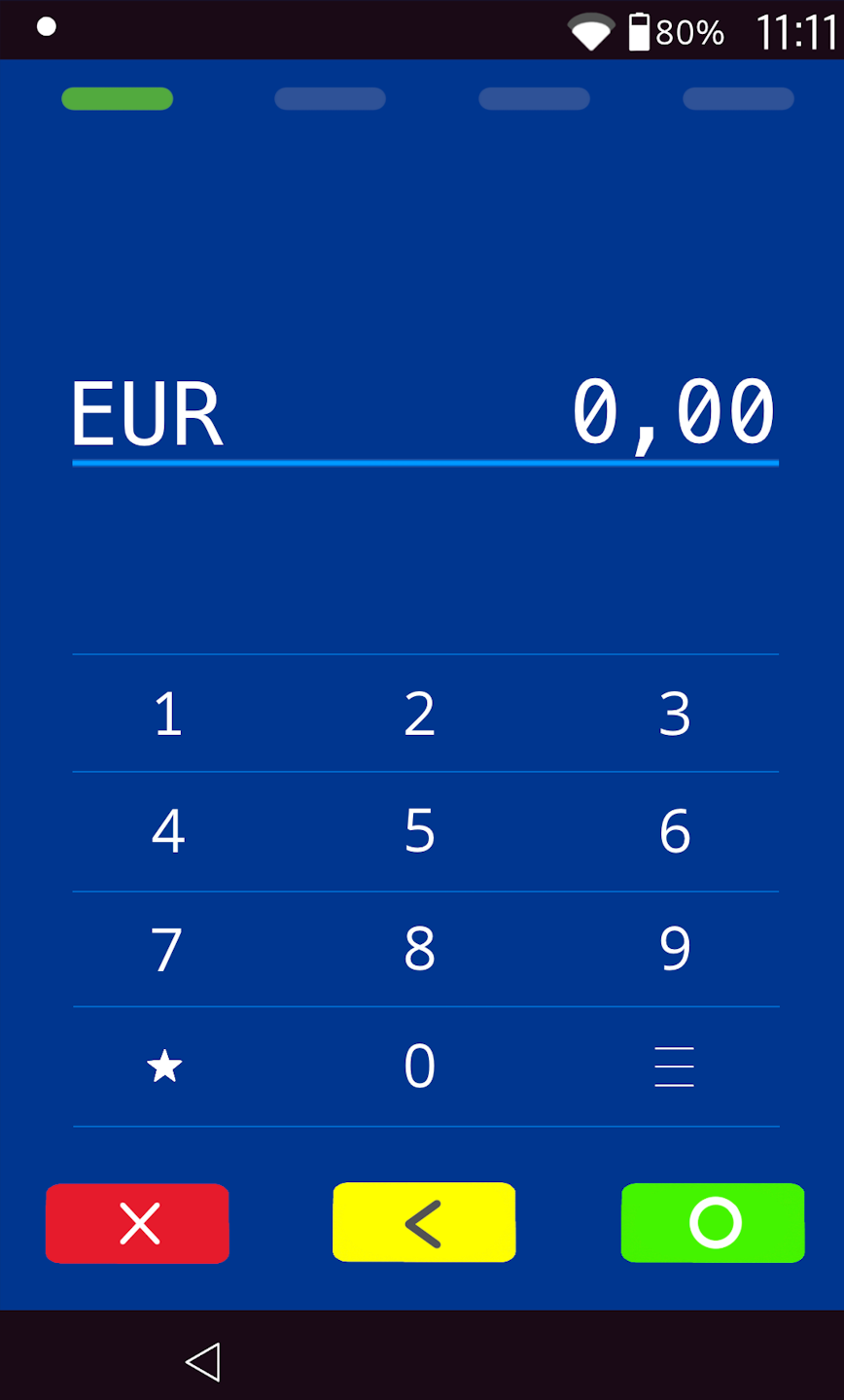
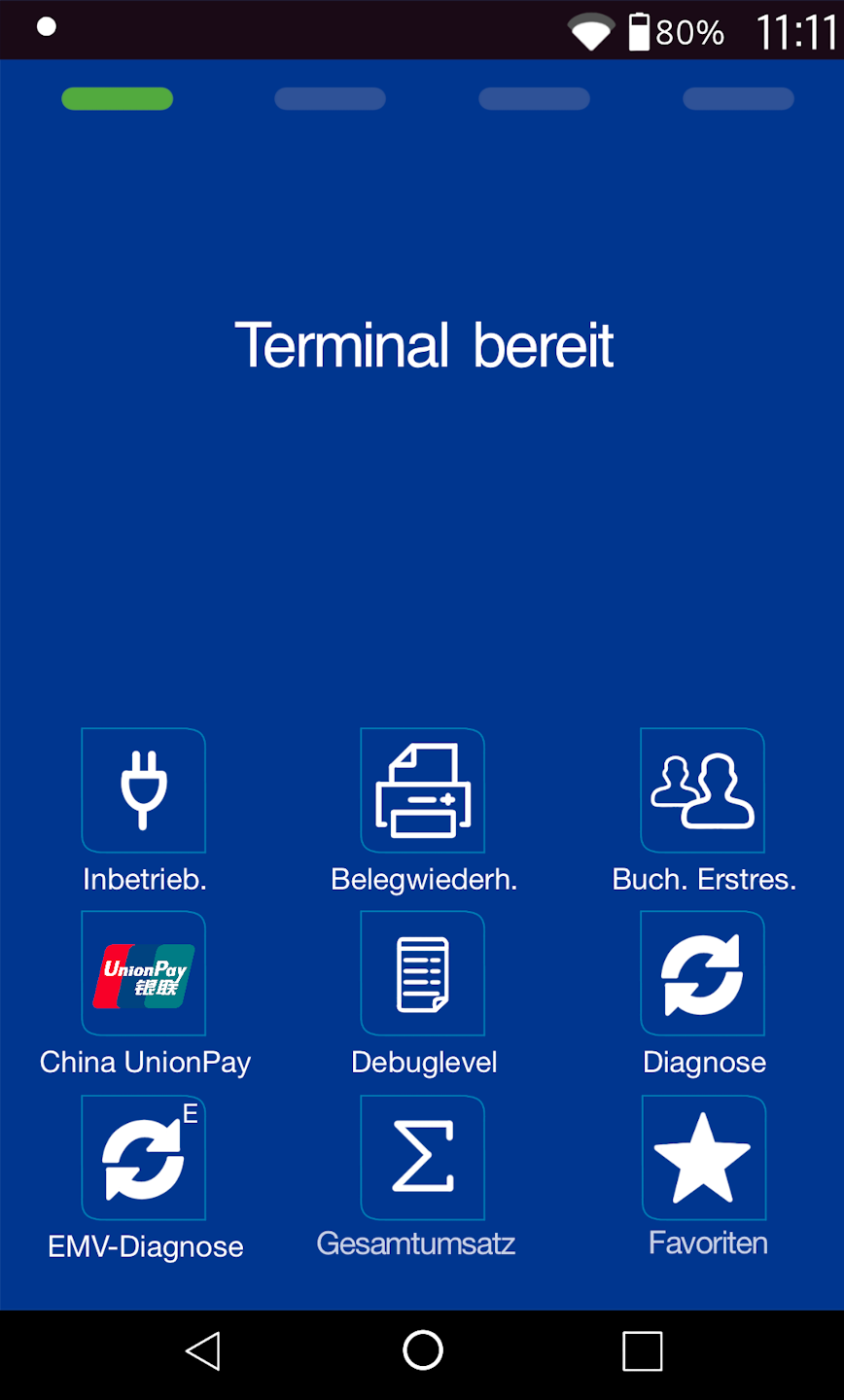
If you see display 1)
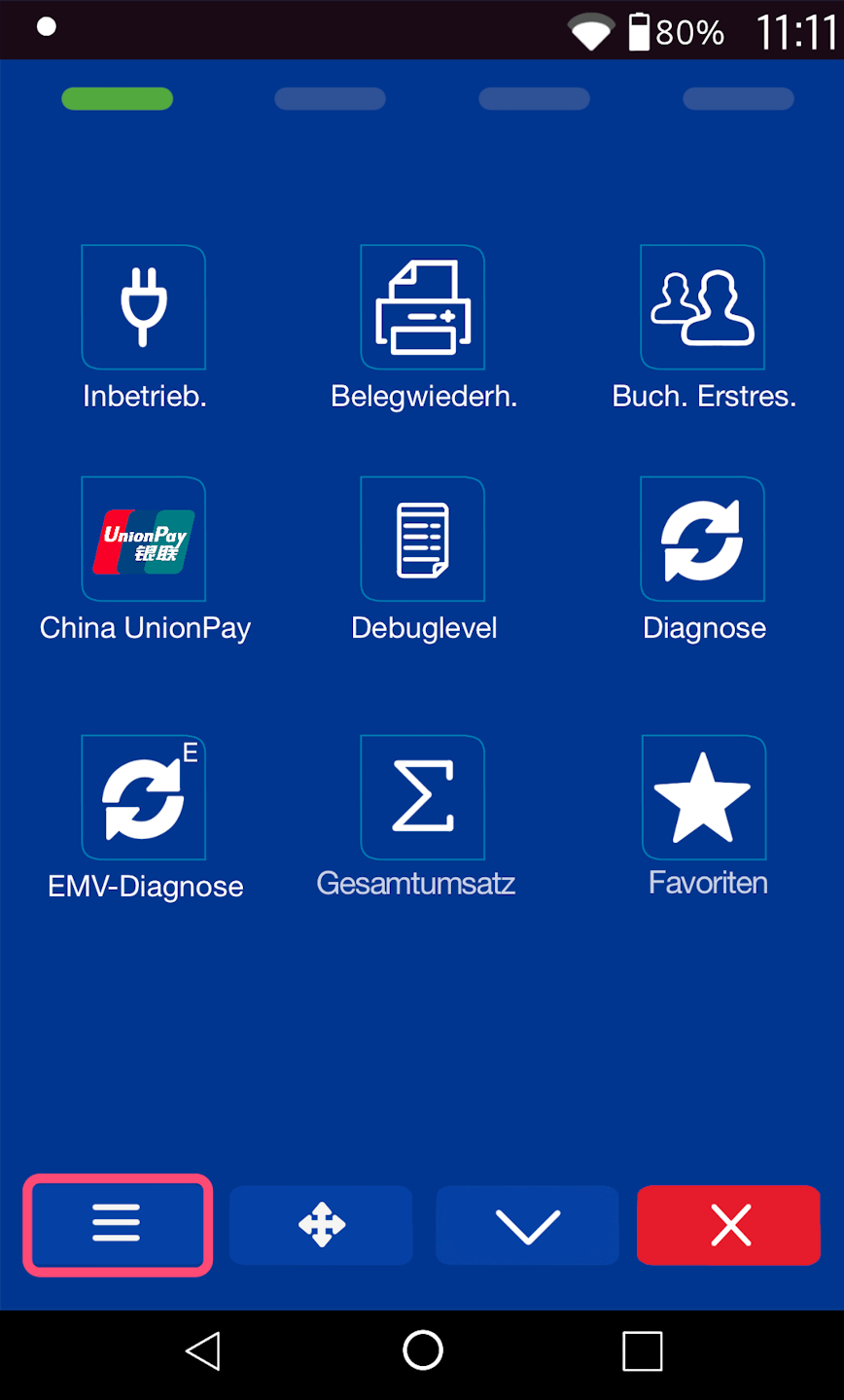
Menu button: please select the three horizontal lines at the bottom right to access the main menu, and continue to PIN Entry.
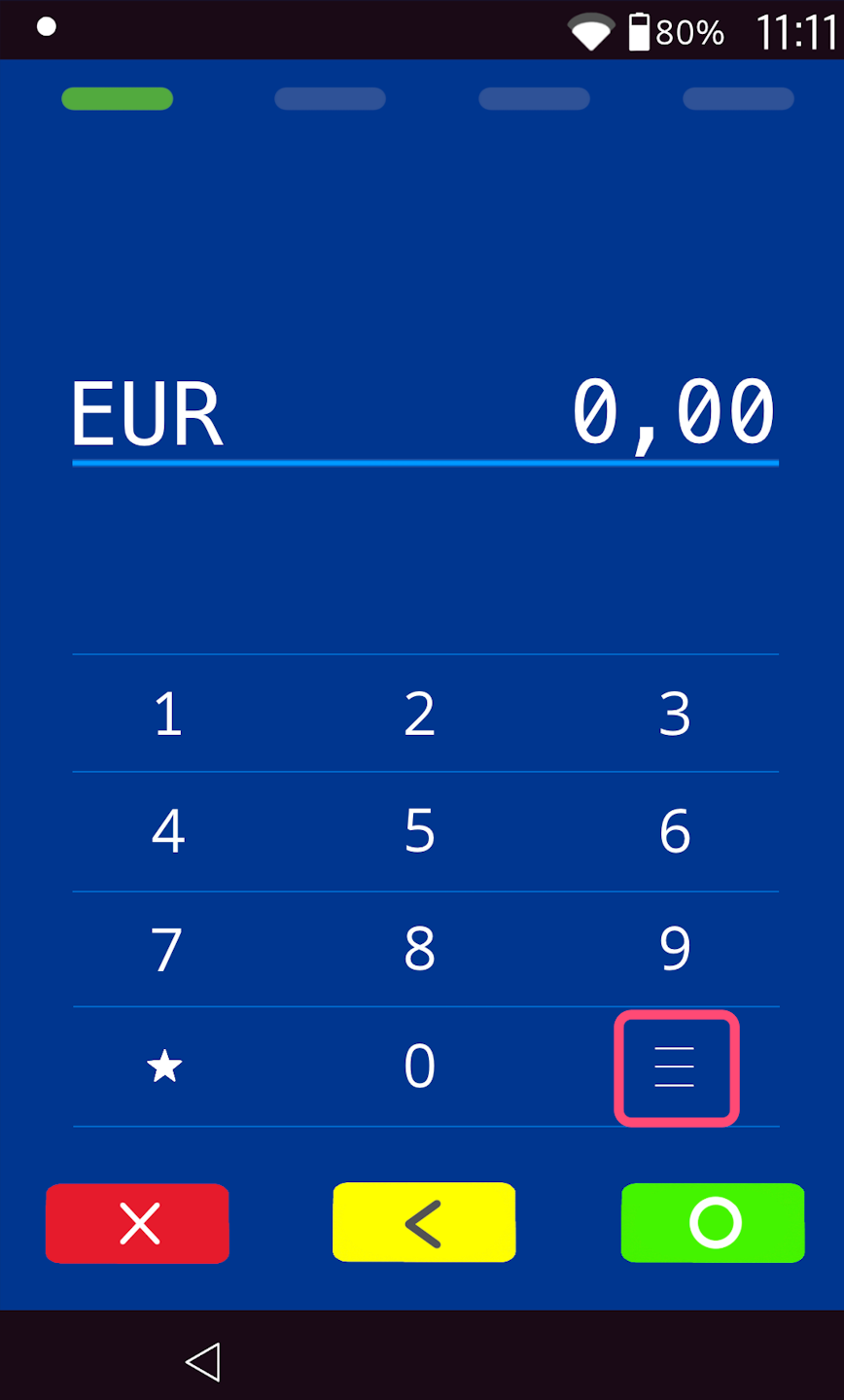
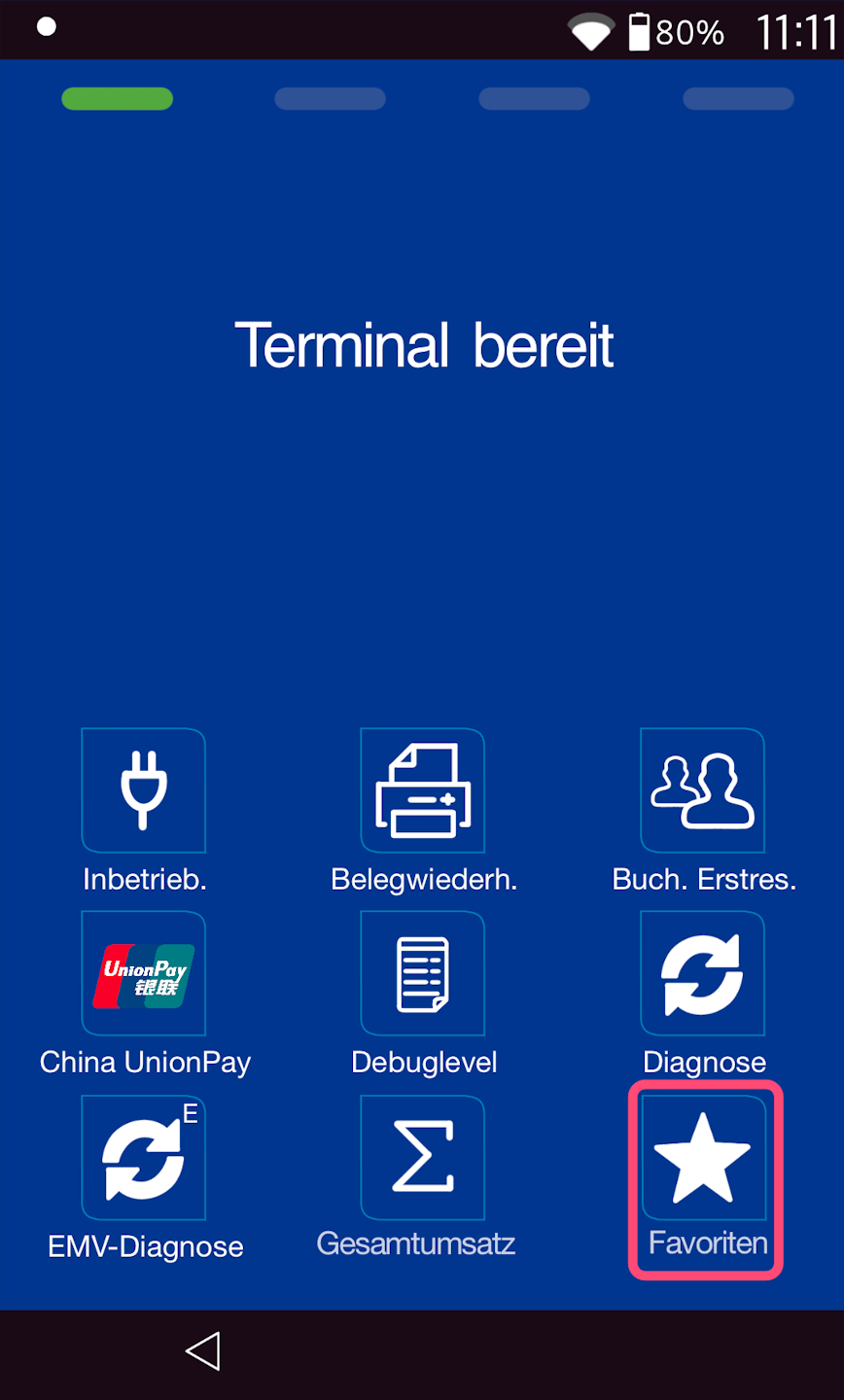
If you see display 2)
Favorites button
In Fig. 1 you can see your output display.
Please select the "Favorites" menu item.
Then, as shown in Fig. 2, select the main menu button.
PIN entry
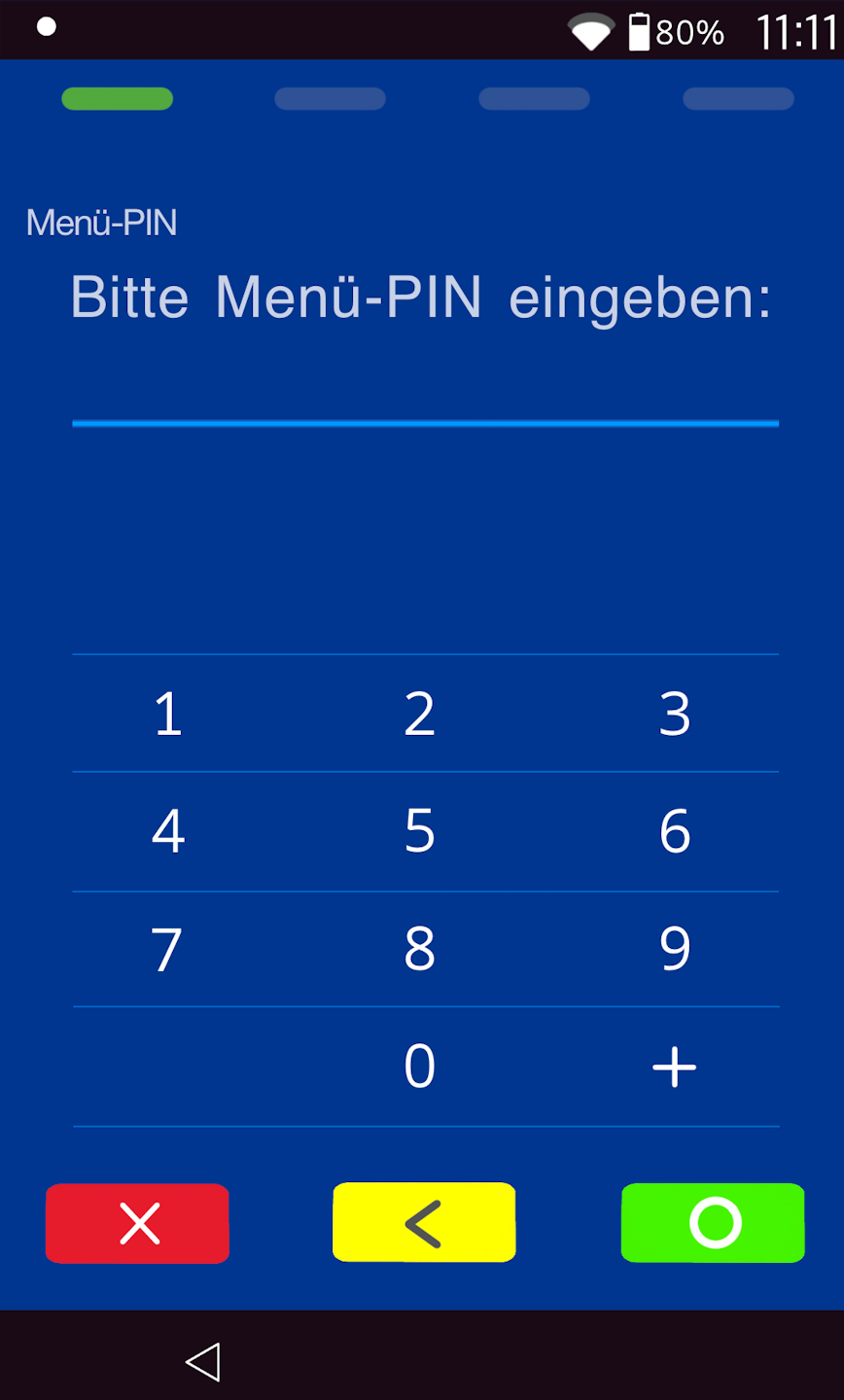
Please now enter your merchant PIN.
You can find the terminal ID on your merchant receipts or on the POS interface.
- Terminal IDs starting with 68xxxxxx: 111111
- Terminal IDs starting with 526xxxxx: 0123
Please confirm the entry by pressing the green OK button.
Menu structure
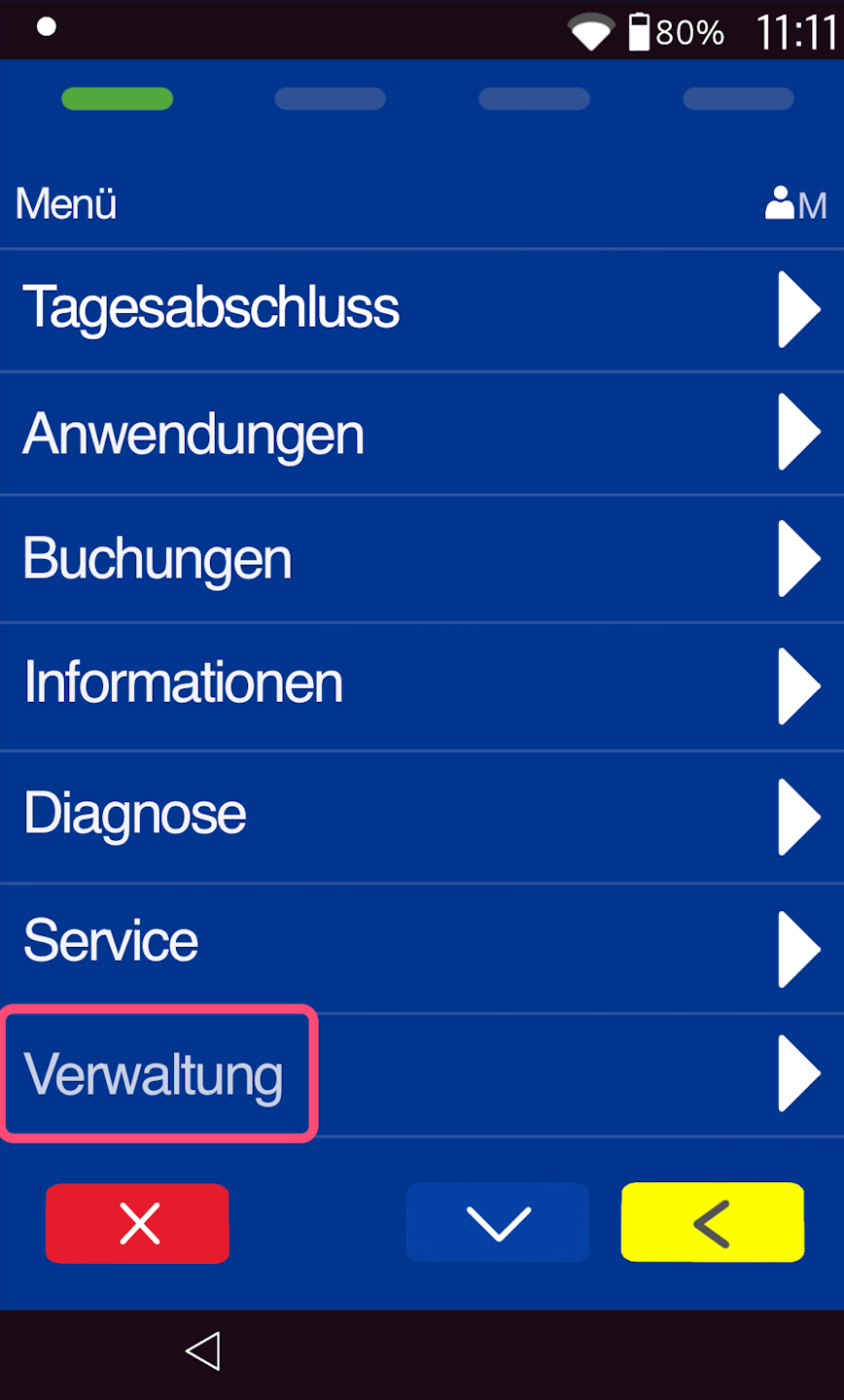
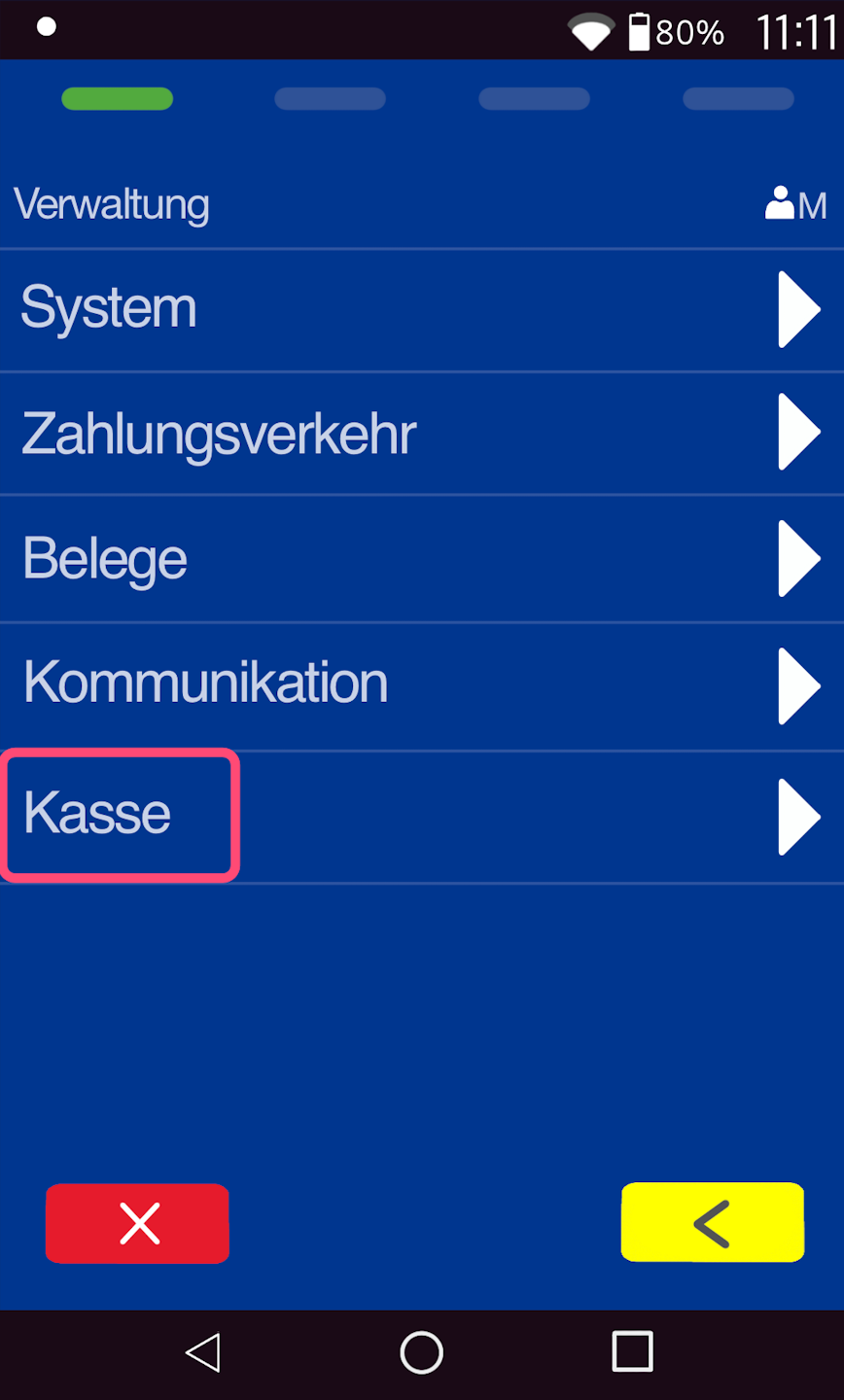
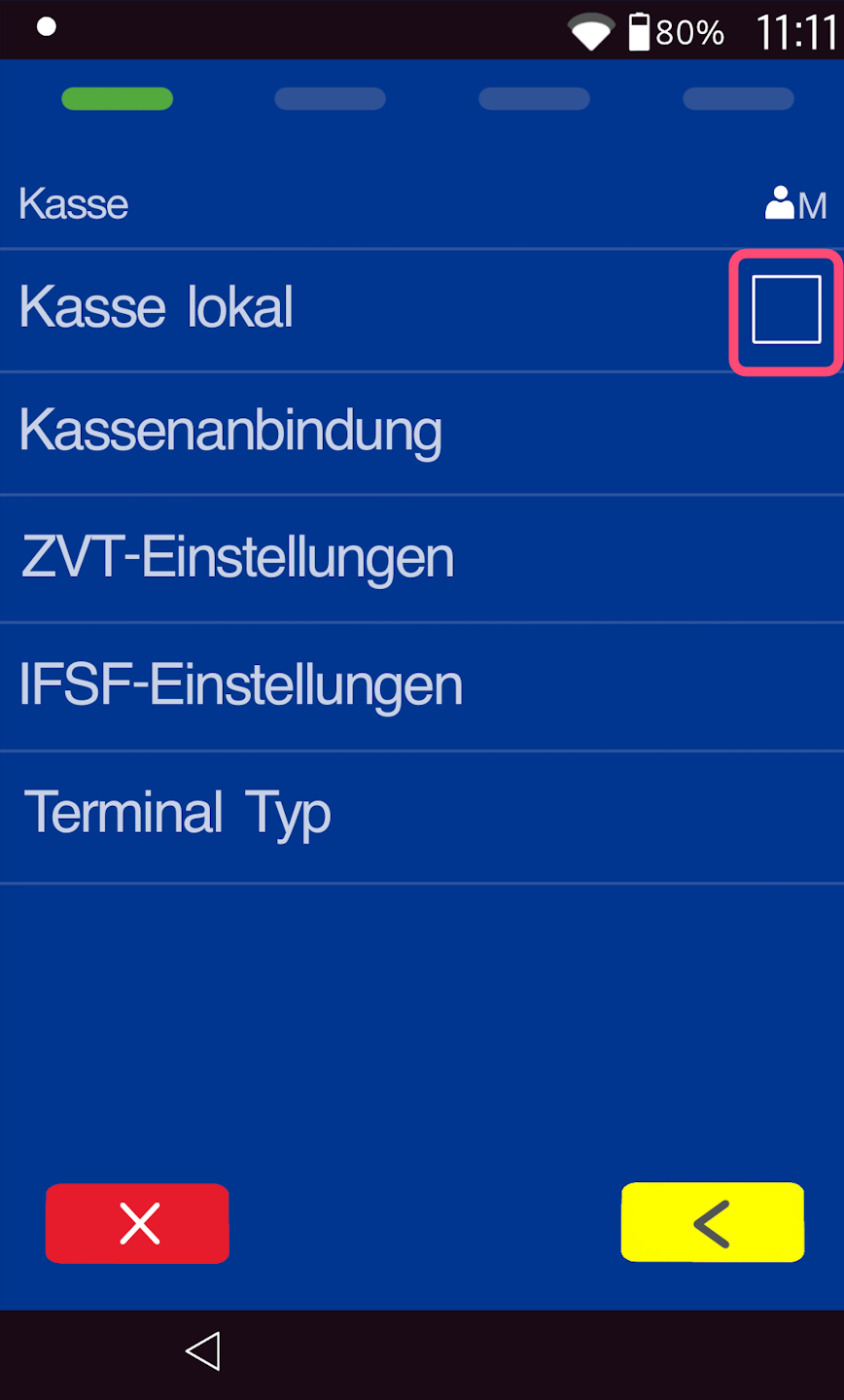
Please navigate, as shown in Fig. 1, to the menu item "Administration" and then to the menu item "POS" (Fig. 2).
Local POS
By deactivating the "Local POS" menu item, manual amount entry is no longer possible. You will only see "Terminal ready" on the display.
If you still wish to enter amounts manually, please keep "Local POS" activated.
Select by tapping
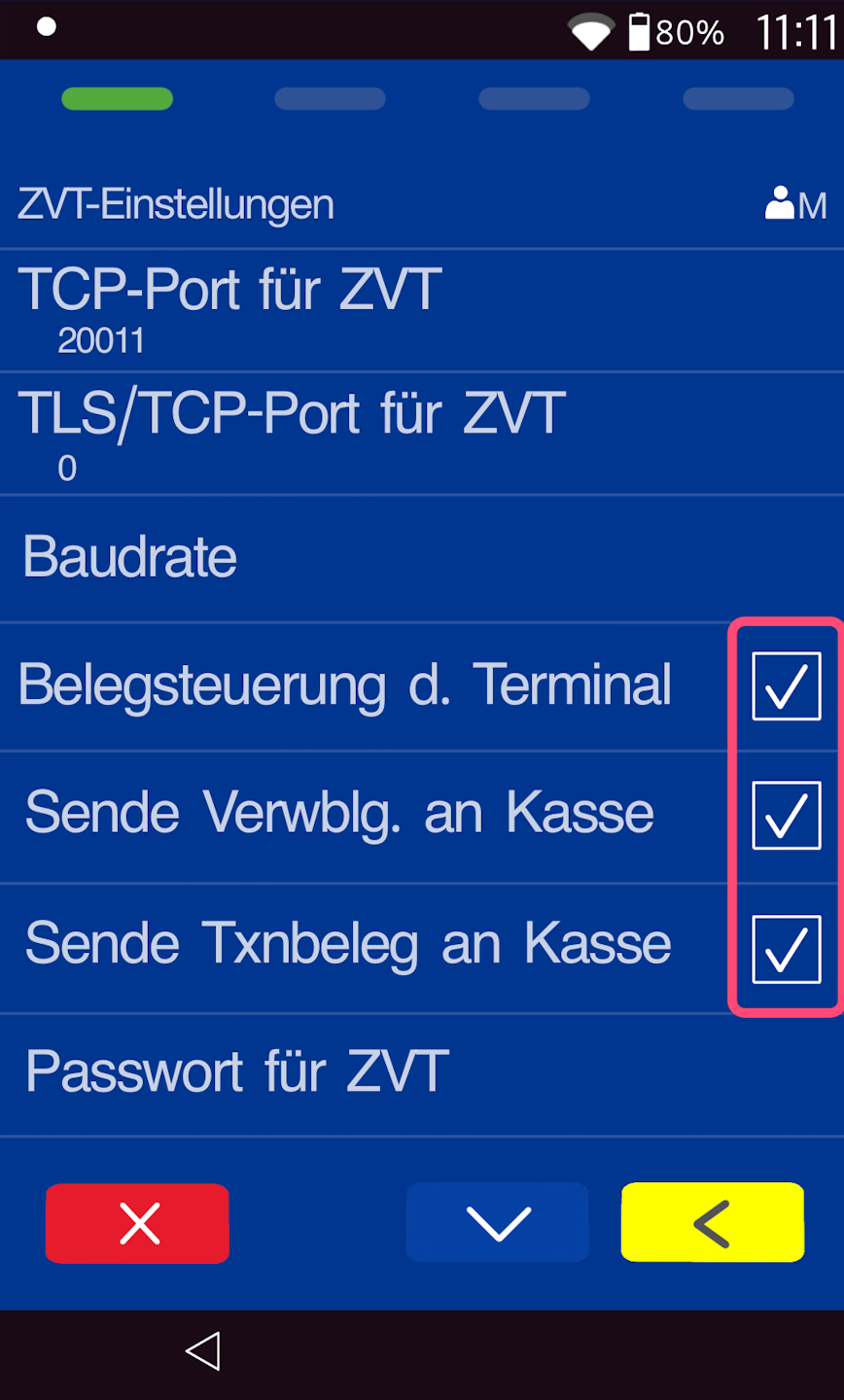
Receipt control
To print all receipts via the POS printer, please check the following boxes in the "ZVT Settings" menu item.
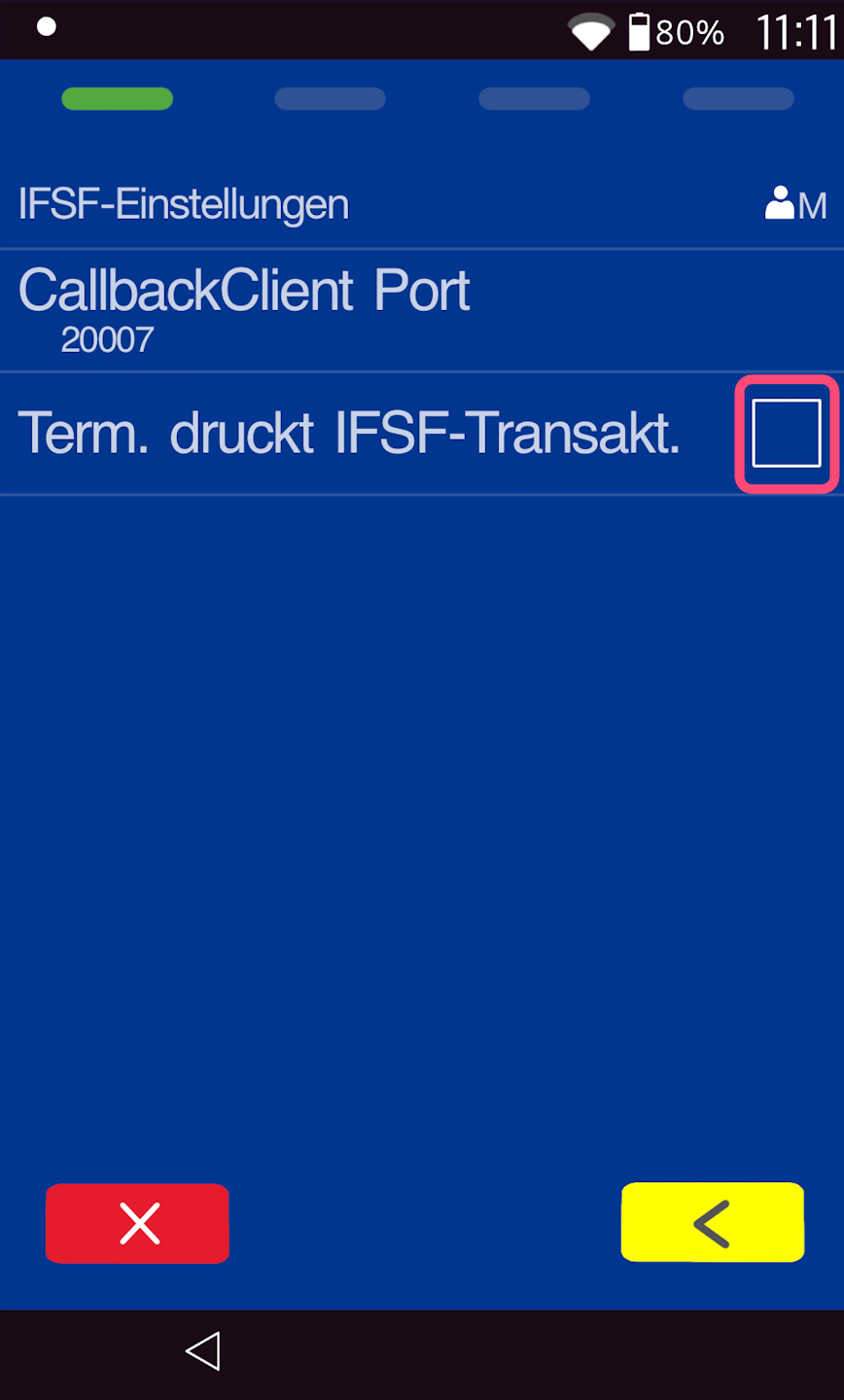
IFSF Settings
Please navigate to the "IFSF Settings" menu item.
Please deactivate the checkbox for "Term. prints IFSF transaction."
Use the yellow correction button again to return to the previous menu.
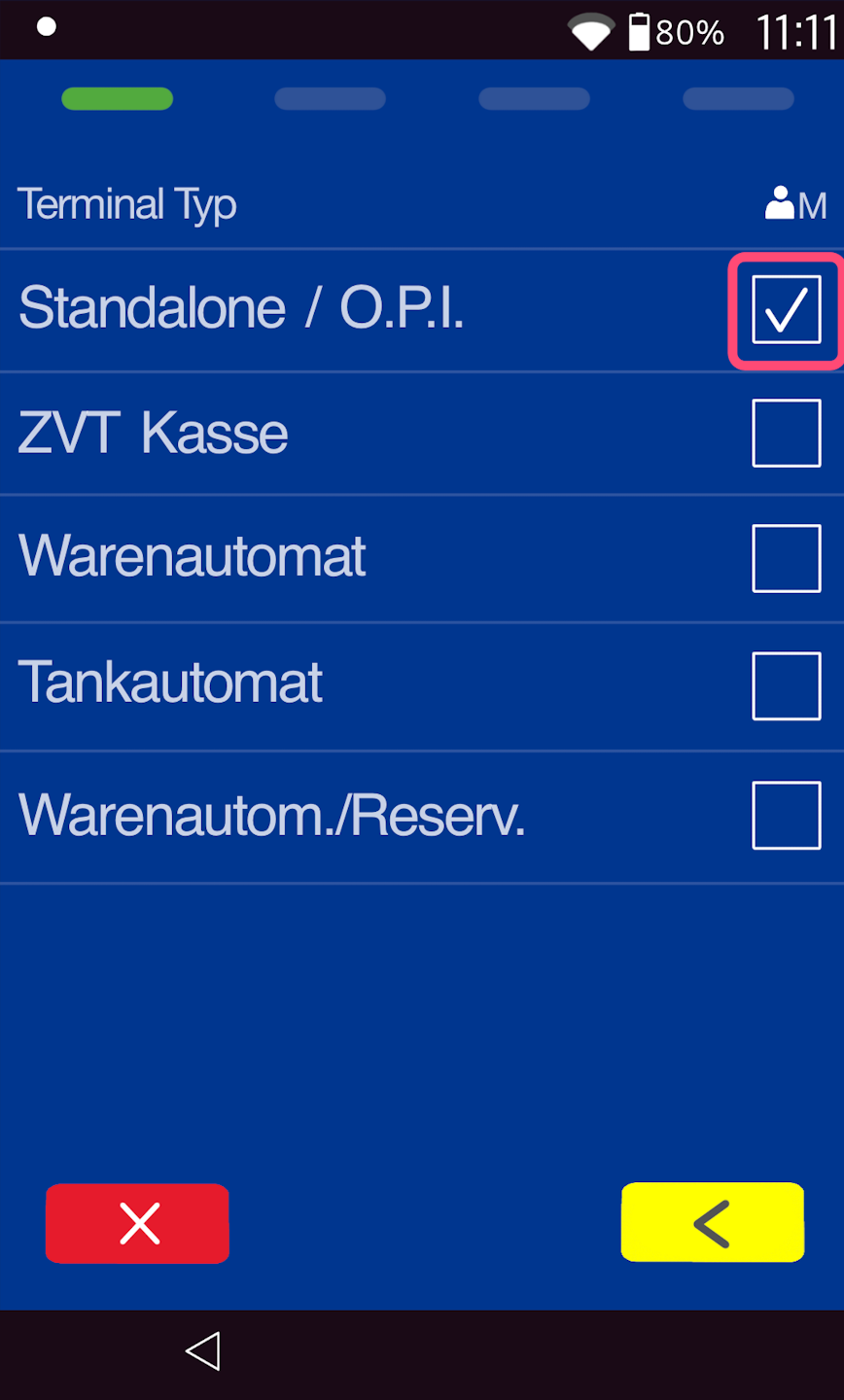
Terminal type
Please select the last menu item "Terminal Type".
Activate "Standalone / O.P.I." by checking the box.
Press the red stop button to return to your output display.
The card reader is now set up for your POS system connection.
To now integrate the card reader into the Tillhub POS system, feel free to use the "Tillhub Setup" button.
We have also provided an instructional video, which you can view via the "Tillhub Video" button.
Was this article helpful?
That’s Great!
Thank you for your feedback
Sorry! We couldn't be helpful
Thank you for your feedback
Feedback sent
We appreciate your effort and will try to fix the article
