Label printer (Windows)
Modified on Mon, 8 Jun at 9:55 AM
TABLE OF CONTENTS
If your company wants to add custom labels to your products, you can do this using the dashboard and the Zebra ZD421d printer. This article shows you step by step how to print your own labels. Green-highlighted areas (in the original guide) indicate the referenced features or buttons. Before we begin, please download “Zebra Setup Utilities for Windows” and “Zebra Browser Print”.
Note:
We use Google Chrome throughout this guide. Behavior may differ in other browsers.
Configure the printer
- Connect your printer to your PC via USB. It will install automatically.
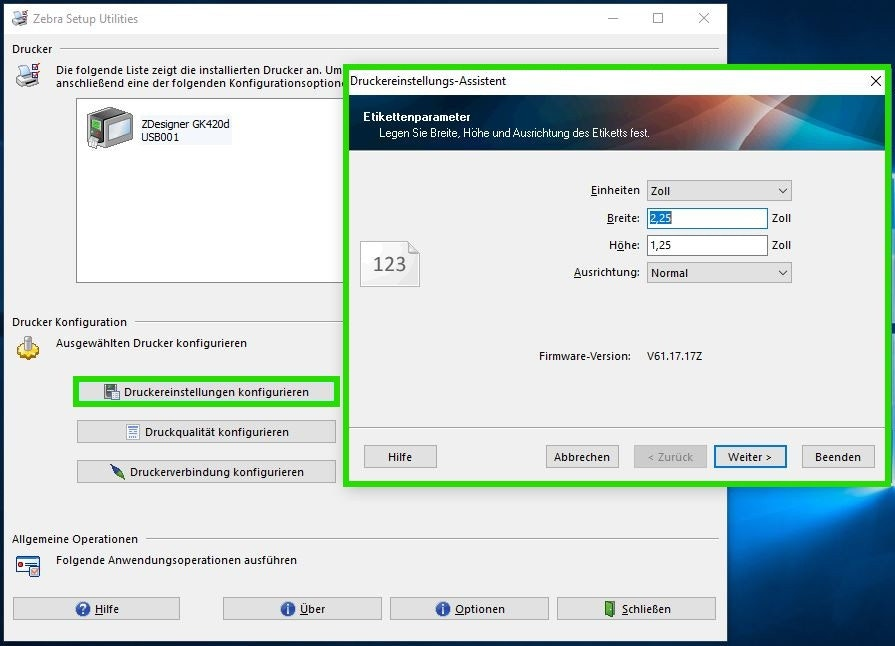
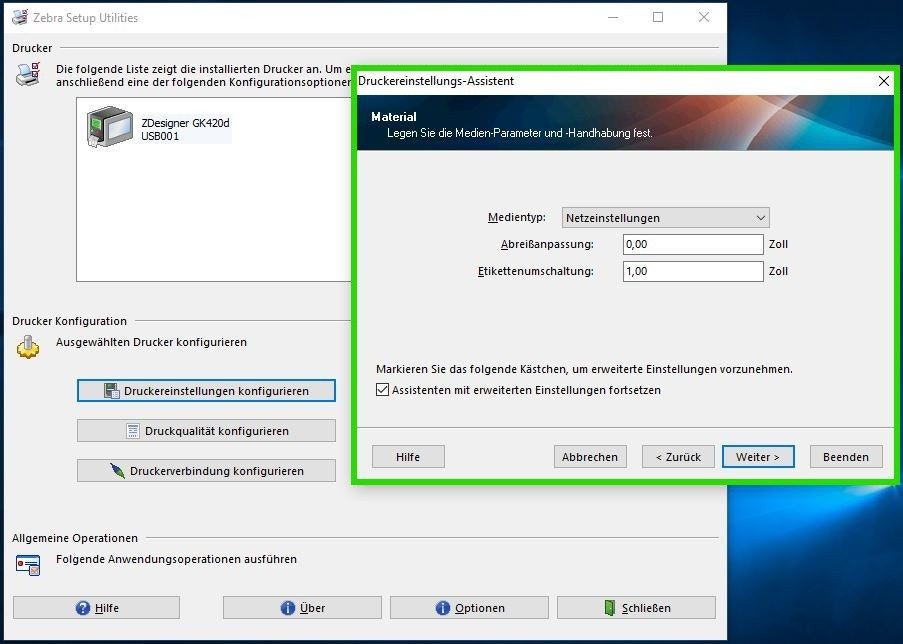
- Then open Zebra Setup Utilities. In the window that opens, click “Configure Printer Settings” and apply the values shown in the screenshots.
- Confirm your changes by clicking “Finish”.
- You can now close the program.
Select items to label
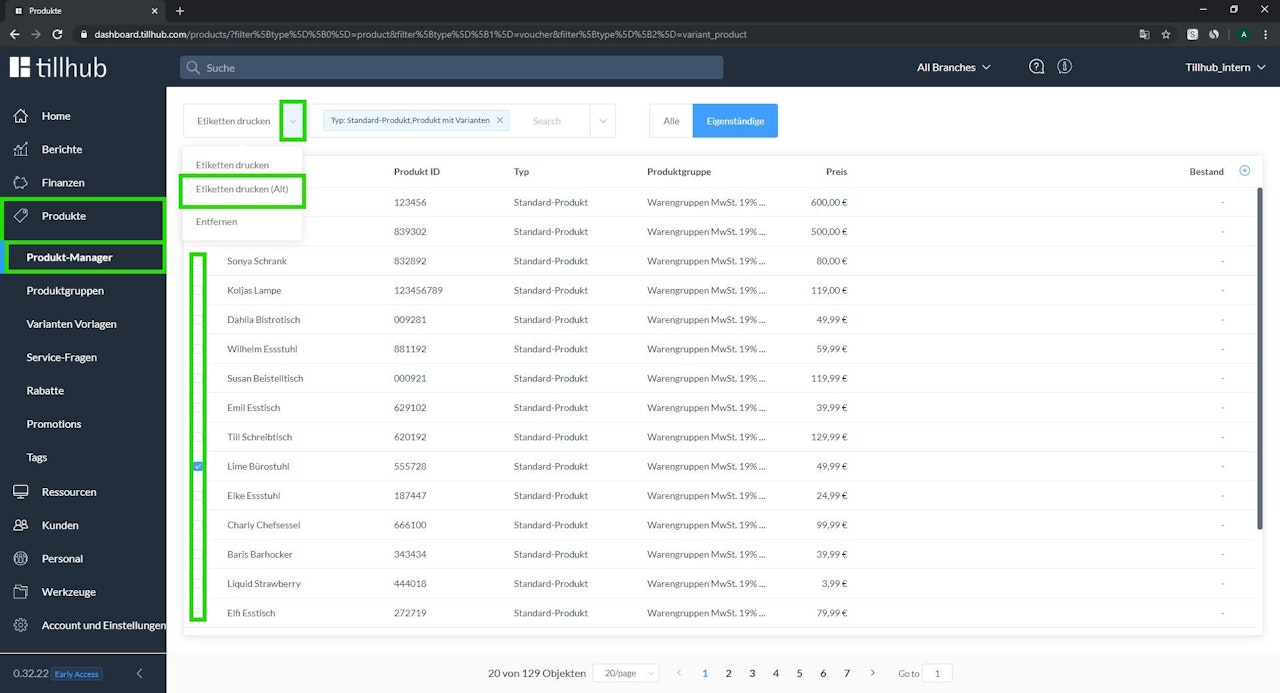
- Open the dashboard and go to “Products – Product Manager”.
- Check the items you want to print labels for and click the arrow to the right of “Print labels”. Then choose “Print labels (old)”.
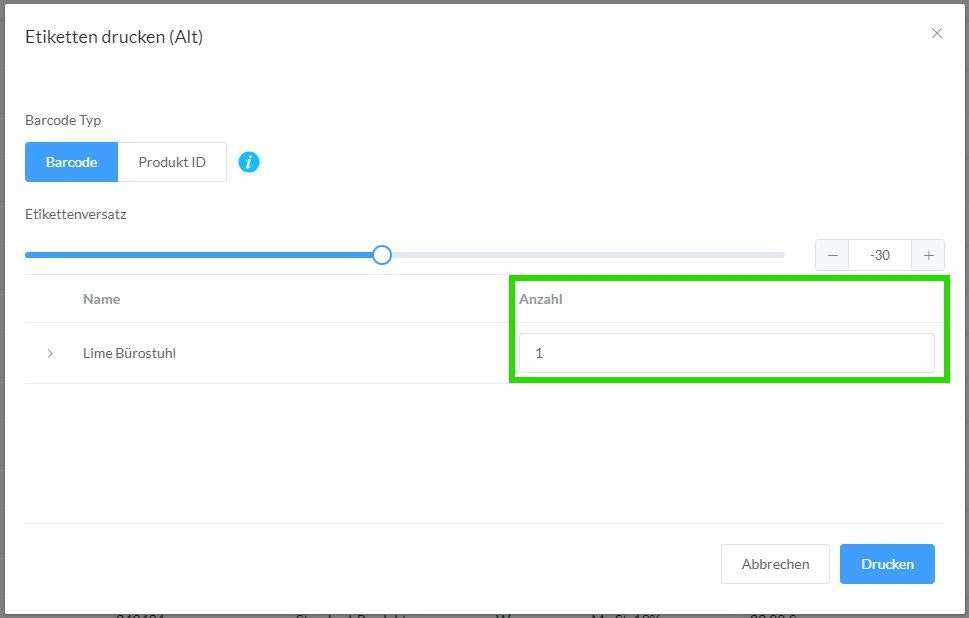
- A small pop-up opens where you can select the barcode type and the number of labels to print. If the barcode prints offset on the label, adjust the position using “Label offset”.
- Click “Print”.
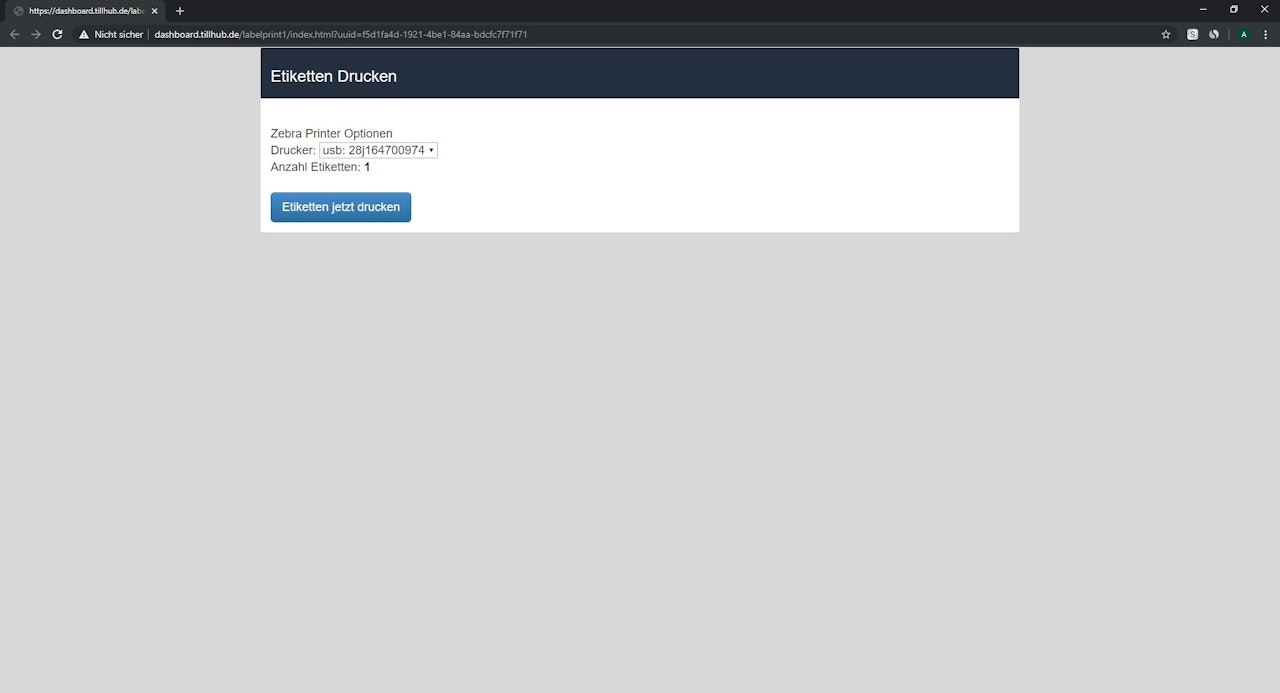
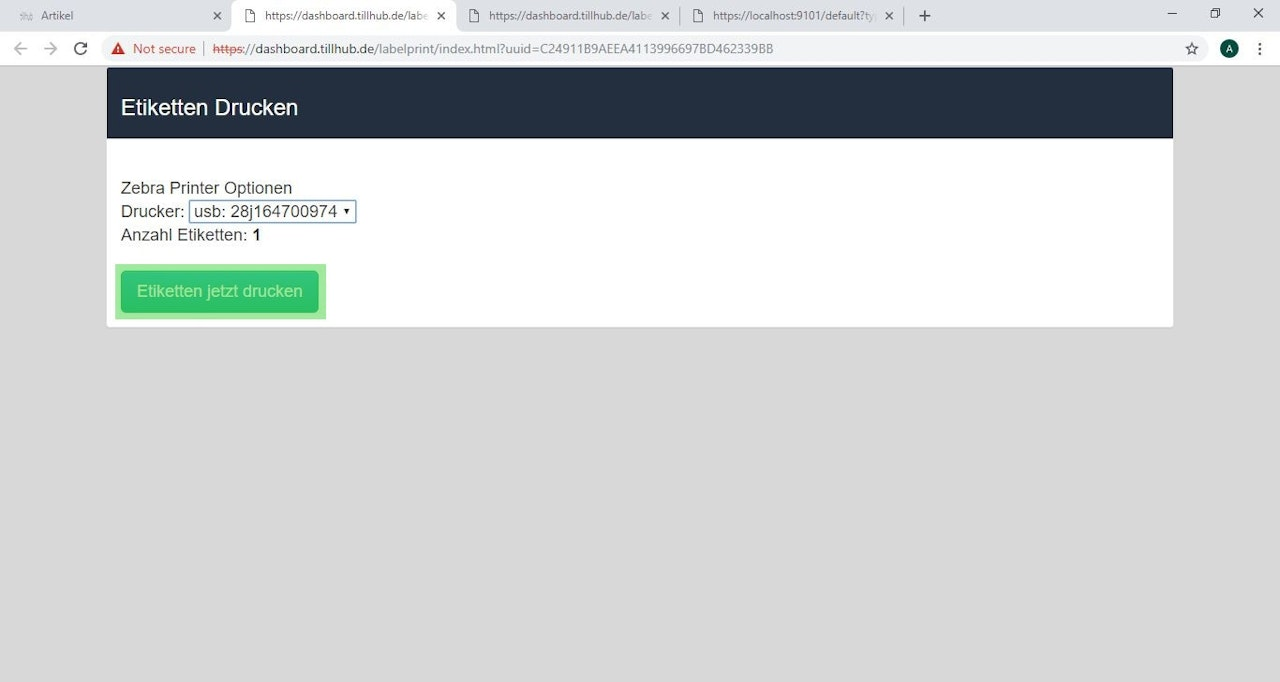
- A new browser window opens. Click “Print labels now”.
Note:
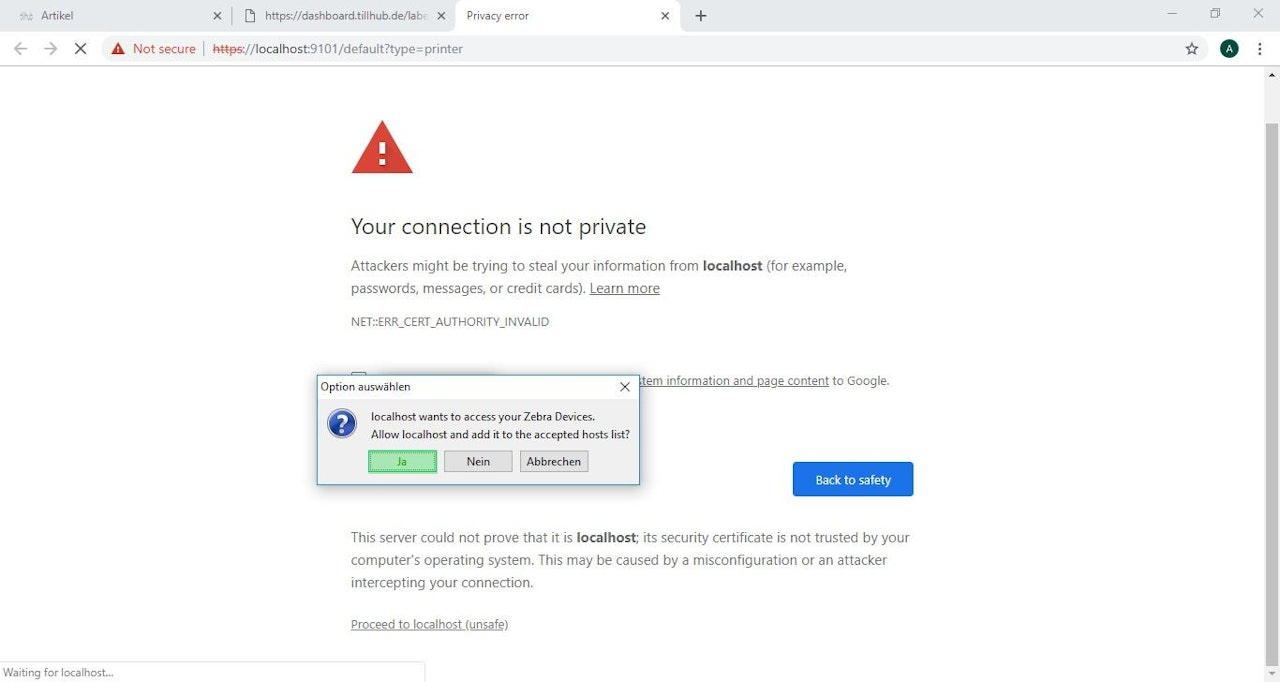
The first time, a window will appear indicating an error. This occurs only on your first print attempt. The steps below show how to bypass this message.
Bypass the error message
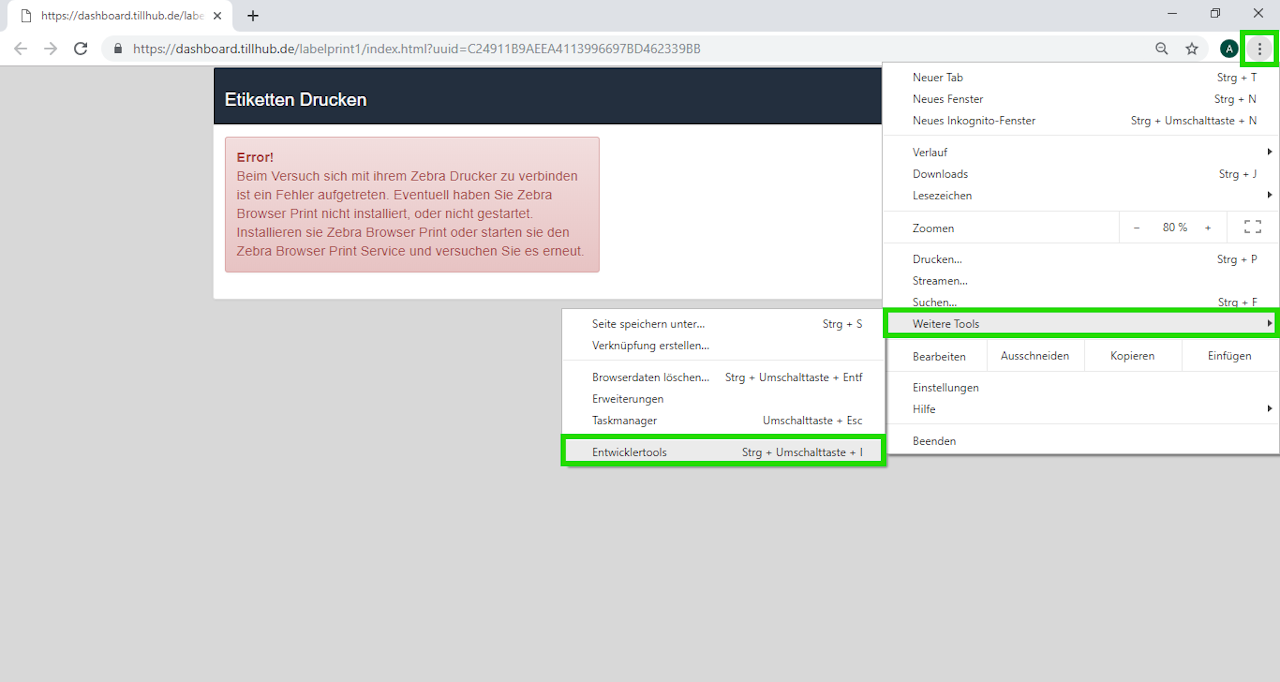
- Open the Chrome menu and go to “More tools – Developer tools”.
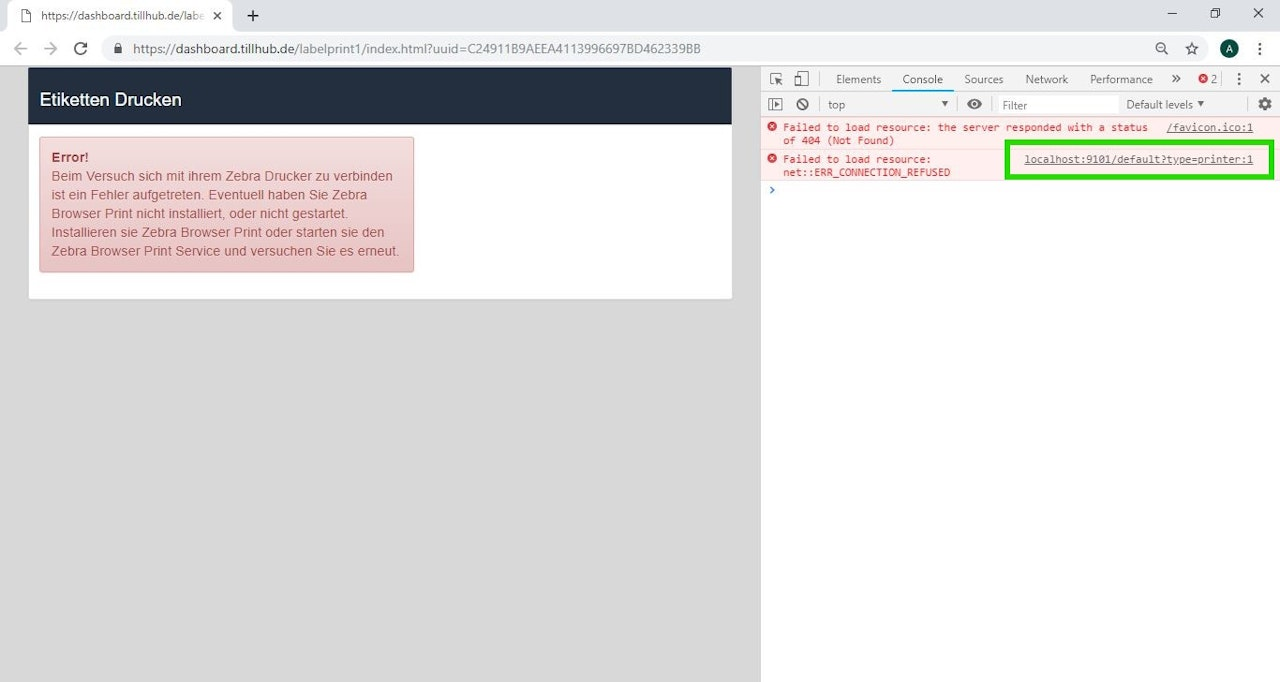
- A panel opens in the browser. Click the text section “localhost:________”. This will take you to another page.
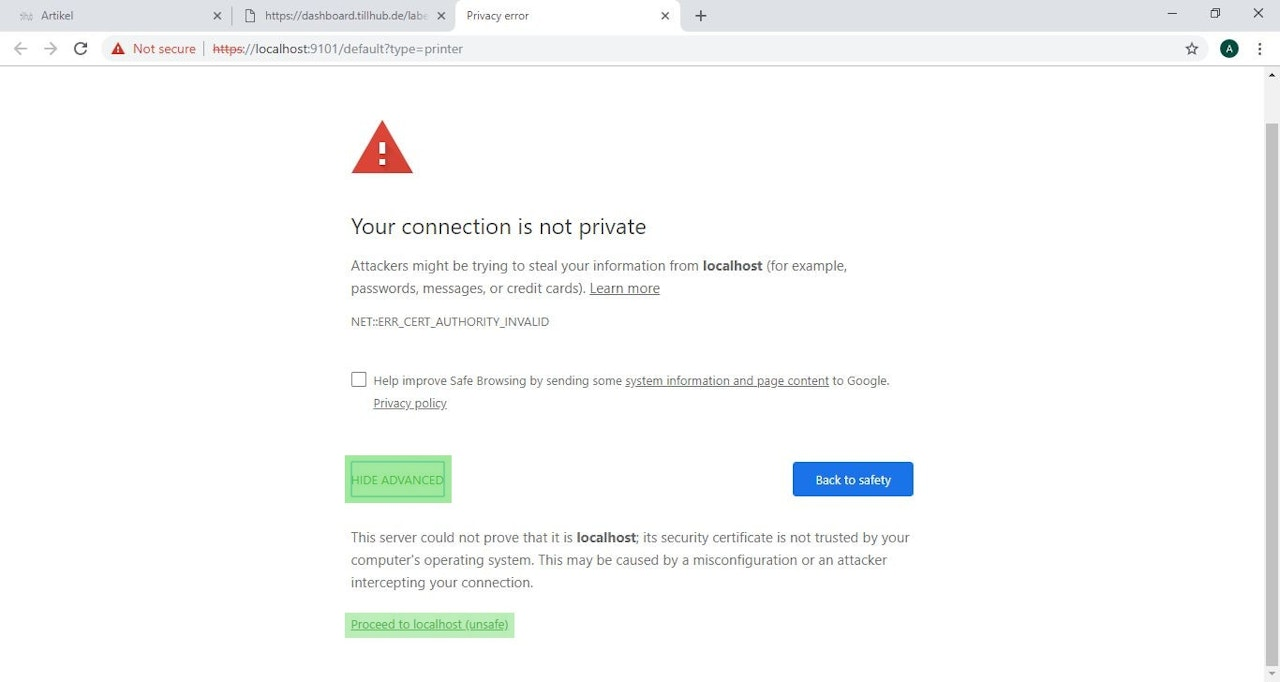
- The page will say the connection is not secure. Don’t worry. Click “Advanced” and then “Proceed to localhost (unsafe)”.
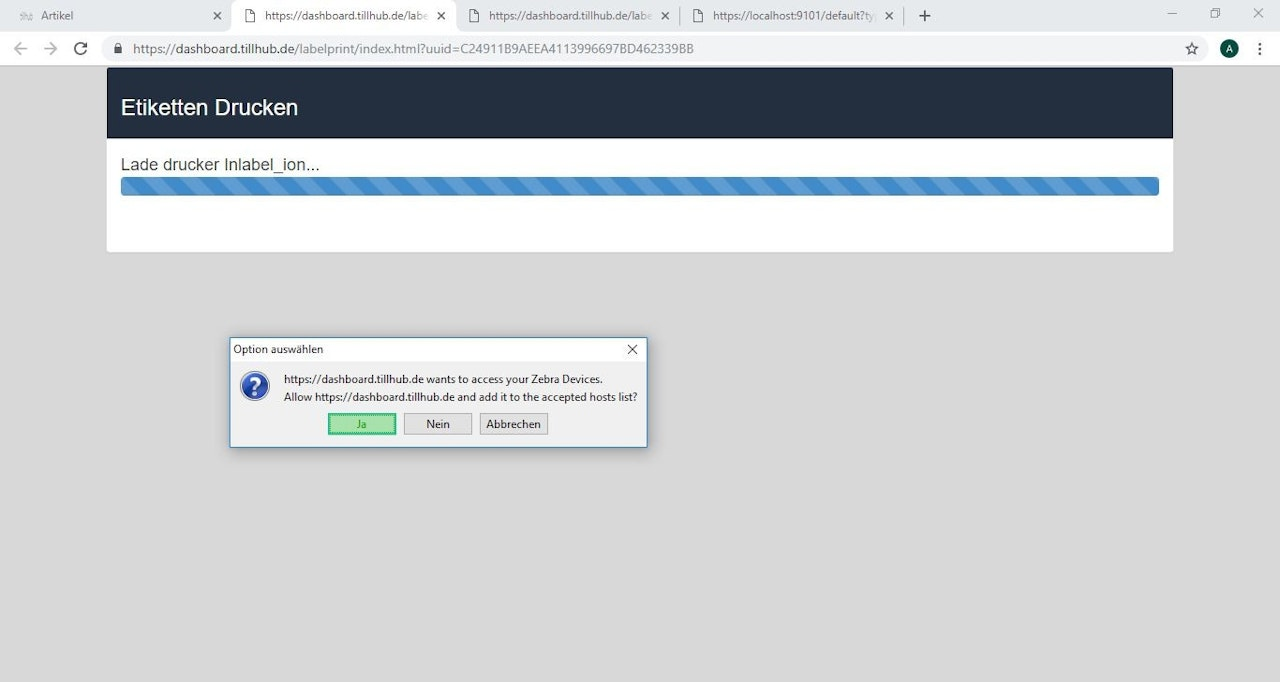
- Another pop-up will ask you to confirm the action. Click “Yes” and repeat this confirmation in the next window.
- The labels you selected earlier are no longer in the clipboard. Please repeat the steps under “Select items to label”. Don’t worry—this only happens the first time.
- After repeating the steps, a window should appear. Make sure the correct printer is selected and click “Print labels now”.
The GK420d should now print all requested labels. For future print jobs, the error-bypass steps are no longer necessary.
Was this article helpful?
That’s Great!
Thank you for your feedback
Sorry! We couldn't be helpful
Thank you for your feedback
Feedback sent
We appreciate your effort and will try to fix the article
