Label printing (Mac)
Modified on Mon, 16 Feb at 10:11 AM
TABLE OF CONTENTS
Set up the label printer for macOS
CUPS 2.2.0
If you are using Safari on macOS or Firefox on Linux, enter http://localhost:631, or for newer versions, http://localhost:631/printers/.
Enable the CUPS web interface in Terminal with: cupsctl WebInterface=yes
Disable it with: cupsctl WebInterface=no
The following example refers to CUPS version 2.2.0.
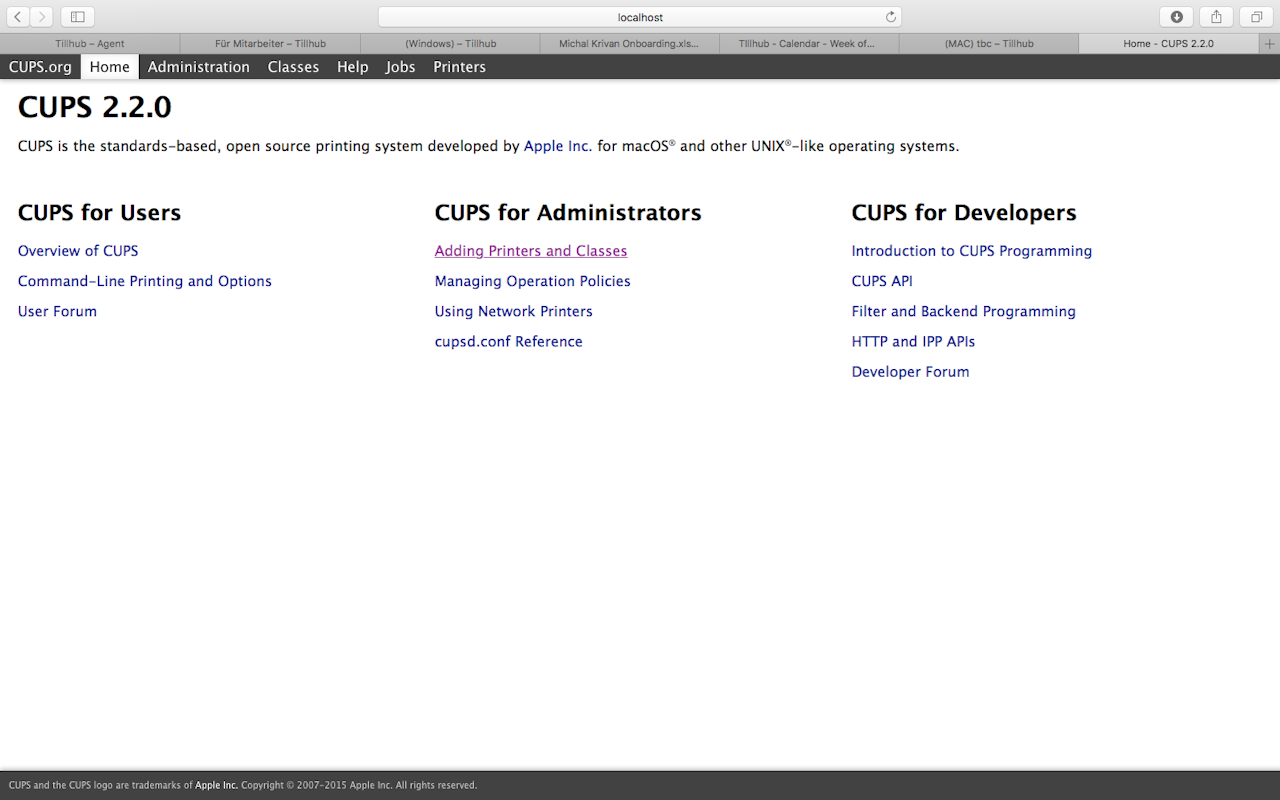
On the Home page, select “Adding Printers and Classes”.
Administration
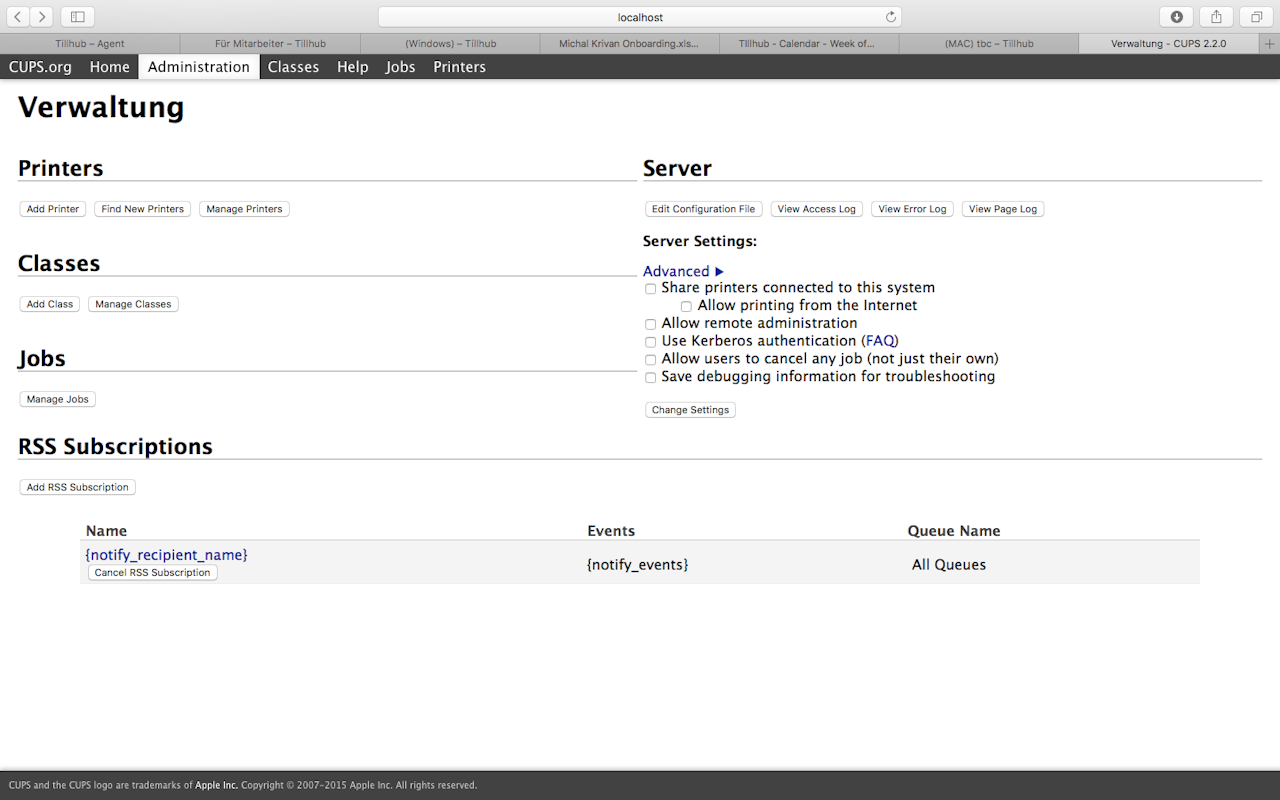
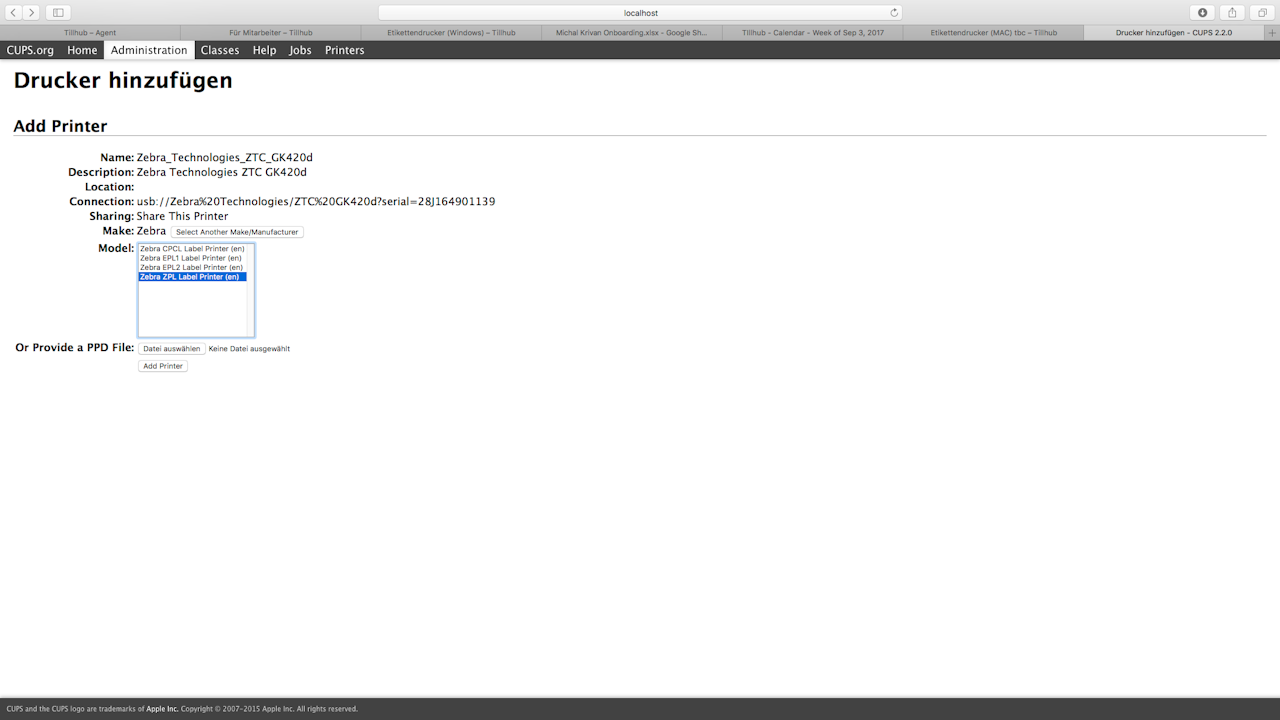
Under Printers, click “Add Printer”.
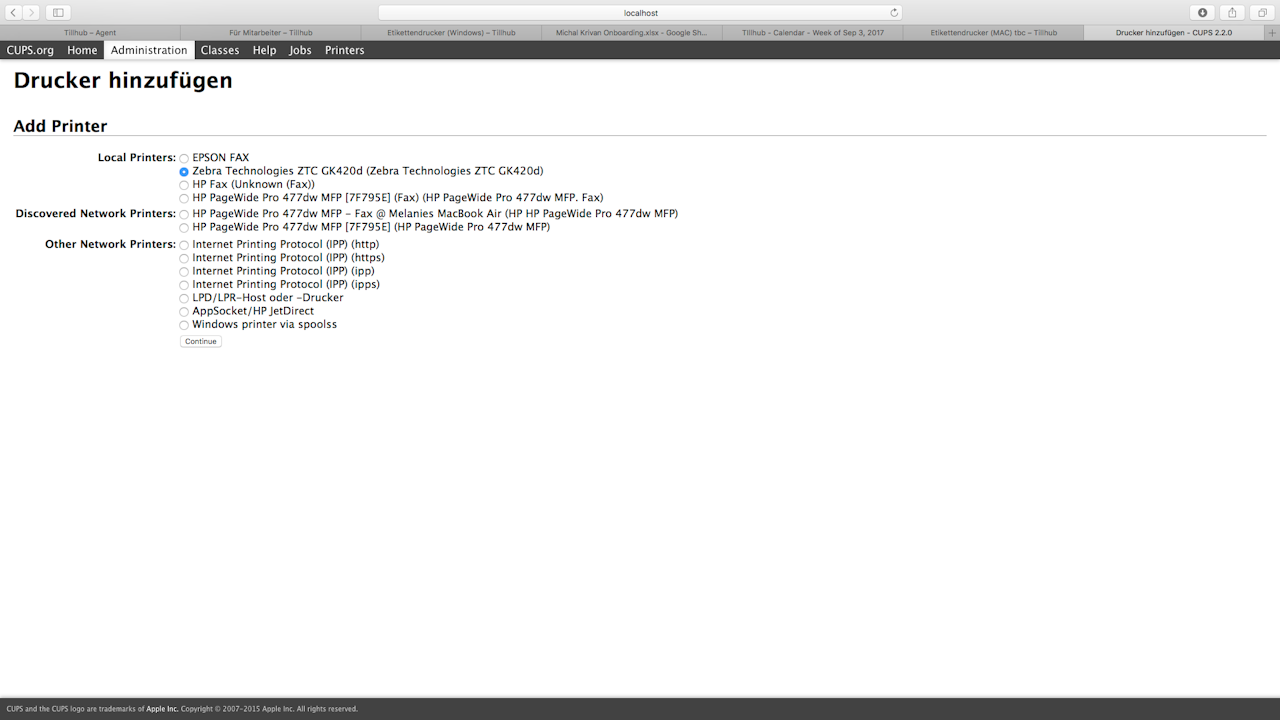
Add printer
After a few seconds, CUPS will show all available options. Further options depend on your operating system configuration. Zebra Print Servers do not support HTTP or IPP printing. Zebra printers support LPD/LPR printing. A Windows printer via SAMBA is a shared printer created by the operating system and is not supported by Zebra.
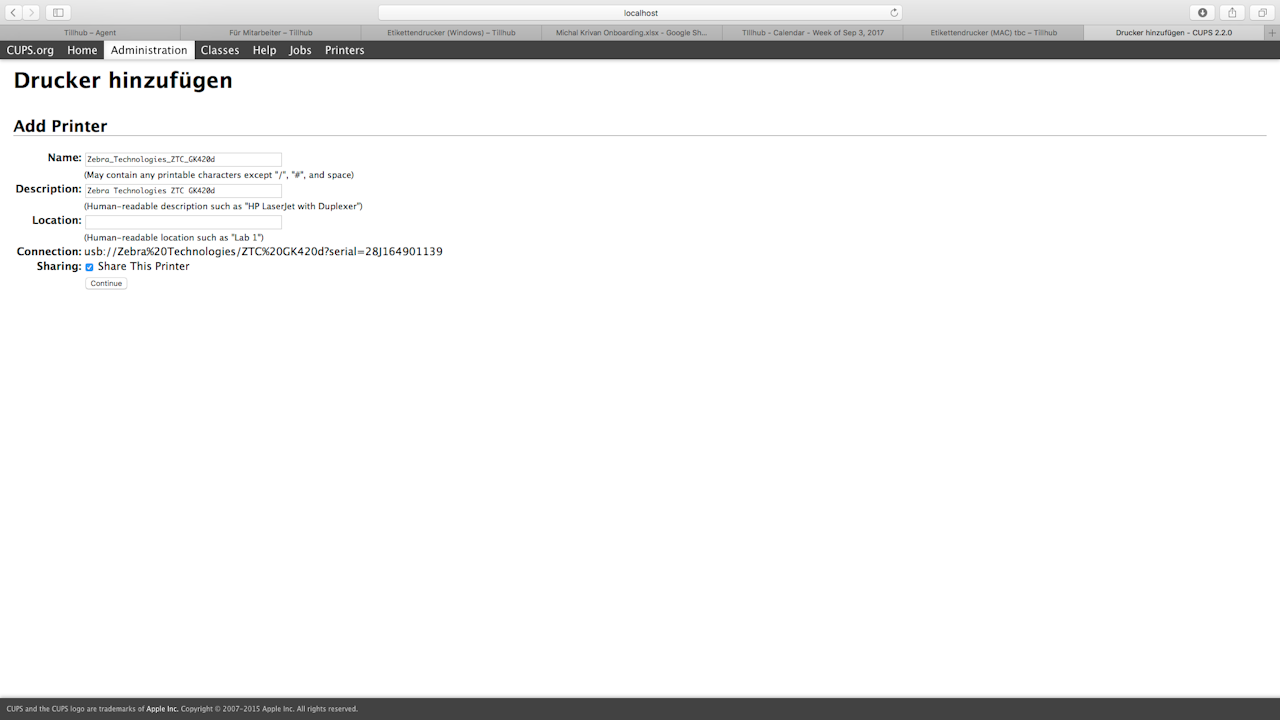
Select the desired printer from the list and click “Continue”. Name and Description are filled in automatically for USB printers but can be changed if needed. Sharing is optional; for USB printers, Sharing is preset.
In the third window, you can select the printer language:
- CPCL is a mobile printer language (some mobile printers also support EPL or ZPL).
- EPL1 & EPL2 are primarily desktop printer languages.
- ZPL is primarily a tabletop printer language.
Printers in the G‑Series support both EPL and ZPL.
Choose a printer language and click “Add Printer”.
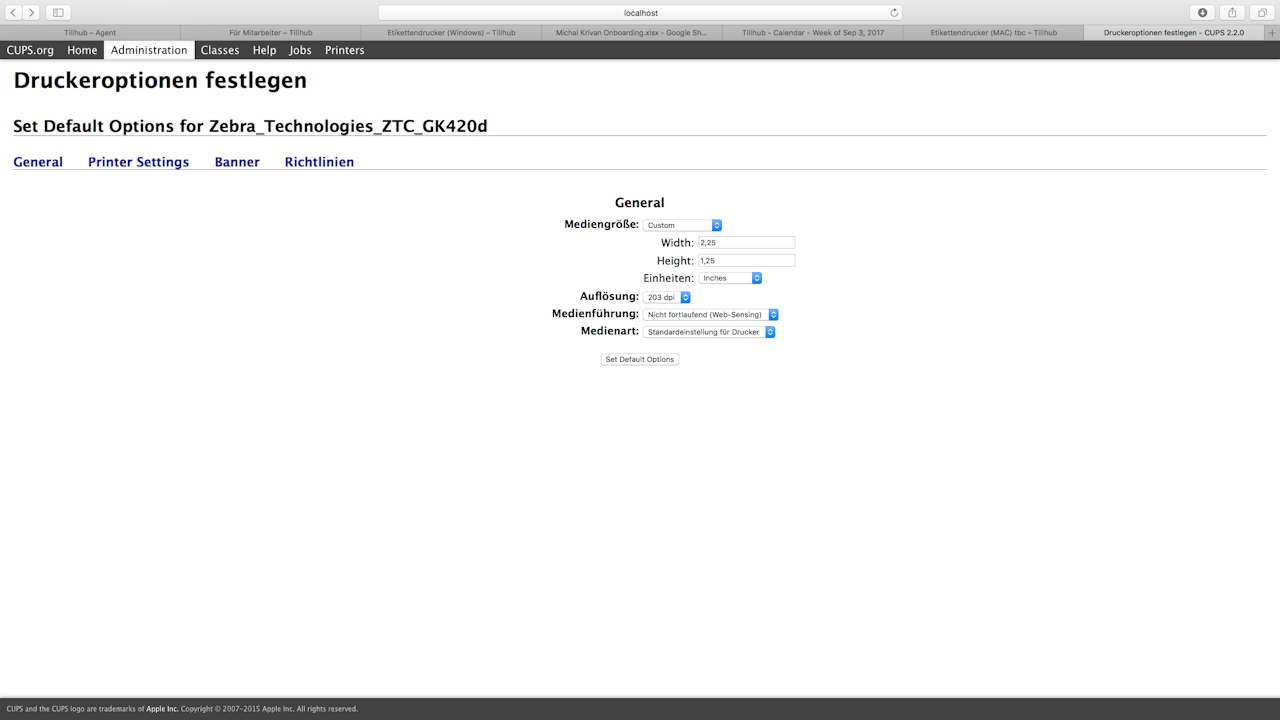
Set printer options
Because printers cannot be selected by exact model, the default settings may not match your device. For optimal configuration, have your configuration labels handy to choose the correct settings.
Example below assumes a ZPL printer:
- Media size: You can choose from many label sizes. At the bottom, select “Custom” to enter a custom size. Choose “Custom” and set Width to 2.25 and Height to 1.25, and select Inches for Units.
- Resolution: If you’re unsure, check your configuration labels for the correct values. If printed labels are too small or too large, adjust “Resolution” here. On a ZPL configuration label you might see, for example:
RESOLUTION 832 8/MM FULL = 203 dpi
RESOLUTION 1232 12/MM FULL = 300 dpi
RESOLUTION 1632 16/MM FULL = 600 dpi - Media Tracking: Select “Non‑continuous (Web sensing)”.
- Media Type:
- “Printer Default” keeps the printer’s default settings.
- “Thermal Transfer Media” means the printer uses a ribbon.
- “Direct Thermal Media” means no ribbon is installed and is used for certain labels.
Select “Printer Default” and click “Set Default Options”.
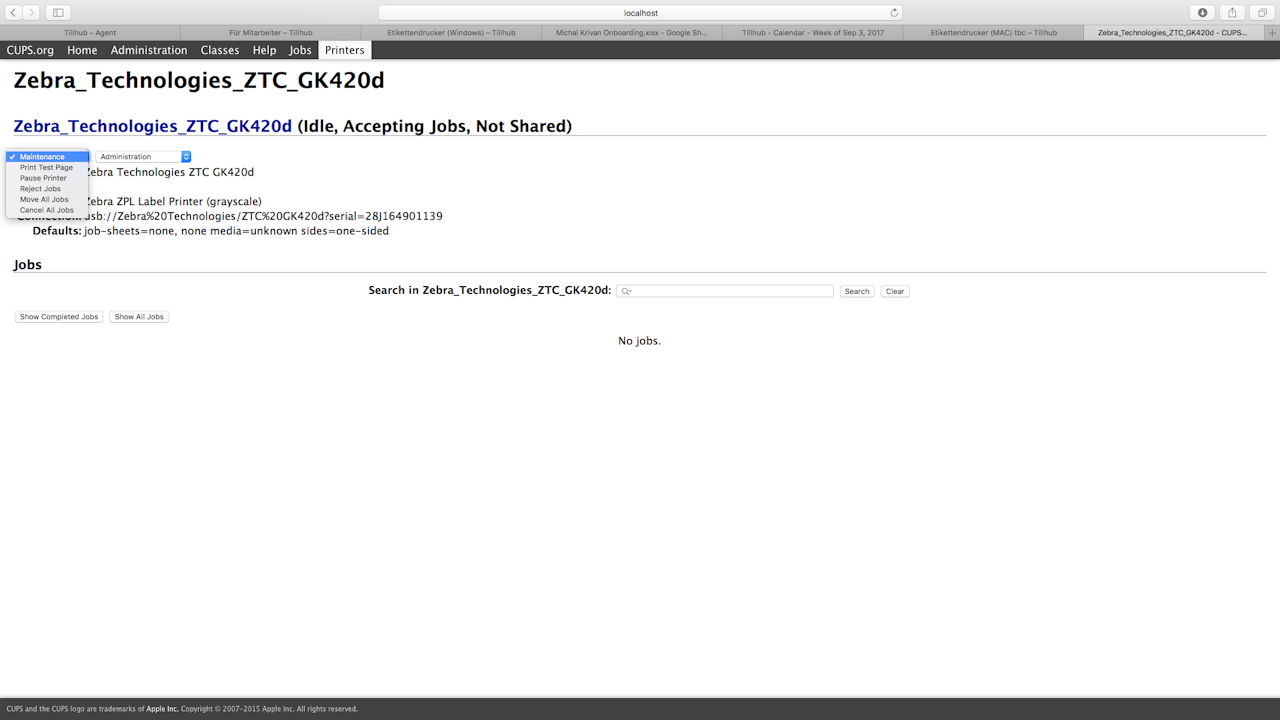
Your Zebra label printer is now set up and ready to use. Under “Maintenance” and “Administration” you can change settings if needed.
To print from your browser, also download and install Zebra Browser Print. Go to:
https://www.zebra.com/gb/en/products/software/barcode-printers/link-os/browser-print.html
Choose the download link for macOS (OSX), follow the installation instructions, and launch the application to complete setup.
Was this article helpful?
That’s Great!
Thank you for your feedback
Sorry! We couldn't be helpful
Thank you for your feedback
Feedback sent
We appreciate your effort and will try to fix the article
