T650p - Setting Up Your POS Integration
Modified on Mon, 9 Feb at 4:47 PM
In this tutorial, we guide you through setting up your Verifone Trinity T650p card reader for your POS system.
The card reader supports the POS protocols ZVT and OPI.
Main Menu
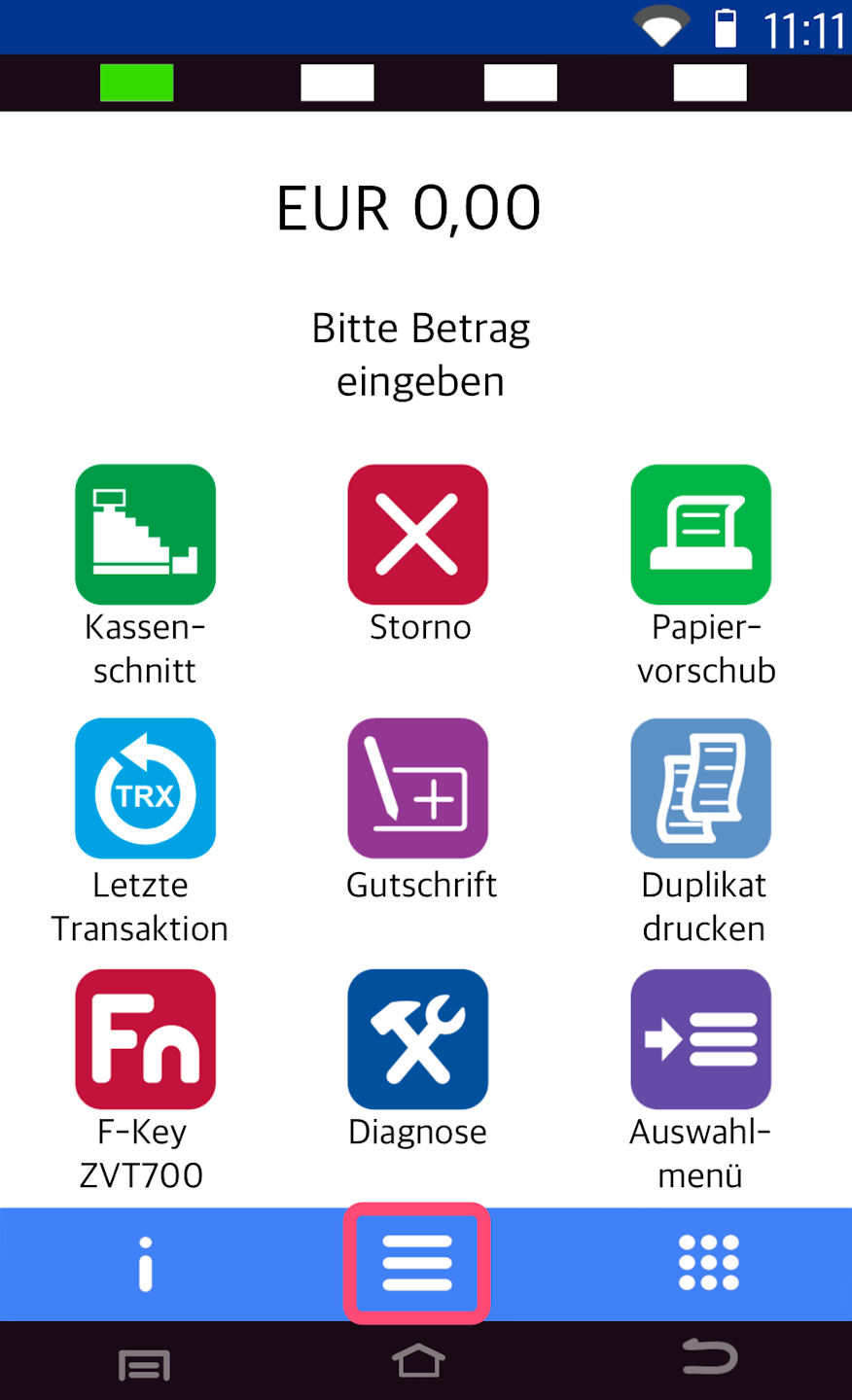
Here you see your main display.
Please press the button with the three horizontal lines to access the main menu.
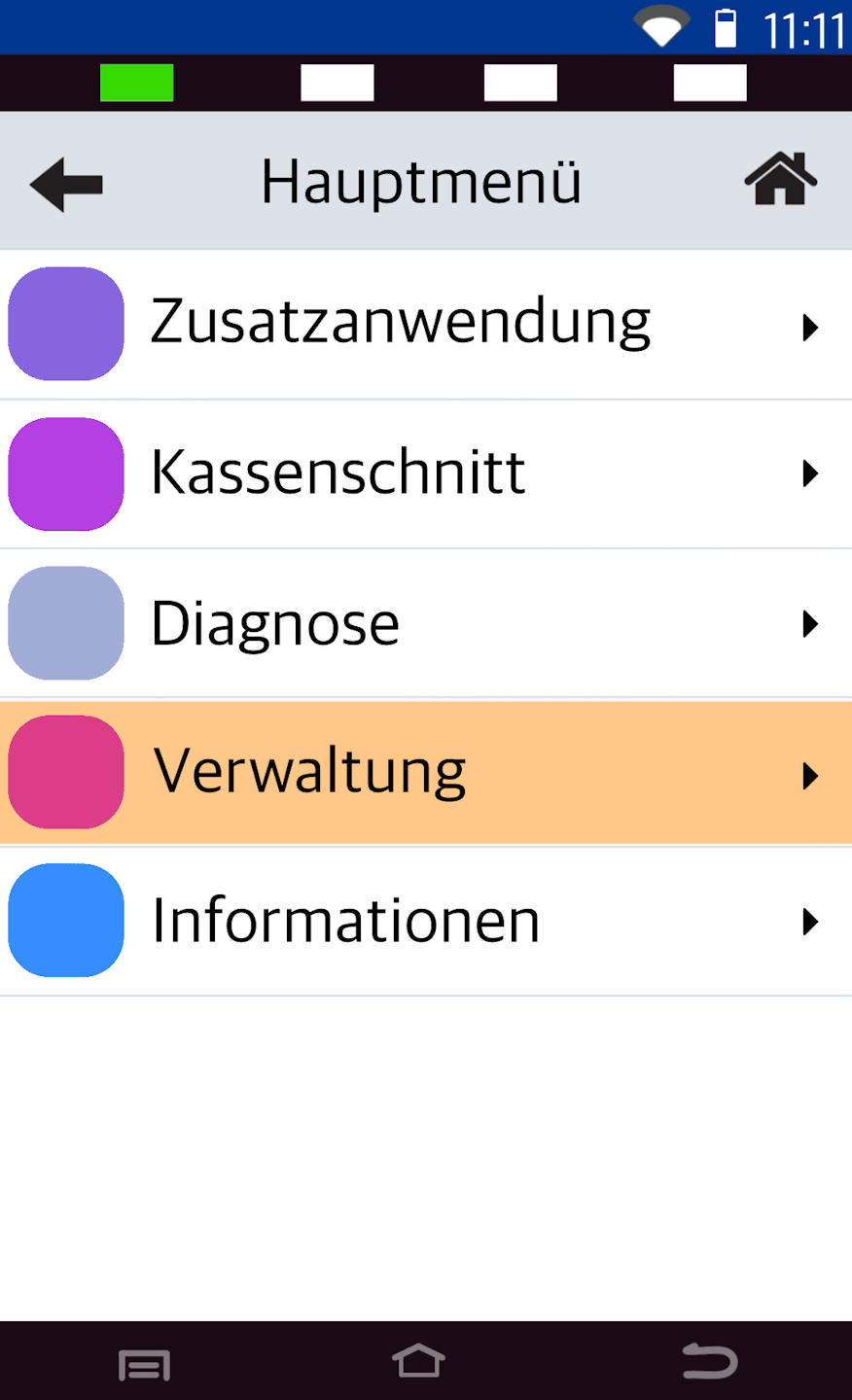
Administration
Please select Verwaltung.
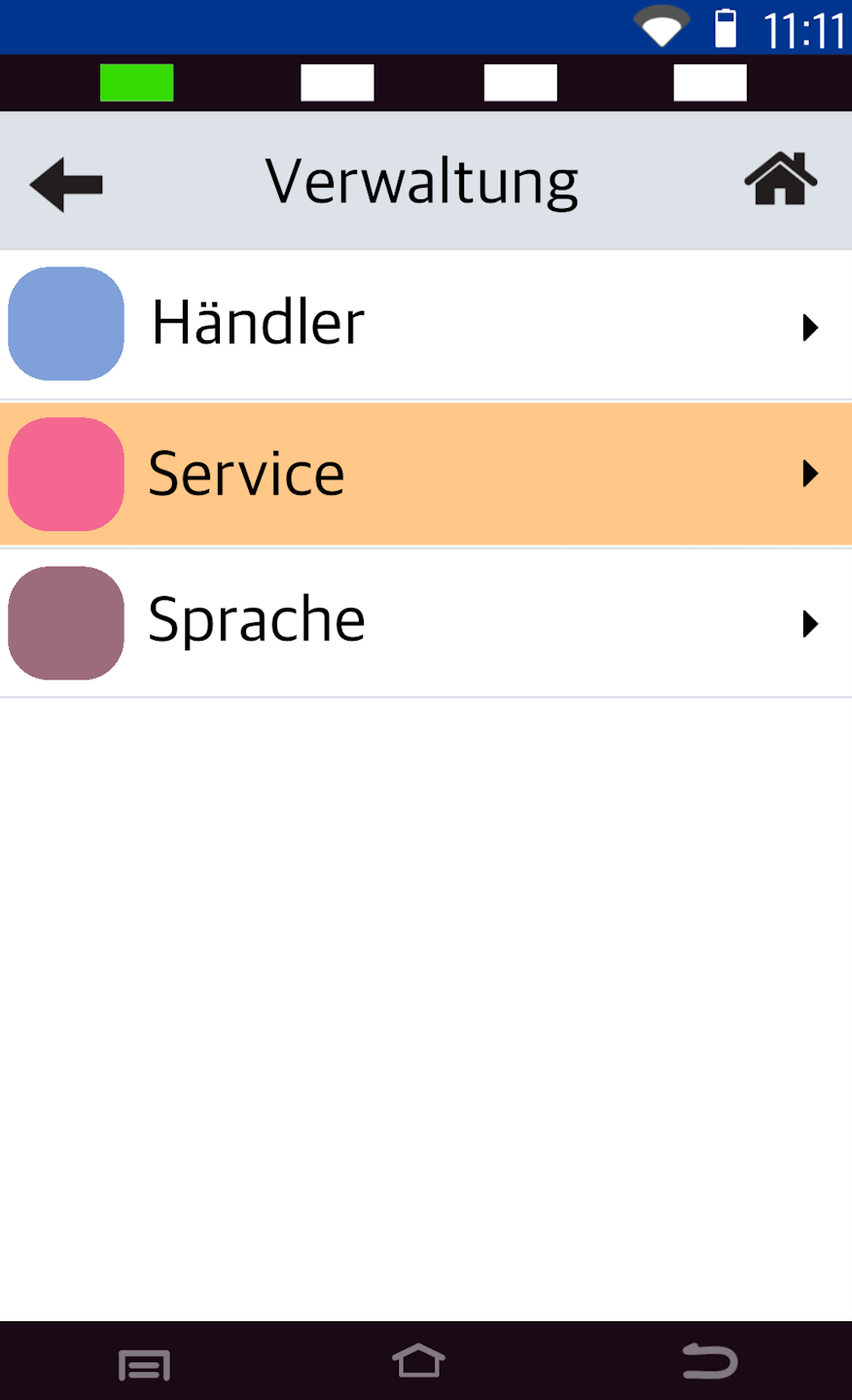
Service
Please select the menu item Service.
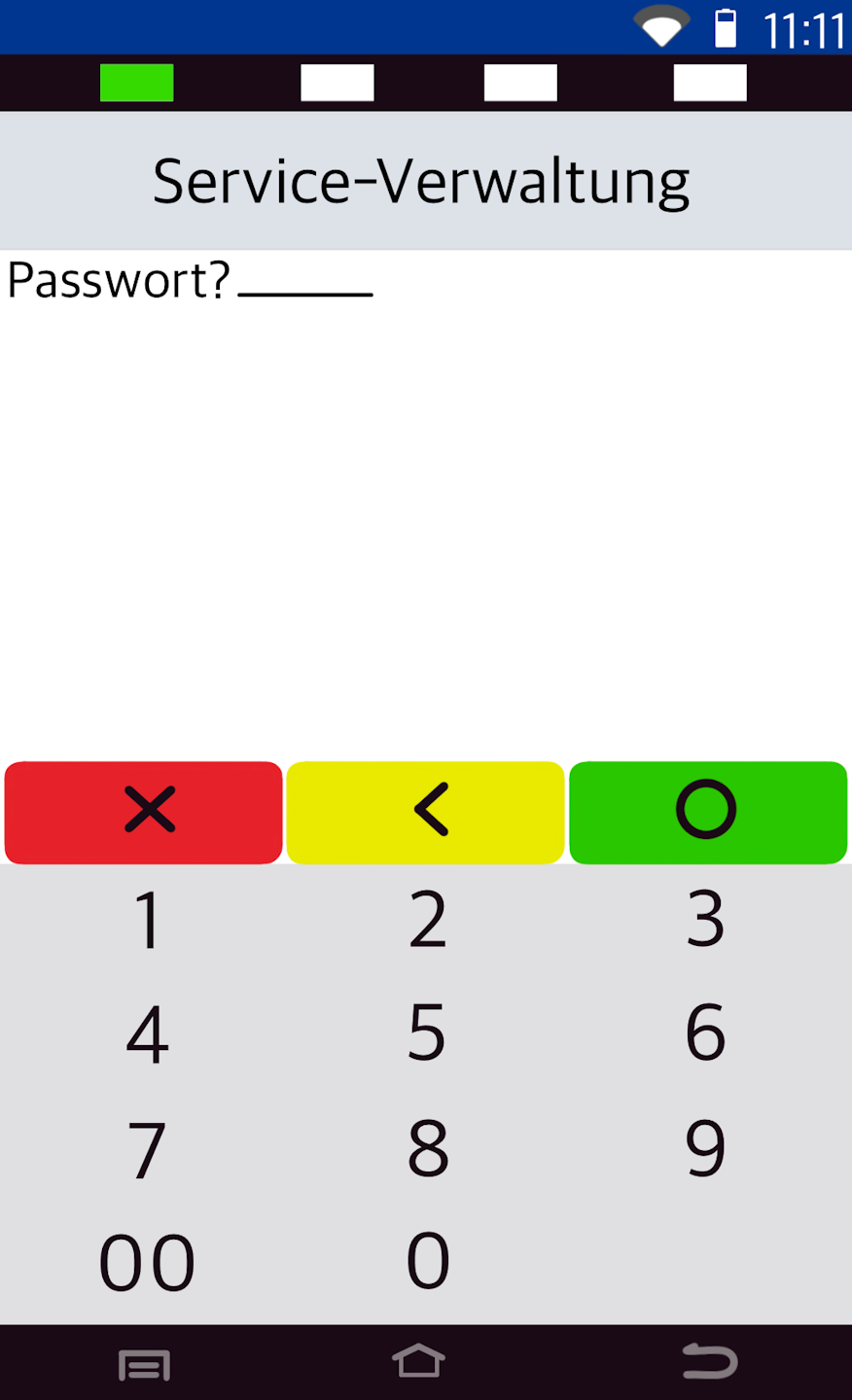
Password Entry
Please enter the 6-digit technician password and confirm it with the green OK button on the display.
If you do not know the technician password, please contact us. We will gladly provide it to you.
support@unzer.com
Technical service hotline: 0800 – 333 0305
POS Interface
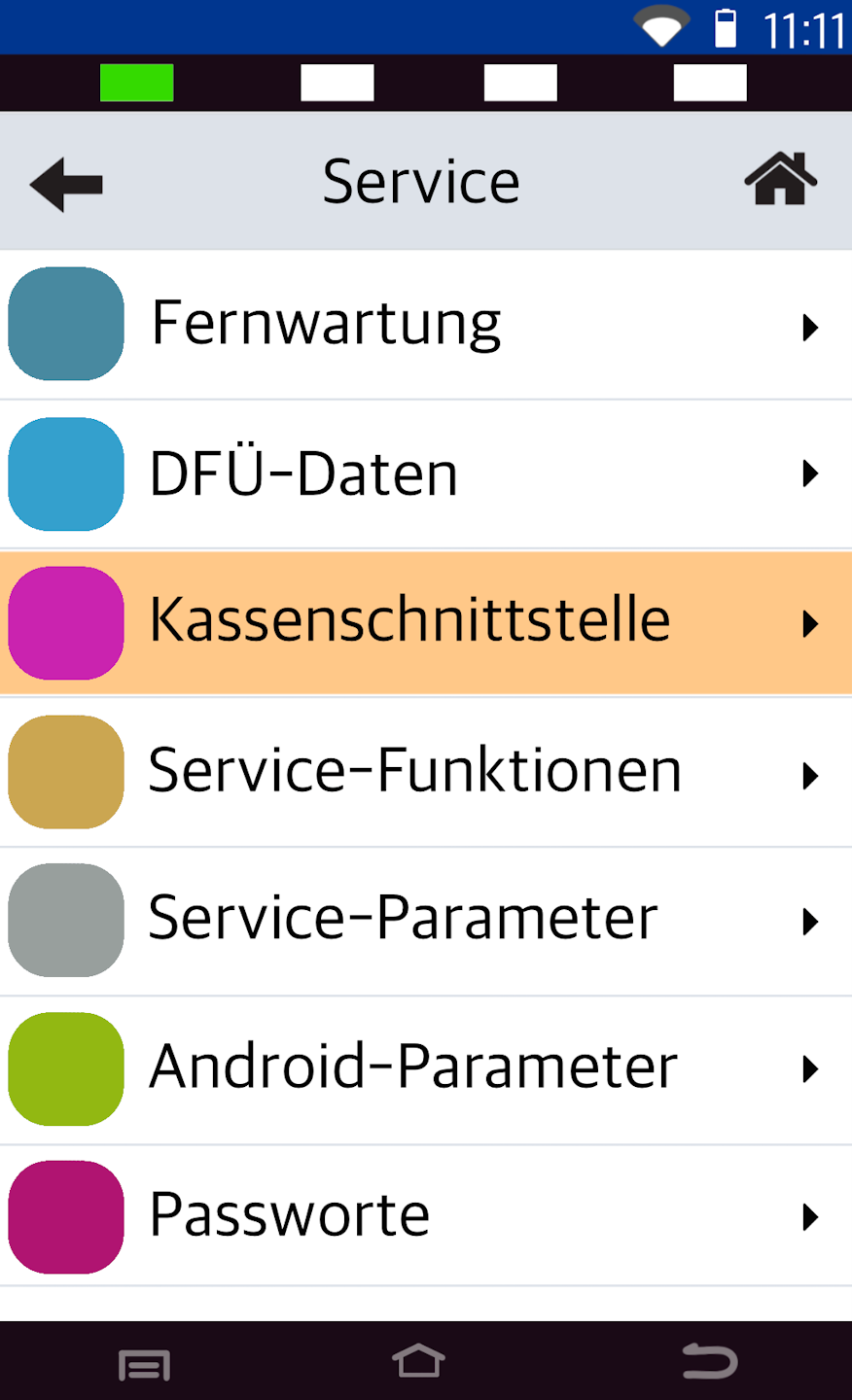
Please select the menu item Kassenschnittstelle.
In the next step, you can select the POS protocol used by your POS system.
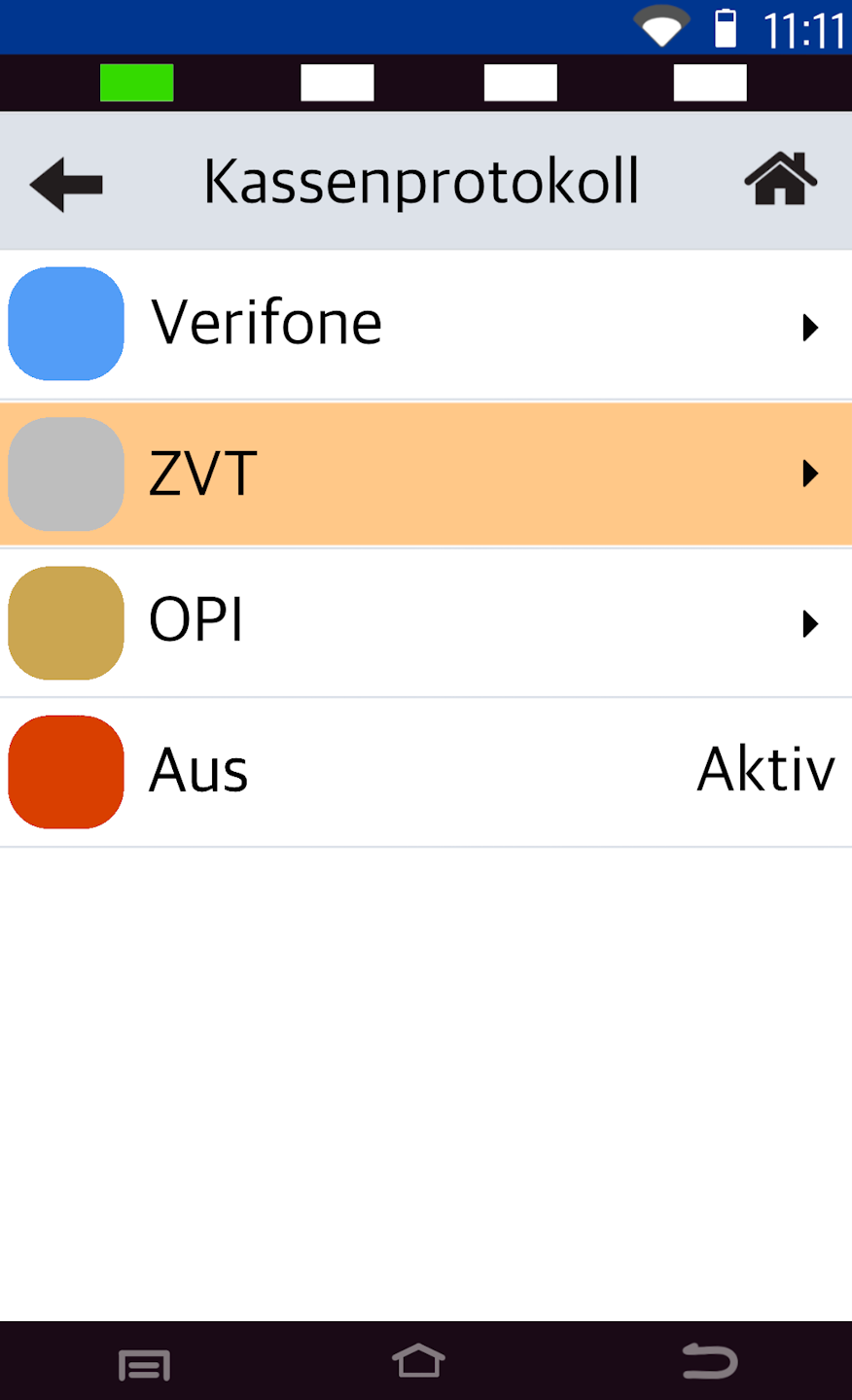
You can choose between ZVT or OPI.
If you are using a Tillhub POS system, please select OPI.
You don’t know the POS protocol? Then please contact your POS provider.
ZVT
Your POS system works via ZVT? Then please select ZVT.
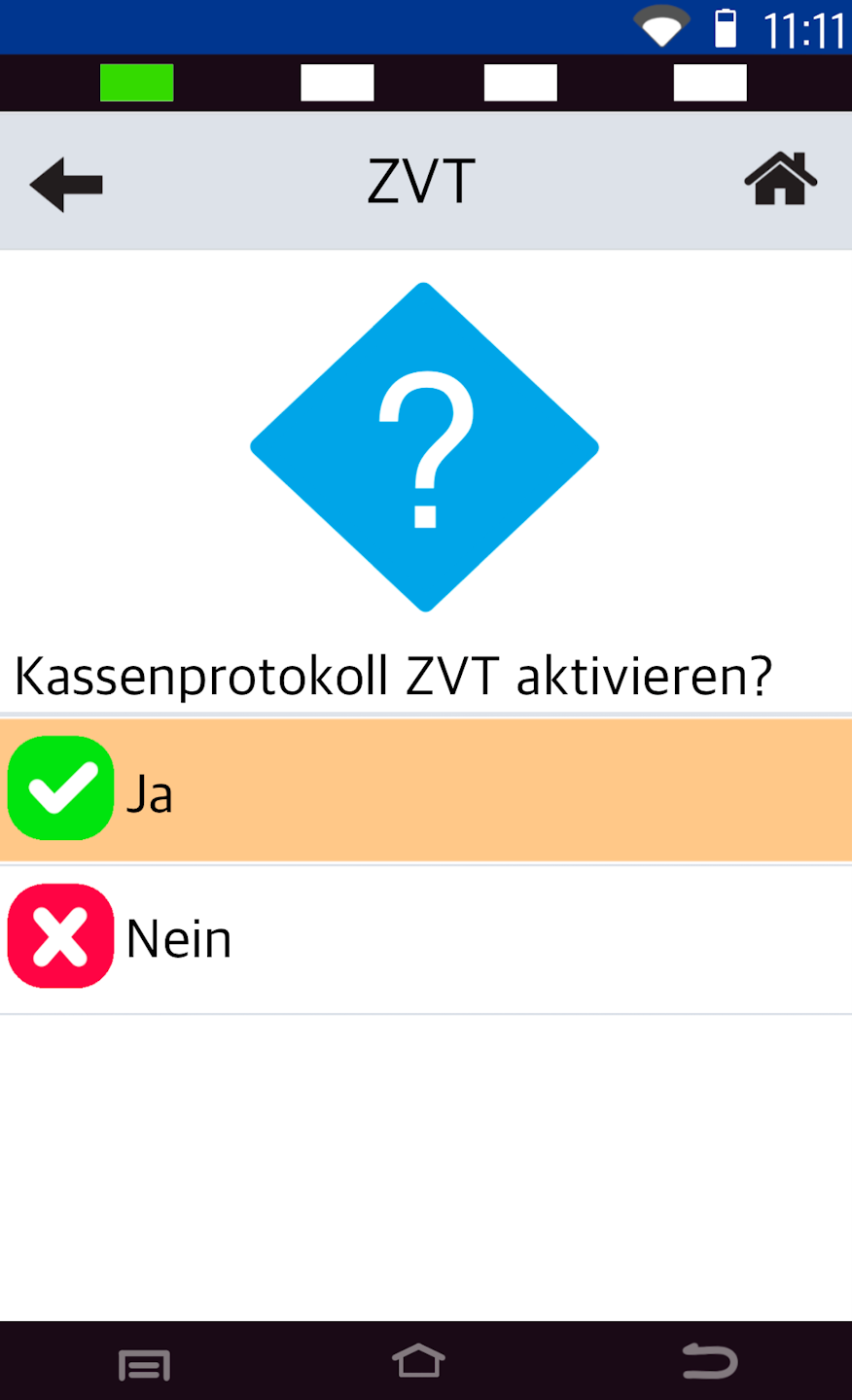
Start Interface
You will now be asked if you want to activate the ZVT POS protocol. Please confirm the question with YES.
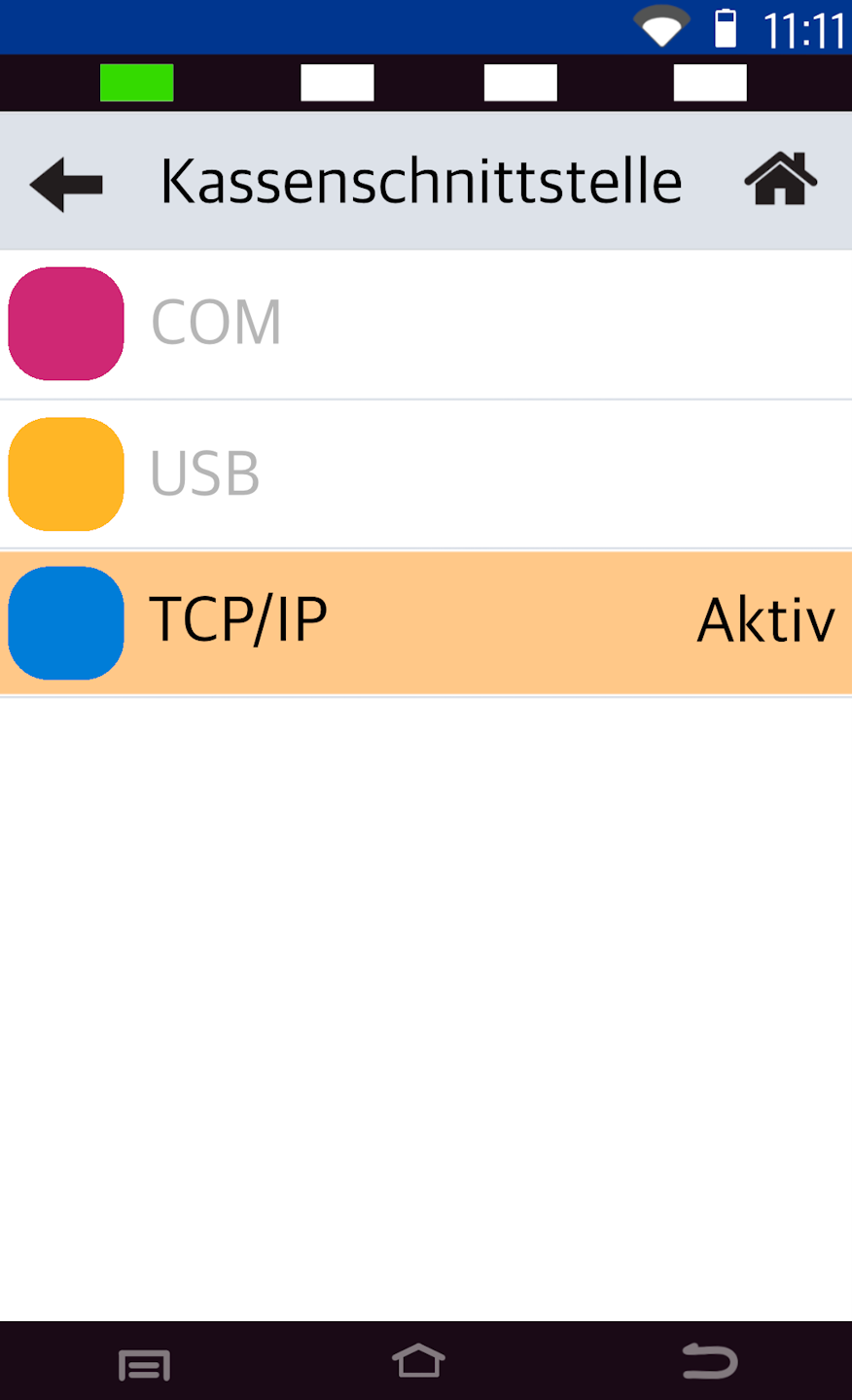
POS Protocol
Please select TCP/IP here.
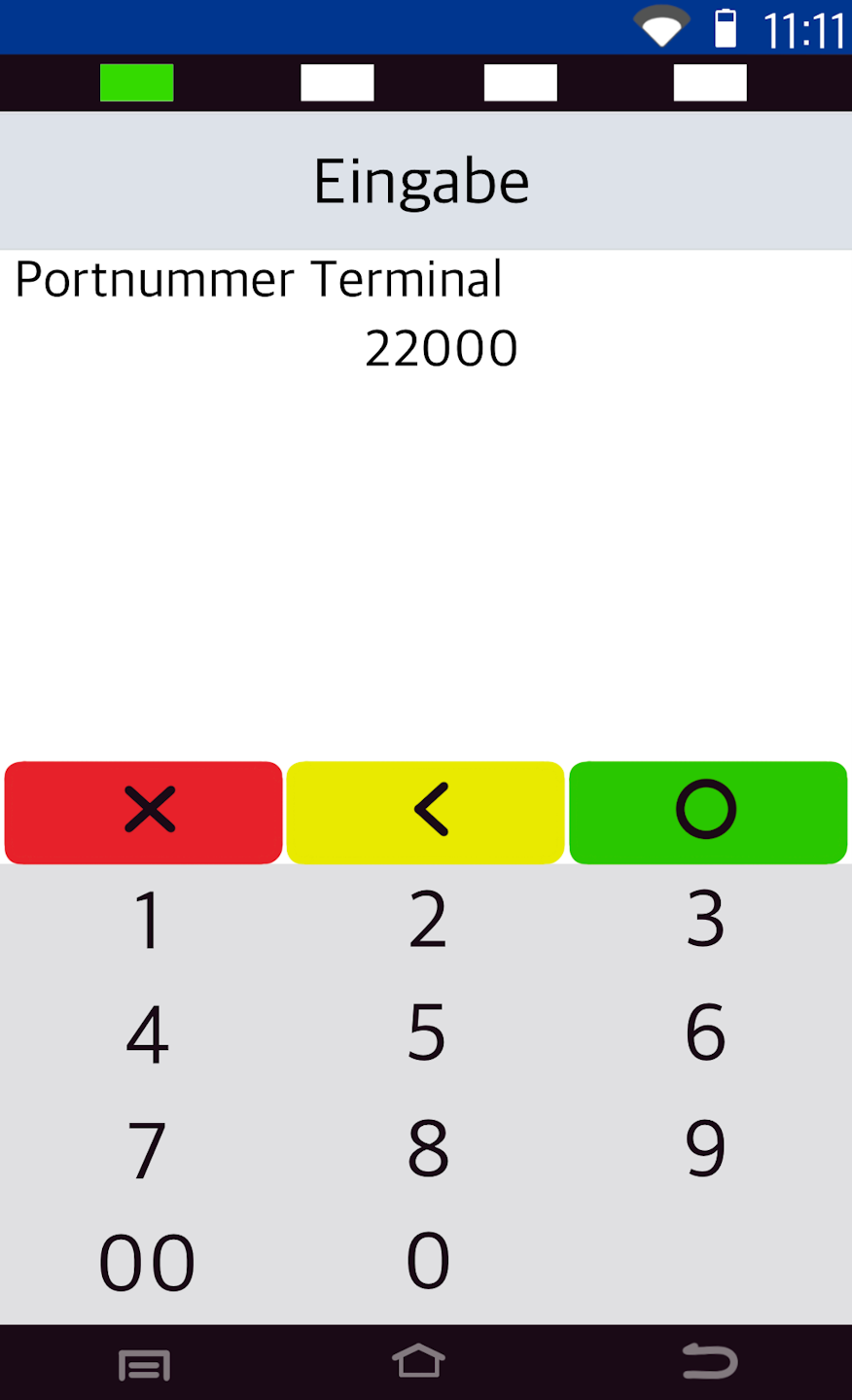
Port Number
In this section, the port number (4–5 digit number) for the POS integration must be entered.
The standard Verifone port number is: 22000. The port number can also be changed as desired.
You don’t know the port number? Please ask your POS provider.
Completion
To return to the main display, please press the house icon in the top right corner.
Your card reader is now set up for POS integration via ZVT.
The amount transfer should now take place.
Your POS system may need to register with the card reader. Please use your merchant password as the login. Afterwards, you will see Terminal ready for operation on the main display. Manual amount entry will then no longer be possible.
To ensure a smooth exchange of your card reader, please provide us with your POS connection data and parameters using the button POS connection data. In the event of an exchange, we can provide you with a preconfigured card reader.
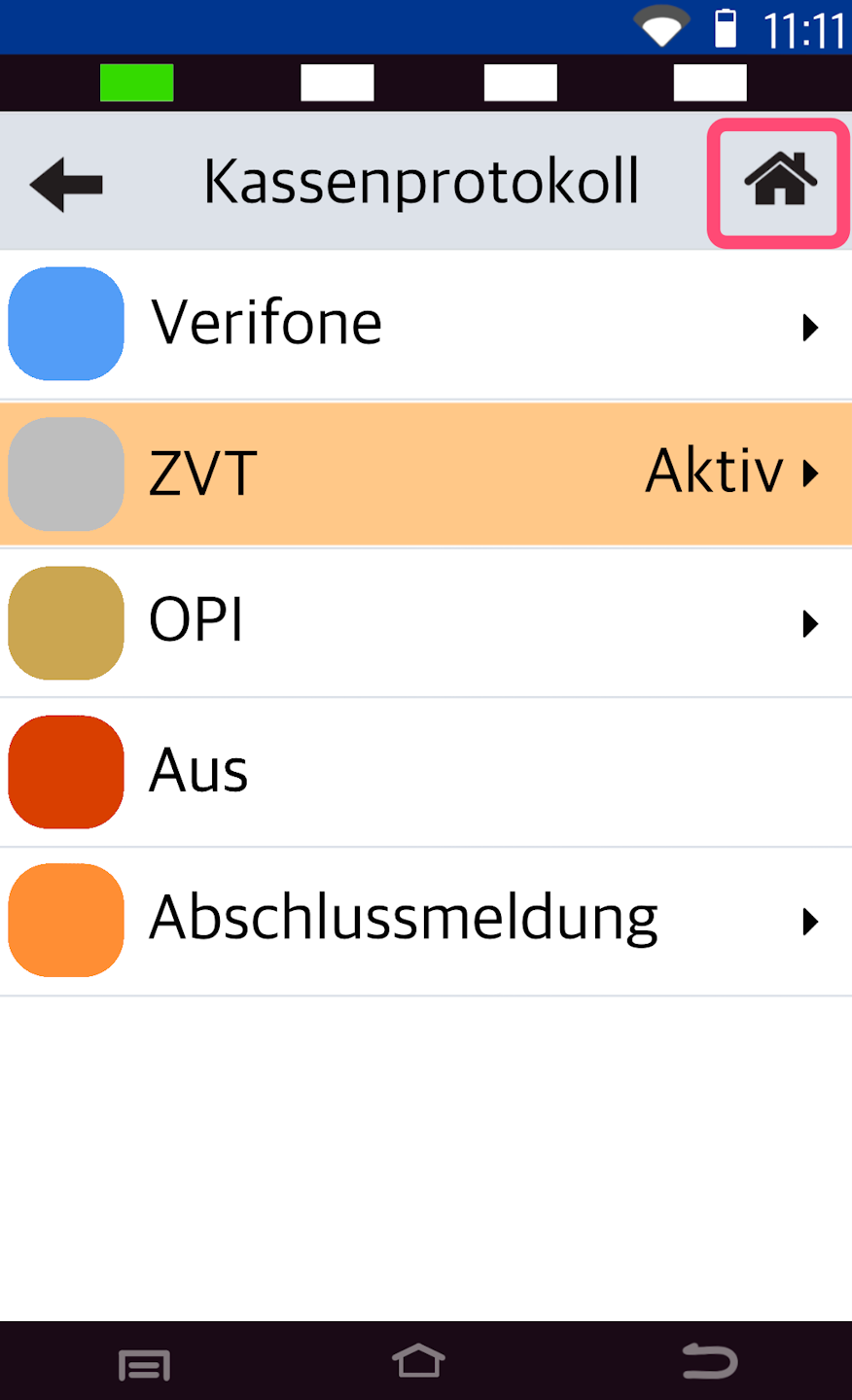
OPI
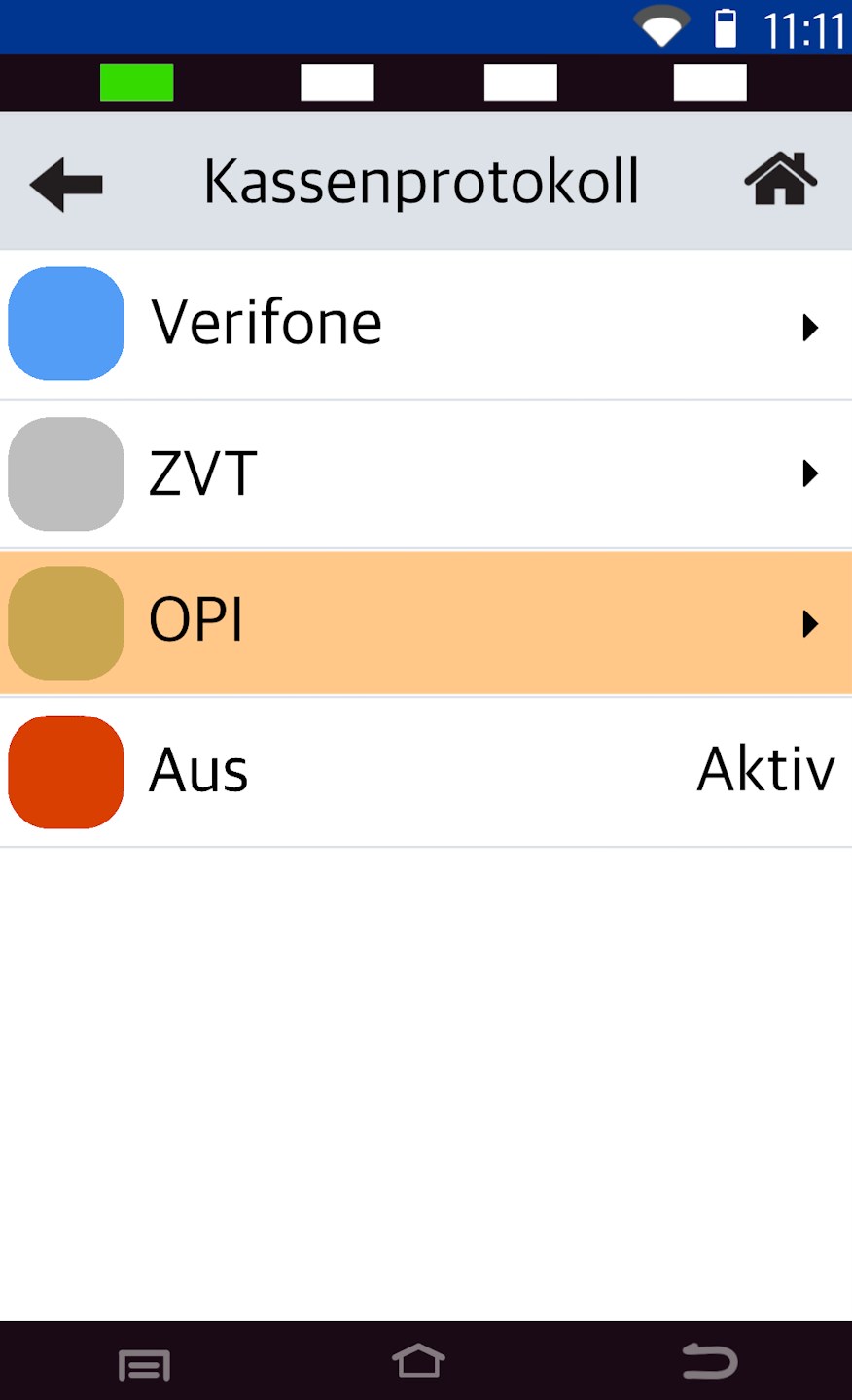
Your POS system works via OPI? Then please select OPI.
If you have a Tillhub POS system, OPI is the correct selection.
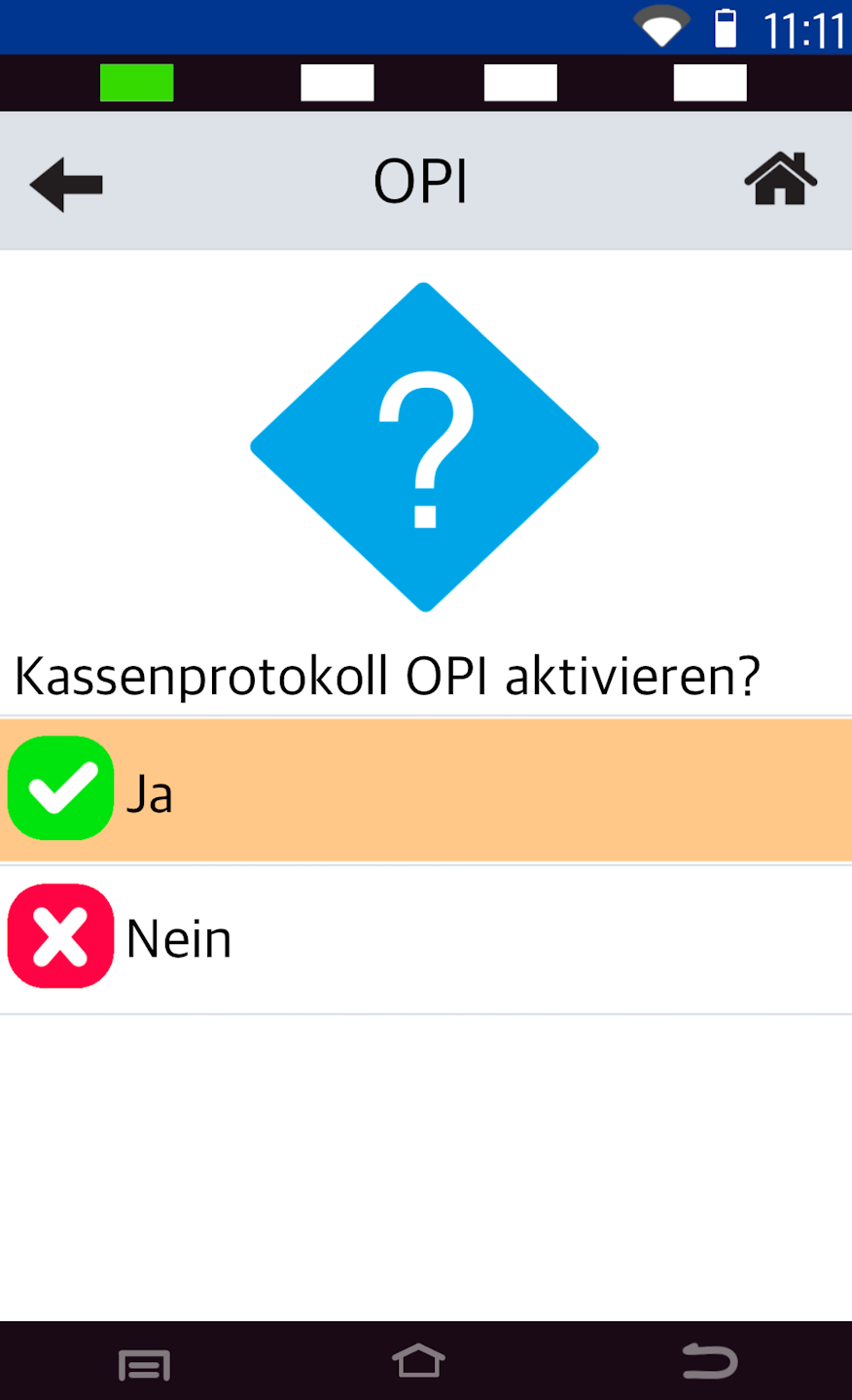
Start Interface
You will now be asked if you want to activate the OPI POS protocol. Please confirm the question with YES.
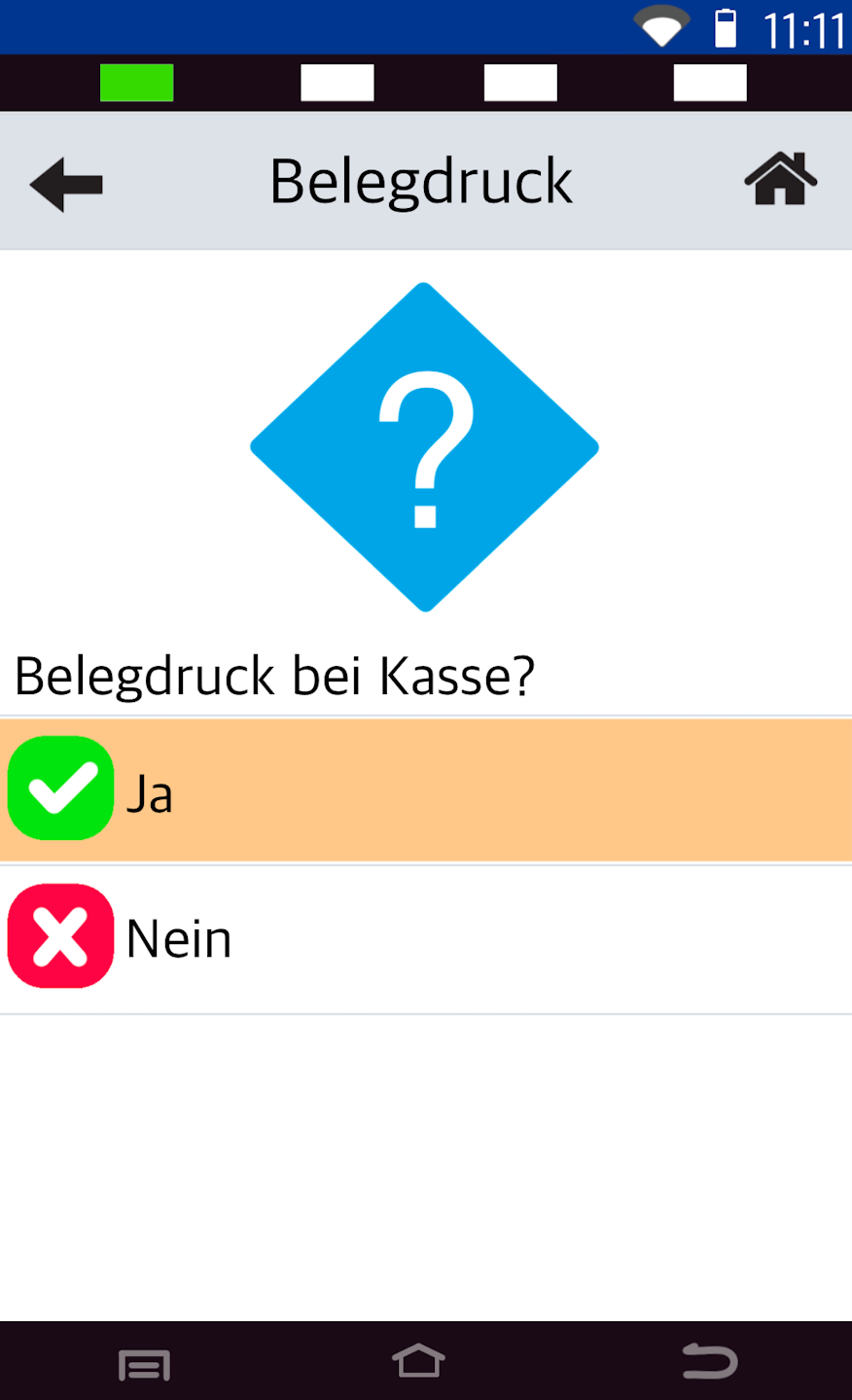
Receipt Printing
Should the receipt printing take place at the POS? Please make your selection.
Receipt printing at the POS: No more receipts will be printed on your card reader.
Port Number
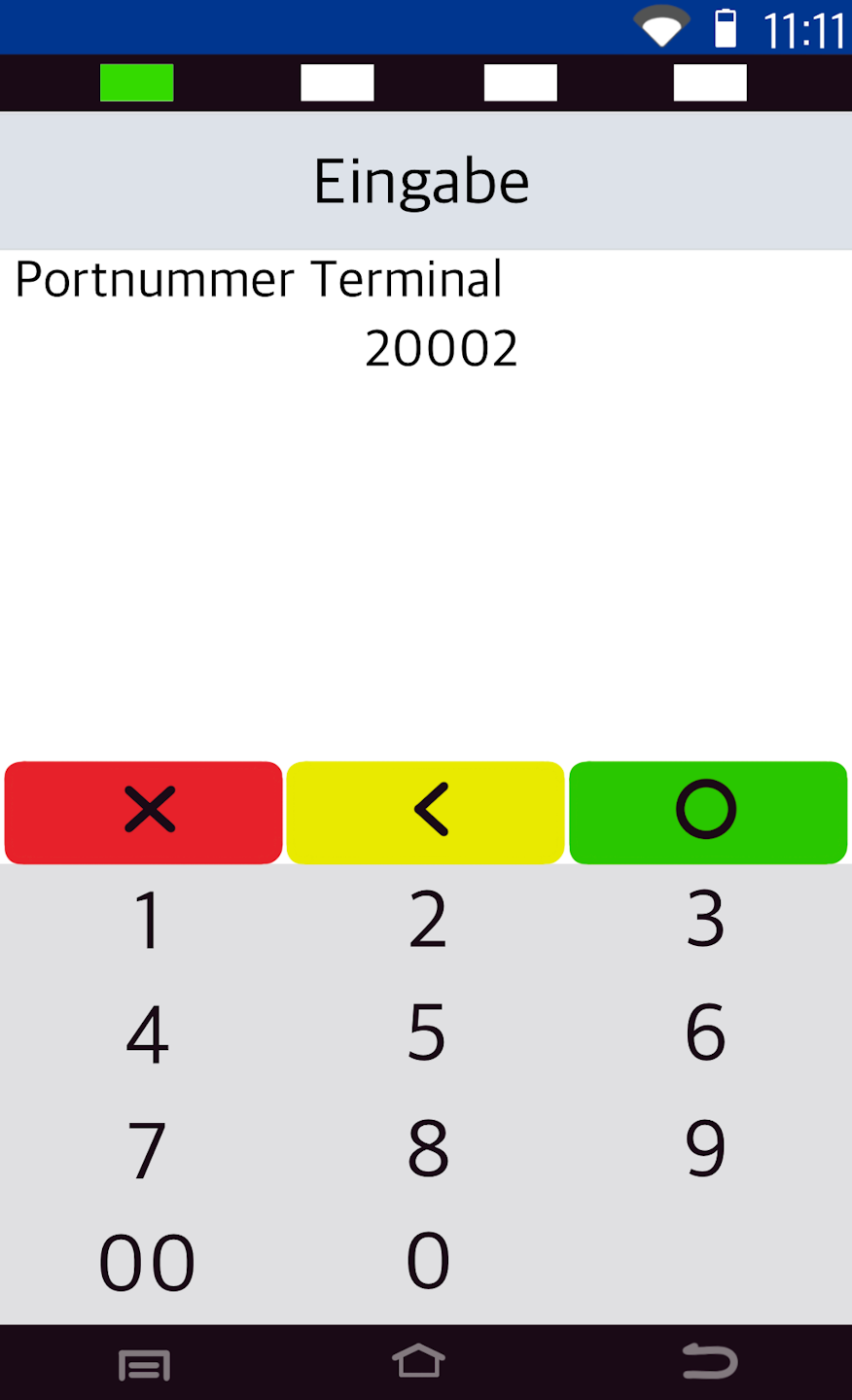
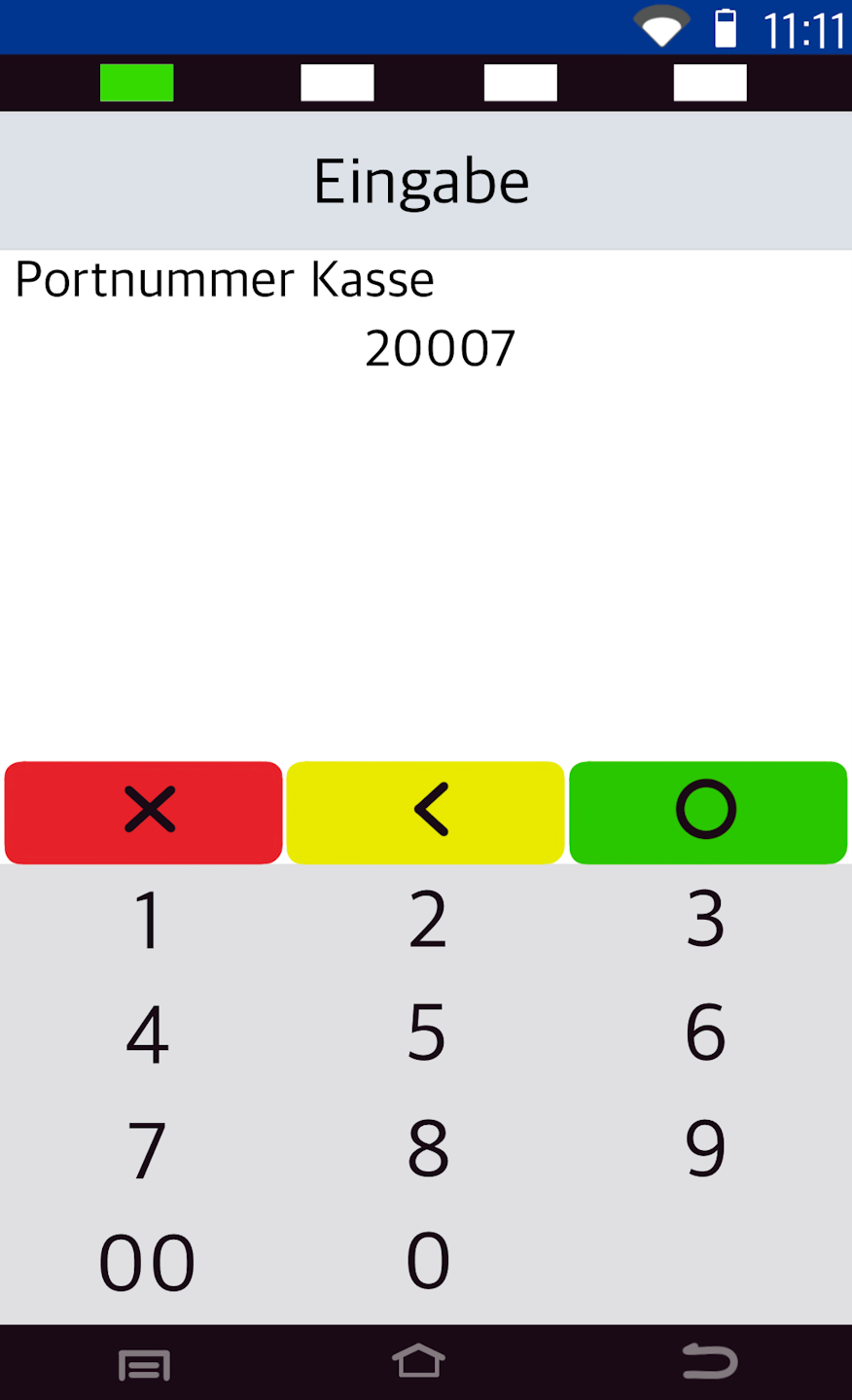
In this section, the incoming port number (Fig. 1) and the outgoing POS port number (Fig. 2) (4–5 digit number) for the POS integration are requested.
In the standard configuration and for your Tillhub POS system, the port numbers are:
incoming port: 20002
outgoing port: 20007
You don’t know the port number? Please ask your POS provider.
Completion
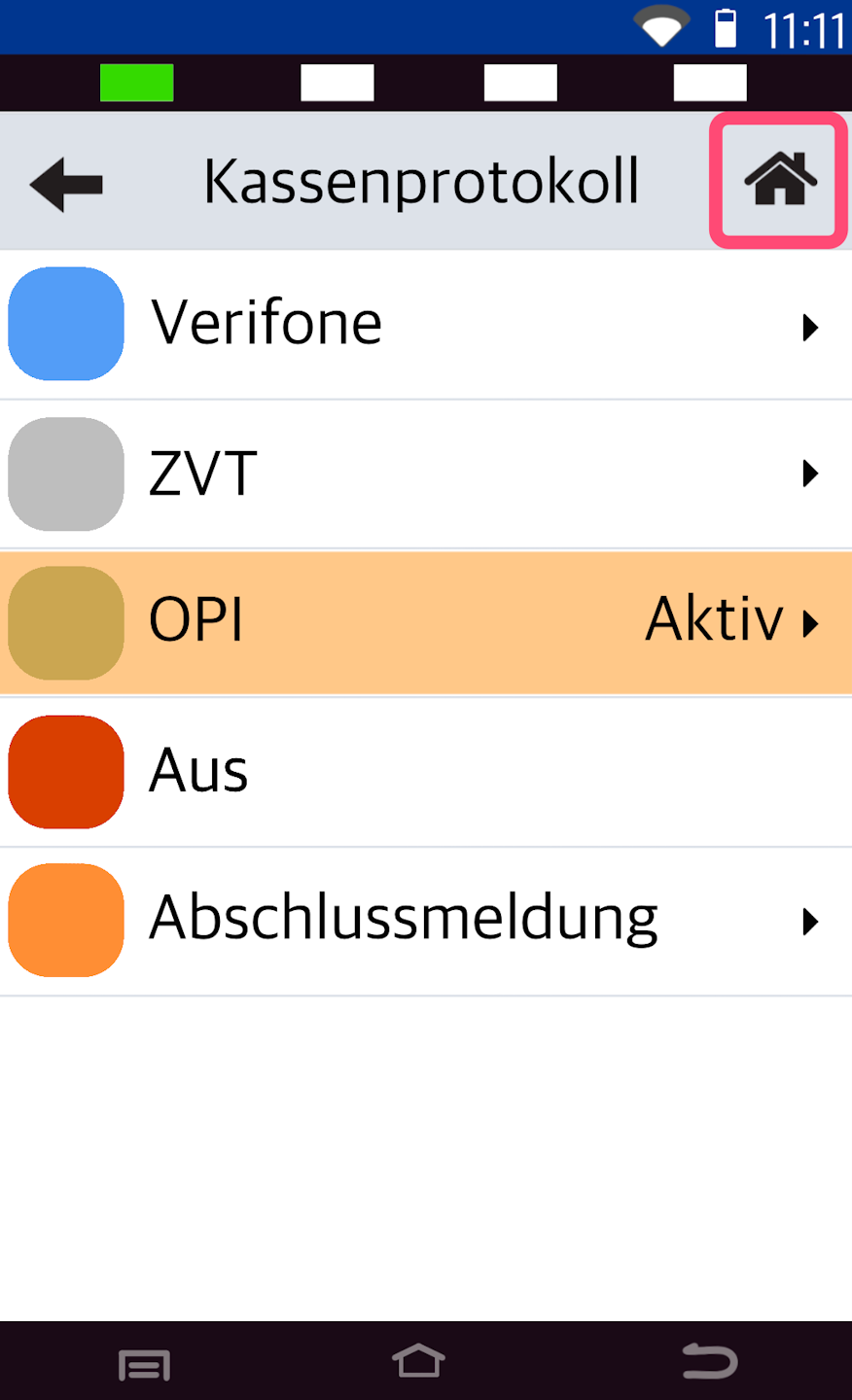
To return to the main display, please press the house icon in the top right corner.
Your card reader is now set up for POS integration via OPI.
The amount transfer should now take place.
Your POS system may need to register with the card reader. Please use your merchant password as the login. Afterwards, you will see the main display Terminal ready for operation. Manual amount entry will then no longer be possible.
To ensure a smooth exchange of your card reader, please provide us with your POS connection data and parameters using the button POS connection data. In the event of an exchange, we can provide you with a preconfigured card reader.
Was this article helpful?
That’s Great!
Thank you for your feedback
Sorry! We couldn't be helpful
Thank you for your feedback
Feedback sent
We appreciate your effort and will try to fix the article
