Connecting the TM‑m30II‑H receipt printer via Lightning cable
Modified on Mon, 16 Feb at 10:11 AM
This article will help you connect your Epson TM‑m30II‑H receipt printer to your iPad and the Tillhub app.
The Epson TM‑m30II‑H can be connected to the iPad via Bluetooth or directly with a Lightning cable. For instructions on connecting via Bluetooth, see: Connecting the receipt printer via Bluetooth.
A direct Lightning connection increases reliability and print speed. Another benefit is that the iPad is charged through the printer connection. If the Lightning cable is needed elsewhere, the printer switches to Bluetooth.
Connect the printer to the iPad via Lightning cable
First, connect the printer to the iPad.
You will need the iPad, the printer, and the supplied Lightning cable.
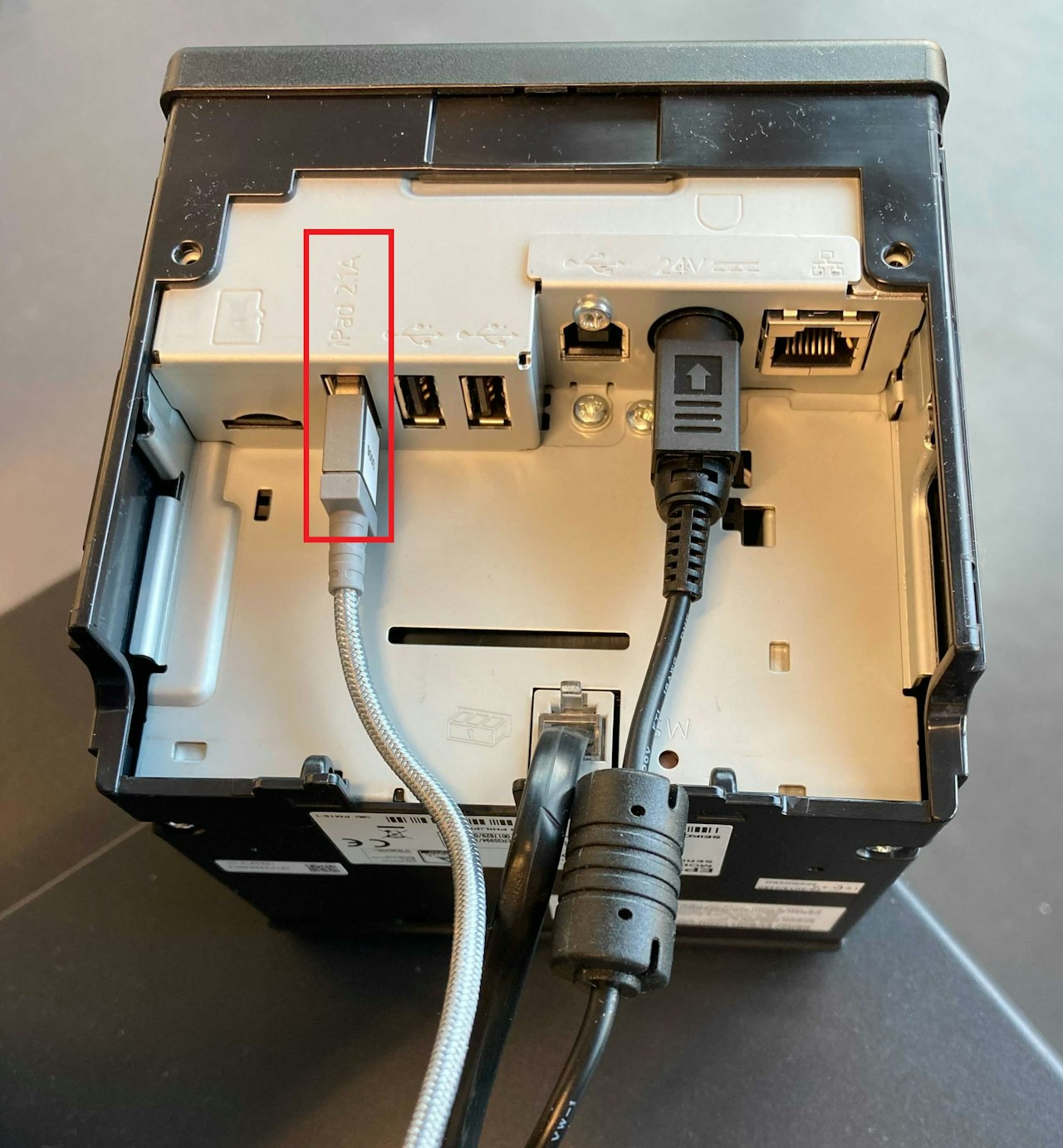
- Connect one end of the cable to the iPad’s Lightning port and the other end to the printer’s USB port labeled “iPad2.1A”.
Connect the printer to the Tillhub app
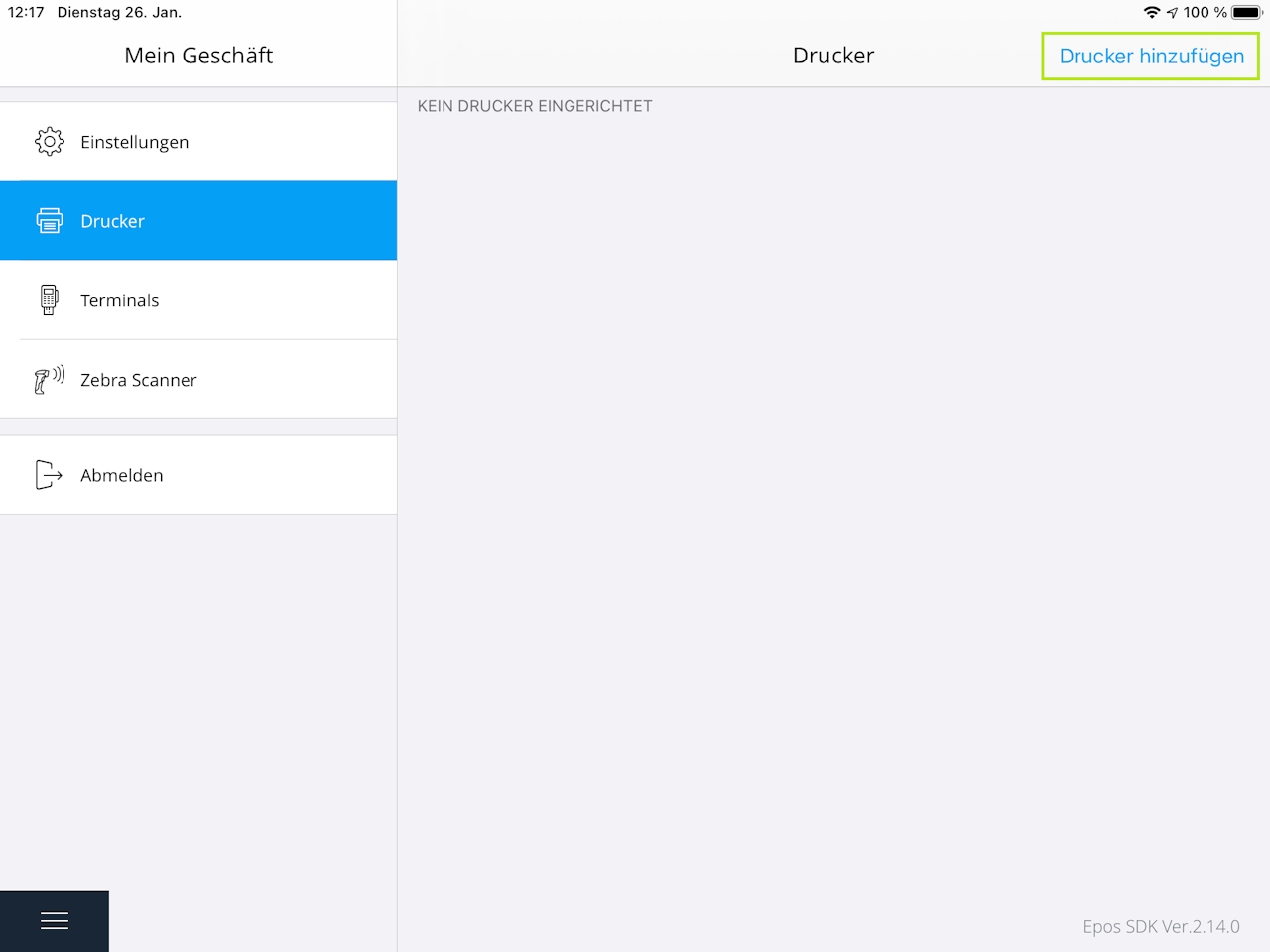
- Next, connect the printer within the Tillhub app. On your iPad, open the Tillhub app and go to Settings > Printers.
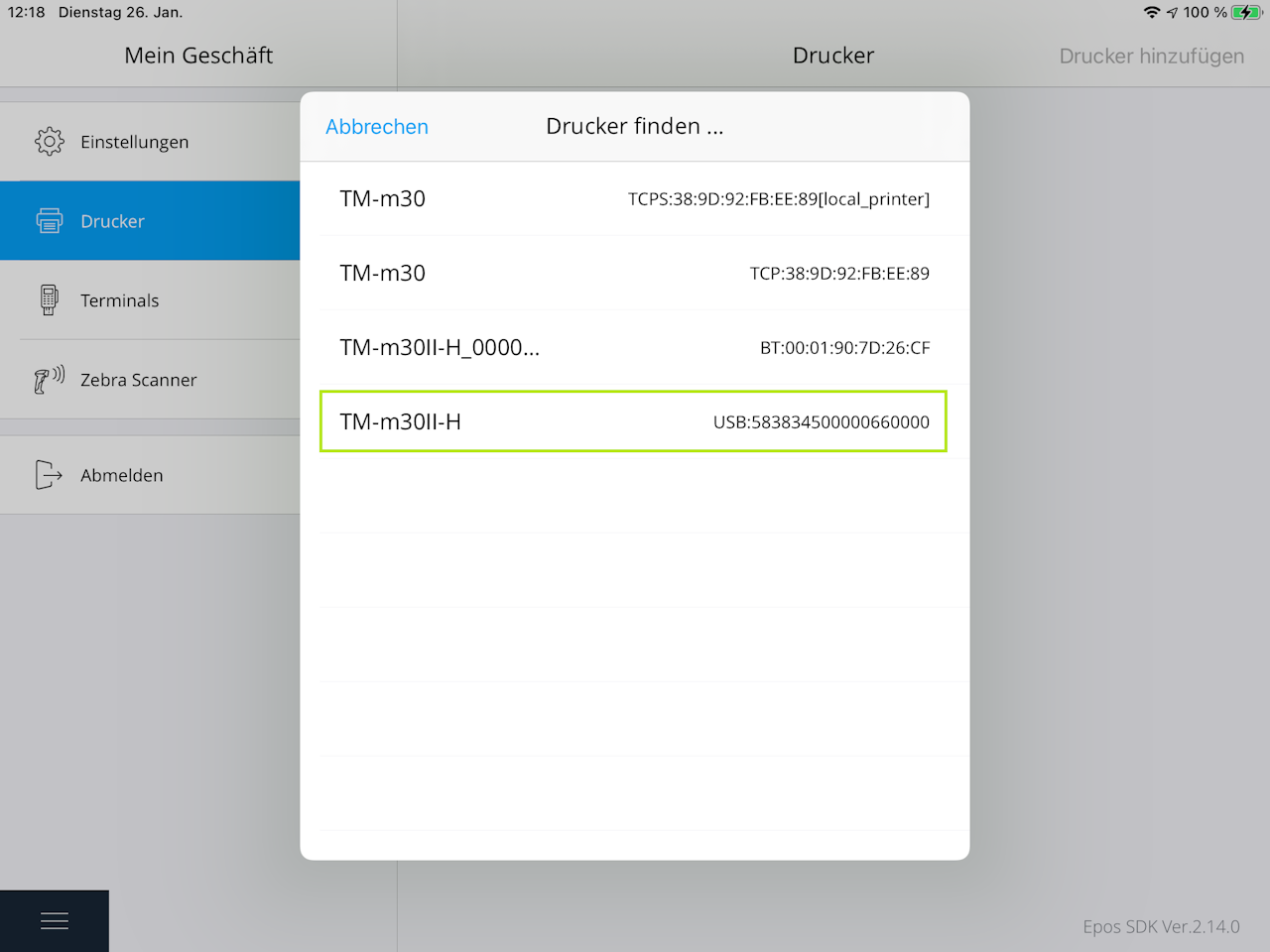
- Tap Add printer. A new window will open where you can select the TM‑m30II‑H.
Important: If multiple printers are shown, make sure to select the TM‑m30II‑H labeled “USB”.
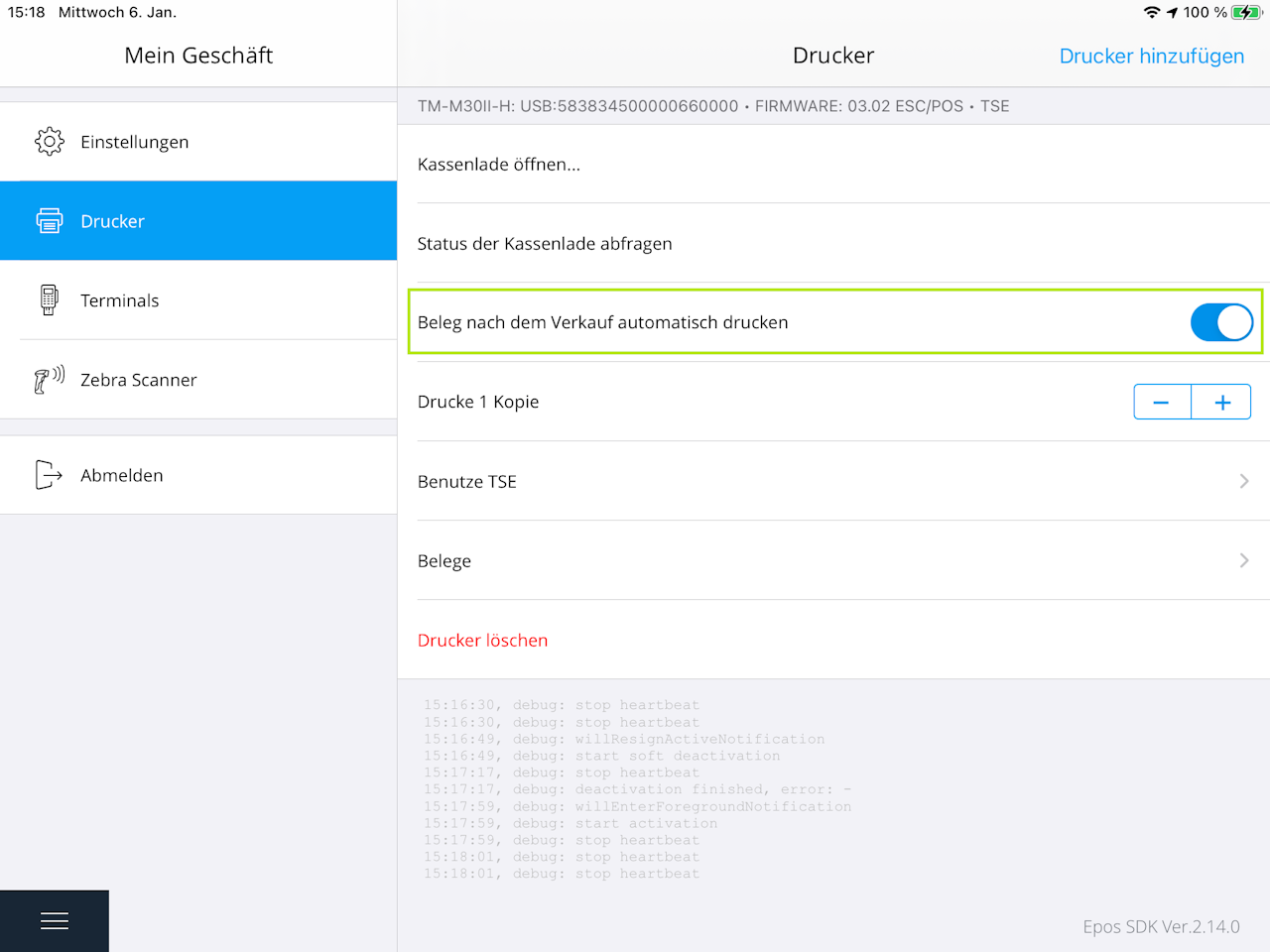
You can then choose to automatically print receipts after each sale.
- Toggle the switch on the right to enable this feature.
Was this article helpful?
That’s Great!
Thank you for your feedback
Sorry! We couldn't be helpful
Thank you for your feedback
Feedback sent
We appreciate your effort and will try to fix the article
