Setting up printers for order receipts (Order-Bons)
Modified on Mon, 16 Feb at 10:11 AM
You can tell Tillhub which items should have a separate order receipt sent to a separate printer or multiple separate printers. Alternatively, order receipts can also be sent to the customer receipt printer.
Here you will learn how to configure the settings in the app for the respective printers.
In the app, receipt printers can be assigned to order receipt options:
- First, add the first printer under My business -> Printers.
- Printers connected via network/Bluetooth are shown automatically.
- Next, add a second receipt printer. Tap Select device again at the top right.
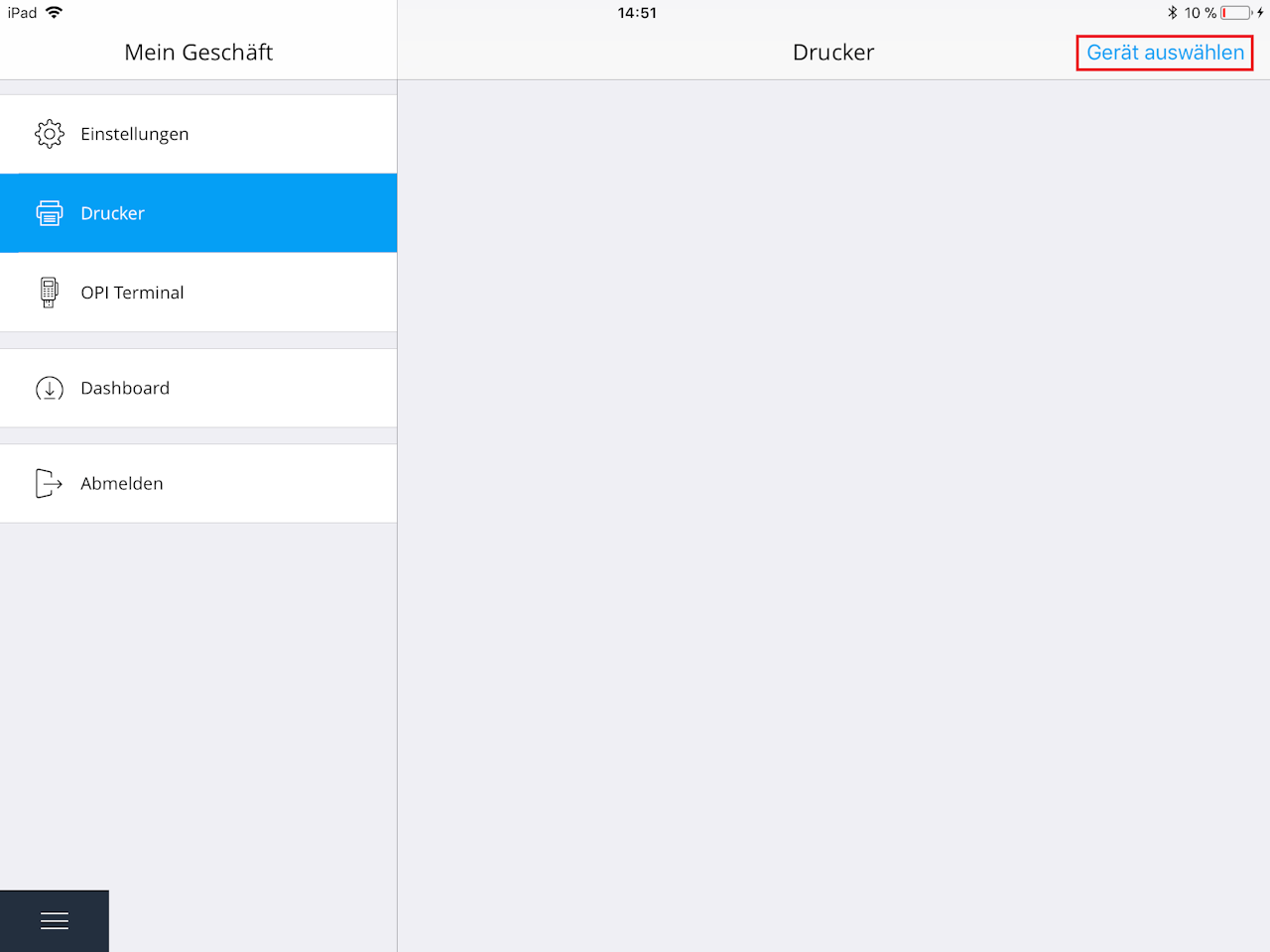
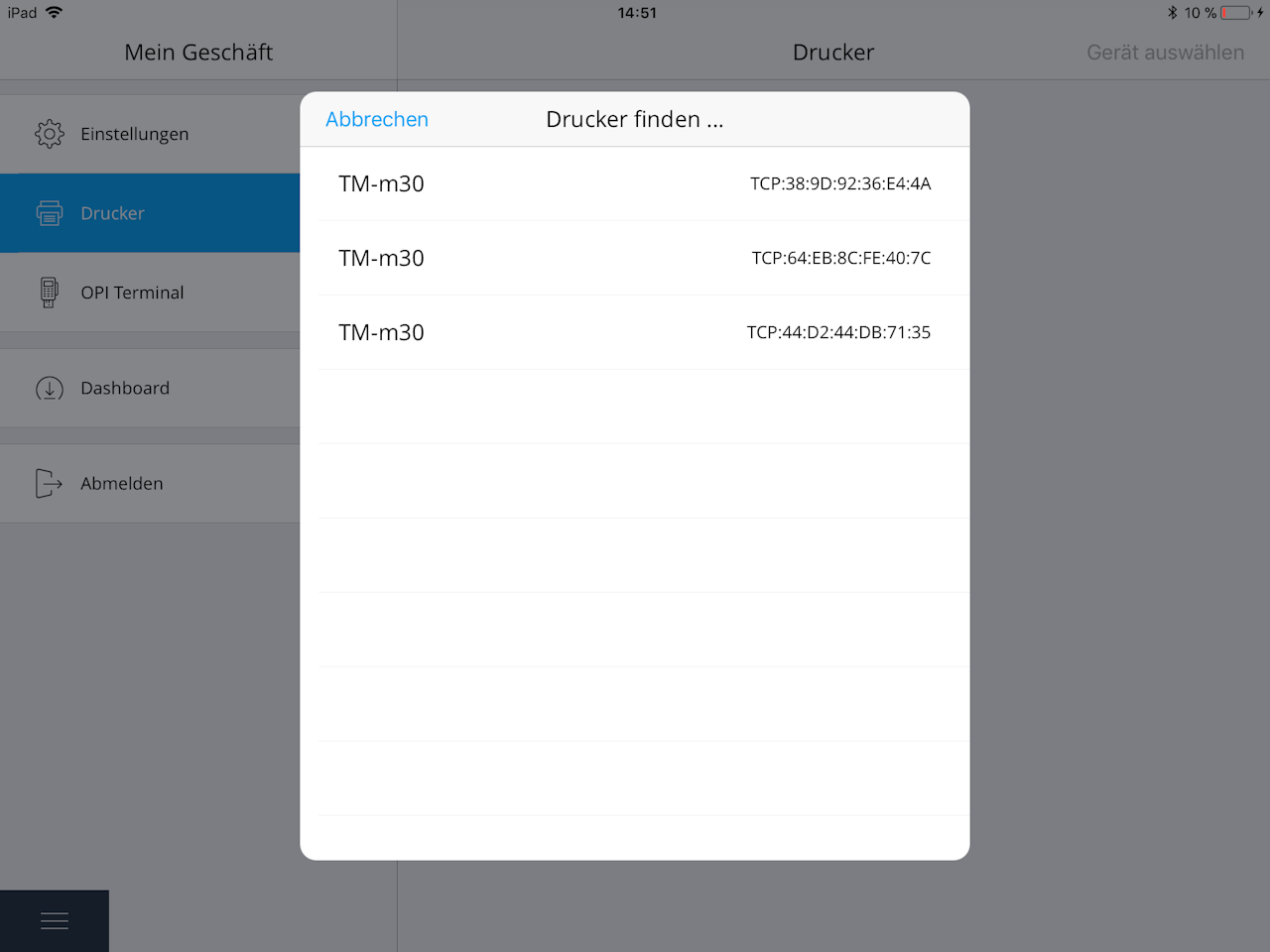
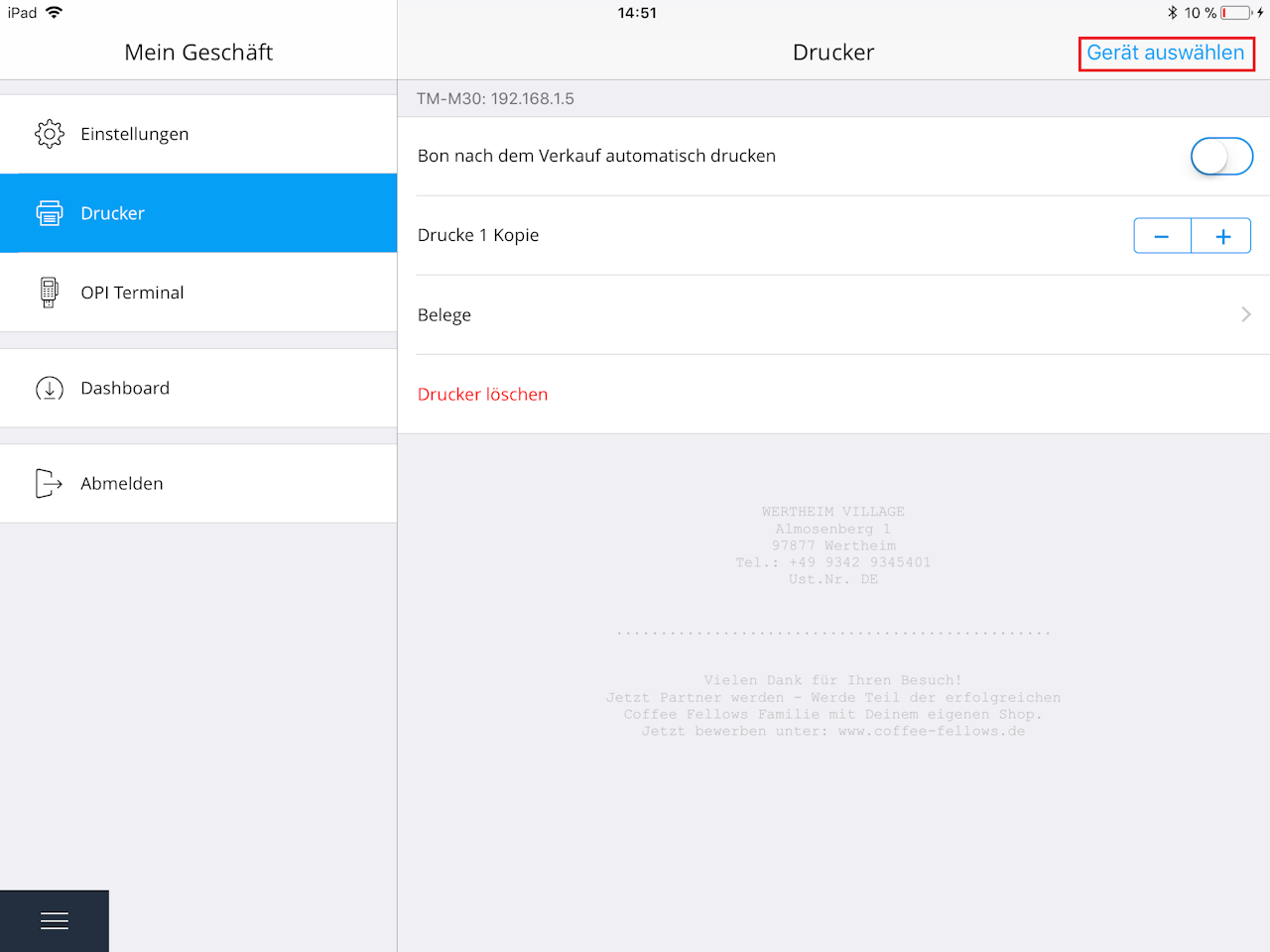
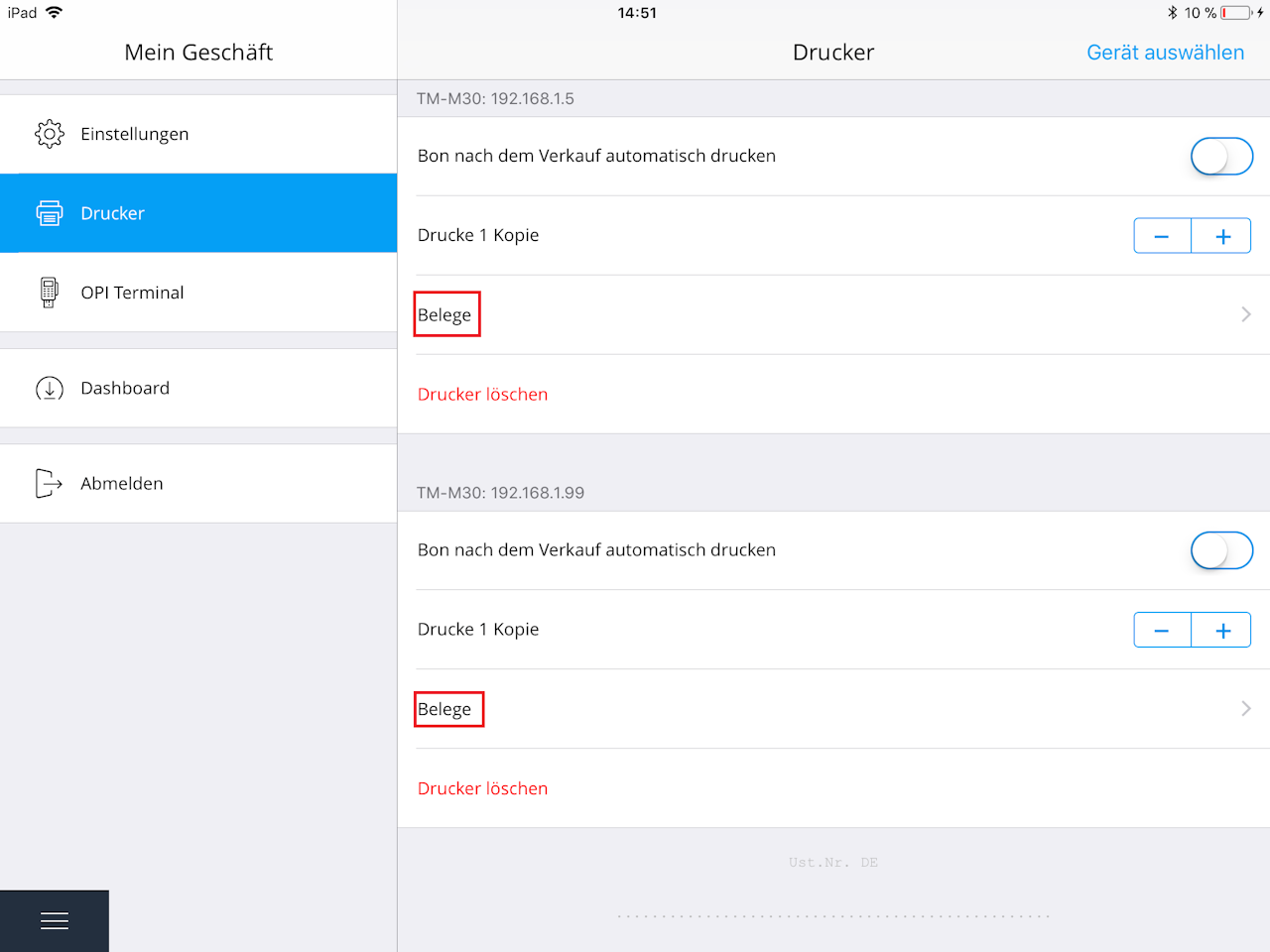
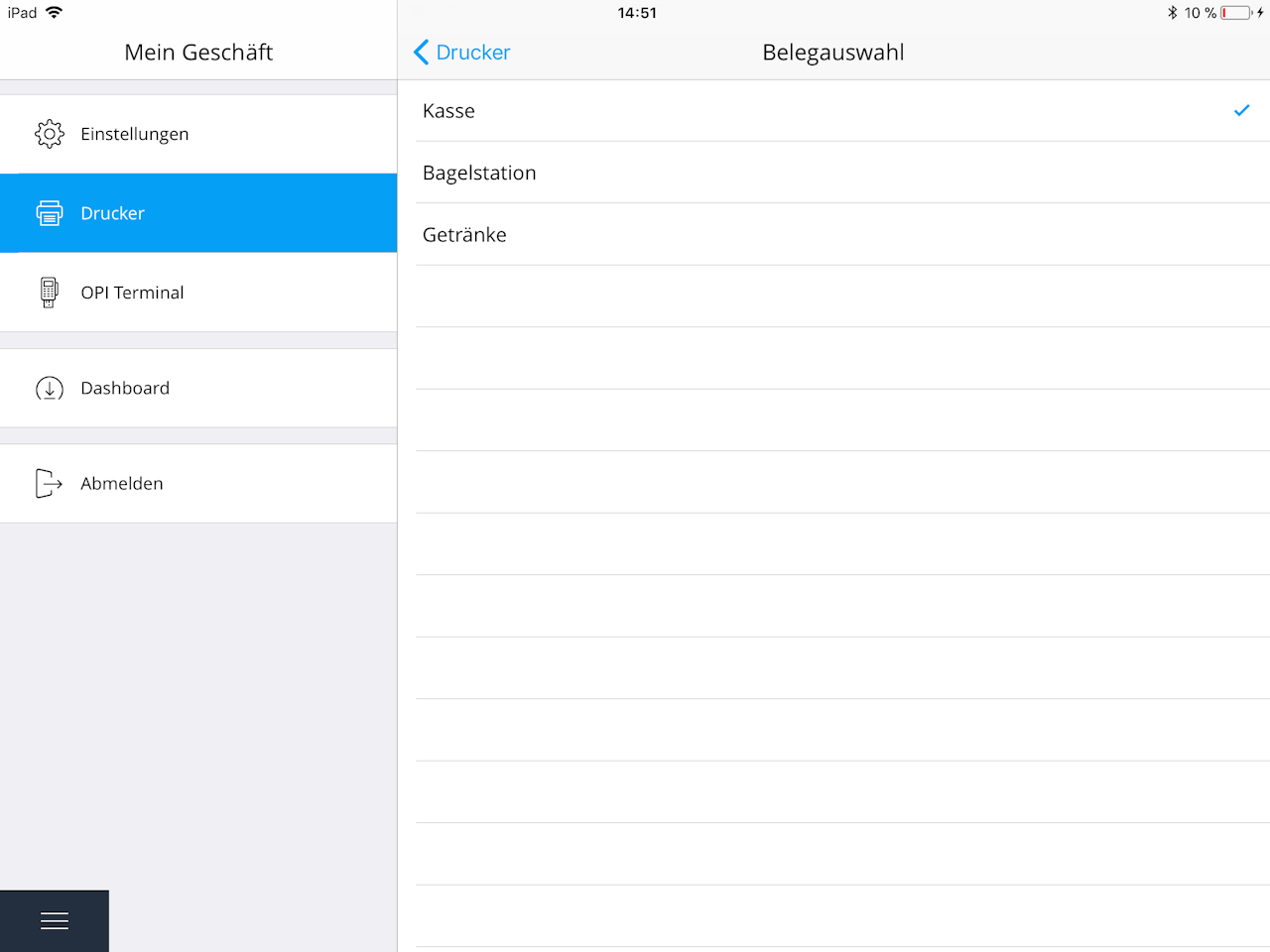
4. Then, for each printer, choose Receipts and assign the receipts to the printers.
5. All order-receipt printers entered under Configurations are displayed here.
Note: A receipt can only be assigned to one receipt printer. However, one receipt printer can print multiple receipt types—for example, a single printer can print sales and drinks receipts.
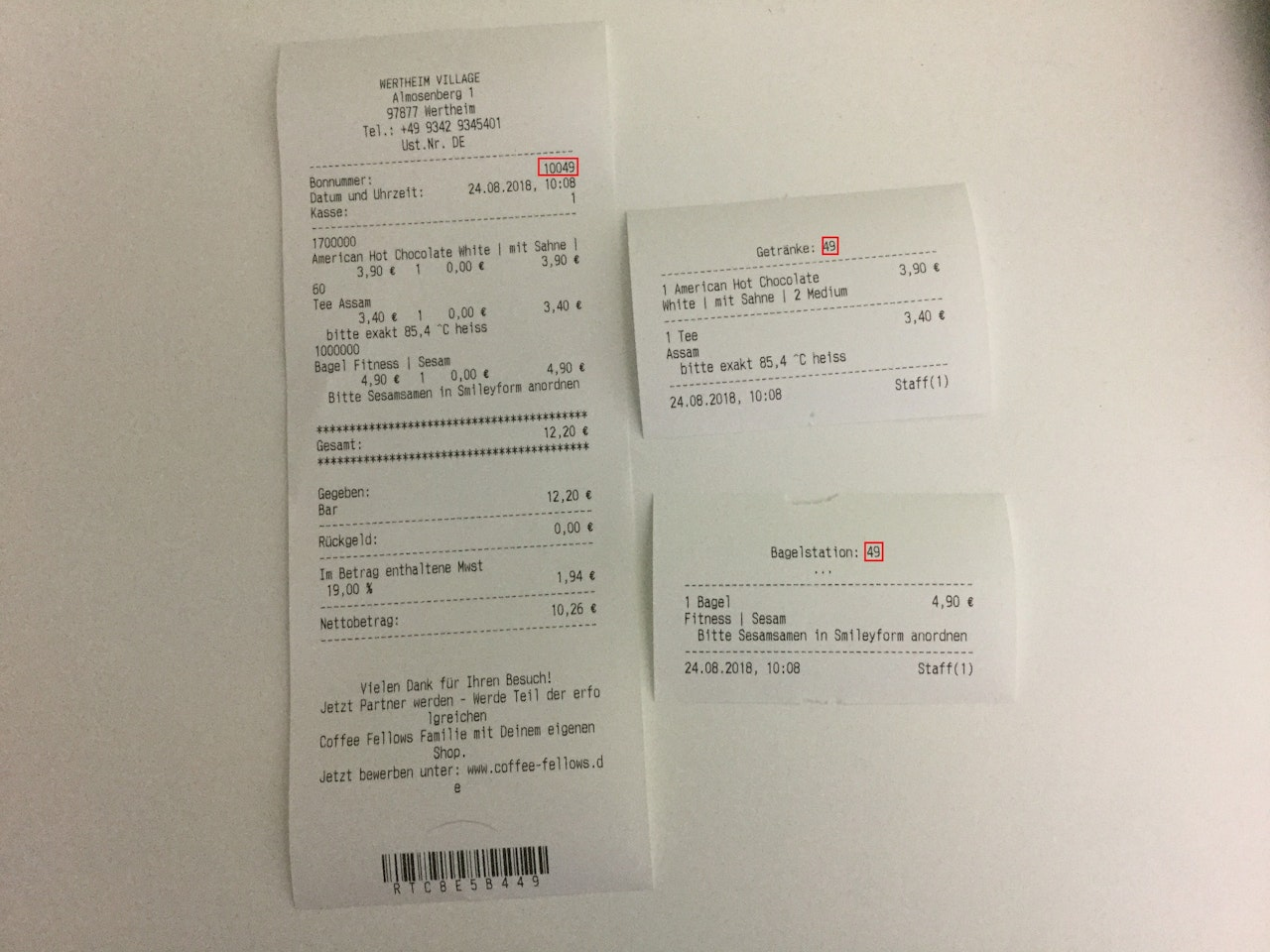
6. If everything is set up correctly, the receipts should print as described above. Receipts can be matched to the transaction by the last digits of the receipt number.
Was this article helpful?
That’s Great!
Thank you for your feedback
Sorry! We couldn't be helpful
Thank you for your feedback
Feedback sent
We appreciate your effort and will try to fix the article
