Kitchen Printer
Modified on Wed, 25 Feb at 12:29 PM
Introduction
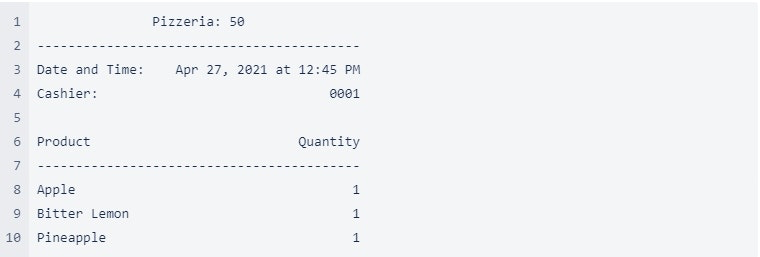
Your POS system can be connected to multiple printers located in different areas of your restaurant, such as in the kitchen or at the bar. These so-called kitchen printers receive and print kitchen receipts, i.e., a list of all food and drinks that are to be prepared at the respective location.
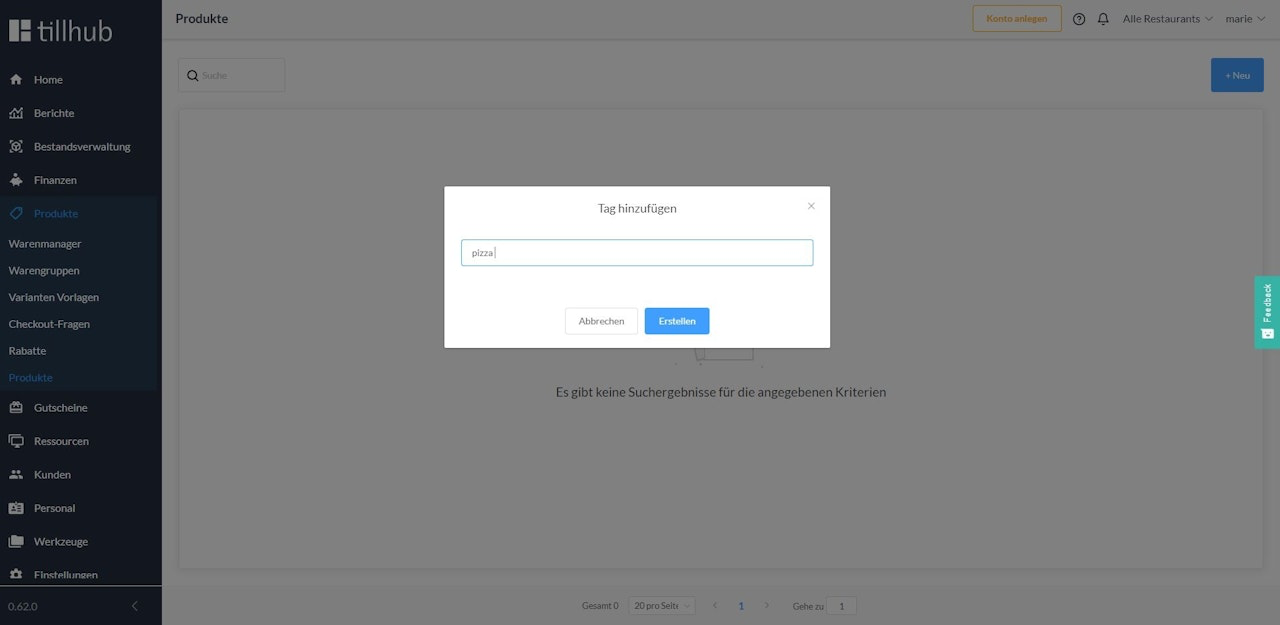
Which products are printed by which kitchen printer is determined by the system based on tags that are assigned to the products and the various printers. For example, if only the printer in your pizza kitchen is assigned the tag pizza, then this printer is the only one in your restaurant that receives a kitchen receipt for orders that are also marked with this tag.
At the moment the cashier places an order, the kitchen printers print the kitchen receipts with the products assigned to them. To create tags, click on Products in the main menu and then navigate to Products again in the submenu. You can create different tags using the +New button.
Example of a kitchen receipt > Image 2
Configuration of the kitchen printers
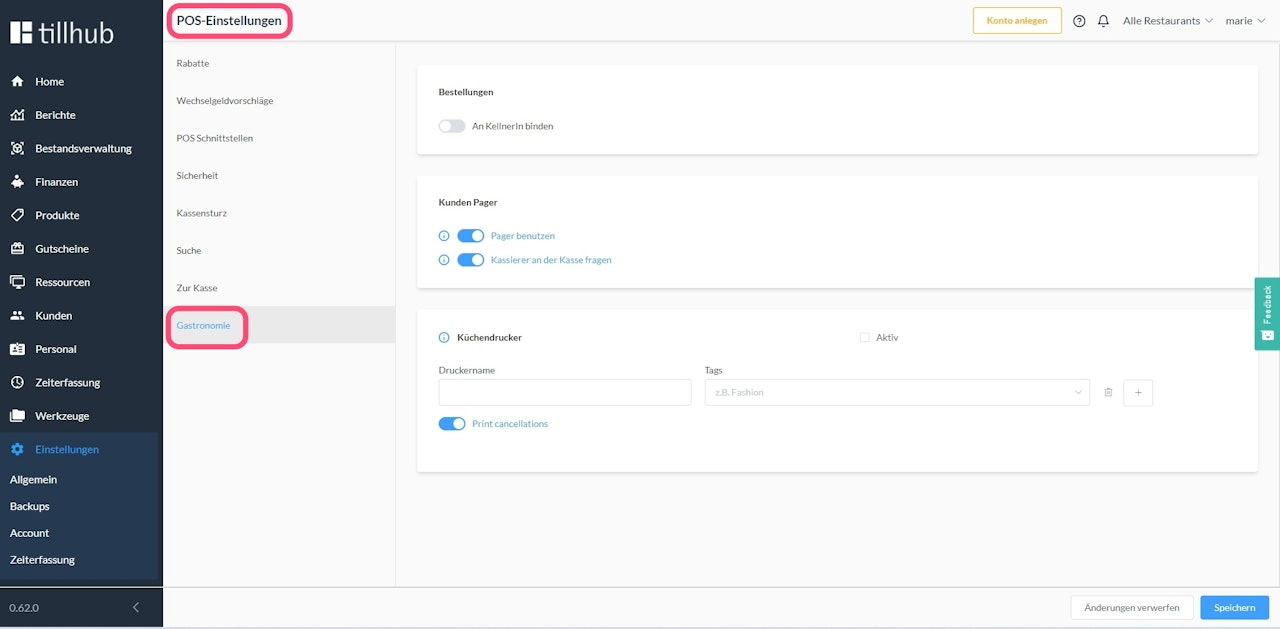
To configure your kitchen printers, click on Settings in the main menu of your dashboard.
Then navigate to POS in the submenu to select the option "Gastronomy". Here you can activate, deactivate, configure kitchen printers and assign various tags to them.
Note: It is very important that the switch for “Active” is turned on so that the kitchen printers can be used. Only when this setting is activated will the orders be sent correctly to the respective kitchen printers.
If you have activated table management, you can also choose between printing all entries (including item cancellations) or printing only newly added entries.
Configuration of the POS
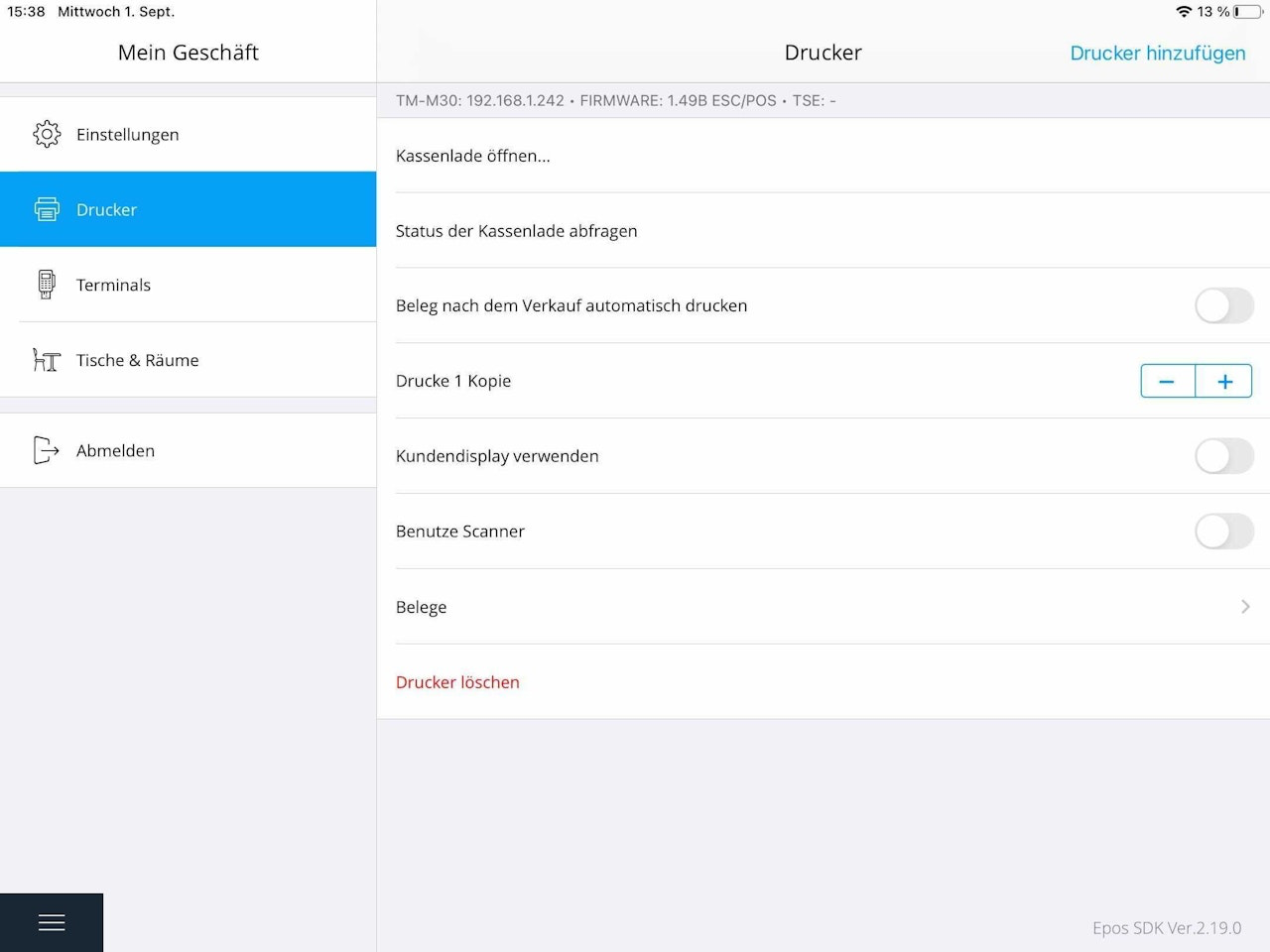
By tapping on Settings in the menu of your Tillhub Gastro App and then selecting the option "Printers", you can connect all your printers to your POS using the Add Printer button at the top right.
Each connected printer can be linked here to a pre-configured kitchen printer profile from the dashboard. The easiest way to do this is via the assigned IP addresses.
Each configured kitchen printer profile can only be linked to one physical printer. If a kitchen printer profile is not linked to a specific physical printer, the POS prints the kitchen receipts on the actively connected default printer.
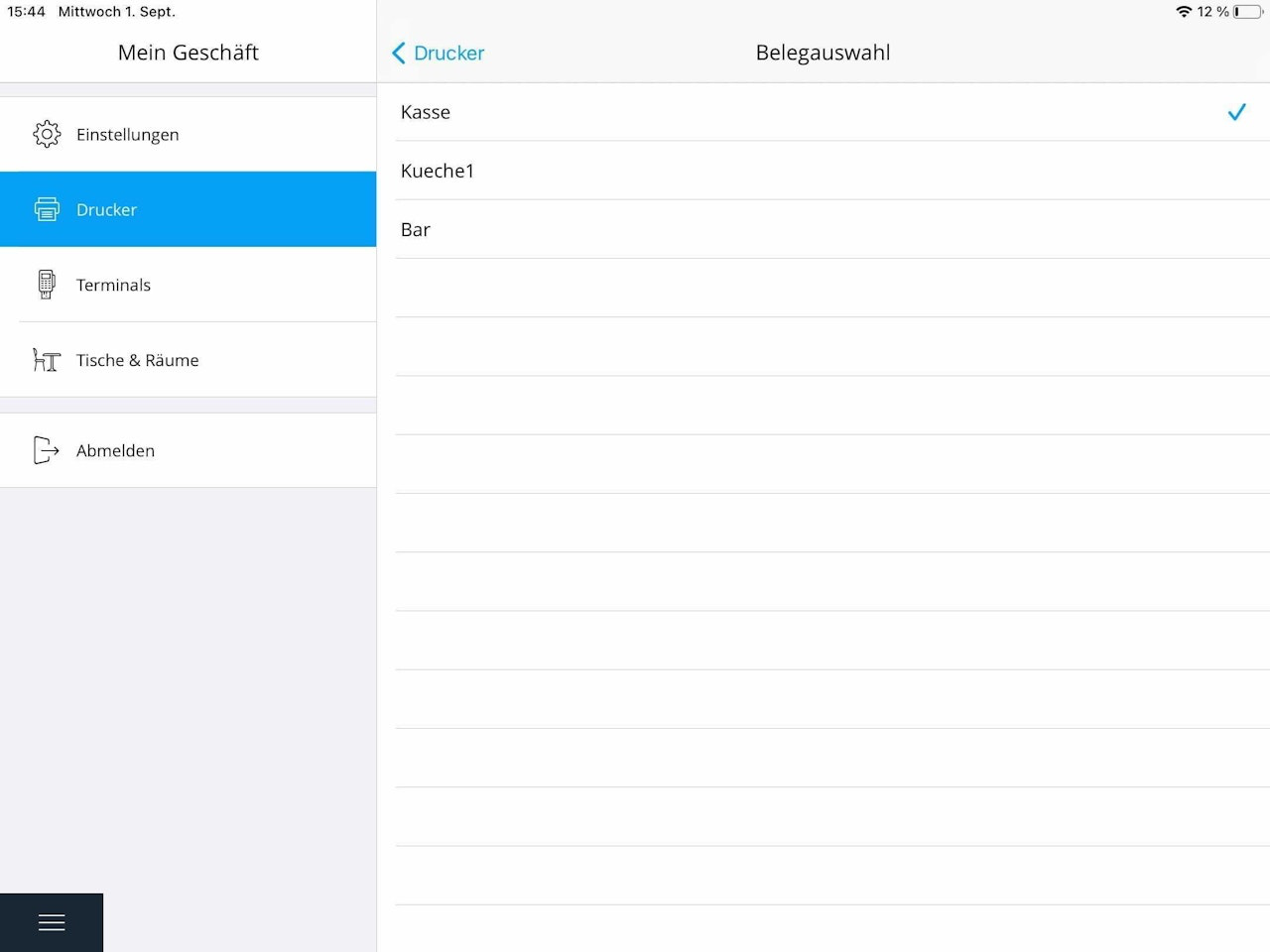
Once a printer is connected, you can select the option "Receipts" in the printer menu.
Select the pre-configured kitchen printer profile.
Was this article helpful?
That’s Great!
Thank you for your feedback
Sorry! We couldn't be helpful
Thank you for your feedback
Feedback sent
We appreciate your effort and will try to fix the article
