Splitting Orders by Products in the Shopping Cart
Modified on Wed, 25 Feb at 12:29 PM
Configuration in the Dashboard
During the checkout process, the cashier/waiter has the option to split the receipt into multiple receipts or to divide the payment of a receipt into several parts.
In this way, groups who have eaten and drunk together can be billed independently of one another.
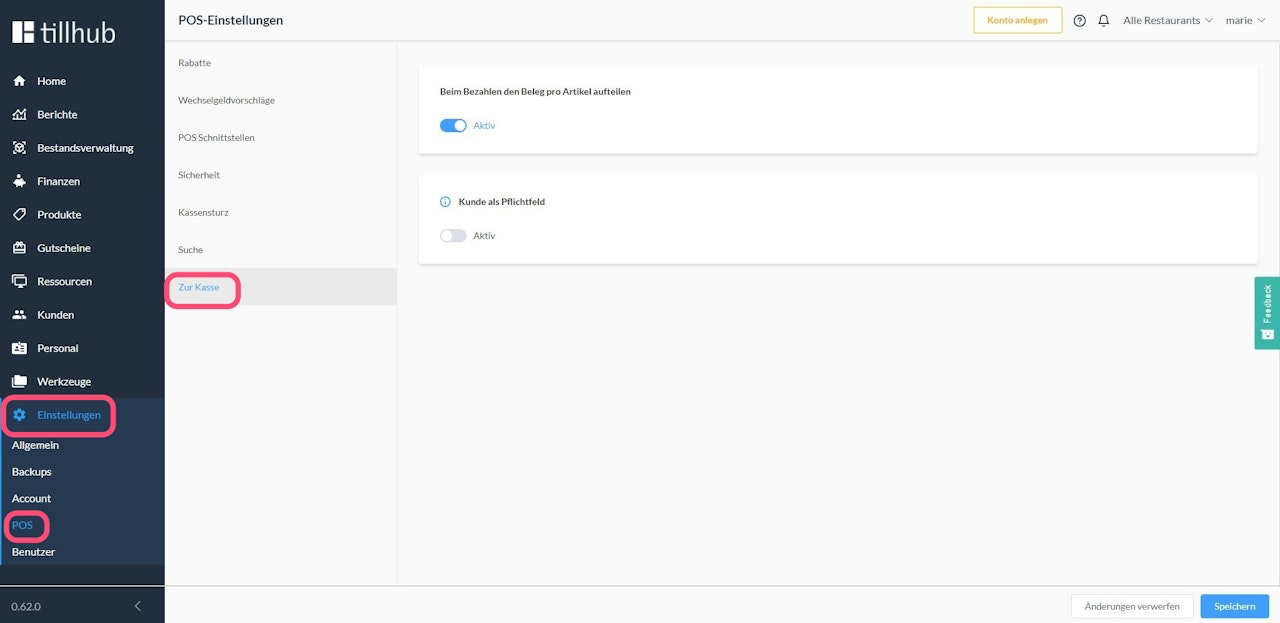
To do this, click on Settings in the main menu of your dashboard. Then navigate to POS and select "Checkout" in the POS settings.
Activate the option "Split the receipt by item at checkout".
Usage in the Checkout
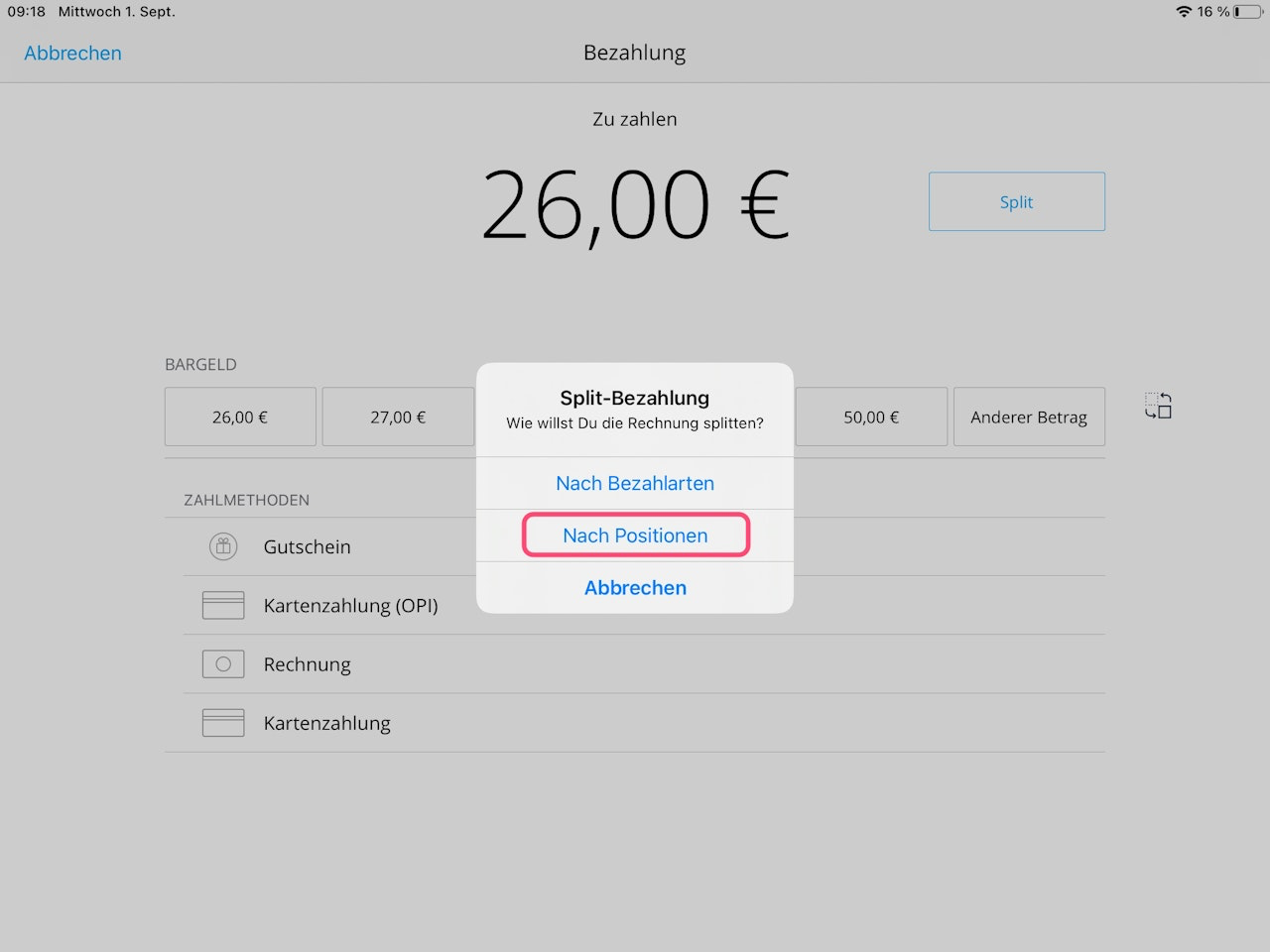
- During the checkout process in your cashier interface, tap the Split button.
- This button appears in the top right next to the amount to be paid as soon as you need to choose between different payment methods.
- A pop-up window will now show you the following two options:
- "By payment methods" and"By items".
- Select the option "By items".
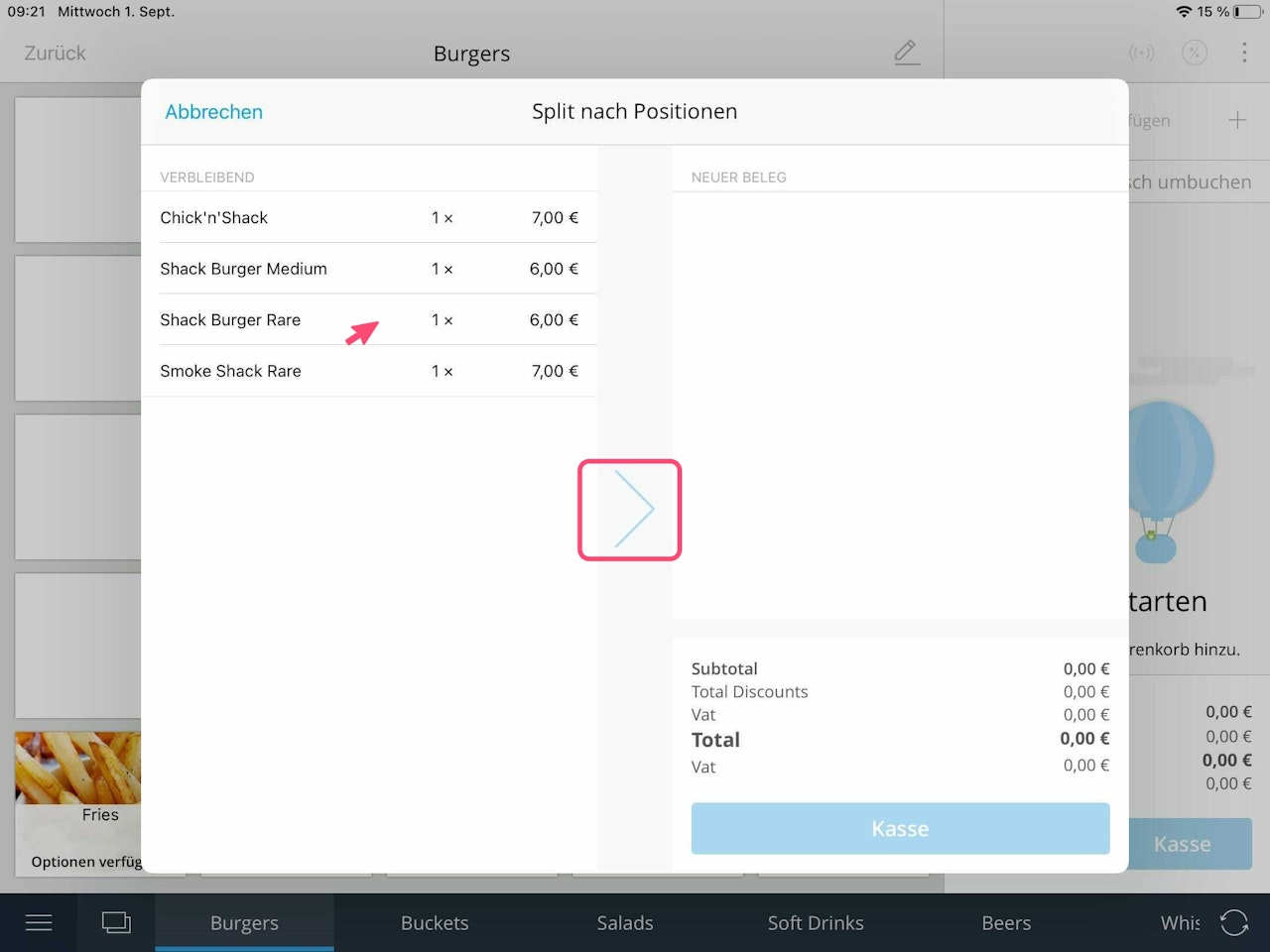
- Another pop-up window opens, showing all items currently in the shopping cart on the left side.
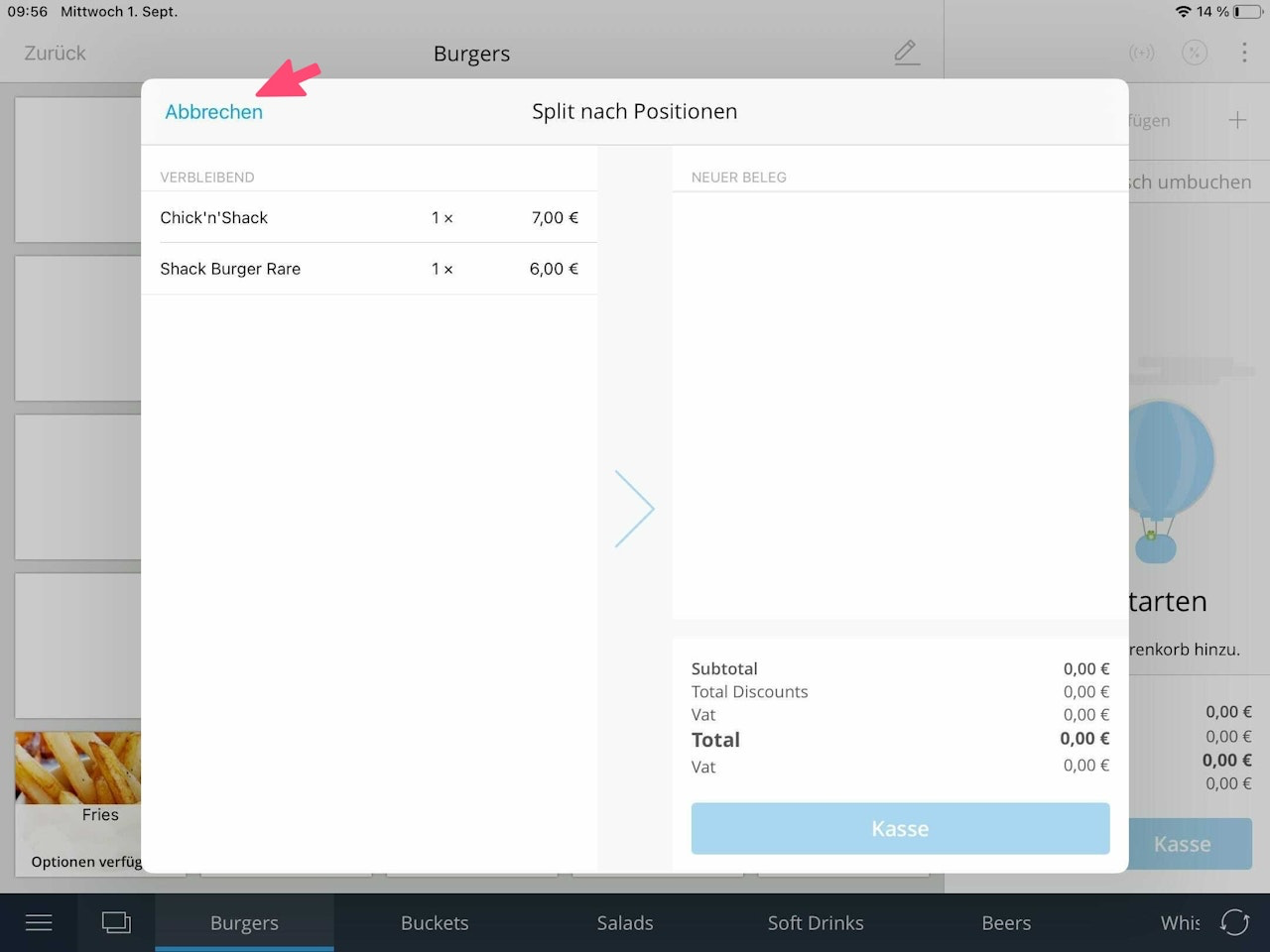
- When you tap on the desired item, it is transferred from left to right onto a new receipt (Image 2).
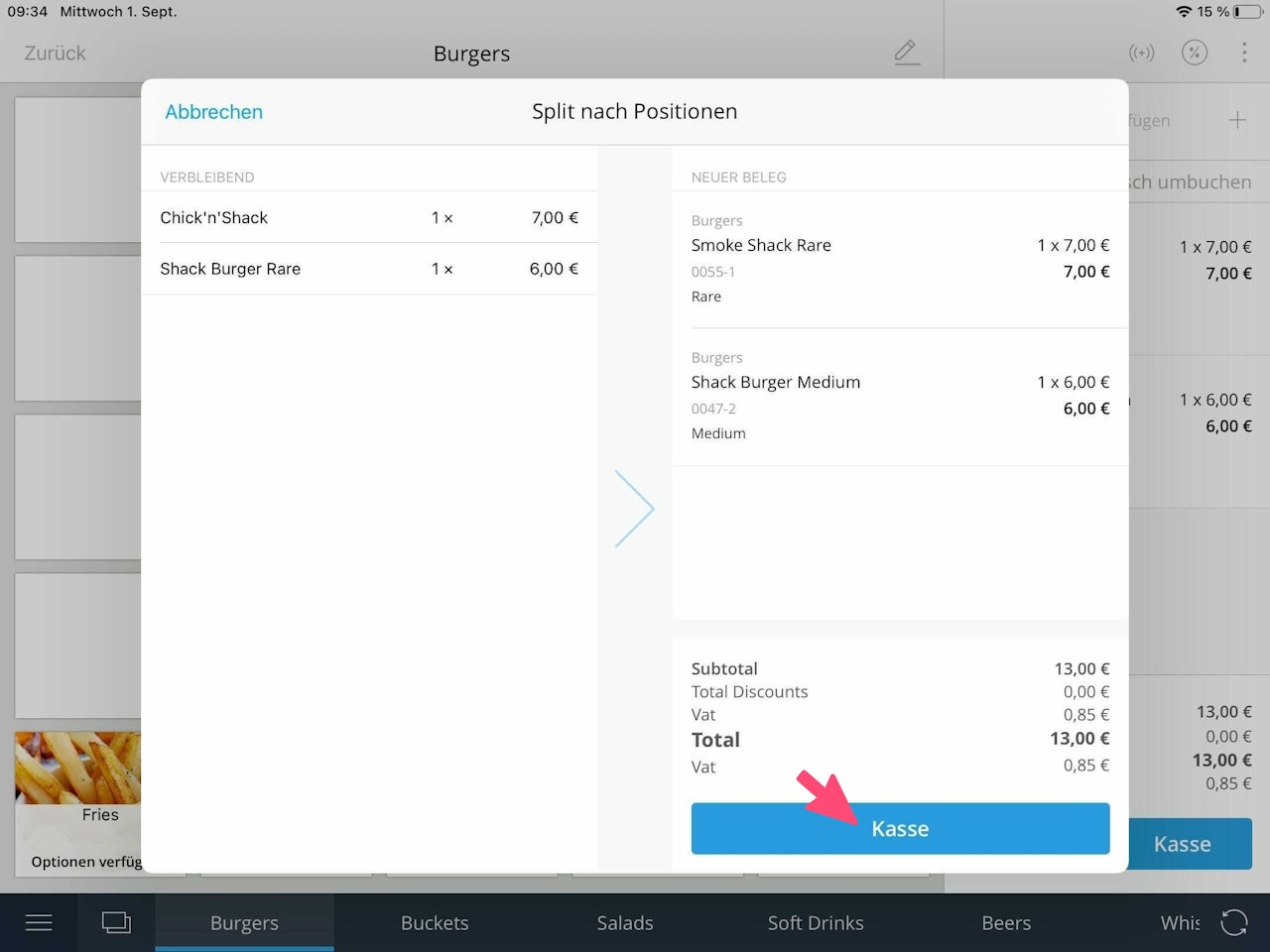
Once you have transferred all desired products from left to right onto the new receipt, tap the Checkout button in the bottom right corner.
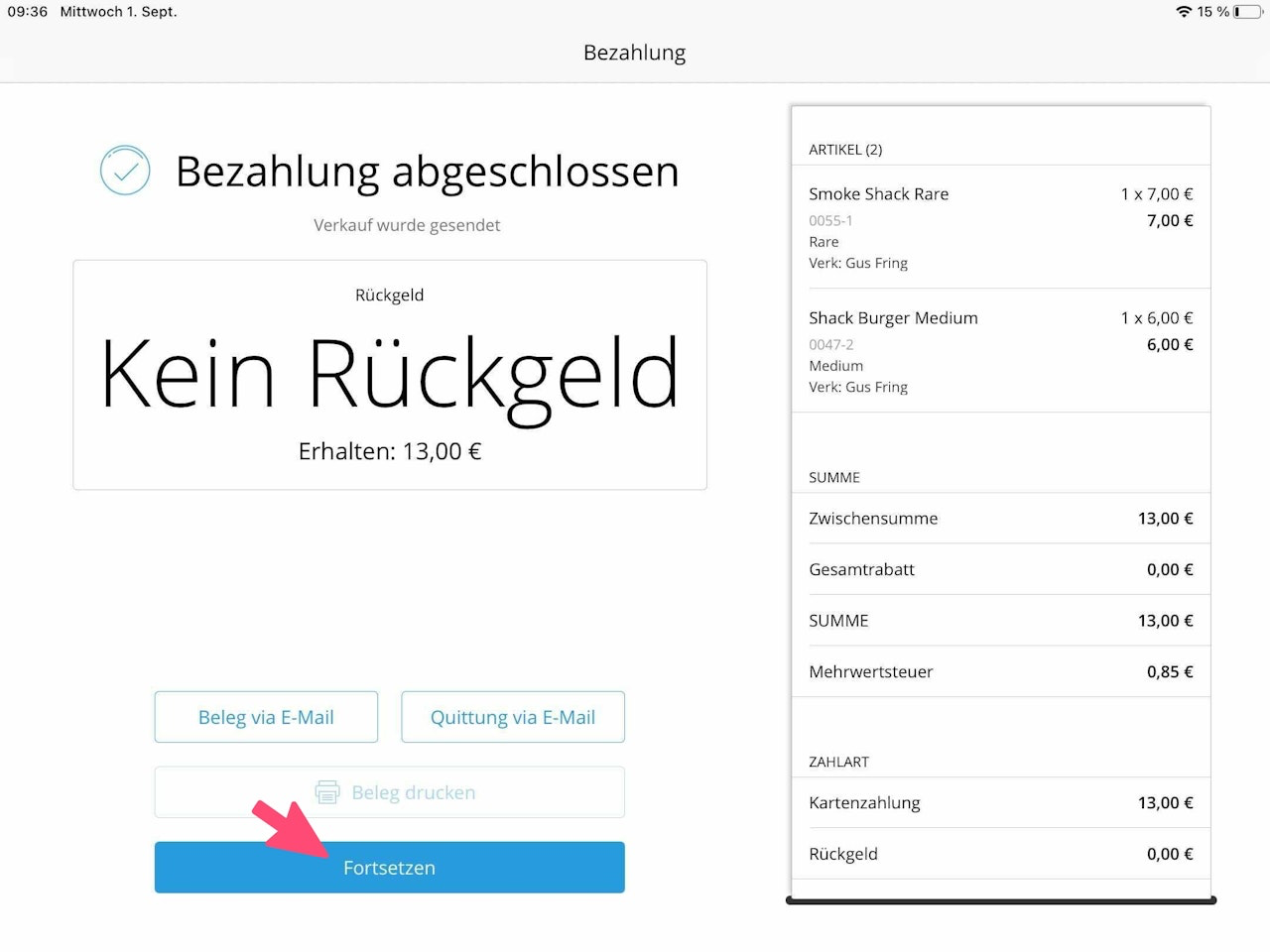
In the confirmation window of the payment process, tap the Continue button to process the remaining items (Image 2).
Your shopping cart now only contains the items that have not yet been paid for. If the remaining members of the group do not want to pay yet but instead wish to stay at the table, that is no problem.
Simply tap the Cancel button in the top left to take new orders (Image 3).
Was this article helpful?
That’s Great!
Thank you for your feedback
Sorry! We couldn't be helpful
Thank you for your feedback
Feedback sent
We appreciate your effort and will try to fix the article
