Shopping Cart Functions
Modified on Wed, 18 Feb at 3:56 PM
In the tile view, you will find the shopping cart on the right side of the screen. It offers many functions, which we explain in more detail in this chapter. In the video tutorial, we provide an overview of the basic features of the shopping cart. Further written and visual information is provided in the following sections.
TABLE OF CONTENTS
- How can I add items to the shopping cart?
- Select article from the library
- How can I remove items from the shopping cart?
- How can I change item quantities in the shopping cart?
- How can I apply and delete discounts?
- How can I change the price of an item before the sale?
- Add customers to the shopping cart
- Park purchase
- Settle parked purchase
- Delete parked purchase
How can I add items to the shopping cart?
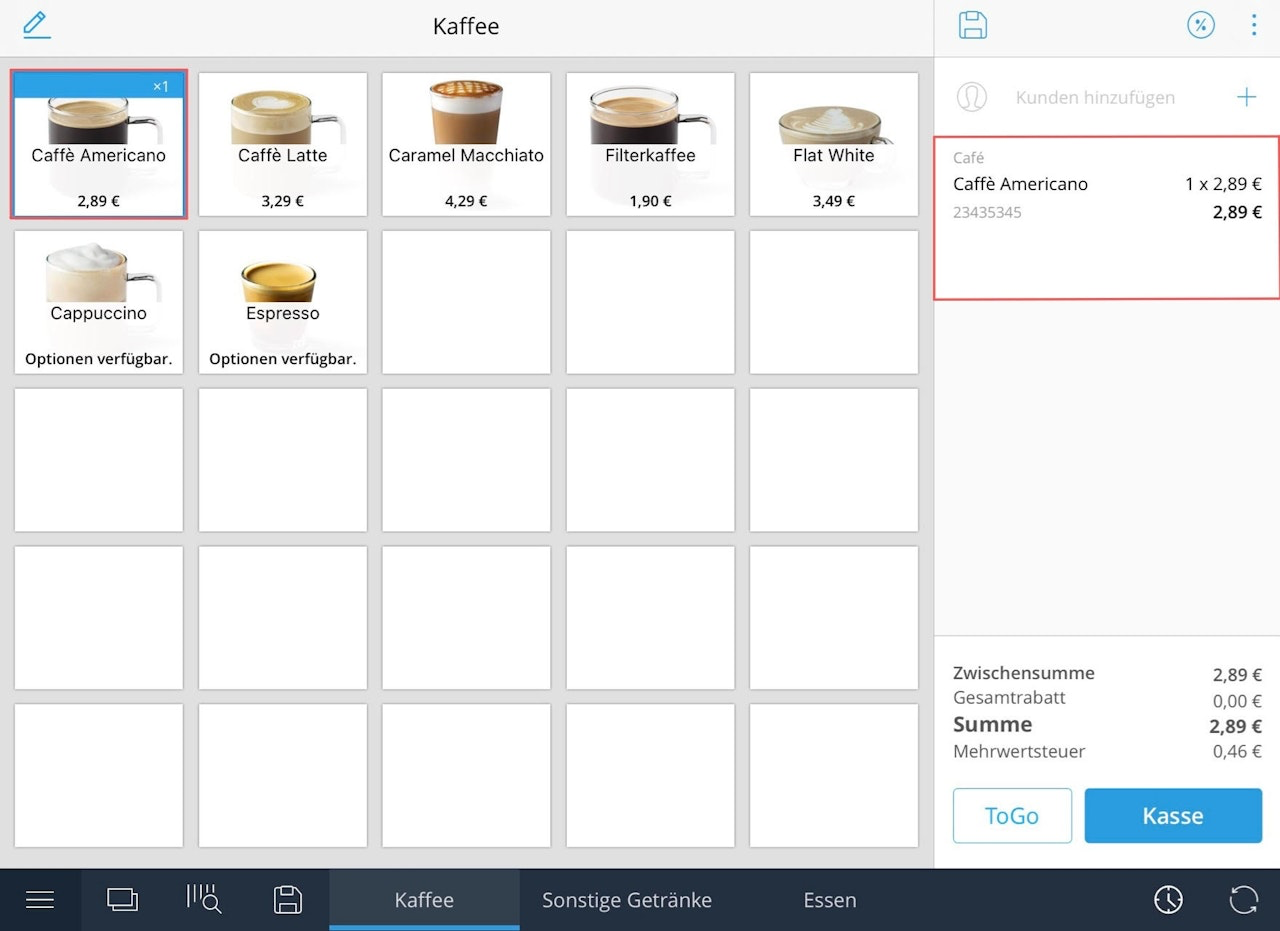
To add an item to the cart, tap on the desired product in either the library or the tile view. It will automatically be placed in the cart on the right side of the register interface: First tap the main menu (bottom left), then “Register” (top left). Tap on one of your tabs. Select an item from the tile view by tapping. The product will immediately appear on the right in the cart as a sales item.
Note: The register must be open. If it isn’t, tap the blue “Open Register” button.
Additional options to add items:
- Search by article number
- Scan barcode
Select article from the library
How can I remove items from the shopping cart?
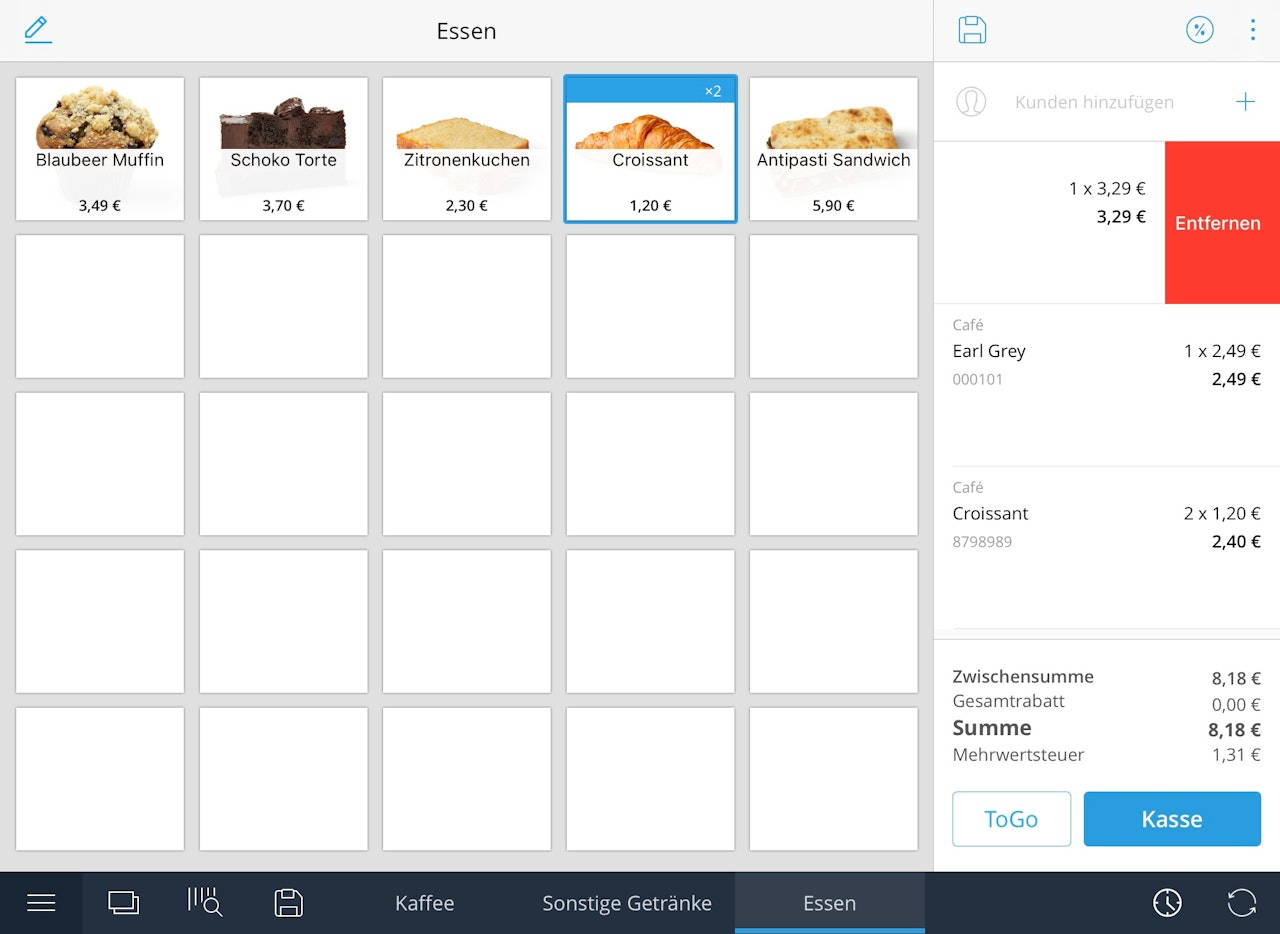
If you accidentally selected the wrong item, swipe it from right to left to remove it from the cart.
How can I change item quantities in the shopping cart?
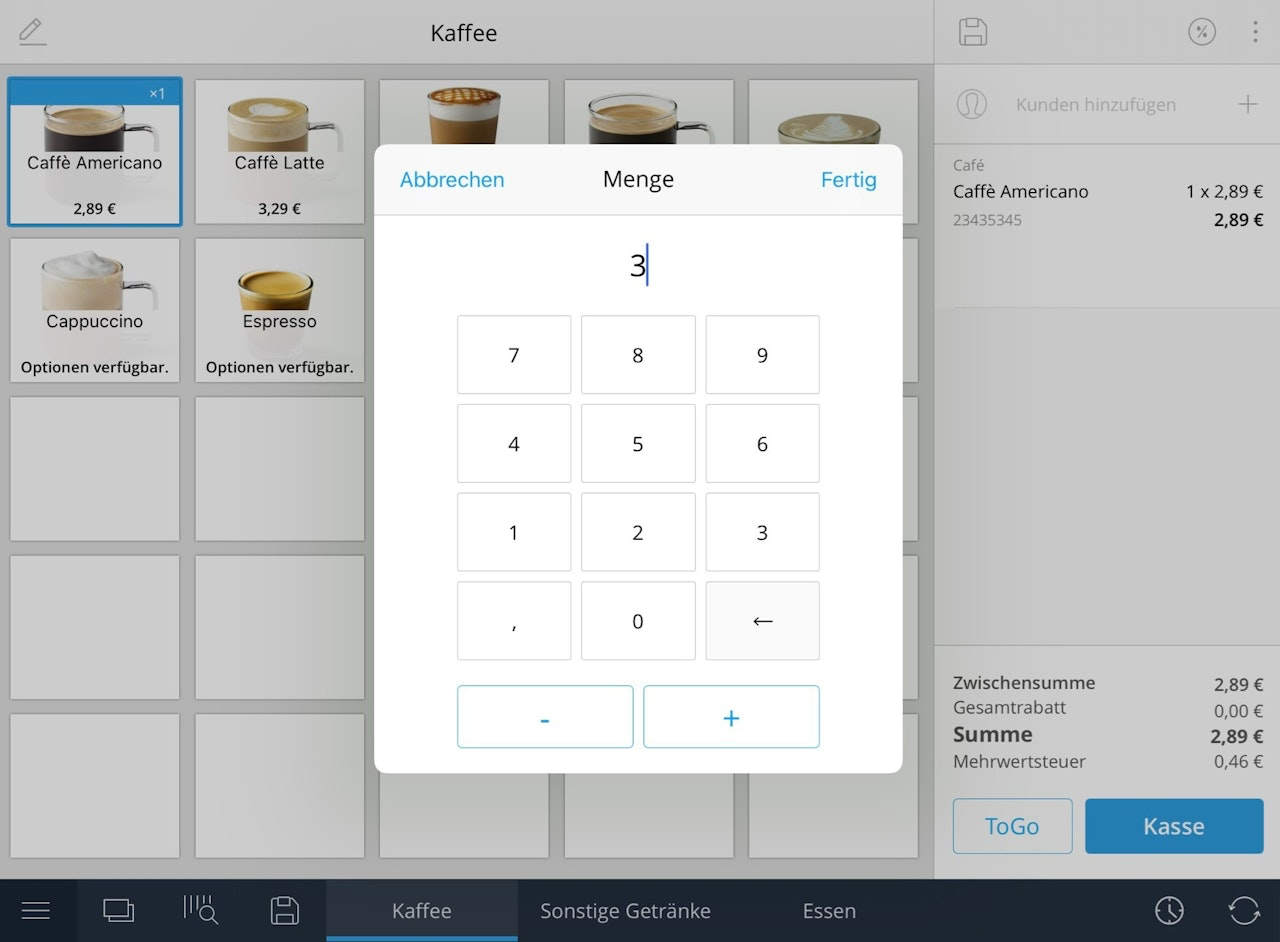
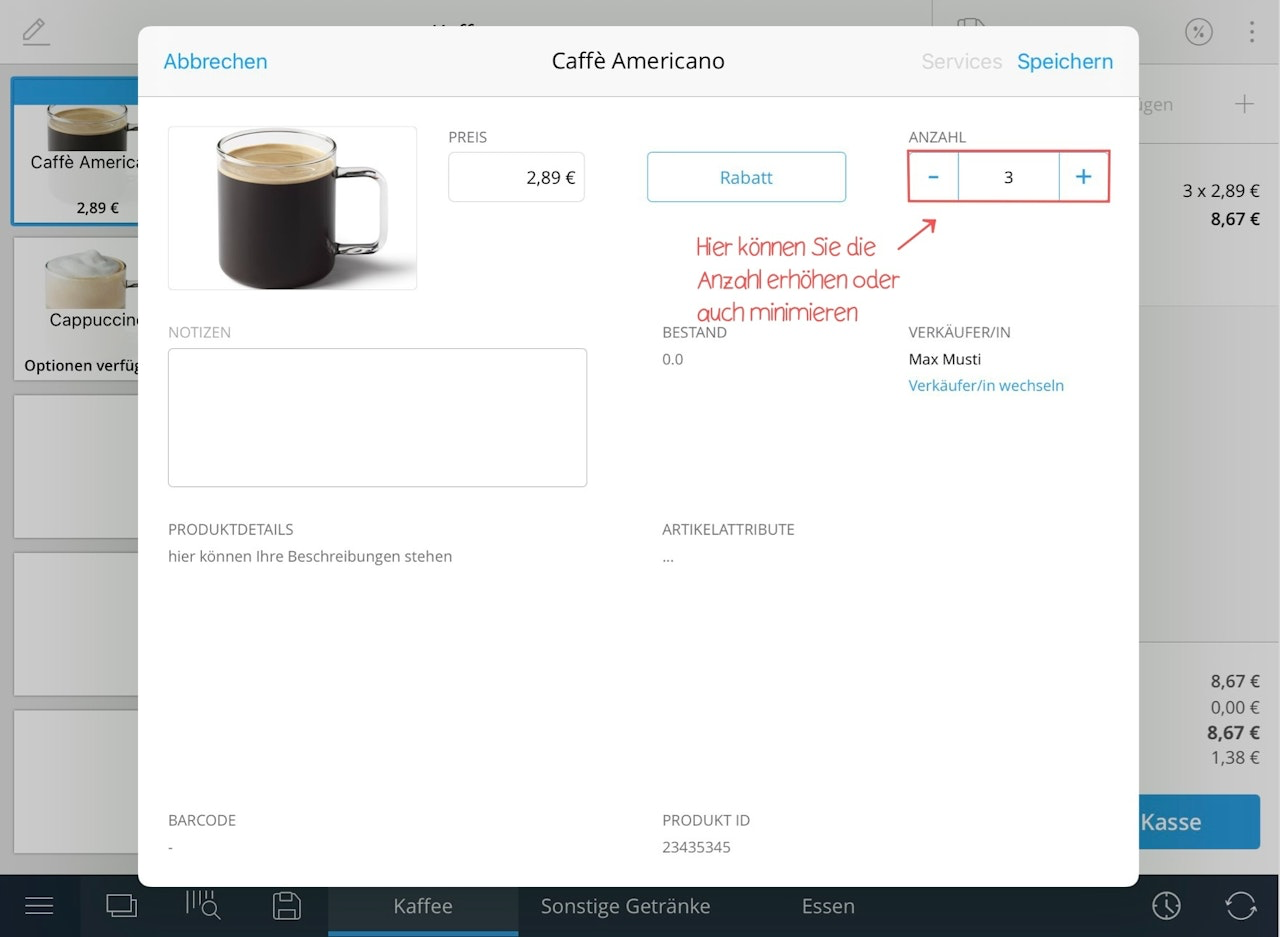
If you tap an item multiple times in the tile view, it will appear multiple times in the cart as individual sales entries. To combine these into a single entry, press and hold the tile. A pop-up will open where you can specify the quantity. The item will then appear with the correct amount in the cart. You can also adjust the quantity directly in the cart:
Press and hold the item in the cart. In the pop-up window, use the plus and minus icons at the top left to adjust the quantity.
How can I apply and delete discounts?
The Tillhub POS system distinguishes between item and cart discounts. Item discounts refer to individual entries that are in your shopping cart, while cart discounts are applied to the entire content of the shopping cart.
1) Item discounts: percentage discount (%)
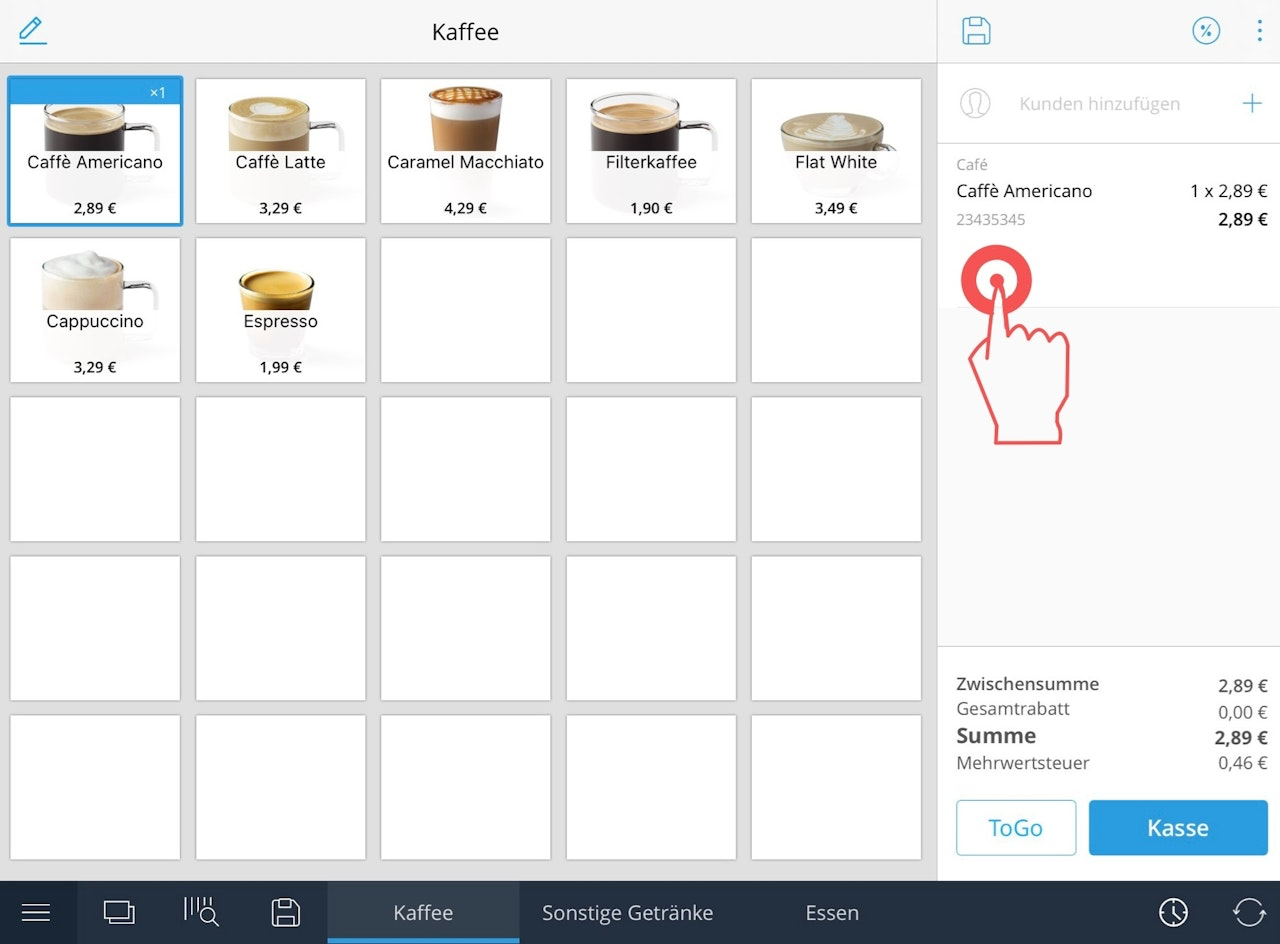
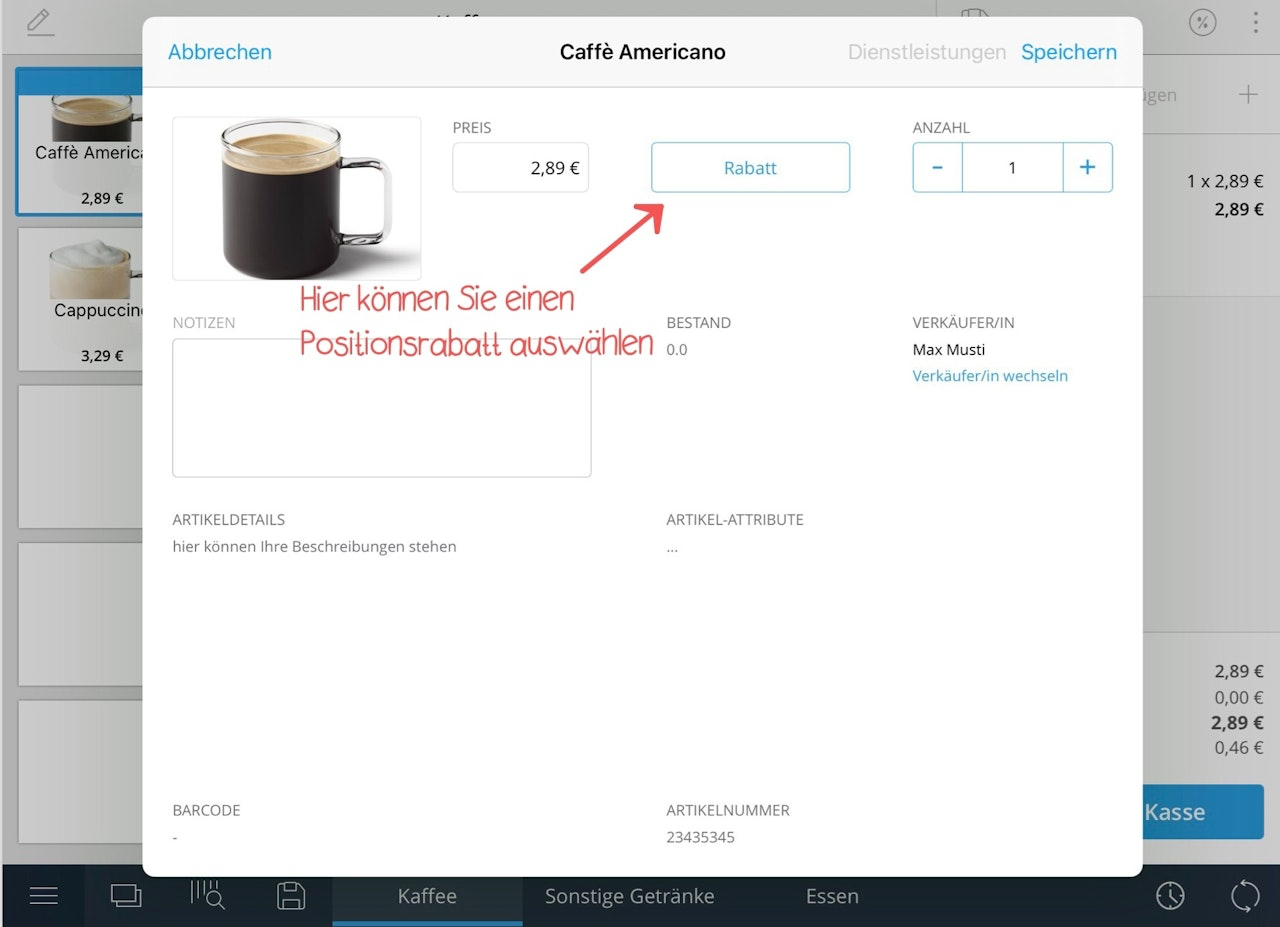
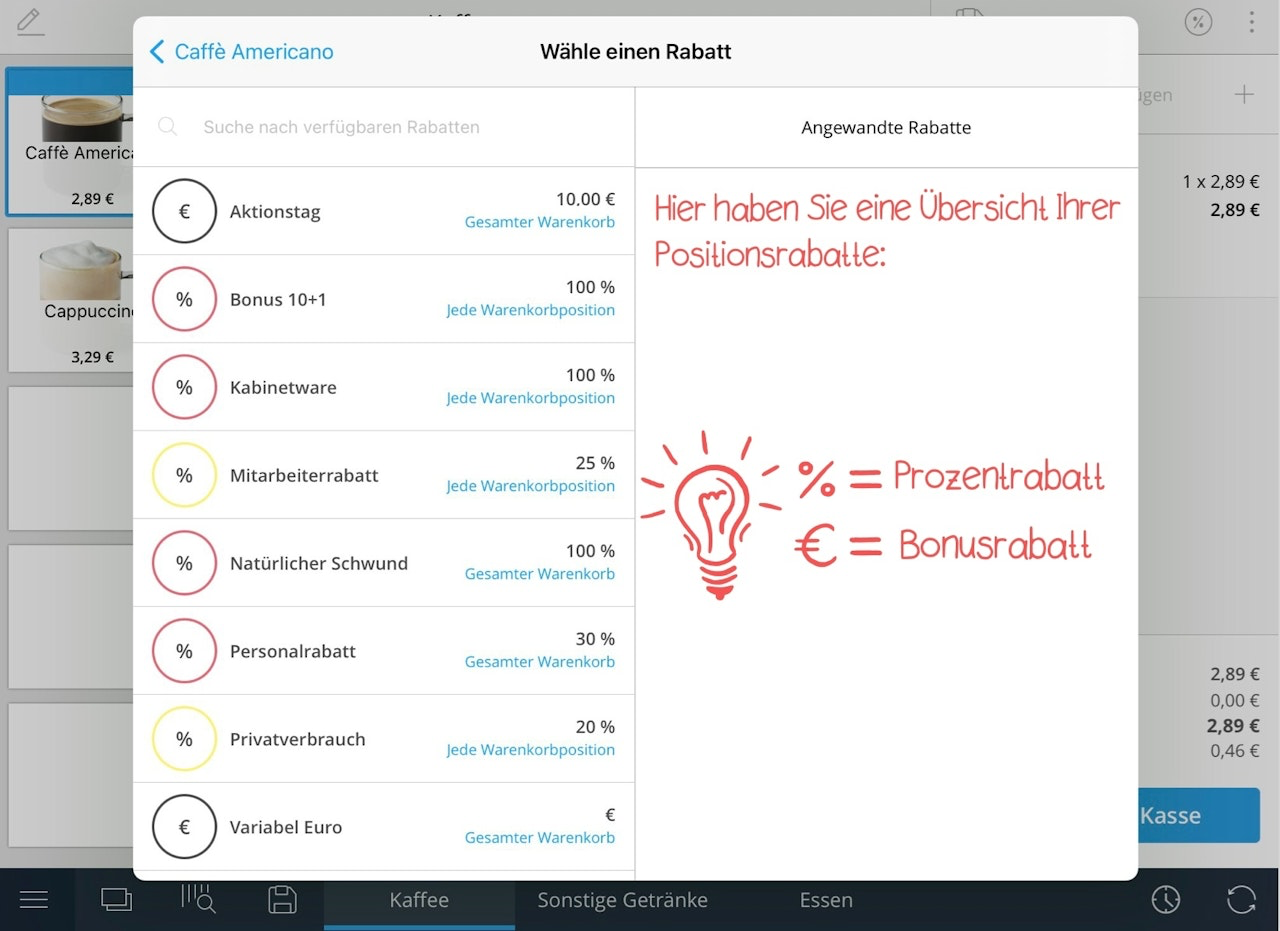
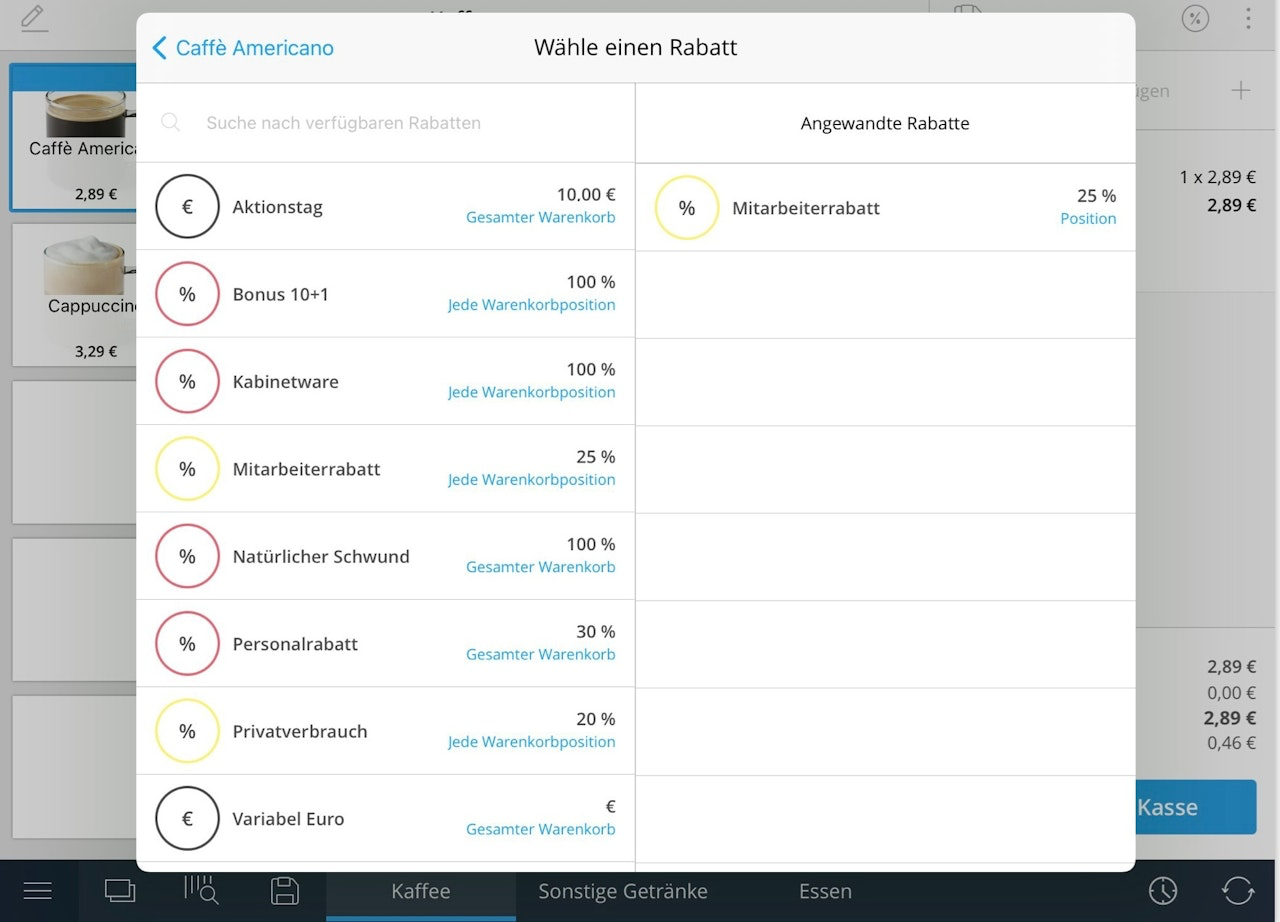
To apply an item discount, press and hold the respective sales entry in the shopping cart for a long time. A window opens. Tap the blue-bordered button "Discount". Another window will now open in which you can select between different discounts. We refer to a "discount" as a percentage reduction, whereas we see a "bonus" as a reduction in monetary value.
2) Item discounts: percentage discount (%)
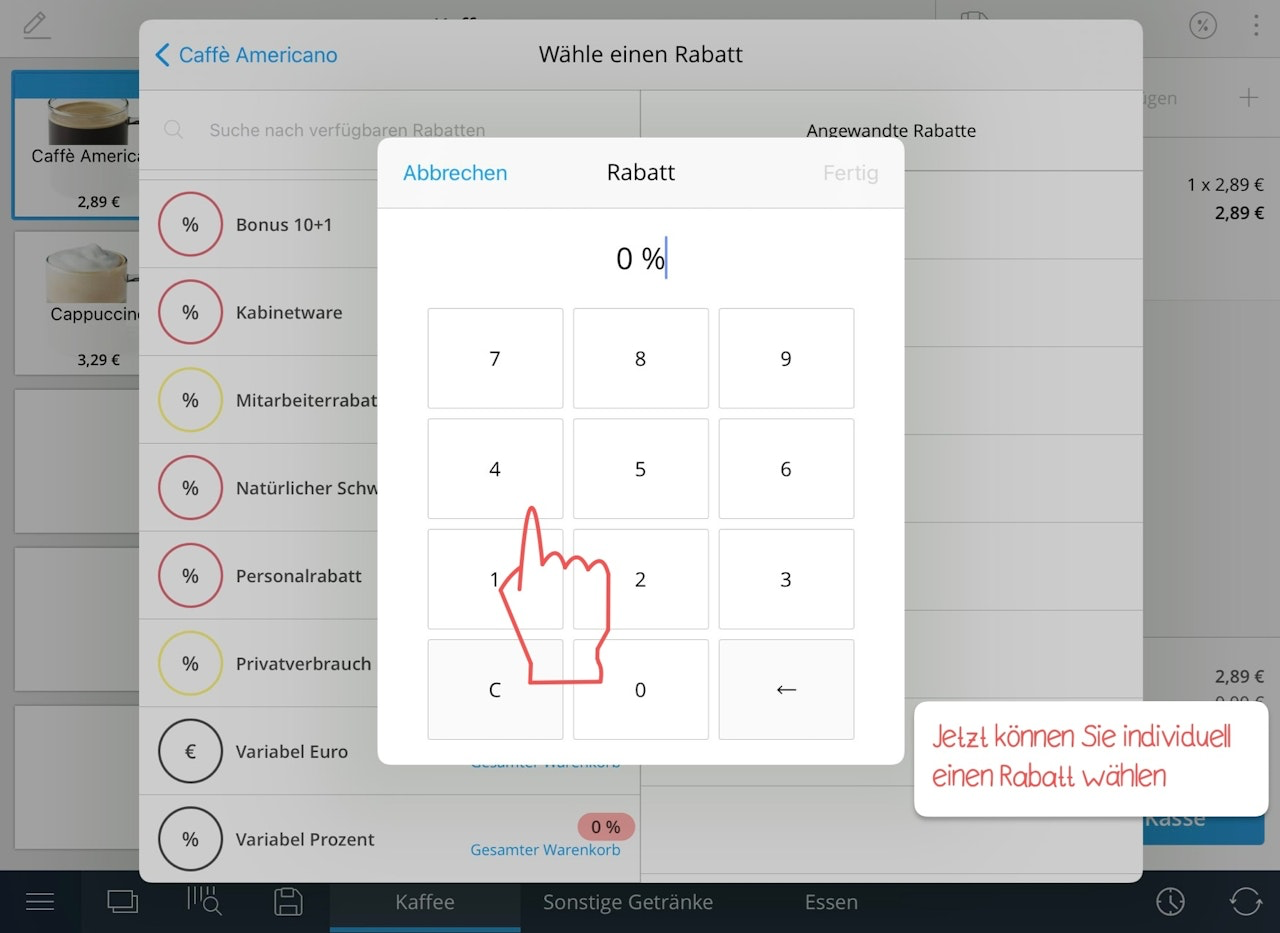
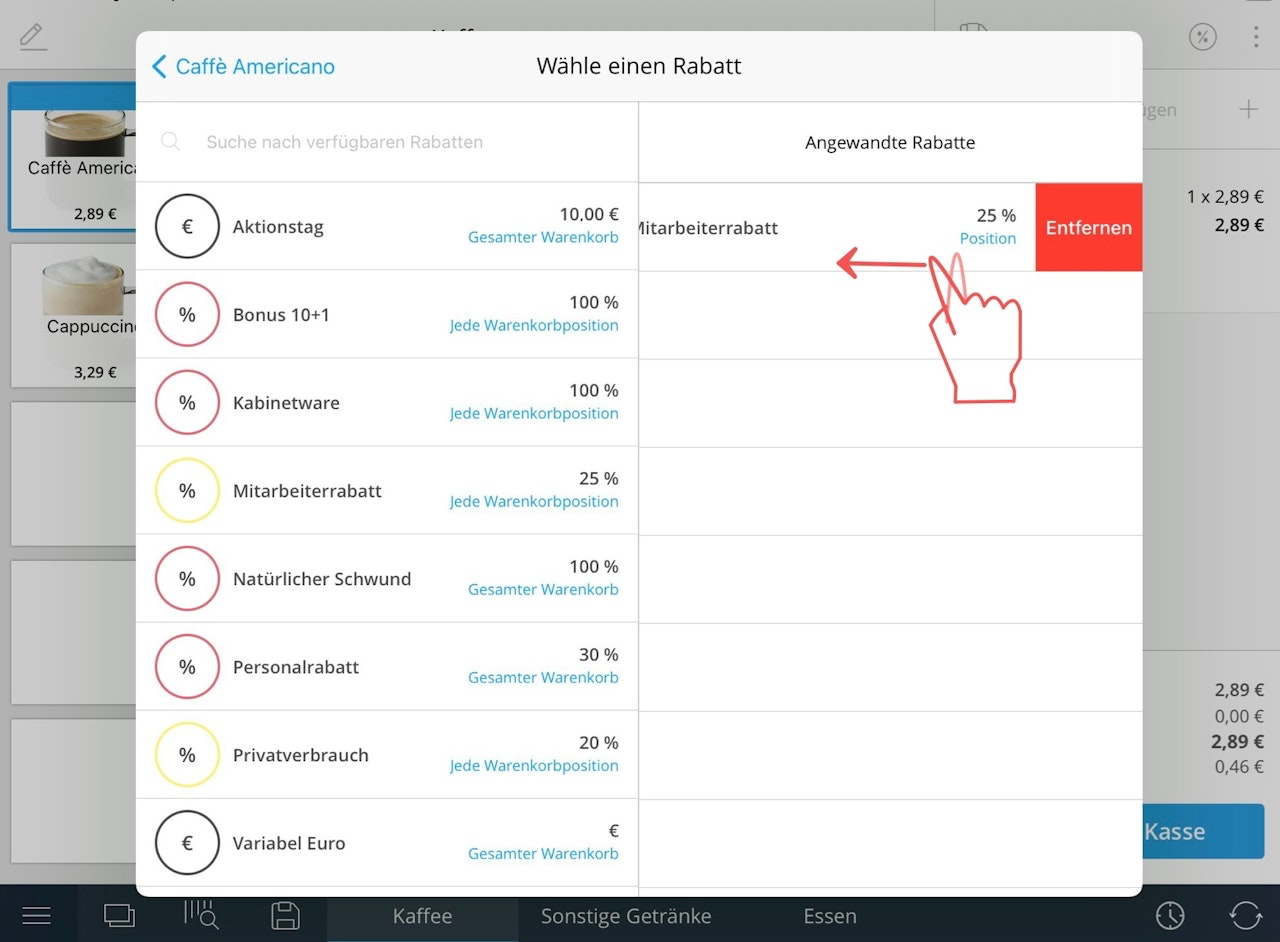
If you select the discount with 0%, you have the possibility to enter an individual discount via a number pad. As soon as you have selected a discount, it will appear on the right in the window under "Applied discounts". You can delete the individual discount again by swiping it from right to left.
Item discount: bonus discount (€)
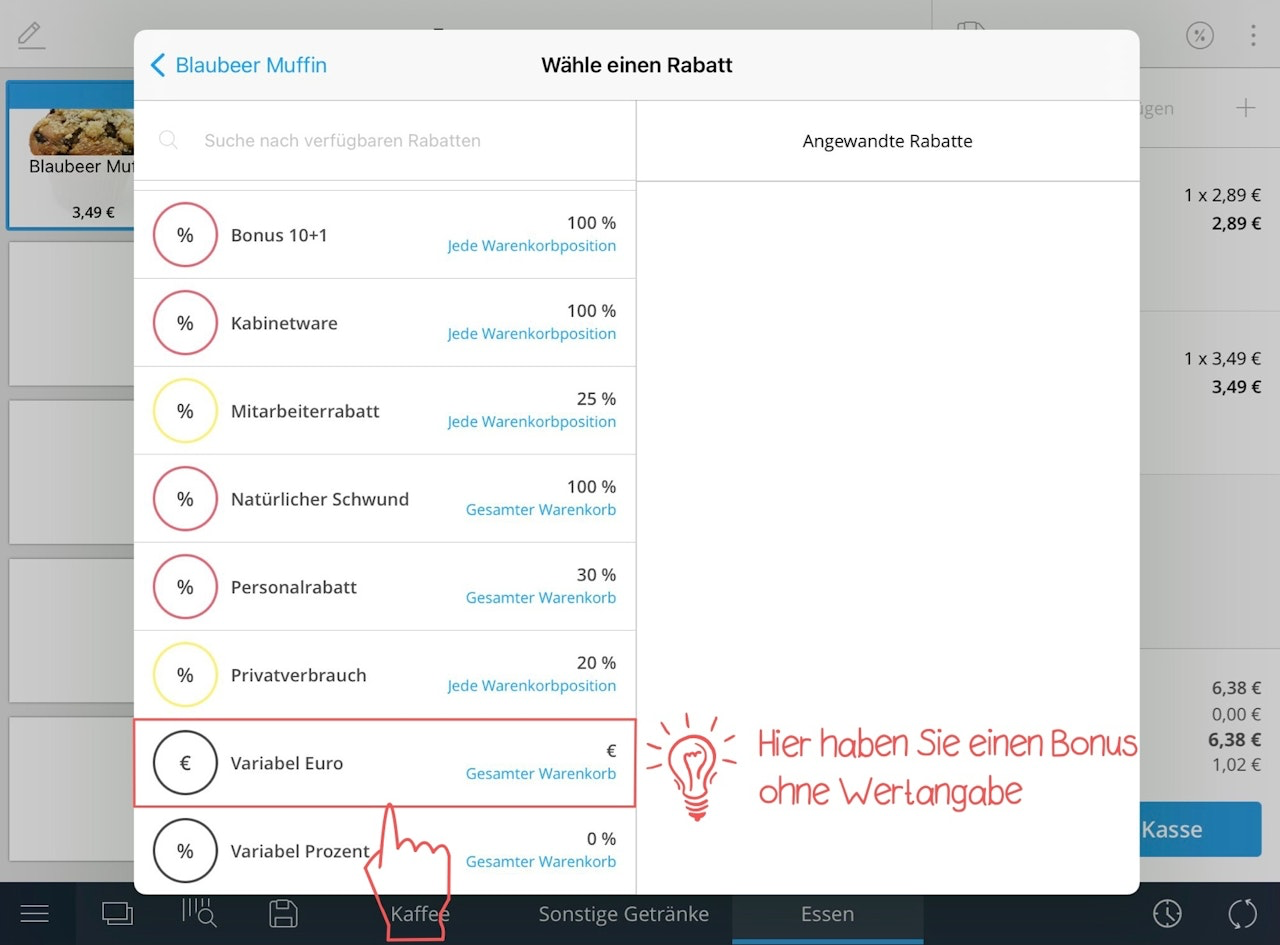
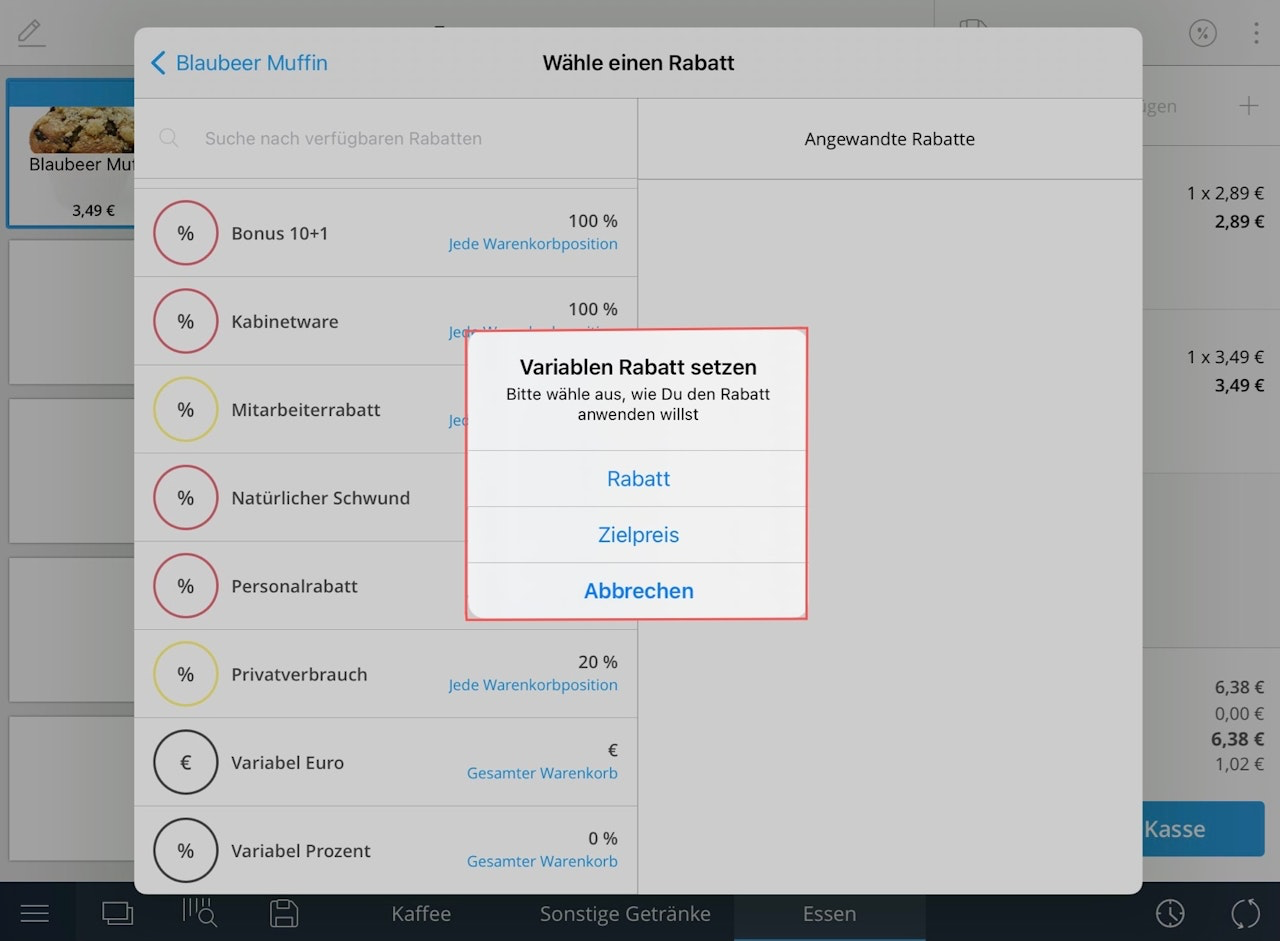
If you select the bonus without specifying a value, a pop-up window will appear in which you can choose between the following options: discount and target price. If you select "Discount", you have the possibility to specify by how many euros an item should be reduced. For example, if you tap "1", the product will be reduced by one euro. If you select the option "Target price", you have the possibility to specify the final price after the price reduction. For example, if a product costs 9 euros and you enter "4" as the target price, the product in the shopping cart will be reduced by 5 euros.
Cart discounts: percentage and bonus discounts
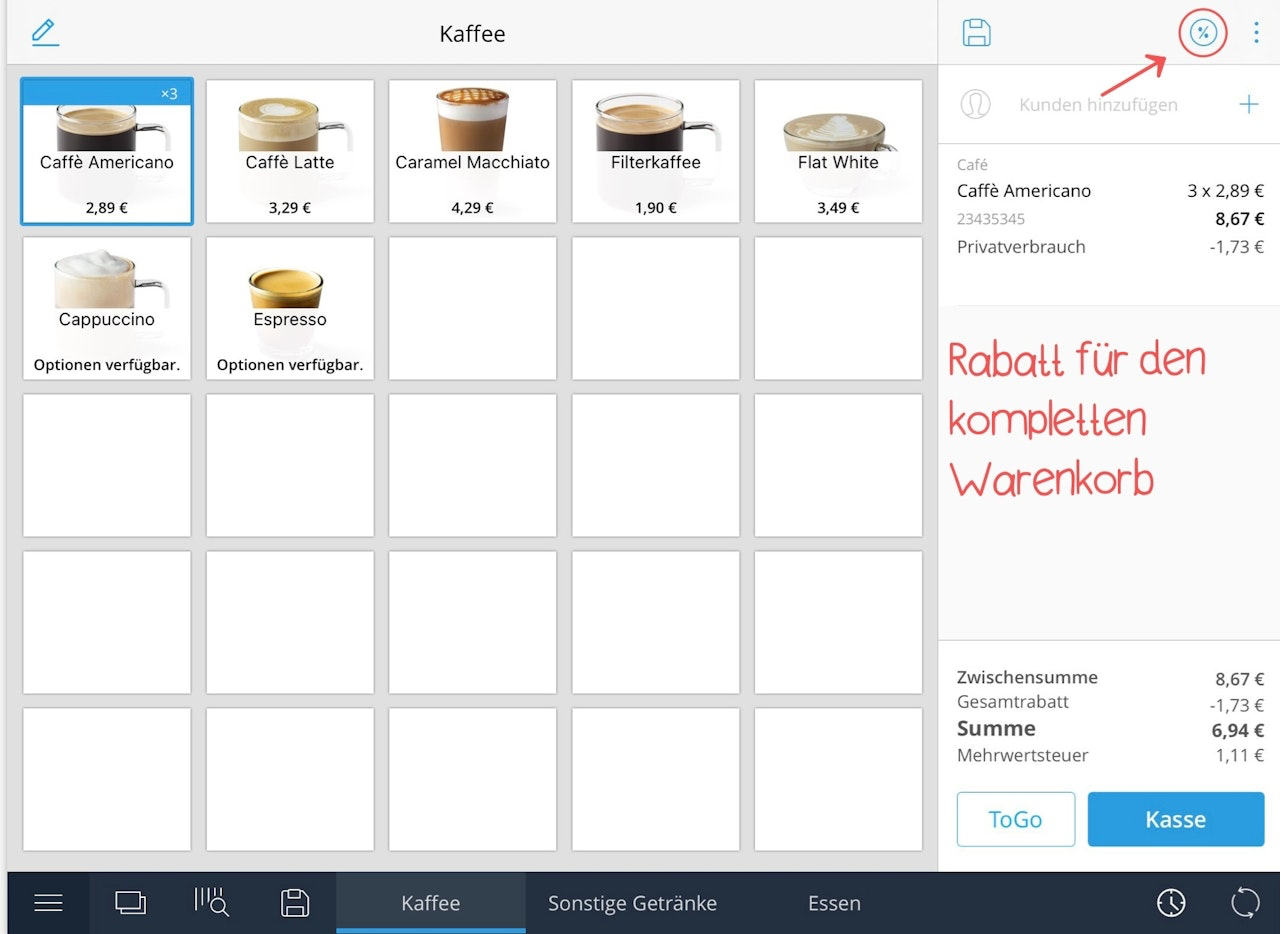
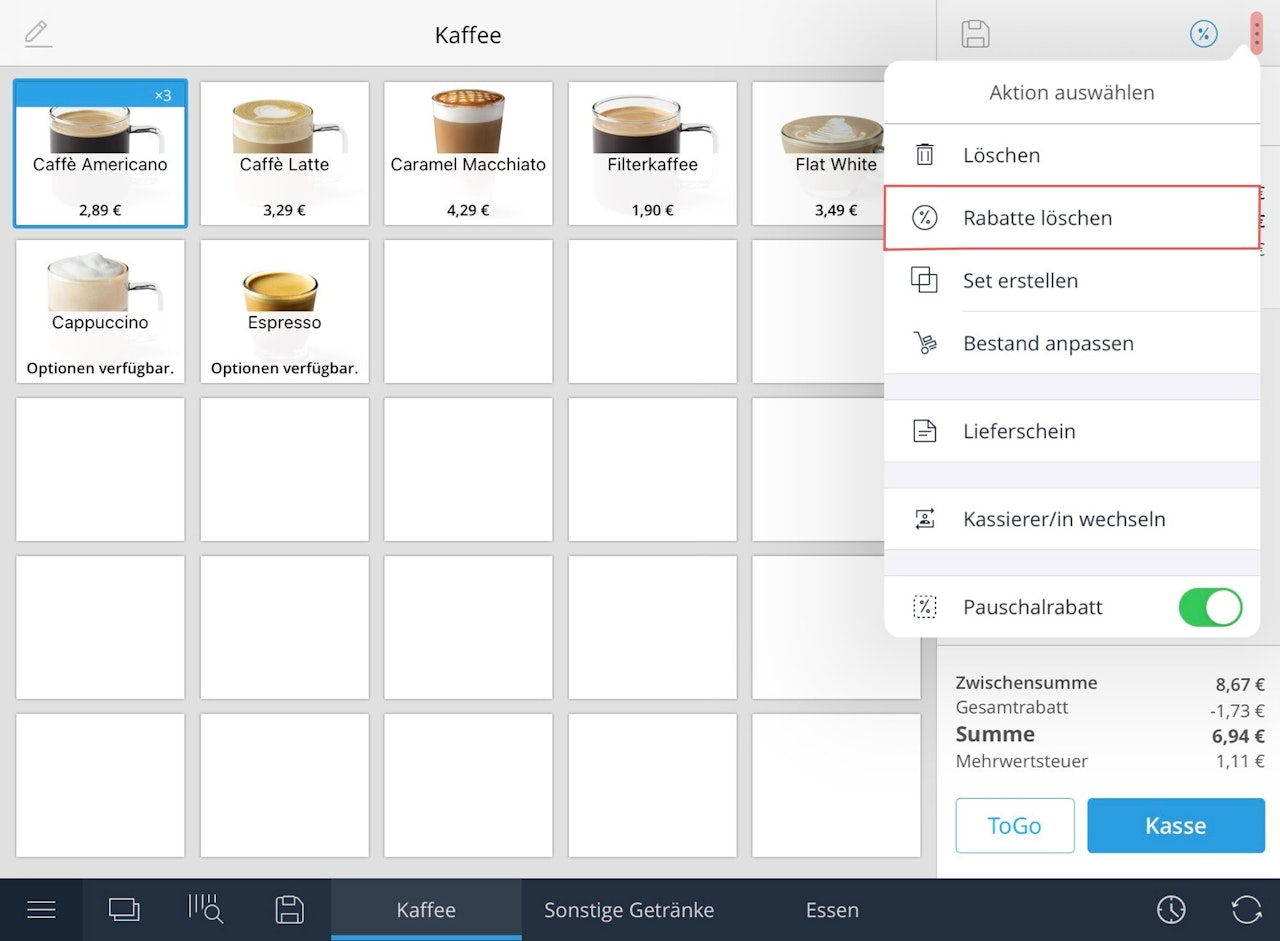
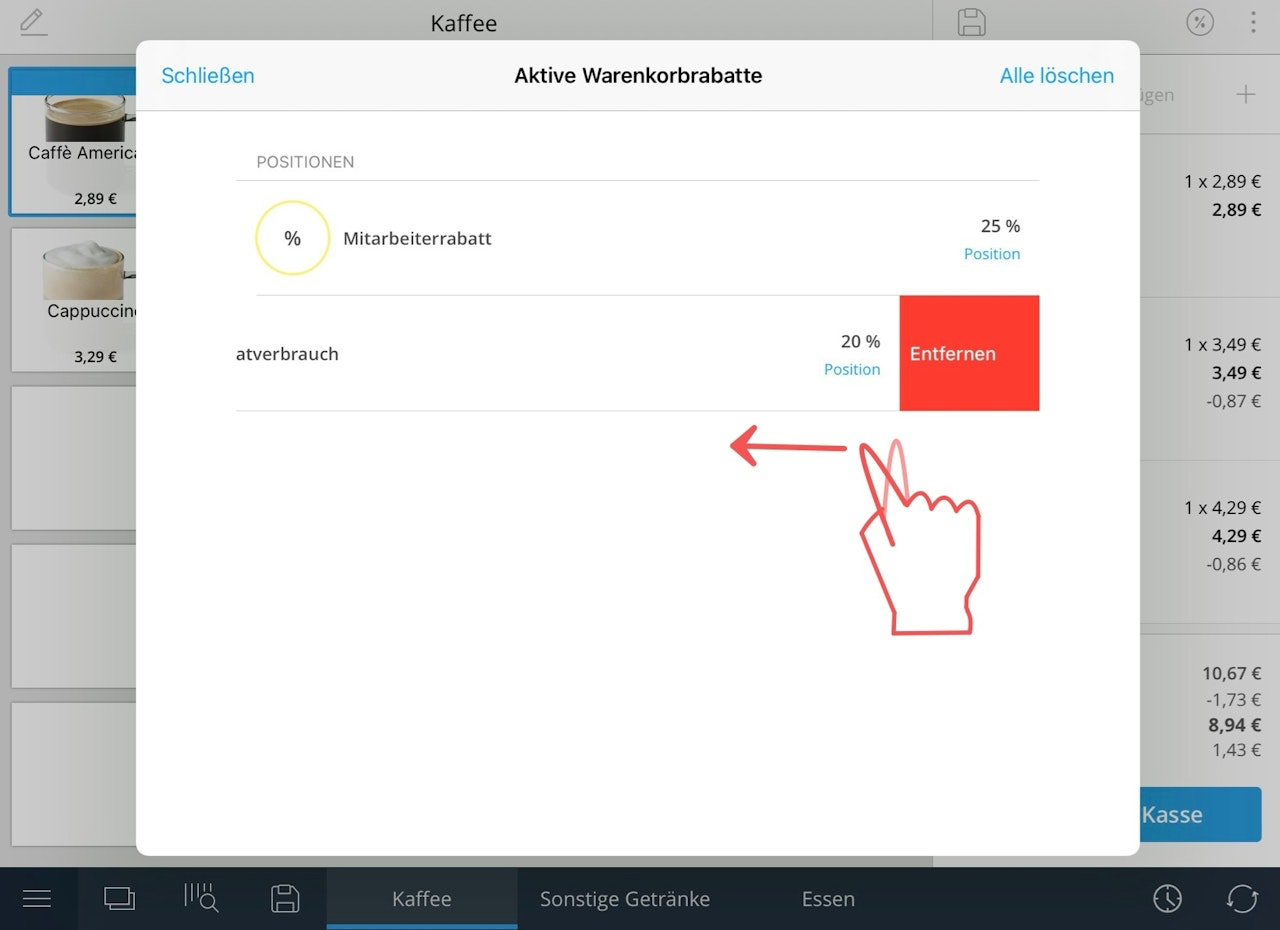
If you want to add a discount for the entire shopping cart, tap the percent symbol above the shopping cart. As with the item discount, a pop-up window will appear with all available discounts and bonuses. If you want to delete the cart discount again, tap the three-dot menu at the top right above the shopping cart. In the drop-down menu, navigate to "Delete discounts". A pop-up window will open with all applied discounts, divided into cart and item discounts. You can delete the individual discounts by swiping the individual discounts from right to left.
Apply discounts in the library view
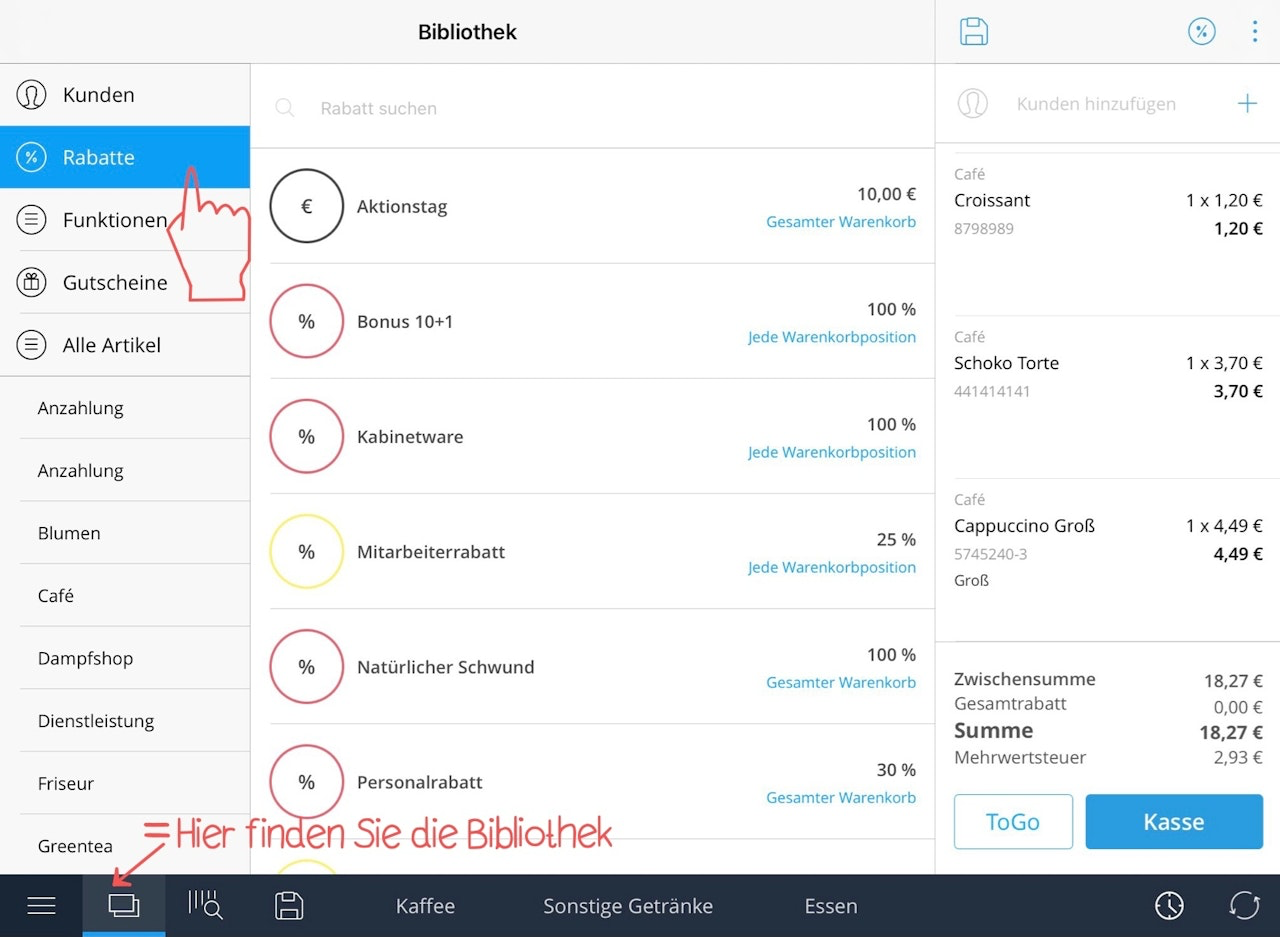
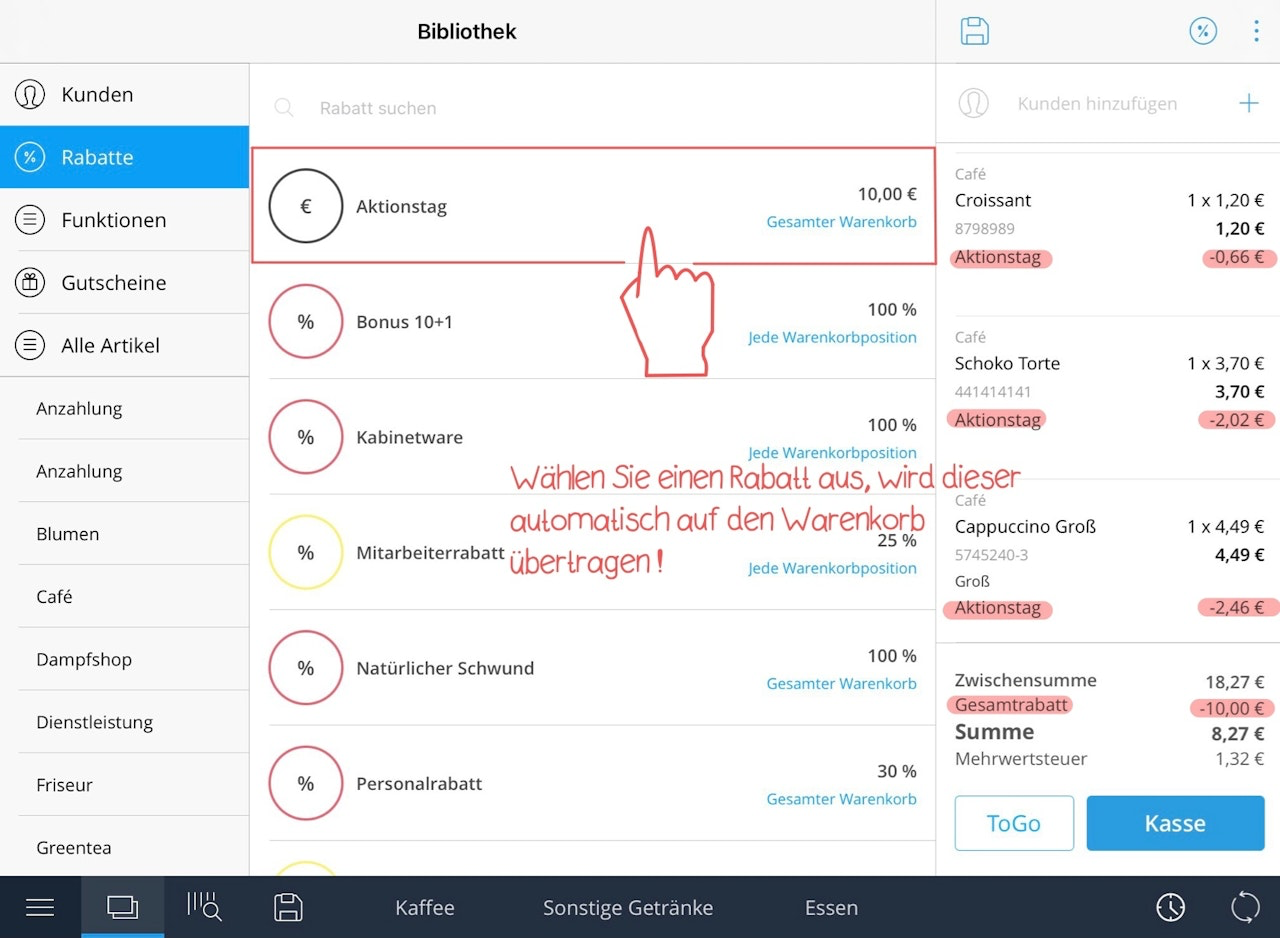
You can also apply discounts when you are in the library view. Tap the library symbol (two rectangles) in the menu bar, which is located at the bottom right next to the menu symbol. Then select the field "Discounts %" in the left column. Here you tap on one of the created discounts or select the desired discount via the field "Search discount". The discount is immediately applied to the entire purchase as soon as you tap it.
How can I change the price of an item before the sale?
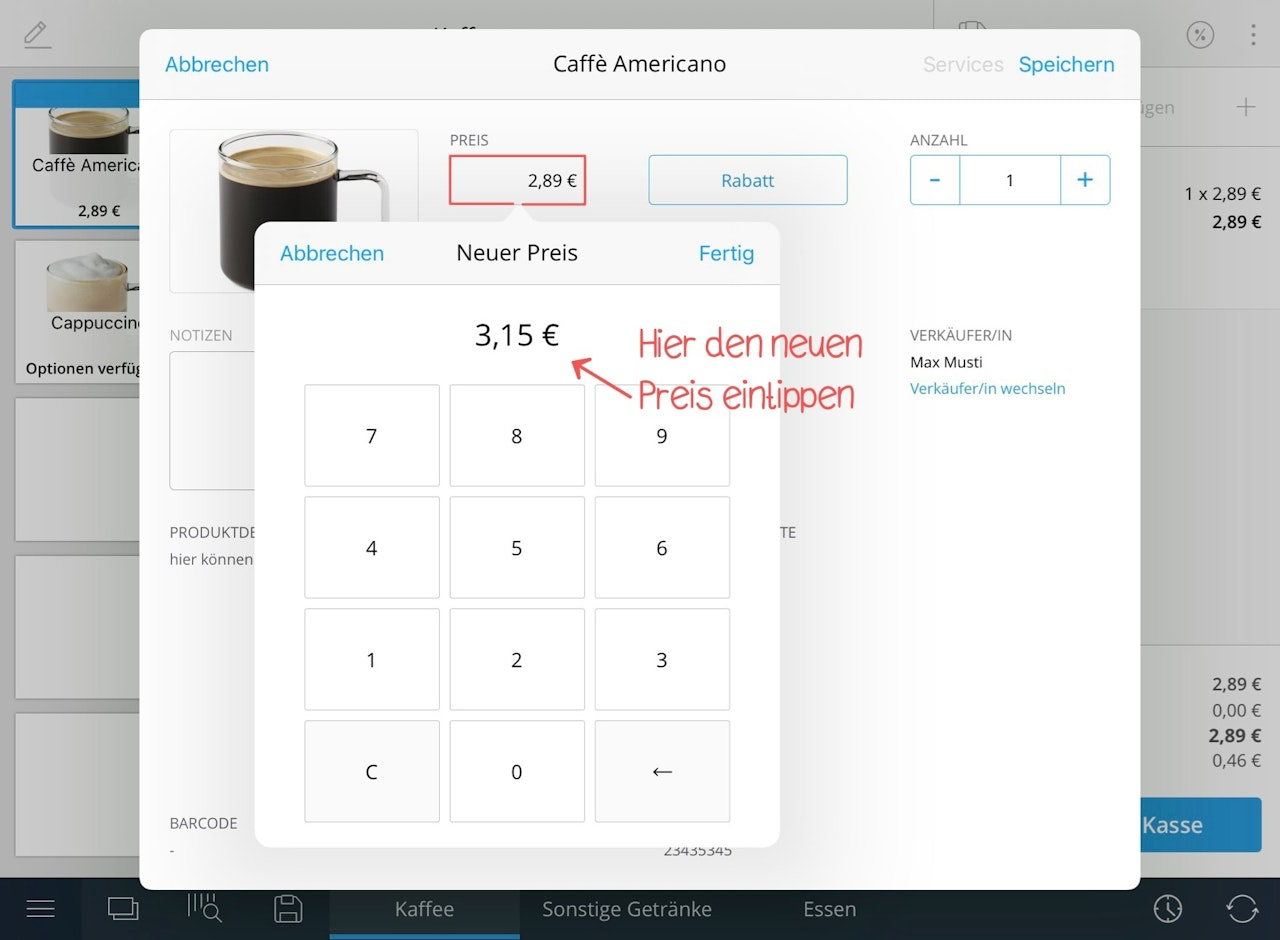
Press and hold the sales entry in the shopping cart. A pop-up window will open. You can change the price of the item by tapping on the field "Price" and entering the new amount in the number field.
Add customers to the shopping cart
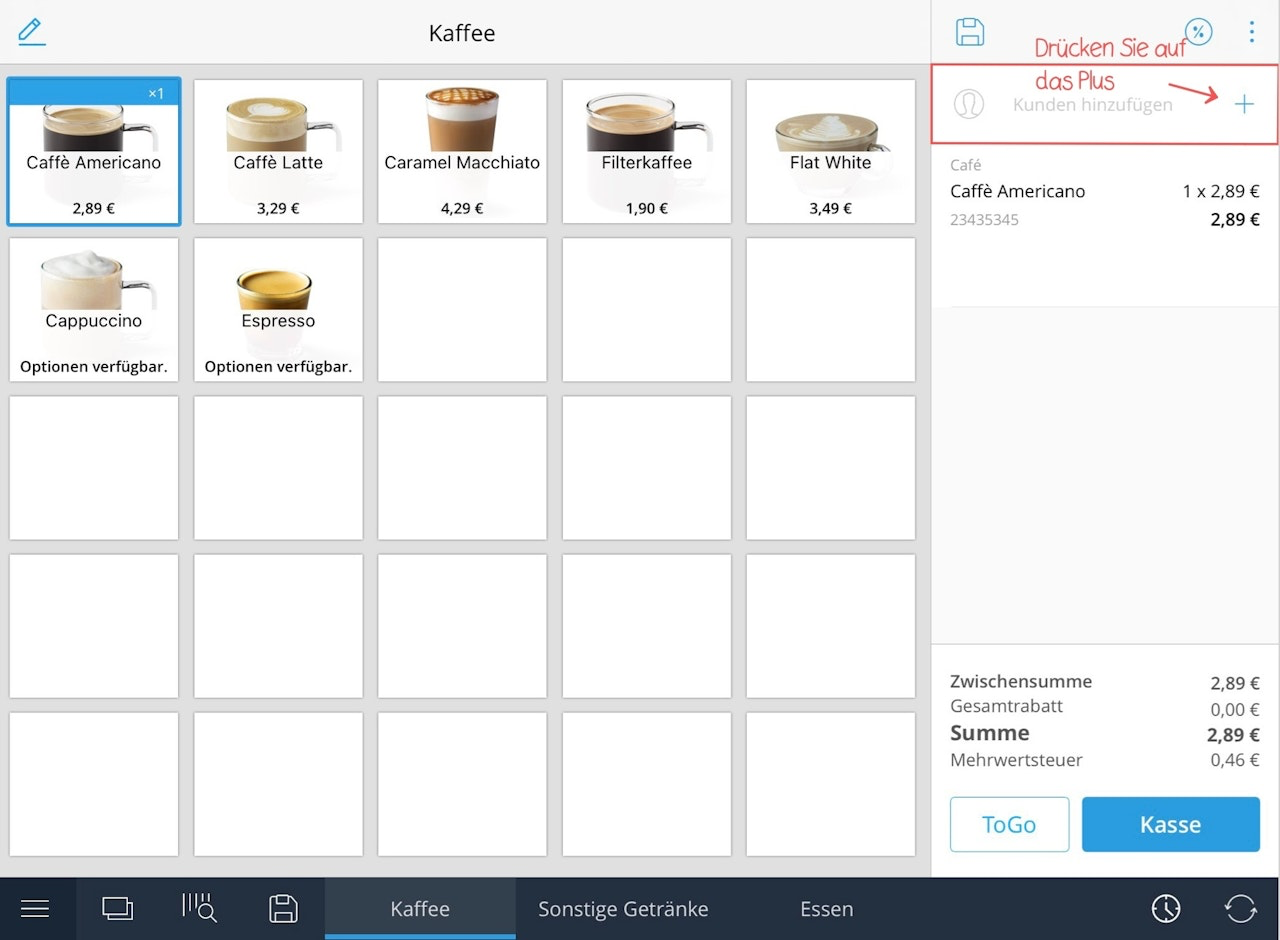
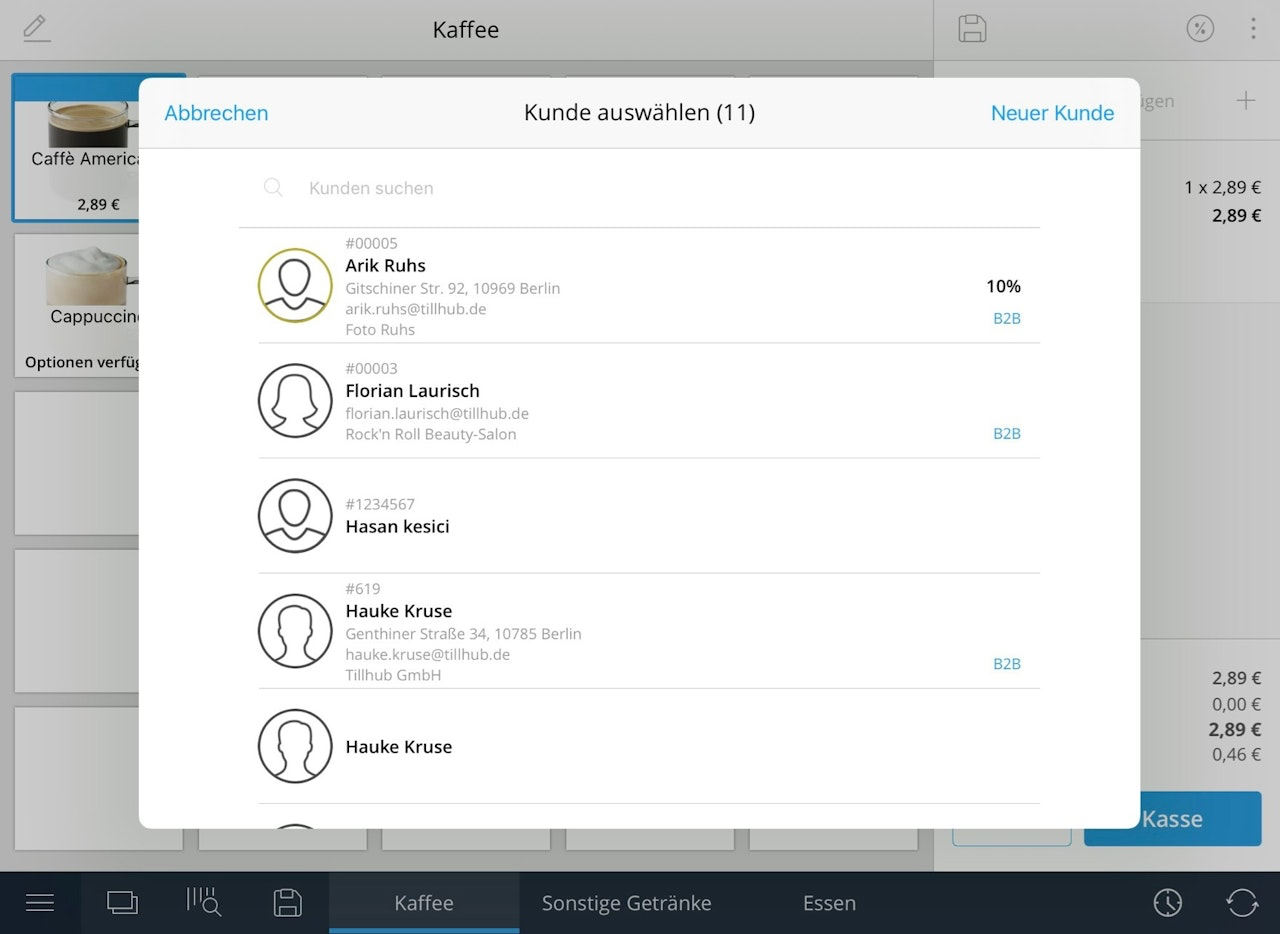
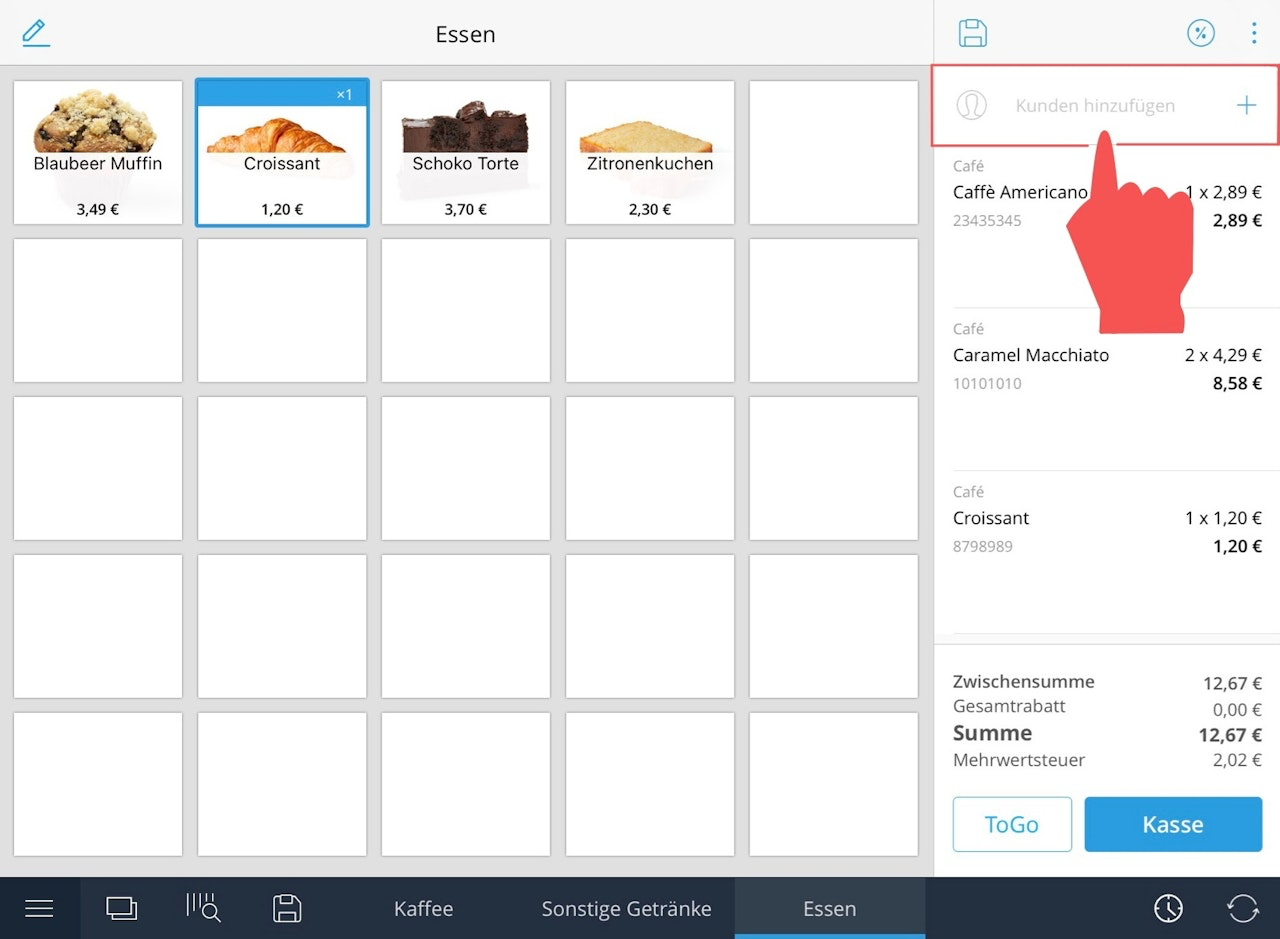
First tap in the sales entry on the gray field "Add customer", which is located above your selected items. A new window opens. Select the desired customer from your customer directory. By tapping once on the name, the customer is added to the purchase. If you have set a discount for this customer, it will now be automatically applied to the entire purchase. Undo the discount by swiping over the customer's name in the sales entry from right to left and tapping "Remove".
Note: If it is a new customer, you can create a new contact. However, a discount can only be set in the dashboard.
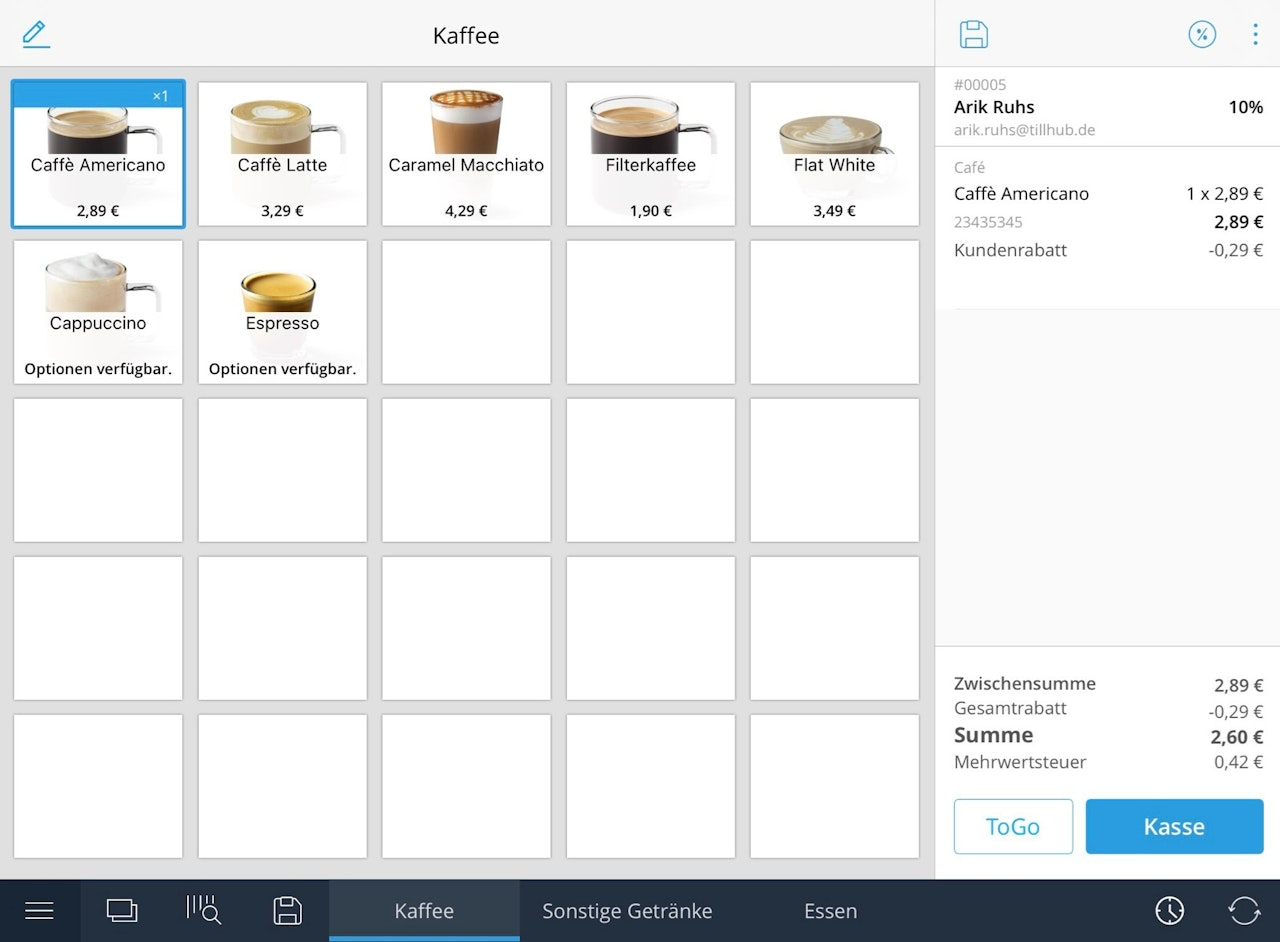
Park purchase
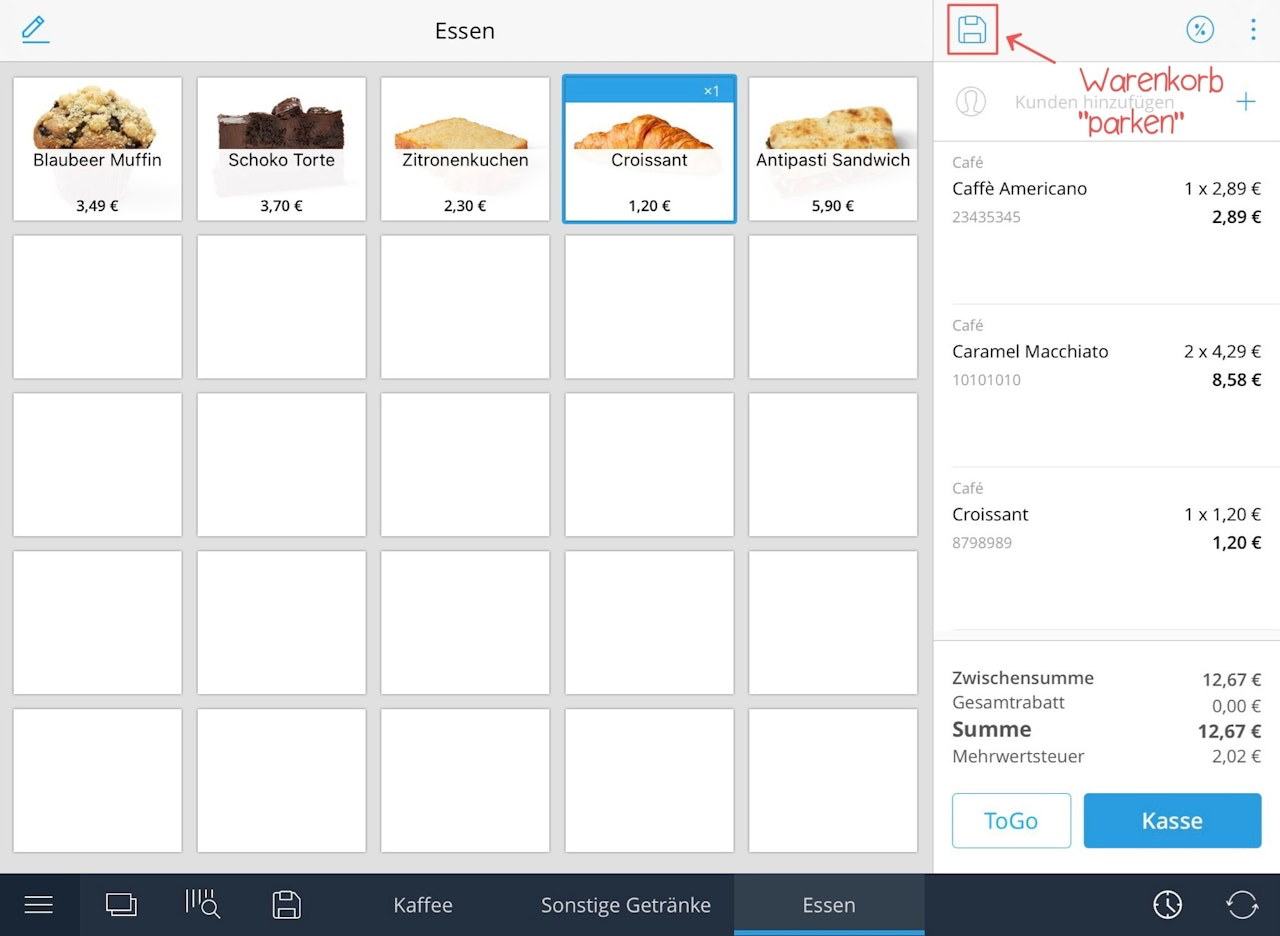
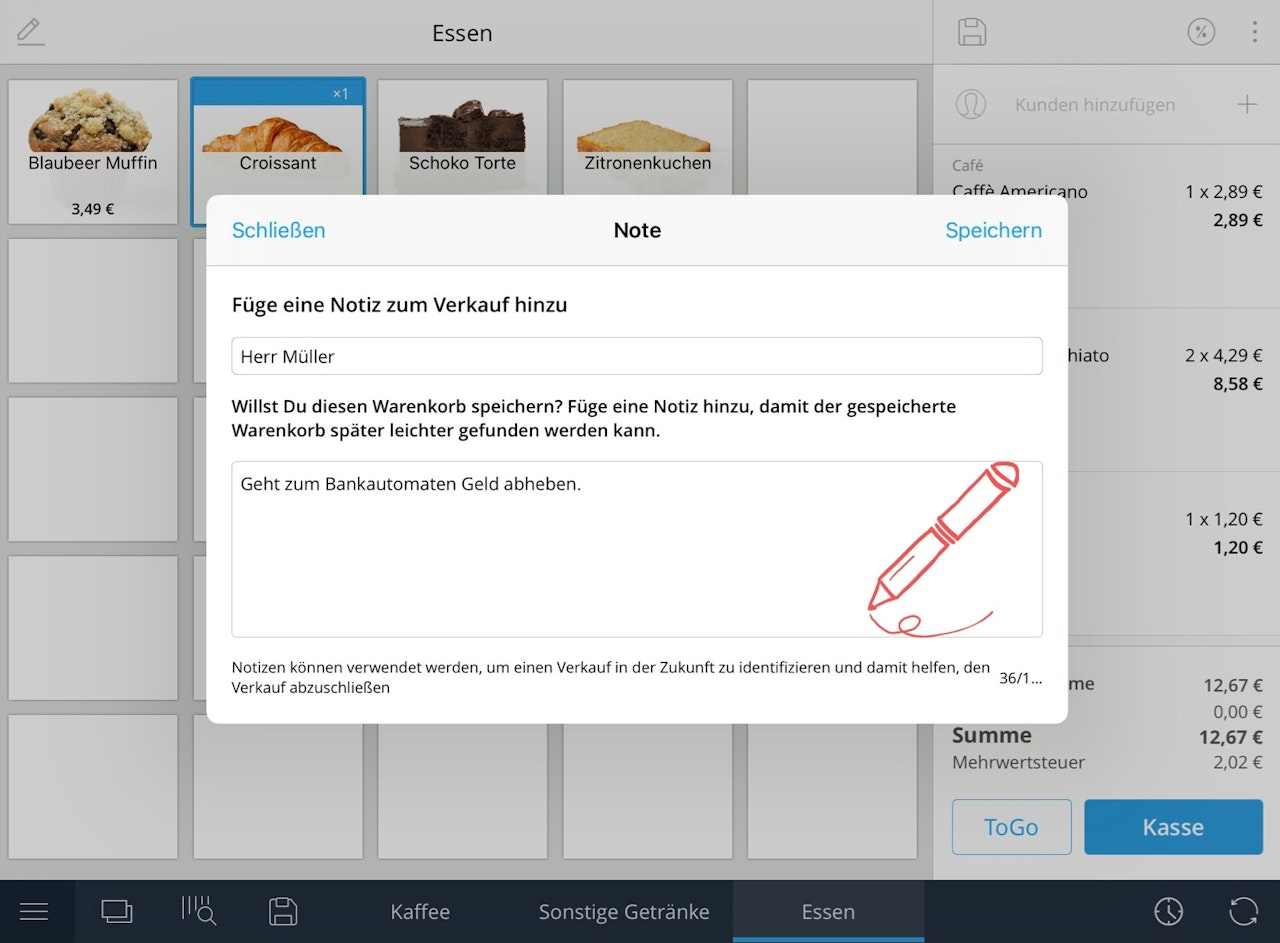
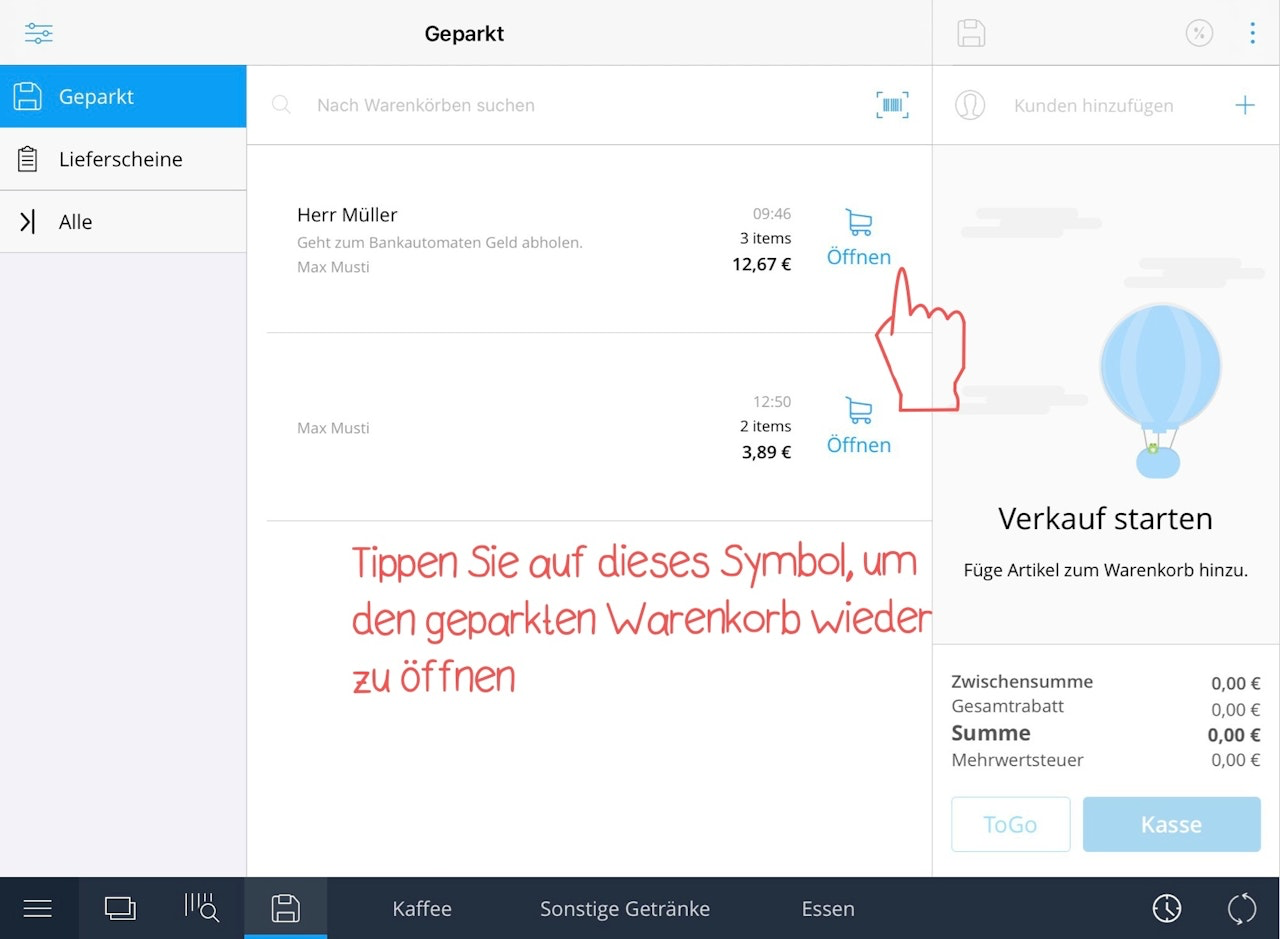
If you want to create and temporarily store an order or reservation for a customer in advance, you can easily do this with our "Park" feature. Select the desired items or services as usual. Optionally, you can add a customer to the shopping cart by tapping on the field "Add customer" and selecting a customer. To now park the sale, tap on the "Floppy disk icon" in the upper left corner of the shopping cart. In the pop-up window that now opens, you have the possibility to add a note to make the later search easier. Then tap on "Save" to finally park the sale. If you now want to retrieve the sale later, click on the "Floppy disk icon" at the bottom of the screen.
Settle parked purchase
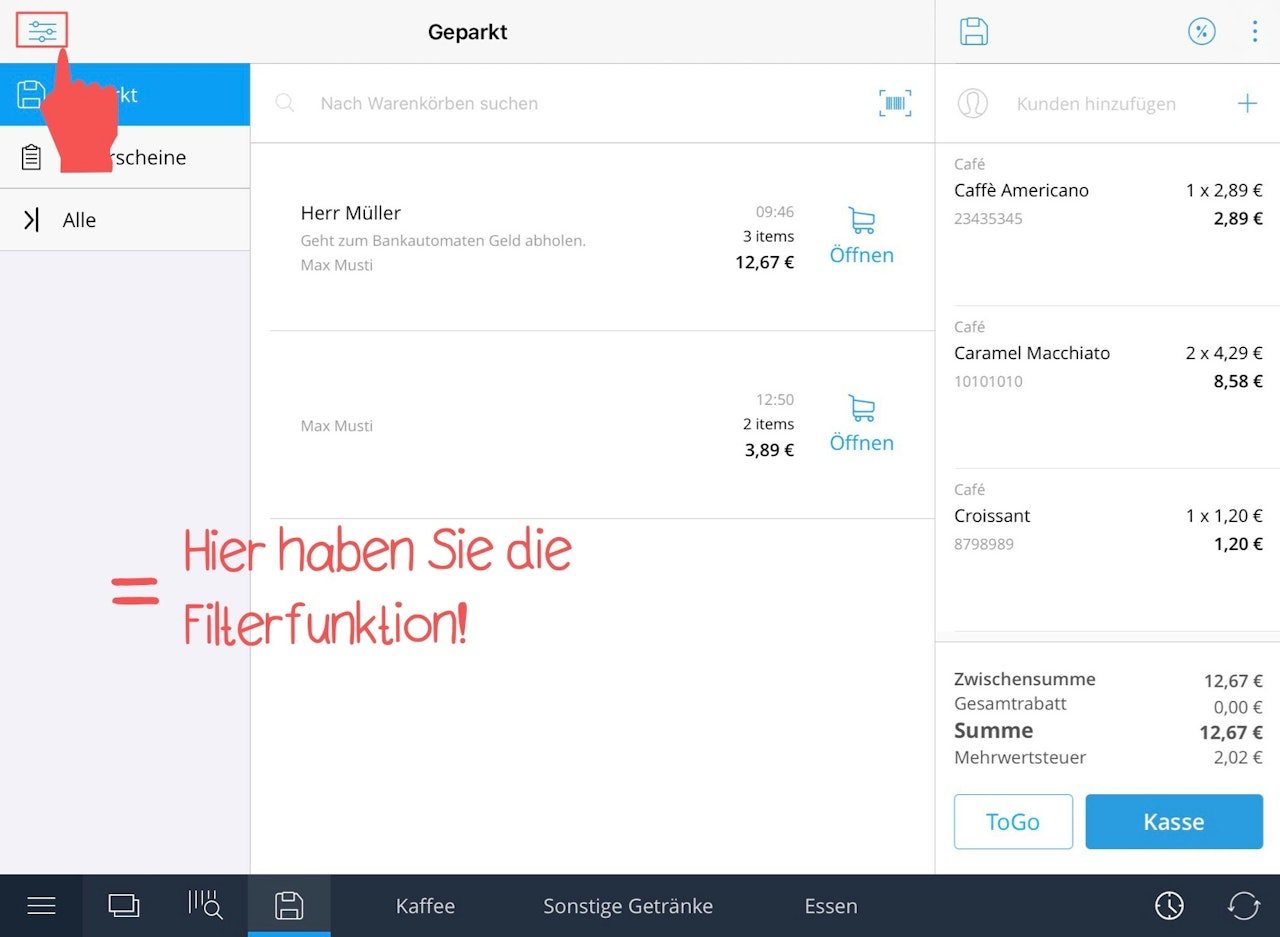
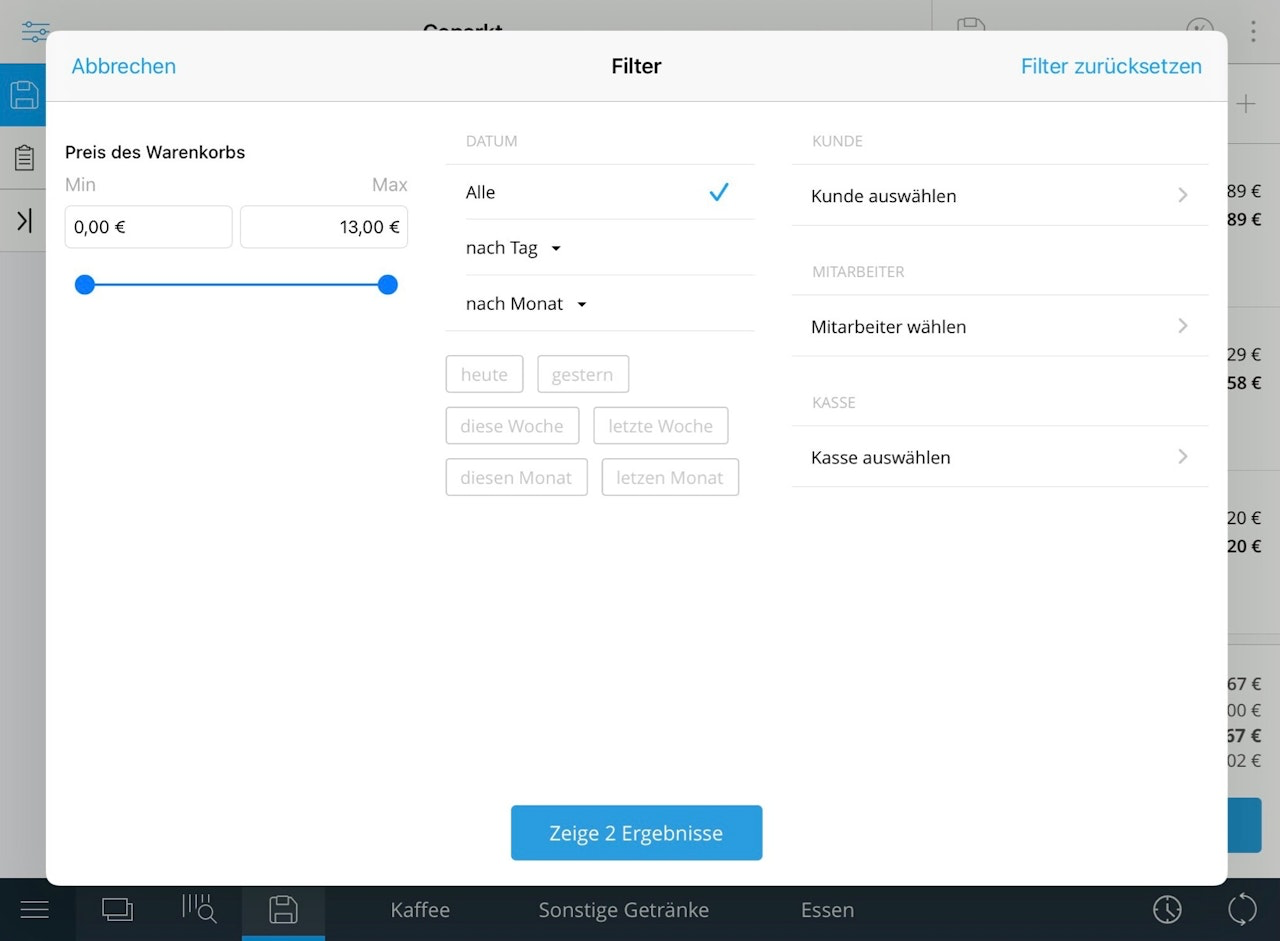
An overview appears with all parked sales and delivery notes. If you tap the "Shopping cart icon", the sale will be placed in the shopping cart and you can then settle it as usual. In addition, we have built in a filter function, which you can find in the upper left area of the screen. Here you can filter results by price, date, customer, employee and register.
Delete parked purchase
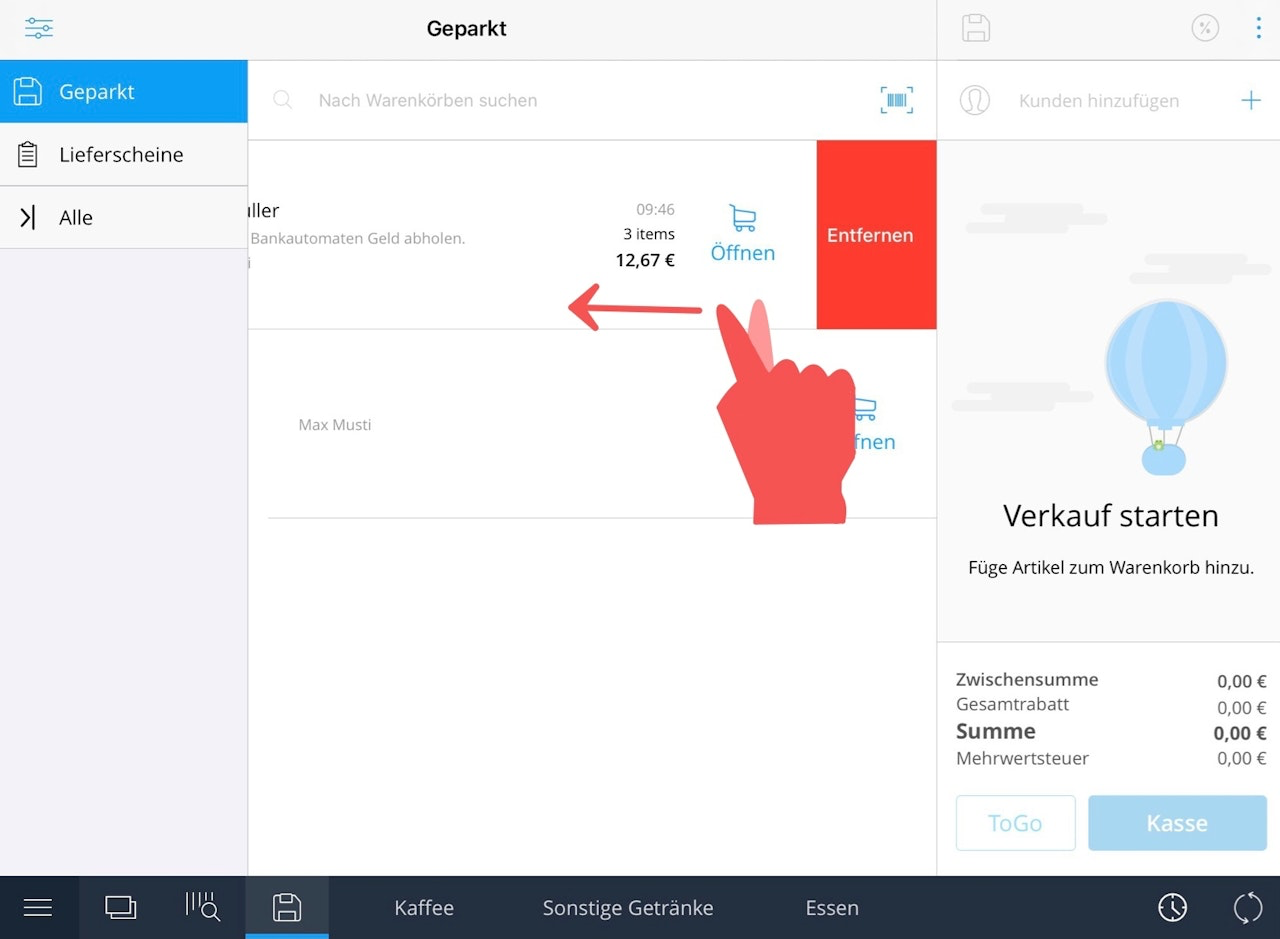
A sale that is no longer needed can be removed or deleted in the overview by swiping from right to left.
Was this article helpful?
That’s Great!
Thank you for your feedback
Sorry! We couldn't be helpful
Thank you for your feedback
Feedback sent
We appreciate your effort and will try to fix the article
