Setting up the Apple ID
Modified on Tue, 17 Feb at 2:16 PM
Below, we explain the three different ways you can create an Apple ID. If you need further information, you can find a detailed guide on Apple's homepage: Click here.
If you have difficulties creating your Apple ID, please contact Apple Support directly.
In this article:
- What is an Apple ID?
- Automatic creation of the Apple ID during initial setup
- Creation of the Apple ID via your iPad’s settings
- Creation via the Apple homepage
What is an Apple ID?
Every time you set up a new Apple device, you will be prompted to create an Apple ID or sign in with an existing Apple ID.
The Apple ID is your personal account that you use to access all Apple services, such as the App Store or the iTunes Store.
It consists of a selected email address and a password created specifically for this purpose.
Use the same Apple ID for each login to ensure that all your services and devices work together seamlessly. This way, you can access your personal content from any of your Apple devices.
Note: If you use an Apple product privately and therefore already have an Apple ID, you can also use this for your iPad on which the Tillhub App is installed. However, we recommend creating a new Apple ID under a different email address for devices used for business purposes. This allows you to prevent employees from gaining access to content that may be visible through your private Apple ID.
The following three options are available for creating an Apple ID:
- Automatic creation of the Apple ID during initial setup
- Creation of the Apple ID via your iPad’s settings
- Creation via the Apple homepage
Automatic creation of the Apple ID during initial setup
When you turn on your iPad for the first time, you will be prompted to sign in with your Apple ID or to create a new one. If you wish to set up a new Apple ID, simply follow the steps shown on the screen.
Creation of the Apple ID via your iPad’s settings
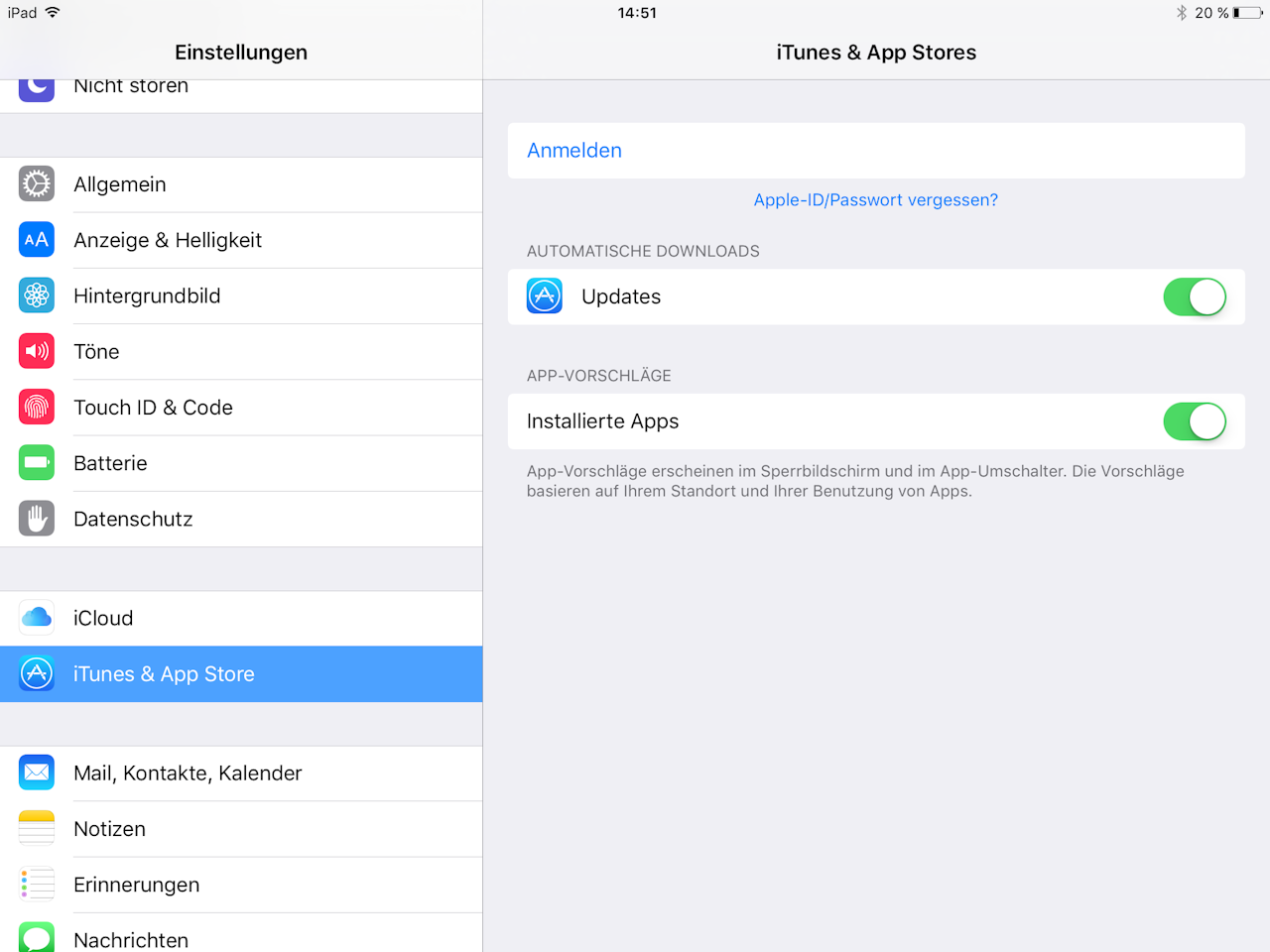
Tap the "Settings" app icon located on your iPad’s home screen. Then select "iTunes & App Store" and tap "Sign in." A new window will open with the option to create a new Apple ID.
- First, you must select the appropriate Apple Store, which may vary depending on the billing address location. Then confirm by tapping "Next."
- Read and accept the Terms and Conditions and the Privacy Policy.
- Fill out the form with your personal information and confirm by tapping "Next." The email address you enter here will be your new Apple ID. Then tap "Done."
- Confirm your email address using the code that was sent to the address you provided.
Note: If you are using a used iPad on which an Apple ID was already in use, the menu item "Sign in" will not be displayed. Instead, you will see the option "Create new Apple ID."
Creation via the Apple homepage
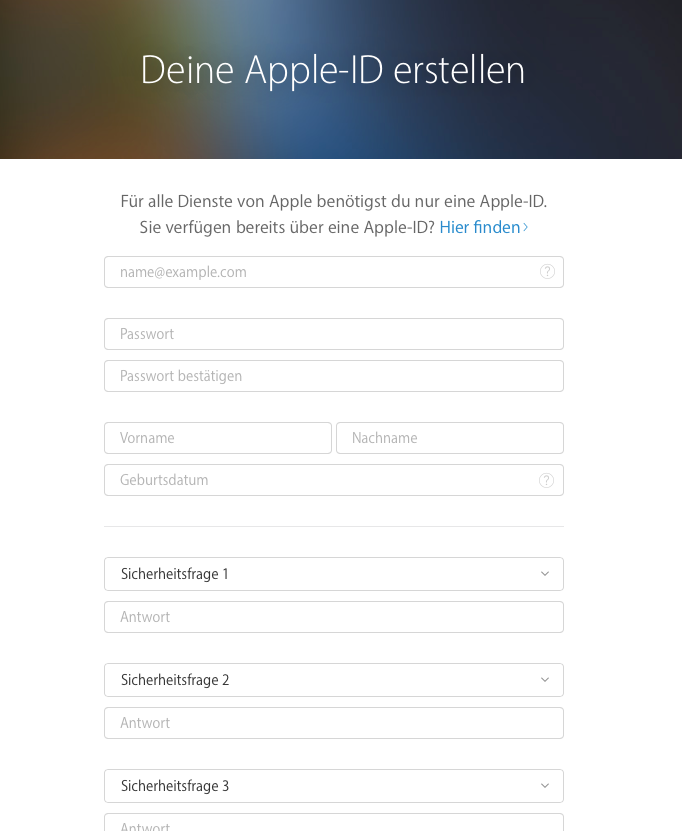
To create your Apple ID on the web, please click the following link: Create Apple ID. A contact form will appear where you can enter your information.
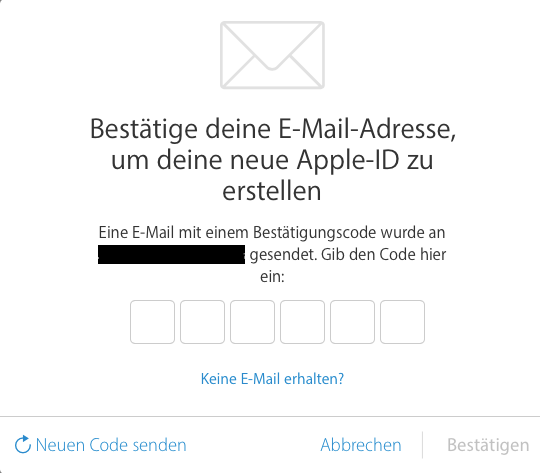
You will then receive a confirmation code at the email address you provided. Enter this code into the window that has now opened.
Was this article helpful?
That’s Great!
Thank you for your feedback
Sorry! We couldn't be helpful
Thank you for your feedback
Feedback sent
We appreciate your effort and will try to fix the article
