CCV - Tillhub POS Integration
Modified on Wed, 4 Feb at 9:51 AM
Configuration for the Tillhub POS System
Do you have a Tillhub POS system (Apple iPad) and want to connect your CCV Mobile Premium or CCV Base Next card reader to the cash register? Certain configurations are required on the card reader.
We’ll show you how it works.
Have you already set up your connection?
Are the connection symbols active?
Here we offer you the tutorials for this:
- Set up your connection
- Explanation of connection symbols
- Check your connection
Menu & PIN Entry
Please follow Figures 1–3 and enter your 6-digit merchant PIN.
You can find the terminal ID on your merchant receipts or on the end-of-day report.
Terminal IDs beginning with 61xxxxxx: 111111
Terminal IDs beginning with 68xxxxxx: 111111
Terminal IDs beginning with 526xxxxx: 0123
Please confirm your entry with the green OK key.
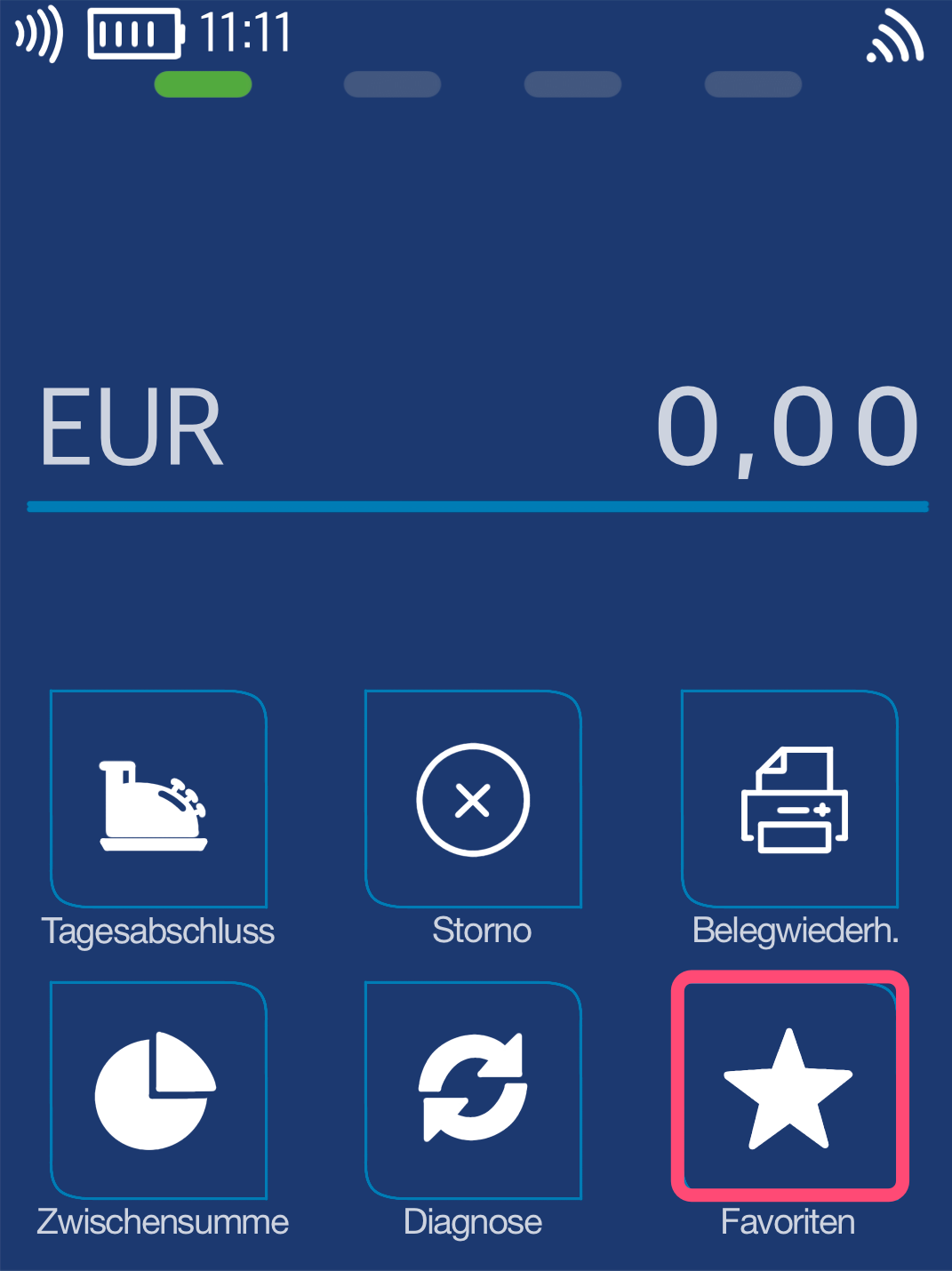
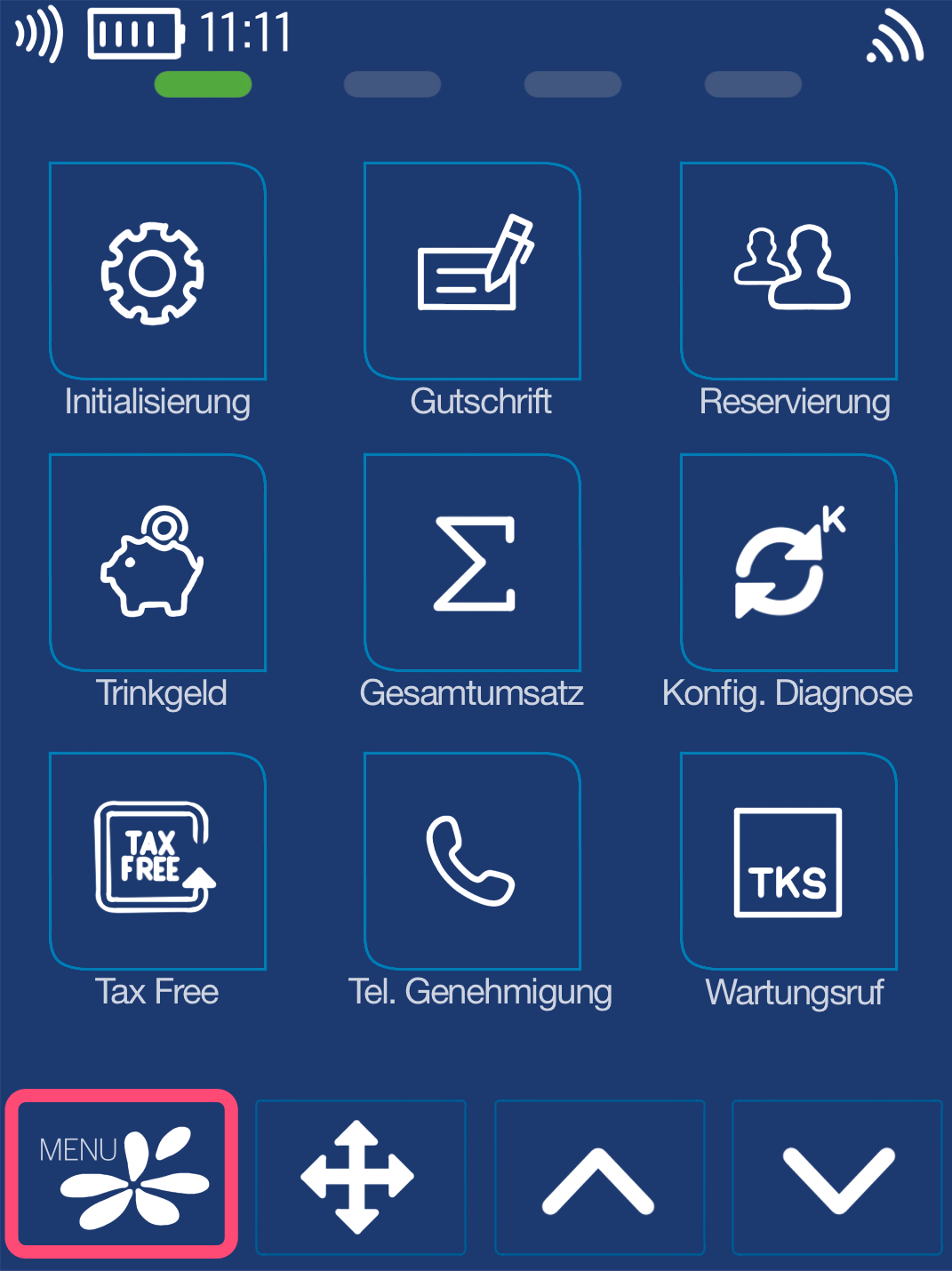
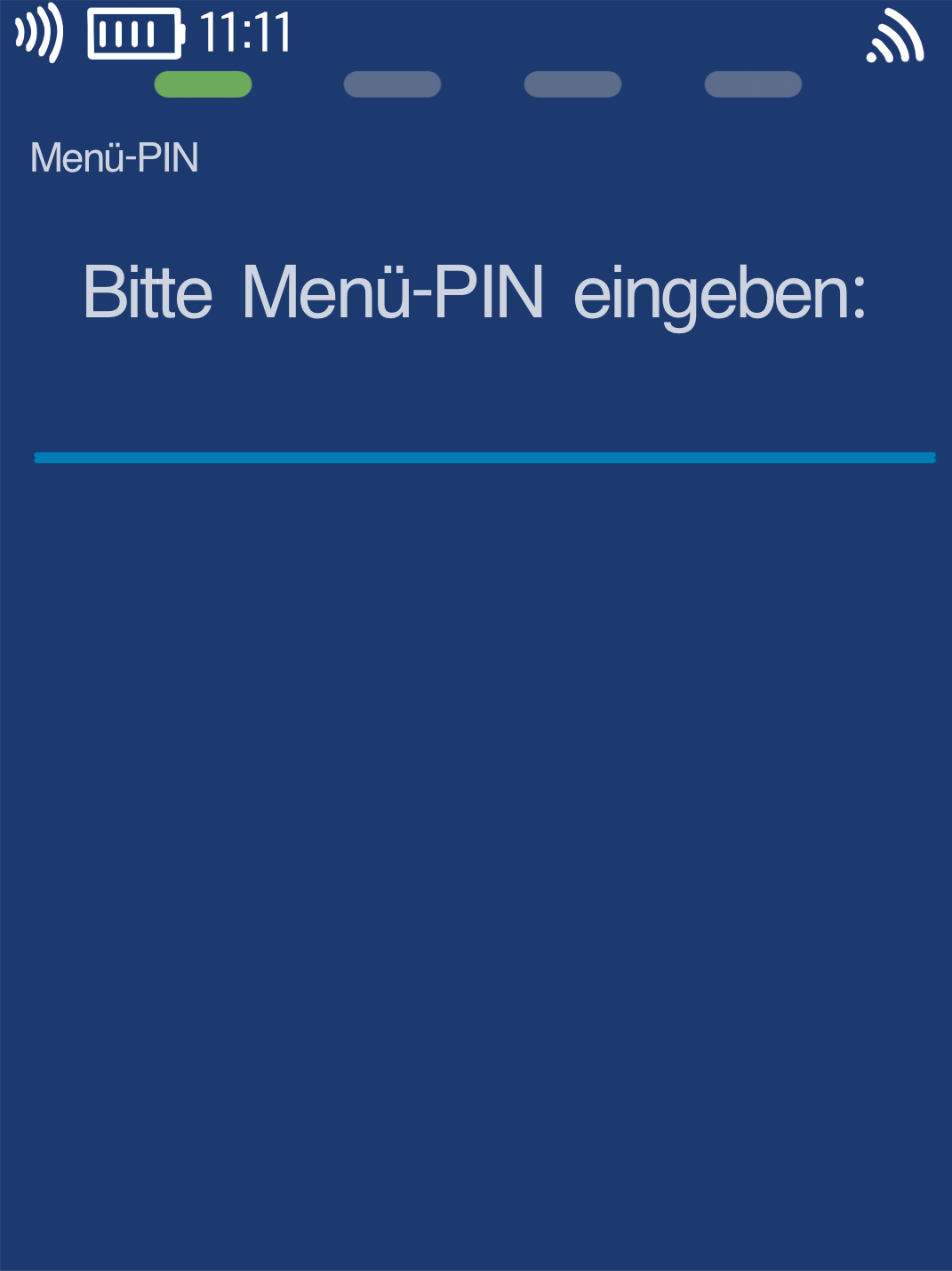
Manager Menu
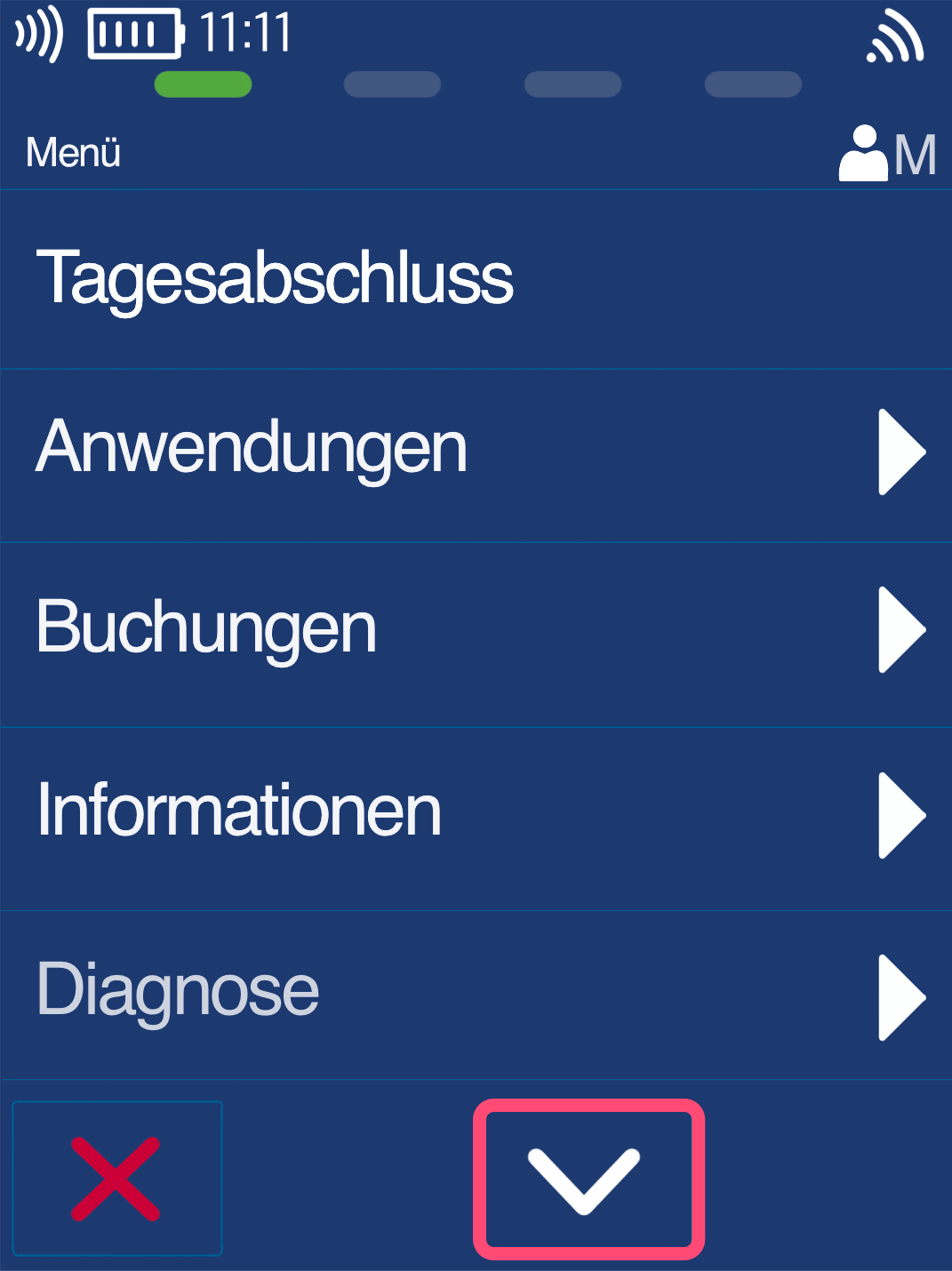
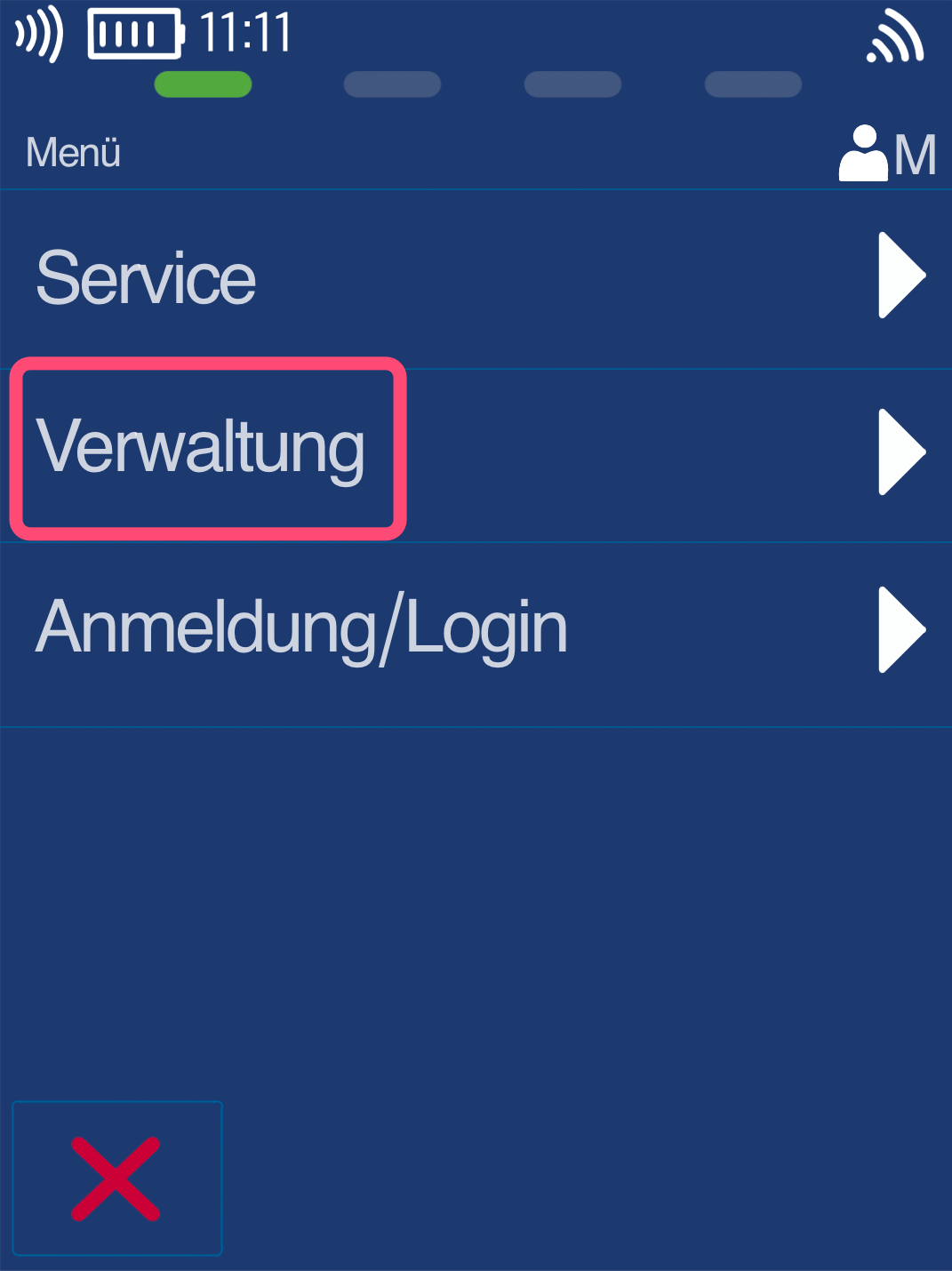
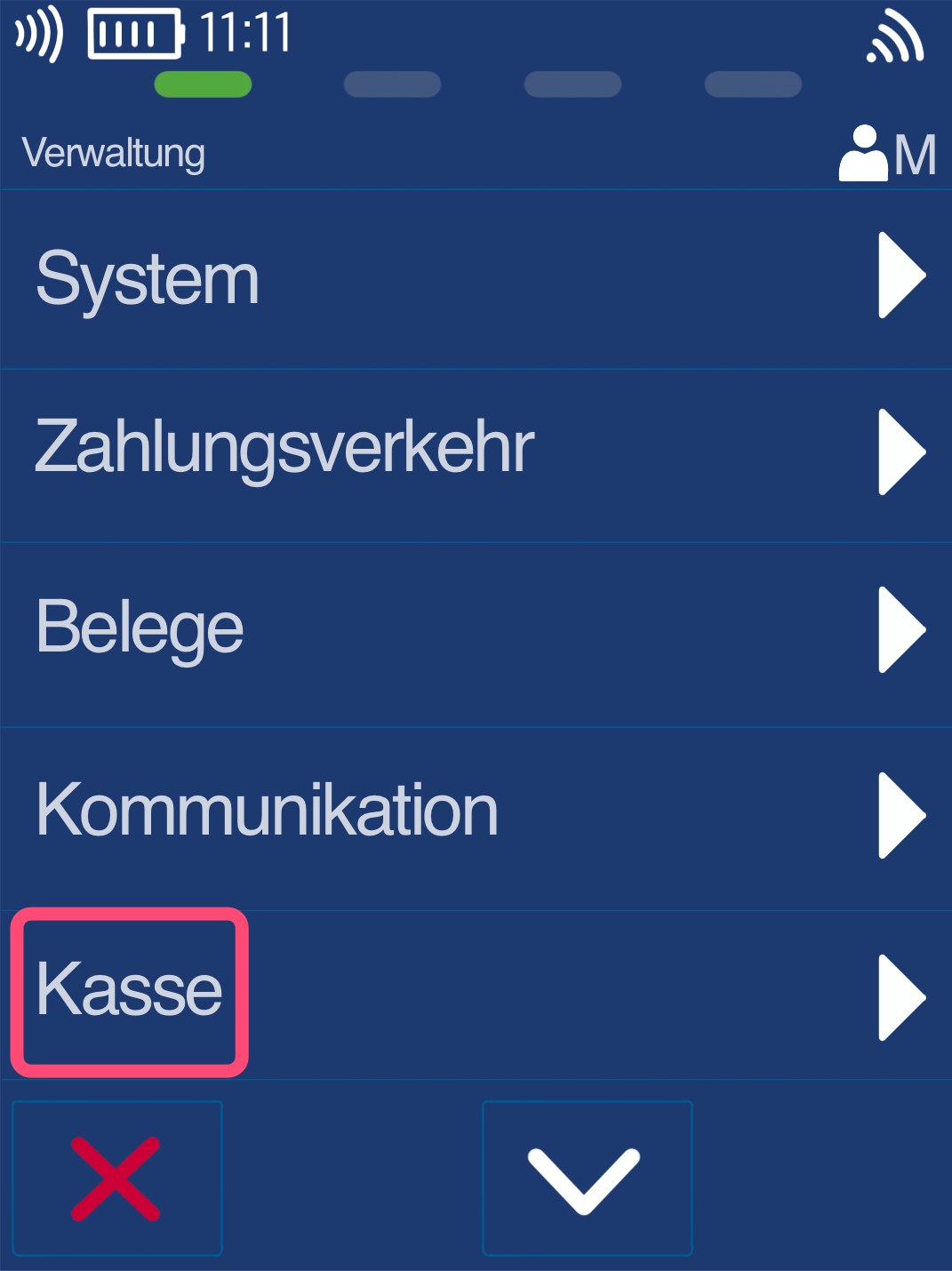
Please select the following menu items as shown in Figures 1–3:
Fig. 1 - Down arrow for Fig. 2 menu item "Management"
Fig. 3 - Menu item "POS"
POS Menu
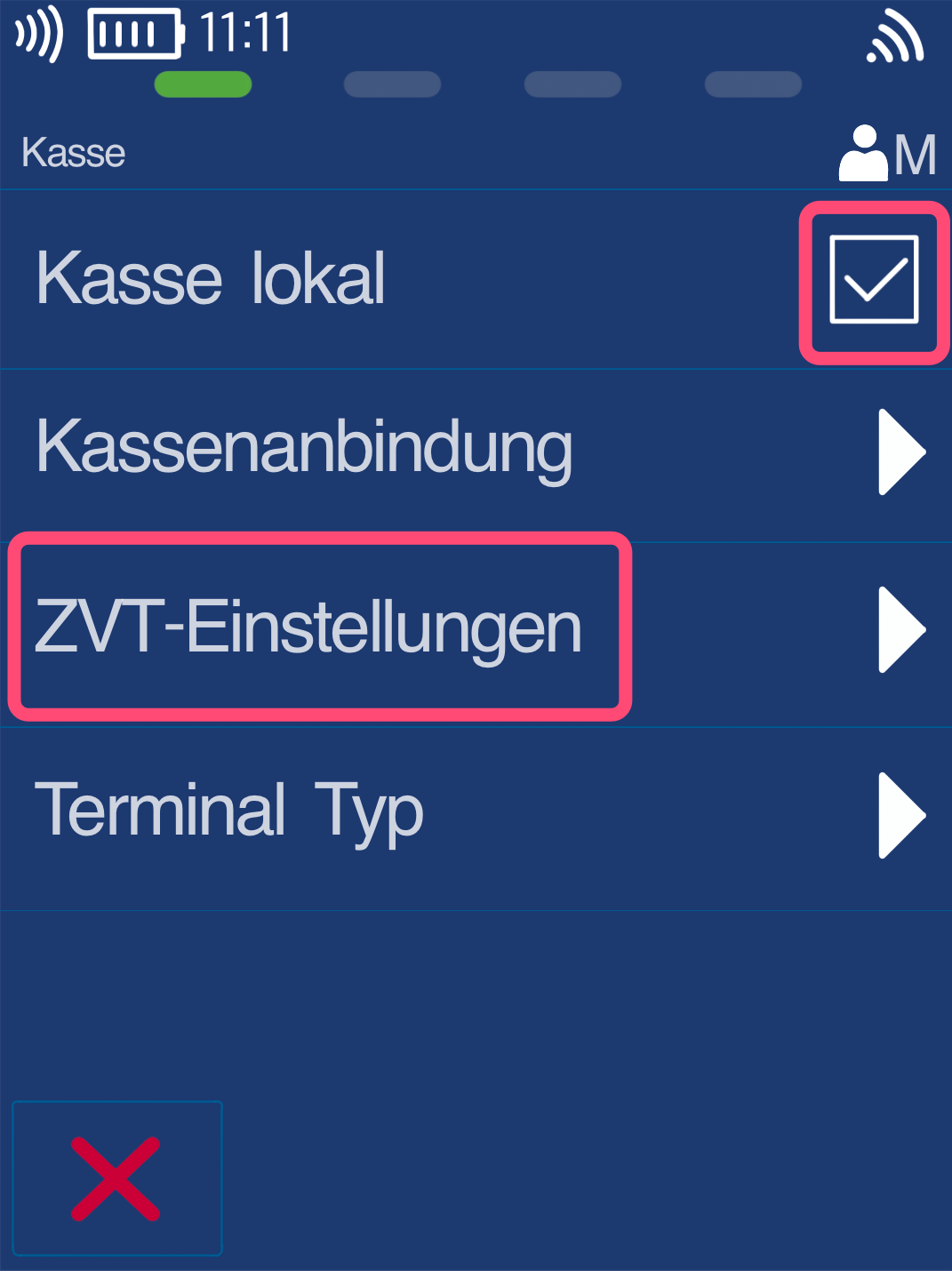
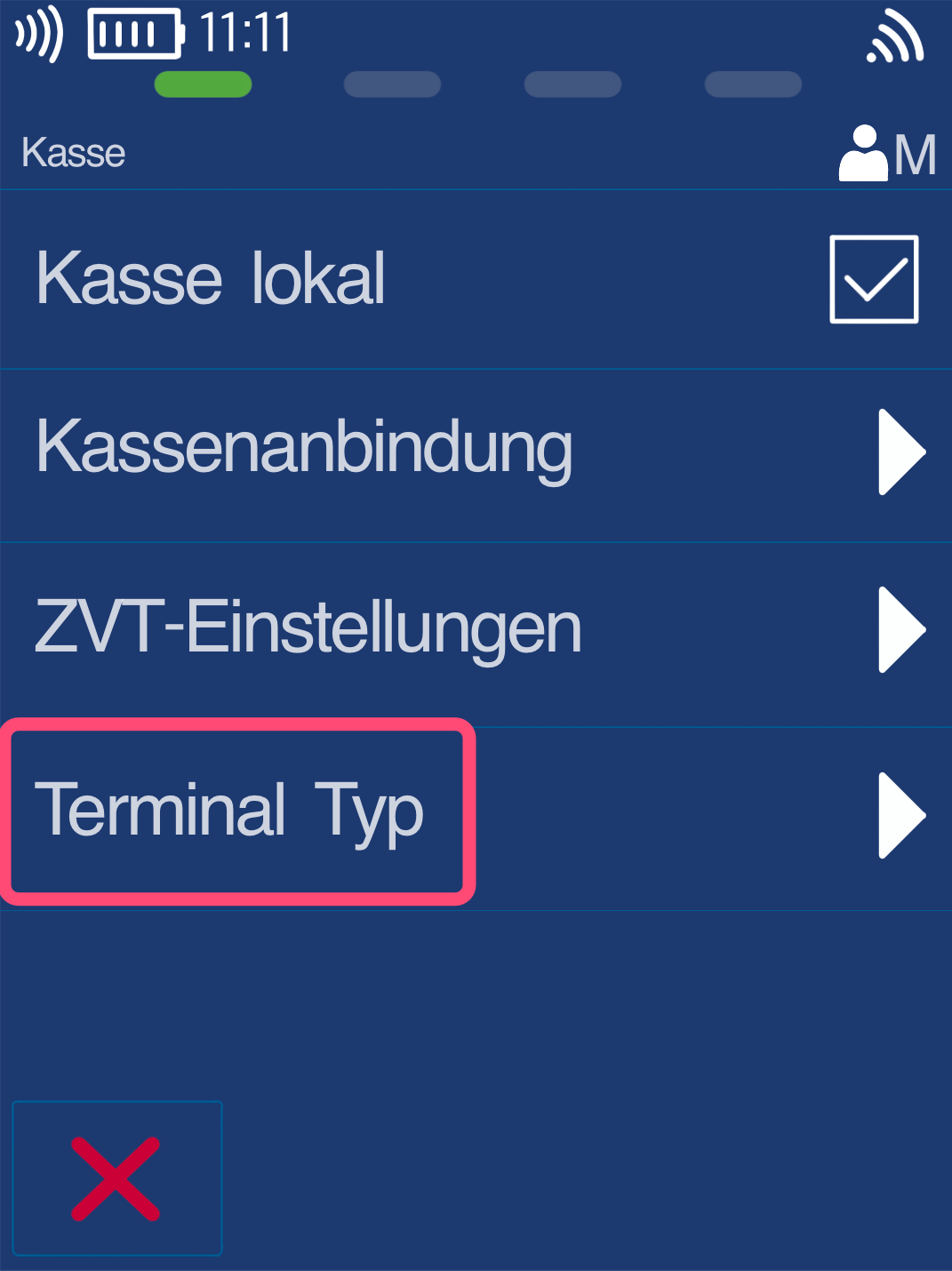
Fig. 1 - Please remove the check mark from "Local POS" by tapping it.
Manual amount entry will then no longer be possible. The Tillhub POS integration will also work if you leave the check mark enabled to allow manual amount entry.
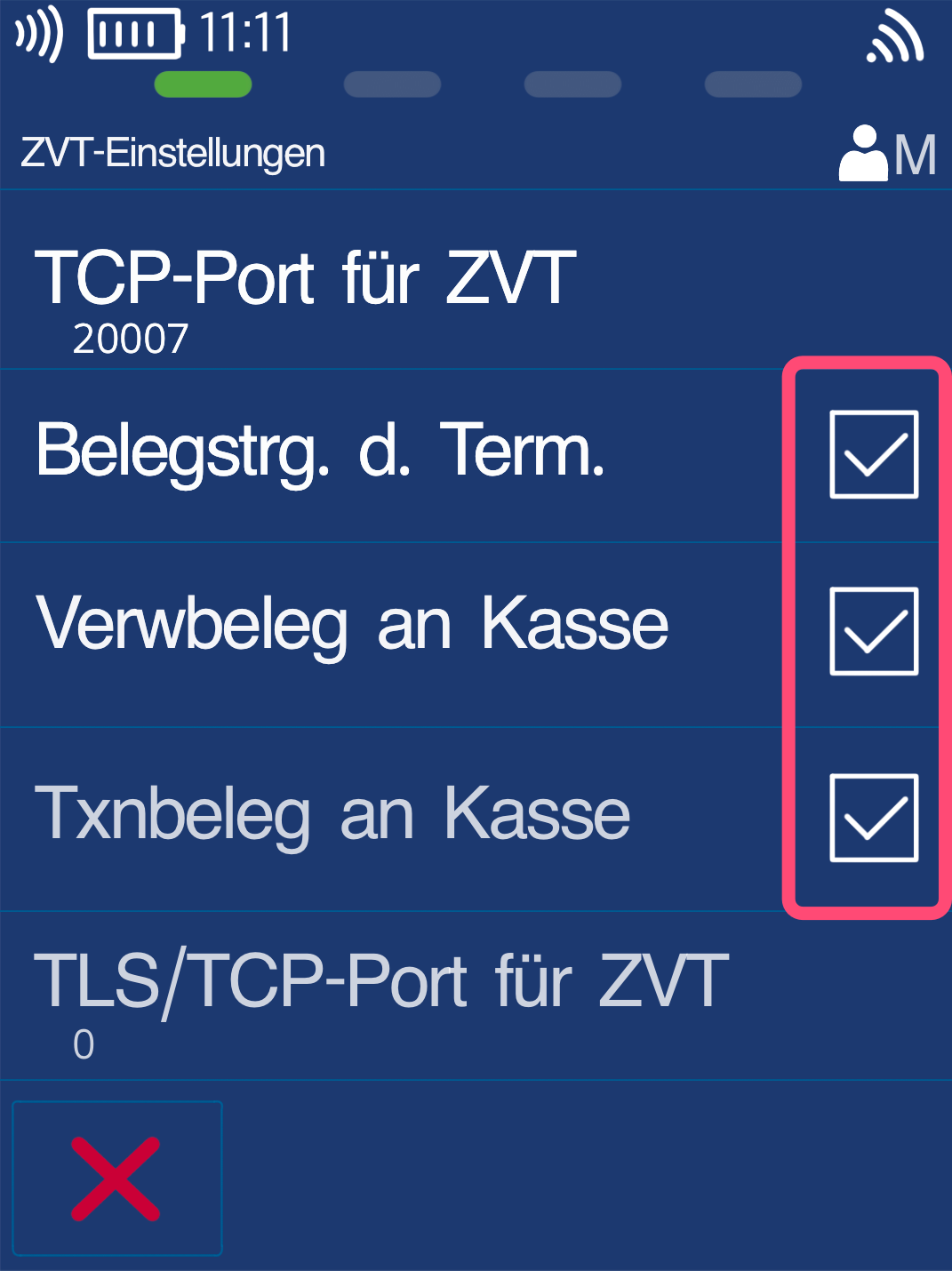
Please navigate to the menu item "ZVT Settings" to activate receipt control as shown in Fig. 2.
Use the yellow key to go back one step at any time, and the red stop key to return to the home screen.
Completion
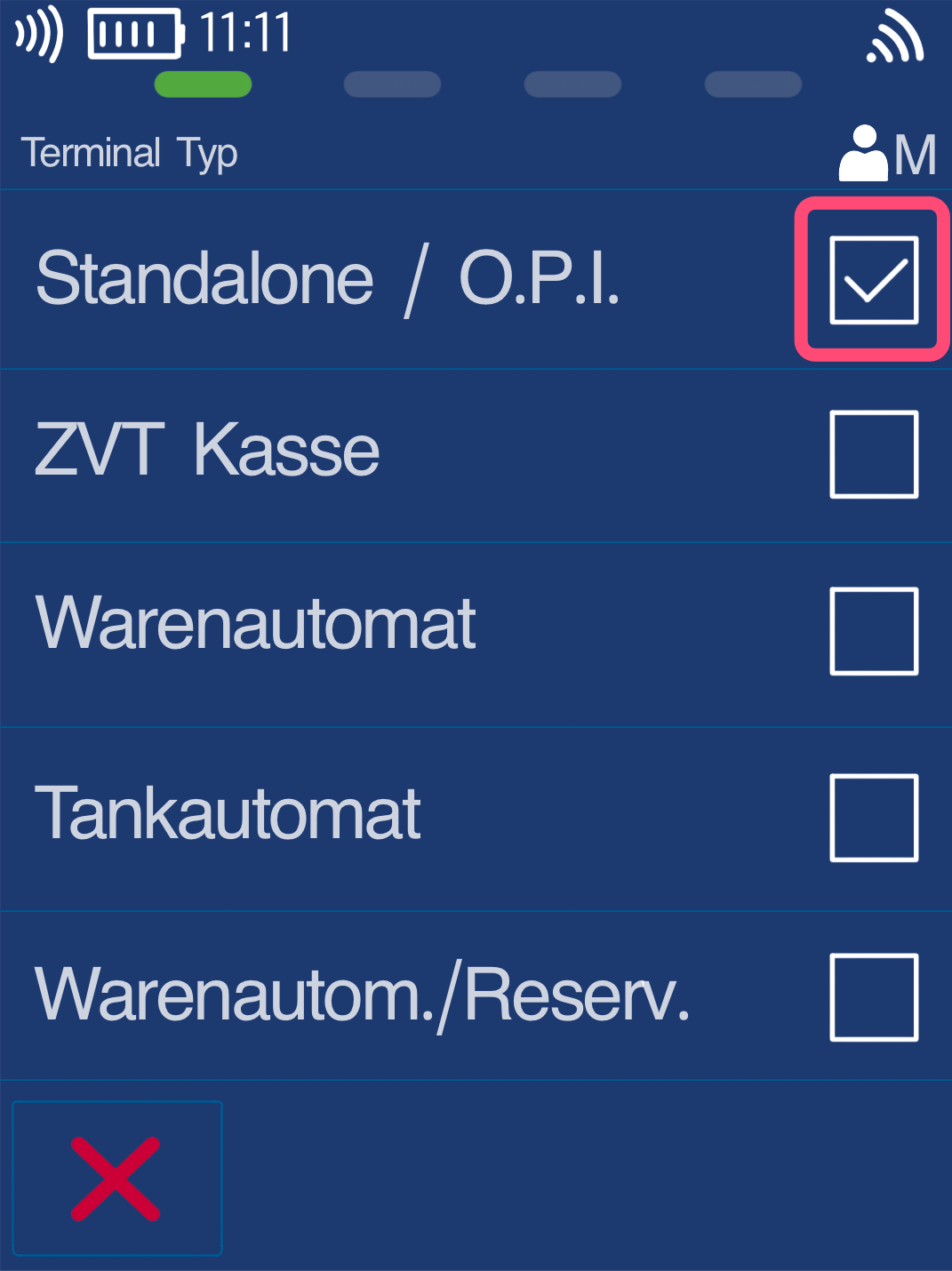
To finish, please check whether "Terminal Type – Standalone / OPI" is activated under the corresponding menu item.
The configuration is now successfully completed.
Now follow the configuration steps on your Tillhub POS so that you can transmit the payment amounts to the card reader.
- Tillhub POS setup for the card reader (as a step-by-step tutorial)
- or available as a setup video
Was this article helpful?
That’s Great!
Thank you for your feedback
Sorry! We couldn't be helpful
Thank you for your feedback
Feedback sent
We appreciate your effort and will try to fix the article
