CCV - Card Reader Test
Modified on Wed, 4 Feb at 9:50 AM
You’re unable to process contactless payments? When inserting a card, you receive an error message such as “Transaction canceled”?
To rule out or identify a mechanical defect, you can run a card reader test.
This step-by-step guide shows you how to perform the card reader test.
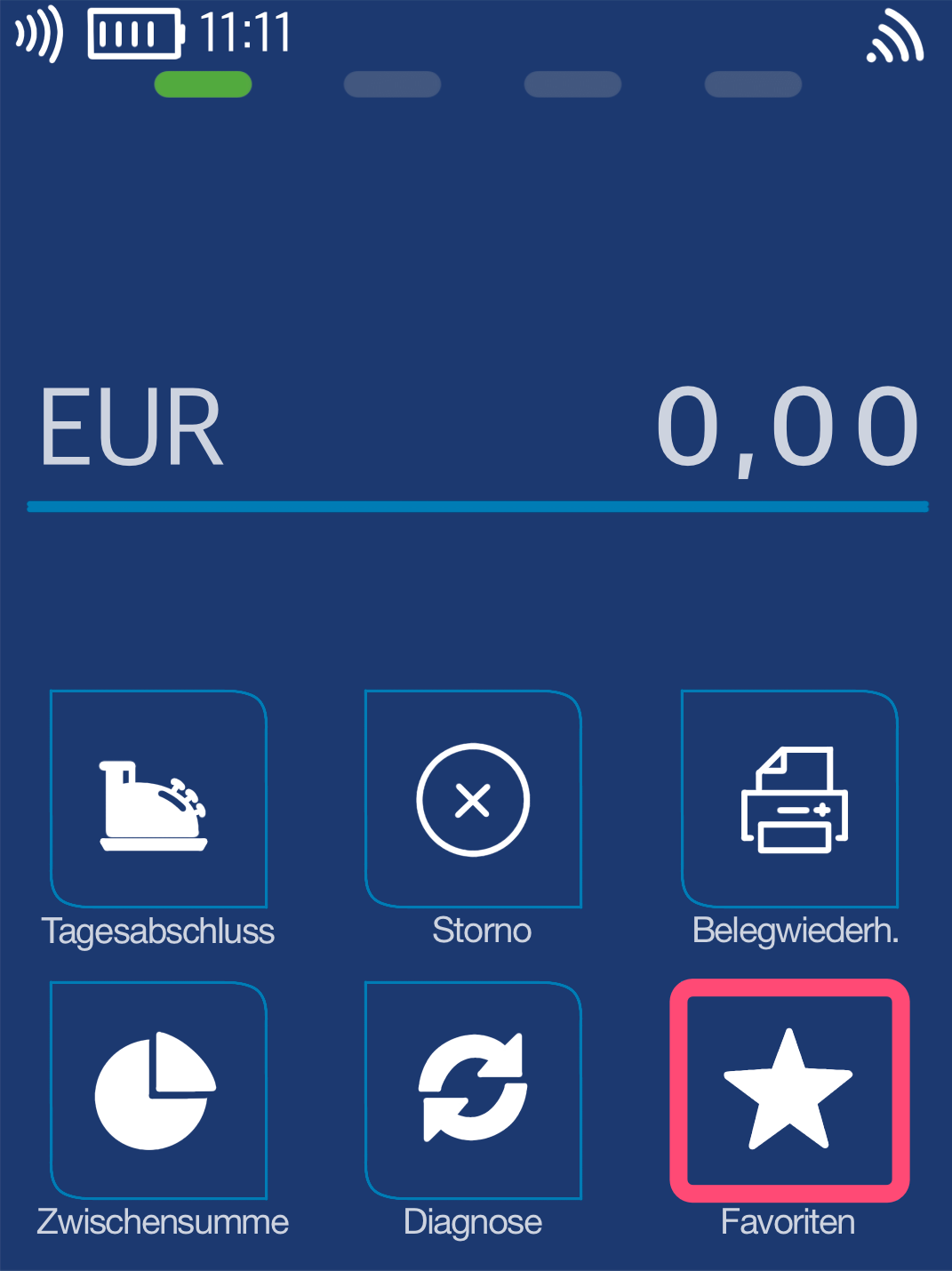
Favorites Button
You will see your main display. Please select the Favorites button.
Select by tapping.
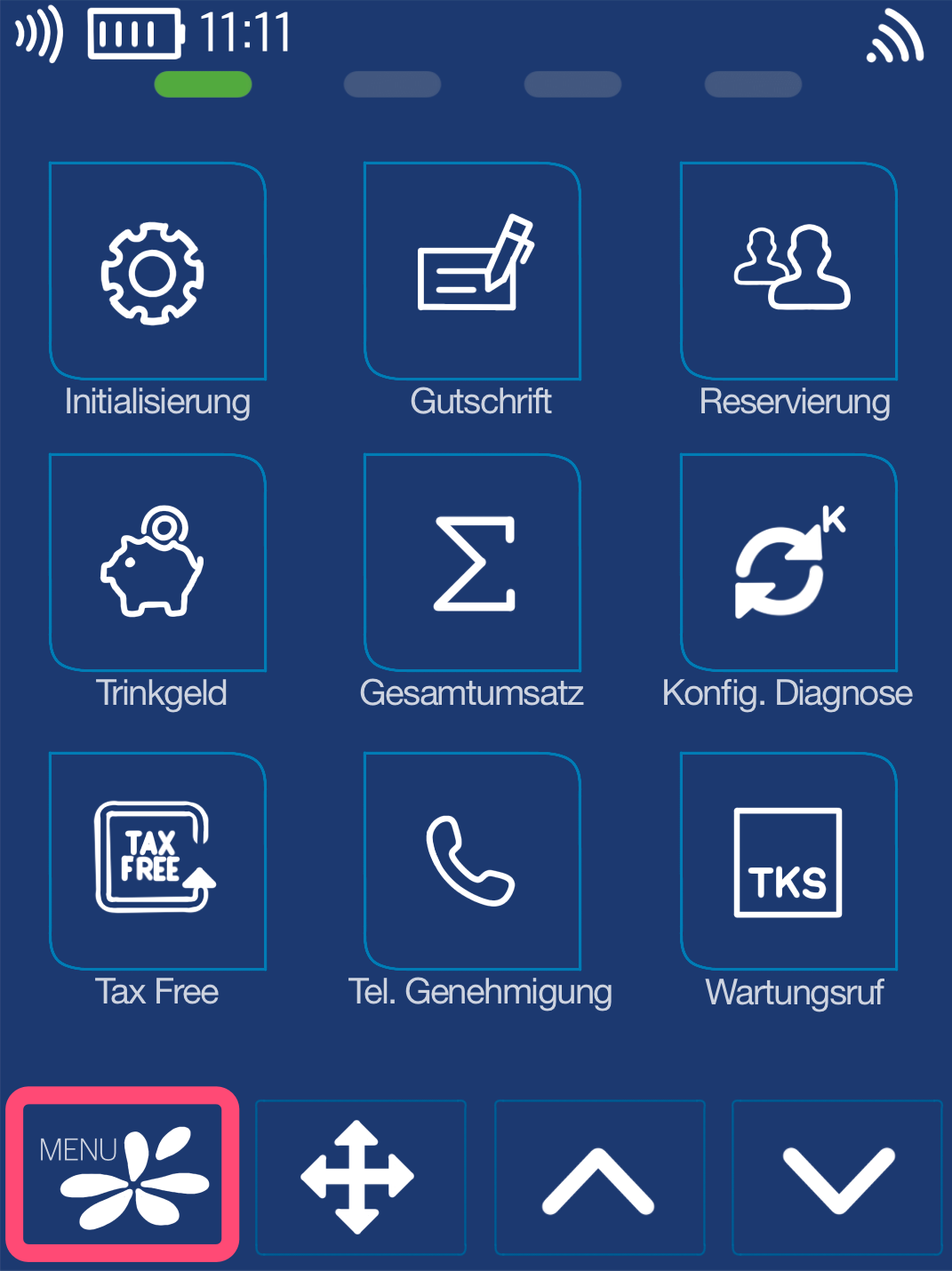
Menu Button
Now please select the Menu button.
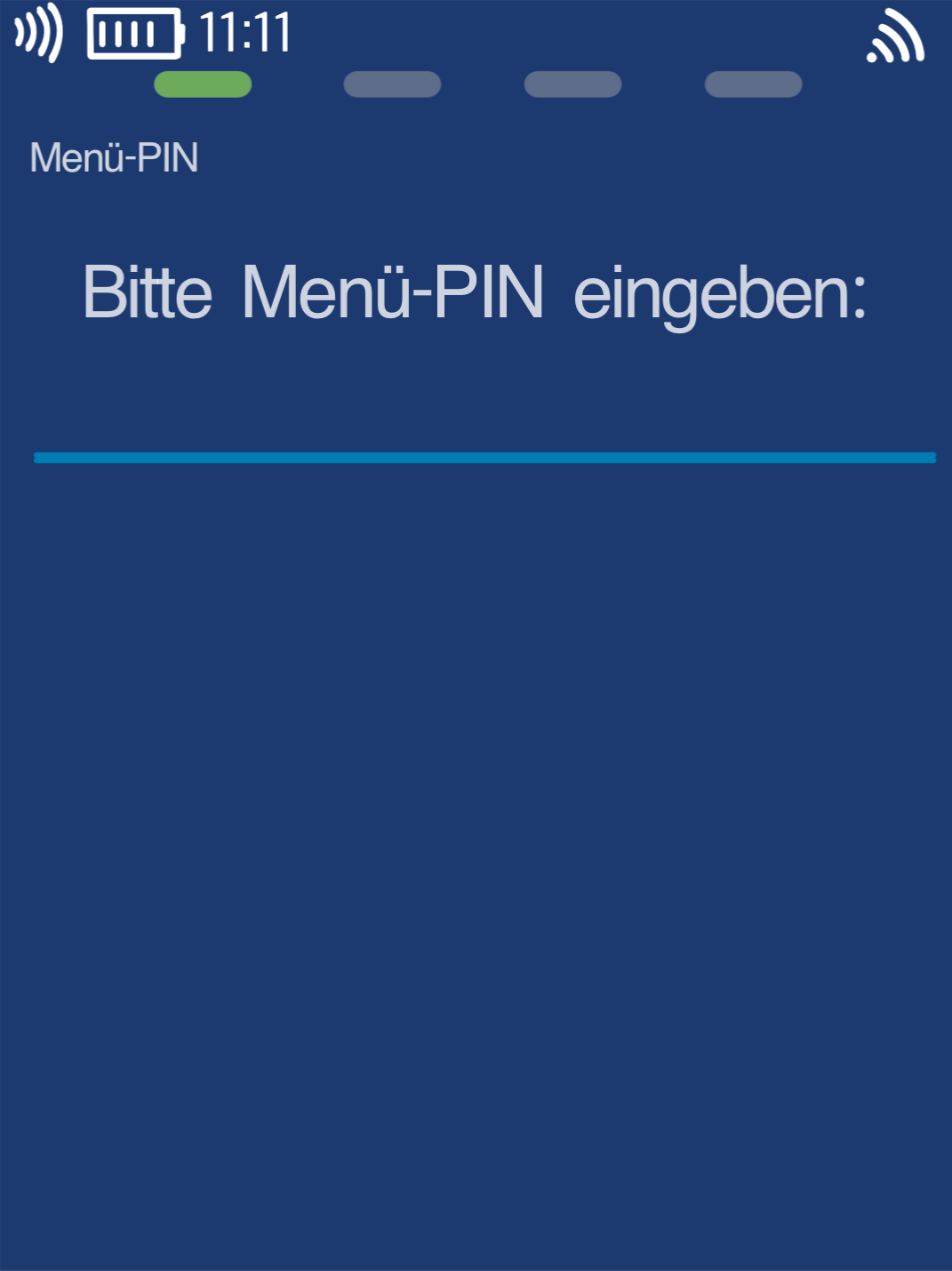
Menu PIN
Please now enter your merchant PIN.
You can find the Terminal ID on your merchant receipts or on the end-of-day report.
Terminal IDs starting with 61xxxxxx: 111111
Terminal IDs starting with 68xxxxxx: 111111
Terminal IDs starting with 526xxxxx: 0123
Please confirm the entry by pressing the green OK button.
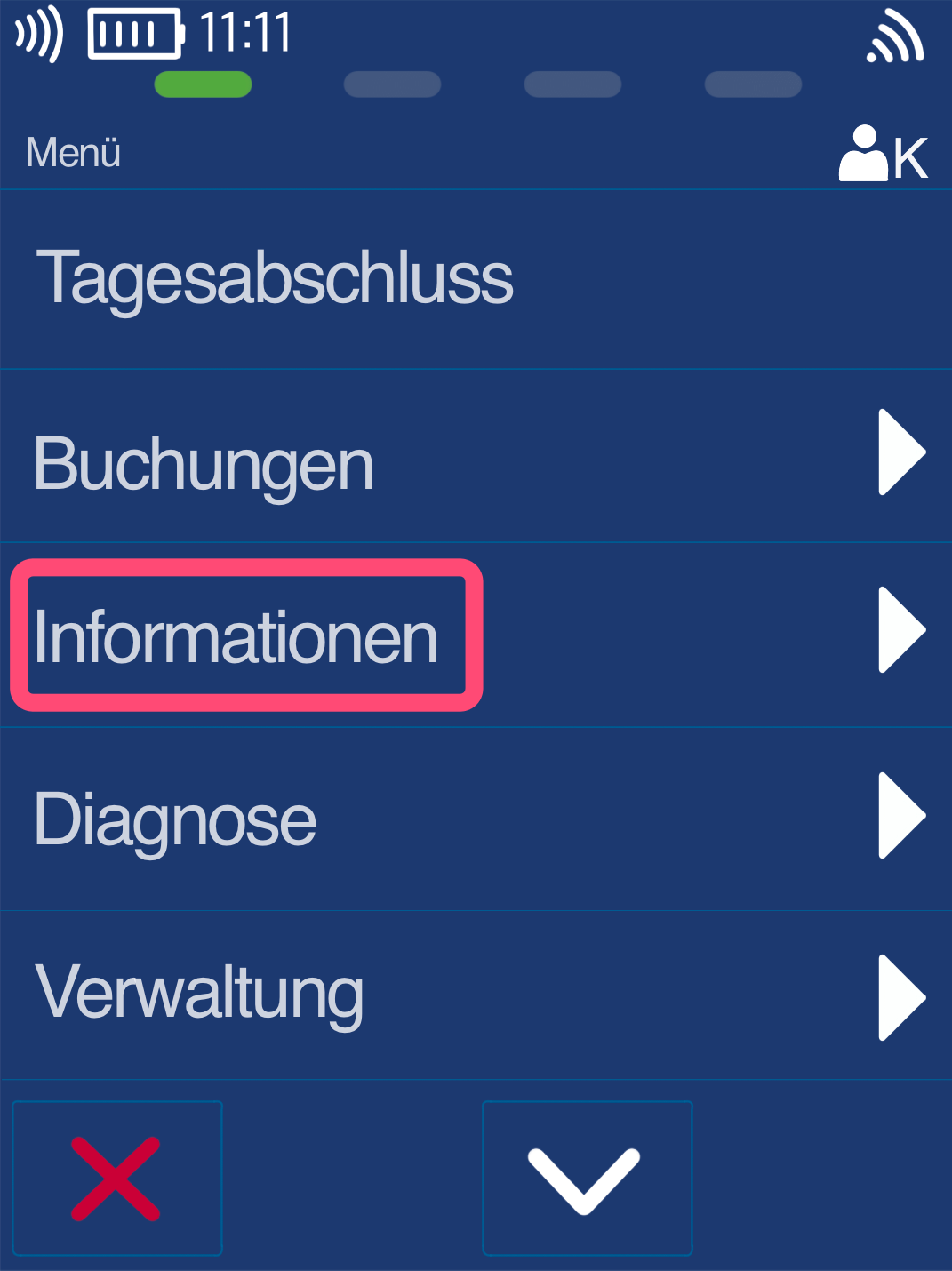
Information
Please select the Information button.
System
Please select System.
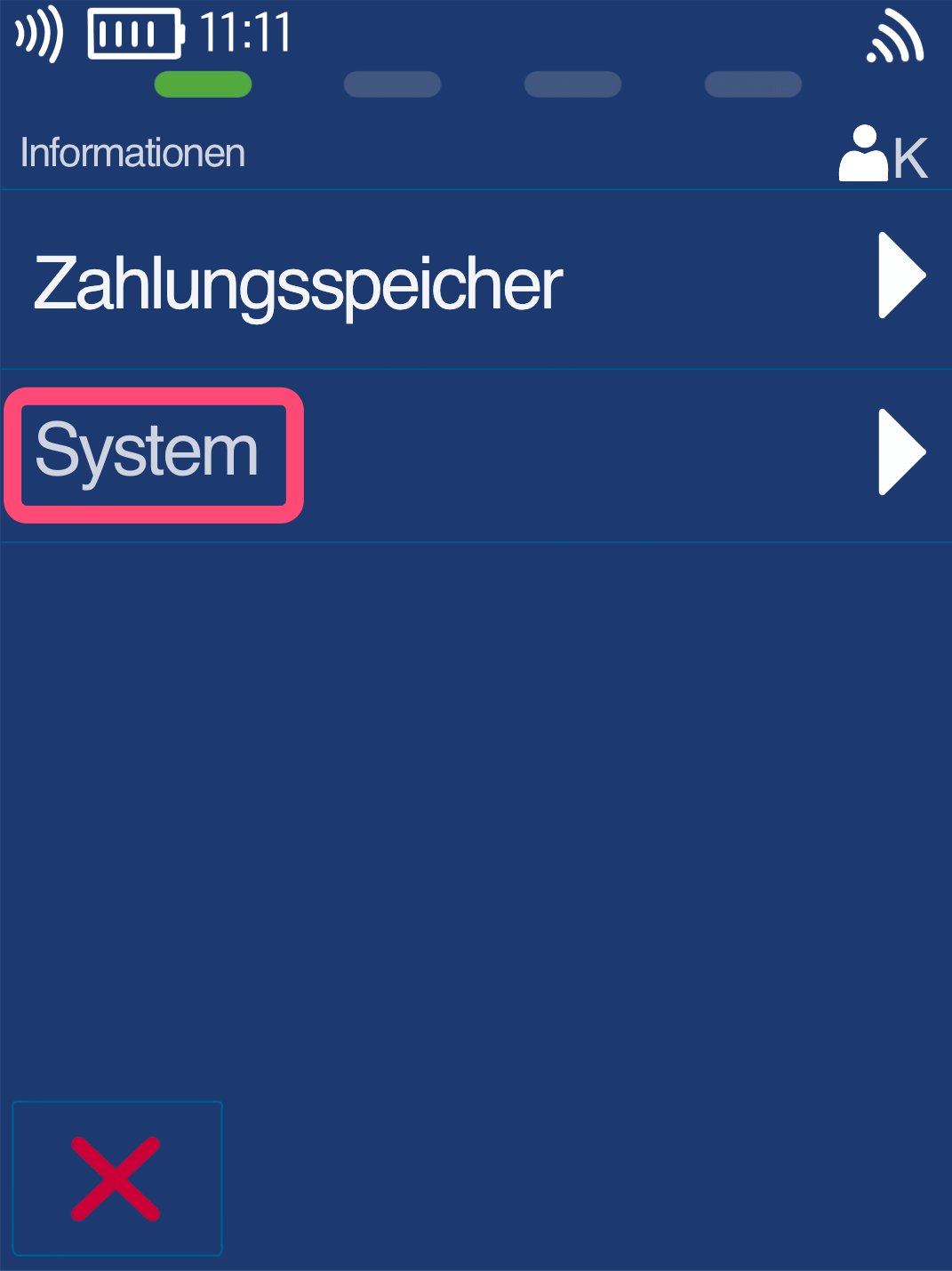
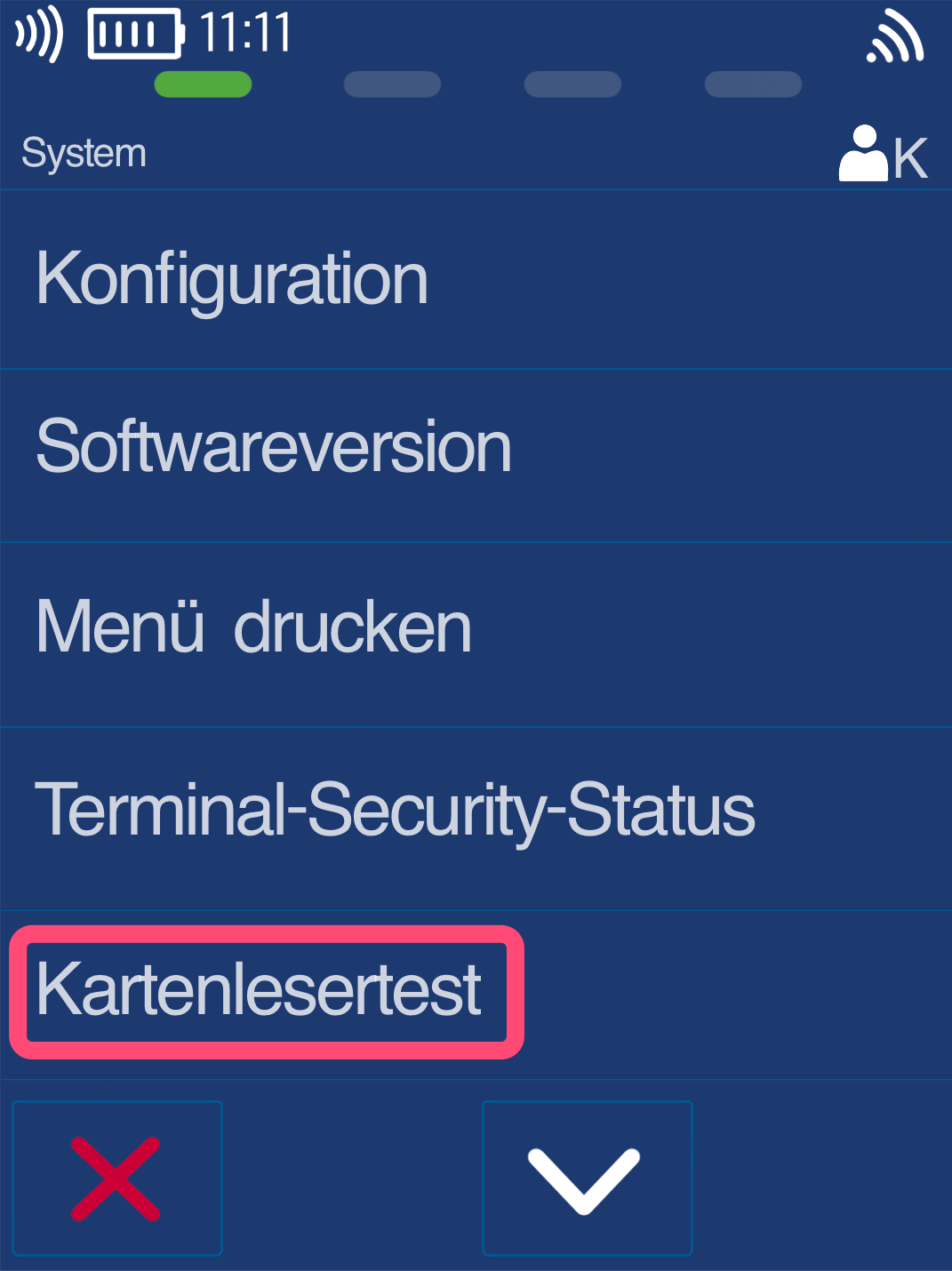
Card Reader Test
By selecting the Card Reader Test, you can test the following methods one after the other:
Step 1: Magnetic stripe (right side of the device)
Step 2: Chip card reader (by inserting the card)
Step 3: Contactless reader (by tapping the card)
The result will be printed out.
Track 1: OK
Track 2: OK
Track 3: Error
These are standard function messages.
If Track 1 and/or Track 2 show an error, the card reader is likely defective. Please contact our technical support via the contact form.
Was this article helpful?
That’s Great!
Thank you for your feedback
Sorry! We couldn't be helpful
Thank you for your feedback
Feedback sent
We appreciate your effort and will try to fix the article
