Ingenico - Card Reader Test
Modified on Wed, 4 Feb at 1:10 PM
You can’t perform contactless payments? For example, do you receive the error message Transaction canceled when inserting the card?
To rule out or identify a mechanical defect, you can run a card reader test to check functionality.
This step-by-step guide shows you how to perform the card reader test.
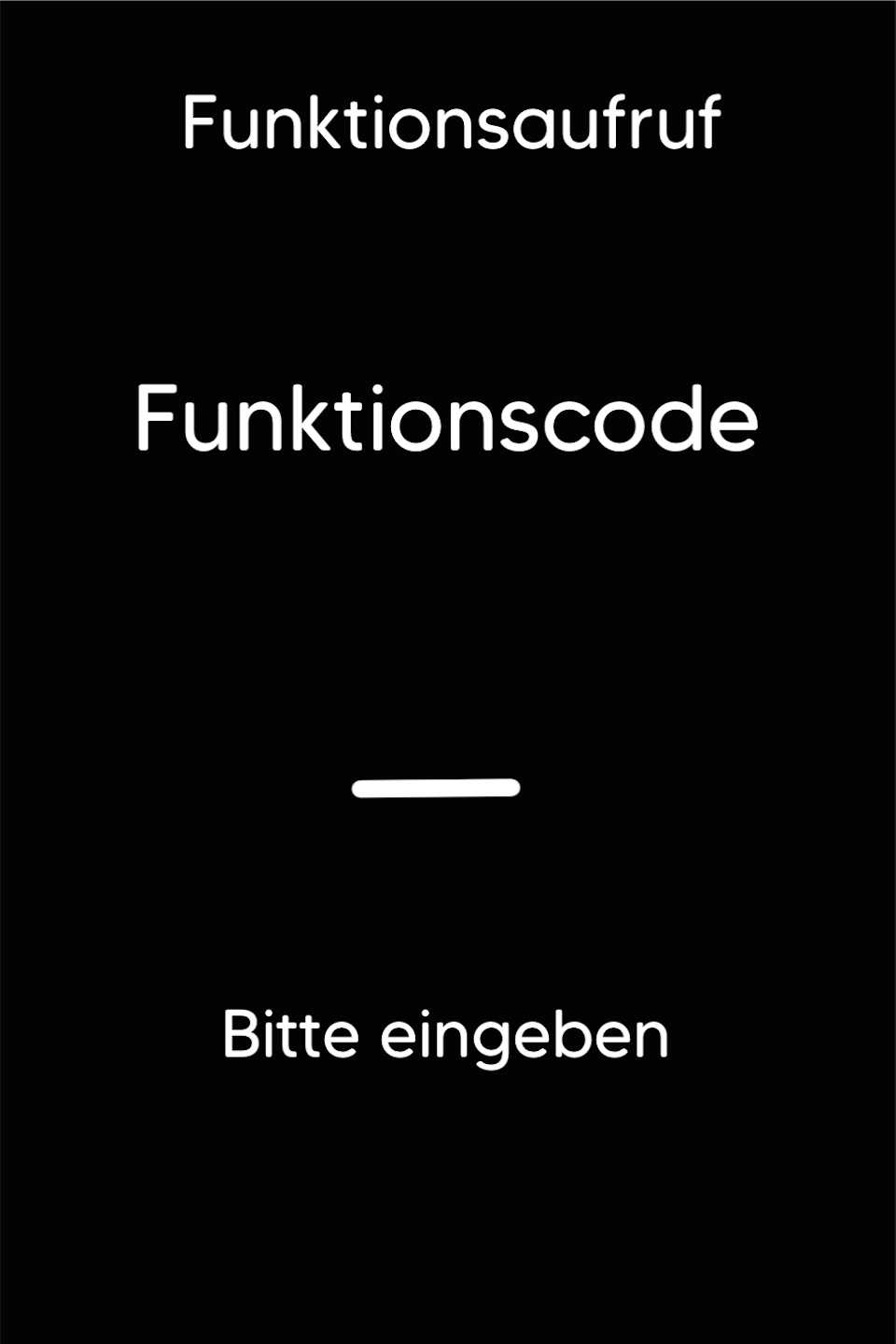
Function Code
Please press the F key at the bottom left of the keypad repeatedly until you see the function code on the display.
Function Code 429
Please enter the number 429 and confirm the entry with the green OK button.
Password Entry
Please enter your 5-digit cashier password and confirm the entry with the green OK button.

Self-Test
Please select the menu item Card Reader Test.
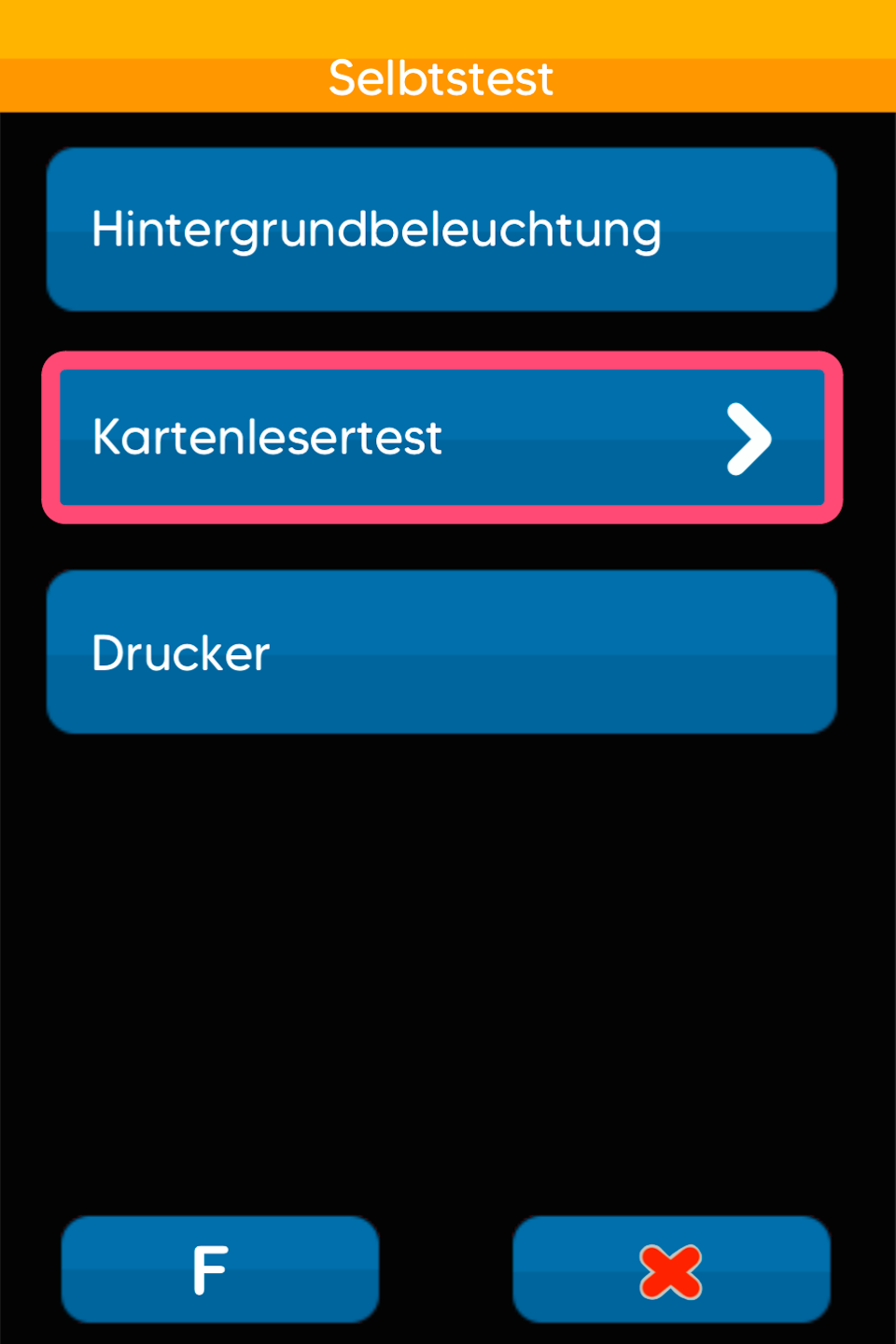
Card Reader Test Options
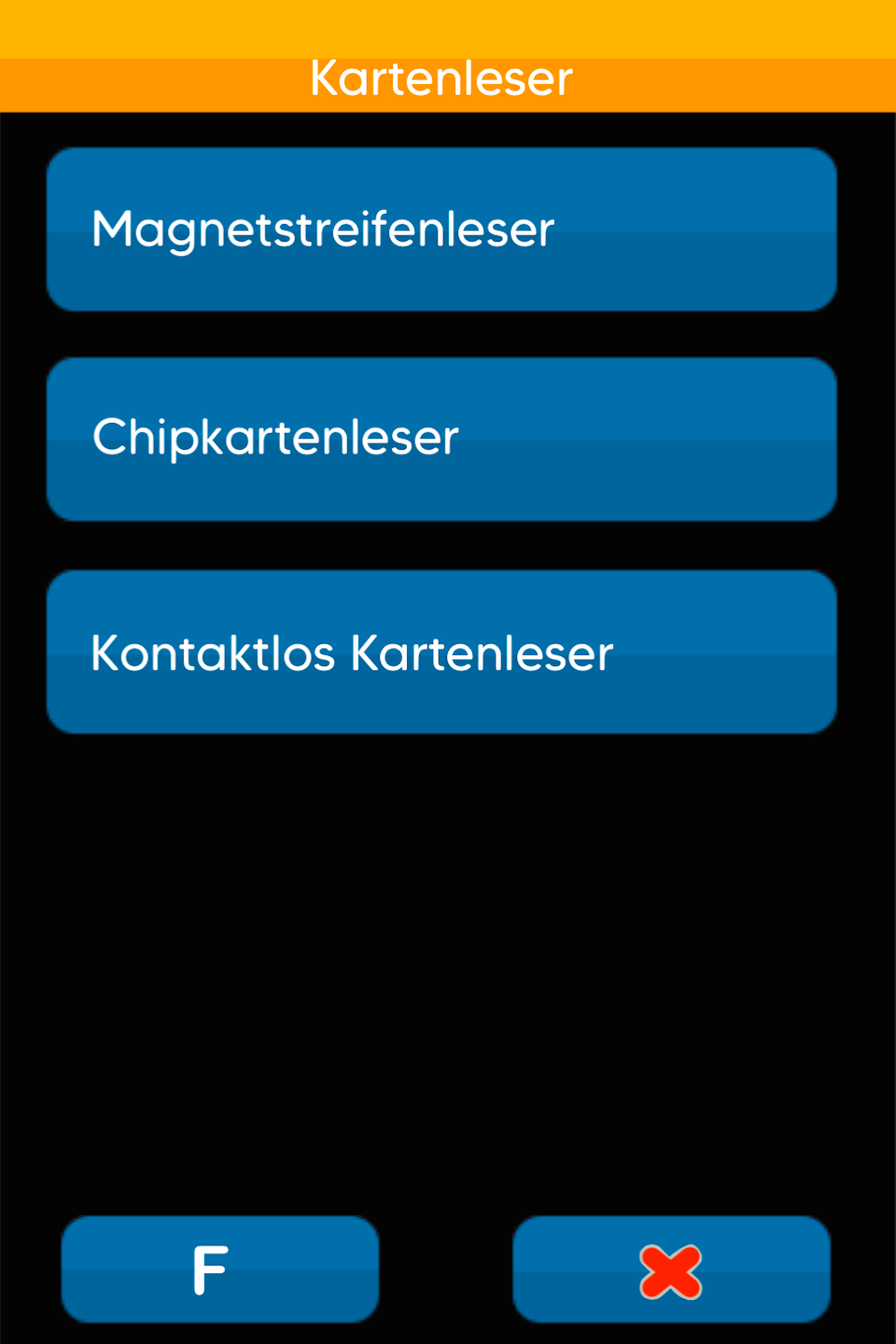
Here you can choose which card reader test you want to perform:
Magnetic Stripe Reader – to test swiping a magnetic stripe card
Chip Card Reader – to test inserting a chip card
Contactless Card Reader – to test contactless payments
The result should be displayed as OK. This means the card reader is active and functioning correctly.
If an error is displayed or there is no response, the card reader is likely defective.
Please contact our technical support team using the contact form.
Was this article helpful?
That’s Great!
Thank you for your feedback
Sorry! We couldn't be helpful
Thank you for your feedback
Feedback sent
We appreciate your effort and will try to fix the article
