Verifone - Card Reader Test
Modified on Tue, 10 Feb at 2:35 PM
You can't process contactless payments? When inserting a card, for example, you receive the error message “Transaction cancelled”?
To rule out or identify a mechanical defect, start a card reader test for verification.
This step-by-step guide will show you how to perform the card reader test.
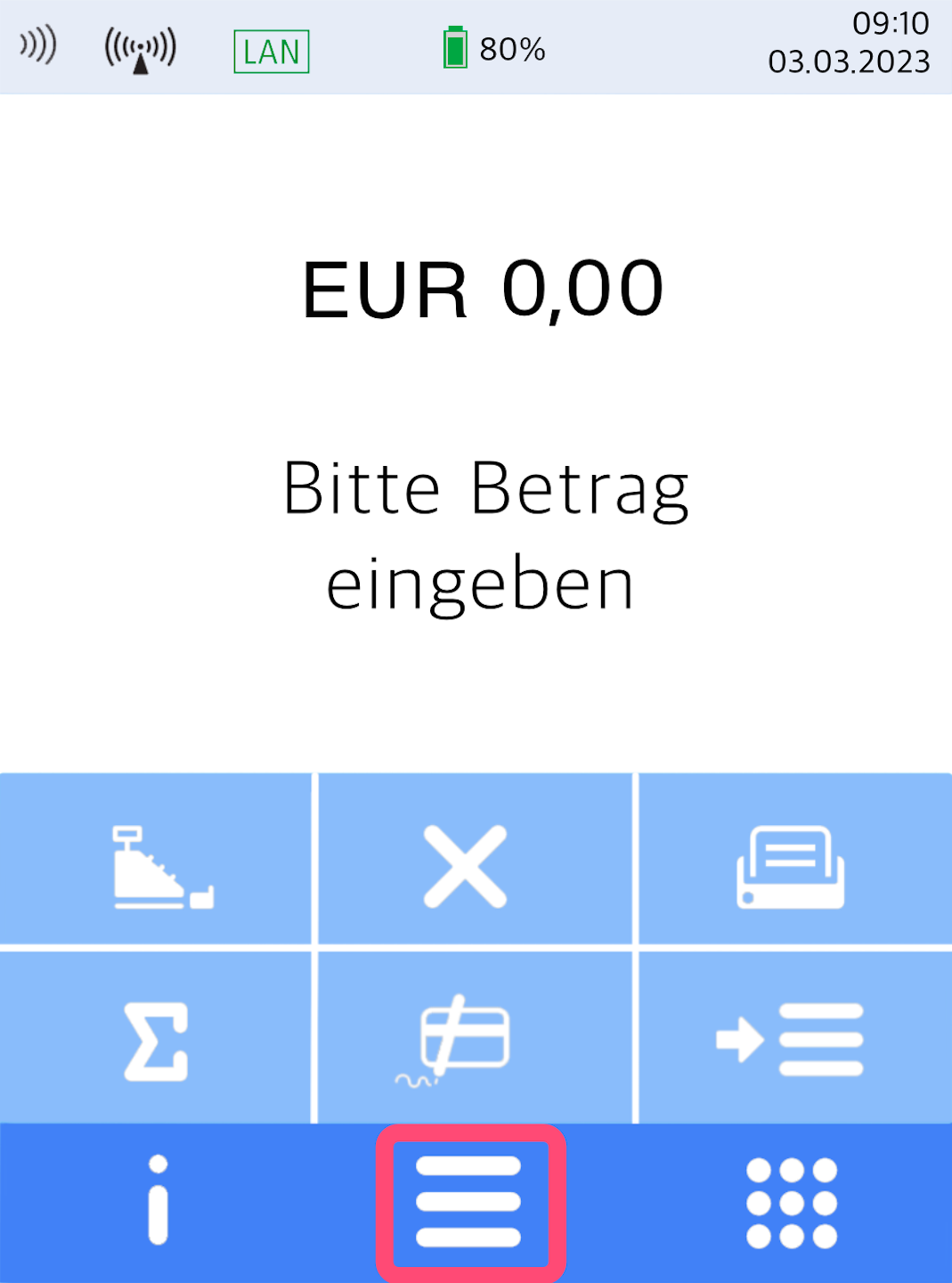
Menu Button
Here you see your home display.
Please press the button with the three horizontal bars to access the main menu.
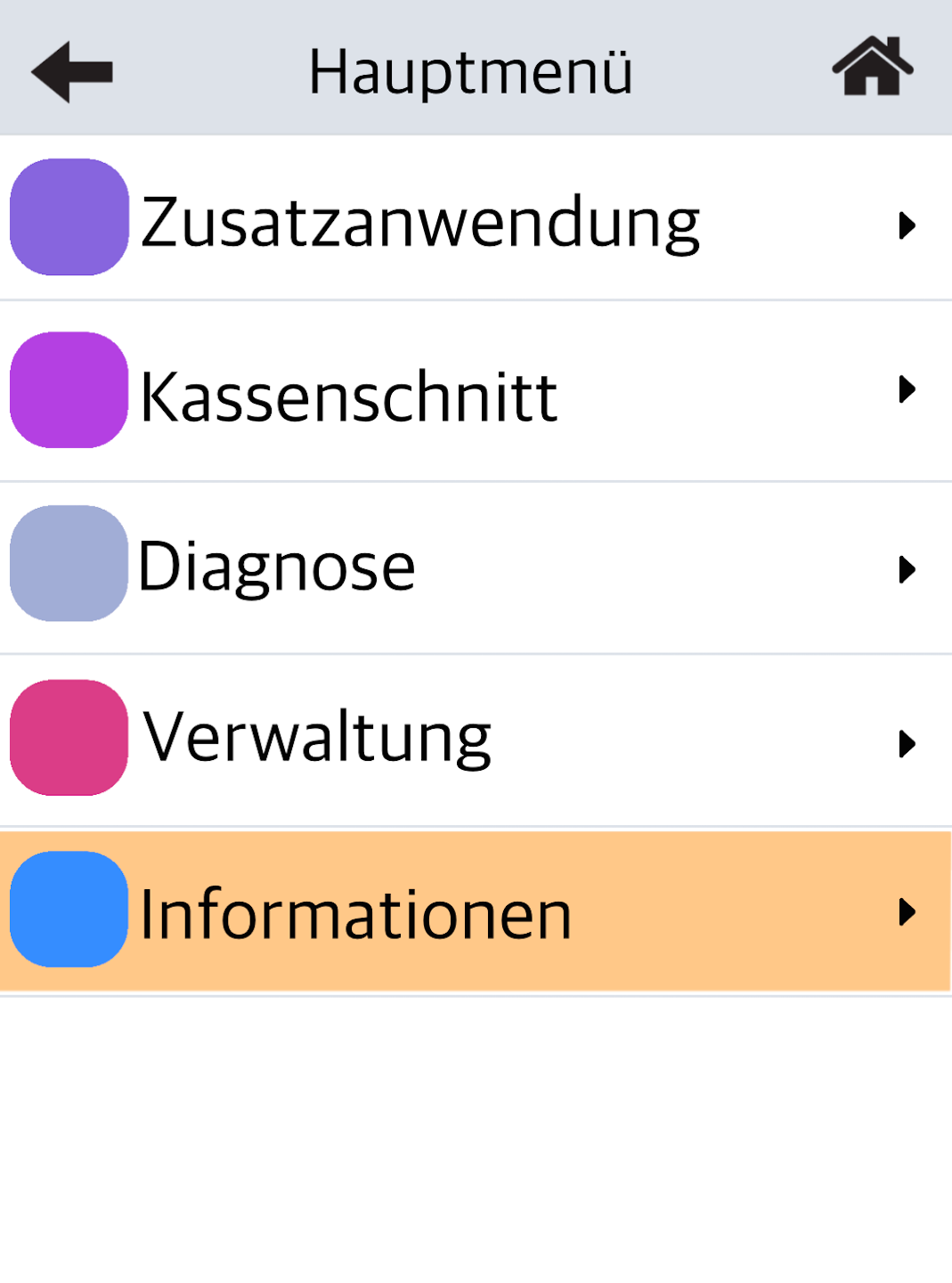
Information
Please select the menu item Informationen.
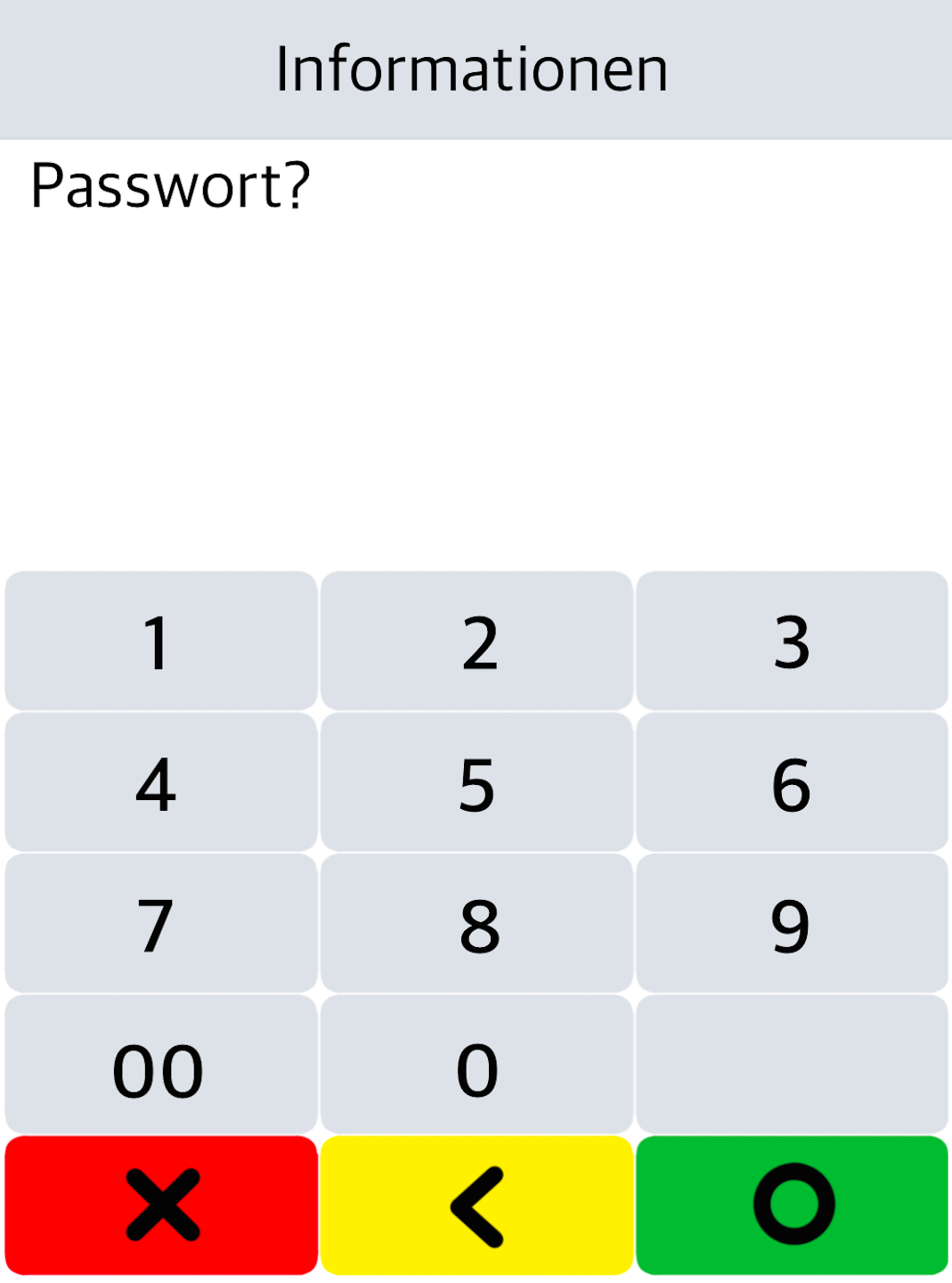
Password Entry
Please enter your 6-digit cashier password and confirm the entry with the green OK button.
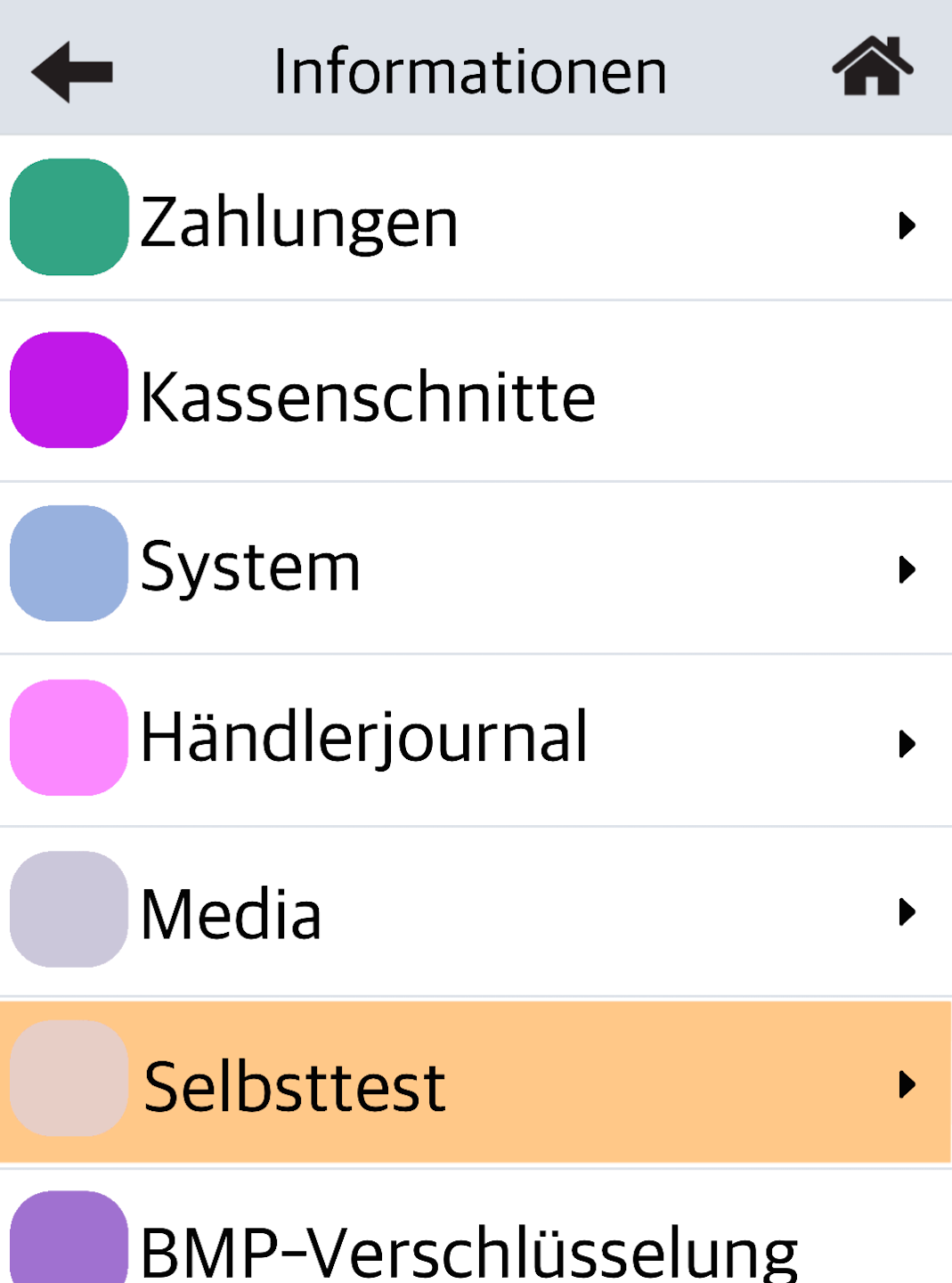
Self-Test
Please select Selbsttest here.
Perform Test
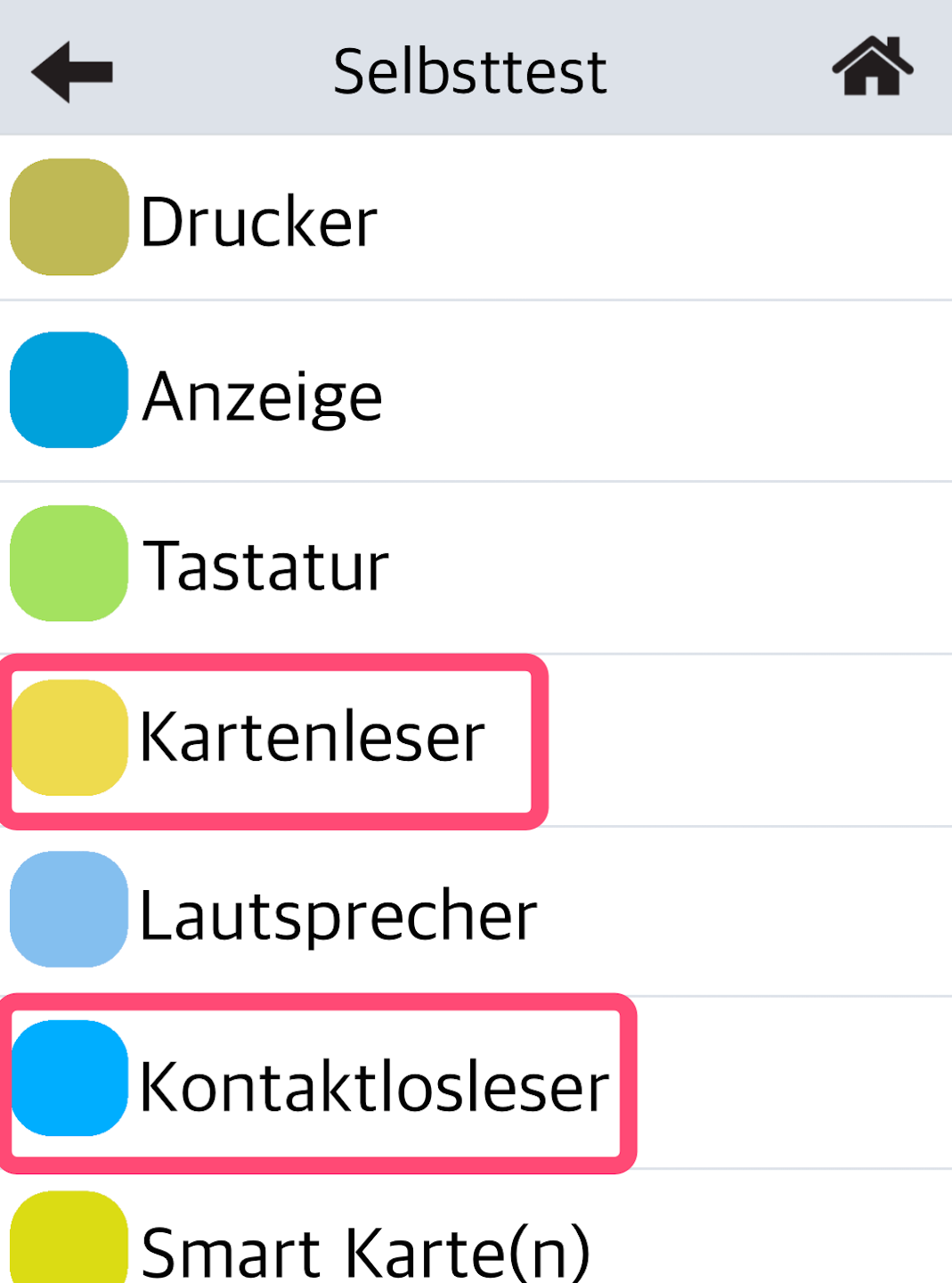
Here you can select the desired card reader test.
Kontaktlosleser – A beep indicates successful detection.
Kartenleser – The card is inserted and then swiped through the magnetic stripe reader.
The printed receipt should show Track 1 and Track 2. It is normal if Track 3 is not detected.
If an error is shown or there is no response, the card reader is likely defective. Please contact our technical support via the contact form.
Was this article helpful?
That’s Great!
Thank you for your feedback
Sorry! We couldn't be helpful
Thank you for your feedback
Feedback sent
We appreciate your effort and will try to fix the article
