Library & Tile View
Modified on Tue, 4 Aug at 9:56 AM
TABLE OF CONTENTS
- Sales Views – Library & Tile View
- How can I activate edit mode in the tile view to assign my tiles?
- How can I add and name additional tabs in the tile view?
- How can I save changes to my tile set?
- How do I create standard products in the app?
- How can I search for articles in the library?
- Reusing an Existing Tile Set at Another Register
Sales Views – Library & Tile View
In this video, we show you the two sales views of the Tillhub register: the library and the tile view.
In the following articles, we also explain the functions and possibilities of the tile view and library in detail.
How can I activate edit mode in the tile view to assign my tiles?
In the tile view, you have a quick overview of your most important articles. This allows you to access items quickly and clearly in order to process sales efficiently and have more time for your customers. This video shows how to assign articles to tiles. We also explain the settings in detail in the step-by-step guide.
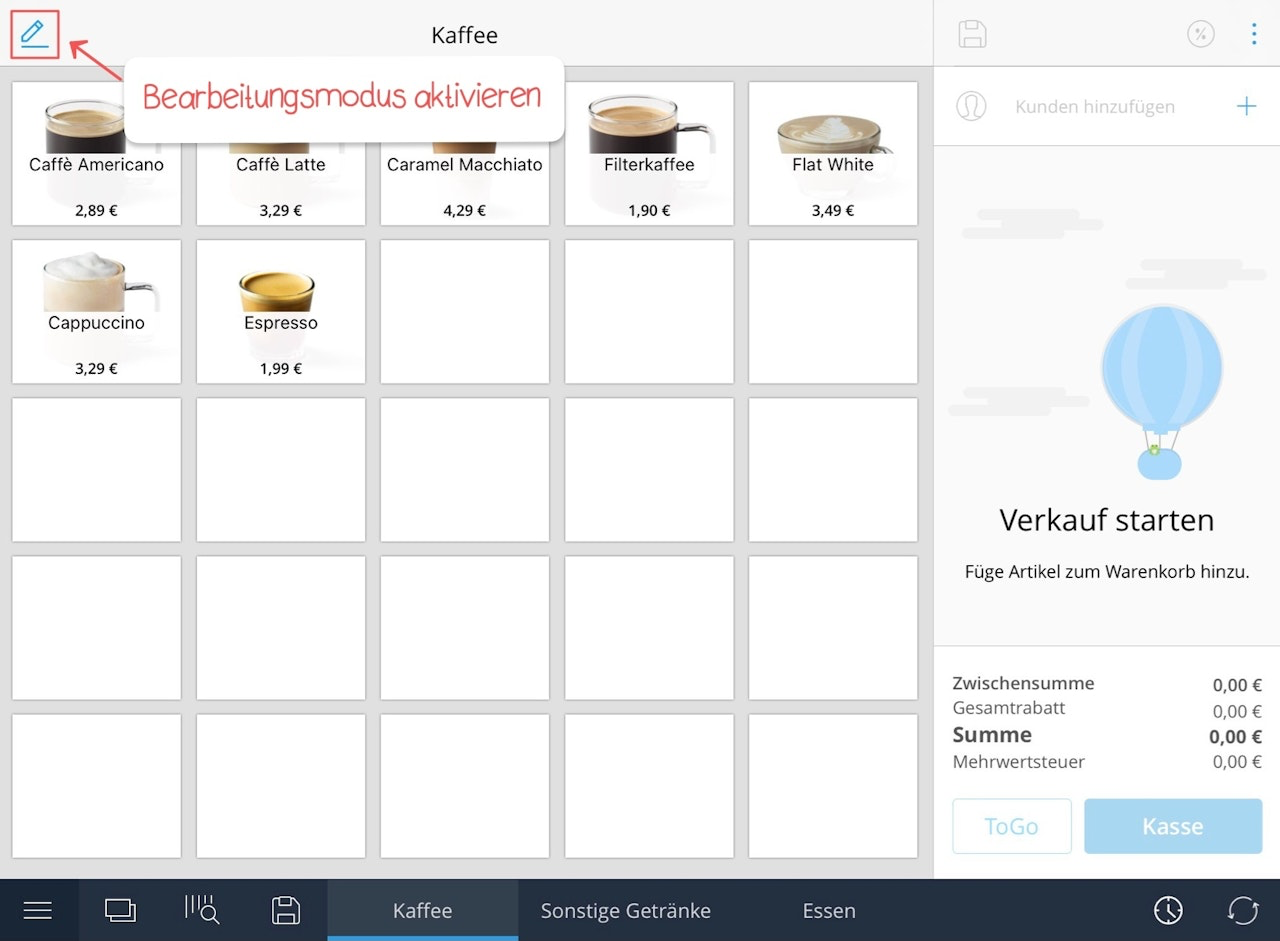
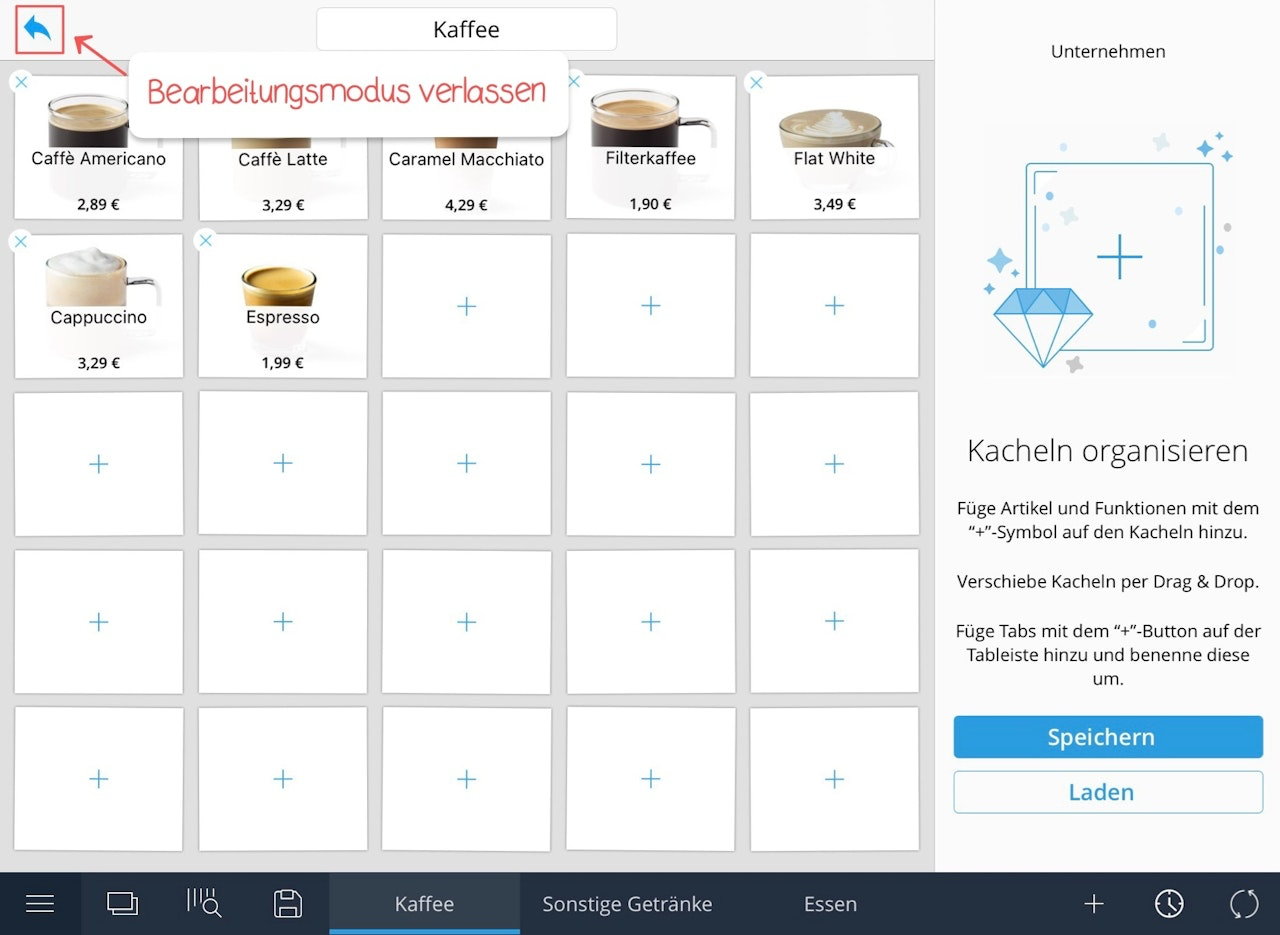
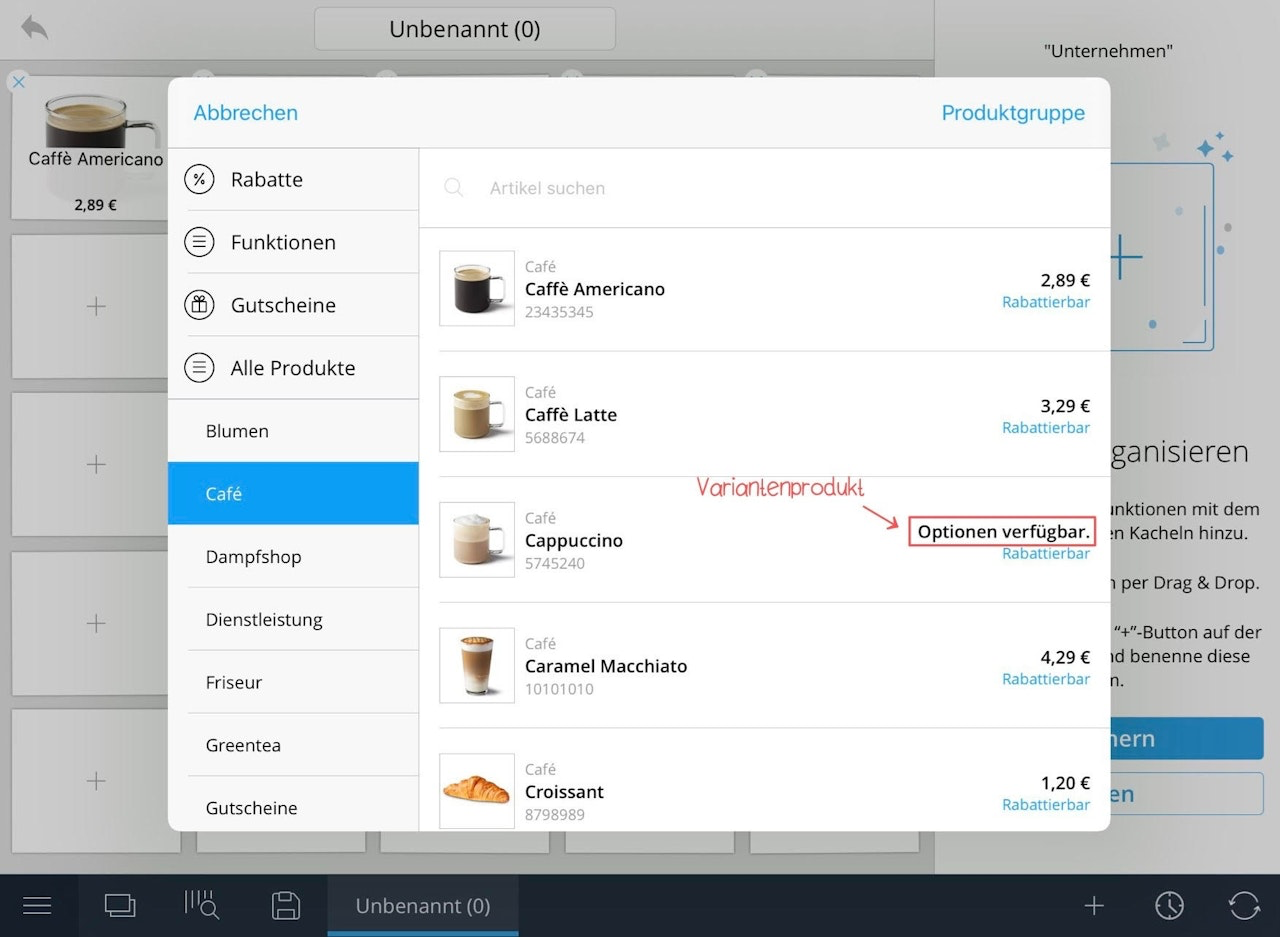
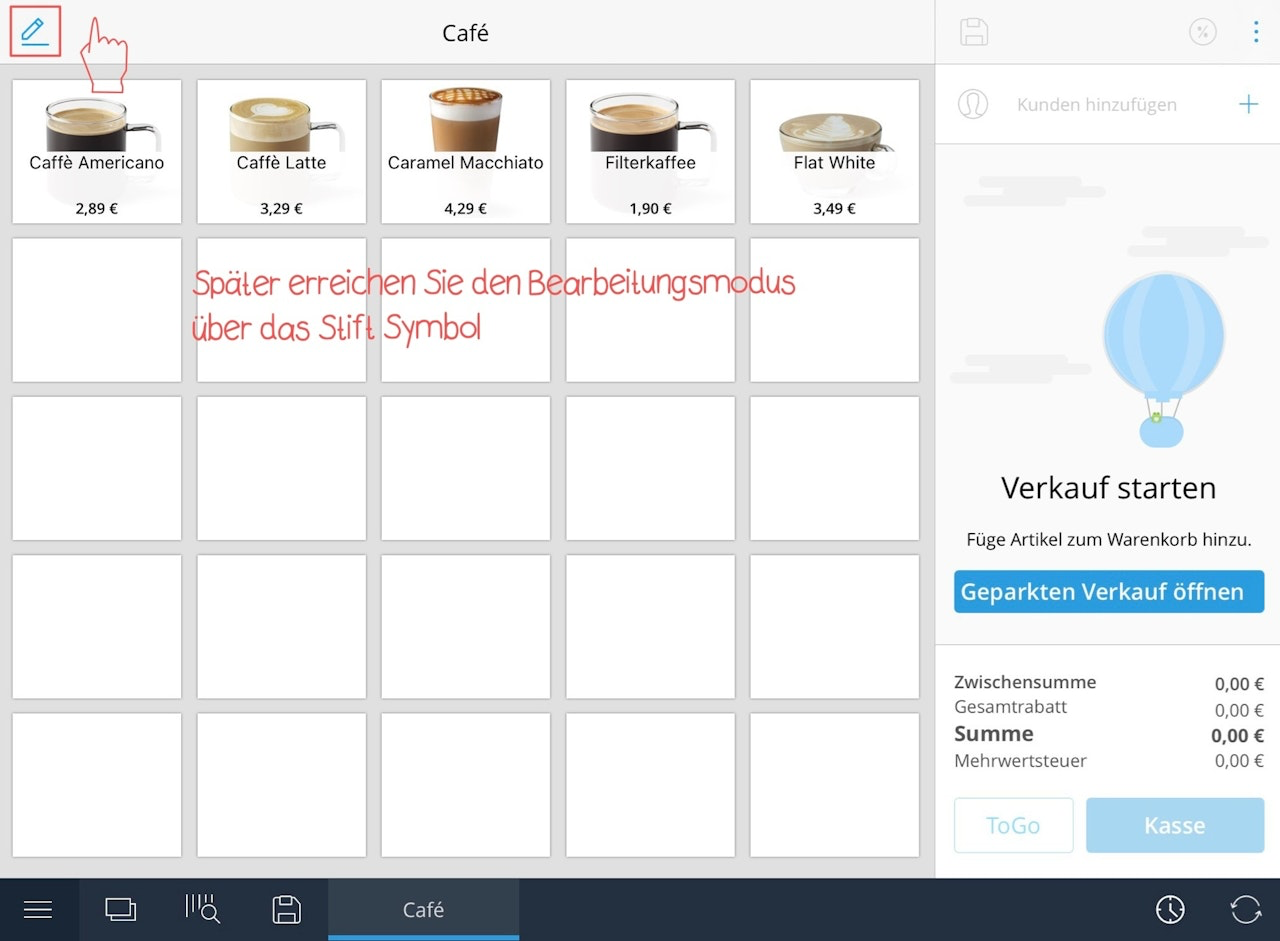
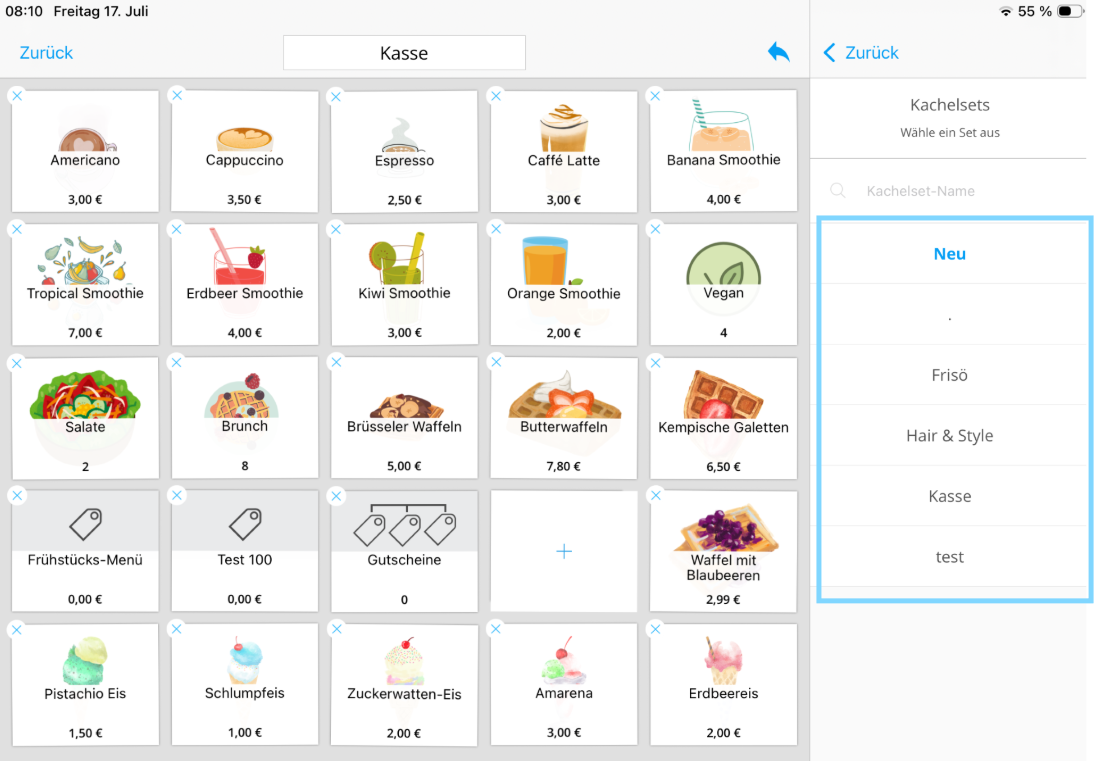
To open the tile view, tap the pencil icon in the register. You are now in edit mode. To exit edit mode, tap the arrow icon in the upper left corner. When you tap on an empty tile in edit mode, the library will open, where your products and services are listed.
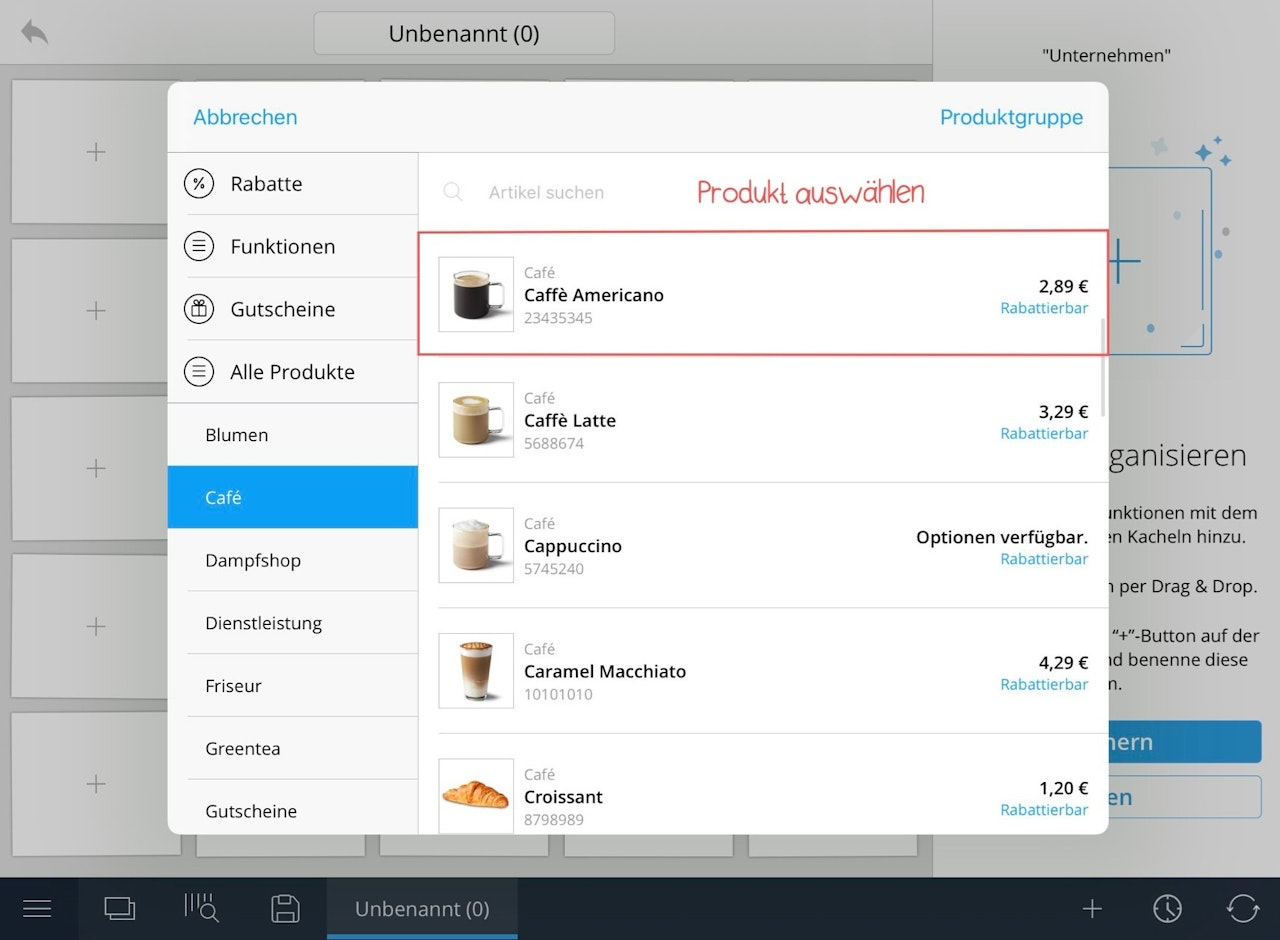
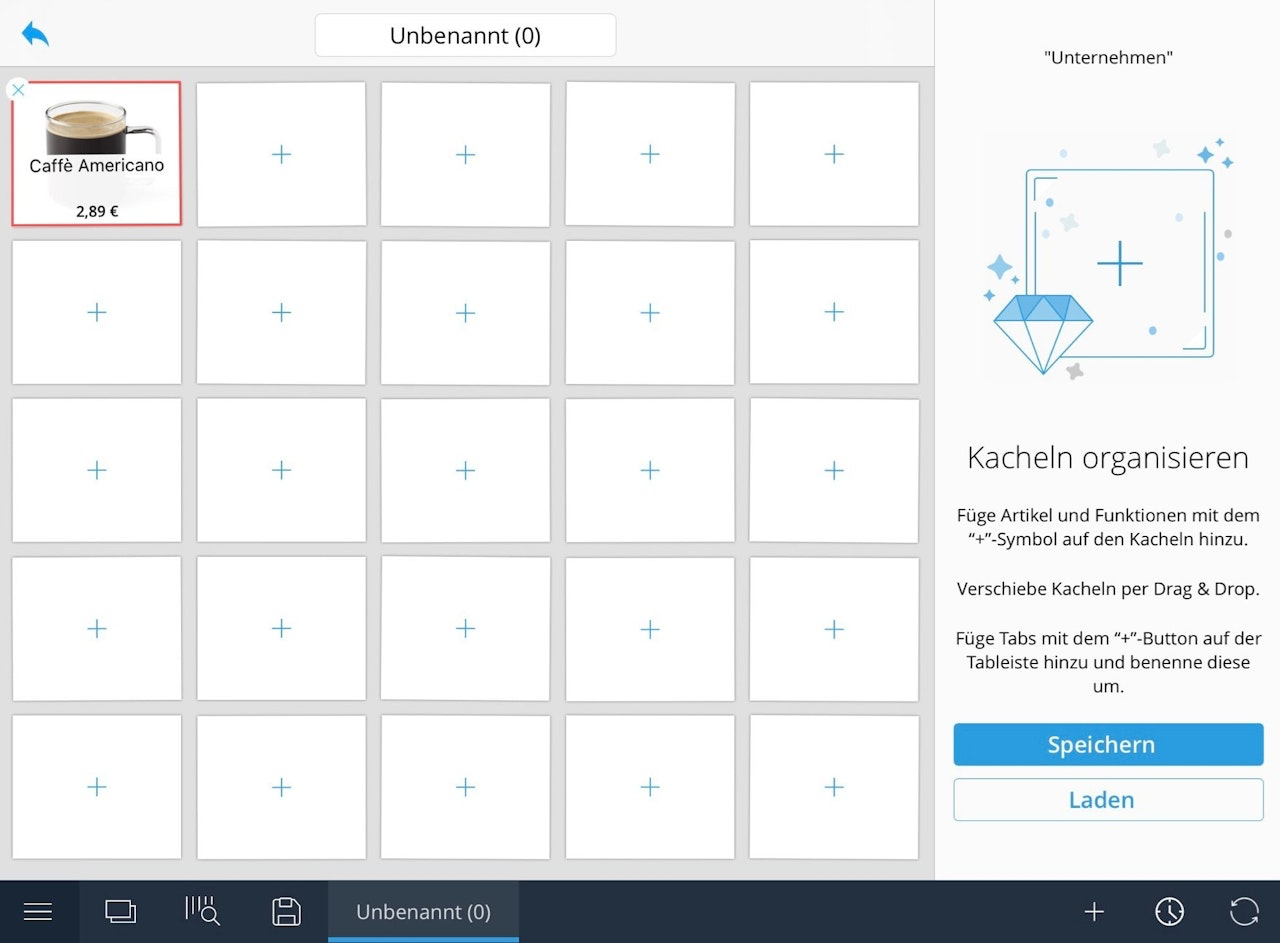
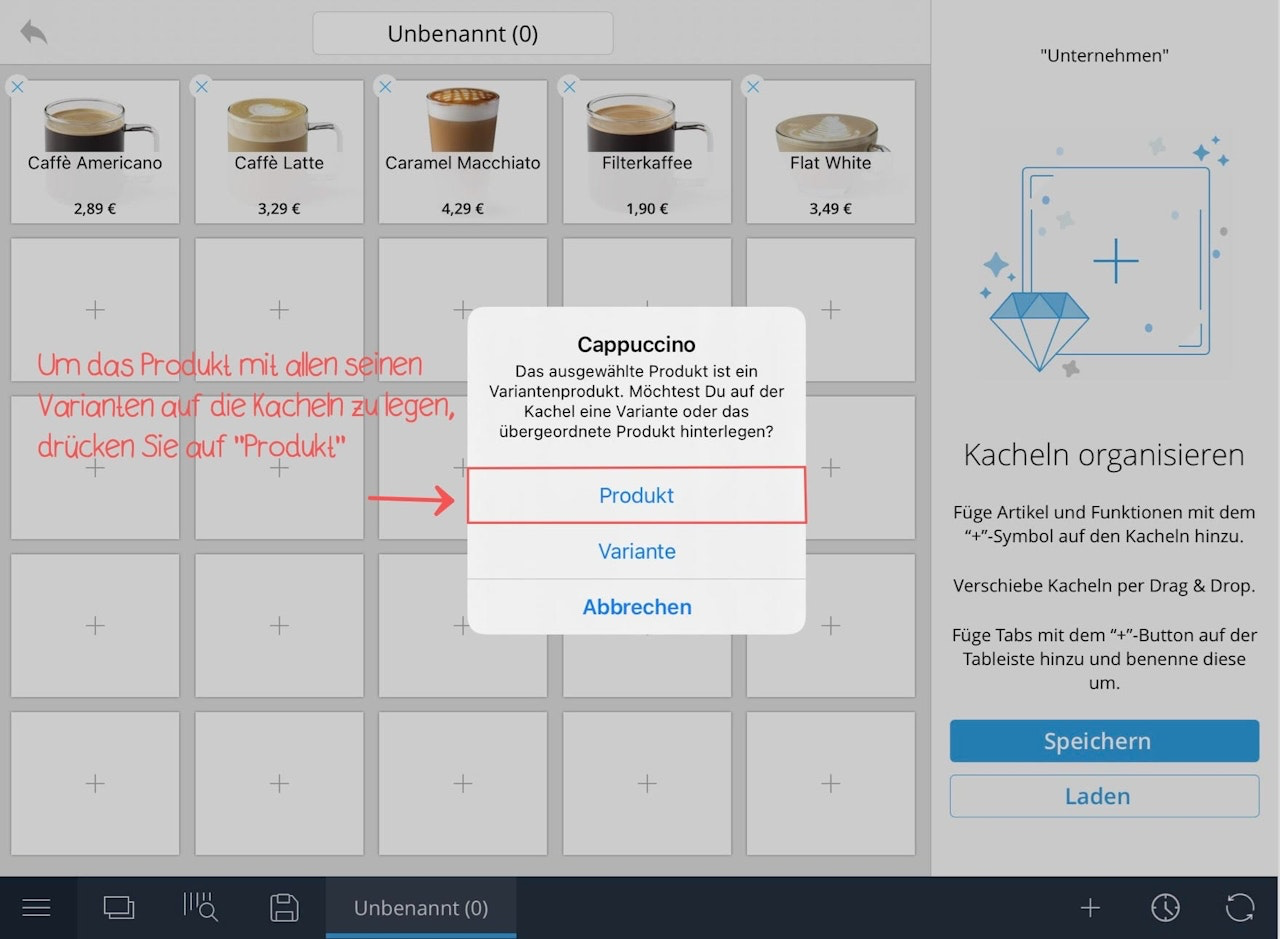
When you tap a product, it will be placed on the tile. Articles with variants are labeled “Options available.” If you tap a variant article to place it on the tile, a pop-up will appear with two options:
- Product: Selecting this places the item with all its variants on the tile (e.g., Cappuccino Small / Medium / Large).
- Variant: Selecting this places a single variant on the tile (e.g., “Cappuccino Medium”).
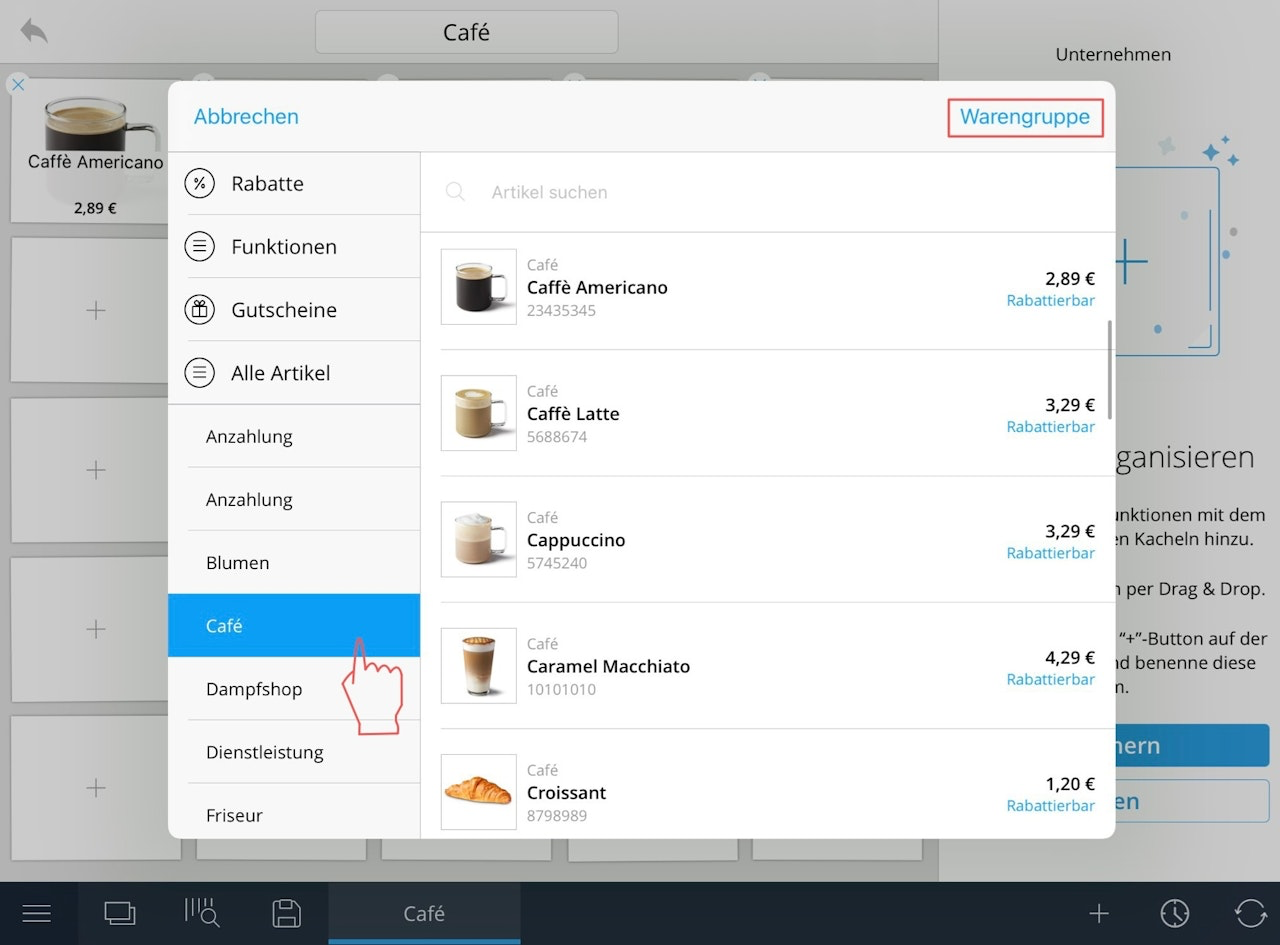
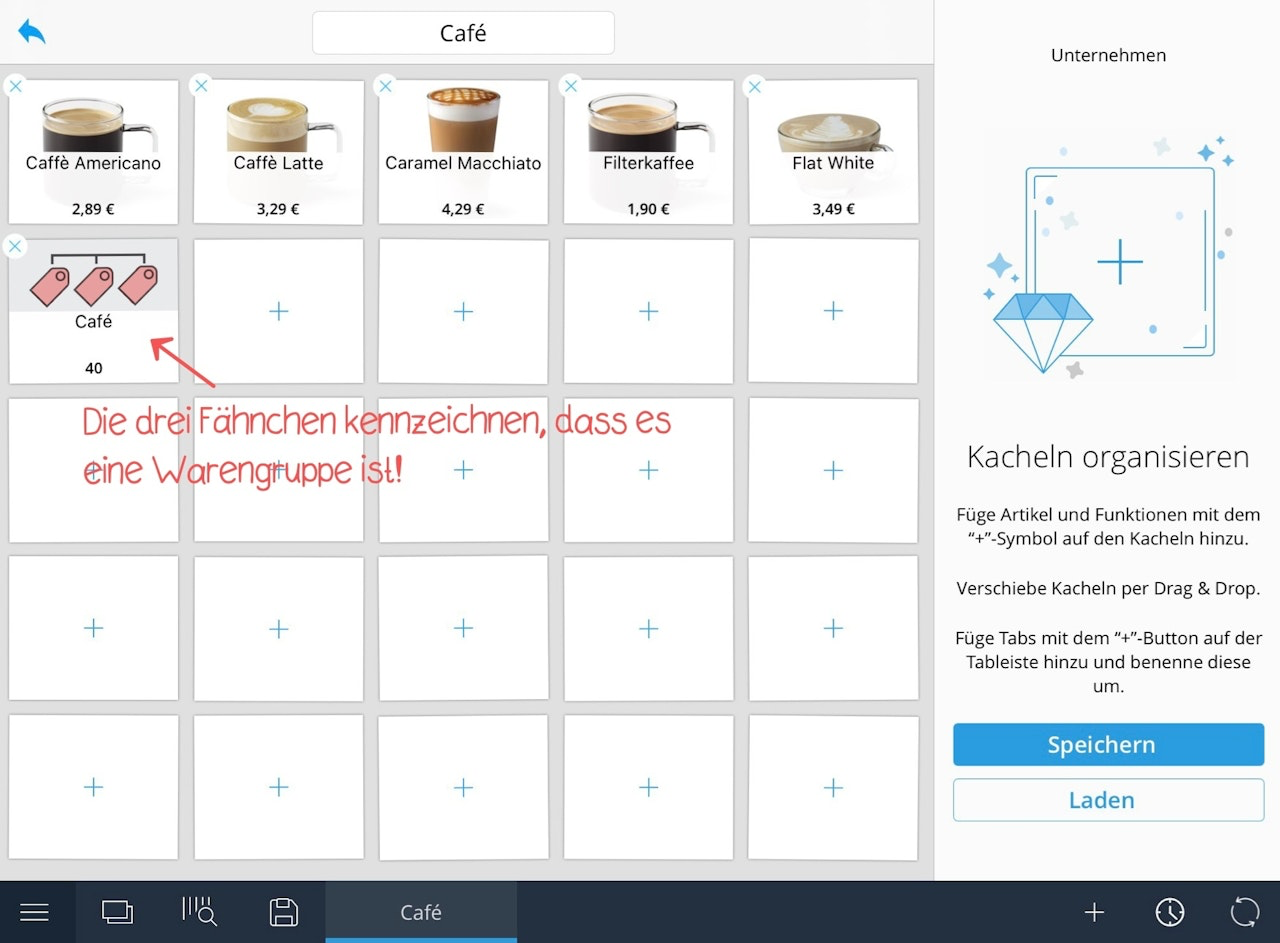
If you want to place an entire product group on a tile, first select the appropriate group in the library. Product groups are listed on the left side of the library under the "All Products" menu item. Select the desired product group and tap the blue button “Product Group.” You’ll recognize a product group on the tiles by three small flags, indicating it’s a group, not an individual product.
How can I add and name additional tabs in the tile view?
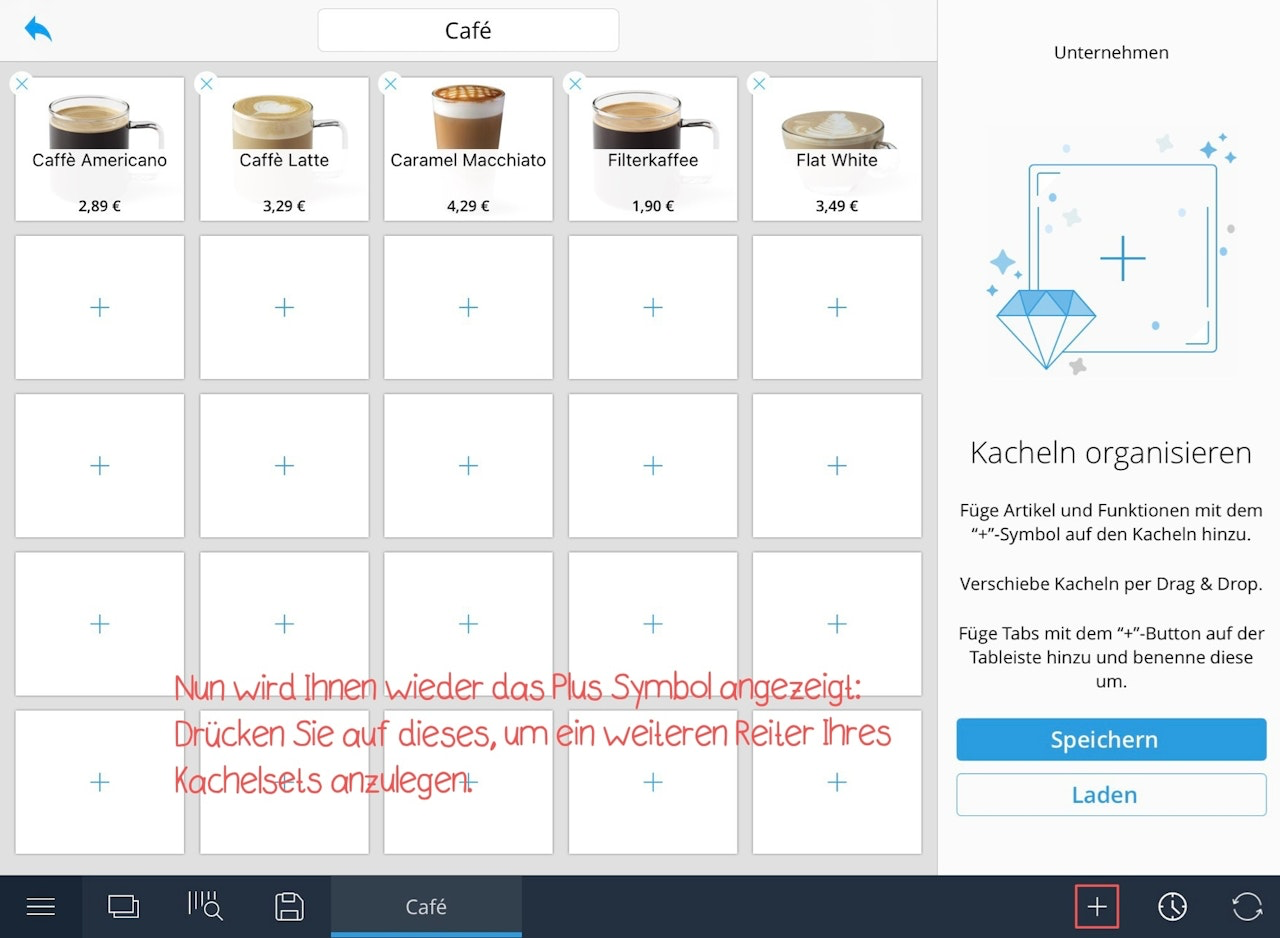
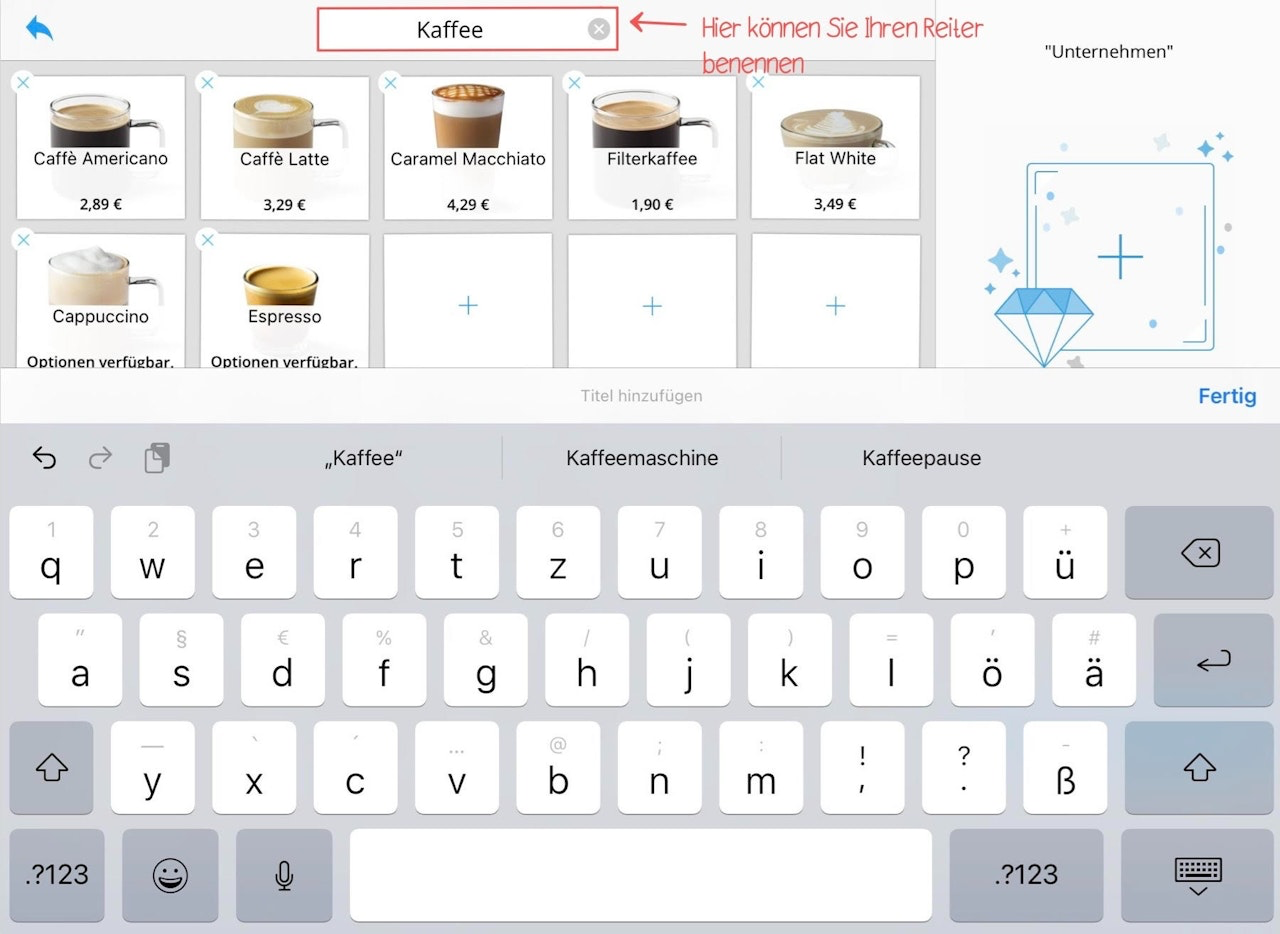
To manage the tabs in your tile view, the view must be in edit mode. First tap the pencil icon. Next, tap the plus icon in the bottom right corner. You can now create another tab. You can name the tab by entering a title in the “Untitled” field above the third tile in the center.
How can I save changes to my tile set?
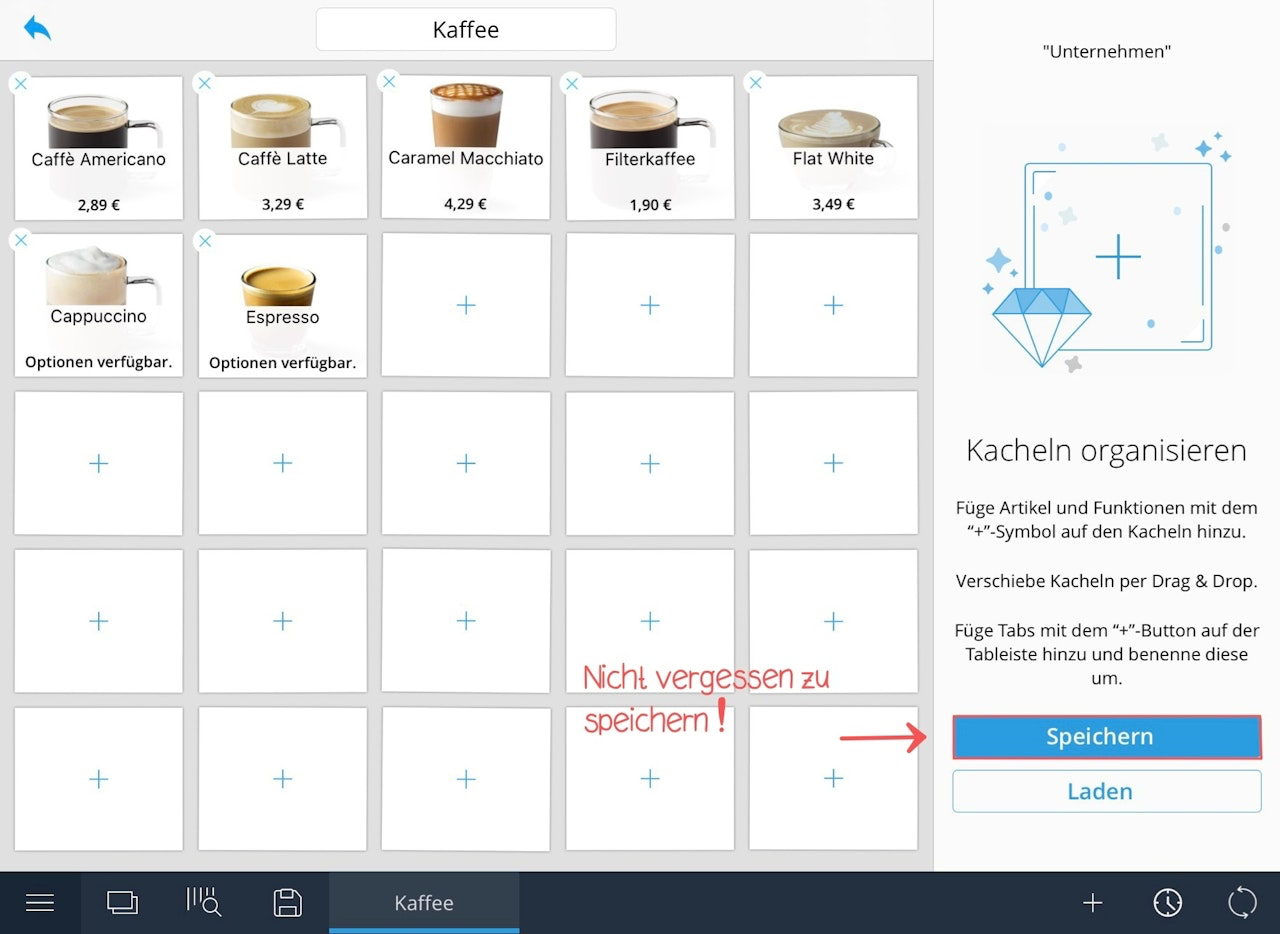
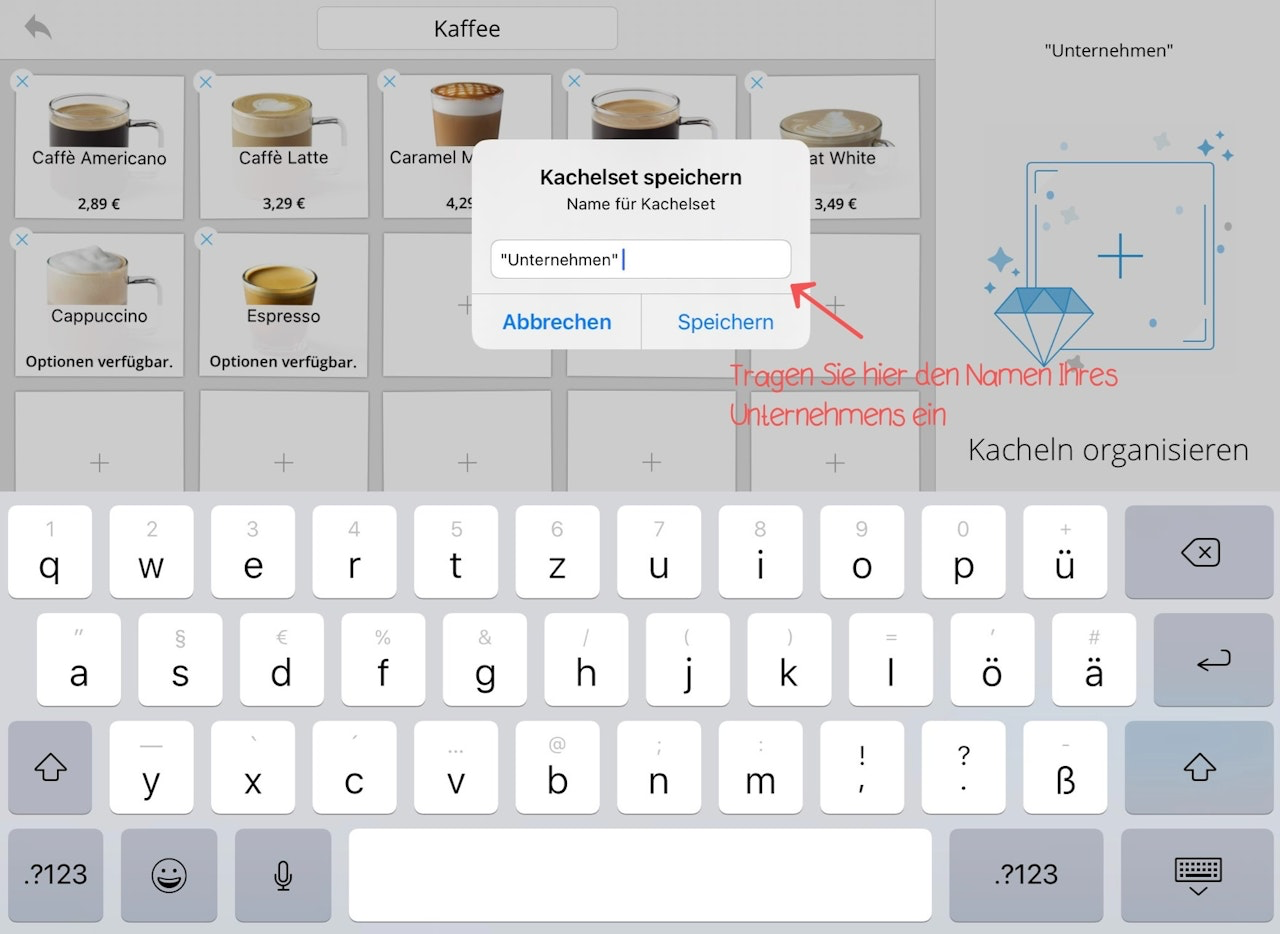
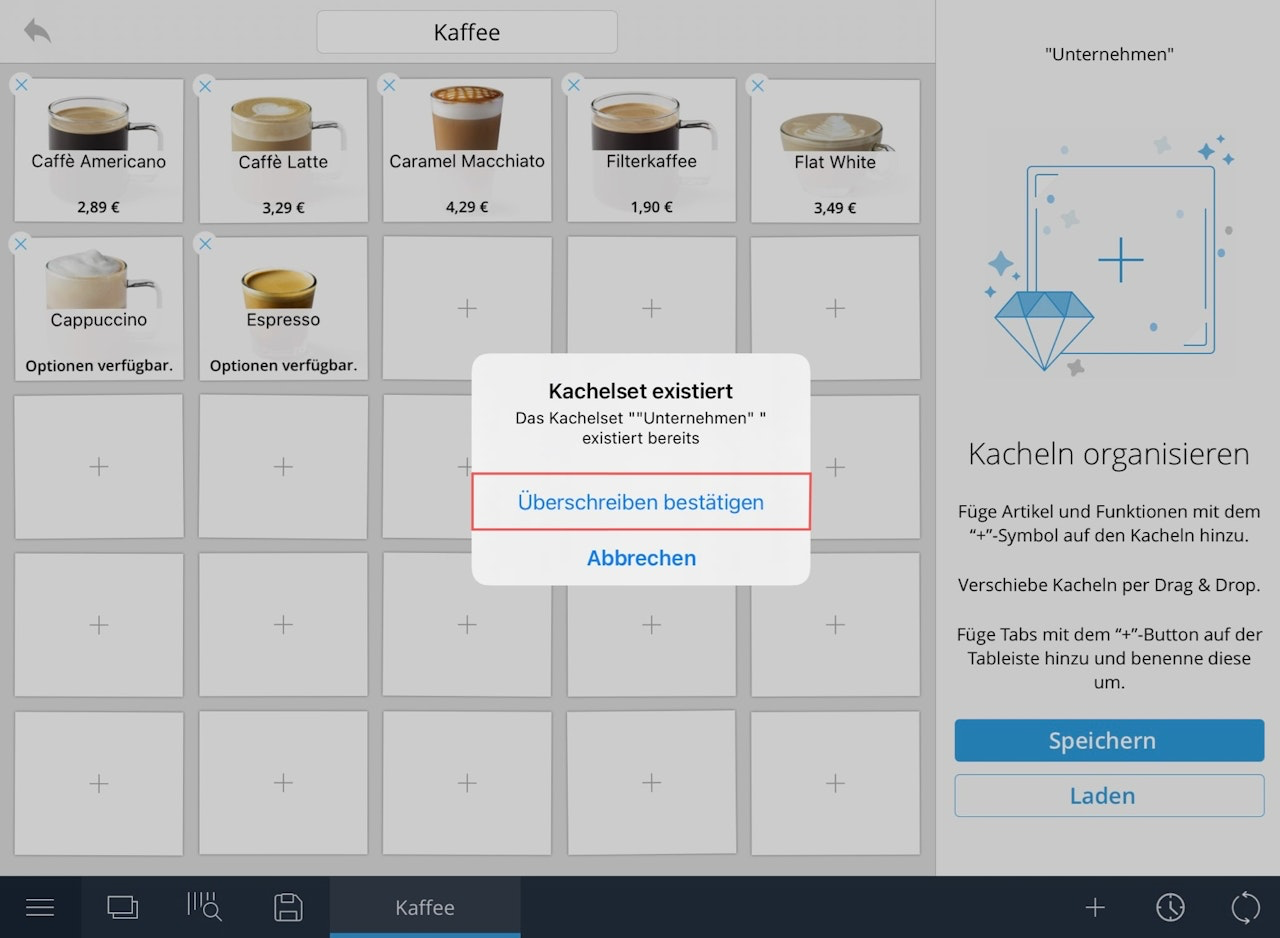
You can save your entire tile layout at any time by tapping the blue “Save” button in the bottom right corner. A window will appear where you can enter the name of your tile set. If you’re saving changes to an existing tile set, the same pop-up will appear where you originally named your tile set. Do not change the name of your tile set. Instead, tap “Save.” Another pop-up will appear with the message: “Tile set XY already exists.” Tap “Confirm overwrite” to proceed with saving.
How do I create standard products in the app?
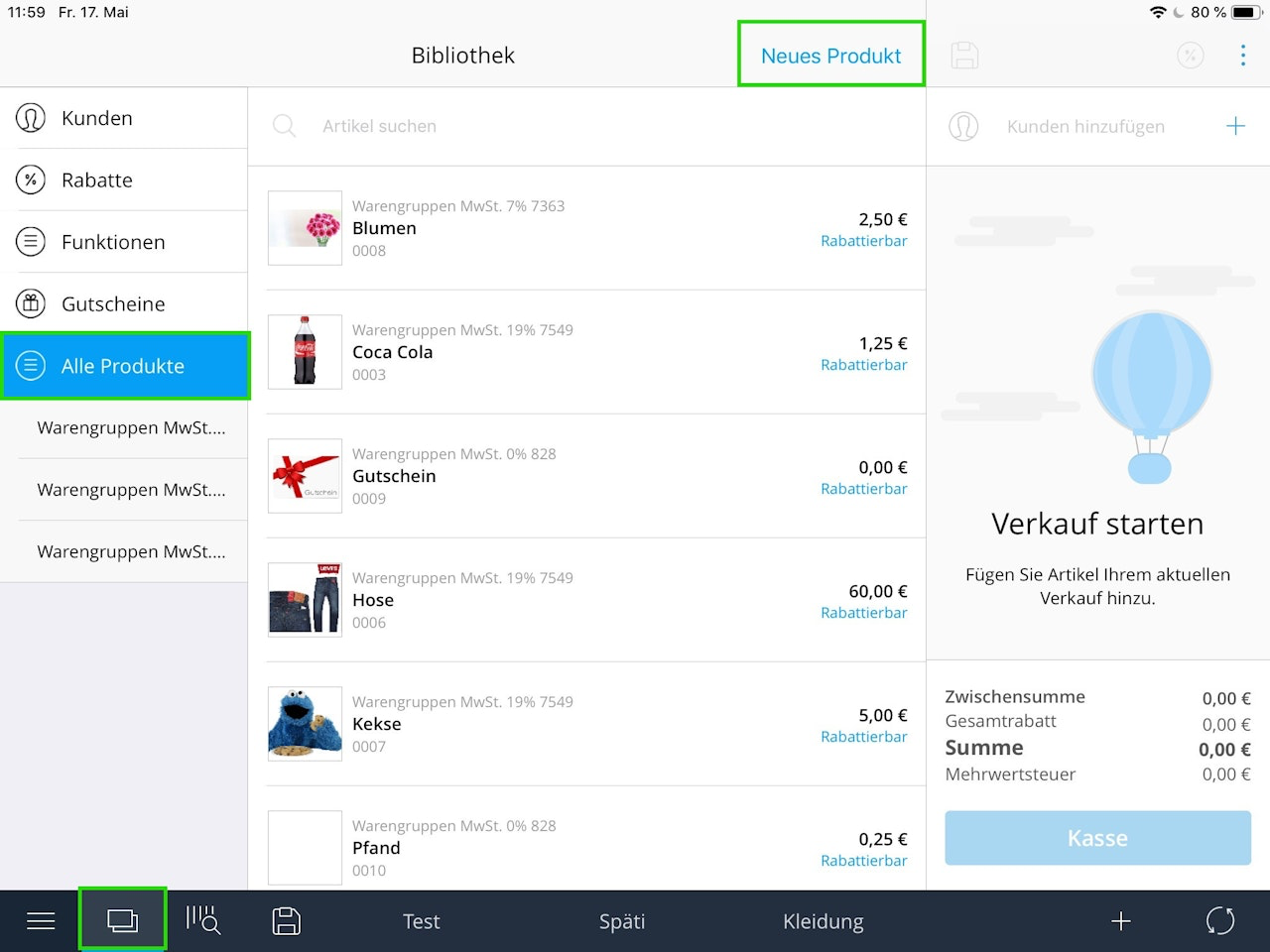
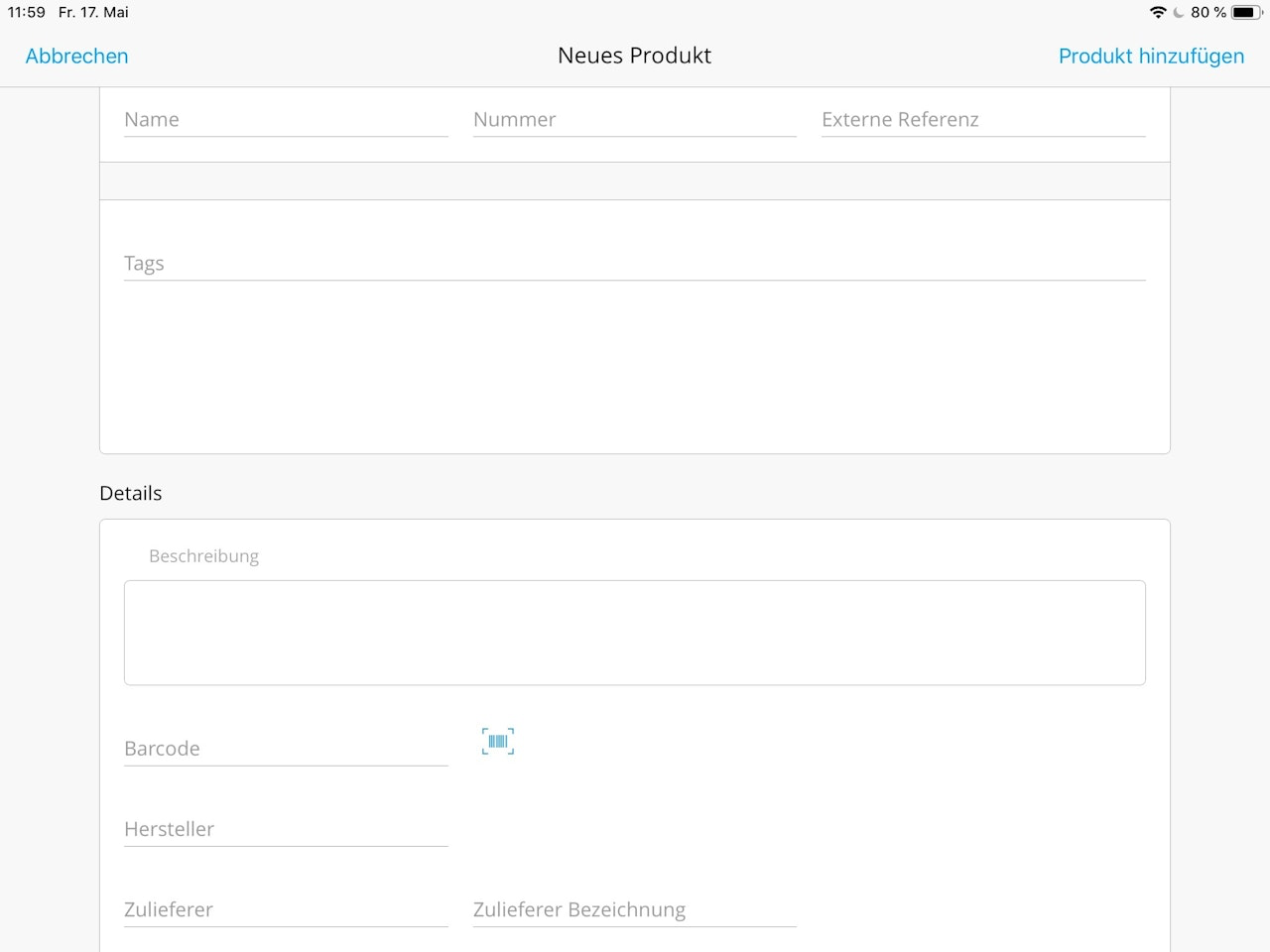
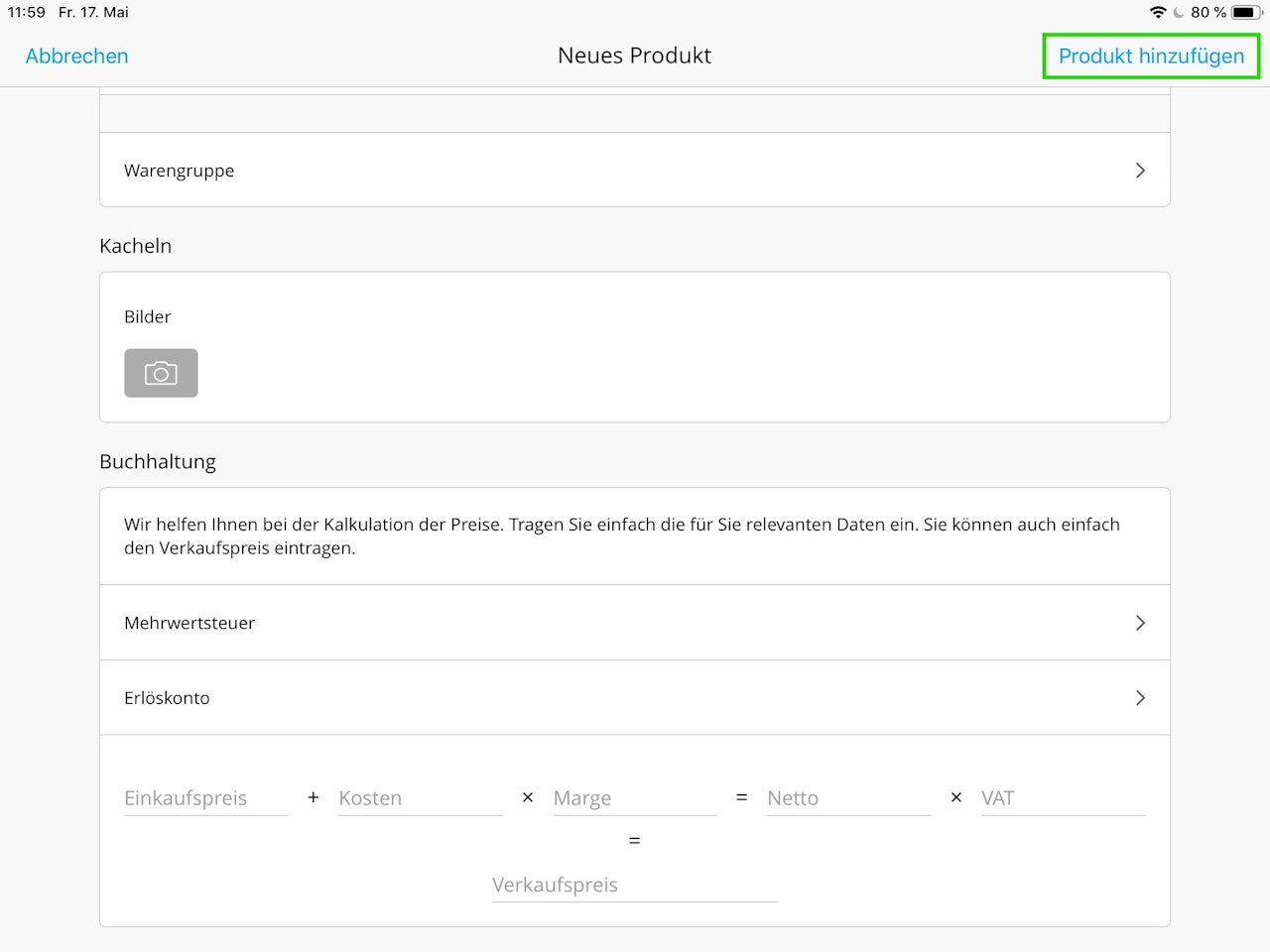
You can create standard products directly in the Tillhub App. First, make sure you’ve already created product groups in the dashboard. To create a product, navigate to the library. You’ll find the library in the lower menu bar under the icon with two rectangles. Tap the icon to open the library, then tap "All Products" in the left-hand menu. Next, tap “New Product” in the top right corner. A new window with an input form will open. Enter the product name, select the corresponding product group, and optionally add other information such as the price or barcode. Tap the blue “Add product” button in the top right to save the product and add it to your library.
How can I search for articles in the library?
You can find all your articles in the library. First, tap the library icon in the bottom menu bar.
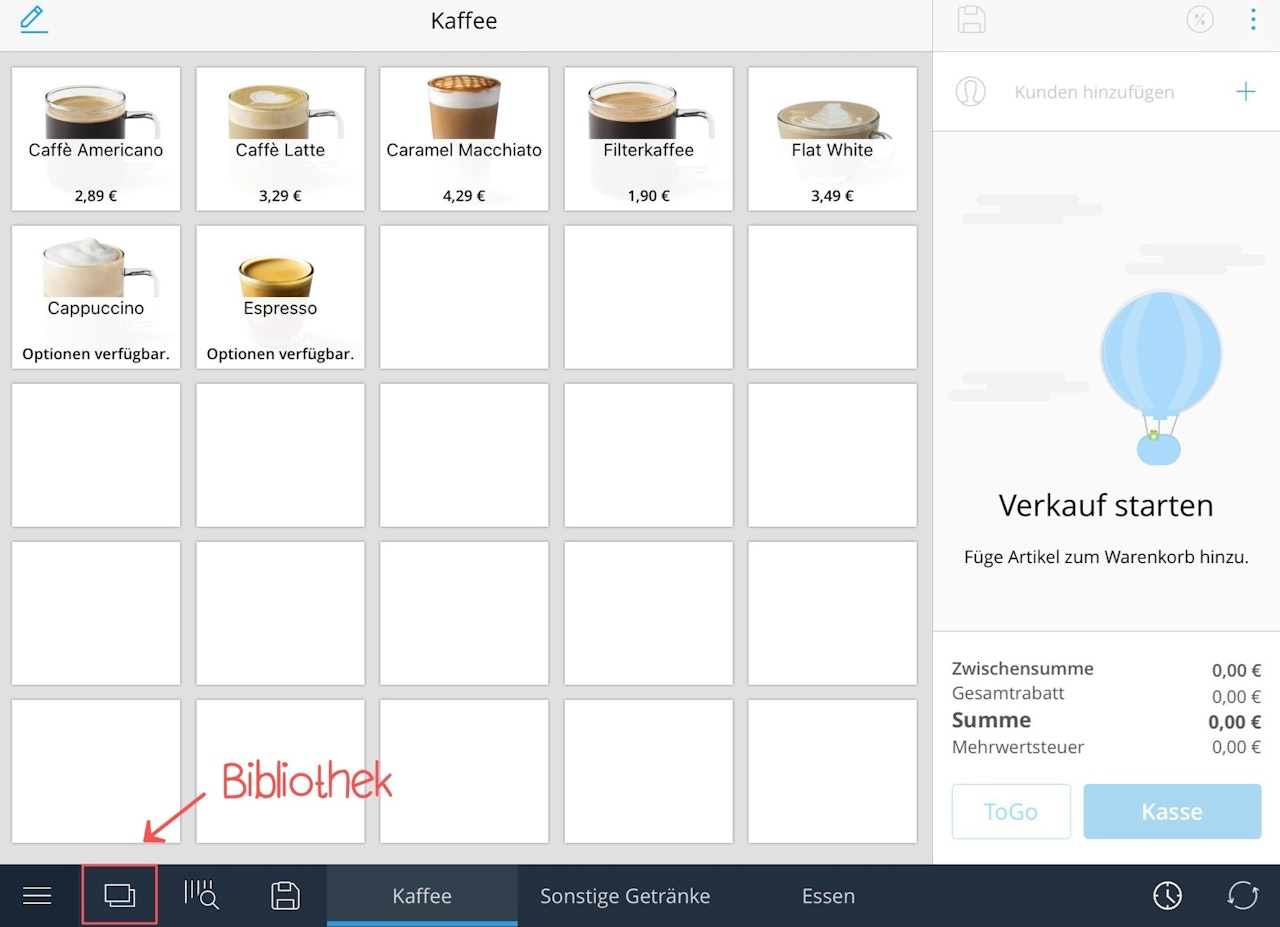
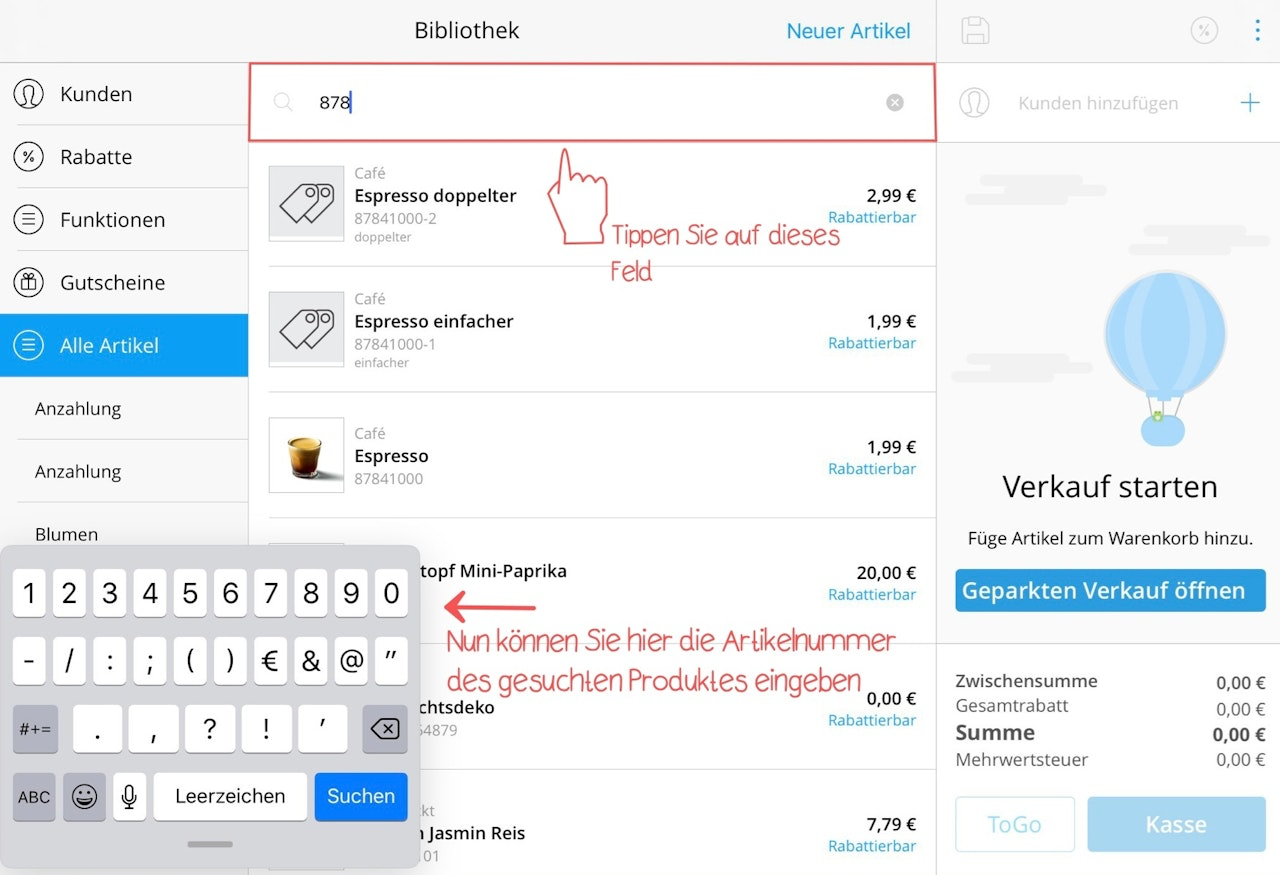
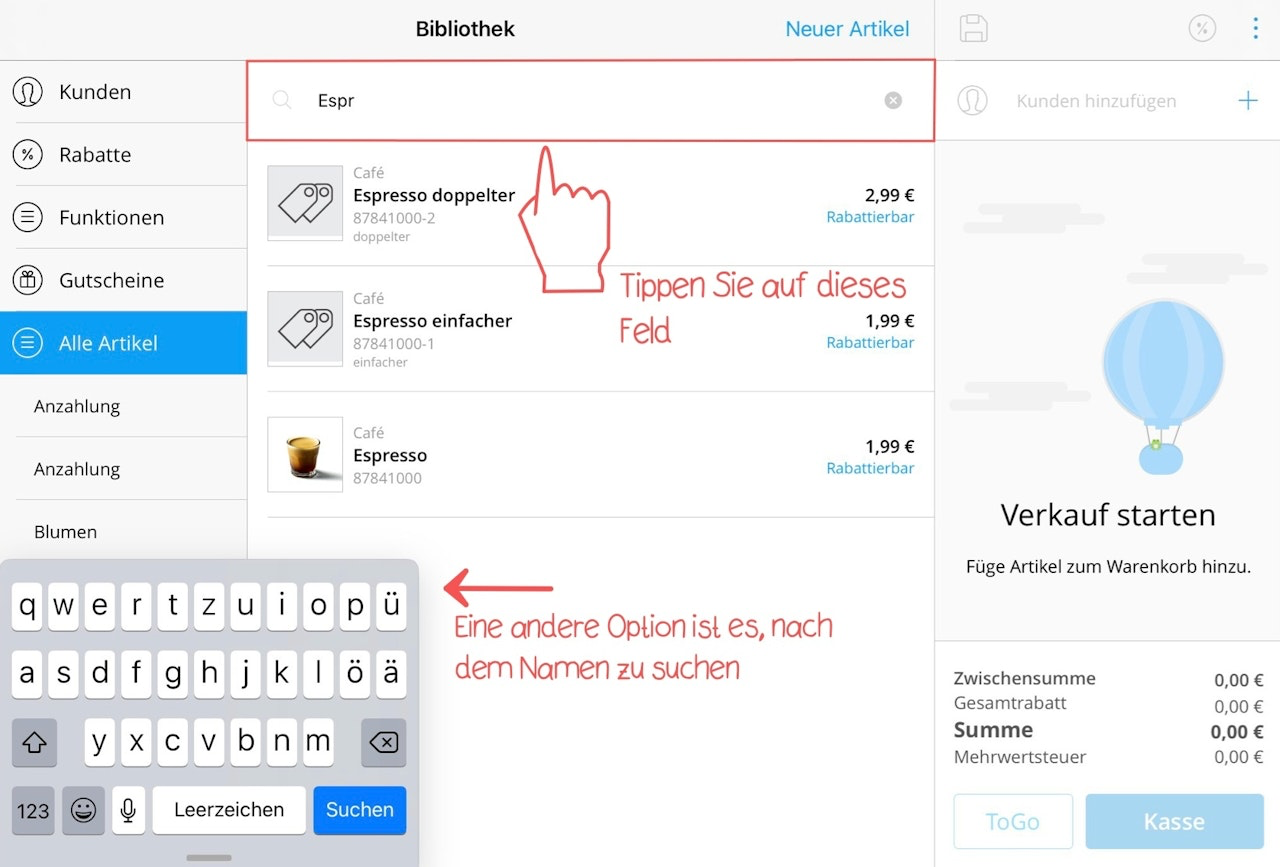
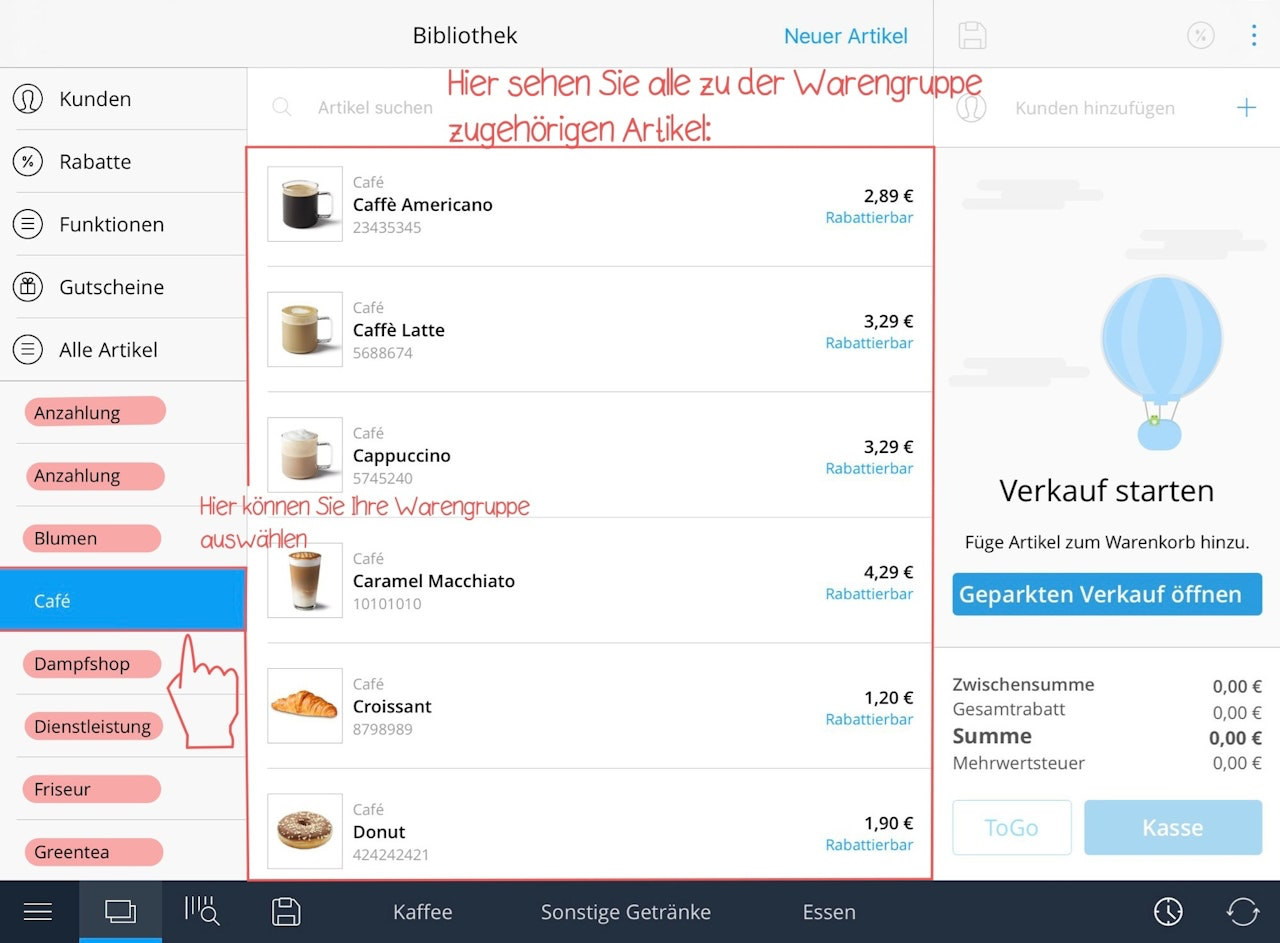
In the library, you have the following options to search for an article and add it to the cart as a sales item. Search by article number - enter at least three digits of the article number in the top search bar. Search by article name - enter at least three letters of the article name. Search by product group - you can also search by browsing through articles within a product group. On the left side under “All Products,” all your product groups are listed. These must have been created in the dashboard beforehand.
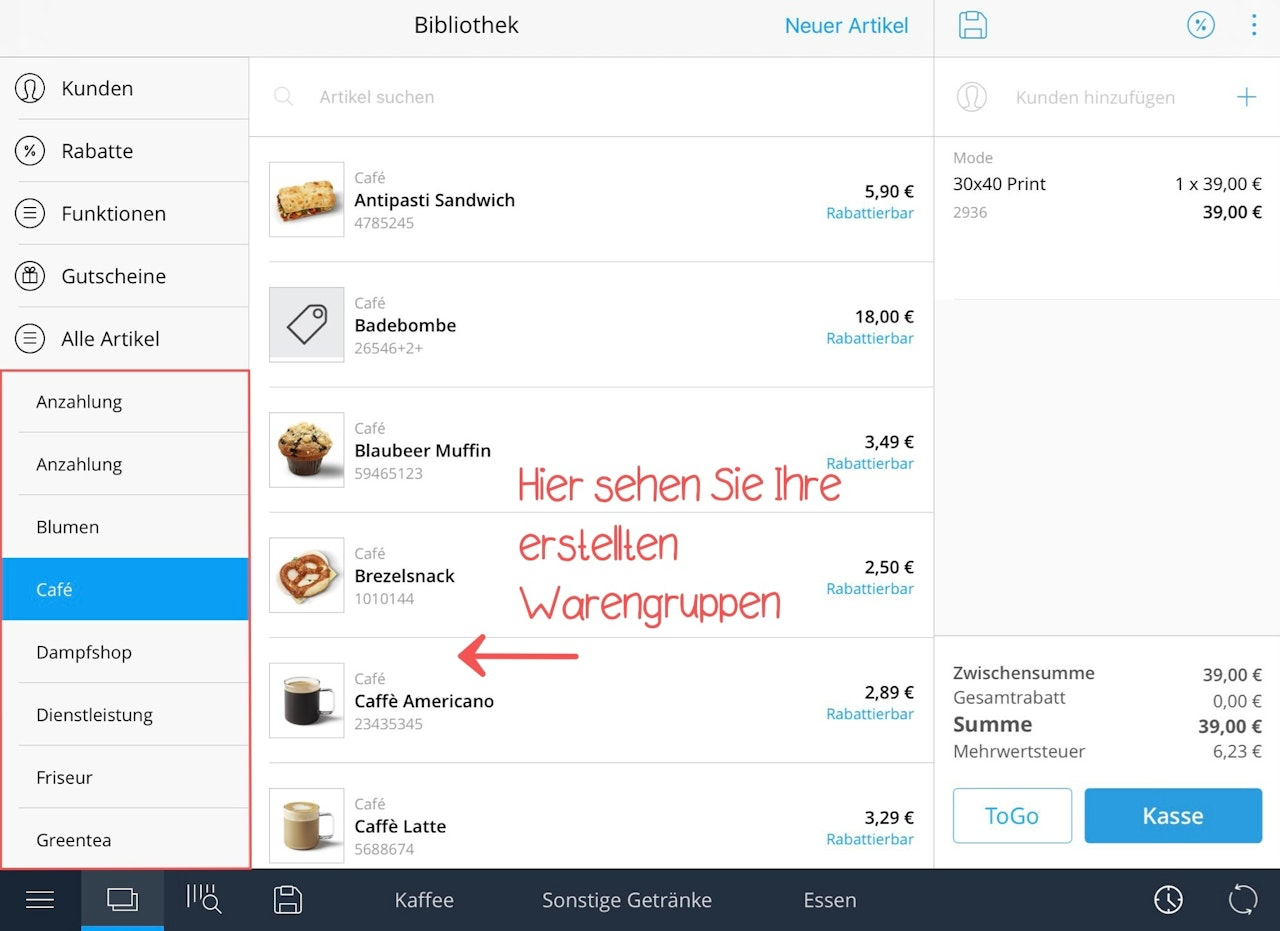
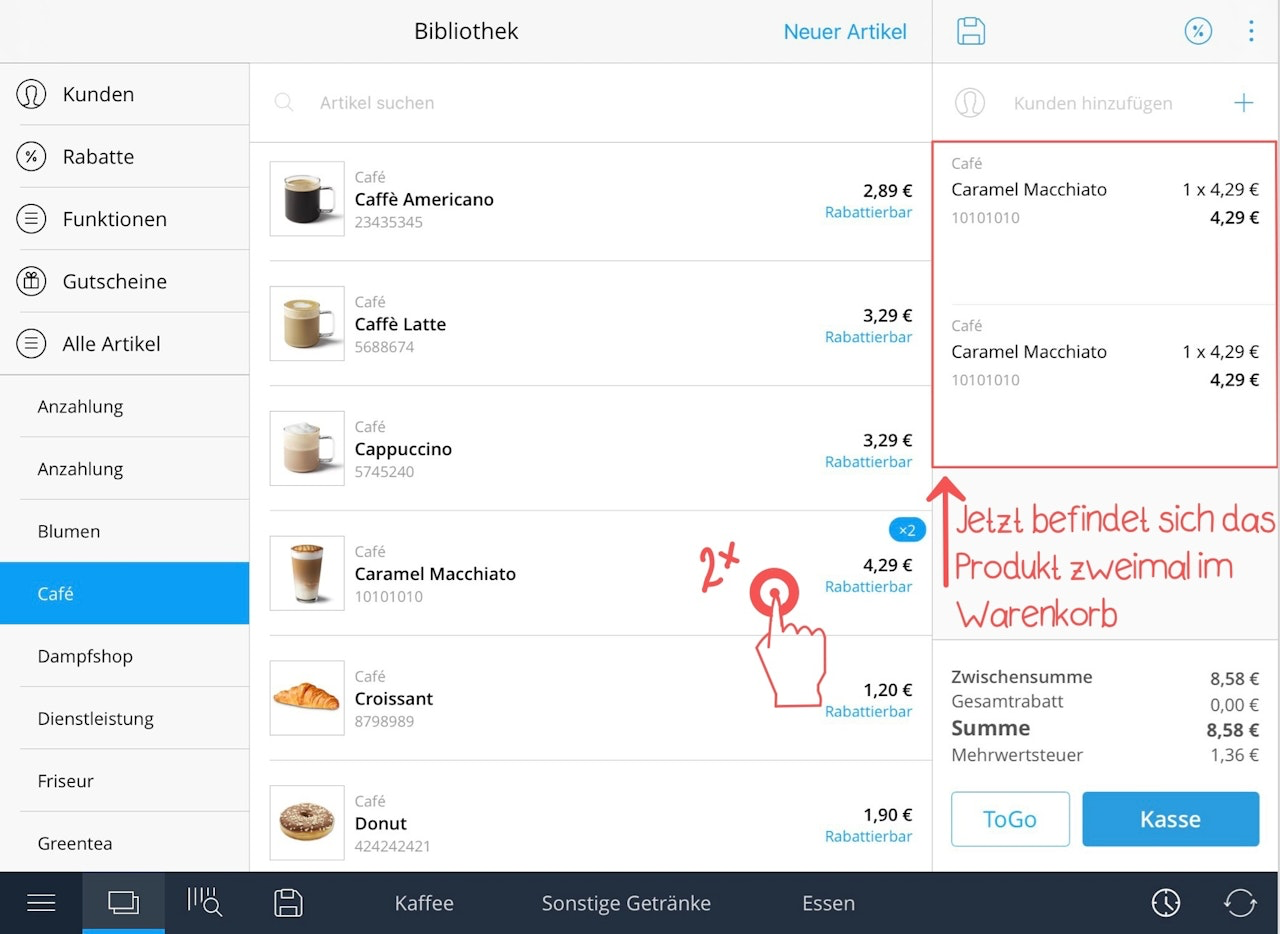
Select the product group where your article is stored. All articles from the selected group will now be listed in the main field on the right. You can scroll through the list to find the correct article and add it to the cart as a sales item. You can also tap the article multiple times if you want to add it multiple times to the cart.
Reusing an Existing Tile Set at Another Register
If you operate multiple branches or registers and want to use an existing tile set at another register as well, this is quite straightforward.
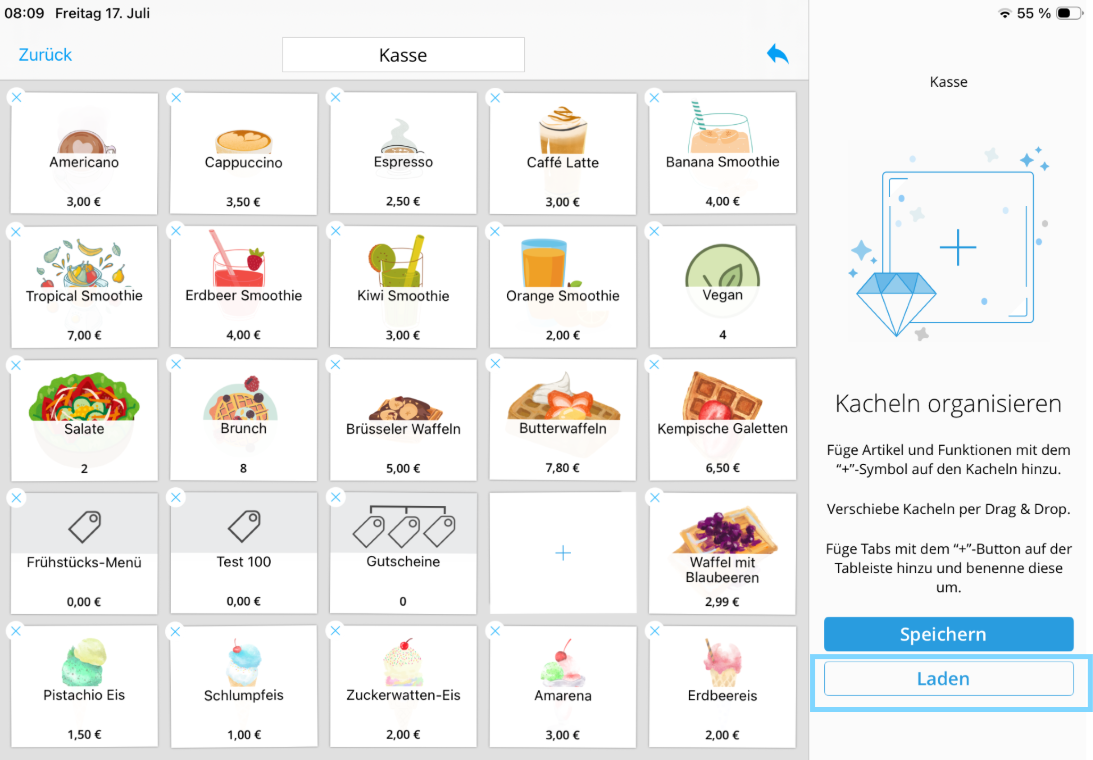
Simply open the app on the iPad at the second register and tap the blue pencil icon at the top to enter edit mode. Then select the "Load" option on the right and look for the existing tile set that you are already using at the first register. Once selected, the set will be loaded and immediately available at this register as well, so you don't have to create a new tile set every time.
Was this article helpful?
That’s Great!
Thank you for your feedback
Sorry! We couldn't be helpful
Thank you for your feedback
Feedback sent
We appreciate your effort and will try to fix the article
