Process sales
Modified on Mon, 16 Feb at 10:11 AM
Search by item number
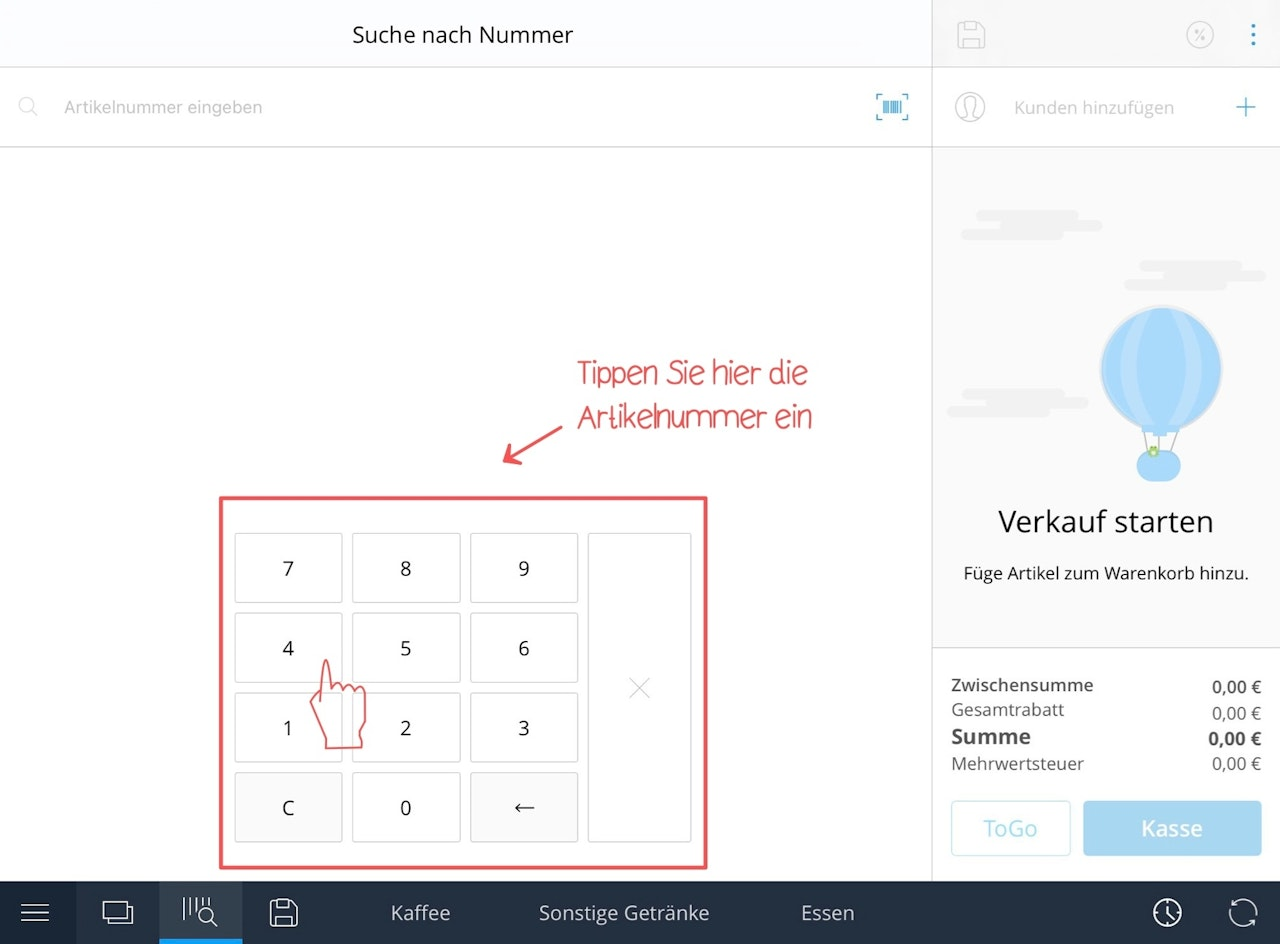
- To search for an item by its item number, tap the magnifying glass icon in the menu bar.
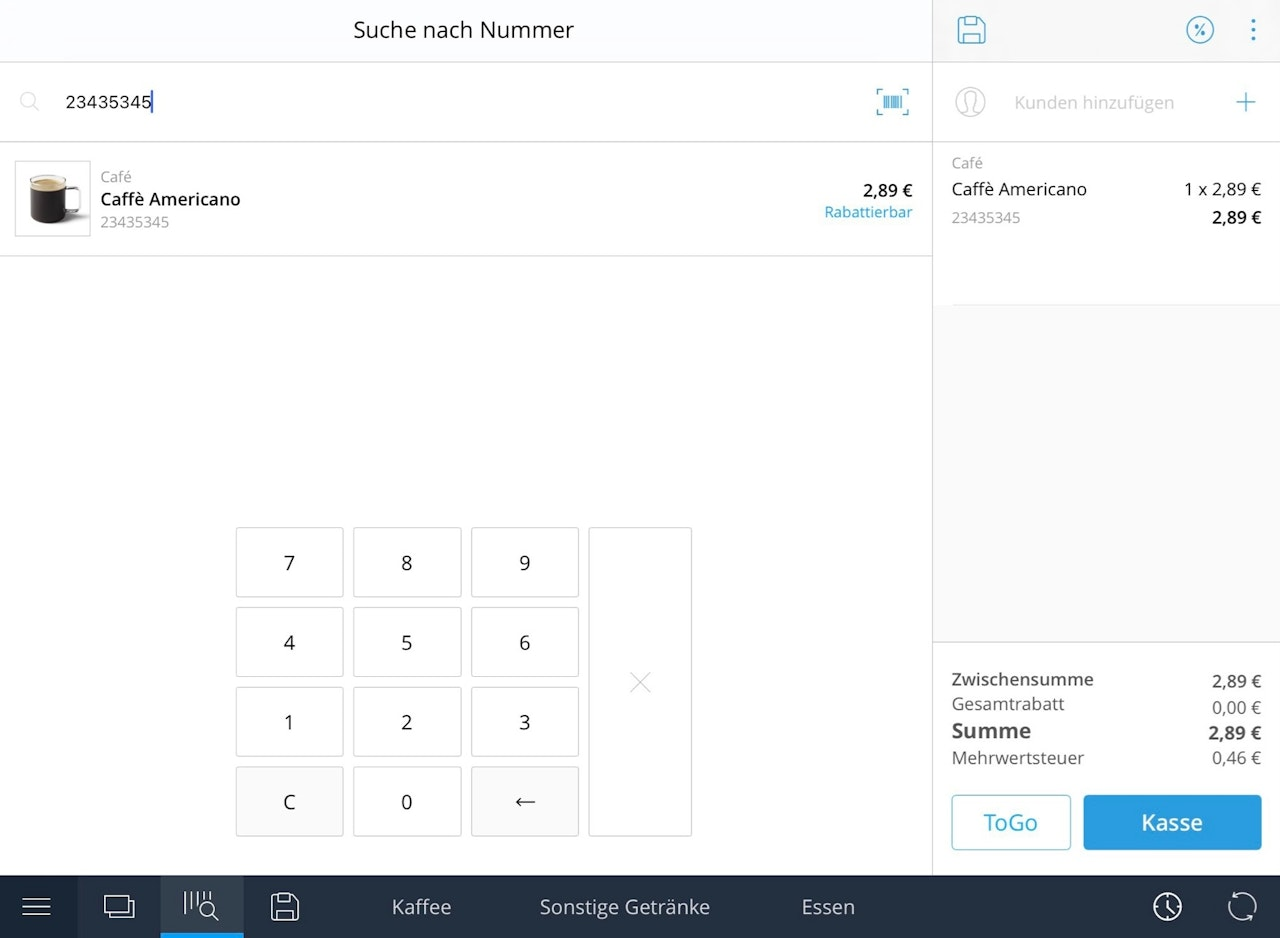
- Enter the item number in the search field using the keypad.
- The item will then immediately appear in the current sale.
Done! You’ve selected your item.
Scan a barcode
If you have booked a barcode scanner in your hardware box, you can easily use it to scan the desired item.
- Tap the main menu at the bottom left, then tap “Register” at the top.
- In the newly opened window, you will see the tile view of items.
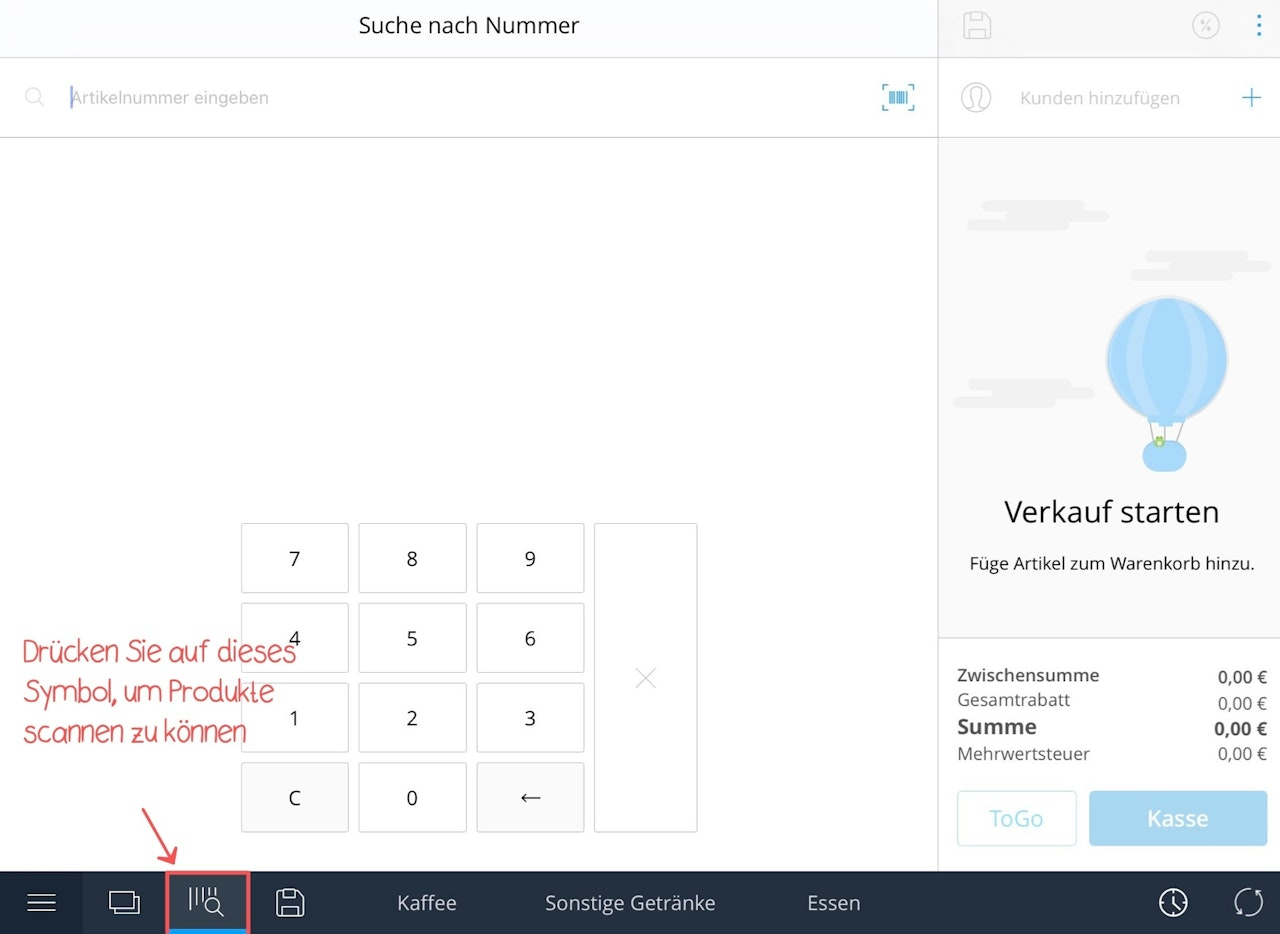
- In the bottom menu bar, select the magnifying glass icon.
- Now use the scanner to scan the item’s barcode.
- Hold the scanner sensor close to the barcode.
- Press and hold the scan button.
- Slowly increase the distance to the item until the scanner signals.
- The item will then appear in the main area.
- Tap the item.
- The item will immediately appear in the current sale.
Note: The scanner replaces the iPad keyboard. When the iPad cursor is in a text field, you can show or hide the iPad keyboard by double-clicking the scan button or using the corresponding function key on the scanner. This applies to the Tillhub app as well as all other apps on the iPad.
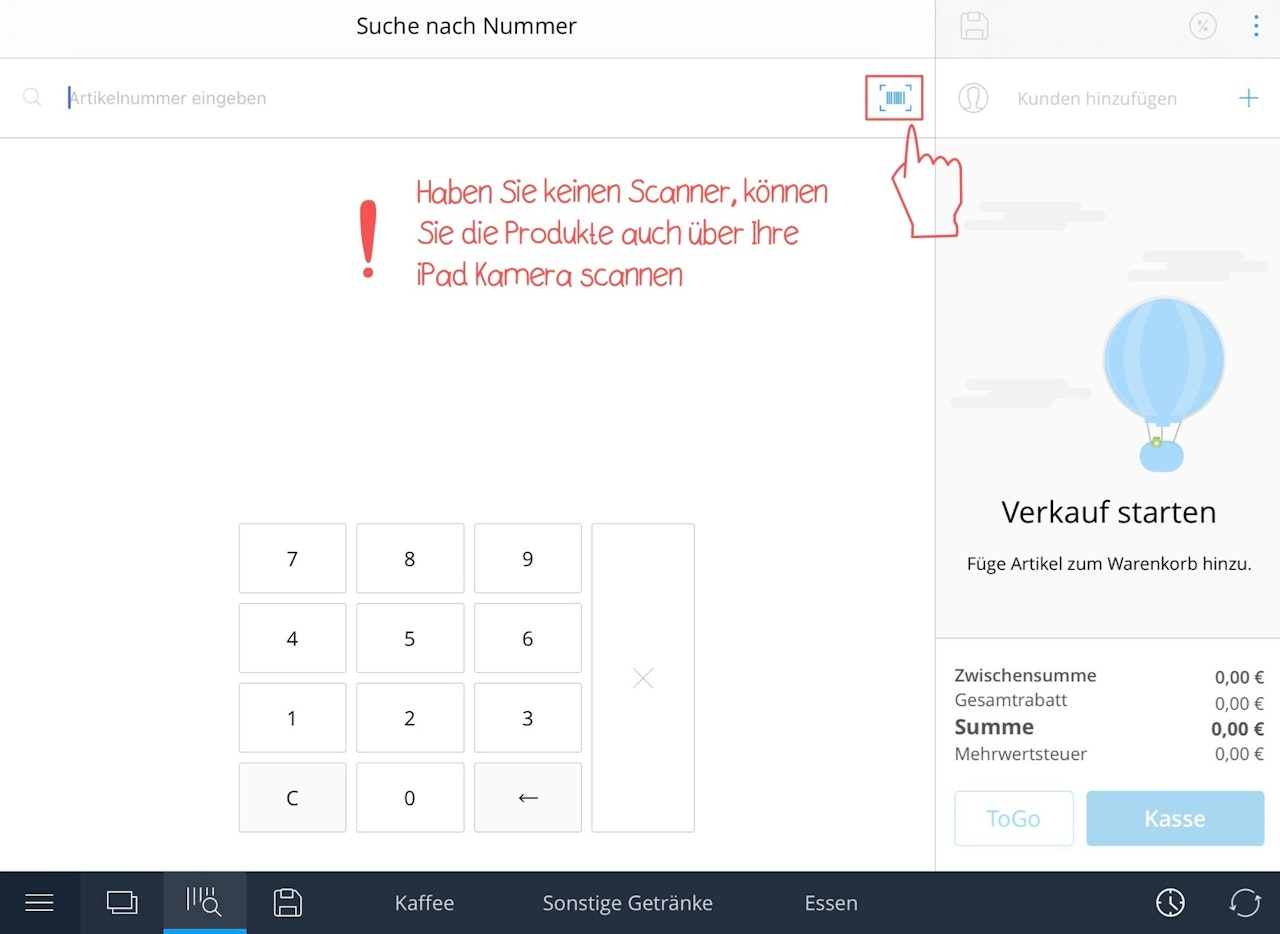
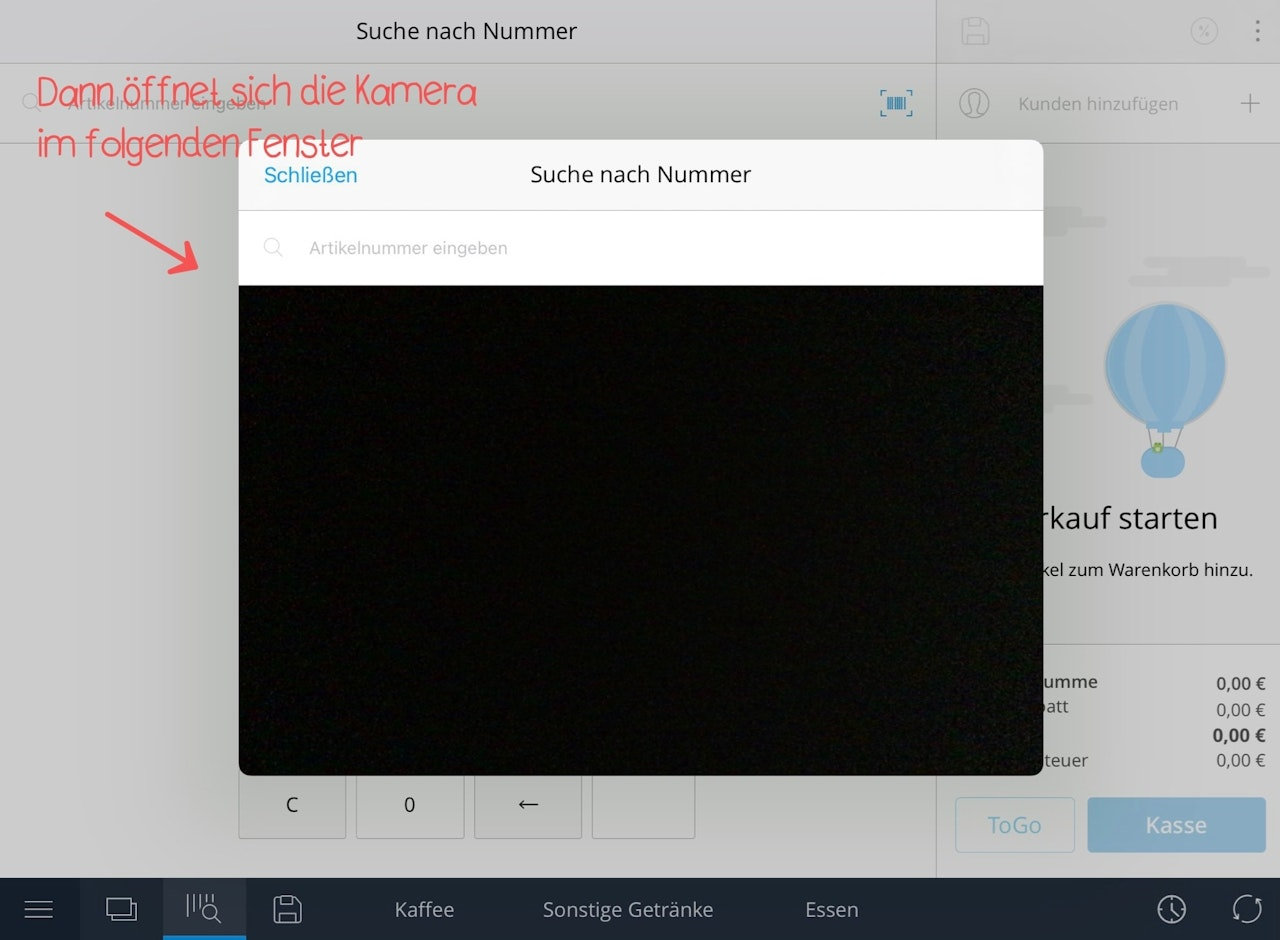
If you did not book a barcode scanner in your hardware box, you can scan products using your iPad camera.
- Tap the main menu at the bottom left, then tap “Register” at the top.
- In the newly opened window, you will see the tile view of items.
- In the bottom menu bar, select the magnifying glass icon.
- Then select the barcode icon.
Create item bundles (sets)
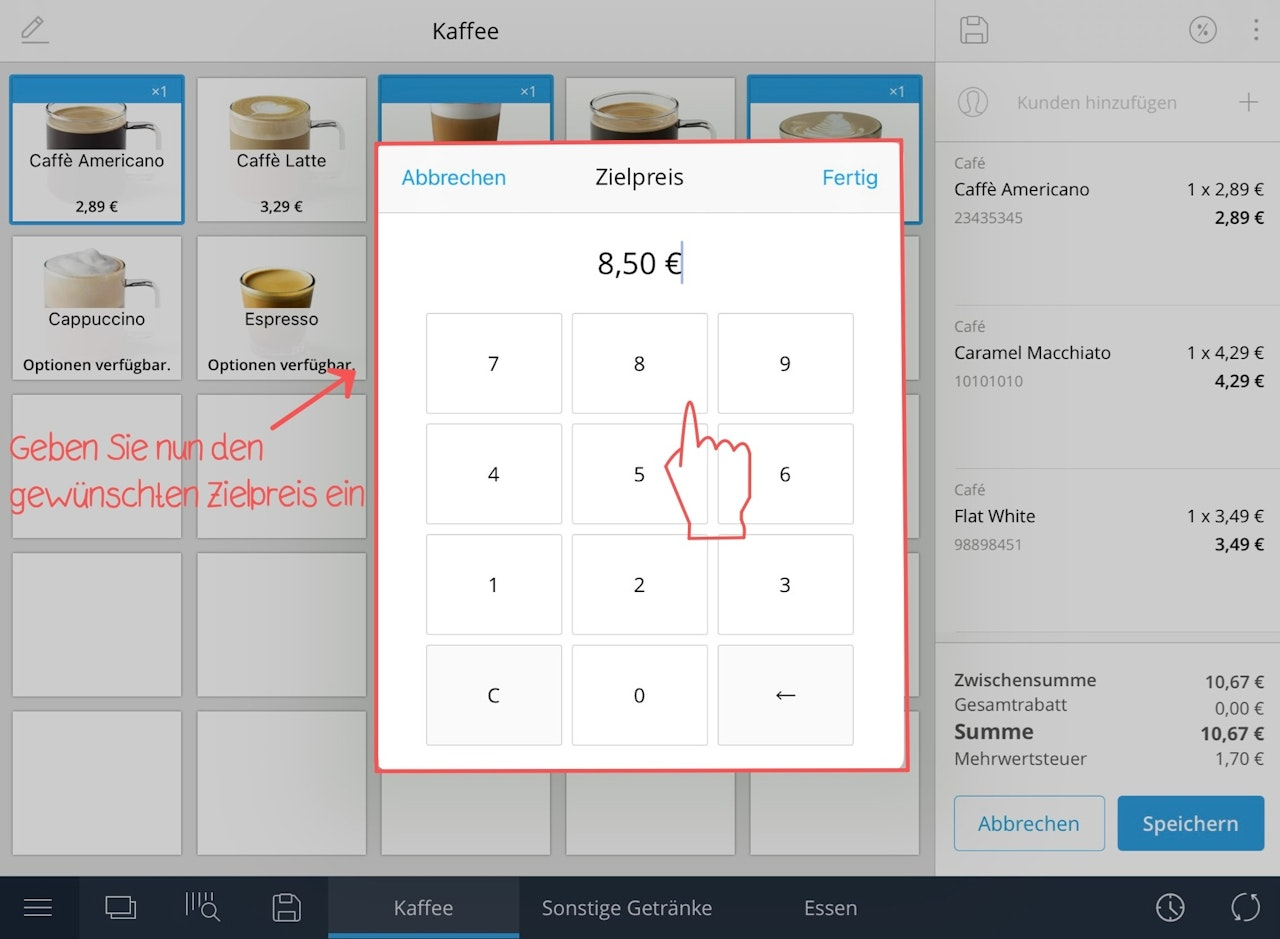
The app lets you group items into sets and sell them together. This is useful for time-limited offers (e.g., “Buy 2, pay for 1”).
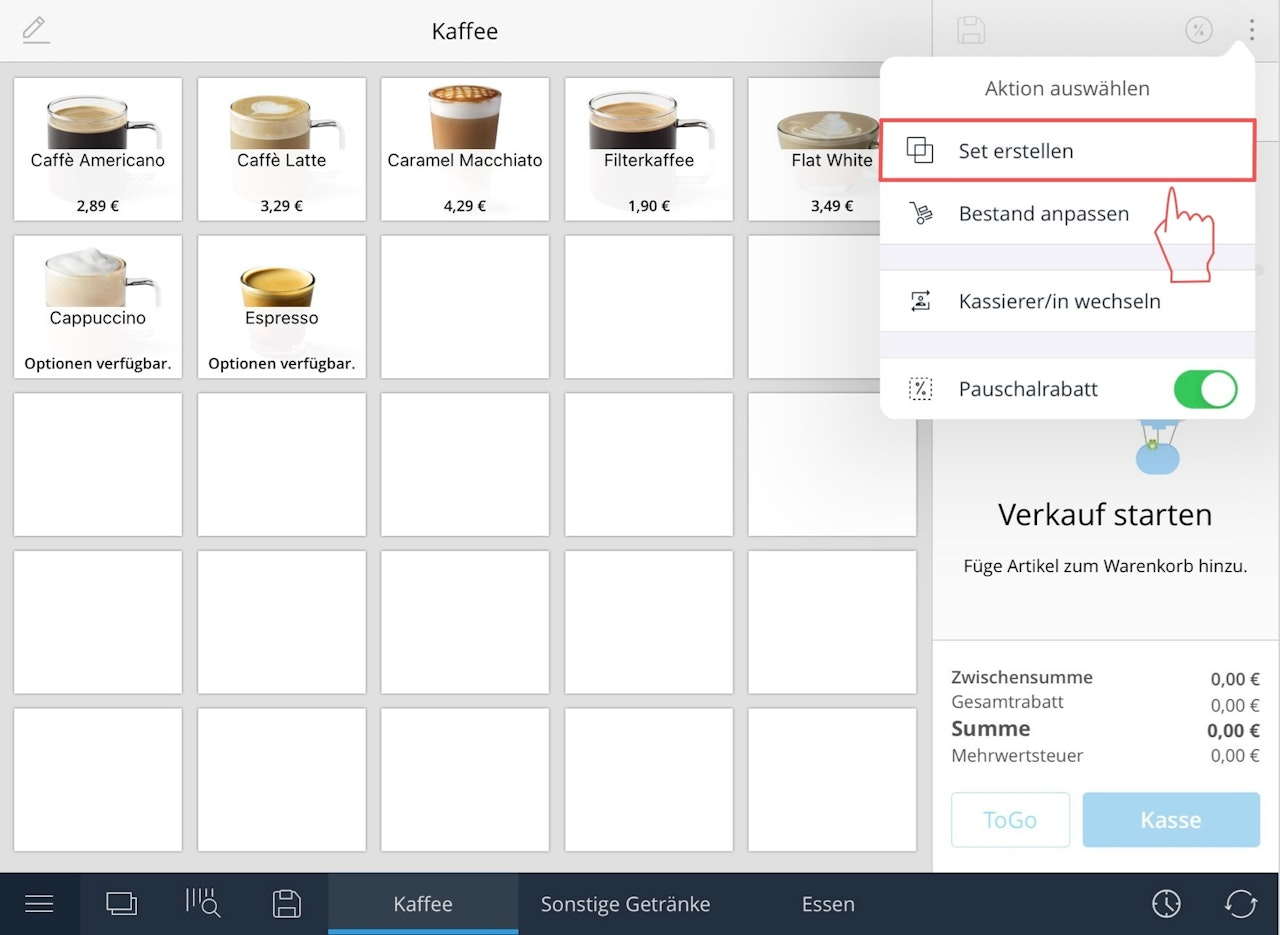
- Open the tile view and tap “Create set”.
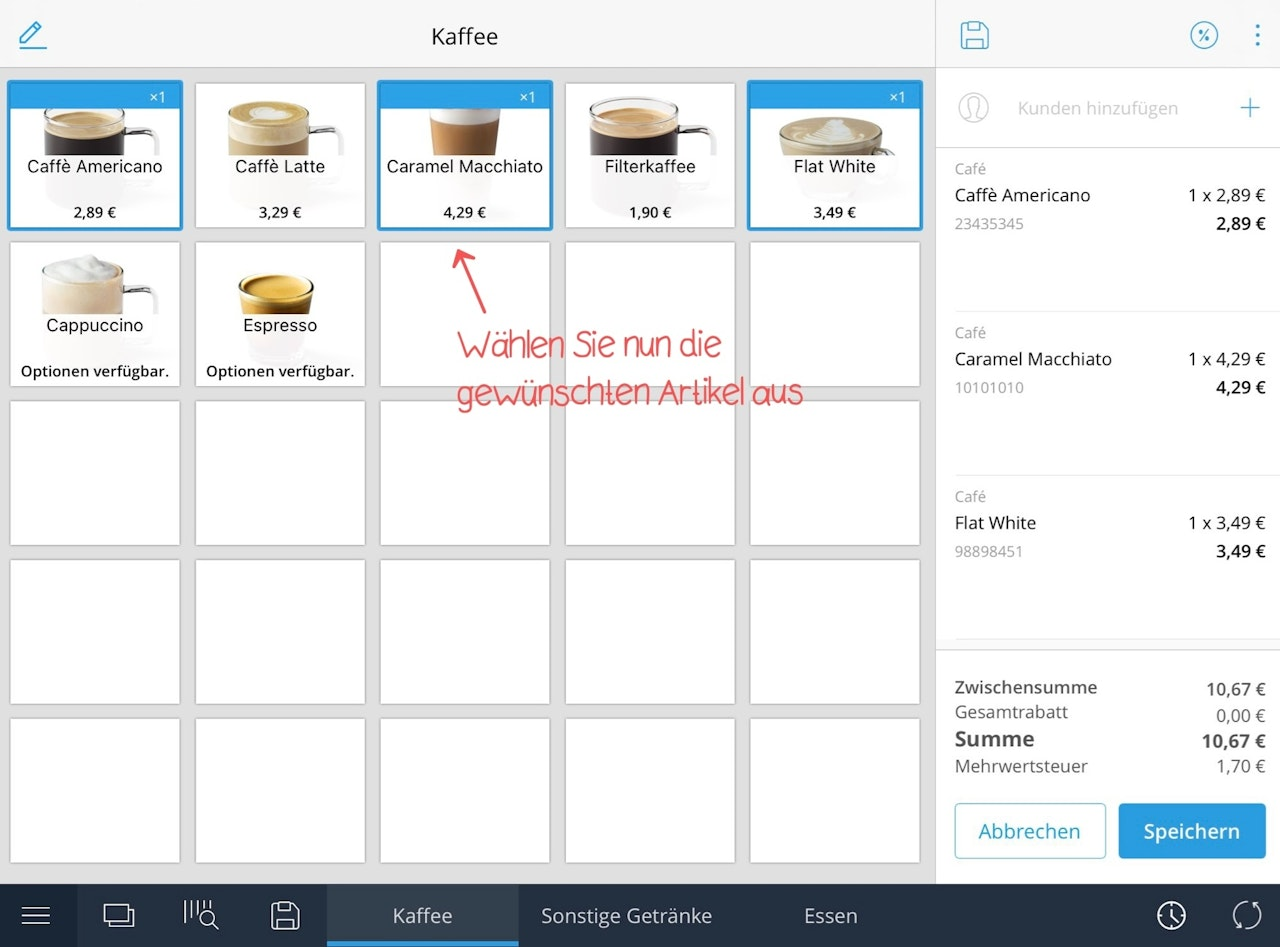
- Add the desired items to this set.
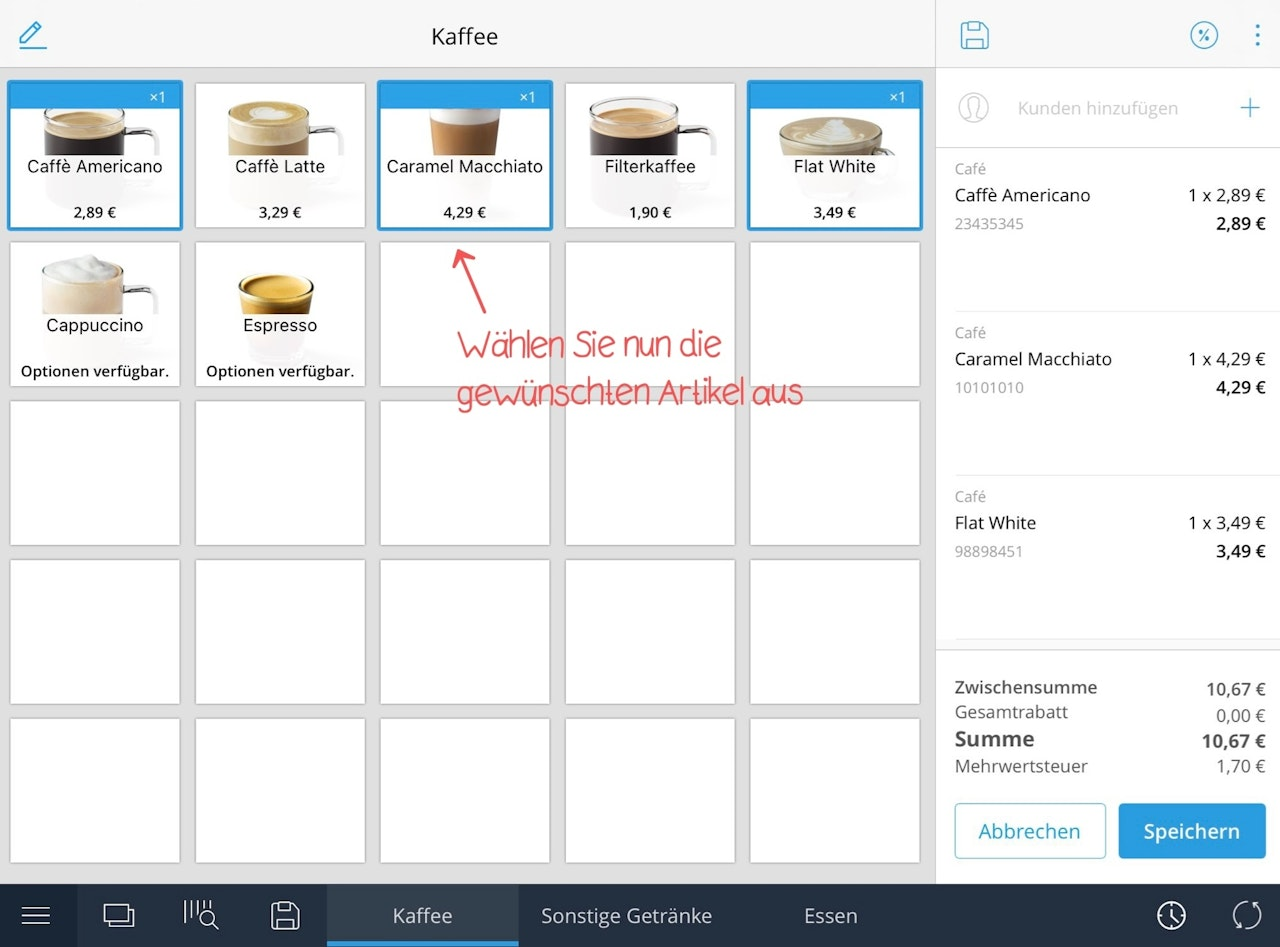
- Finish by tapping “Save set”. A new window will open.
- Set a price for the set and tap “Save”.
Done! In the sale, the amount the customer saves appears in orange. The new set price will be applied when you complete the sale.
Was this article helpful?
That’s Great!
Thank you for your feedback
Sorry! We couldn't be helpful
Thank you for your feedback
Feedback sent
We appreciate your effort and will try to fix the article
