FAQs
Modified on Wed, 1 Apr at 1:15 PM
Where can I register for the Tillhub Webshop?
Where can I view my sales orders, invoices, and subscriptions?
How can I complete my purchase via the Tillhub Webshop?
What products and services can I purchase in the Tillhub Webshop?
How do I create tiles for a deposit and use the function in practice?
Step 1: Settings in the dashboard
Log into your Tillhub dashboard.
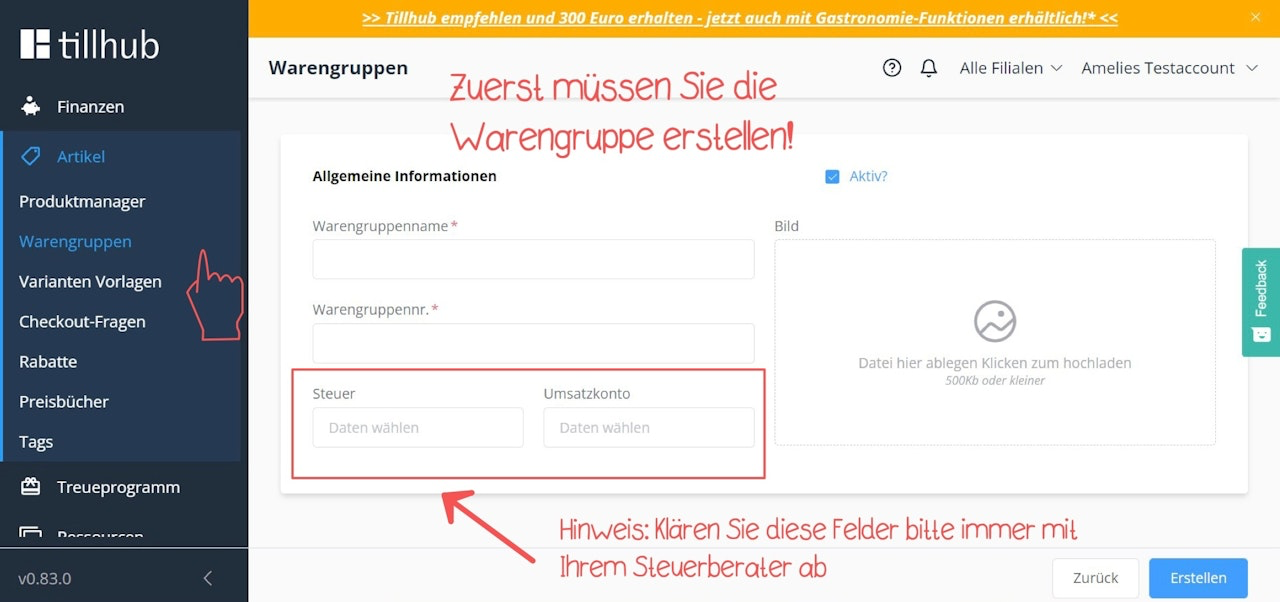
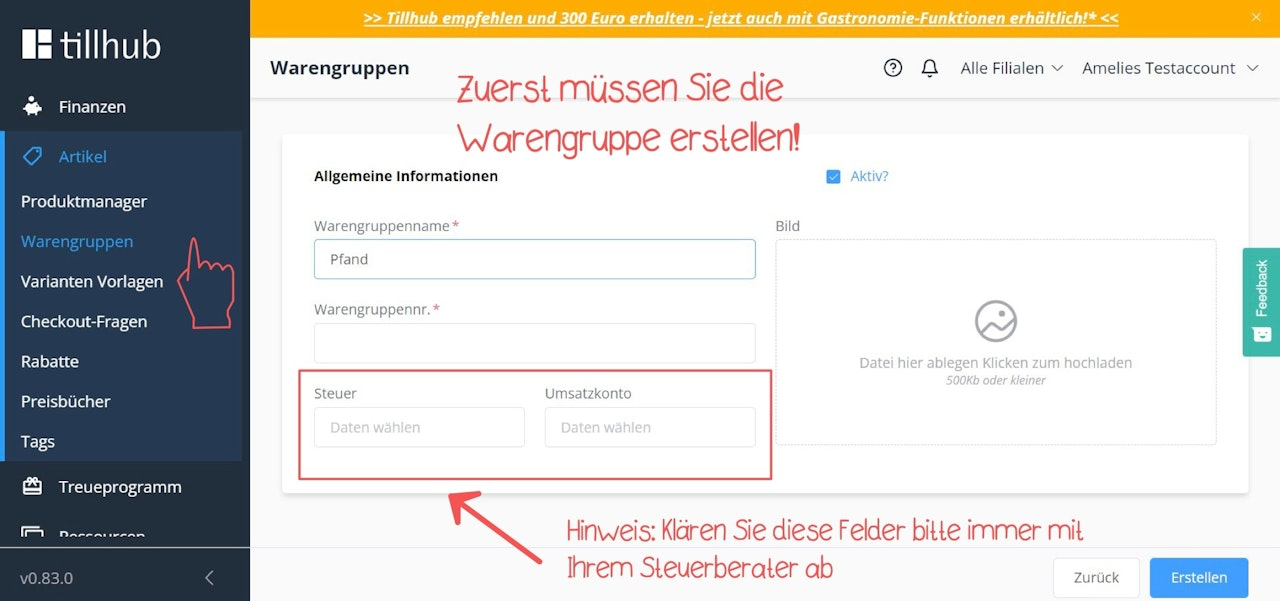
Create a product group named "Deposit" under Menu > Products > Product Groups. Clarify in advance with your tax advisor which tax and revenue accounts should be entered in the "Tax" and "Revenue account" fields.
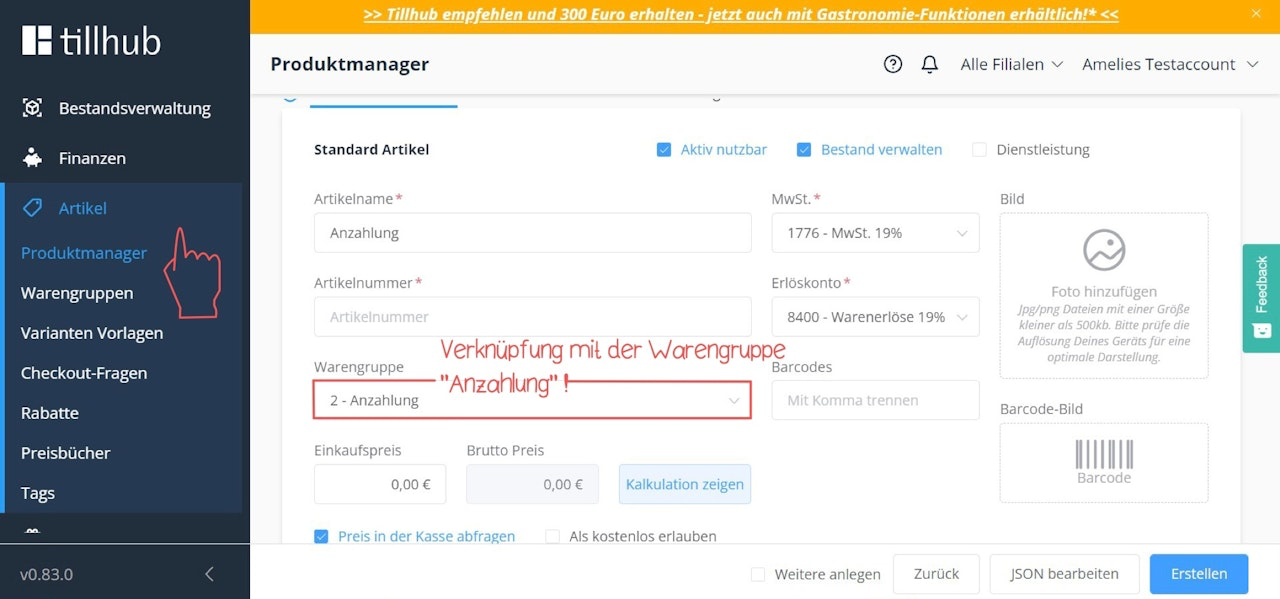
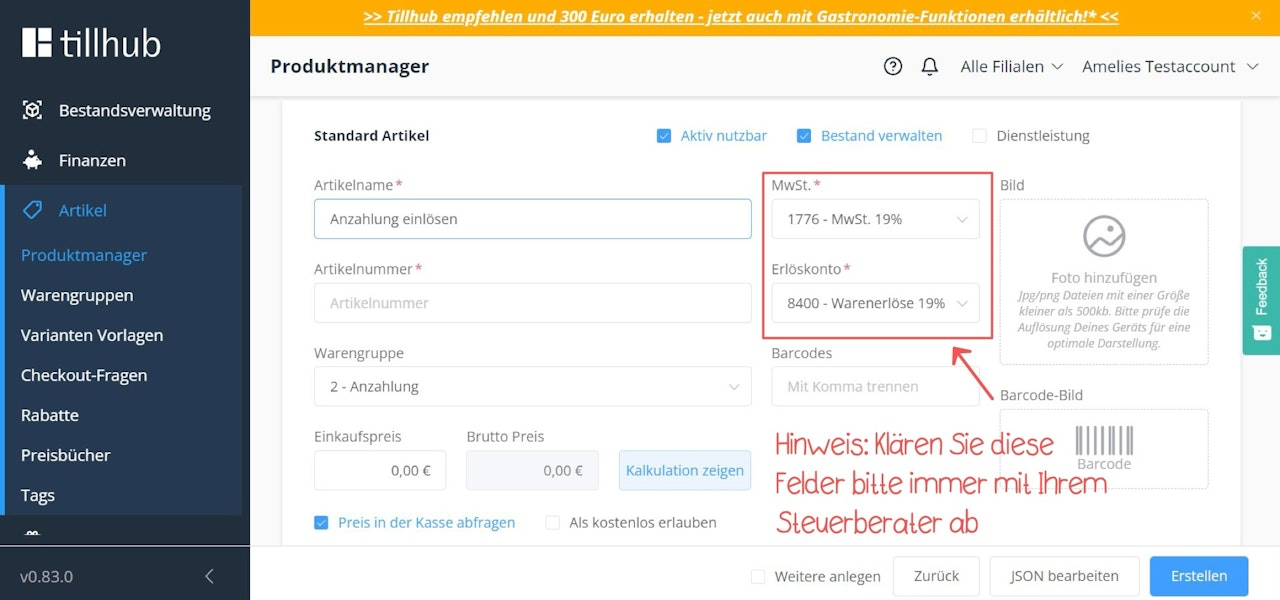
In the Product Manager, create two products named "Deposit" and "Use/Redeem deposit" with the appropriate amounts and VAT rates.
Link both products to the "Deposit" product group.
If you want to manually enter the deposit amount during the checkout process, enter "0" in the "Gross price" field when creating both products and activate the checkbox "Query price at checkout" below it.
Step 2: Creating the minus function for the "Deposit" tile
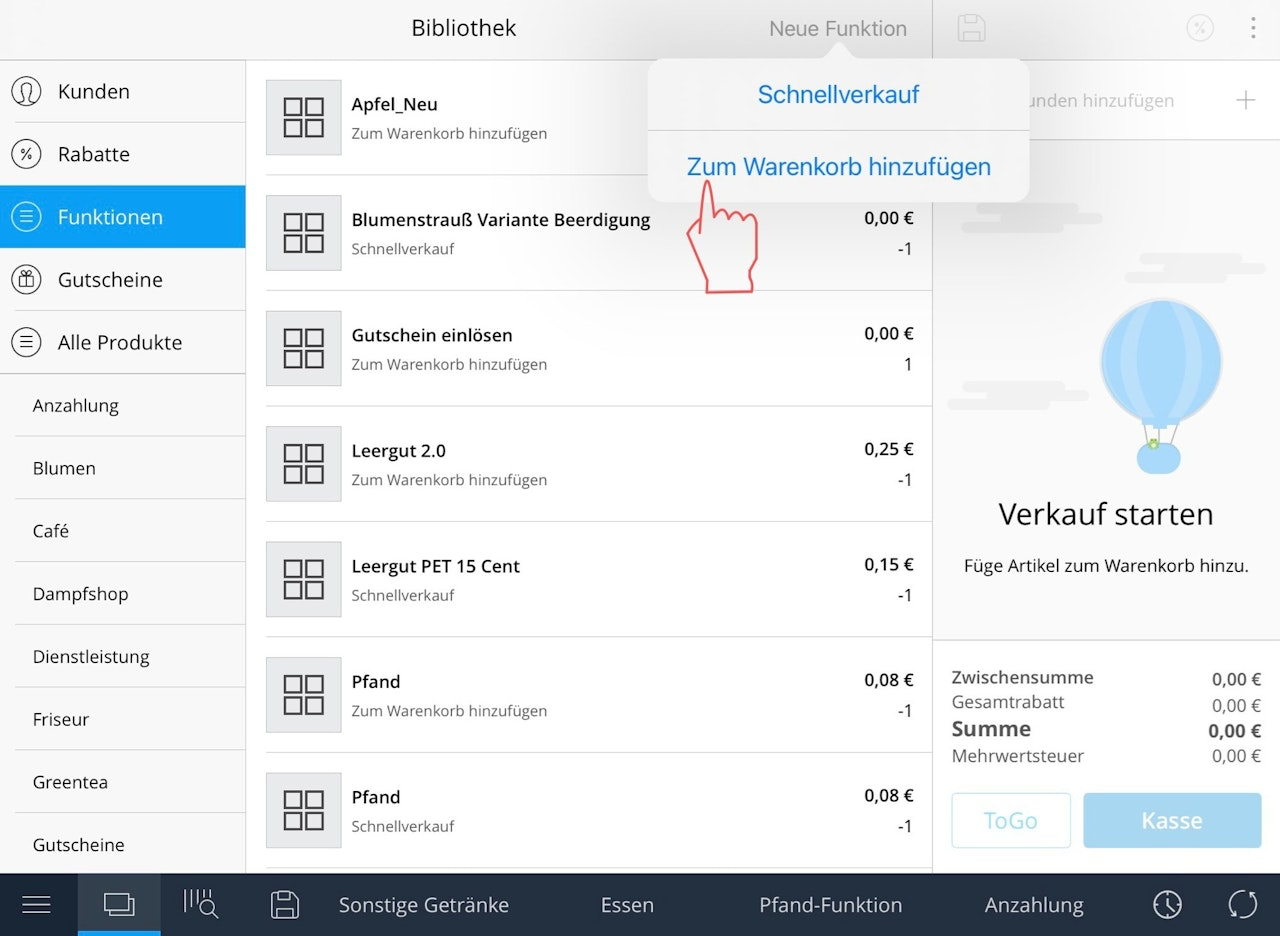
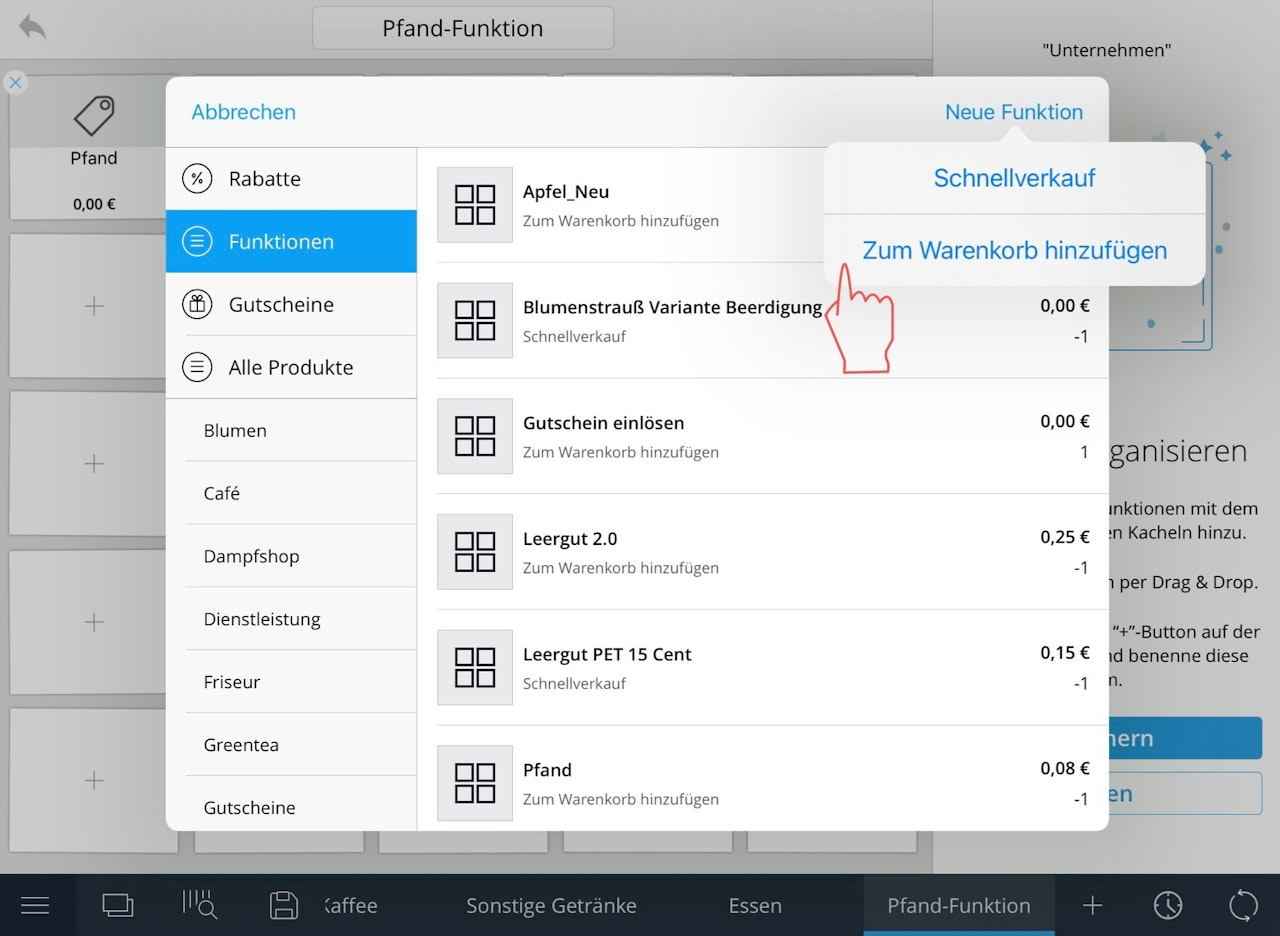
On your iPad, open your POS app and click the icon with two squares in the bottom left.
In the left menu, click on "Functions".
In the top right, click the blue "New Function" button.
In the drop-down menu, click the field "Add to cart".
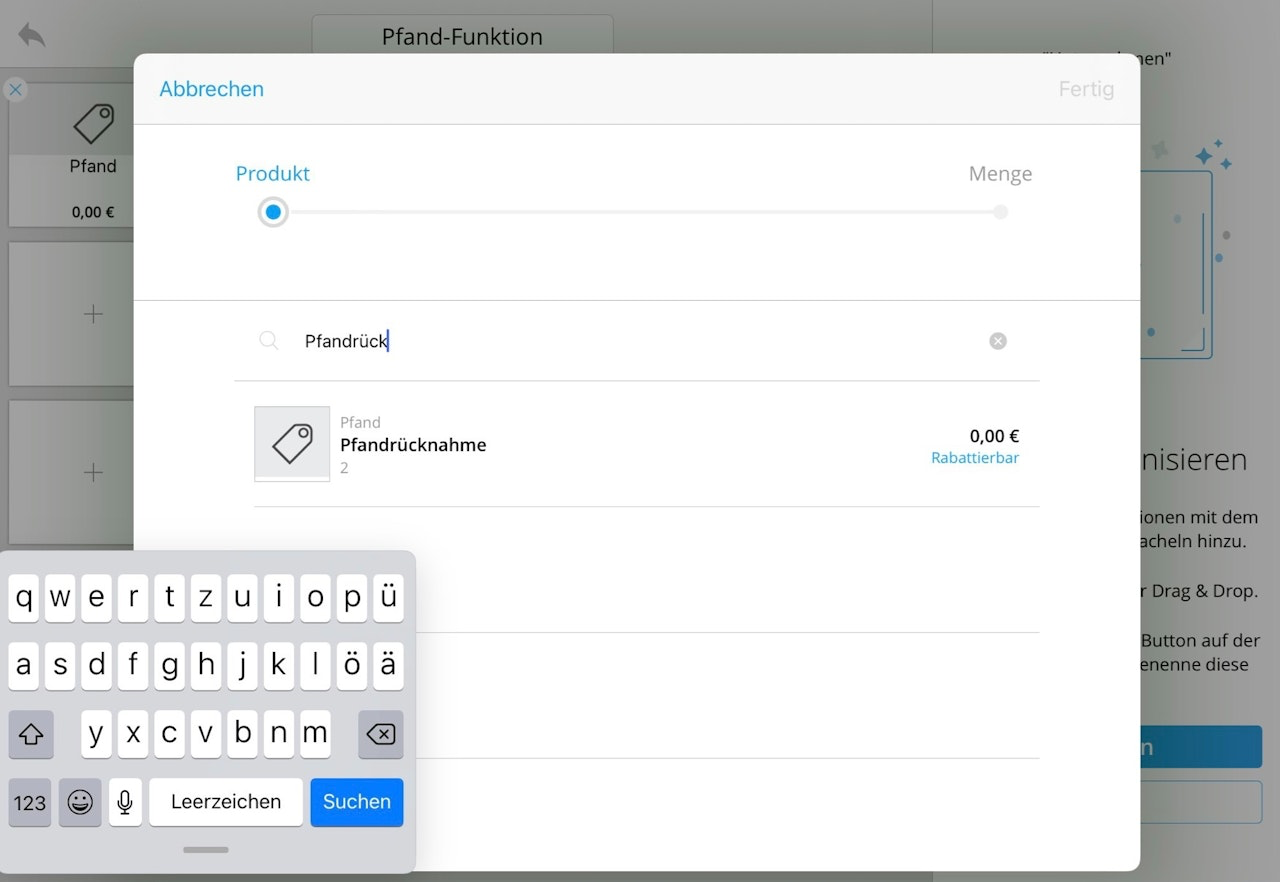
Search for the product "Use/Redeem deposit" you created and tap on it.
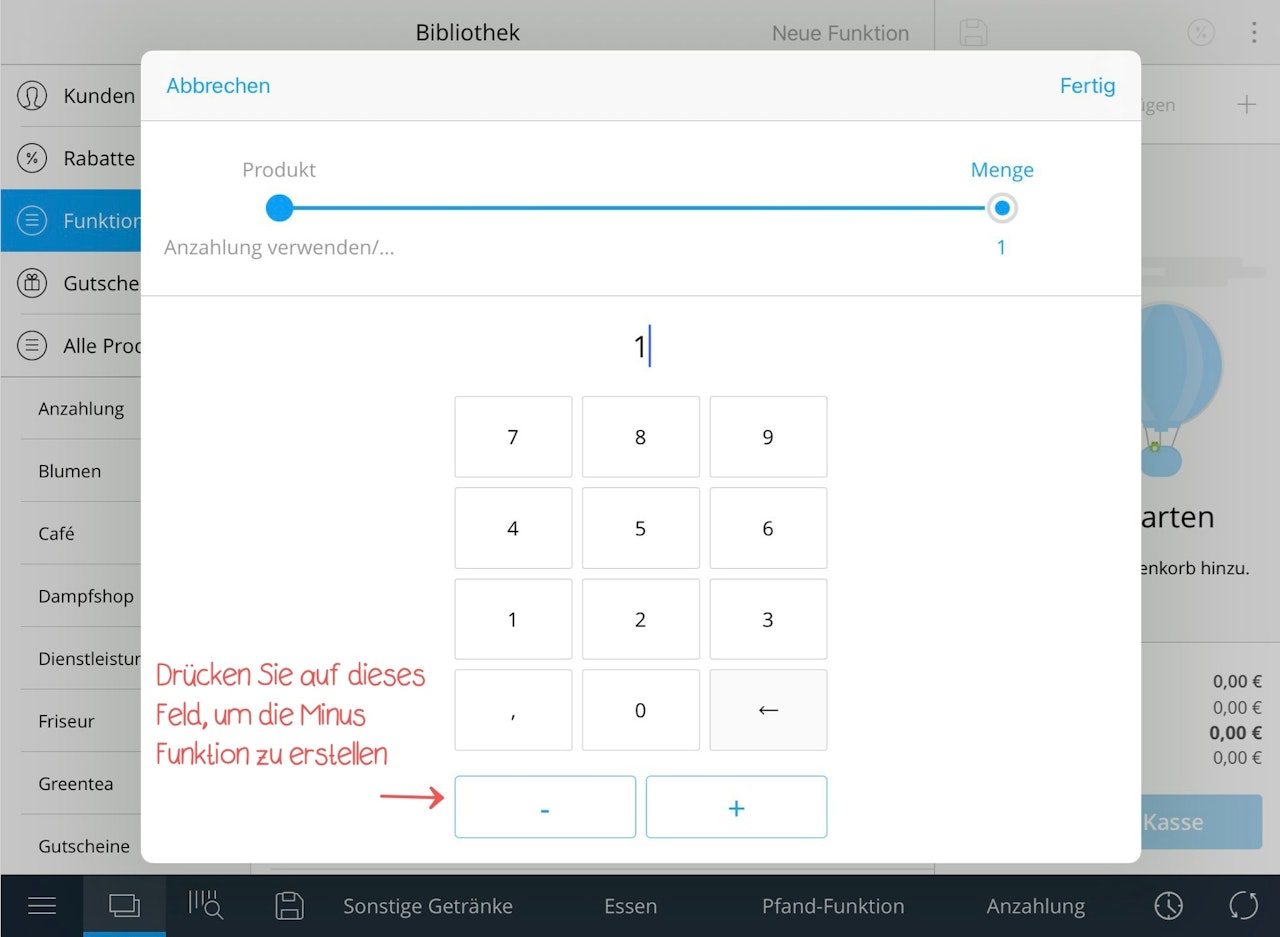
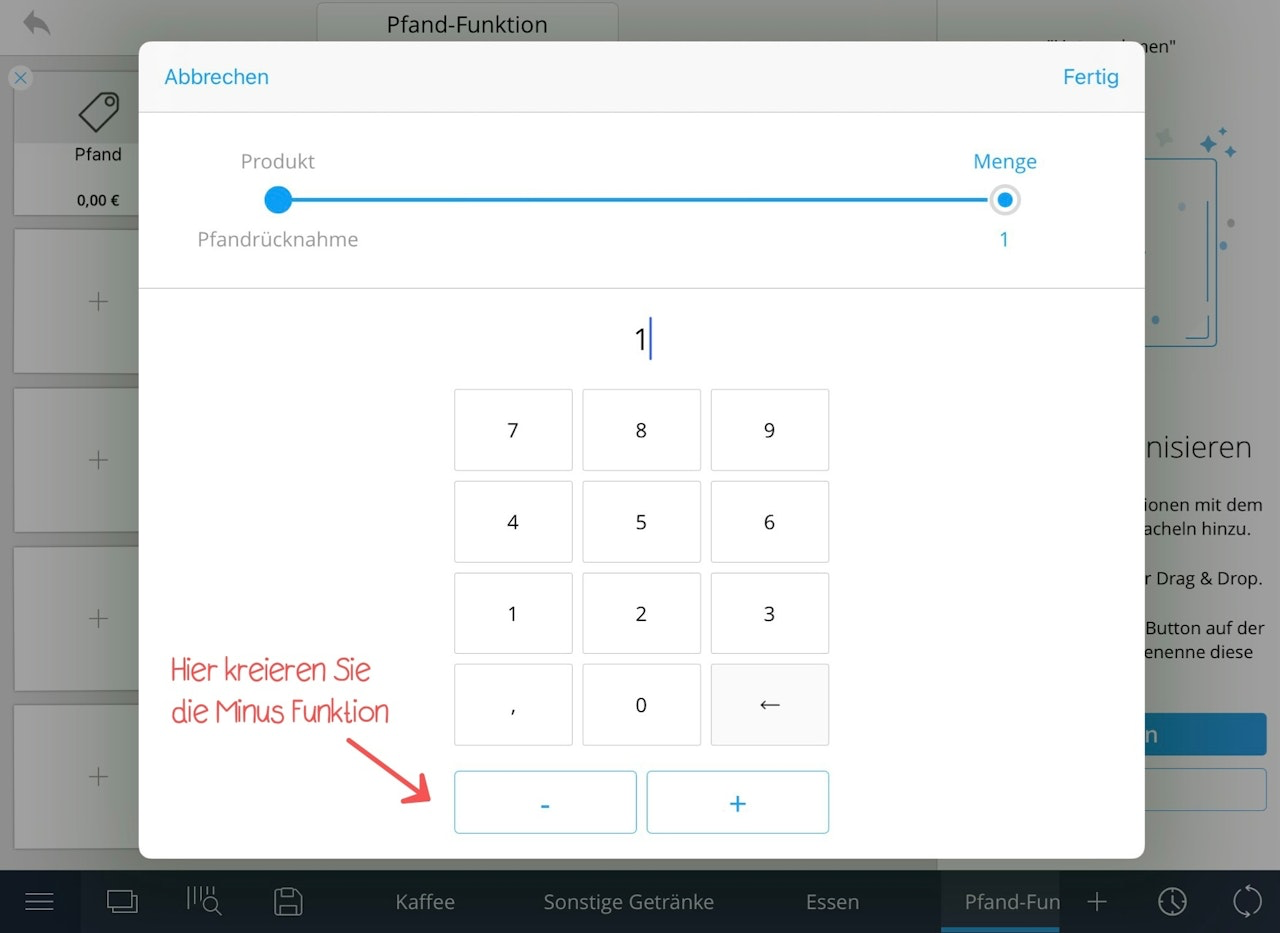
Click the minus symbol on the number pad and select the number 1: "-1"
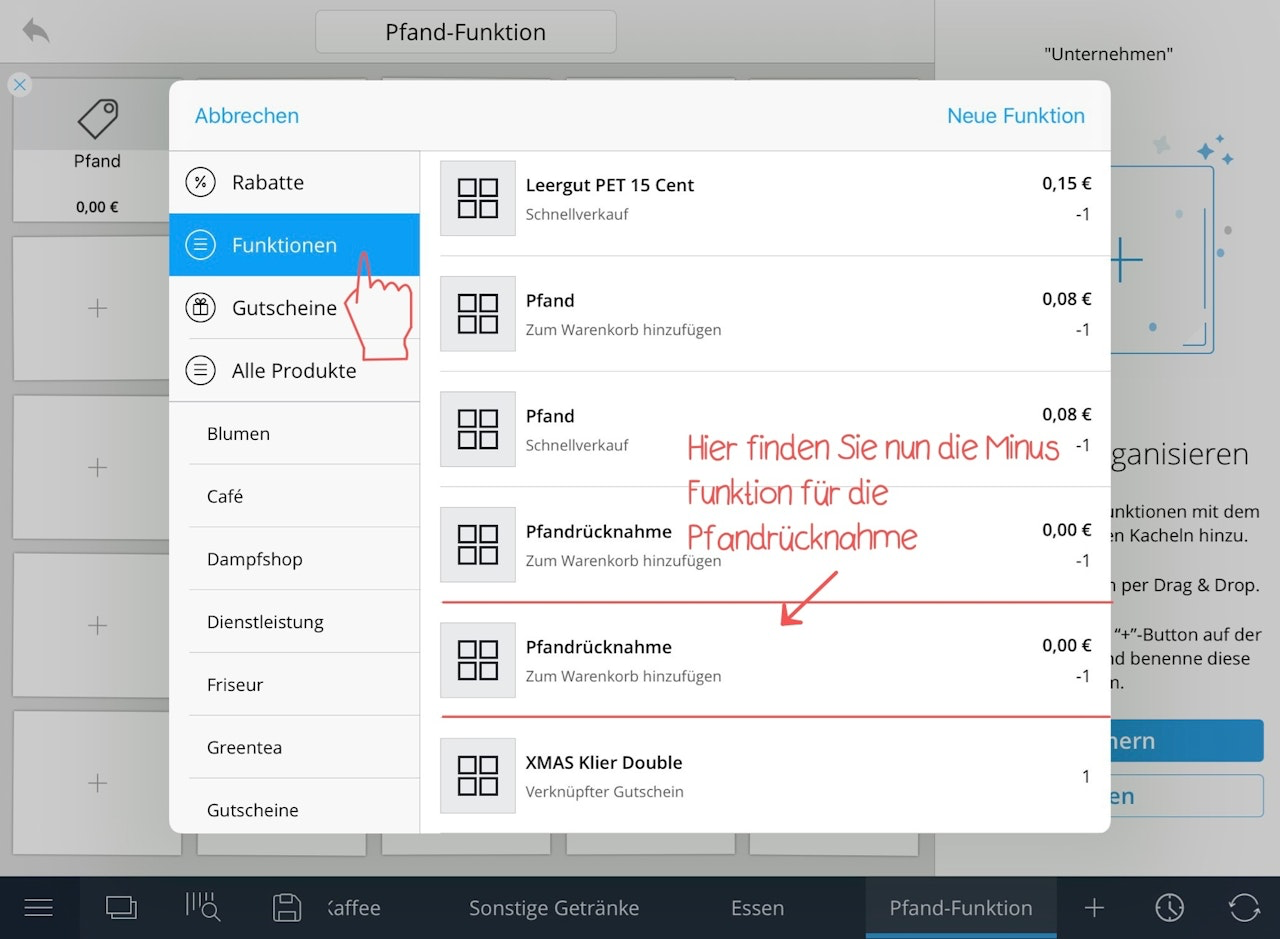
You have now successfully created the function for redeeming the deposit.
How do I use the function in practice?
Step 1: Customer makes the deposit
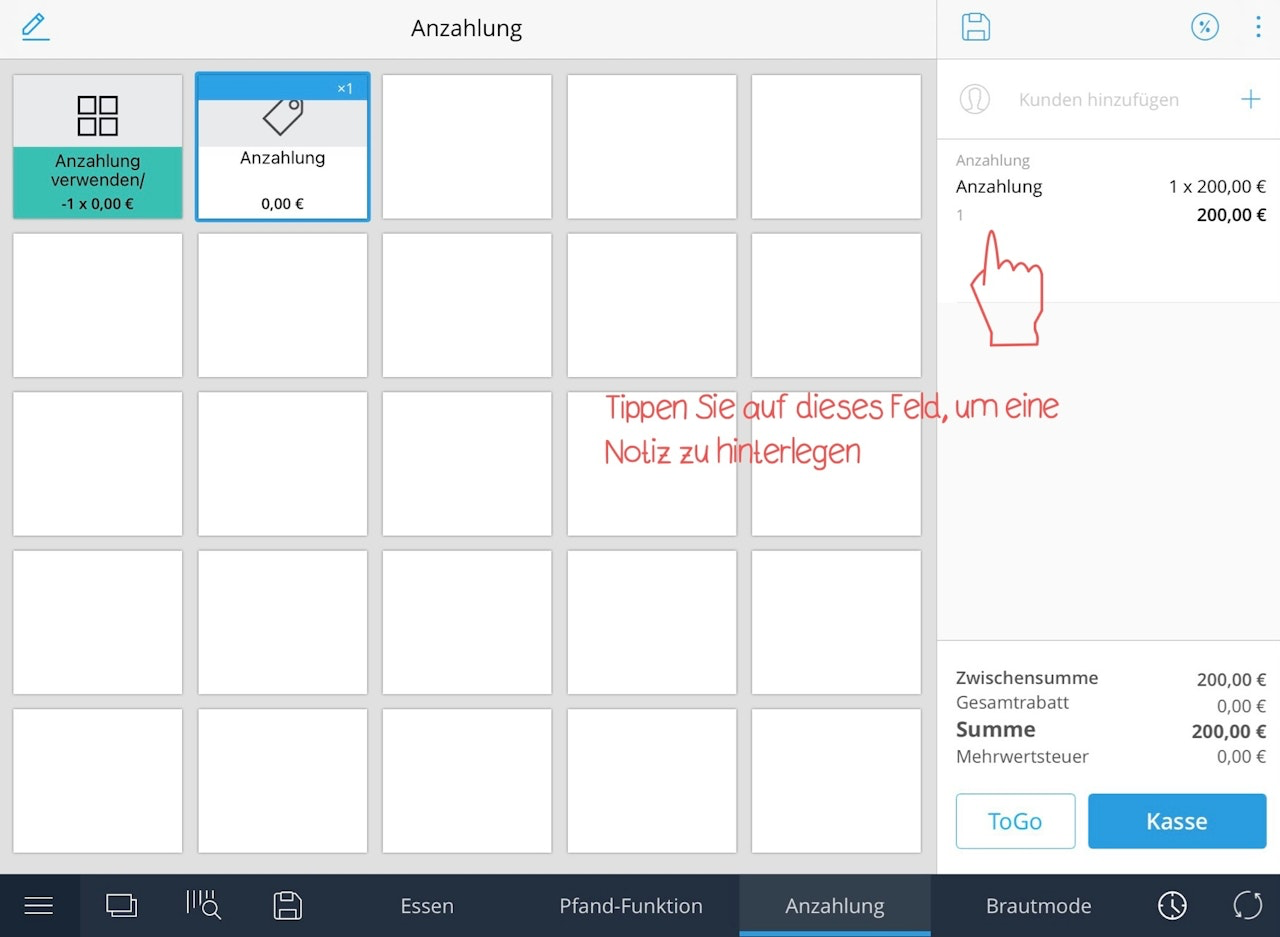
Add the product "Deposit" to the cart
Add a note in the comment field to keep track
The customer now pays for this product
Note: The customer should keep the receipt as proof.
Step 2: Customer purchases the product
Add the previously deposited product to the cart
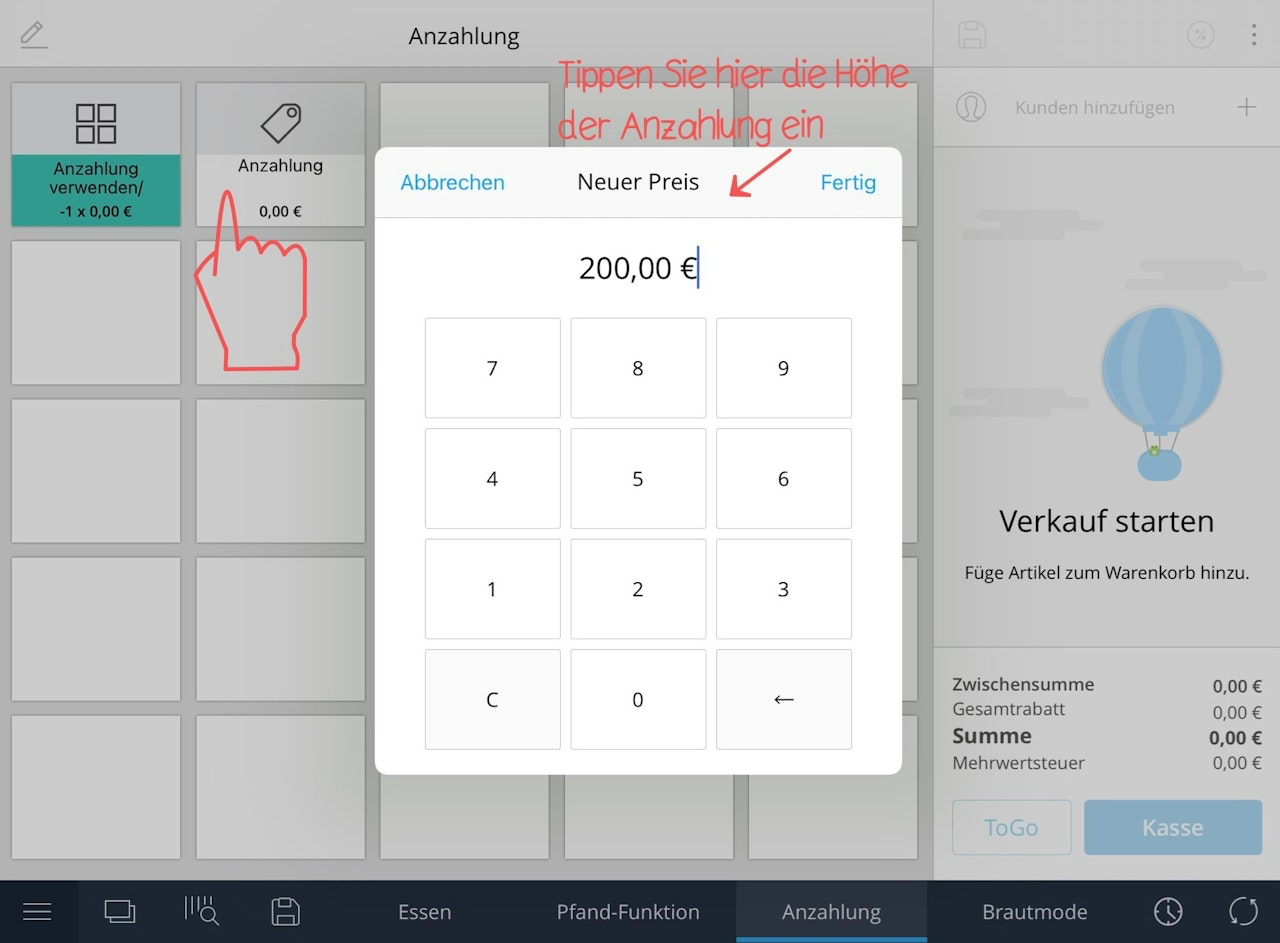
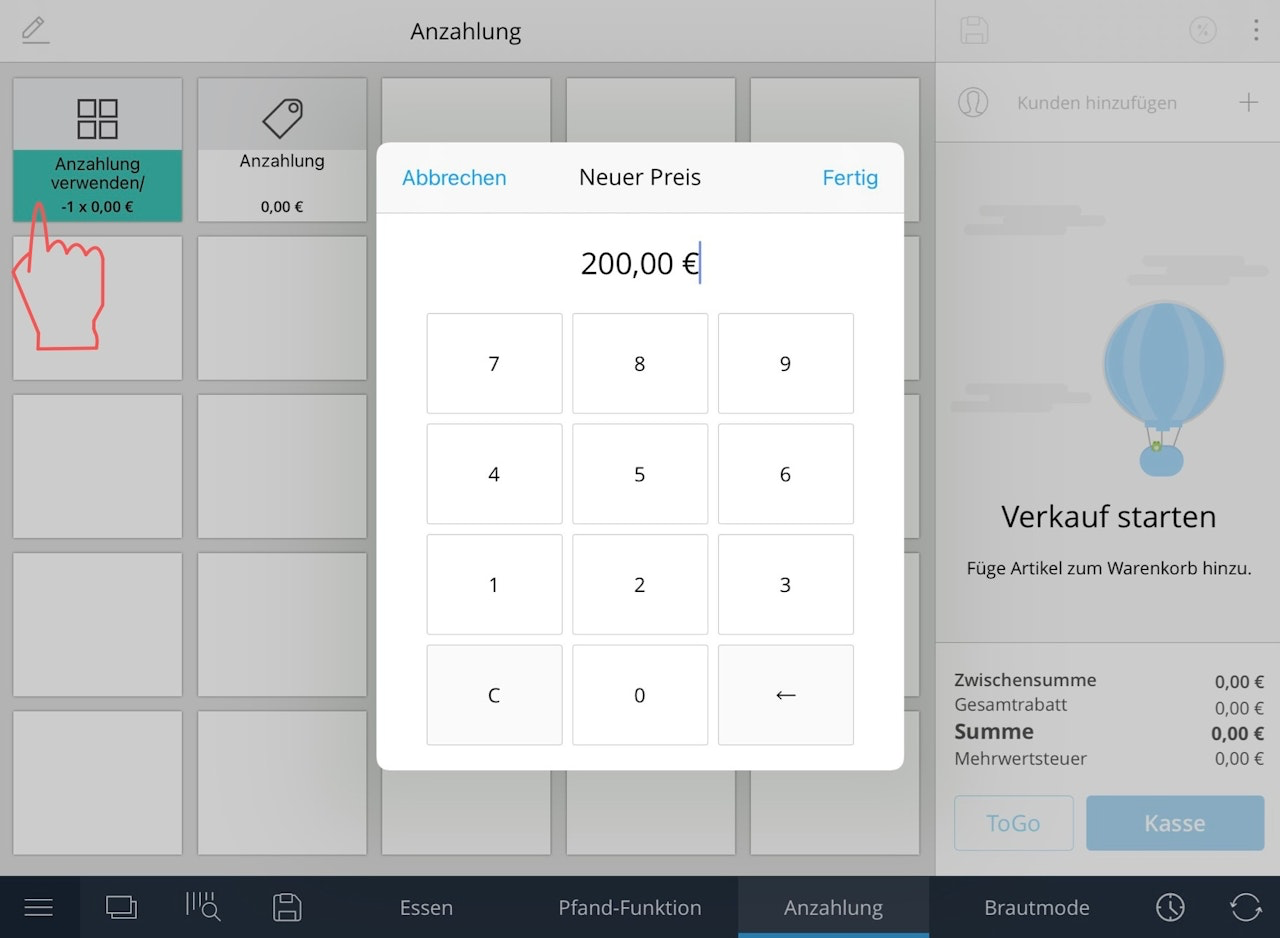
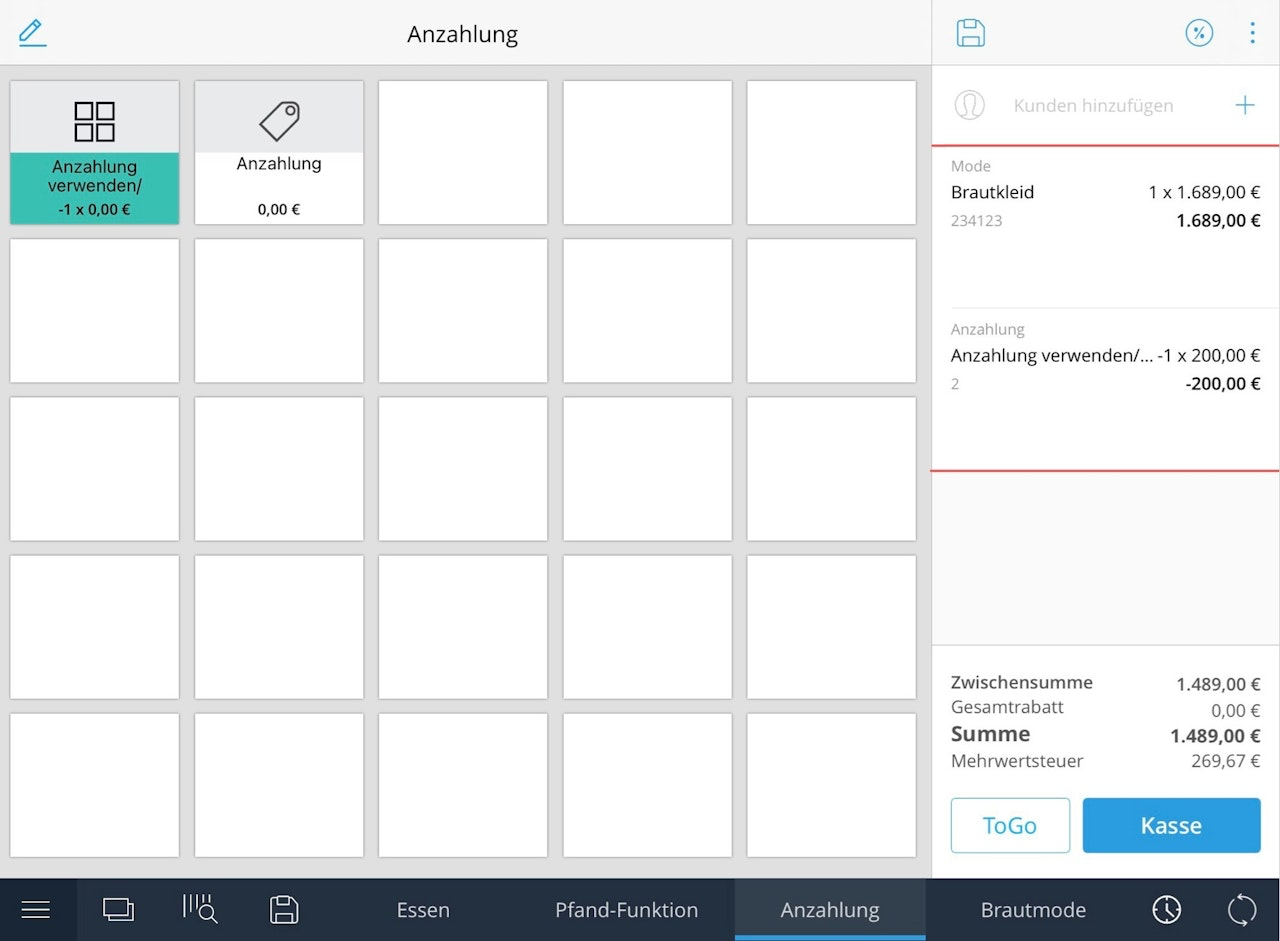
Now press the function "Redeem deposit"
A field will open. Enter the amount already paid here
Write the receipt number from the first sale in the comment field
The POS will now calculate the difference and the customer pays the remaining amount
How do I create tiles for bottle return and bottle deposit?
Step 1: Settings in the dashboard
Log into your Tillhub dashboard
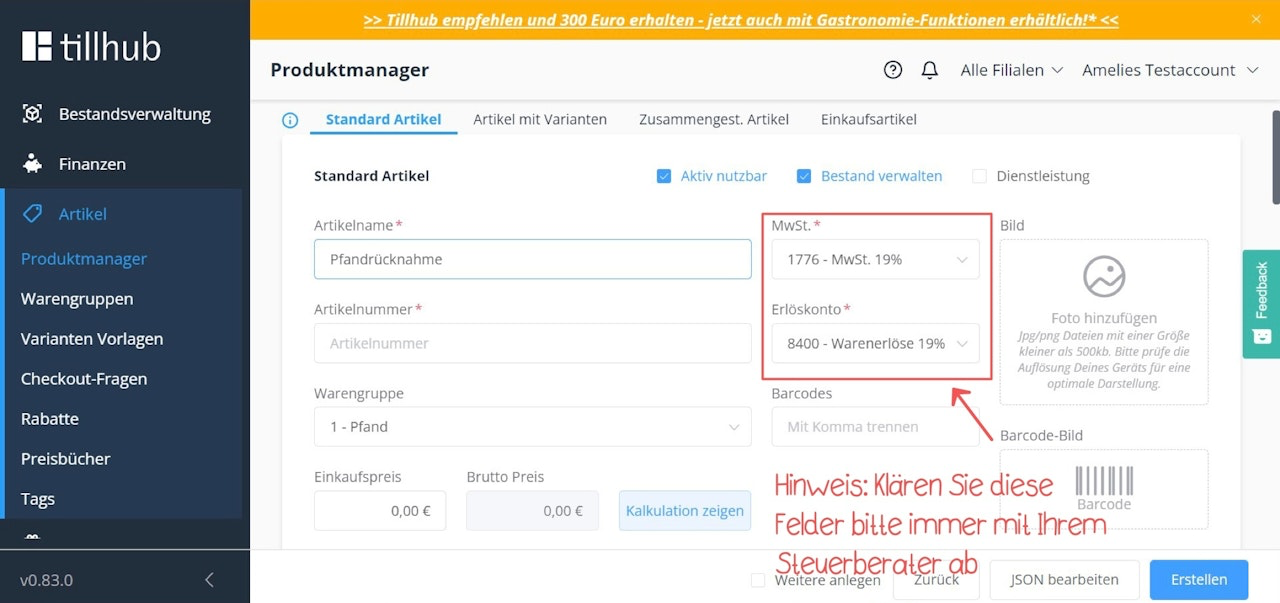
Create a product group named "Deposit" under Menu > Products > Product Groups. Clarify in advance with your tax advisor which tax and revenue accounts should be entered in the "Tax" and "Revenue account" fields.
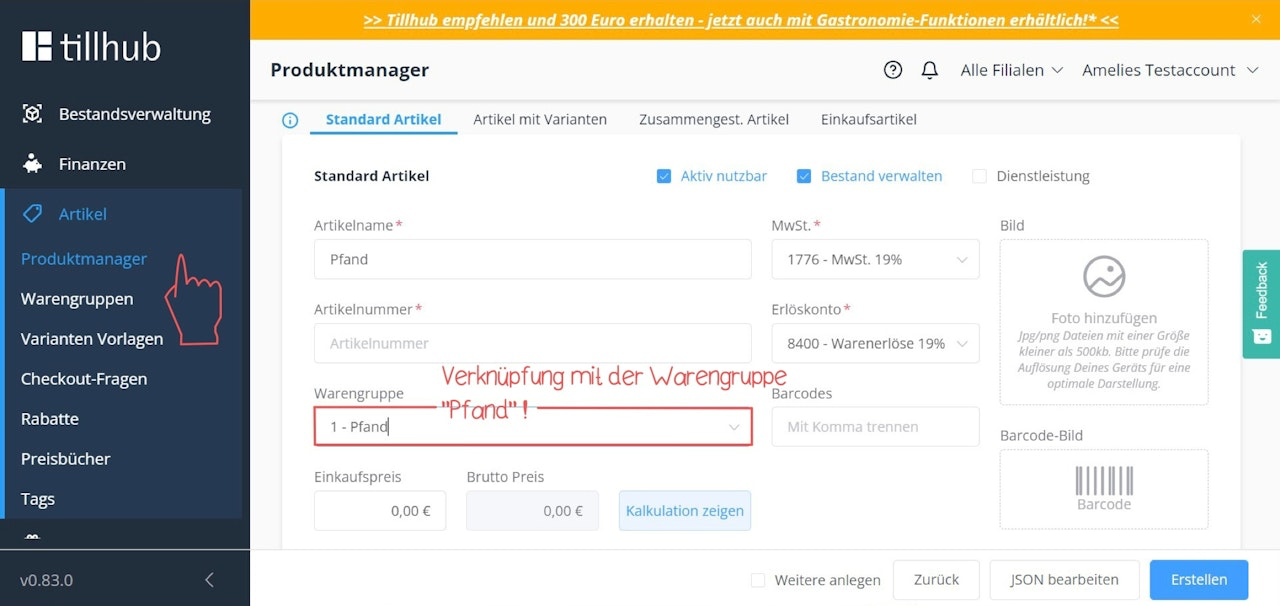
In the Product Manager, create two products named "Deposit" and "Bottle return" with the appropriate deposit amounts.
Link both products to the "Deposit" product group.
If you prefer to enter the deposit amount manually during the checkout process, enter "0" in the "Gross price" field when creating the product and activate the checkbox "Query price at checkout".
Step 2: Creating the minus function for the bottle return
On your iPad, open your POS app and click the icon with two squares in the bottom left.
In the left menu, click on "Functions".
In the top right, click the blue "New Function" button.
In the drop-down menu, click the field "Add to cart".
Search for the product "Bottle return" you created and tap on it.
Click the minus symbol on the number pad and select the number 1: "-1"
You have now successfully created the function for bottle returns.
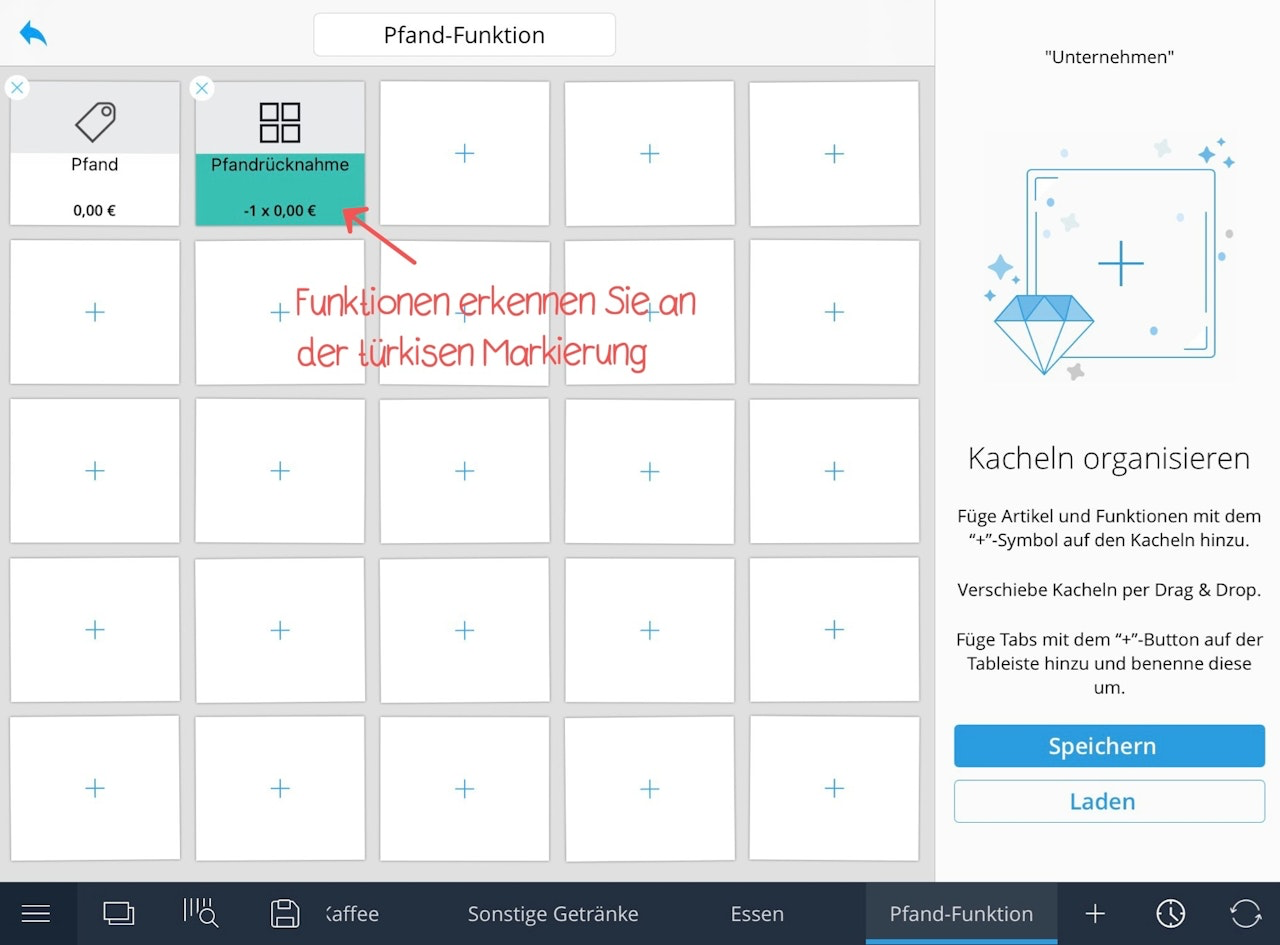
Step 3: Assigning tiles for bottle return and bottle deposit
In the tile view, click the blue pencil icon in the top left.
Tap on a tile where you want to place the function for bottle return.
In the left menu, tap on "Functions".
On the right side of the screen, select the minus function for bottle return you created in step 2.
Your tile for bottle return is now created!
Now tap on another tile where you want to place the product for bottle deposit.
Select the "Deposit" product you created in step 1 from your library.
Your tile for bottle deposit is now successfully created!
Click the "Save" button in the bottom right to save your changes.
Was this article helpful?
That’s Great!
Thank you for your feedback
Sorry! We couldn't be helpful
Thank you for your feedback
Feedback sent
We appreciate your effort and will try to fix the article
