Downloading and configuring the Tillhub App
Modified on Mon, 16 Feb at 10:12 AM
TABLE OF CONTENTS
- Downloading the Tillhub App
- Updating your iPad software
- Your Tillhub password
- Select branch and register
- Switch between different branches and registers
- Preparation
Downloading the Tillhub App
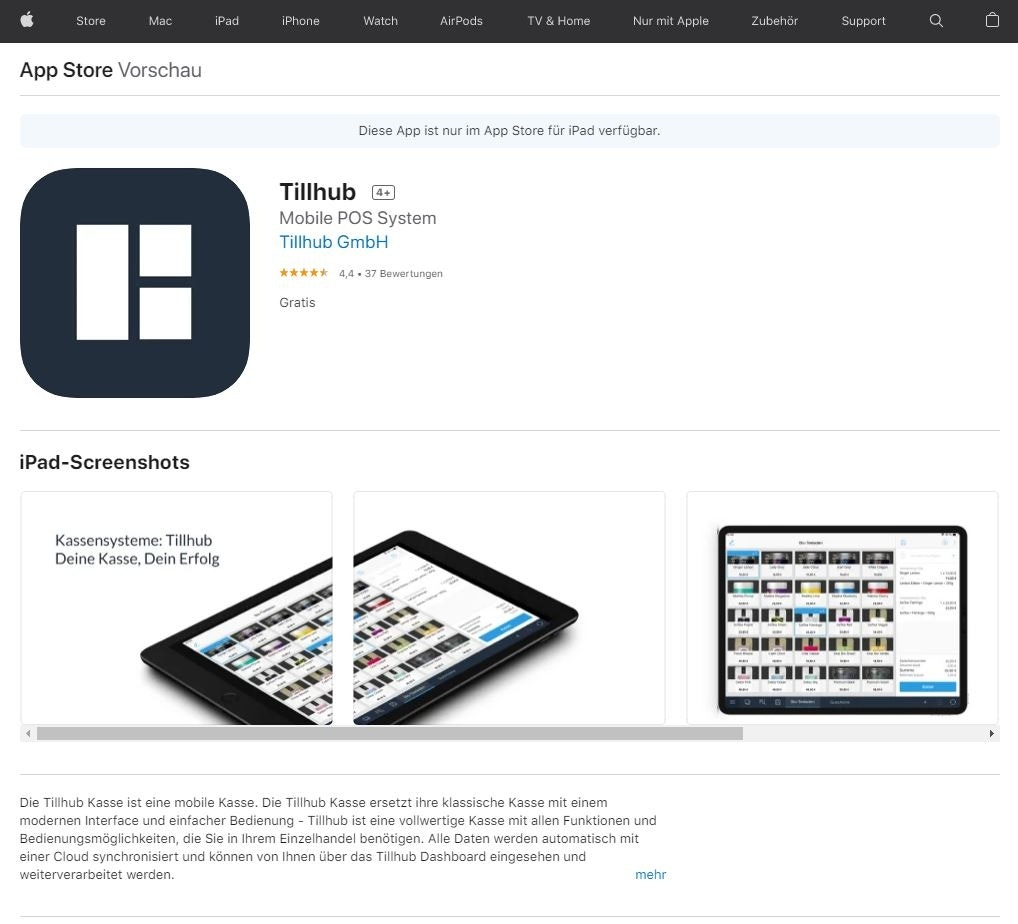
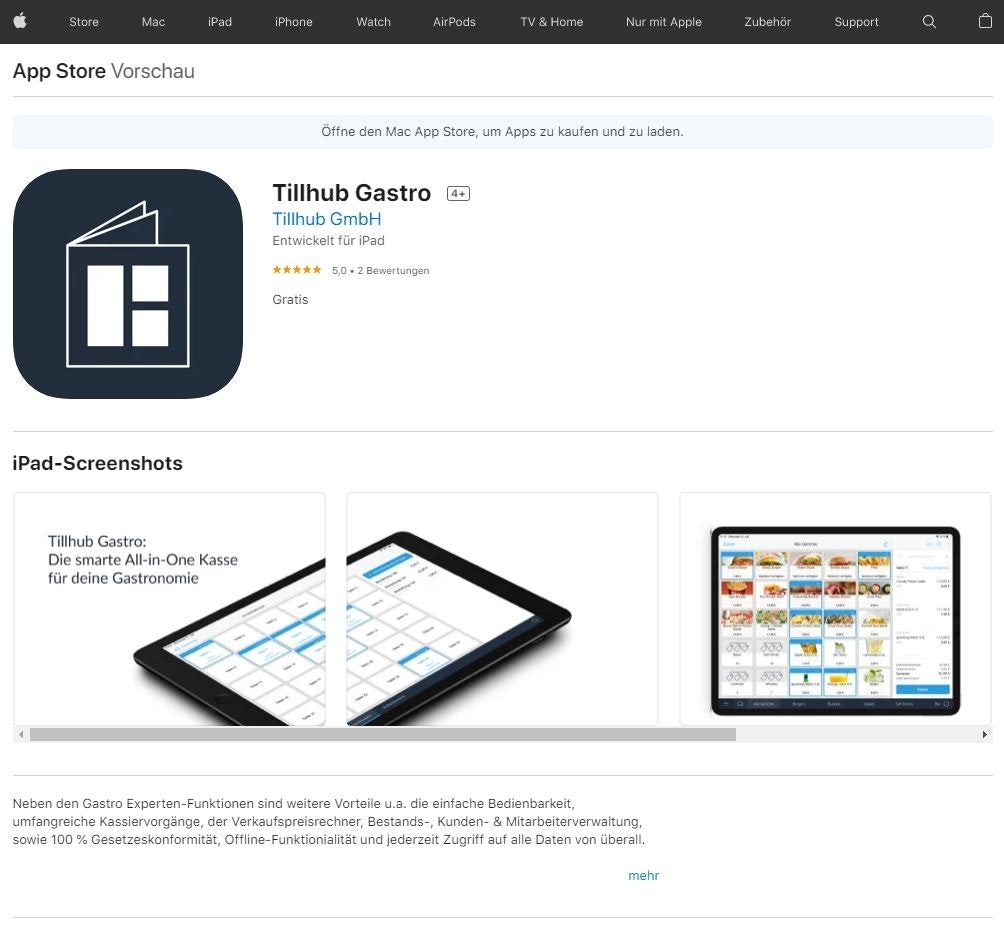
To install our app on your iPad, open the App Store and enter “Tillhub” in the search bar. Depending on which POS system you chose, select one of the following apps: “Tillhub - Mobile POS System” or “Tillhub Gastro”.
Updating your iPad software
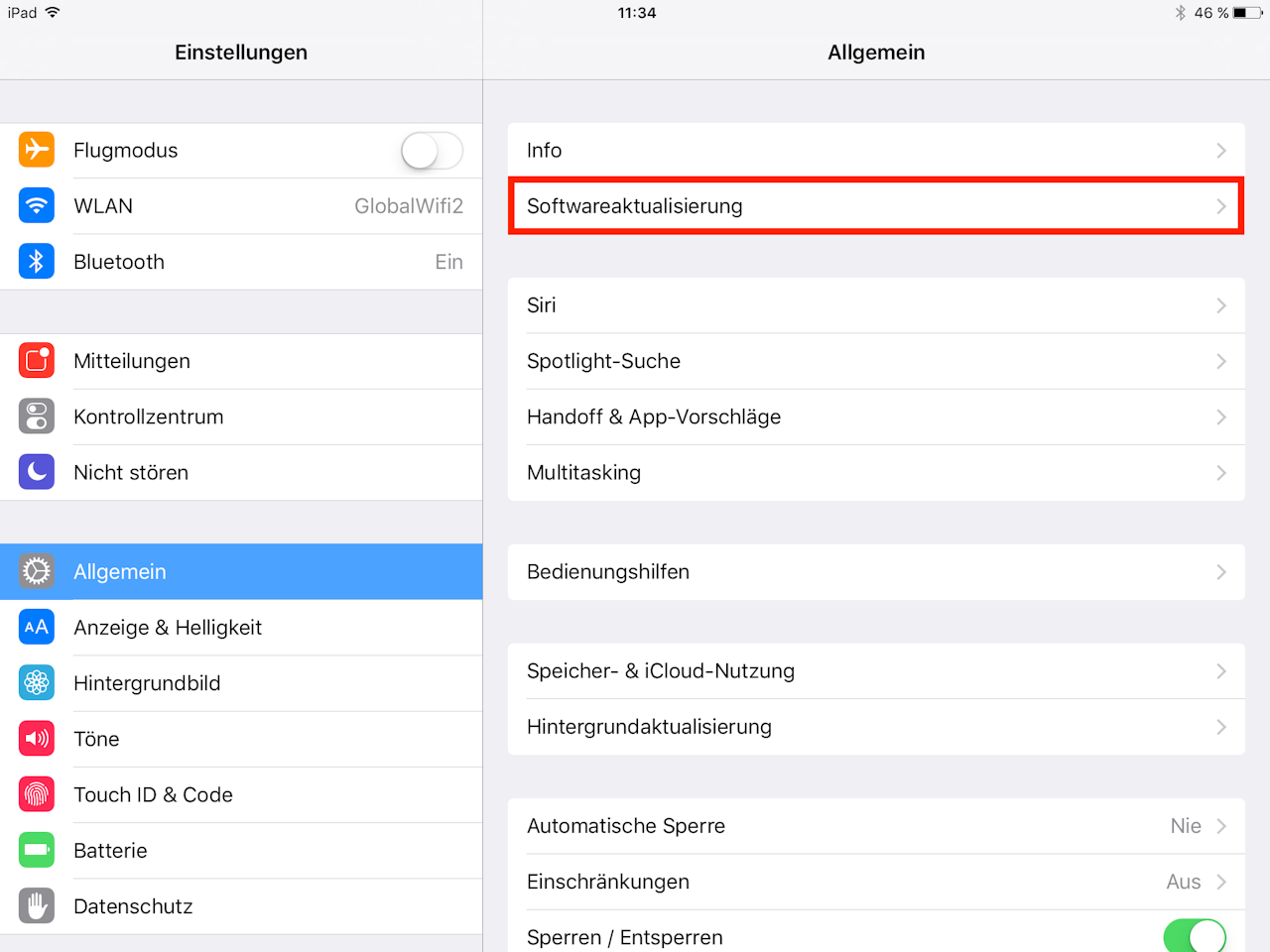
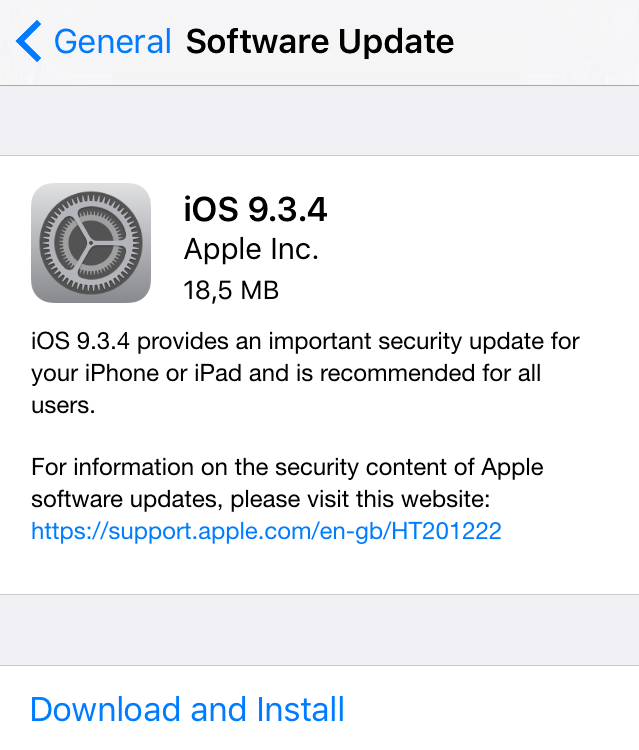
If you did not purchase an iPad from us and are using a personal device for the Tillhub App, please ensure your operating system is up to date before downloading the app. Tap the Settings app on your iPad’s Home screen. Then select “General.” If an update is available, it will be shown under “Software Update.” Tap “Download and Install” to perform the update. The update may take a few minutes.
Your Tillhub password
When you open the app, you will be prompted to sign in with your username (email address) and password. We sent both to you via email in advance.
If you have forgotten your password or want to change it, please use the following link: Reset password.
Please leave the “Organization” field blank in the input window. Then click “Sign in.”

Select branch and register
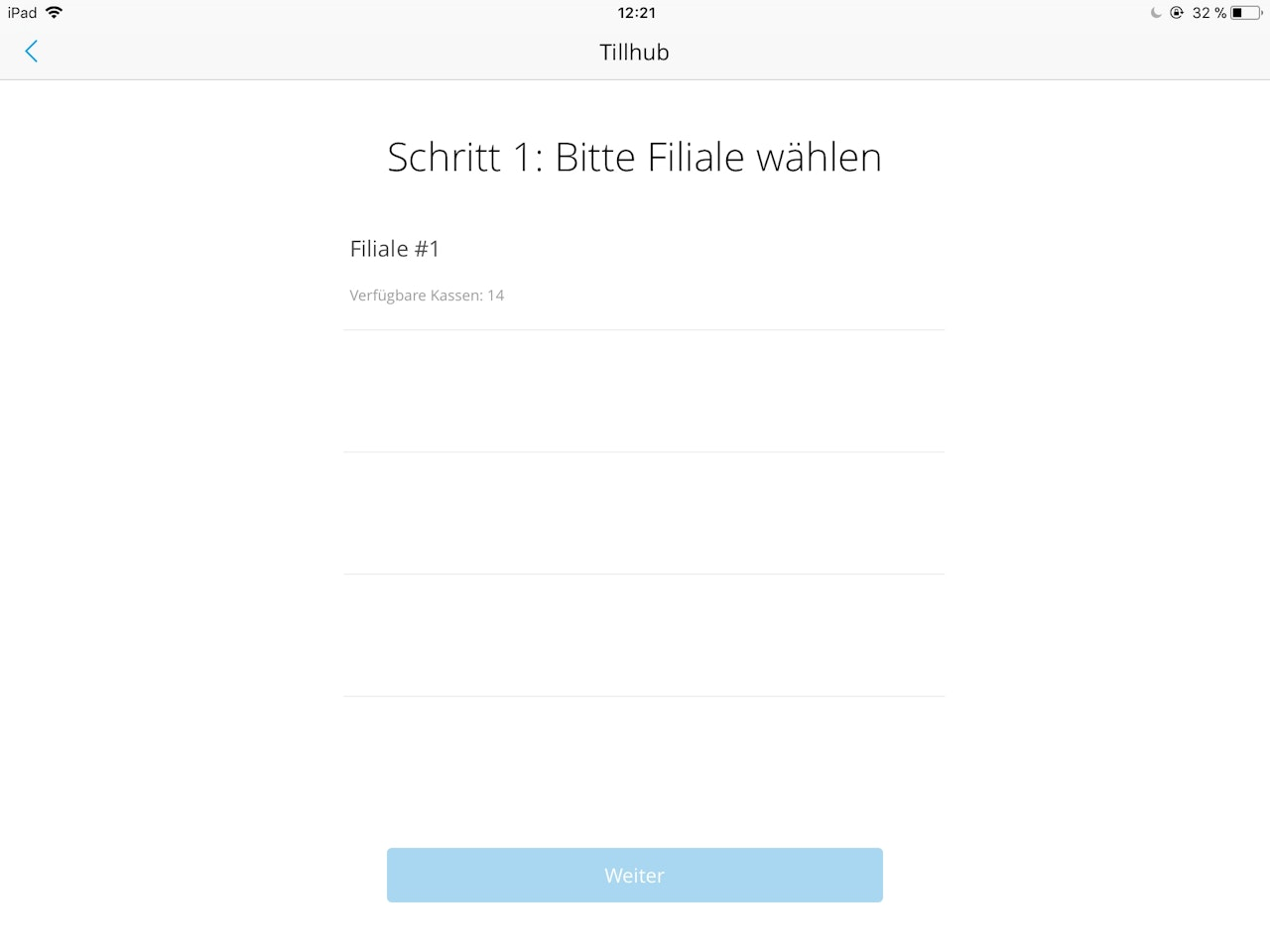
Step 1: Depending on how many branches you specified during your onboarding consultation, that number will be available here. Select the desired branch. Then tap “Next.”
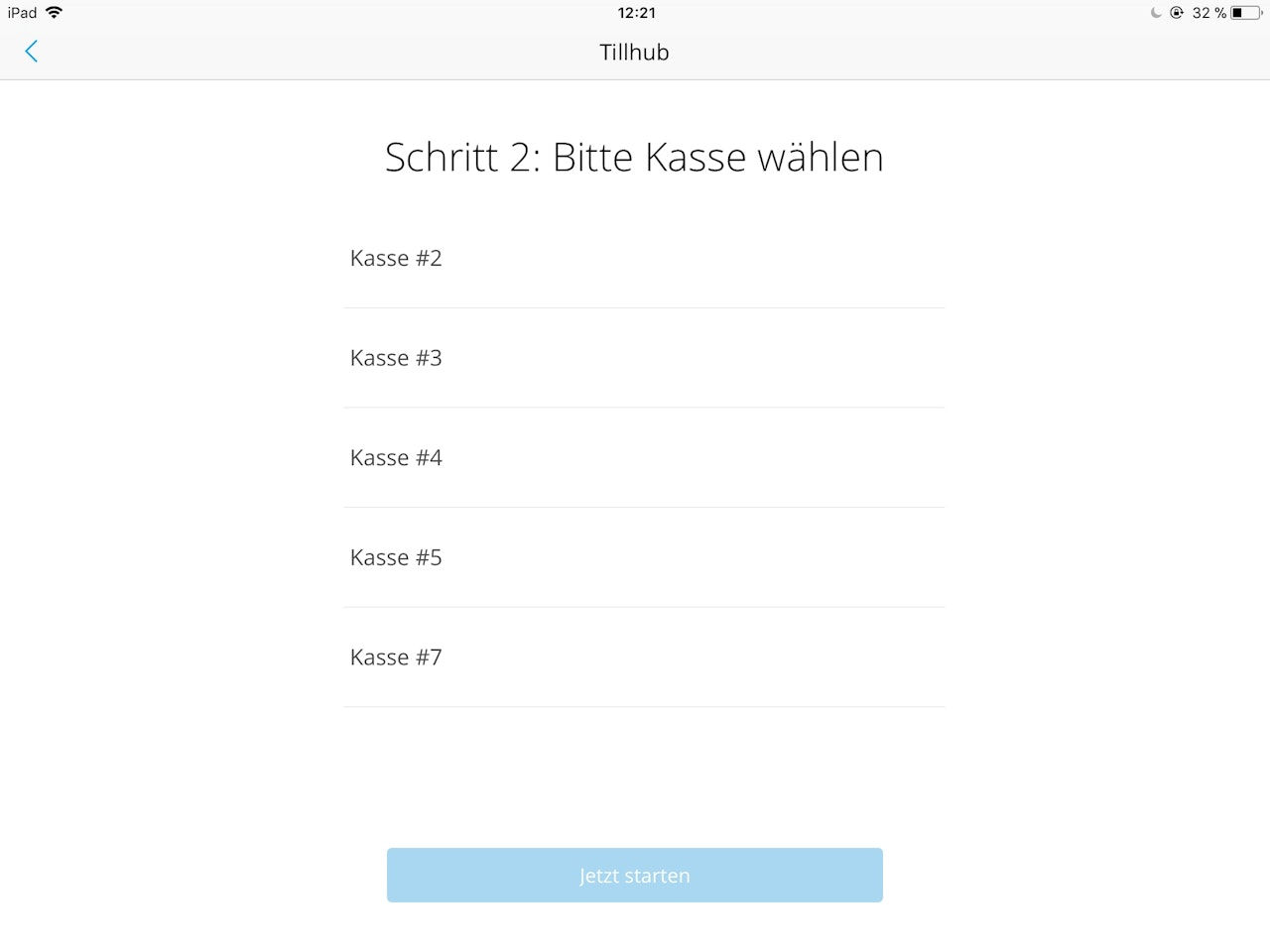
Step 2: Depending on how many register licenses you purchased, the corresponding number will be available here. Select the appropriate license and then tap “Start now.”
Note: While a device can be linked to multiple register licenses, the same register license cannot be used on multiple devices. A register license can only be linked to one device at a time. If you would like to remove this linkage, please contact our customer support.
Switch between different branches and registers
If you operate a business with multiple branches and/or registers, you will regularly need to switch between them. This article shows you the actions required. Green highlights indicate the features or buttons mentioned.
Preparation
If you are logged into a register that is currently open, you must close the register first. An open register cannot be switched.
Choose branch and register
After closing your register, go to “Settings” in the main menu of the Tillhub App and then tap “Select branch and register” on the right side of the screen.
Step 1: Select branch
A window will open where you can select the desired branch. Confirm your choice with “Next.”
Step 2: Select register
You will then be prompted to select the register. Confirm again with “Next.”
Step 3: Sign in with employee PIN
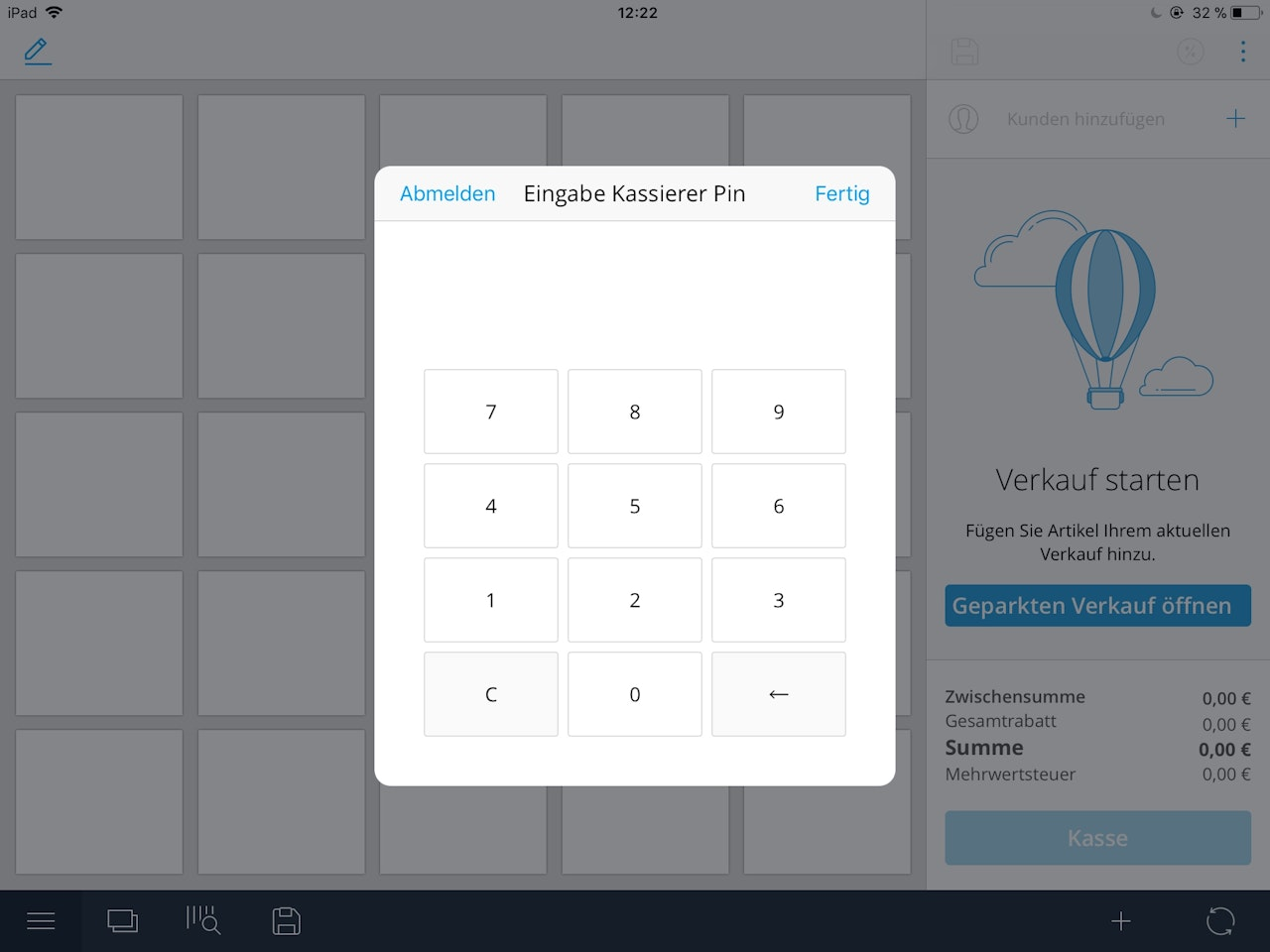
Finally, sign in with a valid employee PIN.
Was this article helpful?
That’s Great!
Thank you for your feedback
Sorry! We couldn't be helpful
Thank you for your feedback
Feedback sent
We appreciate your effort and will try to fix the article
