Adyen terminal setup
Modified on Mon, 16 Feb at 10:12 AM
TABLE OF CONTENTS
This article explains how to connect the Adyen card terminal to the Tillhub app.
Note: Have the terminal PIN and the merchant login credentials for your Adyen account ready.
Connect to Wi‑Fi
- To open the terminal menu, enter the following key sequence:
Red, 1, 5, 9, Green – device PIN, Green - Tap Network, Wi‑Fi, Add network, and select your network.
- Enter the password and connect.
Connect to the Tillhub app
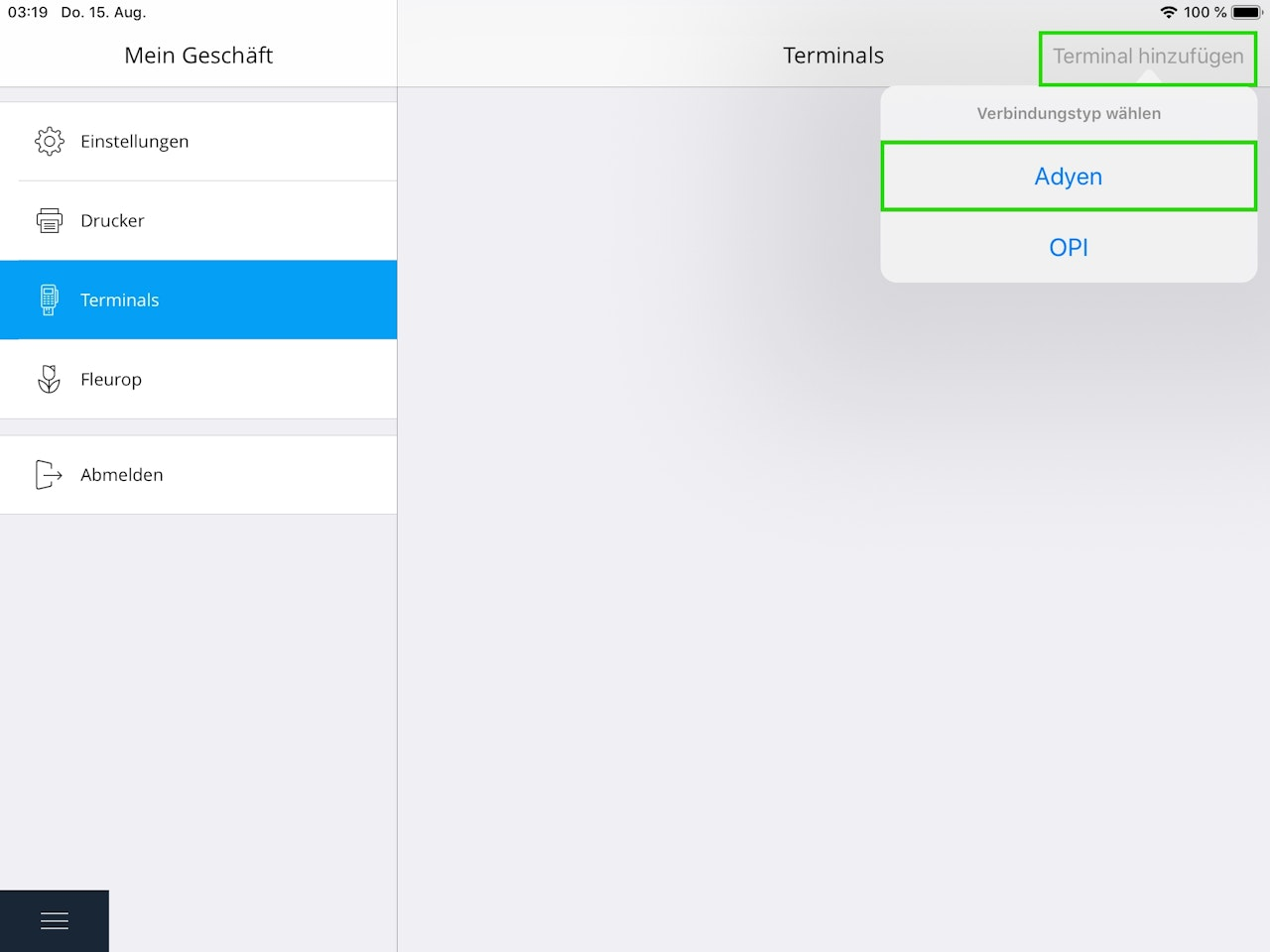
- In the Tillhub app, go to Settings – Terminals and tap Add terminal – Adyen (top right).
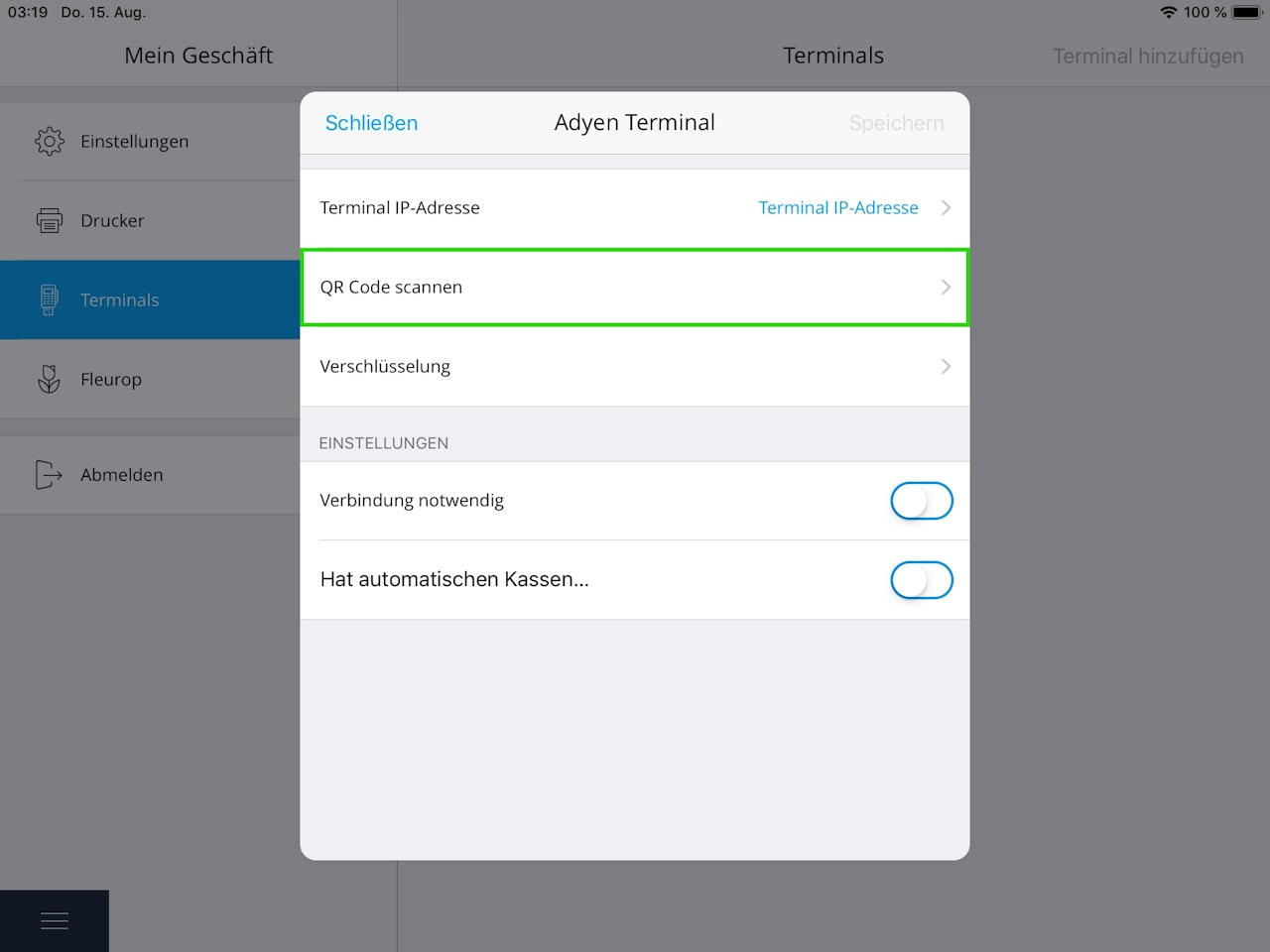
- In the next screen, tap Scan QR code; the iPad camera will open.
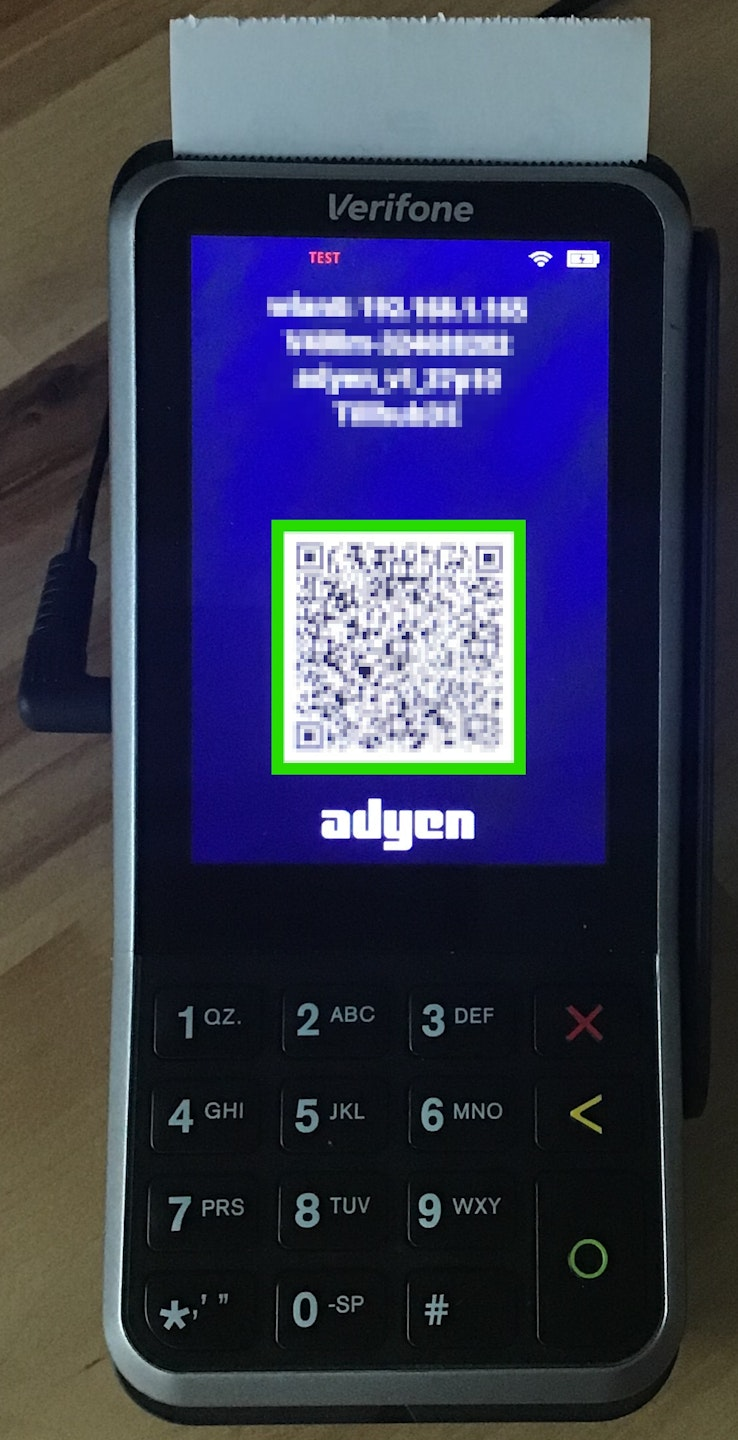
- On the terminal, enter the key sequence: Red, 5, Green, then scan the QR code with the iPad.
- To finish, tap Encryption. You will need to enter data from the next step.
Encryption data
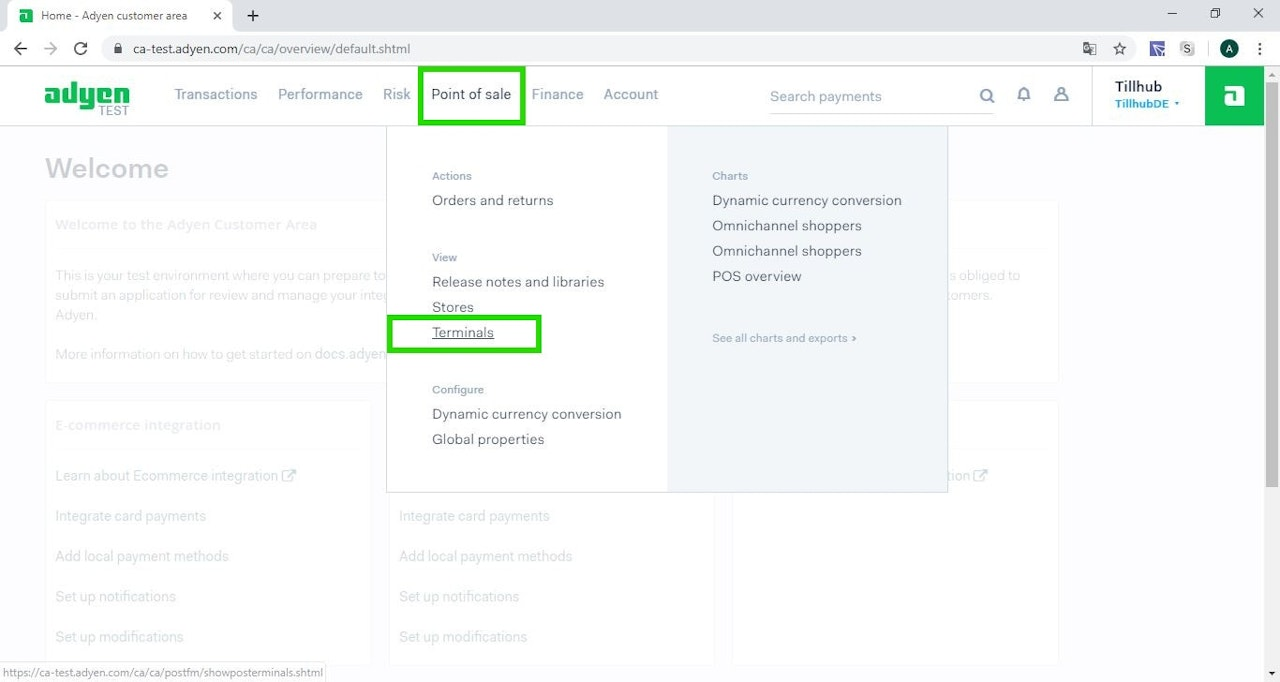
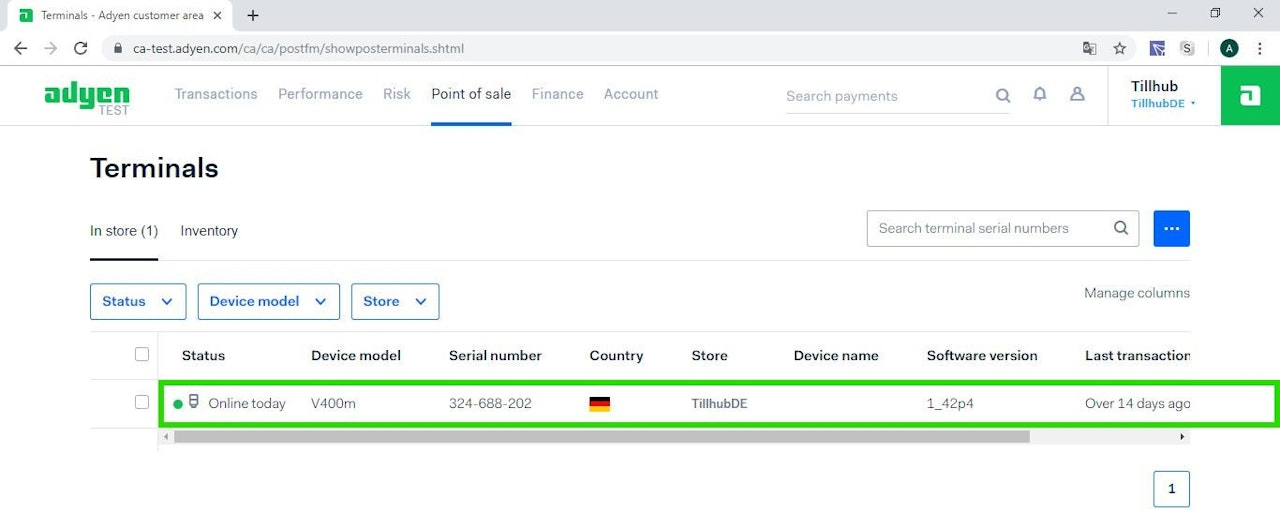
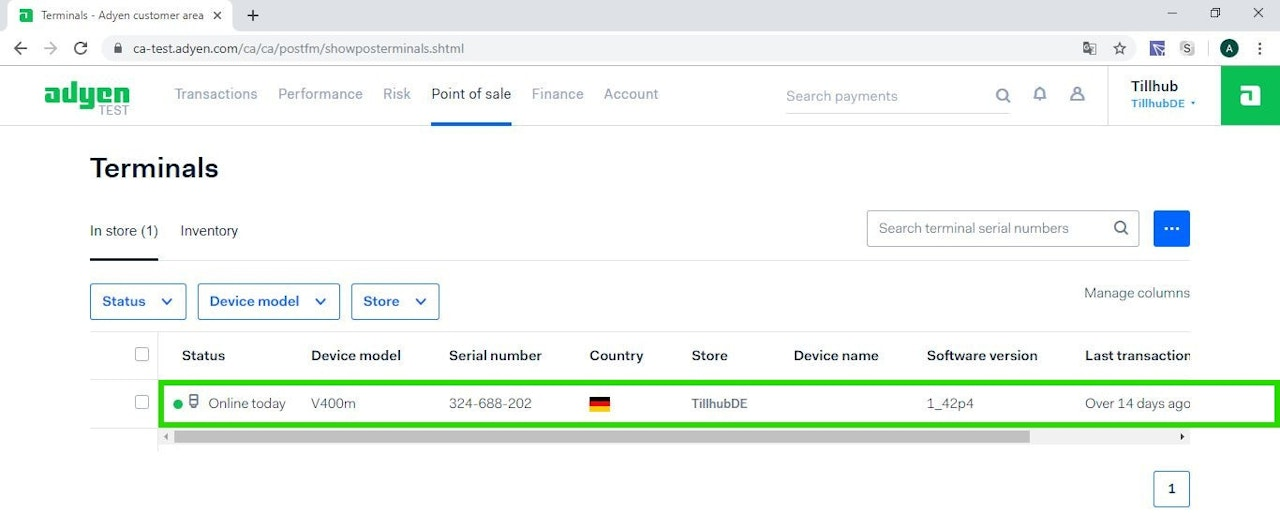
- Log in to Adyen with your merchant credentials and navigate to Point of Sale – Terminals.
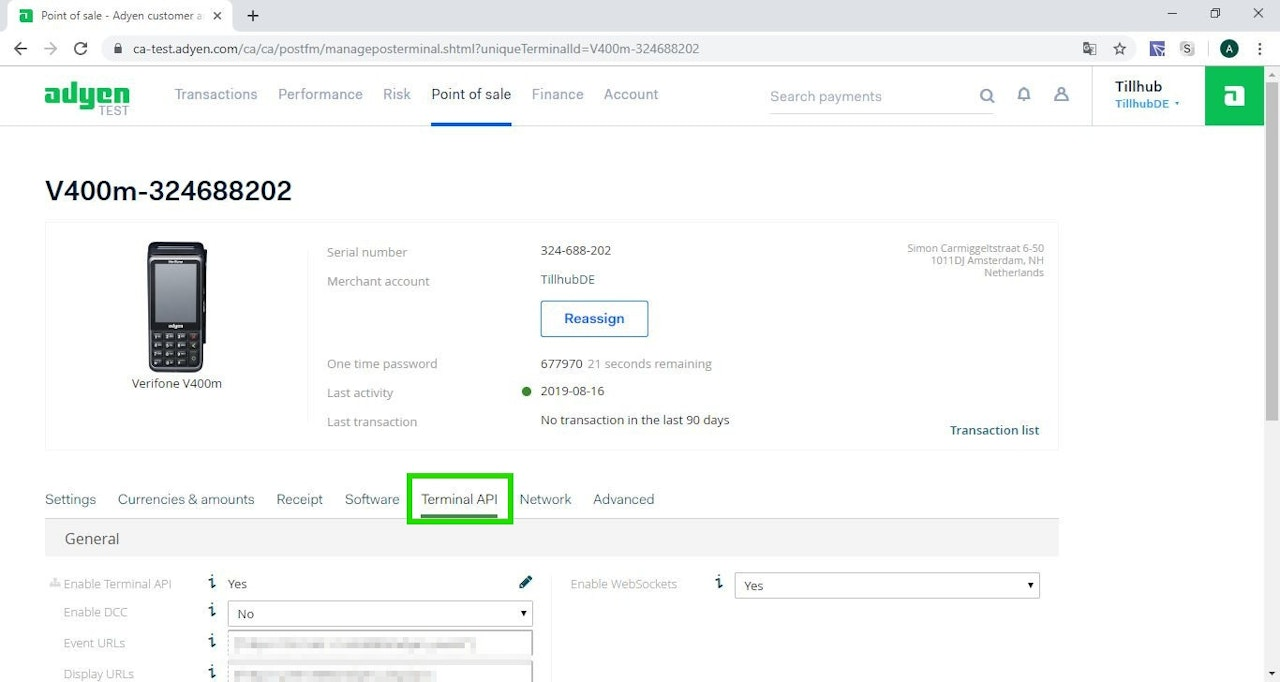
- Select your terminal and tap Terminal API.
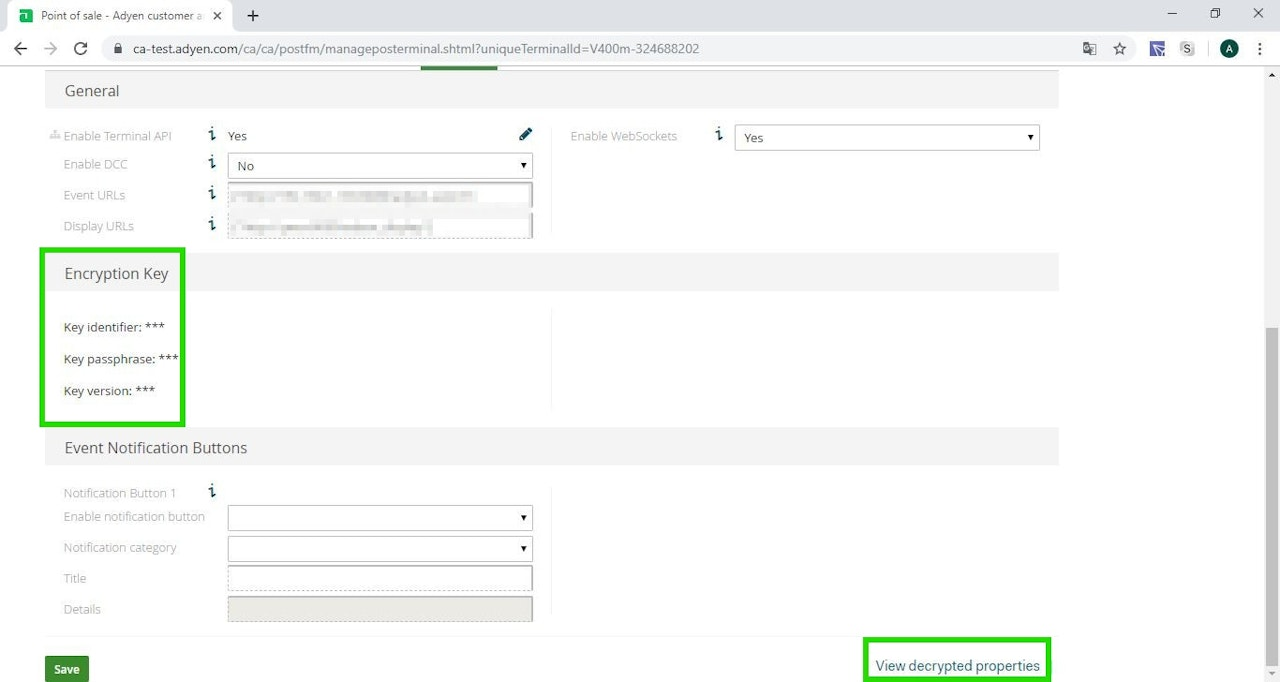
Further down you will see:
- Encryption Key
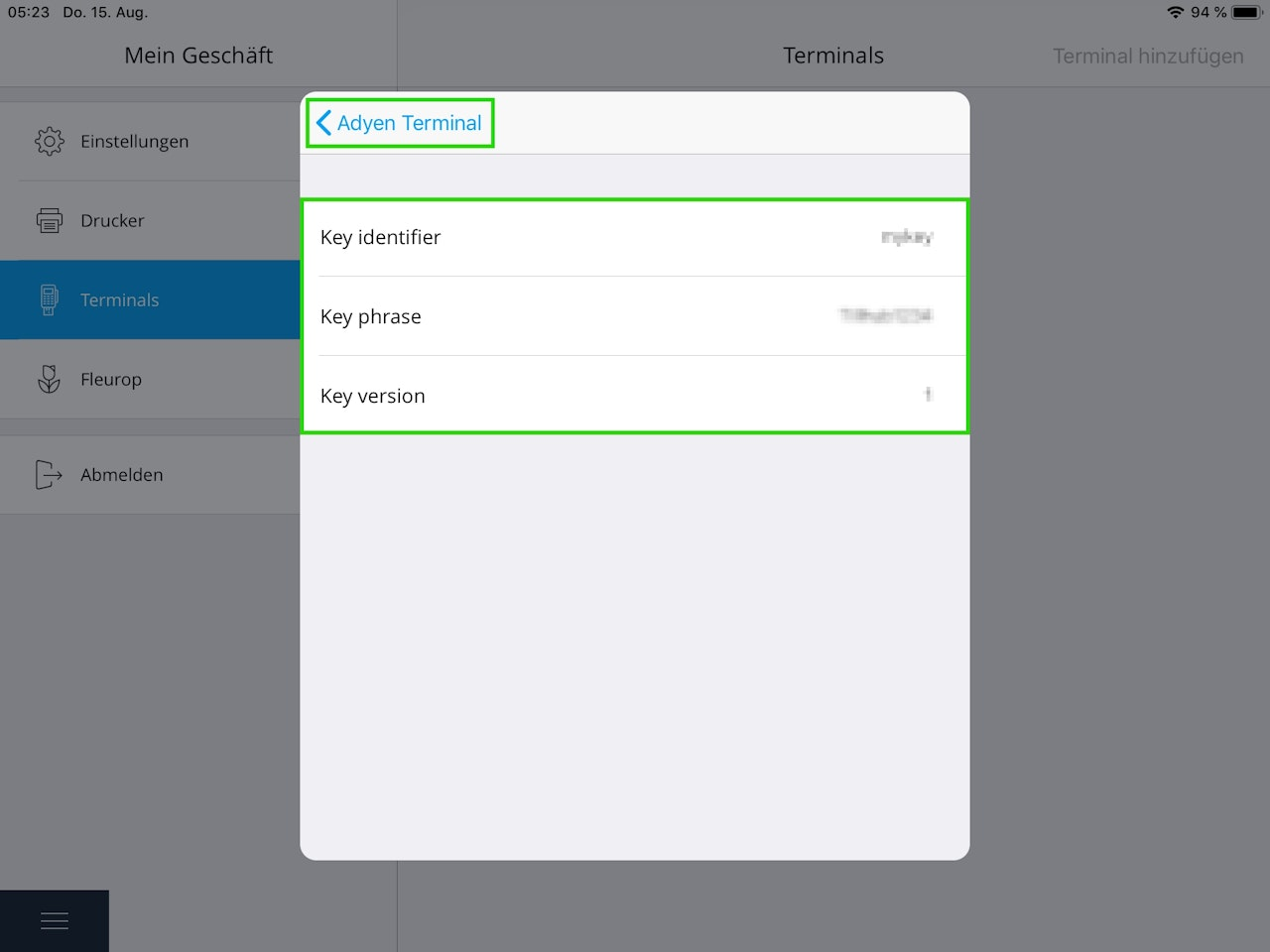
- Key identifier
- Key passphrase
- Key version
To view these without asterisks, scroll to the bottom and tap View decrypted properties.
- Go back to Terminal API and copy the keys into the corresponding fields in the Tillhub app.
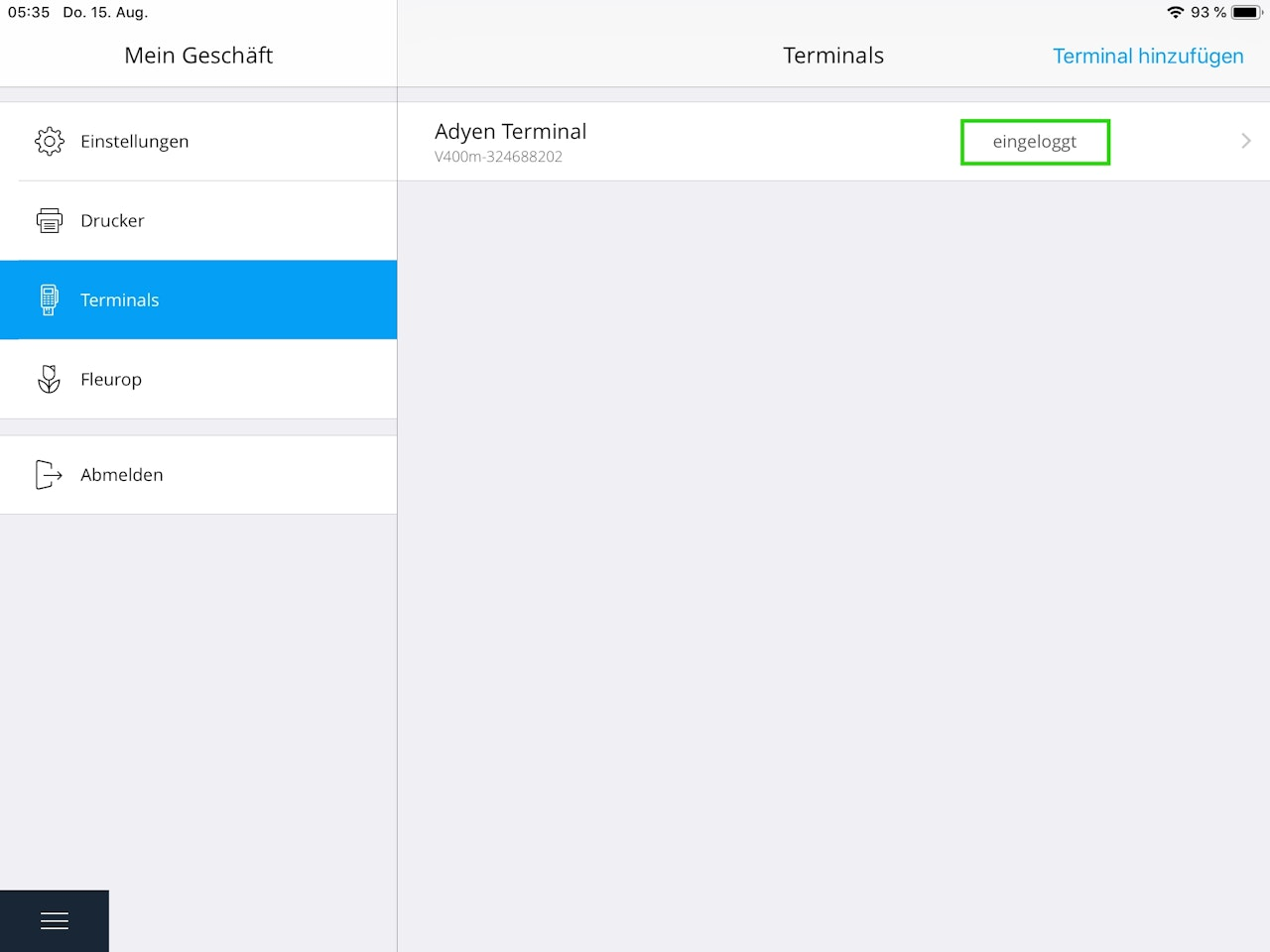
- Then tap Adyen Terminal and Sign in. The terminal and app will establish a connection, and the terminal should appear in the app.
Alternative
- If QR code sign‑in does not work, tap Terminal IP address and enter the terminal’s IP (found above the QR code as “wlan0: …”). If the IP is entered correctly, it will highlight in blue.
- Tap Apply and then Sign in.
Was this article helpful?
That’s Great!
Thank you for your feedback
Sorry! We couldn't be helpful
Thank you for your feedback
Feedback sent
We appreciate your effort and will try to fix the article
