Terminal connection
Modified on Mon, 16 Feb at 10:12 AM
To connect a terminal to the Tillhub app, you first need the terminal’s IP address. You can find this in the terminal’s administration menu. A prerequisite for connecting a terminal to the Tillhub POS is that both the terminal and the iPad are on the same Wi‑Fi network.
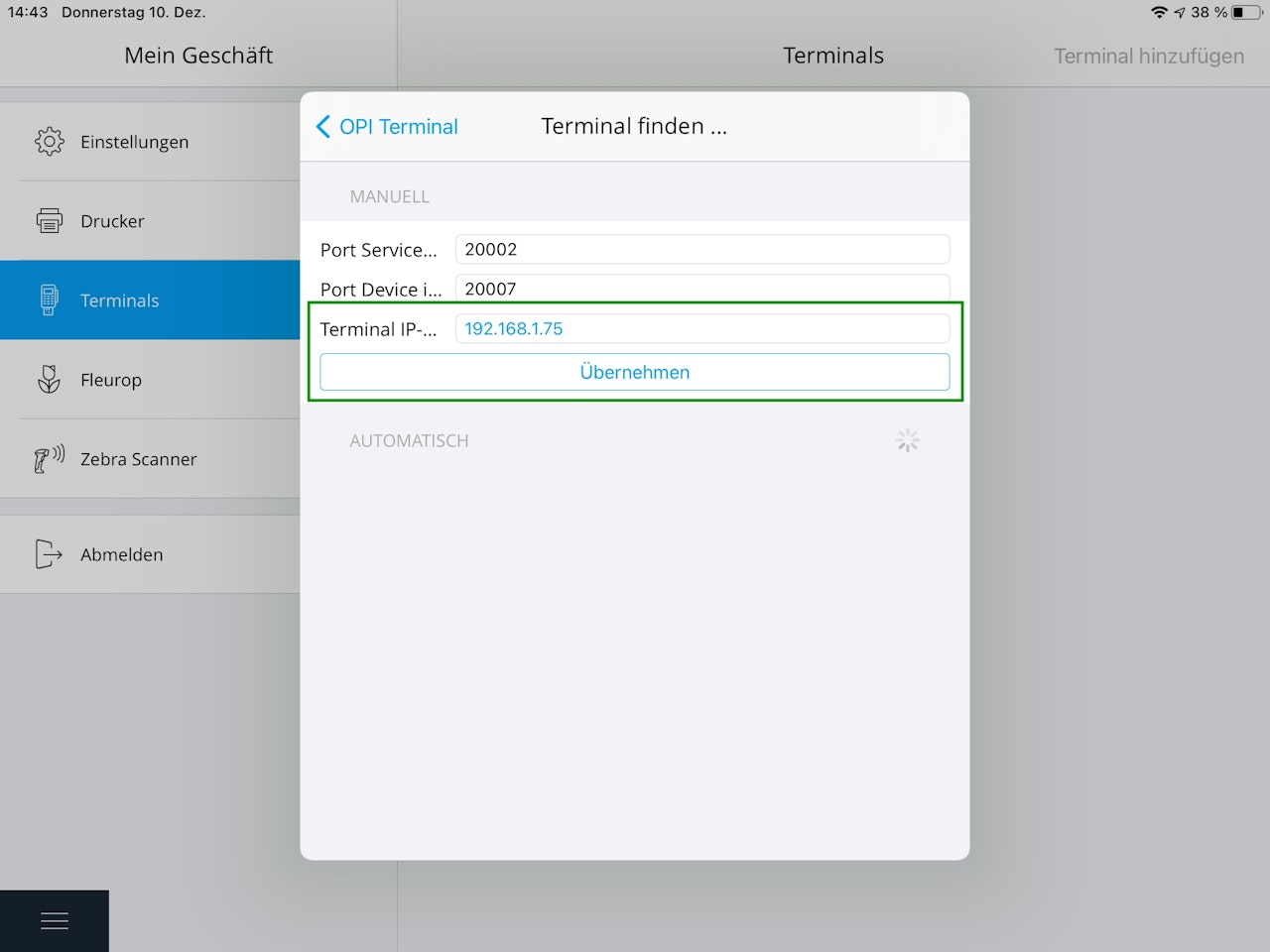
The ports on the terminal must also be set correctly.
The following ports are required:
- POS incoming: 20002
- POS outgoing: 20007
Then open the Tillhub app settings and go to the “Terminals” tab.
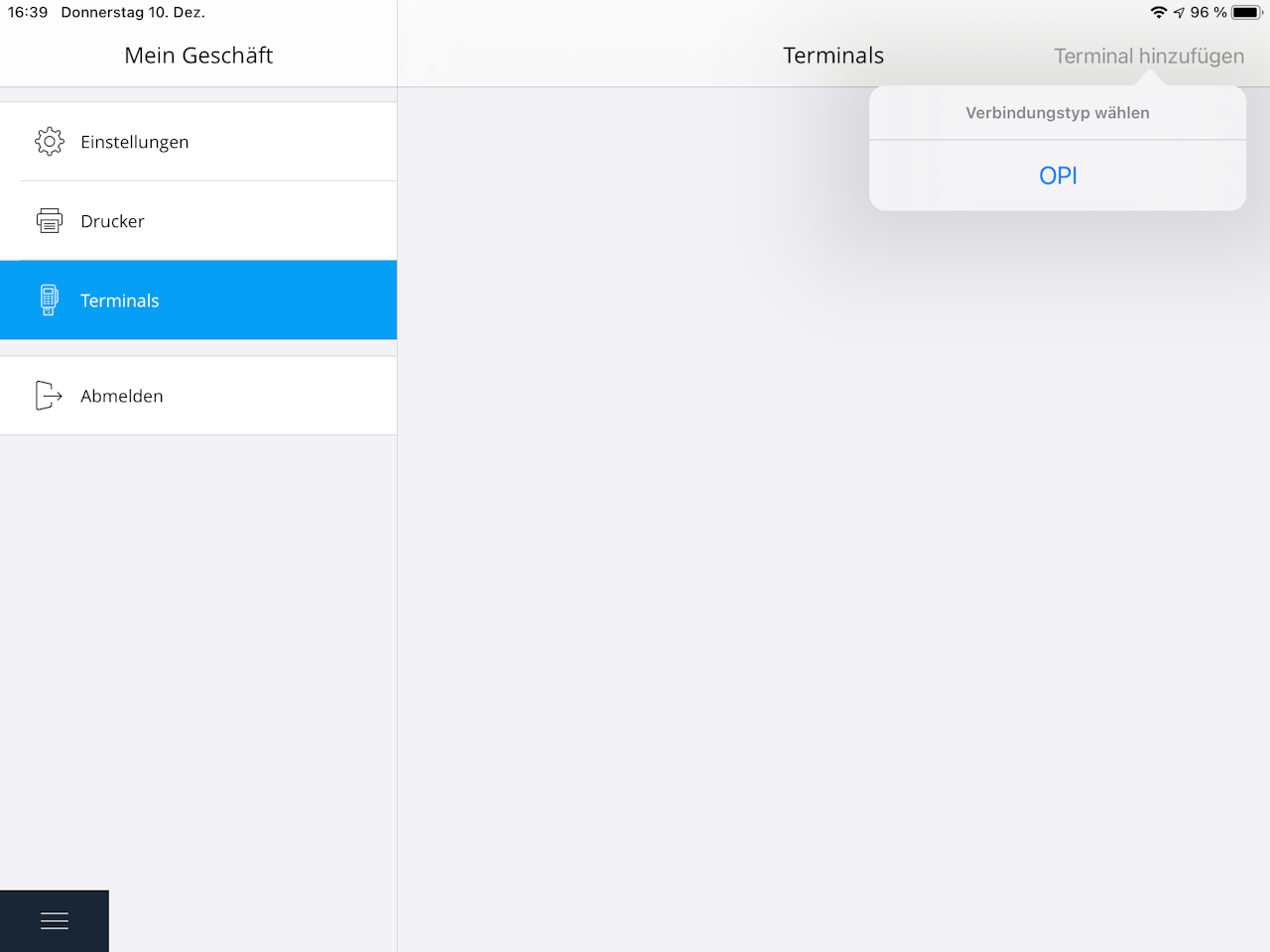
Select “Add terminal” and tap the interface required for your terminal.
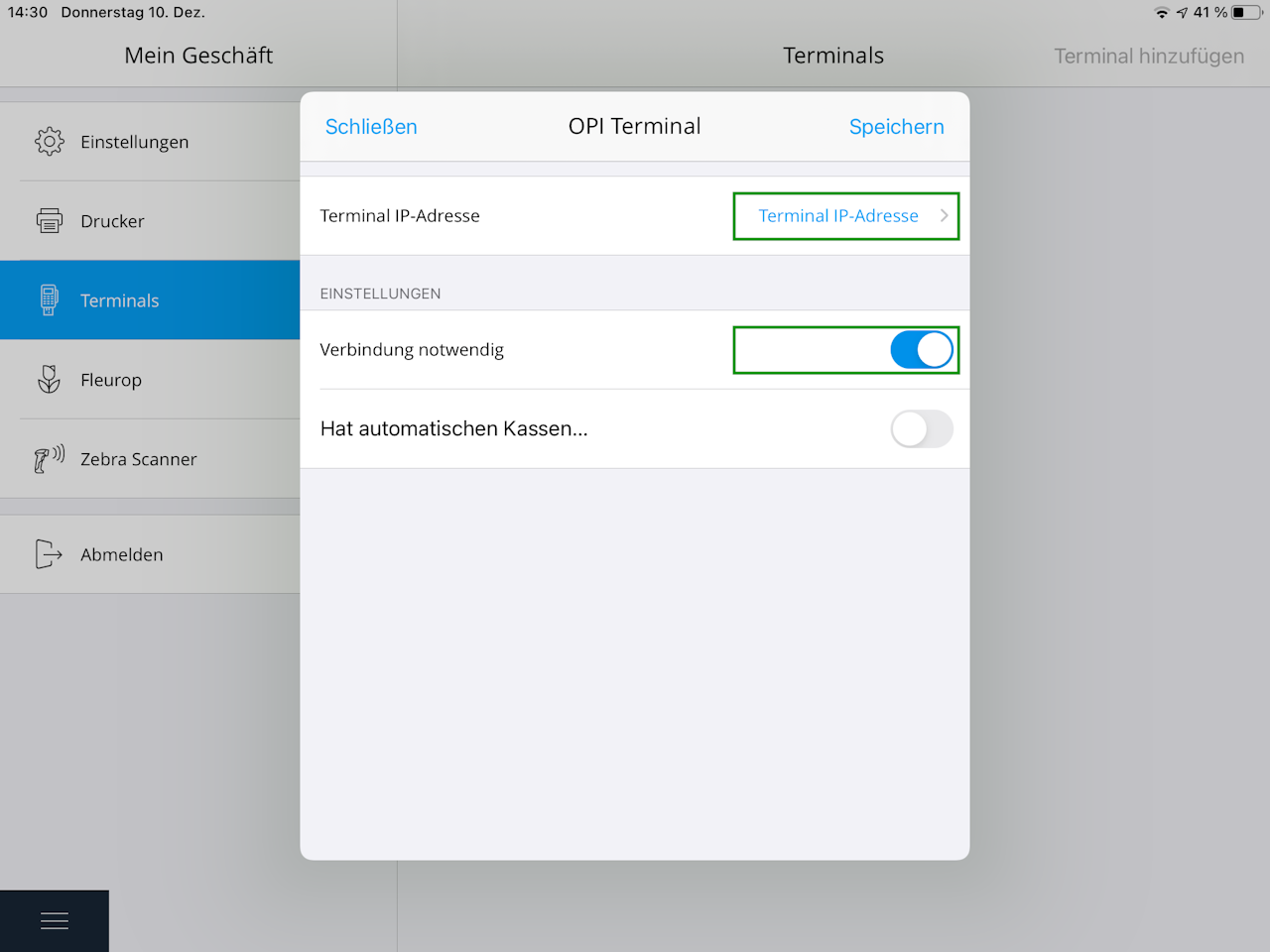
In the next screen, enable the toggle for “Connection required” and tap the blue “Terminal IP address” to enter your terminal’s IP address.
Enter the terminal’s IP address in the “Terminal IP” field under “Manual entry” and tap “Apply.”
In the next screen, at the bottom under Actions, tap “Sign in.”
Important: If the IP address is shown in red, please check the network connection of your terminal and your iPad.
Your terminal is now connected to the Tillhub POS and ready for use.
If you have any questions or issues, our technical support is available at +49 30 346 496 43.
Was this article helpful?
That’s Great!
Thank you for your feedback
Sorry! We couldn't be helpful
Thank you for your feedback
Feedback sent
We appreciate your effort and will try to fix the article
