SumUp Air terminal initial setup
Modified on Mon, 16 Feb at 10:12 AM
Due to high demand for the “SumUp Air” terminal, Tillhub now also supports this device.
This article shows you how to connect the terminal to the app and then use it.
Important:
- To ensure a smooth process, make sure the SumUp app is NOT installed on your iPad.
- You only need the Tillhub app to set up and use your SumUp Air terminal.
- If the SumUp app is installed, please delete it first, otherwise connection issues between the SumUp Air and the Tillhub app may occur.
- After purchasing your SumUp Air, you created an account. Have those login details ready.
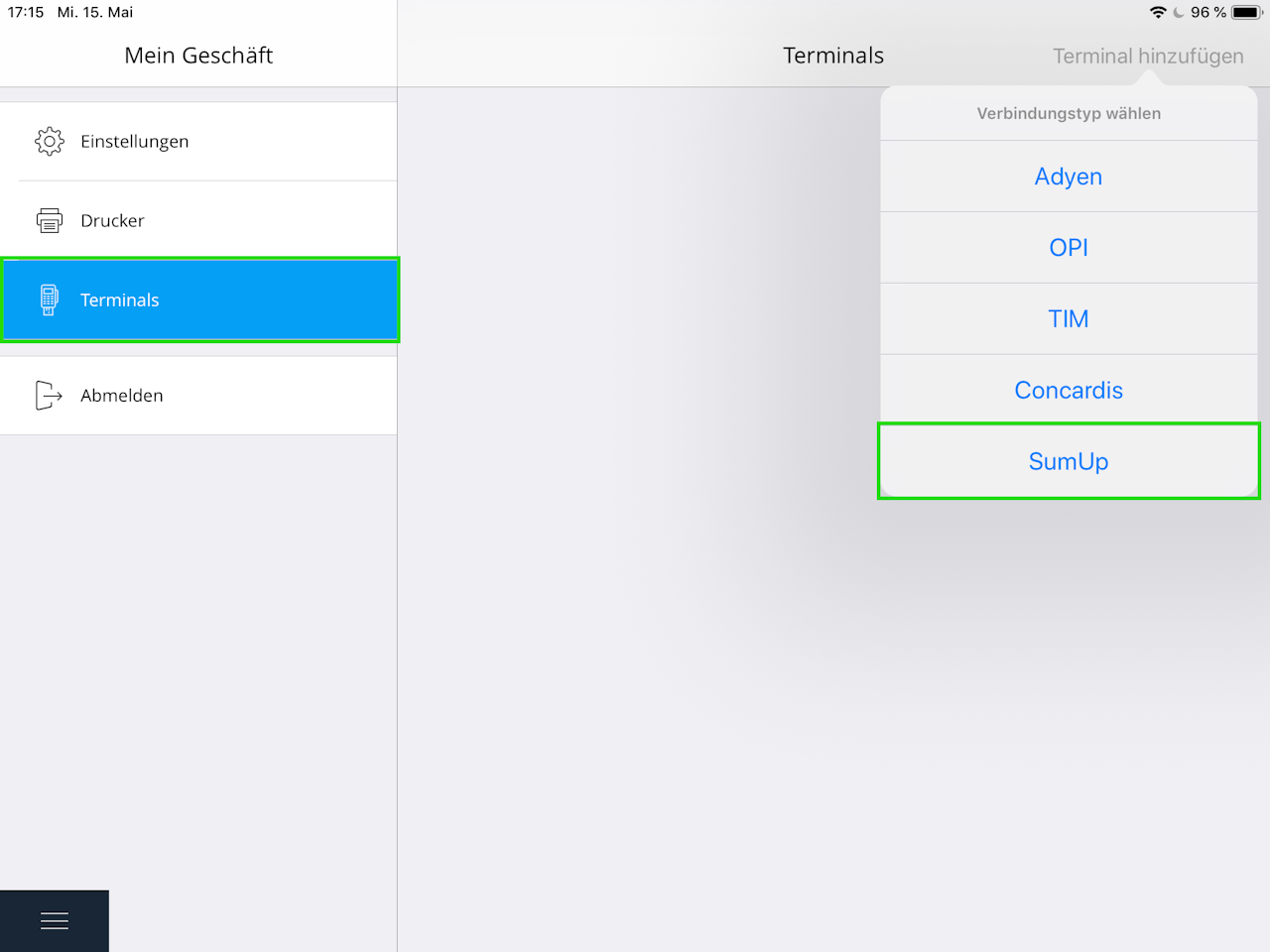
Note: Make sure Bluetooth is enabled on your iPad. Please note that your SumUp device will not appear in the list of Bluetooth devices.Start by opening “Settings – Terminals” in the Tillhub app. Then, in the top-right corner, select “Add terminal – SumUp.”
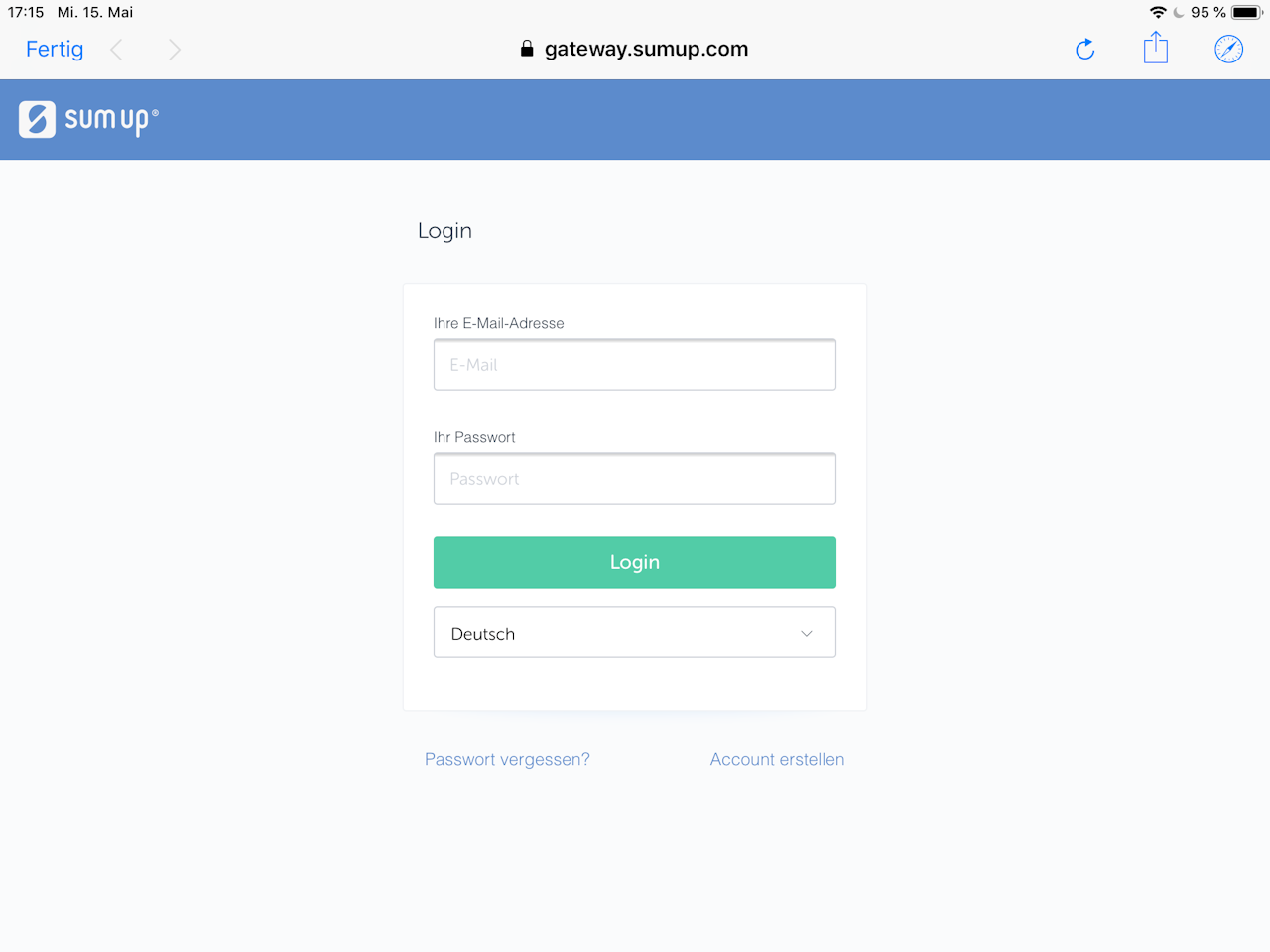
A new window will open where you must enter the login details for your SumUp account.
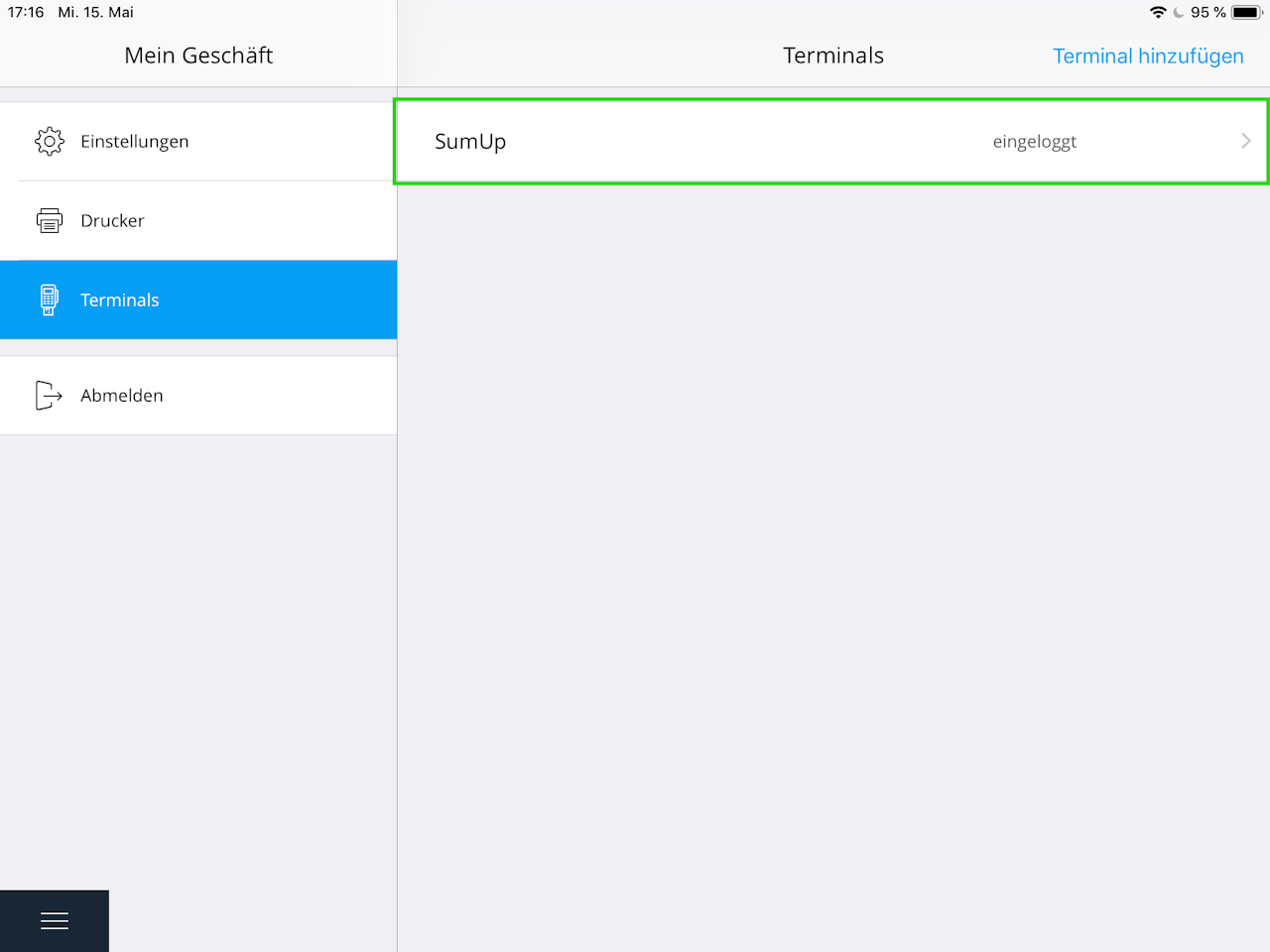
If everything has been done correctly, “SumUp” will now appear in the “Terminals” overview with the status “logged in.” Tap this entry.
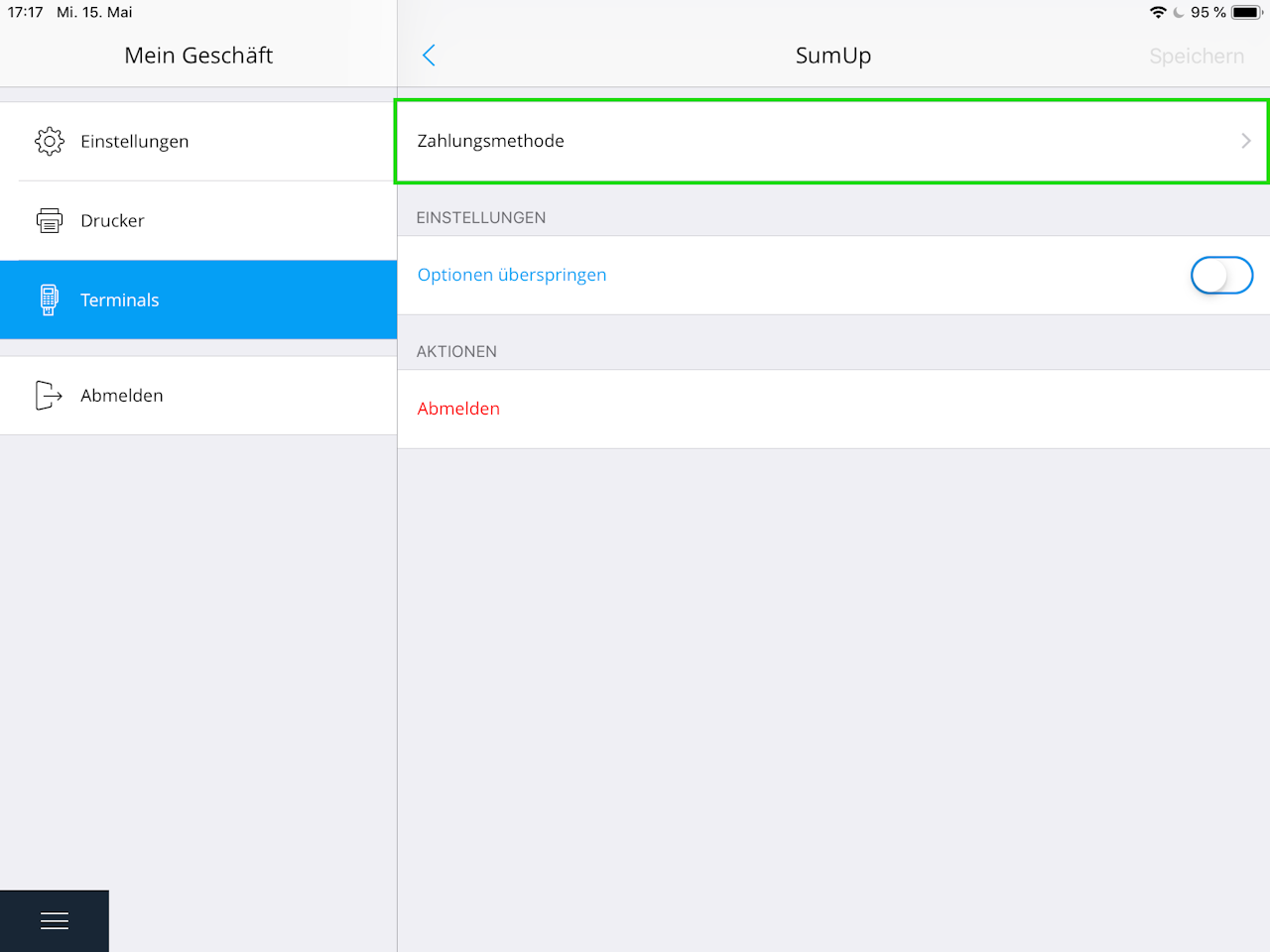
The configuration screen for the SumUp Air terminal will open. Select “Payment method.”
Another window will open showing your purchased terminal. Tap it and make sure your SumUp Air is switched on.
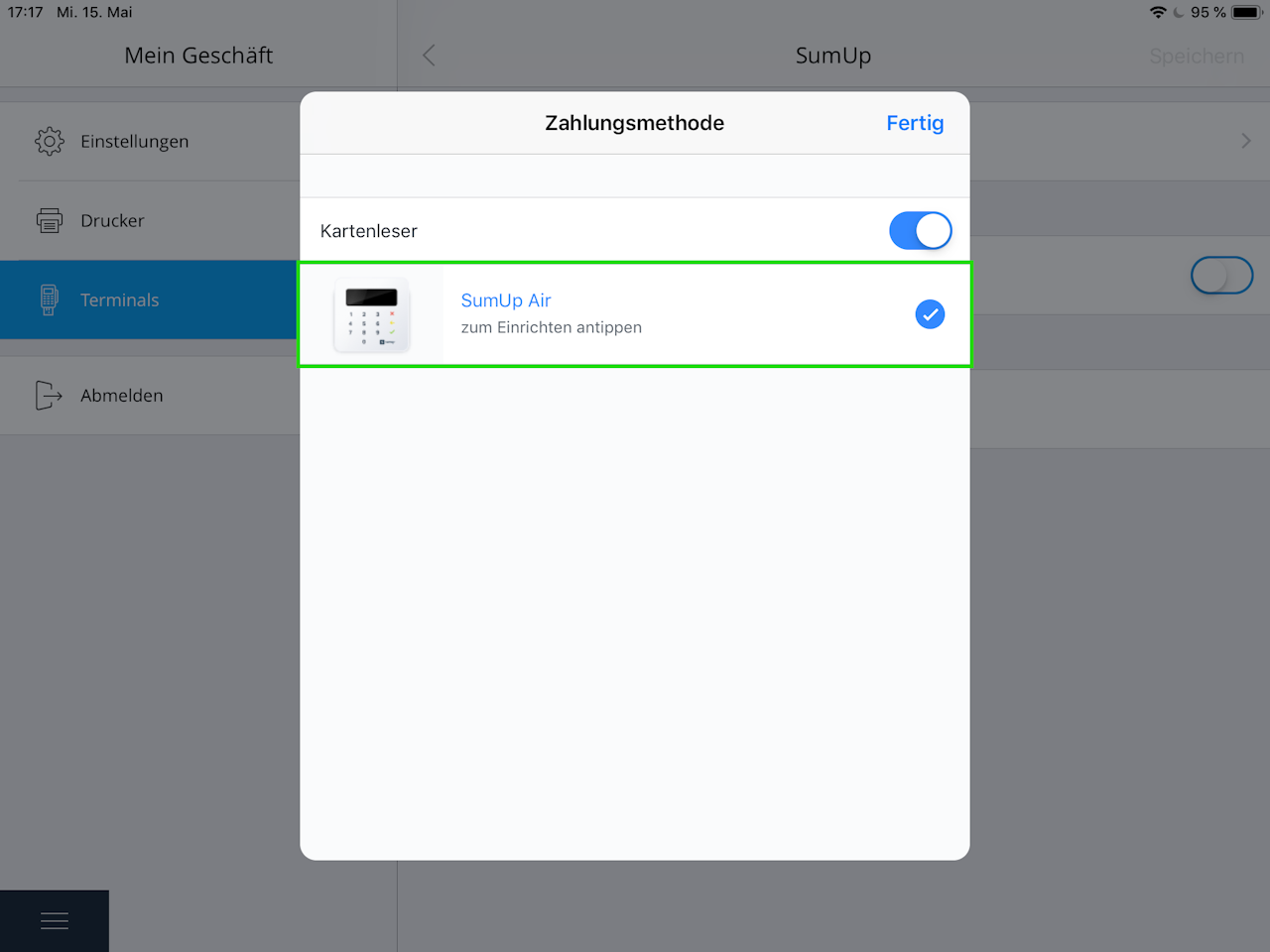
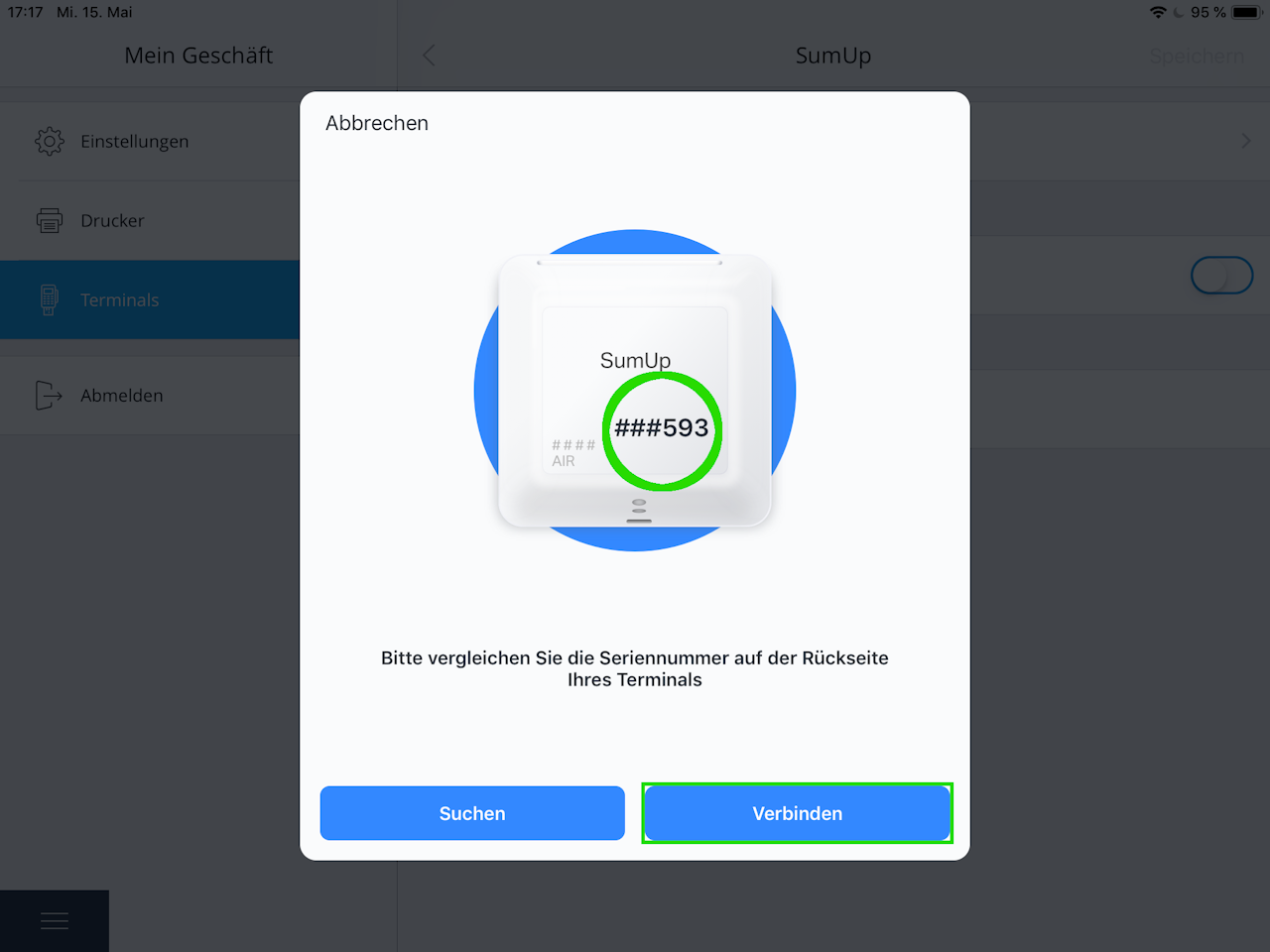
The Tillhub app and the terminal will now pair automatically via Bluetooth, and a window will appear asking you to compare the device number (on the back of the device) with the one on the screen.
If everything matches, tap “Connect.”
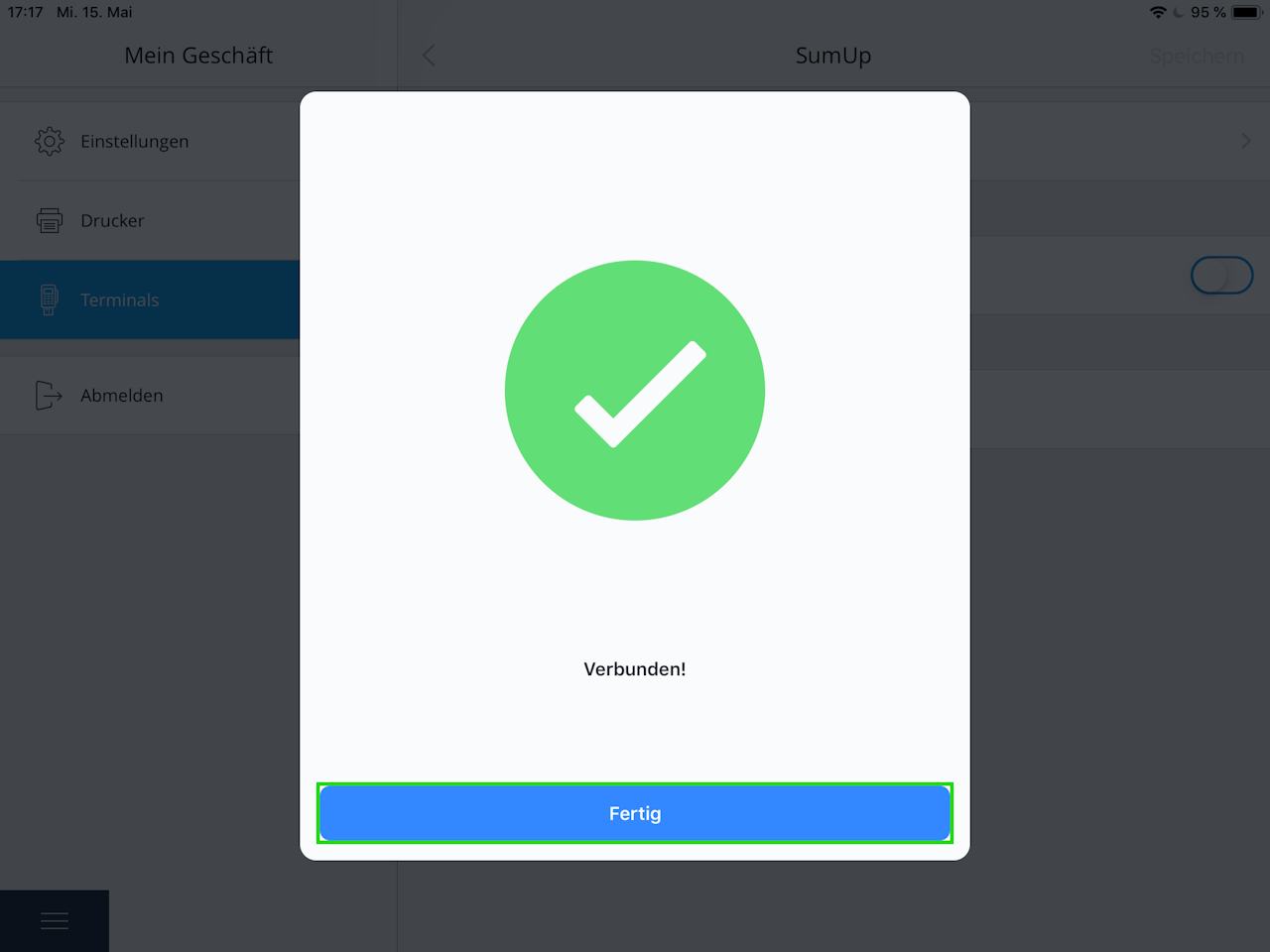
The app will let you know whether the process was successful.
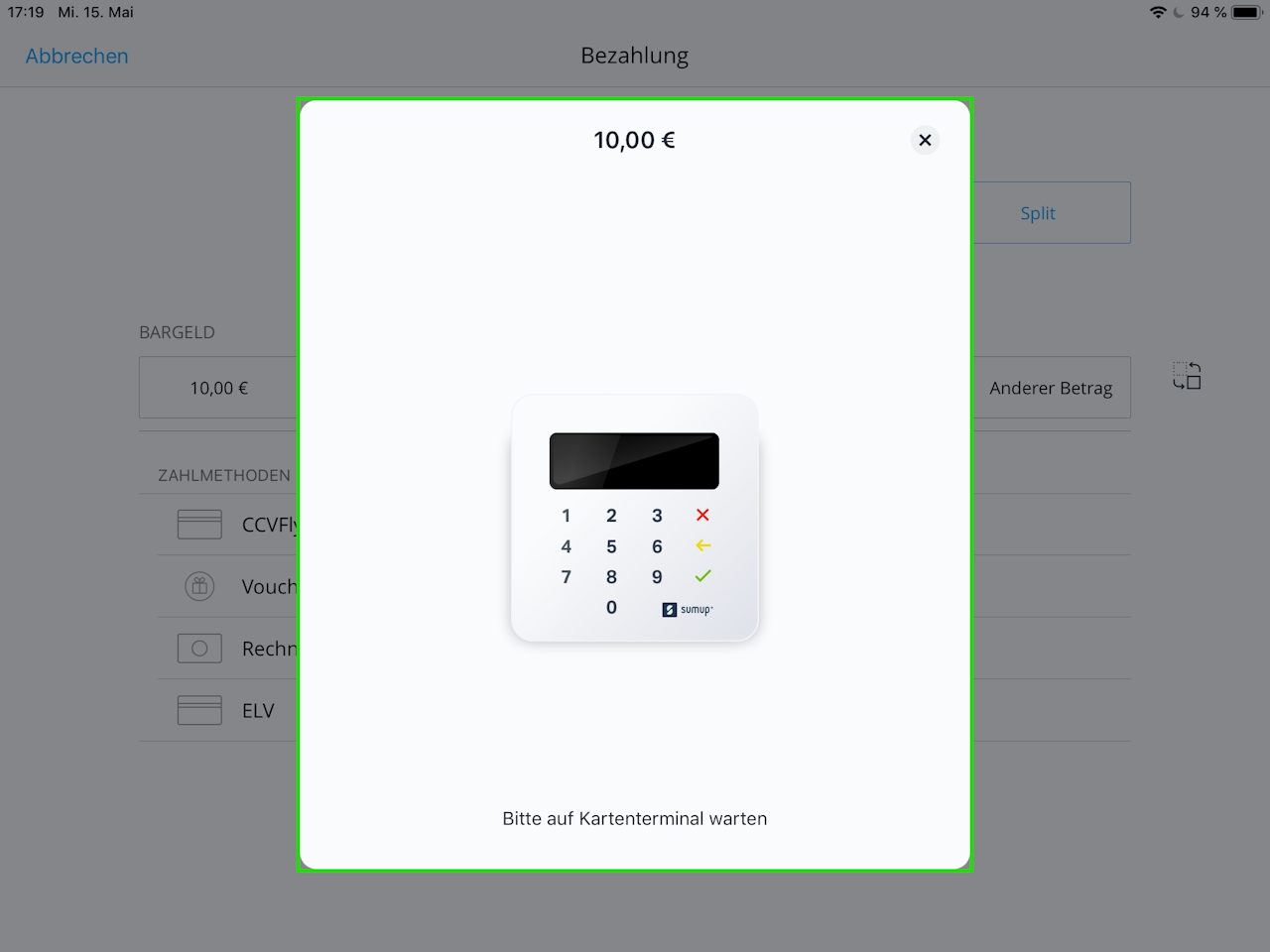
You can now continue taking payments with Tillhub as usual.
All payments via debit, Visa, Mastercard, etc. will now be routed to the SumUp Air.
Was this article helpful?
That’s Great!
Thank you for your feedback
Sorry! We couldn't be helpful
Thank you for your feedback
Feedback sent
We appreciate your effort and will try to fix the article
