S-POS Cube – Connecting to the Tillhub Till
Modified on Wed, 15 Jul at 8:37 AM
1. Start the app
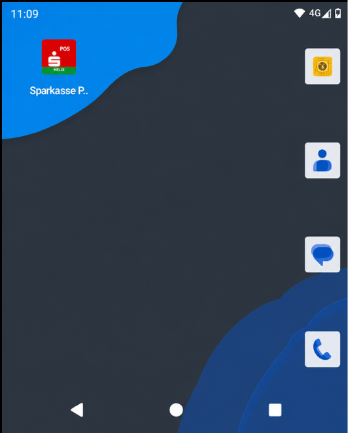
Open the Sparkasse POS / S-POS app on the terminal.
2. Payment overview
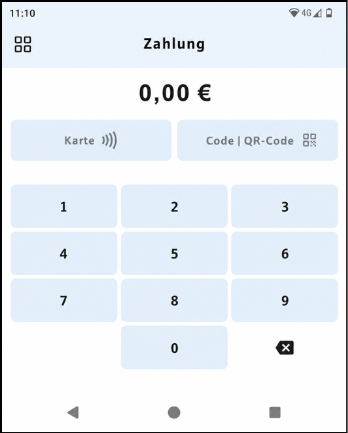
After starting the app, you will be on the payment screen. Select the menu icon (four small tiles) in the top left corner to access the app's main menu.
3. Open the menu
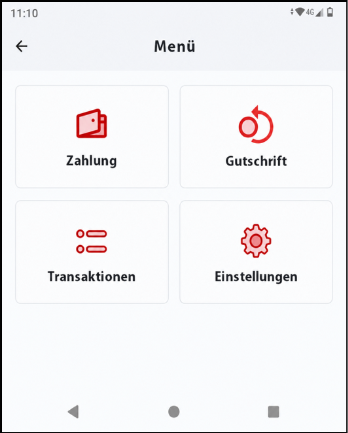
In the main menu, you will see the sections Payment, Refund, Transactions, and Settings. Select the Settings menu item.
4. Manage payment systems
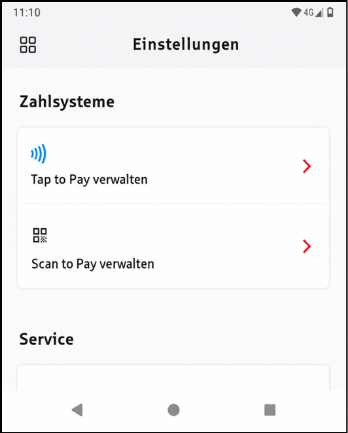
In the settings, you will find the Payment Systems section. Select Manage Tap to Pay here.
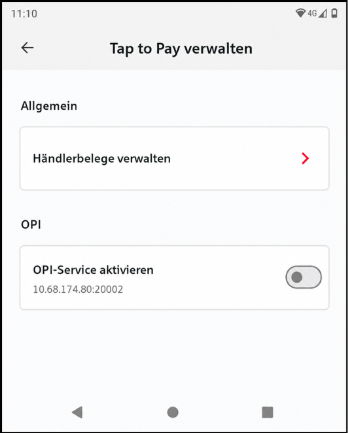
5. Activate the OPI service
In the Manage Tap to Pay section, you will find the OPI area. Enable the switch for Activate OPI Service. Below this menu item, the terminal's local address will be displayed, for example:
10.68.174.80:20002
This address is required for connecting to the Tillhub till.
6. Confirm the notice
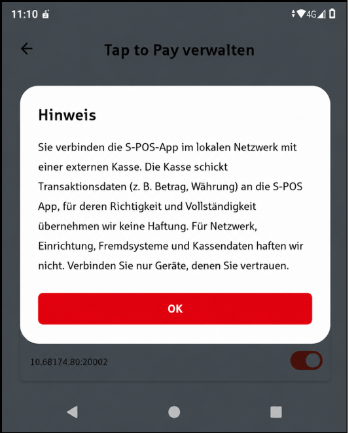
After activation, a notice will appear regarding connecting the S-POS app to an external till on the local network. Confirm this notice with OK.
7. Check activation
The OPI service has been successfully activated when the switch is displayed in red. Note down the displayed IP address, for example:
10.68.174.80:20002
This information can then be entered into the Tillhub till for the terminal connection. Normally, however, the Cube is automatically detected by the Tillhub till.
8. Add Terminal in the App
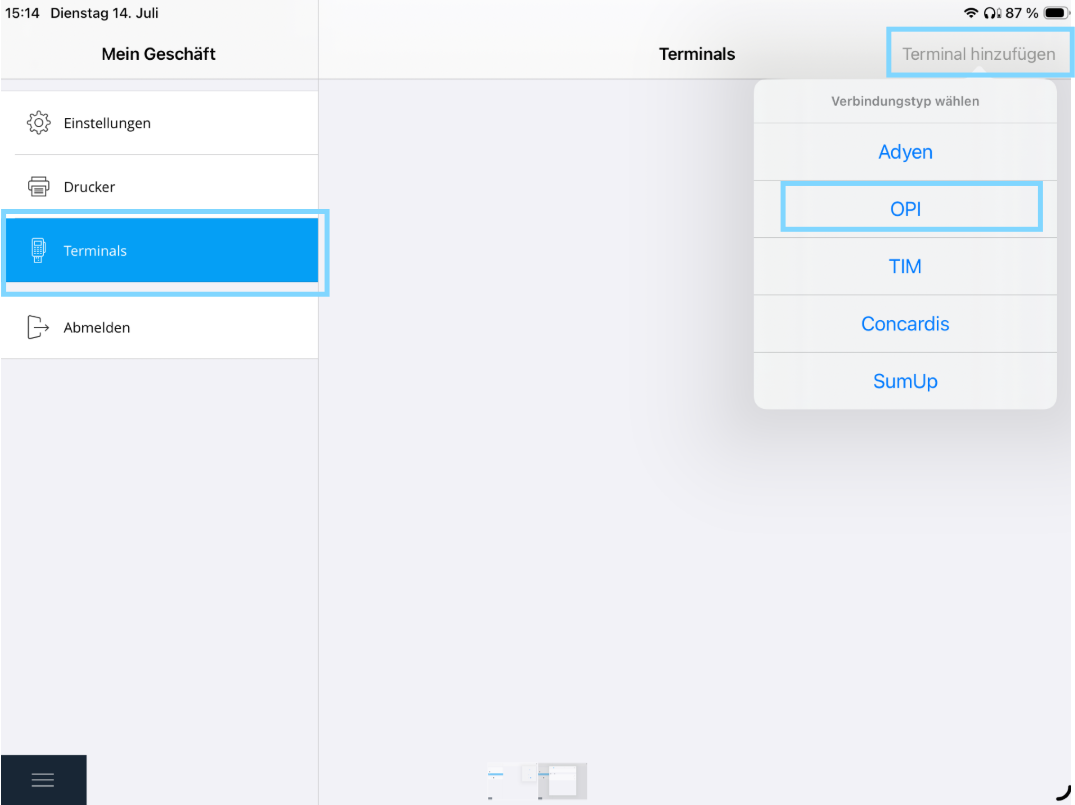
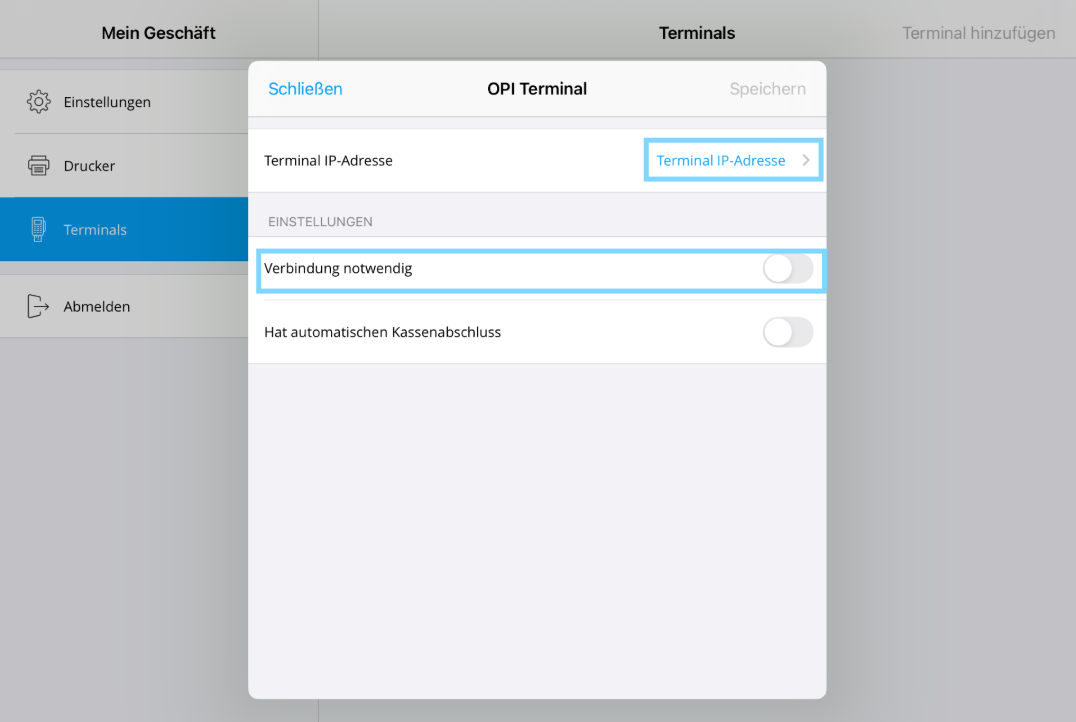
Open the Tillhub App and go to Settings. Navigate to Terminals on the left and click on "Add Terminal" in the top right corner. Select OPI and then click on "Connection required" followed by "Terminal IP Address". Click on the displayed IP address to add the terminal to the register. Finally, click on "Sign In" - the terminal is now connected to the register.
Was this article helpful?
That’s Great!
Thank you for your feedback
Sorry! We couldn't be helpful
Thank you for your feedback
Feedback sent
We appreciate your effort and will try to fix the article