DATEV/tax advisor
Modified on Wed, 1 Apr at 1:15 PM
Where can I enter my DATEV header data?
To do this, log into your Tillhub dashboard at the following link https://dashboard.tillhub.com/login
Leave the "Organization" field blank.
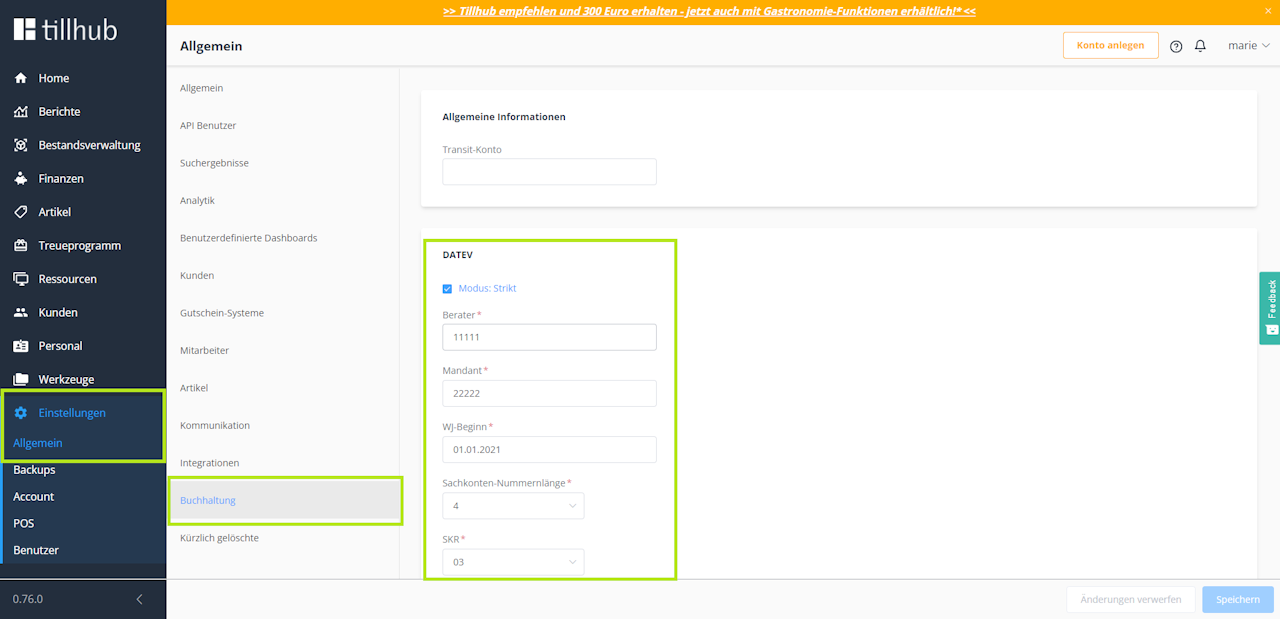
Then navigate to "Settings" in the main menu on the left and then to "General" in the submenu.
Then click on "Accounting" on the right-hand side of the screen.
The DATEV section will now appear on the right-hand side of the screen, where you can enter your DATEV header data in the required fields (*). You will receive the DATEV header data from your tax advisor.
Note: If the DATEV section with the mandatory fields does not appear below the transit account, it means that either you have not booked the DATEV option or it has not yet been activated by us. In the latter case, please contact our customer support.
Internal transit account (clearing account)
The booking logic of the Tillhub POS system follows the current guideline of the German Association of Tax Advisors:
The various revenue accounts are initially posted against an internal transit account (clearing account), while the internal transit account is posted against the cash register and the non-cash payment types (receivables accounts).
Thus, the export is a breakdown of all sales per cash register closing: once per VAT rate and once per payment method.
This also enables a clean separation of all sales per payment type in accordance with GoBD, especially for transactions involving multiple payment types. In addition, all cash register postings against a deposit and withdrawal account are listed – including any difference posting that may have occurred in the cash register closing account.
It is therefore essential that you enter a non-profit affecting account for the internal transit account, such as 1371 for SKR03.
Where can I enter the account number for the internal transit account?
Navigate to "Settings" in the menu on the left and then to "General" in the submenu. Then click on "Accounting" on the right side of the screen. At the top right, in the empty field titled "Transit account", you can enter your non-profit affecting account for the internal transit account of the Tillhub POS system.
How does my tax advisor receive my DATEV export?
You basically have two options to provide your tax advisor with the DATEV export:
1. You create the DATEV export yourself and send it to your tax advisor as a CSV file by email.
2. You give your tax advisor access to your dashboard so they can create and download the DATEV export themselves.
Note: In the following articles, we will show you how a DATEV export can be generated in the dashboard.
Tillhub video tutorial: DATEV export
In this video, we show you how to create a DATEV export in the dashboard.
In the following articles, you will find detailed information in written and illustrated form.
How do I create a DATEV export?
In this article, we show you step by step how to create a DATEV export.
Step 1: Access the menu
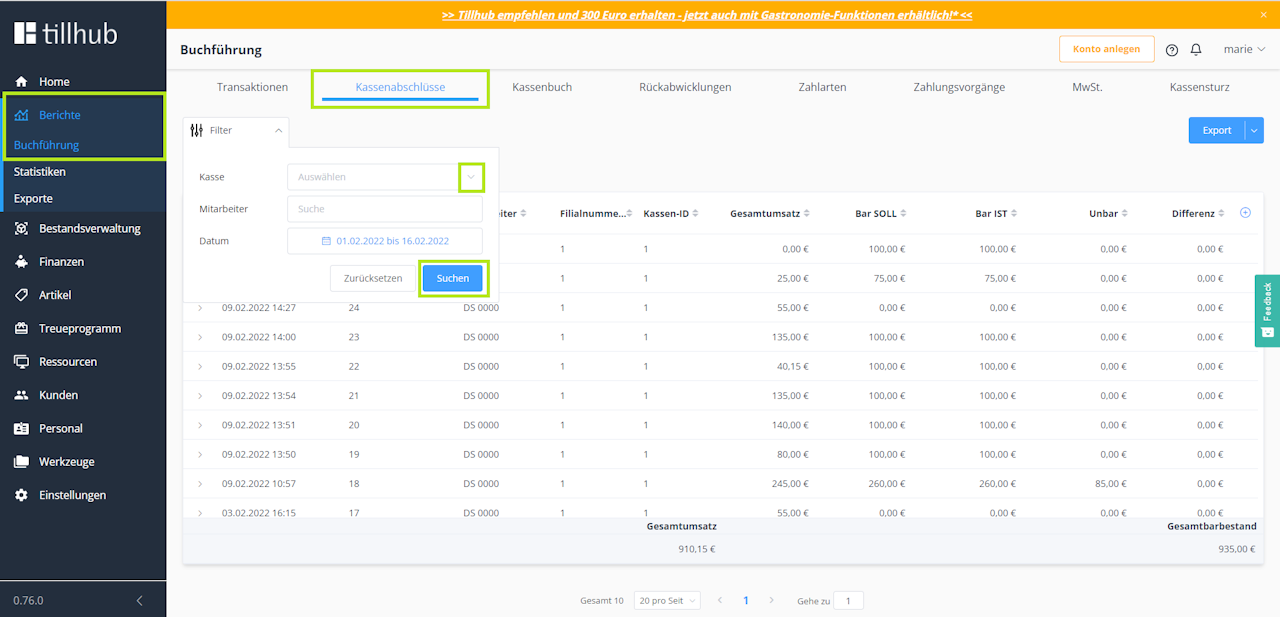
Before the DATEV export can be created, open the dashboard and navigate to "Reports - Accounting" in the menu on the left.
Then select the "Cash register closures" section.
Step 2/1: Create DATEV export
To create the export, it is necessary to select a time period for the cash register closures.
You can select or adjust the date individually via the drop-down menu to the right of the search bar.
Once you have selected the desired period, confirm it by clicking "Search". Only cash register closures from the selected period will then be displayed.
Caution: The export only works if there are cash register closures in the selected period.
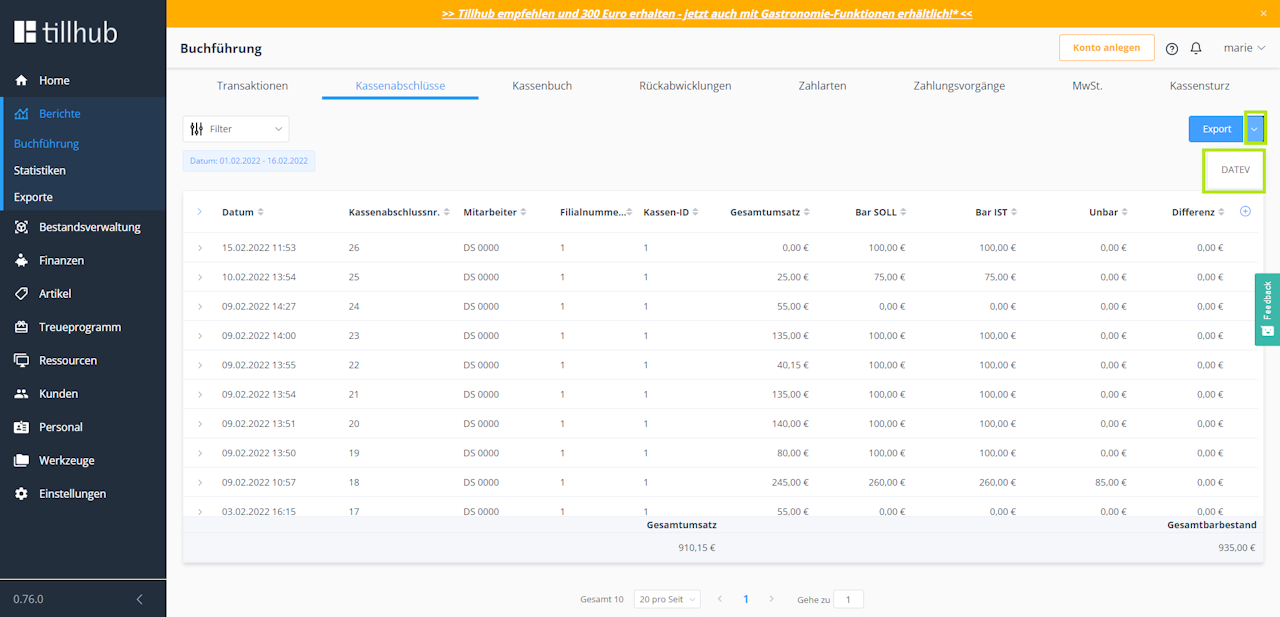
Next, click on the drop-down menu to the right of the blue export button on the right-hand side of the screen to open the DATEV option.
Note: If the drop-down menu is not displayed, please contact Tillhub Support. If you have not booked the DATEV export function, you can order it later through our sales team at +49 30 346 496 43.
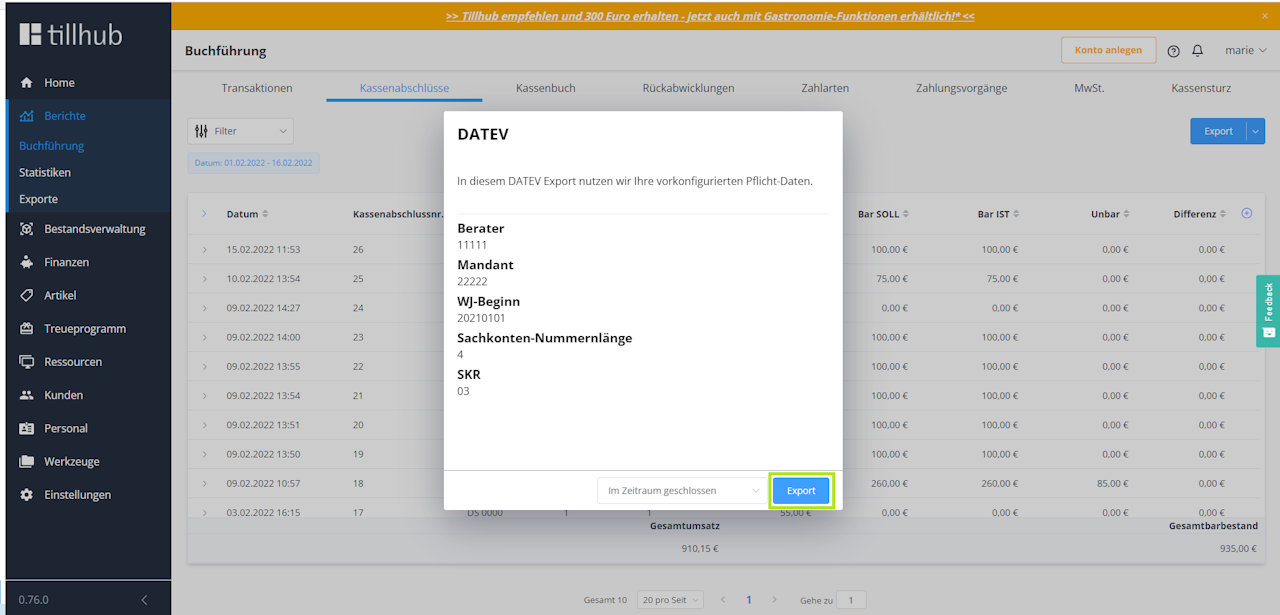
When you click on the DATEV option, a new window will open with your preconfigured DATEV header data.
If all data is correct, click on the blue "Export" button at the bottom right to start the download. This process may take a moment depending on the amount of data to be processed.
Caution: If the required data is not filled in, we will show you in the following article where you can enter it: "Where can I enter my DATEV header data?"
Step 2/2: Create DATEV export
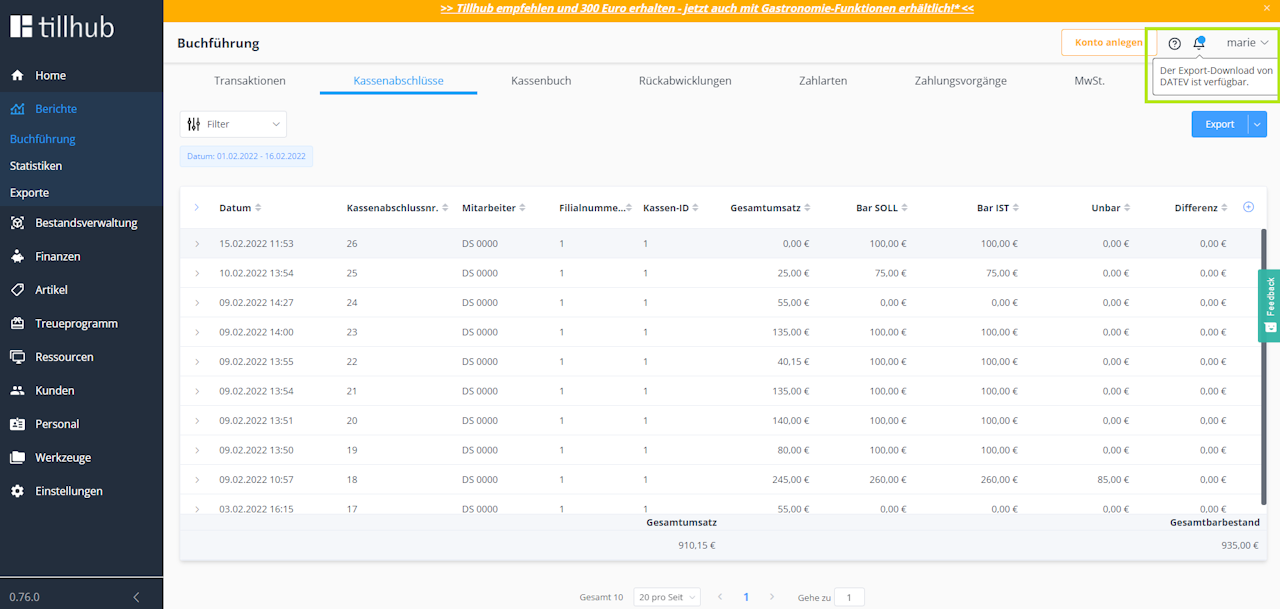
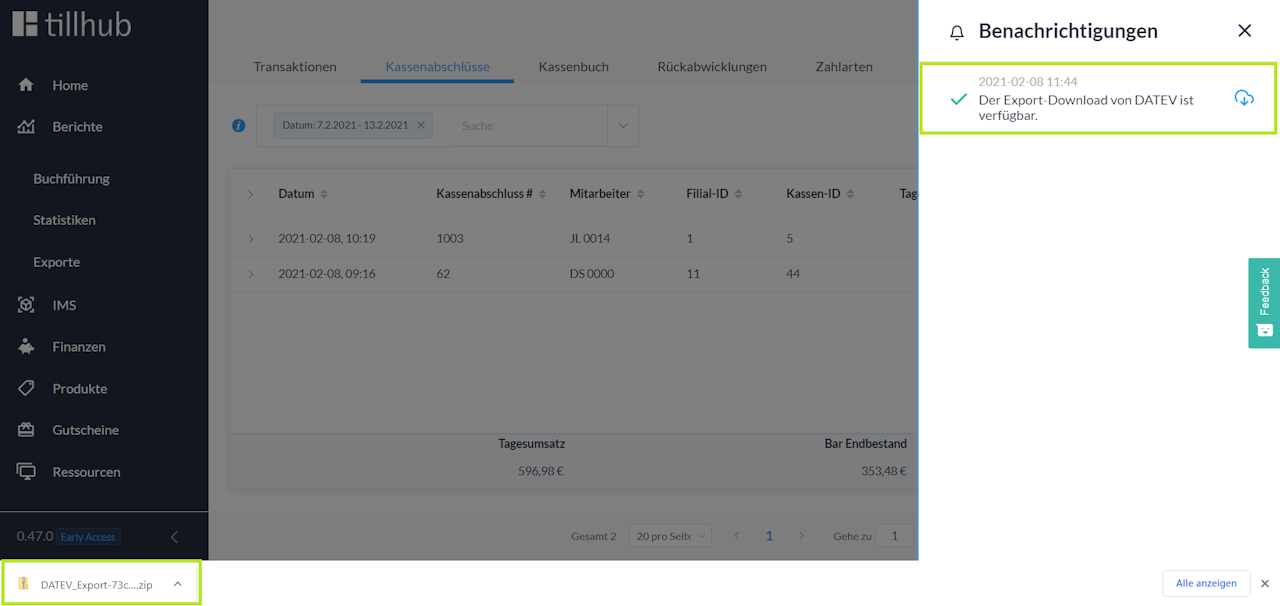
After the download, a blue dot will appear on the bell icon along with the following notification: "The DATEV export download is available".
Clicking on the bell icon will take you to your notifications where you can download the DATEV export by clicking on the notification or the "Download" icon.
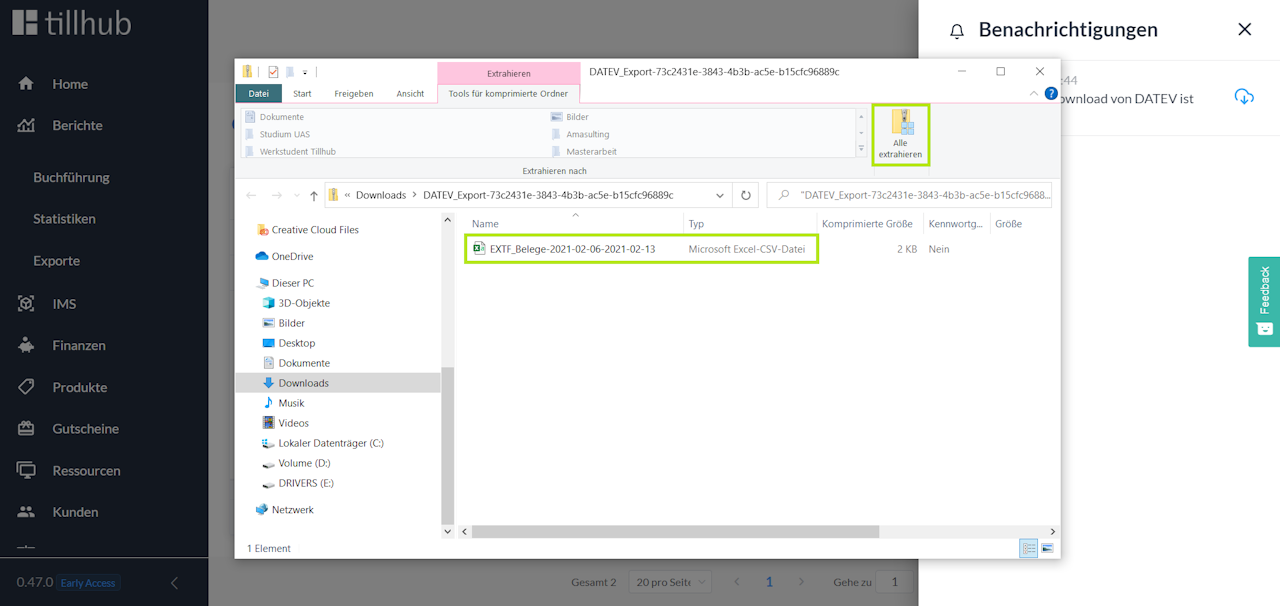
Note that the downloaded file is compressed in a .zip folder. If you use Windows as your operating system, you can extract the file by clicking "Extract all". If you only plan to send the file by email, you can also send the entire .zip folder without extracting it first.
How can I edit the accounts in my DATEV export?
How to edit the accounts relevant to the DATEV export is explained in the following section: "Set up standard chart of accounts with tax advisor in the dashboard".
Was this article helpful?
That’s Great!
Thank you for your feedback
Sorry! We couldn't be helpful
Thank you for your feedback
Feedback sent
We appreciate your effort and will try to fix the article
