1. Create product groups
Modified on Wed, 25 Feb at 12:29 PM
Here you can watch the video explaining how to create product groups in the dashboard.
You do not need to create many product groups. It is best to use them for a few main categories. If you only need a small number of categories, one product group is sufficient.
If you only have a very small number of items, for example four products, this step can be skipped. However, we recommend creating at least one product group to maintain a clear structure.
For testing purposes at the register, please also create a test product group named “Test Product Group.”Creating product groups
In this section, we explain how you can manually enter items and product groups in the dashboard in our system. To do this, log in to your Tillhub dashboard at the following link: https://dashboard.tillhub.com/login. Leave the “Organization” field blank. Then navigate to “Items” in the main menu on the left.
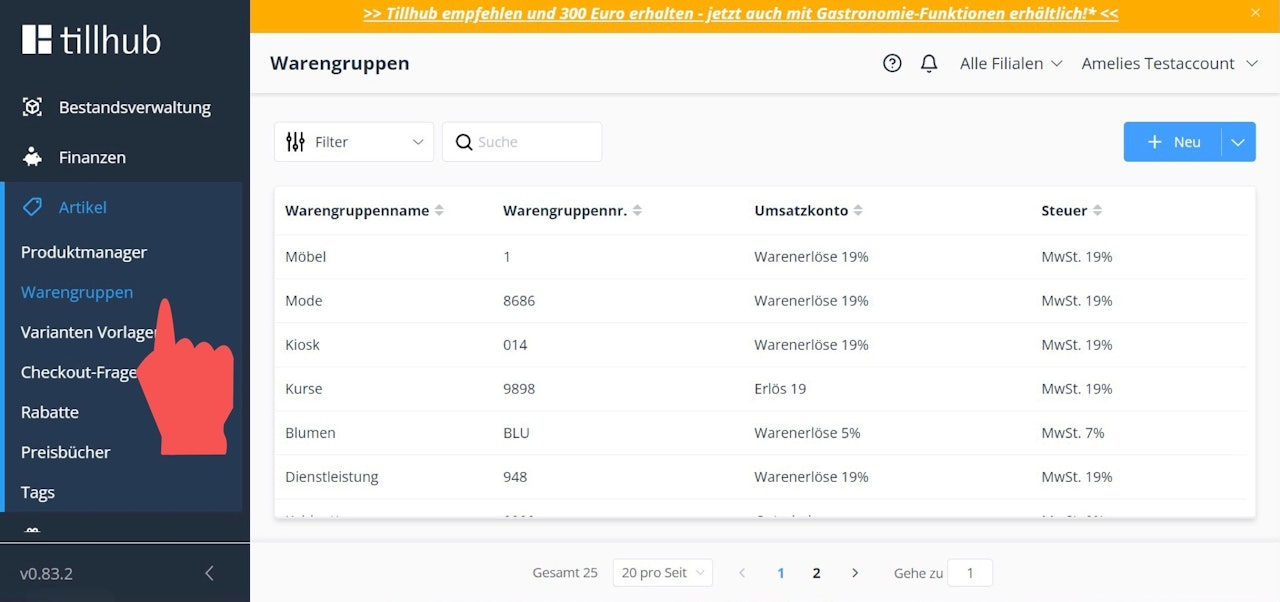
Before you enter items in the “Product Manager,” first create your product groups. To do this, navigate to “Product Groups” in the submenu and click on the blue “+New” button in the upper right corner.
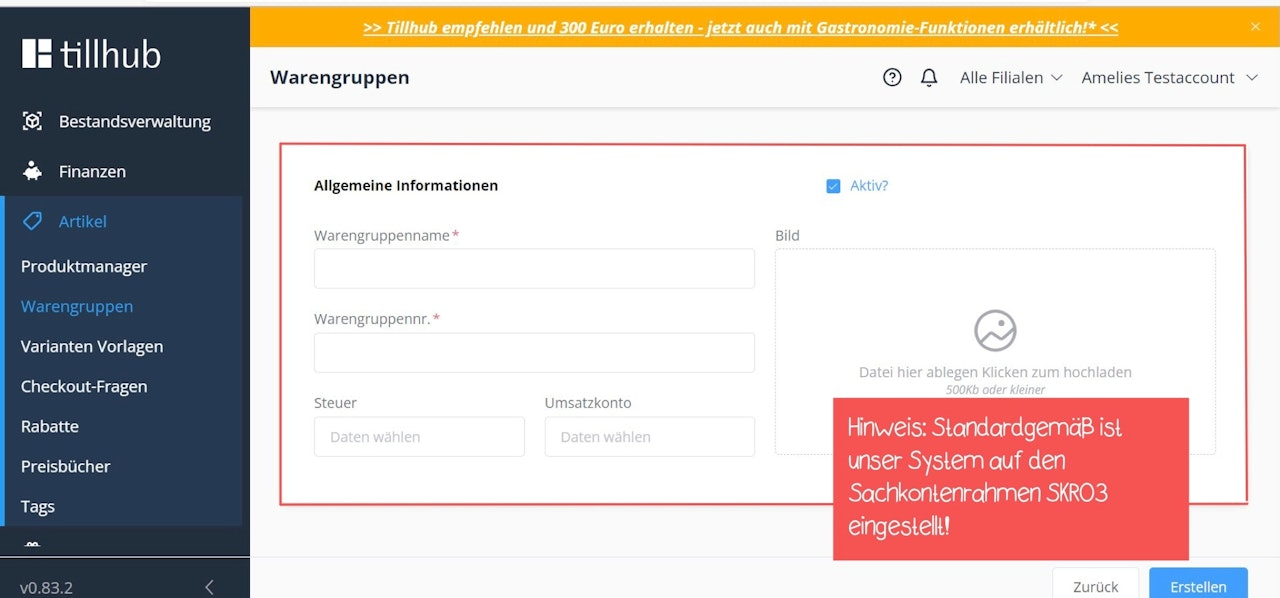
An input mask will open where you can enter the product group name, product group number, tax account, and revenue account. Then click on the blue “Create” button to save your entries.
Note: Our system is set to the SKR03 chart of accounts by default. If your tax advisor uses a different chart of accounts, you can change this in the “Finances” section.
Was this article helpful?
That’s Great!
Thank you for your feedback
Sorry! We couldn't be helpful
Thank you for your feedback
Feedback sent
We appreciate your effort and will try to fix the article
