How to Create a Standard Item
Modified on Tue, 17 Feb at 2:16 PM
In this article
Create standard item
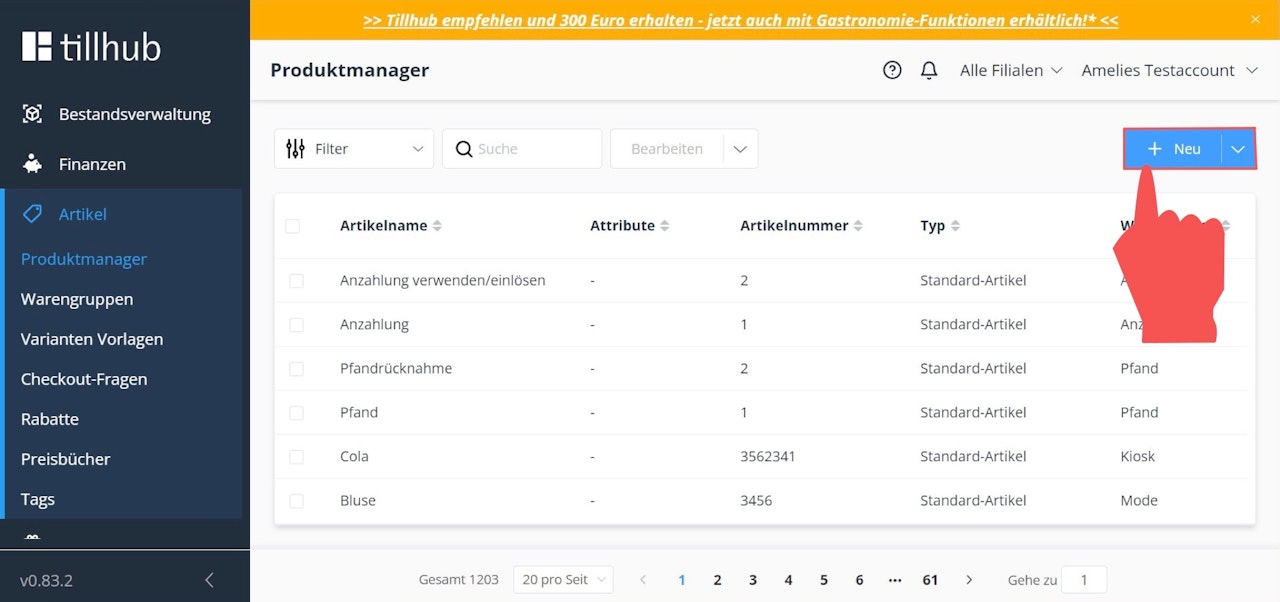
After creating your different product groups, navigate to "Product Manager" in the submenu. To create items, click the blue "+New" button at the top right.
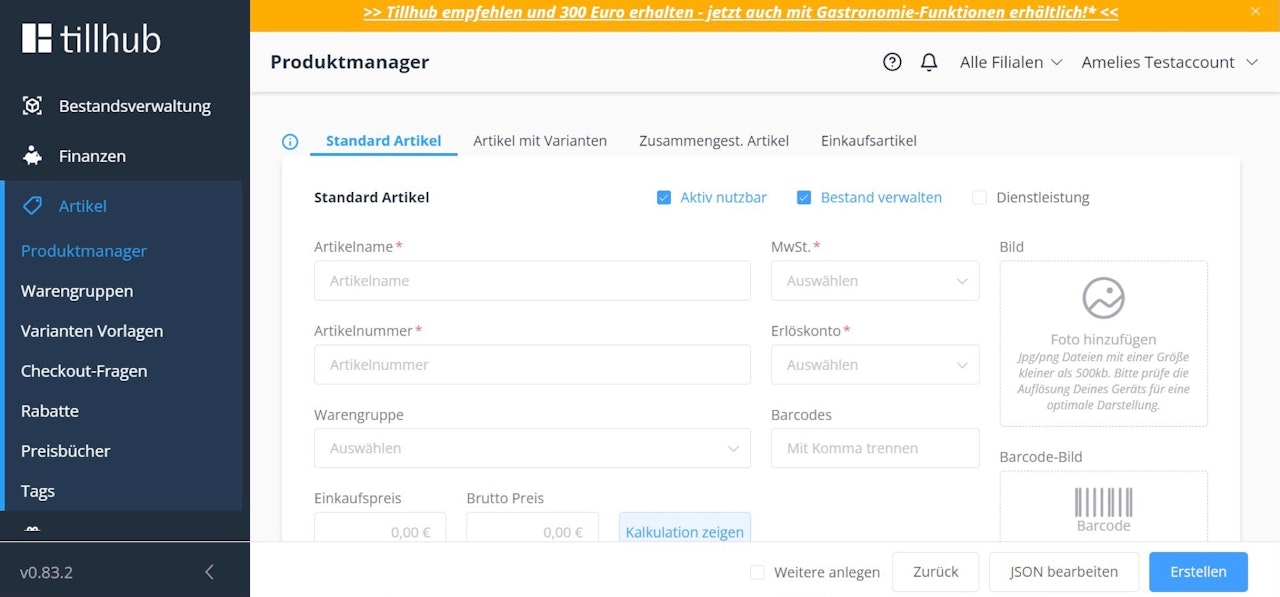
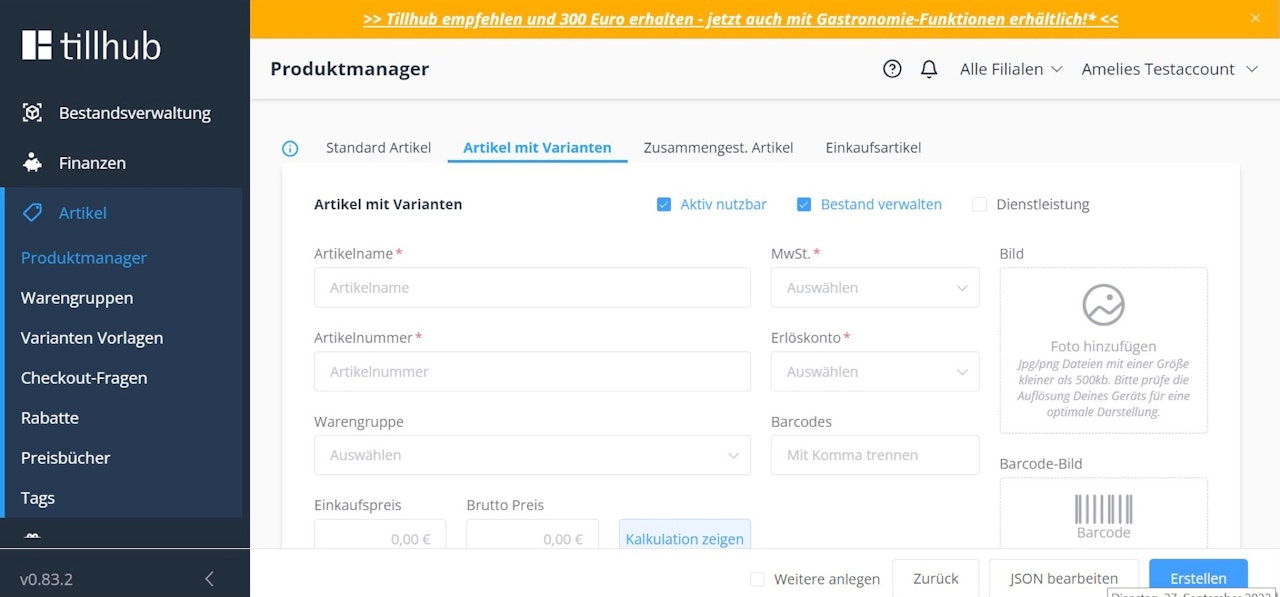
A new input window will open with various tabs showing the different item types:
- Standard item: Select this type if you're offering a product in a single standard version with no variations.
- Item with variants: Select this type if your product comes in different versions, such as shoes available in multiple sizes and colors.
- Composite item / item with ingredients (Tillhub Gastro): Select this type if your sales item consists of different components that need to be inventoried and tracked individually, separate from the final product.
- Purchase item / ingredient (Tillhub Gastro): This type refers to the components of a composite item / item with ingredients (Gastro).
In the following steps, we’ll show you how to create a standard item, including how to:
- Enter metadata for your products
- Specify stock levels
- Add additional product details
1. Metadata
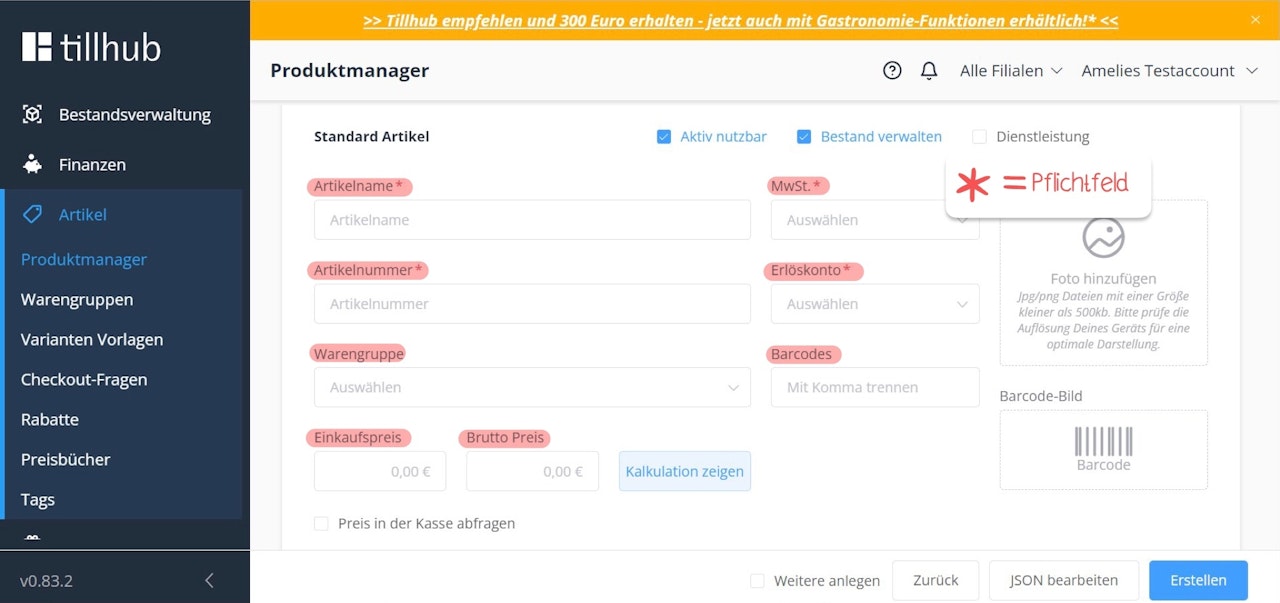
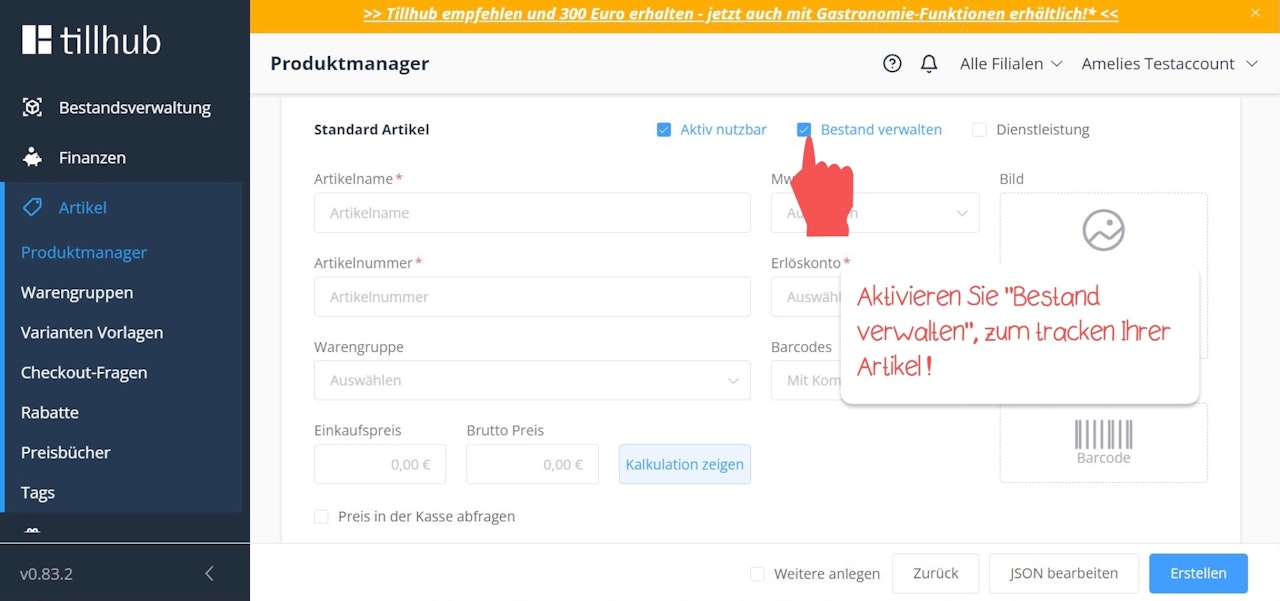
Regardless of the item type, you always start by entering the metadata. This includes:
- Item name
- Article number
- Product group
- VAT rate
- Revenue account
- Purchase price and gross price
If you select an already existing product group in the form, the revenue account and VAT fields will auto-fill.
Required fields are marked with an asterisk (*).
You can also enter the EAN code under the "Barcodes" section.
To track the stock of the item, enable the checkbox "Manage stock."
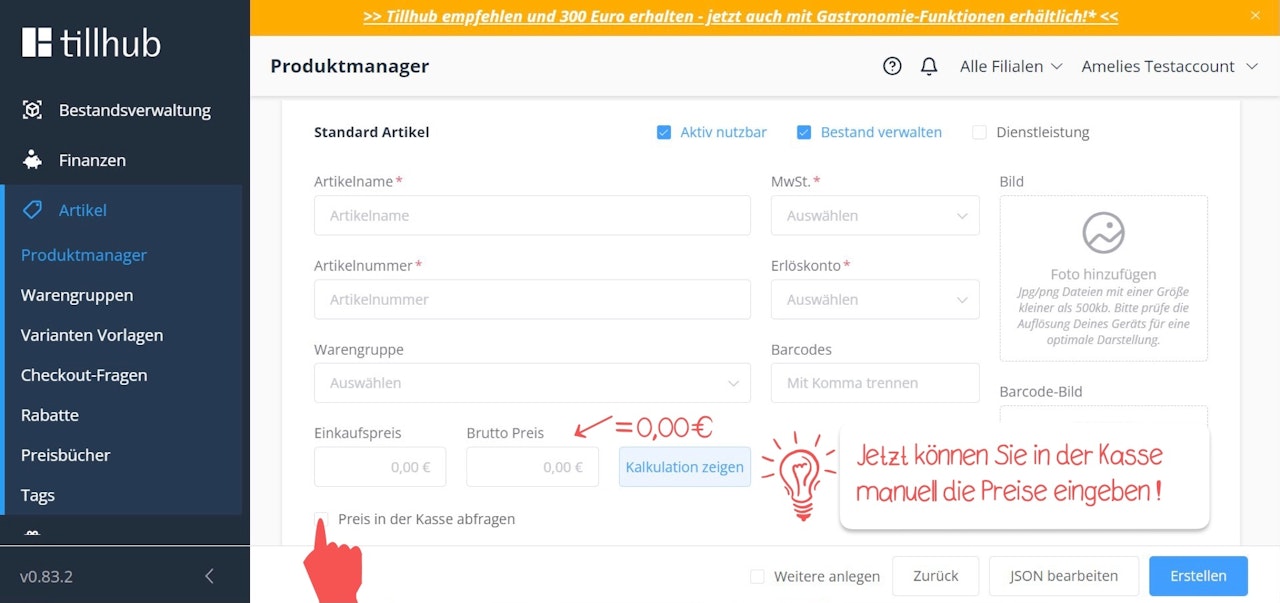
To create an item with a flexible price at checkout, enable the checkbox "Request price at register" and set the gross price to "0". When you tap this item at the iPad register later, the system will prompt you to manually enter the price.
2. Stock
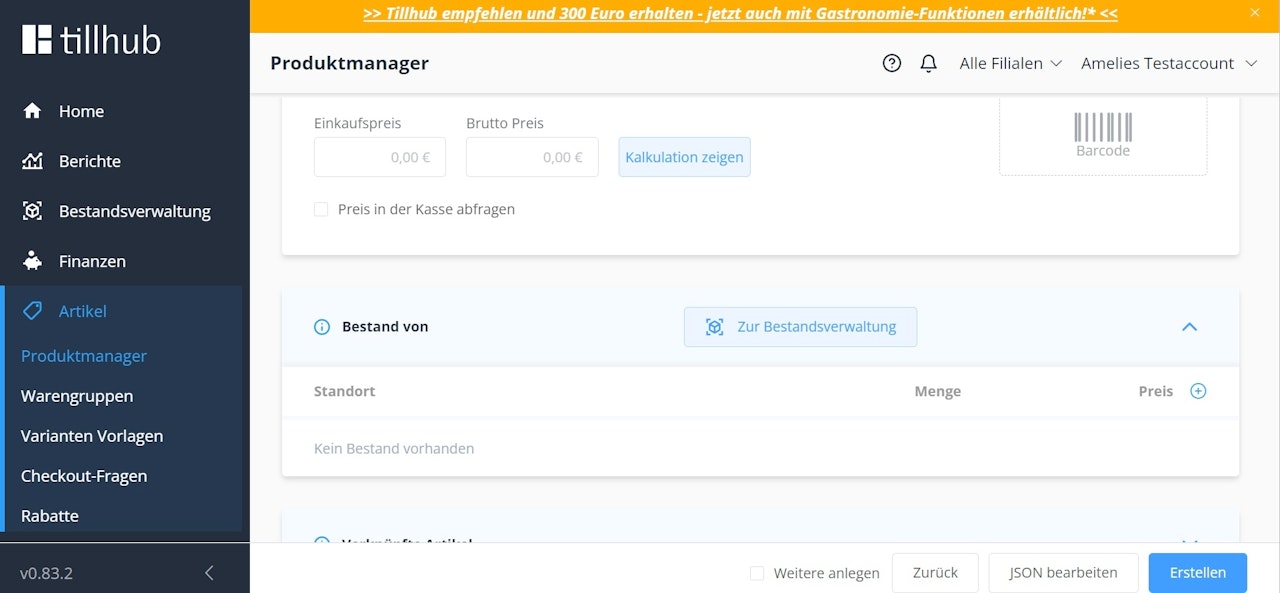
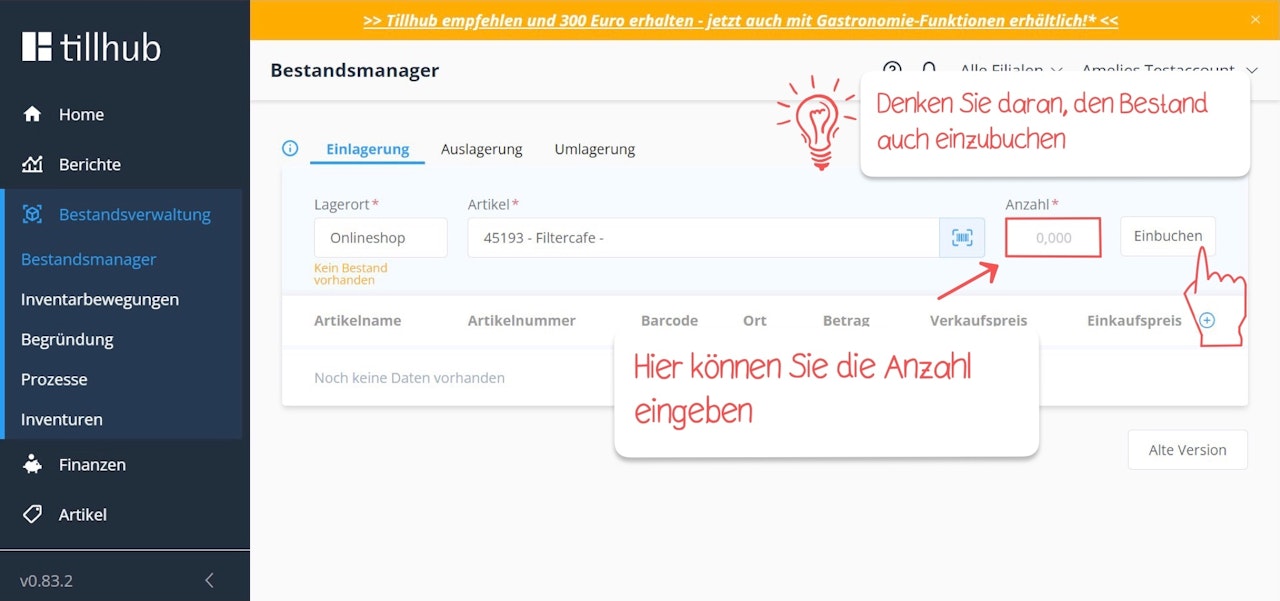
If you enabled the "Manage stock" checkbox in the metadata, you can now enter stock levels under "Stock from".
Expand the drop-down menu to see your stores and warehouses. Click the cube icon to input stock for a specific location.
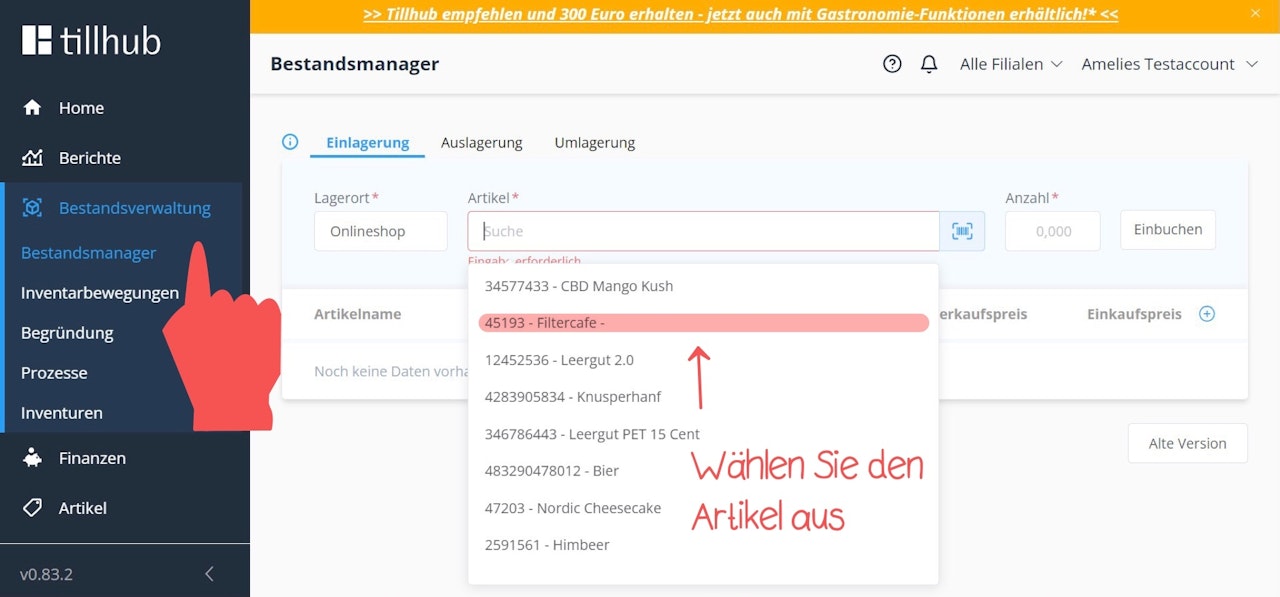
A new window will open. In the "Item" field, search for the product whose stock you want to enter.
Then, in the "Quantity" field, enter the stock amount and click "Add to stock" to confirm.
3. Additional product details
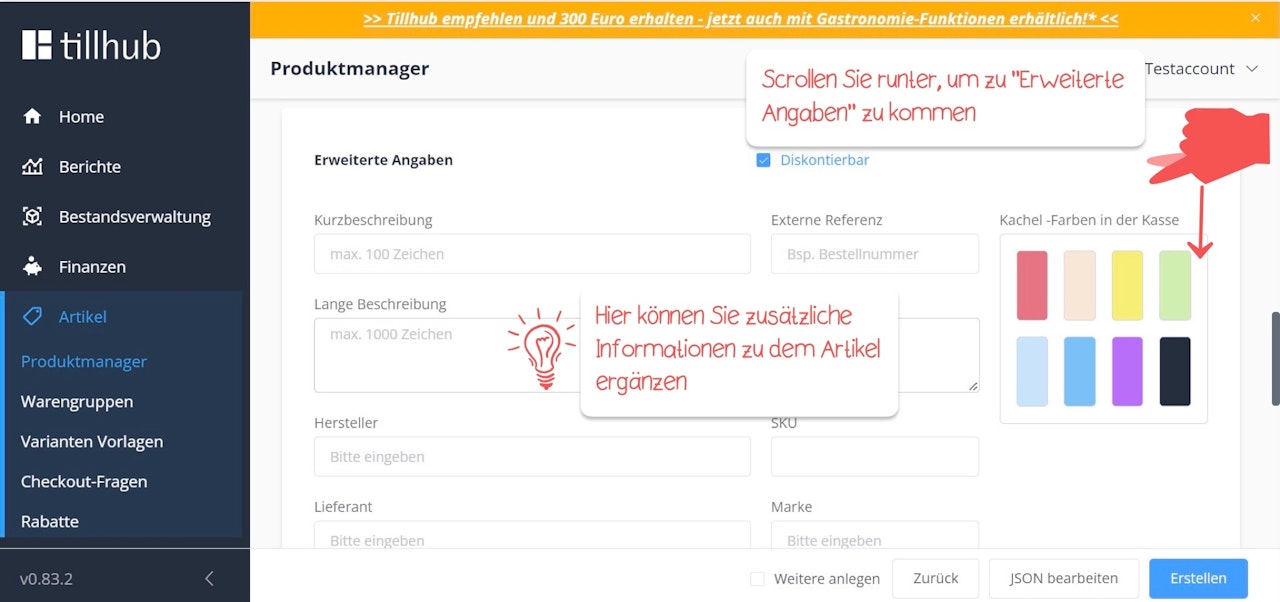
Under “Advanced Details,” you can enter additional information about the item, such as the manufacturer, supplier, SKU number, and brand. You can also specify the tile color for your product. Simply fill in the fields that you consider necessary.
Here you will also find a short and long description. This information is relevant for the following scenario, for example: Imagine that your product is displayed on a website alongside many other products. In this view, you would only see the short description of your product, which contains the most important features. If you then click on one of the products, you would be taken to the long description.
Under “Location,” you can specify in which store the item is offered for sale. By default, the field is filled in with “Everywhere.” If you do not want this item to be offered for sale in all your stores, click on it and select the respective store or warehouse.
Then tap the blue “Create” button at the bottom right.
Further information on how to create items with variants is provided in the next step.
Further information on how to create “purchased items/ingredients” and “compiled items/items with ingredients” in our system can be found in the following section: Inventory management of your ingredients.
Creating product groups
In this section, we explain how you can manually enter items and product groups in the dashboard in our system. To do this, log in to your Tillhub dashboard at the following link: https://dashboard.tillhub.com/login. Leave the “Organization” field blank. Then navigate to “Items” in the main menu on the left.
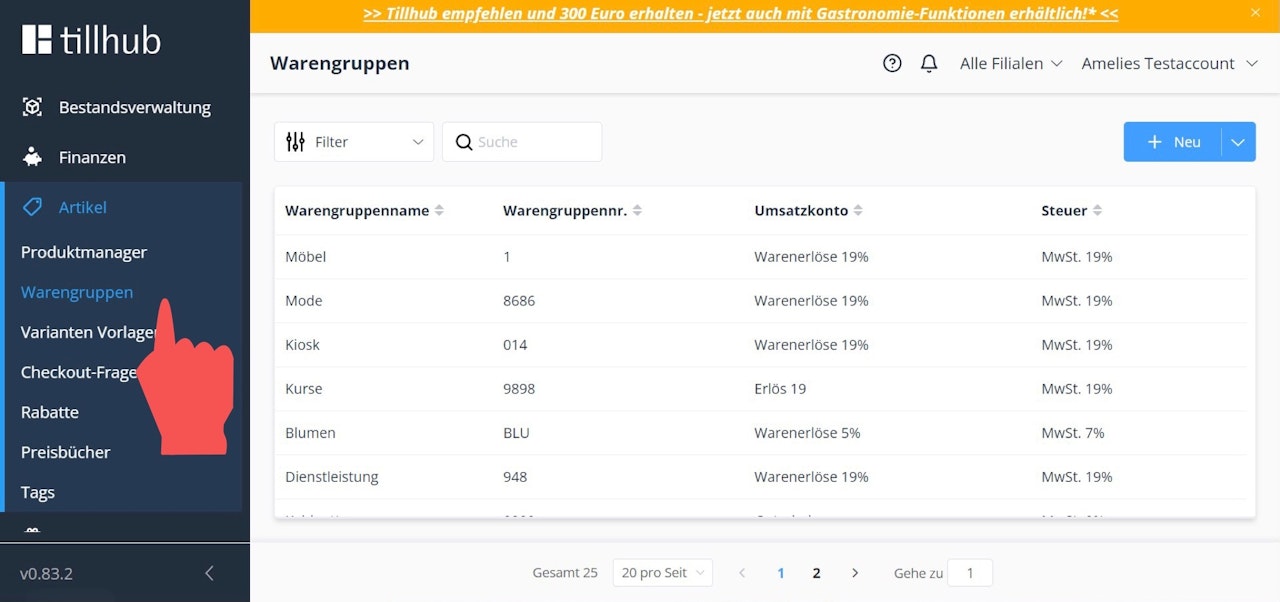
Before you enter items in the “Product Manager,” first create your product groups. To do this, navigate to “Product Groups” in the submenu and click on the blue “+New” button in the upper right corner.
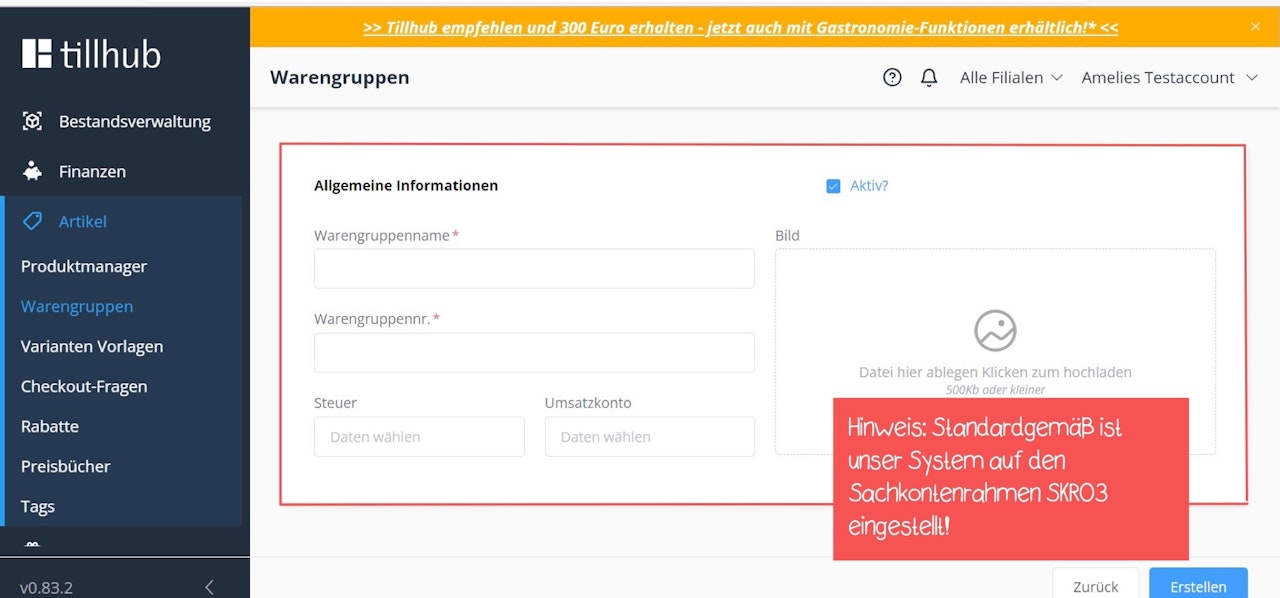
An input mask will open where you can enter the product group name, product group number, tax account, and revenue account. Then click on the blue “Create” button to save your entries.
Note: Our system is set to the SKR03 chart of accounts by default. If your tax advisor uses a different chart of accounts, you can change this in the “Finances” section.

Was this article helpful?
That’s Great!
Thank you for your feedback
Sorry! We couldn't be helpful
Thank you for your feedback
Feedback sent
We appreciate your effort and will try to fix the article