Connect Tillhub to the Merkur Portal (Fleurop vouchers)
Modified on Wed, 1 Apr at 1:15 PM
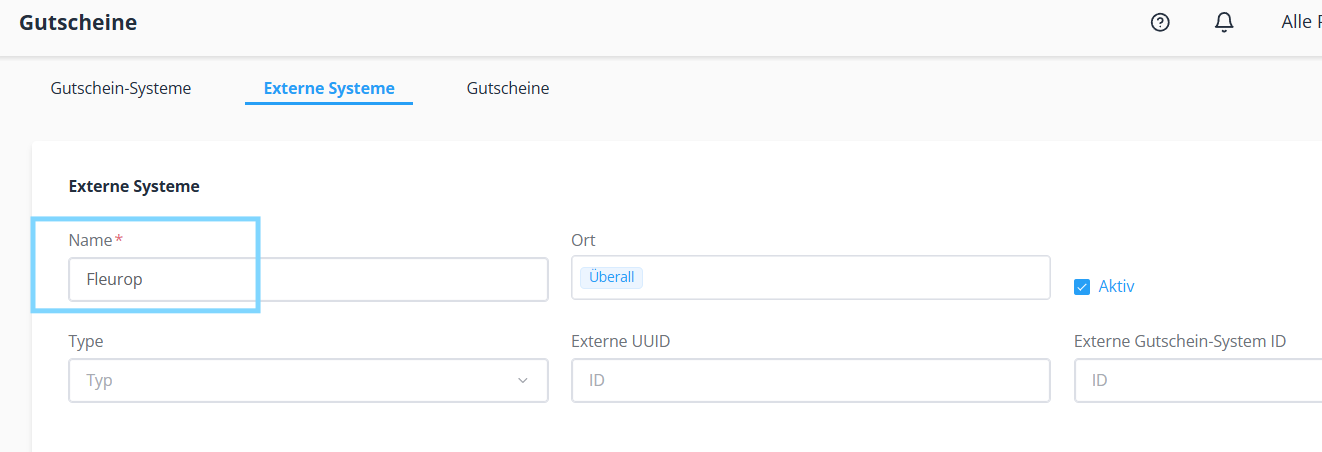
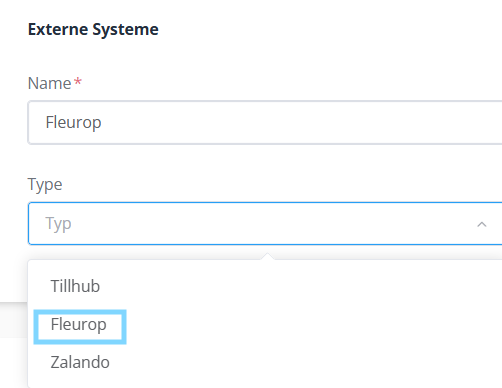
- In the Type field, also select Fleurop.
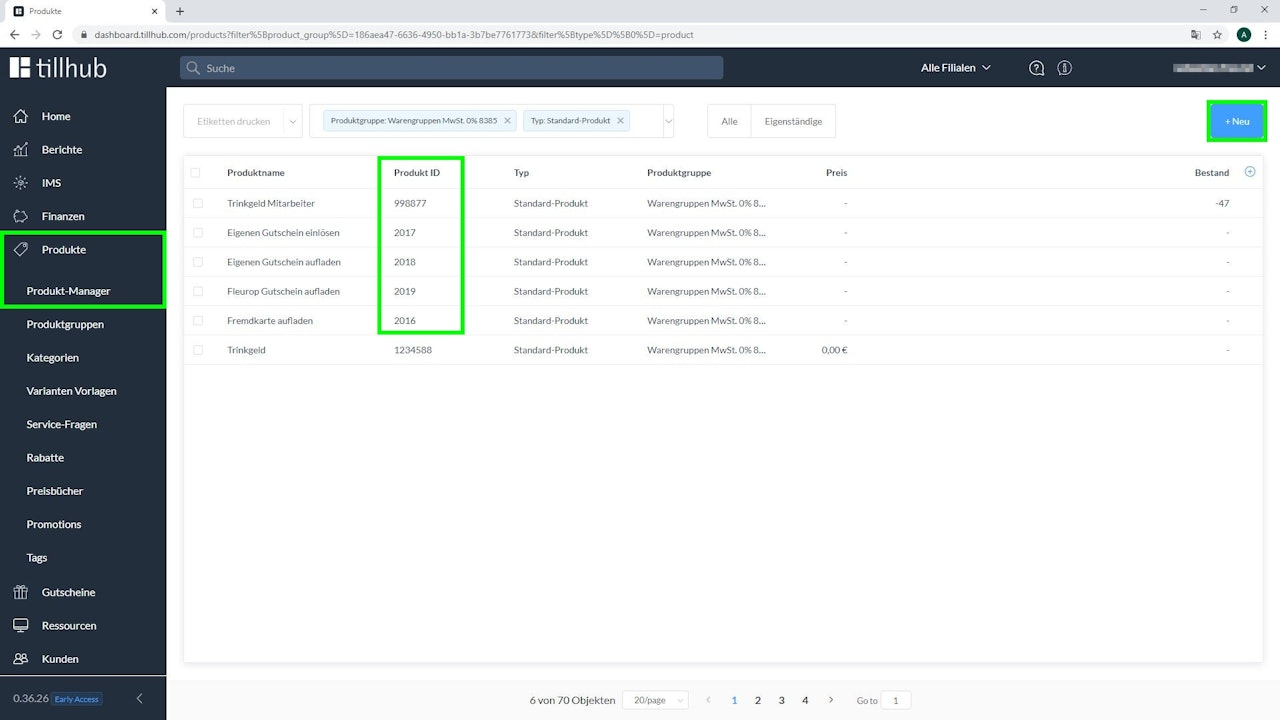
Step 3: Create voucher products
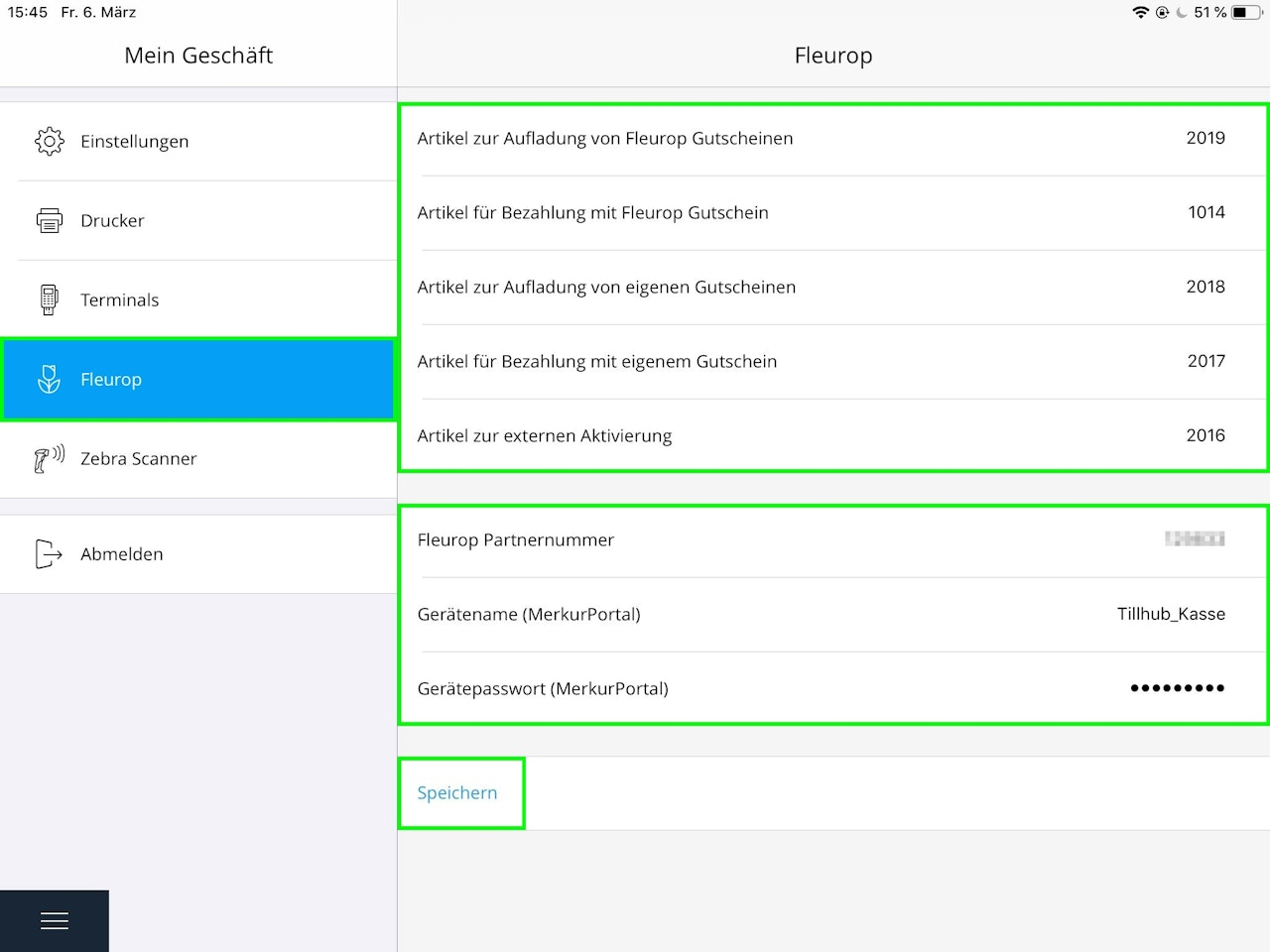
- In the Tillhub app, open the Fleurop feature via the Settings tab. Keep the Dashboard open and have your access/register credentials from the Merkur Portal ready.
- If you have not yet created the voucher products, follow these steps:
- In Product Manager, create a product group (category) and, in consultation with your tax advisor or according to legislation, assign an appropriate VAT rate and revenue account to categorize the vouchers.
- Proceed as if creating a standard product.
- Name the item according to the desired option and assign it to the product group you created.
- Set the price to €0.00, as settlement is handled via an interface with Fleurop. Optionally add an image to make the option easier to find at the register.
- Click Save.
- To cover all functions, repeat this process five times, adjusting the item name each time:
- Top up Fleurop voucher
- Redeem Fleurop voucher
- Top up own vouchers
- Redeem own vouchers
- After creating all items, enter the respective item numbers in the corresponding fields of the Fleurop feature in the Tillhub app (you can view item numbers in the Dashboard under Product Manager).
- Then add your Fleurop partner number, the device name, and the password associated with the device name from the Merkur Portal. Click Save to apply your entries.
- If the credentials are correct, a confirmation of the successful configuration of the Fleurop voucher feature will appear at the top of the screen.
Step 4: Add the voucher feature
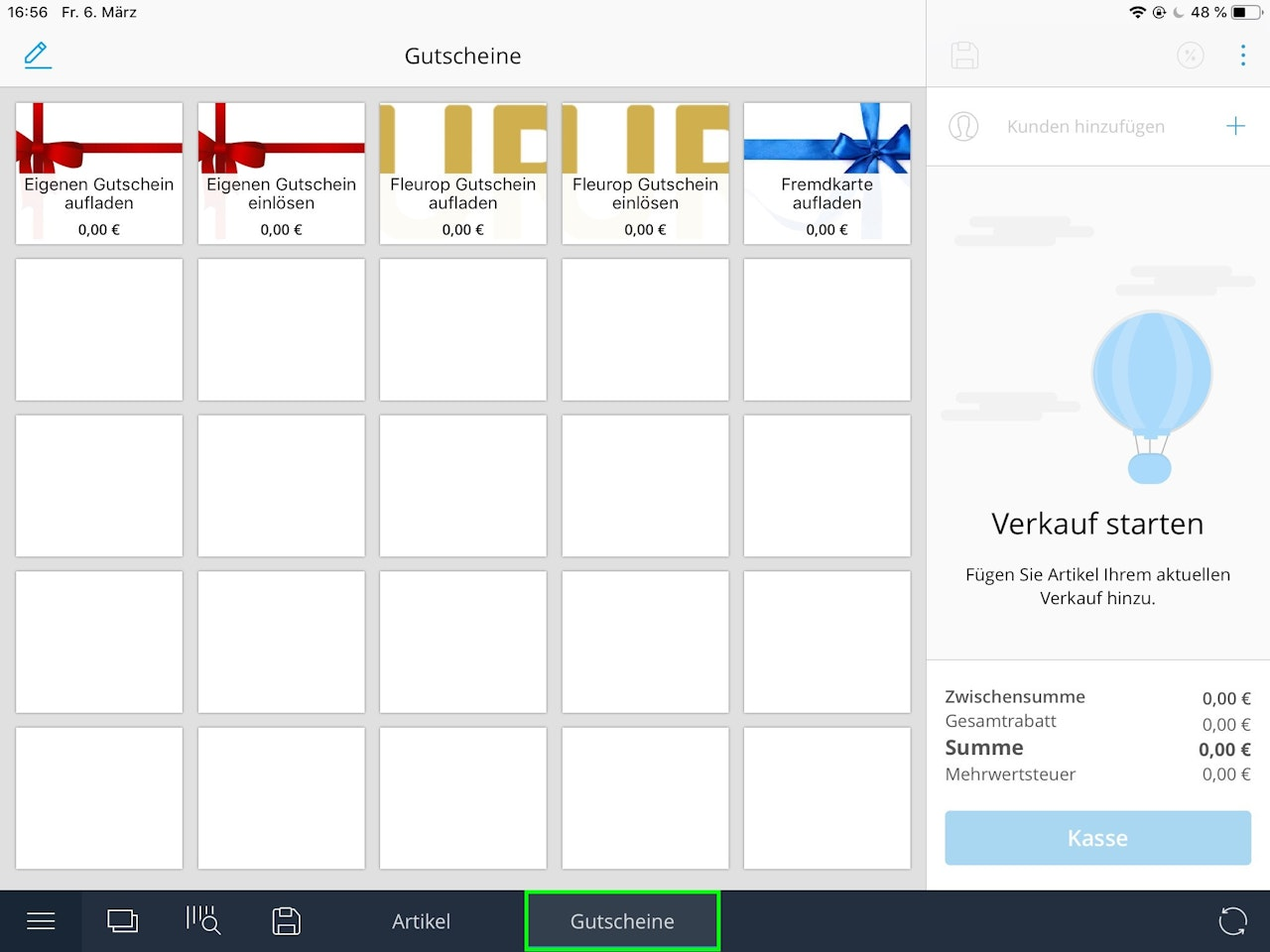
- In the Tillhub app, go to your tile view and add the voucher functions.
Note: For better clarity, we recommend creating a separate tab for vouchers.
Was this article helpful?
That’s Great!
Thank you for your feedback
Sorry! We couldn't be helpful
Thank you for your feedback
Feedback sent
We appreciate your effort and will try to fix the article
