Scanning Fleurop vouchers
Modified on Mon, 16 Feb at 10:11 AM
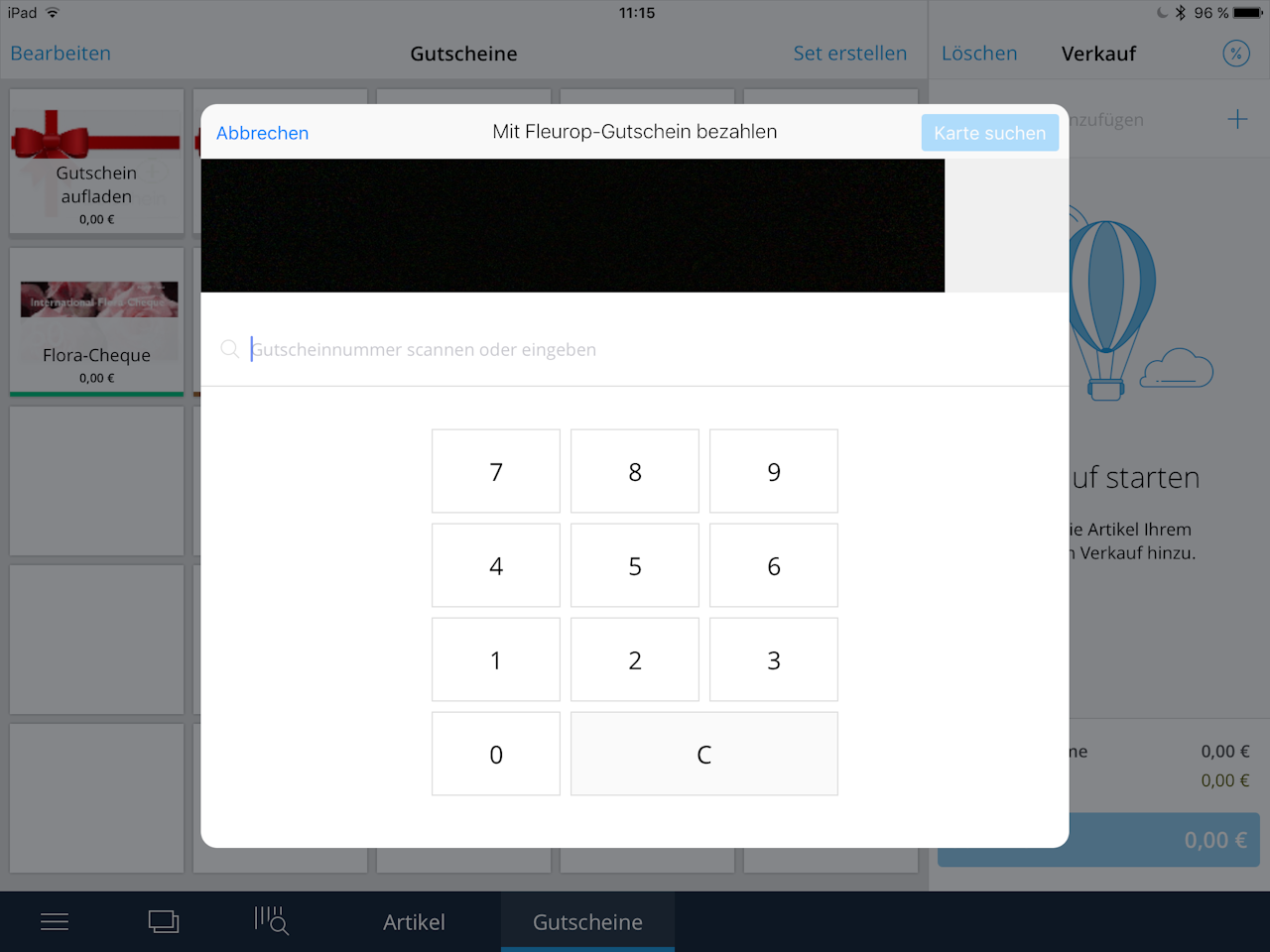
You can scan Fleurop vouchers with the connected scanner as usual to load or redeem them. Alternatively, Fleurop vouchers have an extra feature that lets you scan vouchers using the iPad’s camera.
- First, select the relevant voucher from the tile view.
- The camera will open automatically. Hold it up to the barcode to be scanned; once it’s recognized, it will appear in the corresponding field. Alternatively, you can enter the voucher number manually.
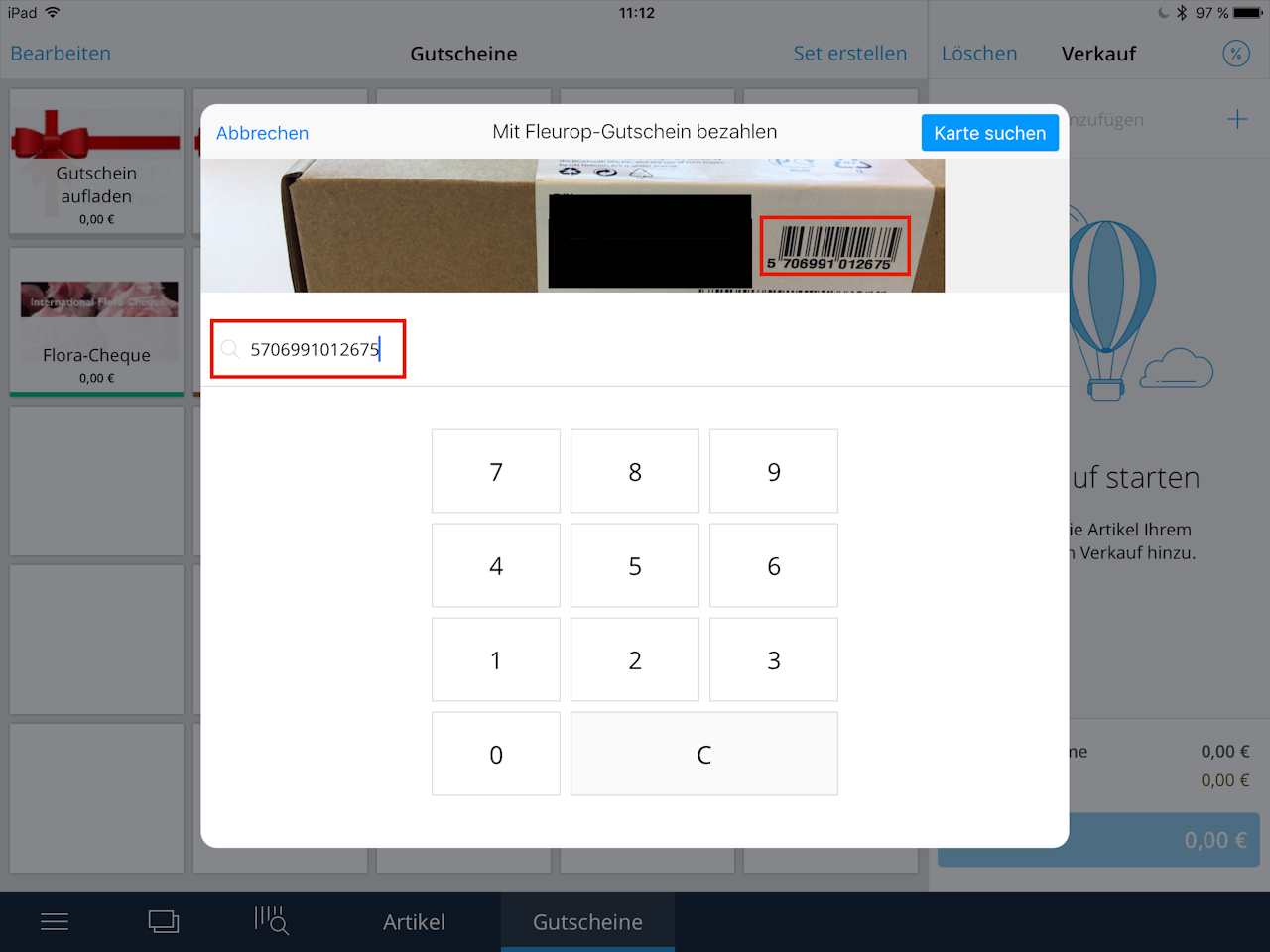
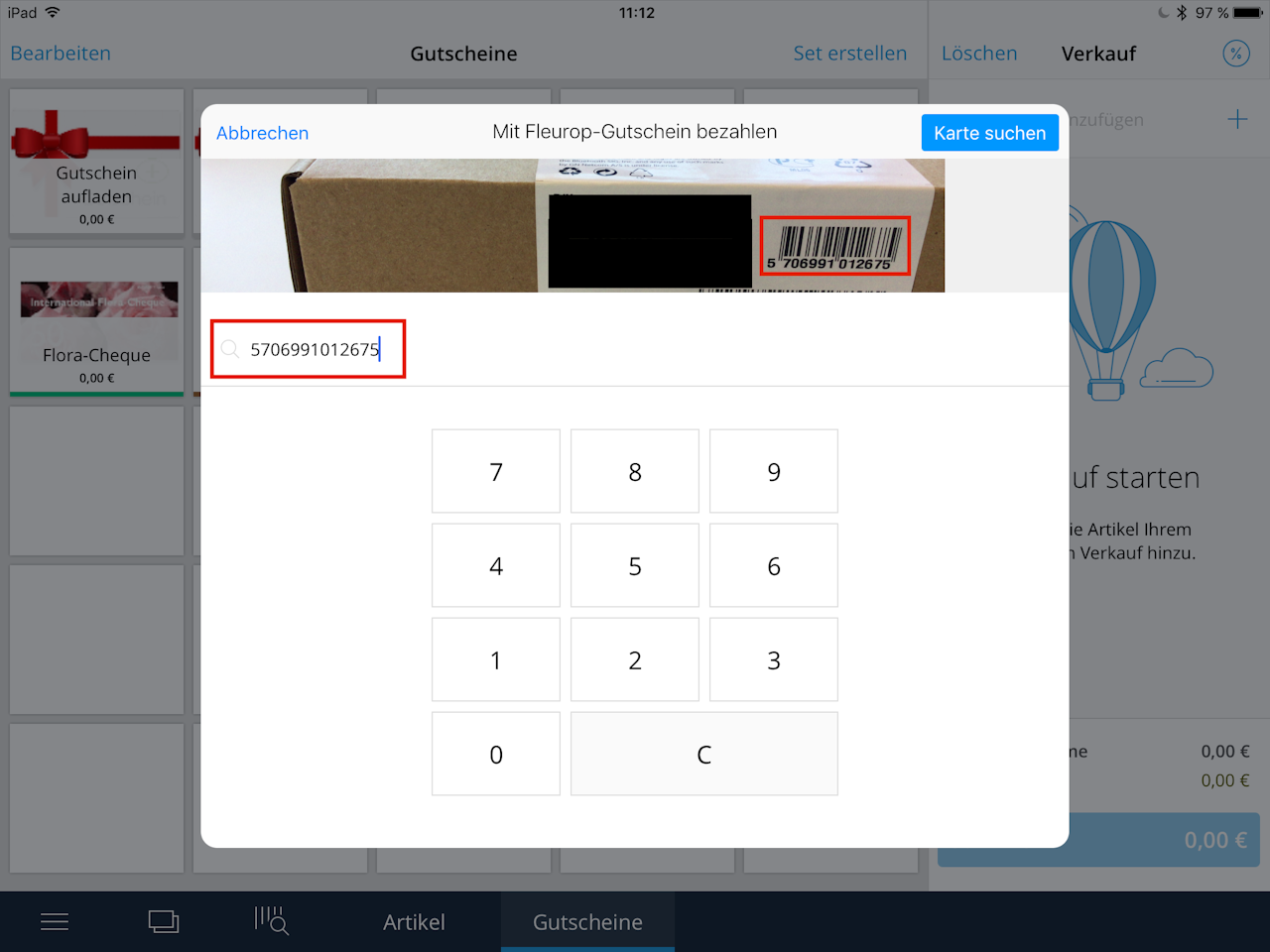
- If the voucher number is recognized, you can tap “Search card.”
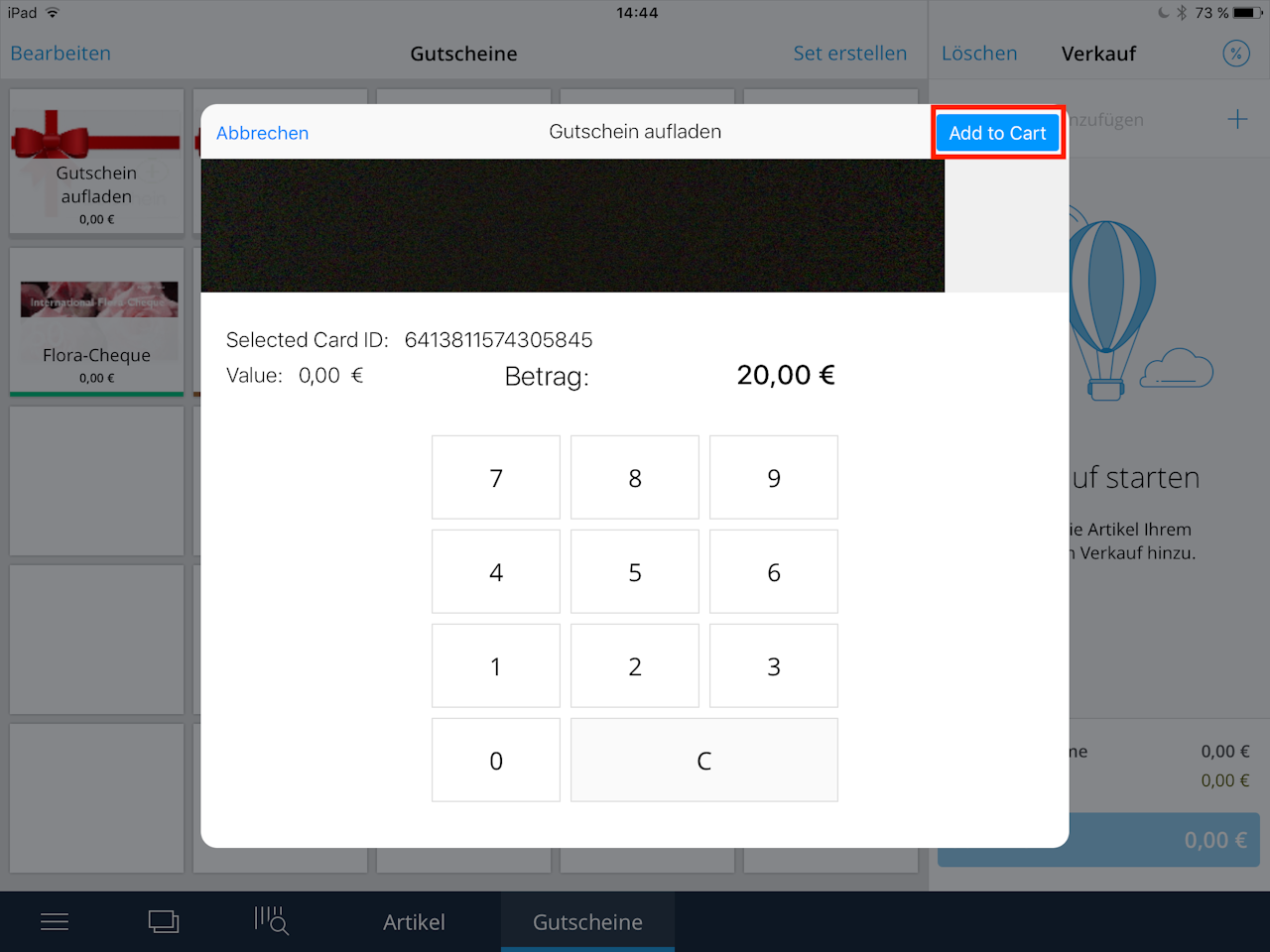
- After tapping “Search card,” a new window opens. Here you can enter the amount to load or the amount to be redeemed.
- Then add the voucher to the sale via “Add to Cart.”
- The voucher will then appear in the sales position. Proceed as with a normal sale.
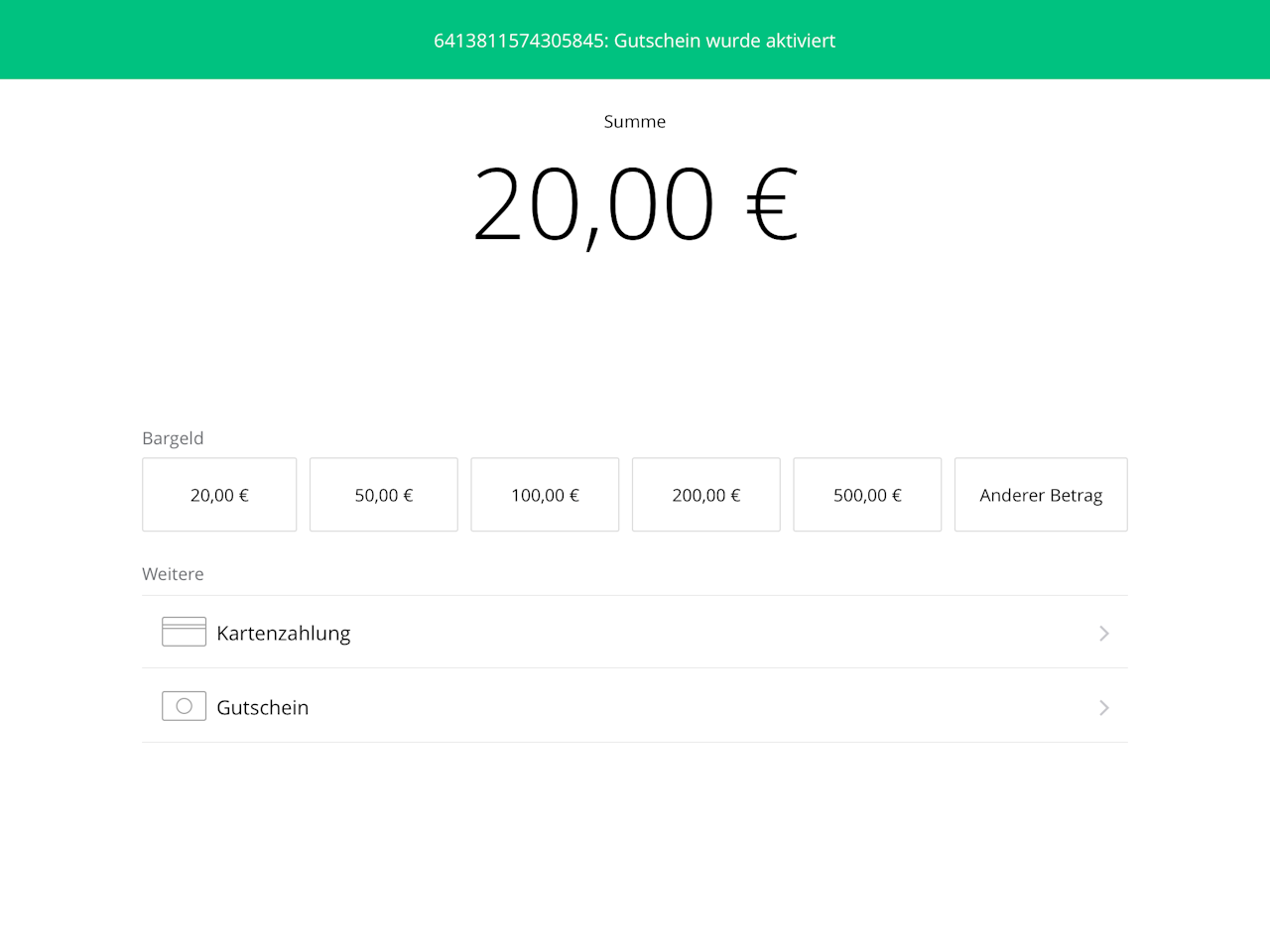
- Once the payment has been completed, a confirmation of the action, including the voucher number, will be displayed.
Was this article helpful?
That’s Great!
Thank you for your feedback
Sorry! We couldn't be helpful
Thank you for your feedback
Feedback sent
We appreciate your effort and will try to fix the article
