2. Instructions for Orderpro and Orderpro Plus
Modified on Fri, 27 Feb at 4:42 PM
How can I connect Orderpro with the Tillhub Gastro App?
If the Orderpro app is not yet installed on your device (Pax A920), please download it first. To do so, tap the CCV Store on your home screen, select the Orderpro app, and install it. Once the app has been downloaded, open it on your device.
Please make sure that the Orderpro app is regularly updated in the CCV Store. Updates ensure that all features work properly and that you benefit from improvements and bug fixes.

Before using the app for the first time, it is especially important to check in the CCV Store whether an update is available. If an update is shown, please make sure to install it before using the ap
Regular updates help avoid technical issues and ensure smooth operation.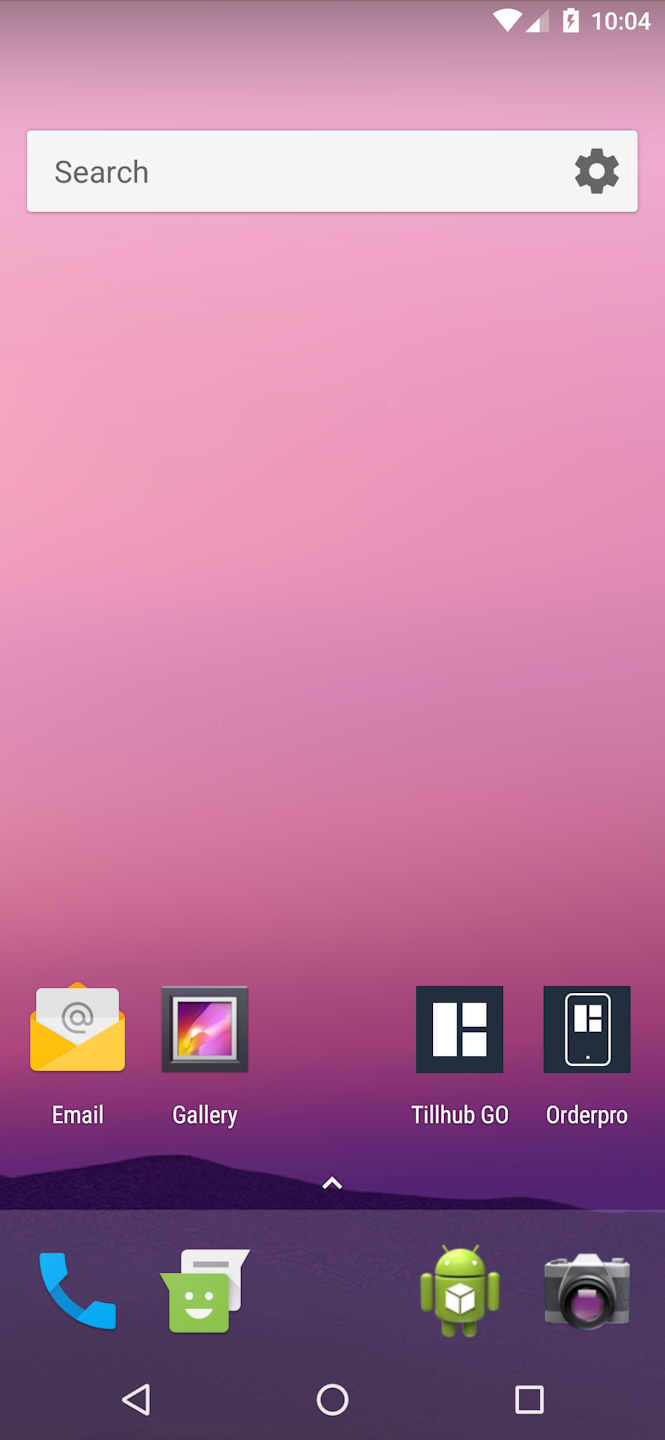
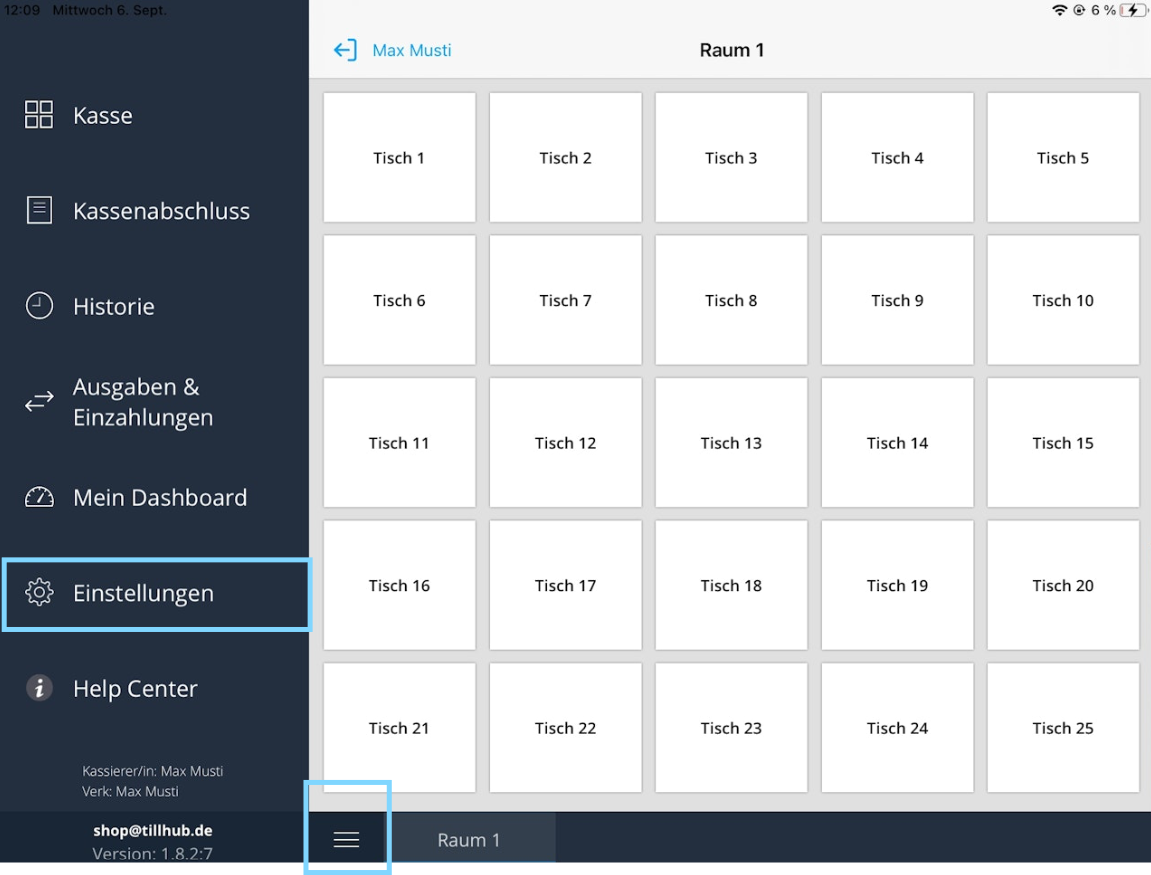
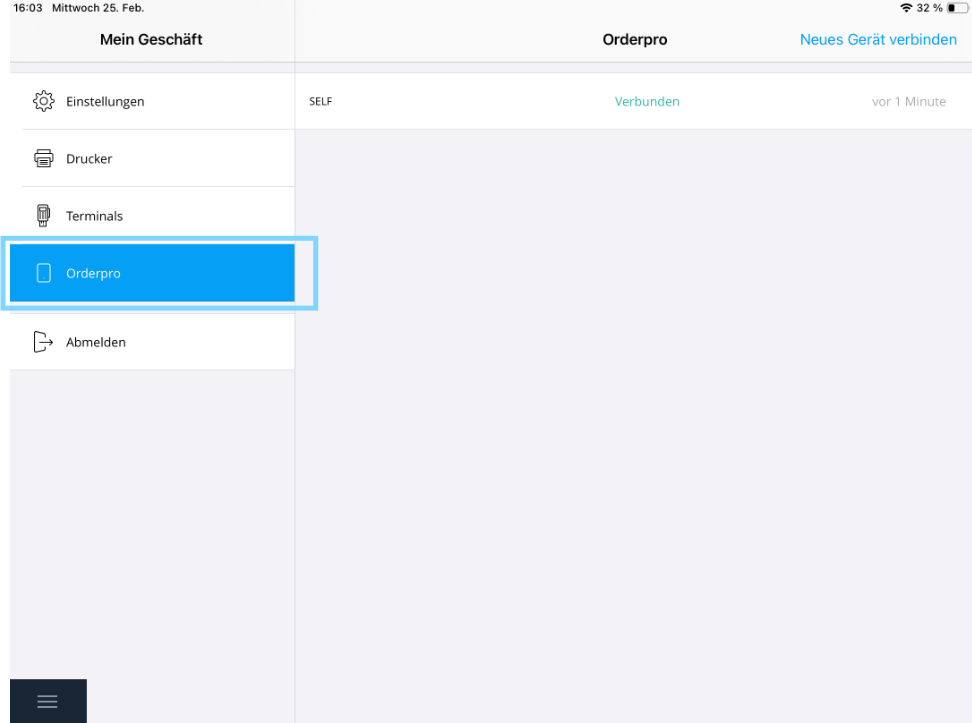
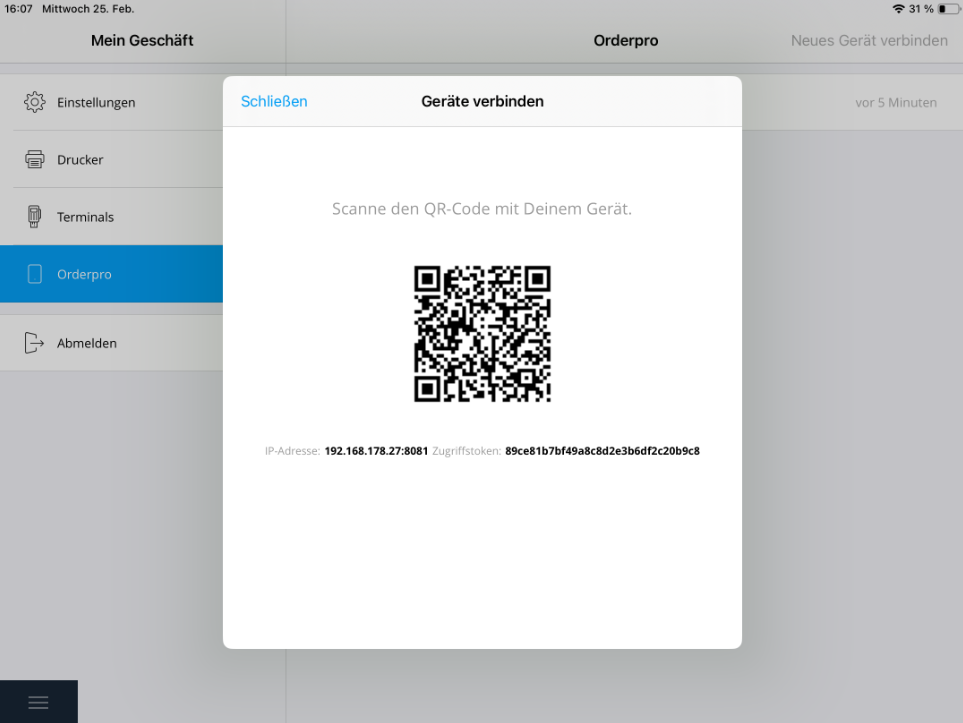
Next, open the Tillhub Gastro POS app on your iPad. Tap the three lines in the bottom left to open the menu and select "Settings". Under Settings, you will find the "Orderpro" section, which you then select.
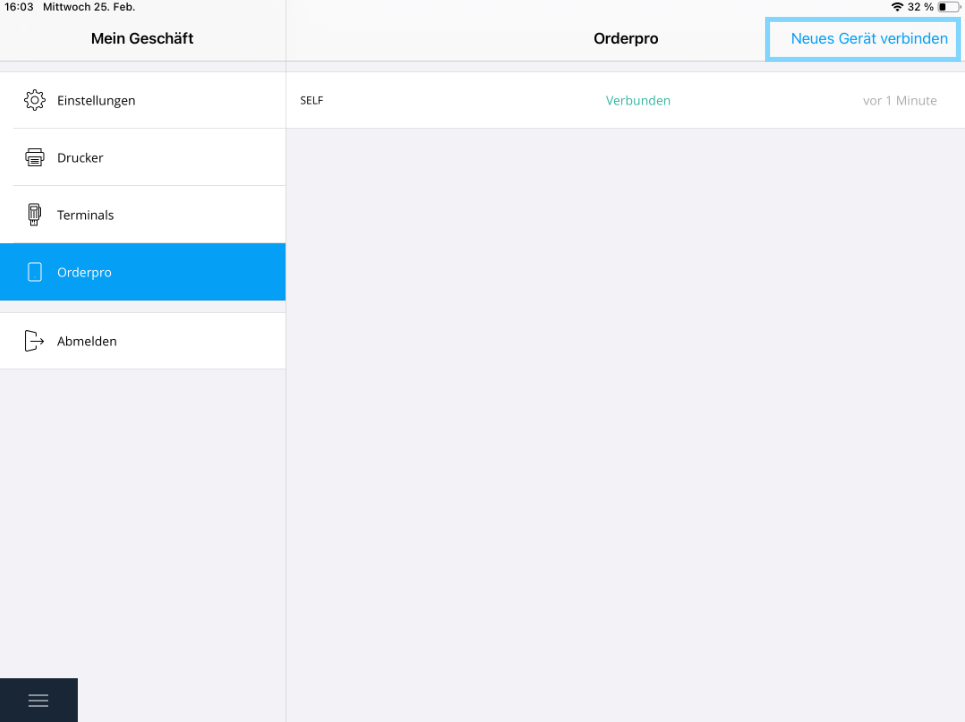
To connect a new device, press "Connect New Device", which appears on the right side of the screen. A QR code will now appear on your Tillhub Gastro POS. Tap the blue button in the bottom right of your Orderpro Plus device and scan the QR code using the camera of your Orderpro device (Pax A920).
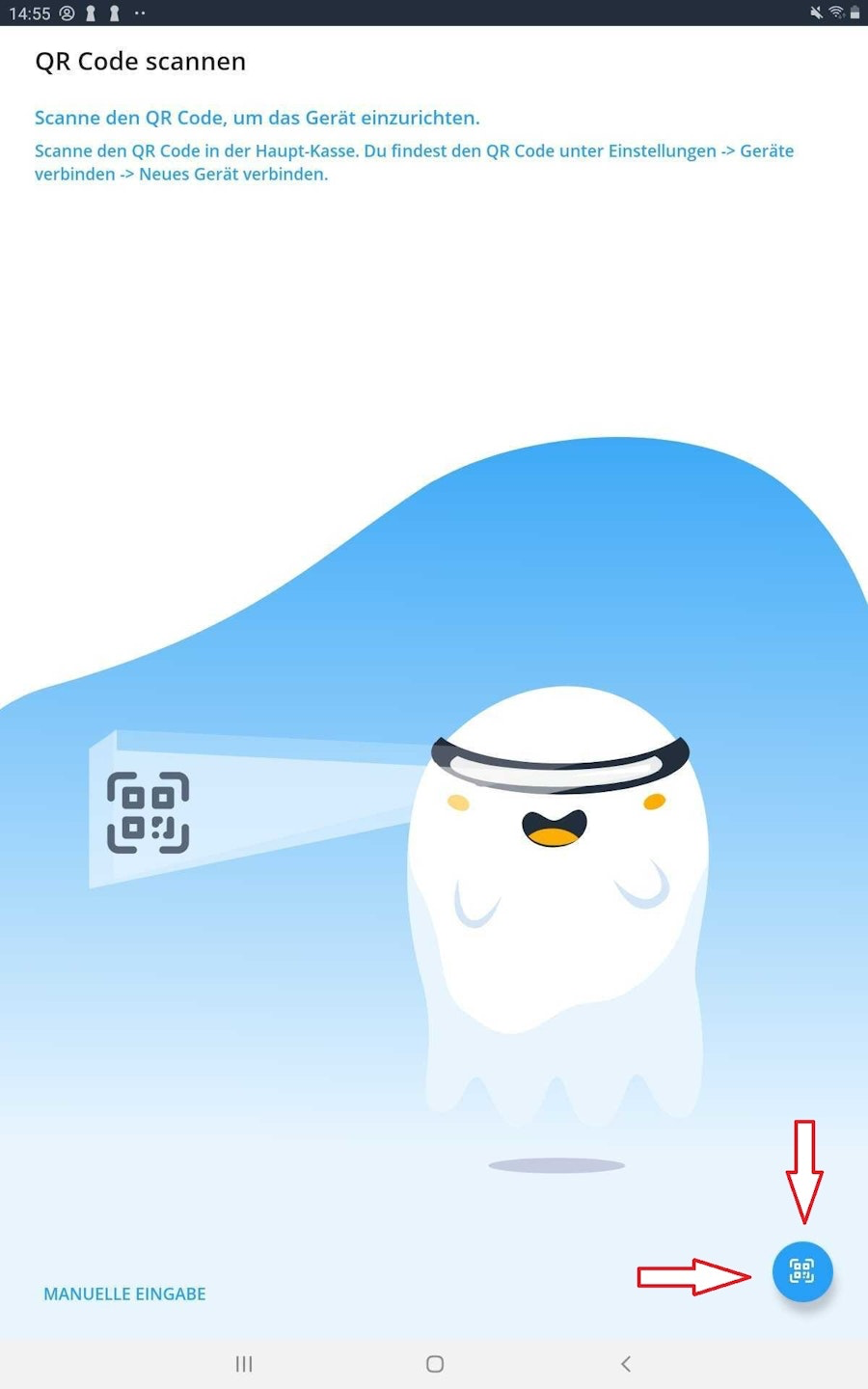
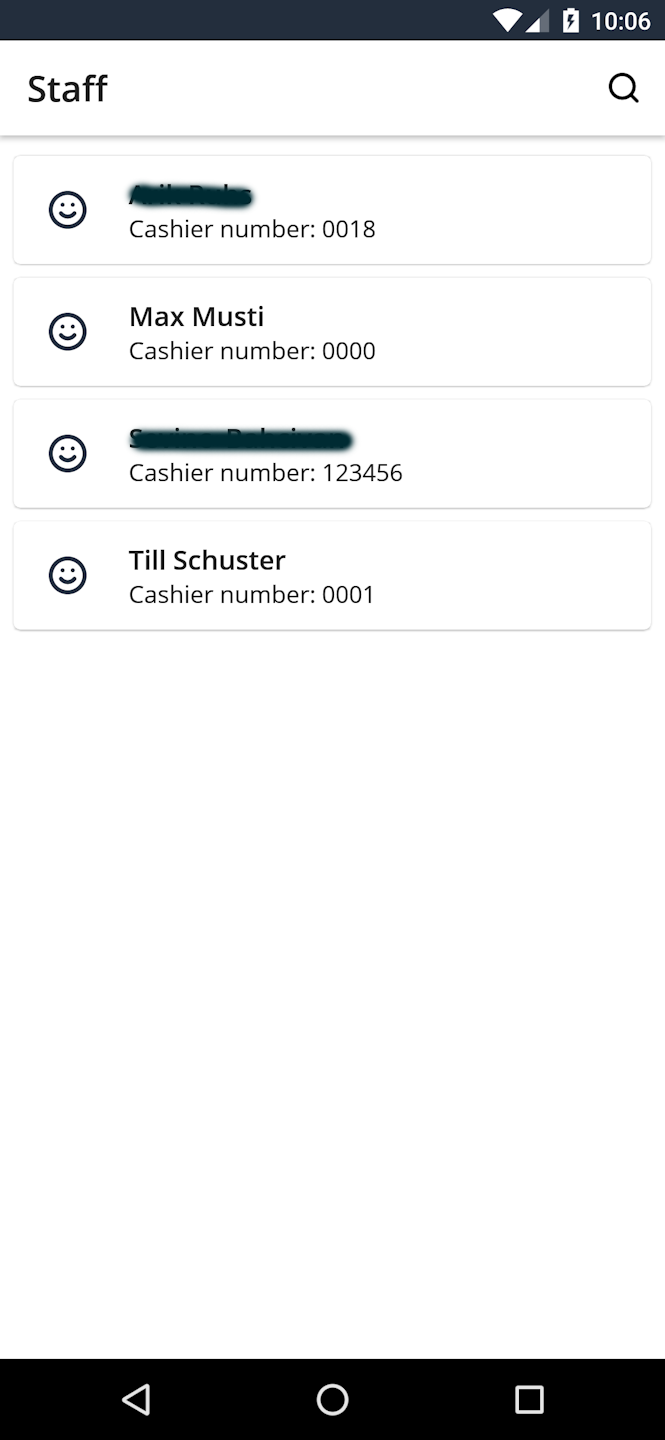
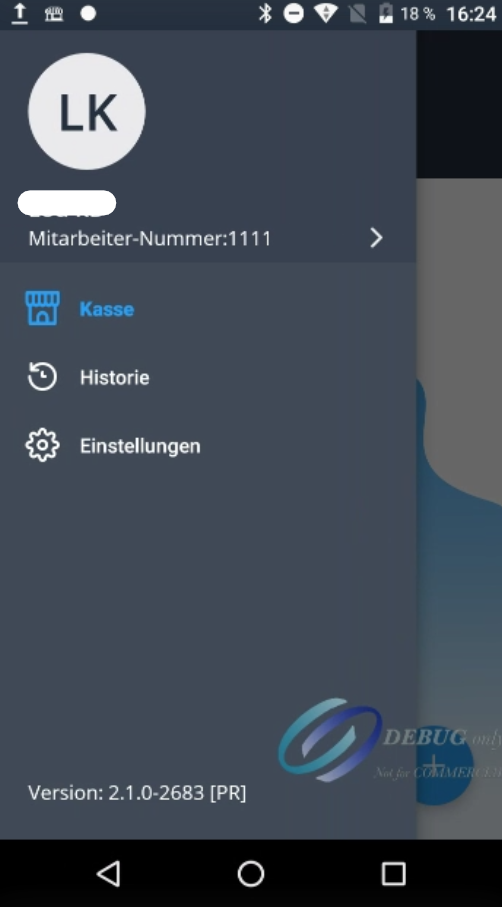
After scanning, the staff list will open automatically on your Orderpro Plus device. Select the appropriate waiter and log in with the corresponding PIN. Then tap the three lines in the top left to open the menu and select "Settings" again. In the settings, you will find the "Card Reader" option, which you select. Activate the card reader by toggling the "Activate Card Reader" switch.
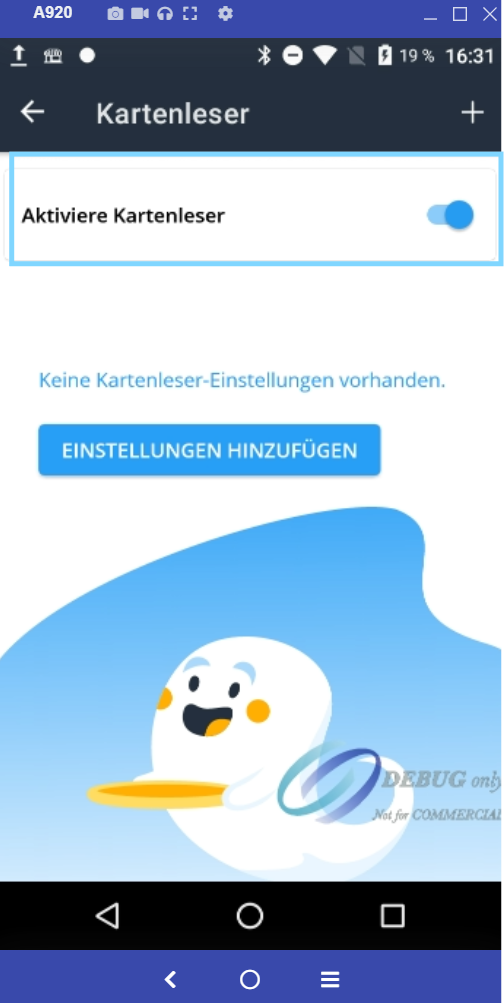
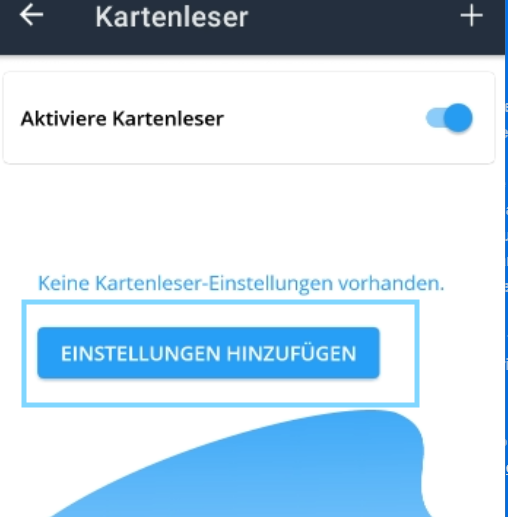
After tapping "Activate Card Reader", the option "Add Settings" will appear at the bottom. Select this to begin setting up the terminal.
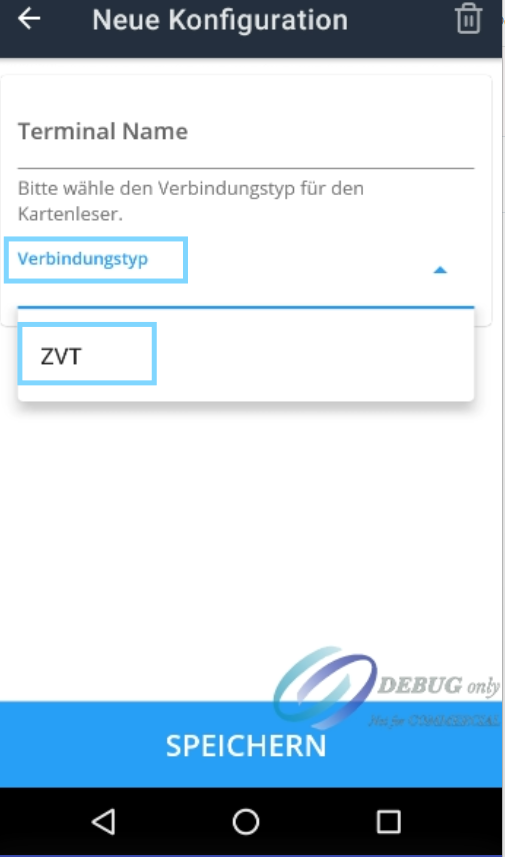
In the next step, tap "Connection Type". Here, select "ZVT". Once ZVT has been selected, the required fields will be filled in automatically. In most cases, no further manual input is necessary. Then tap "Save" at the bottom to complete the setup.
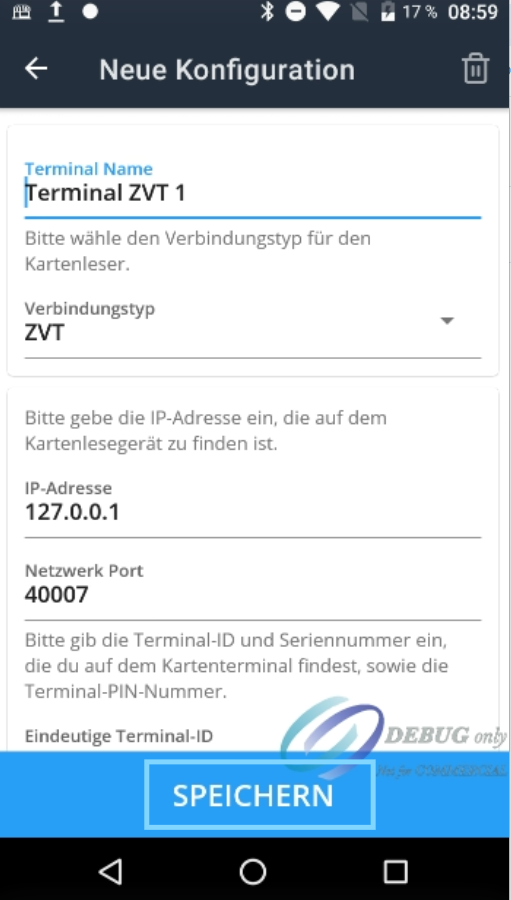
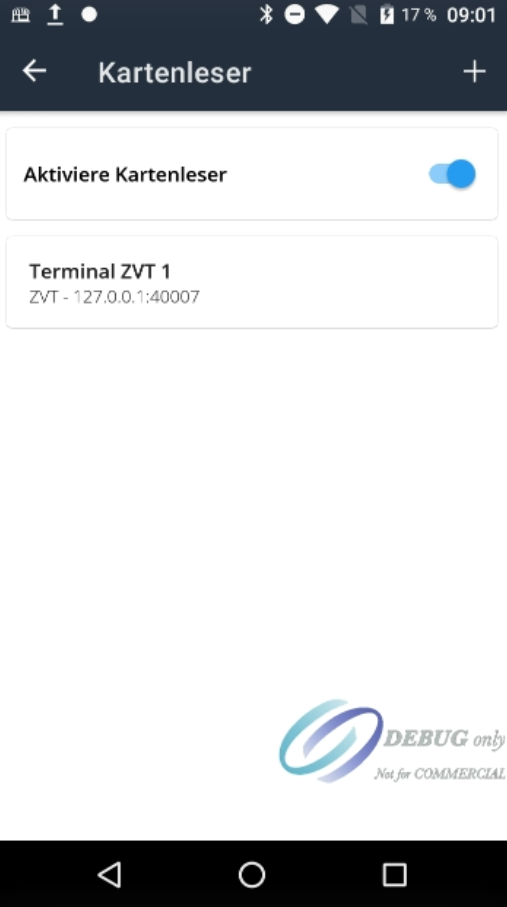
The terminal has now been successfully added. Finally, you can tap the back arrow in the top left to return to the main menu.
How can I log in and out?
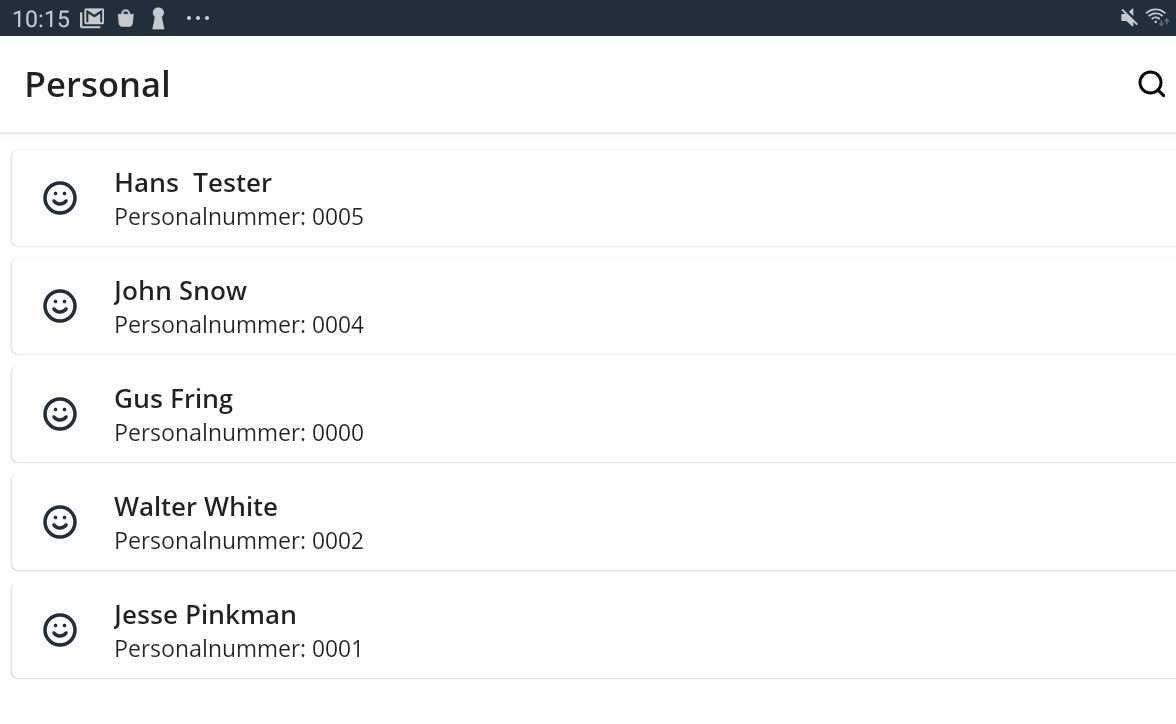
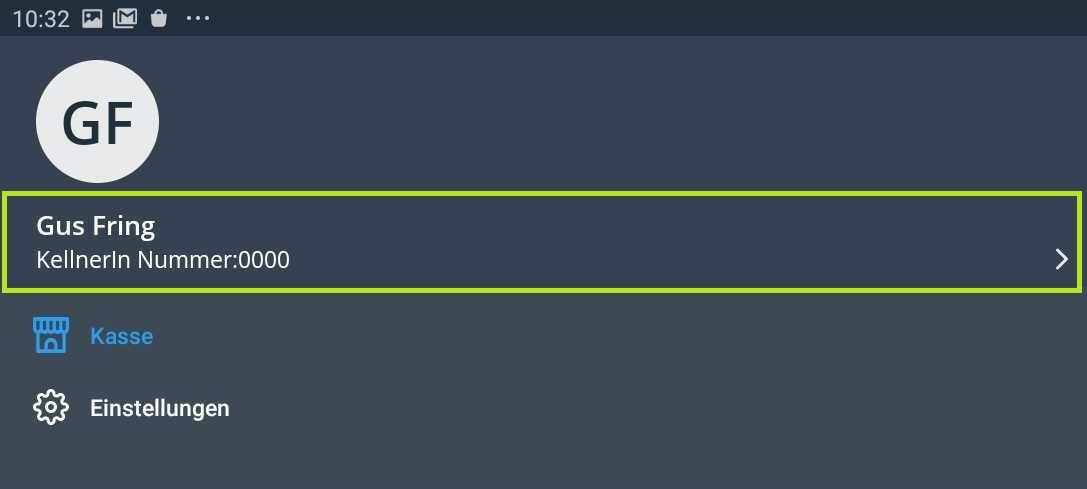
After connecting your Orderpro device with the iPad register, all employee profiles created in the Tillhub Gastro App will be displayed. Your employees can now log into the Orderpro devices using their individual PIN codes. To switch users, simply tap on the menu icon in the top left corner.You will now see the currently logged-in employee profile at the top left, showing the name and employee number. When you tap on it, the employee overview with all created profiles will appear again (as described above). You are now logged out. This overview will remain visible until someone logs into one of the profiles again.
How can I disconnect an Orderpro device from my Tillhub Gastro App?
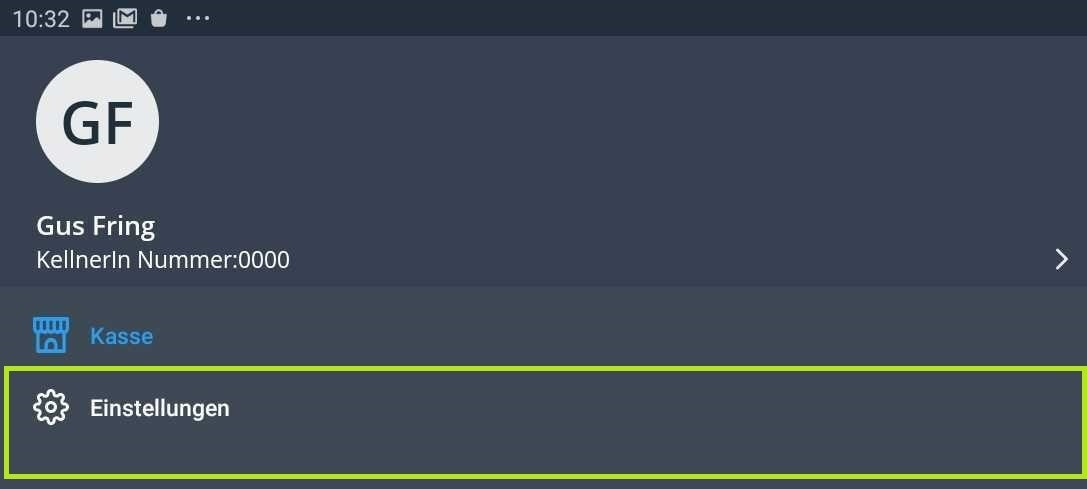
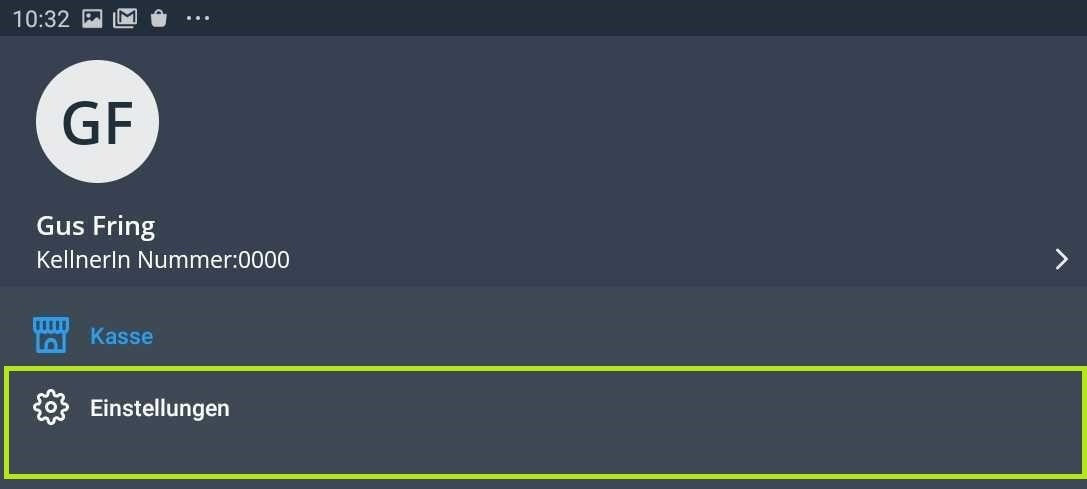
If you want to disconnect an Orderpro device from a register, tap the main menu icon in the top left corner.
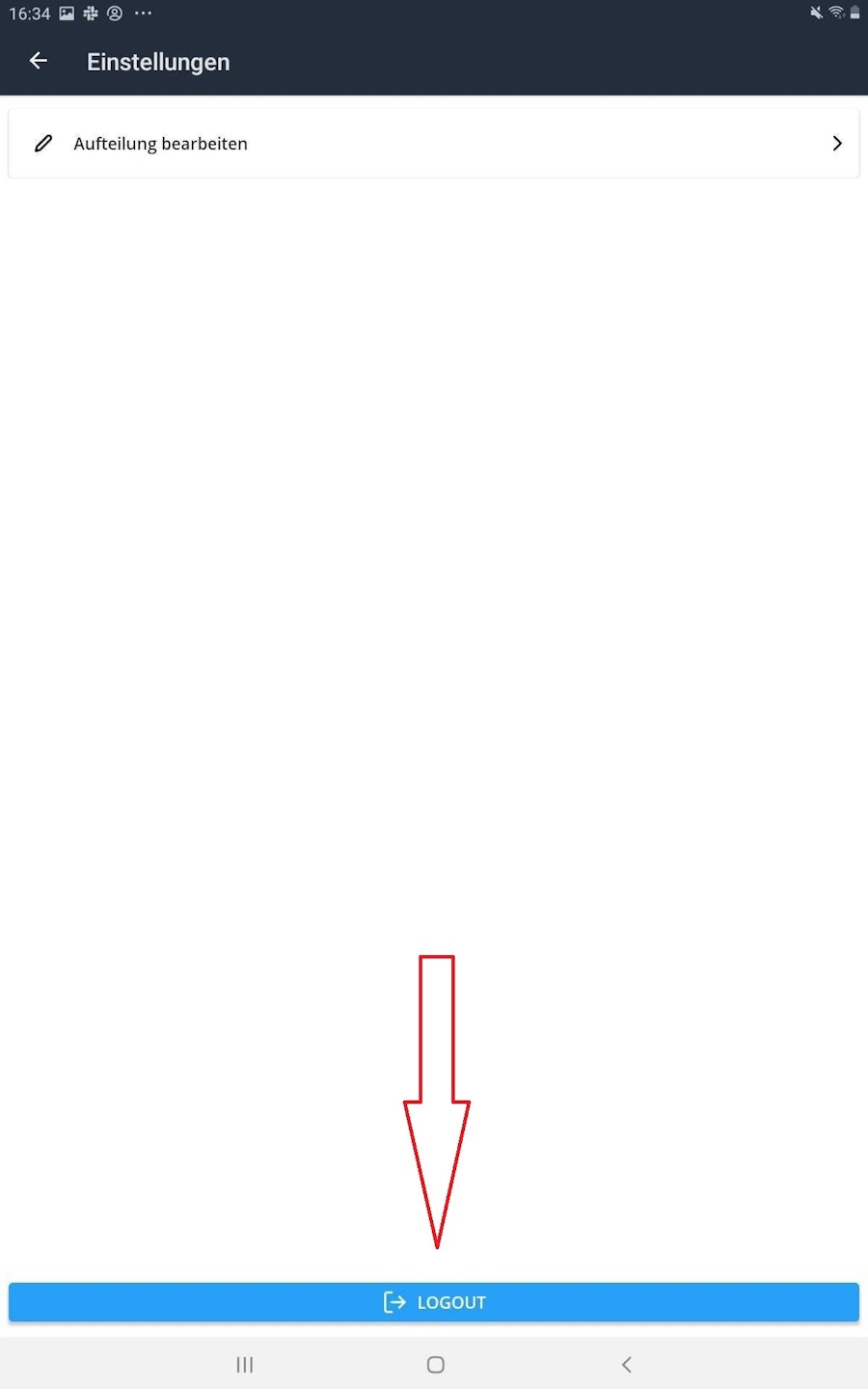
Then go to “Settings”.
A new window will open. At the bottom, tap the blue button “Logout”.

Why do interruptions occur between Orderpro and the Tillhub Gastro App?
This can be due to several reasons:
Make sure your Android devices and your iPad register are connected to the same Wi-Fi network.
Avoid using guest Wi-Fi networks. These can interfere with communication between devices due to restrictive firewalls.
Make sure the Tillhub Gastro App remains open. If you close the app and open another app or if the screensaver appears on your iPad, the connection will be interrupted.
To avoid unnecessary interruptions caused by the screensaver, go to the “Settings” on your iPad.
Then navigate to “Display & Brightness” and select “Never” under “Auto-Lock”.
Next, go to the settings on your Android device. Navigate to “Screen timeout” and set it to the maximum available duration (usually 30 minutes).
Was this article helpful?
That’s Great!
Thank you for your feedback
Sorry! We couldn't be helpful
Thank you for your feedback
Feedback sent
We appreciate your effort and will try to fix the article
