Layout
Modified on Mon, 8 Jun at 9:58 AM
In this section, you have the option to configure tables and rooms and adjust your view.
TABLE OF CONTENTS
- How can I change the display of my tables?
- Why are my product names not fully visible?
- What should I consider with the different item types in the Tillhub Gastro App?
How can I change the display of my tables?
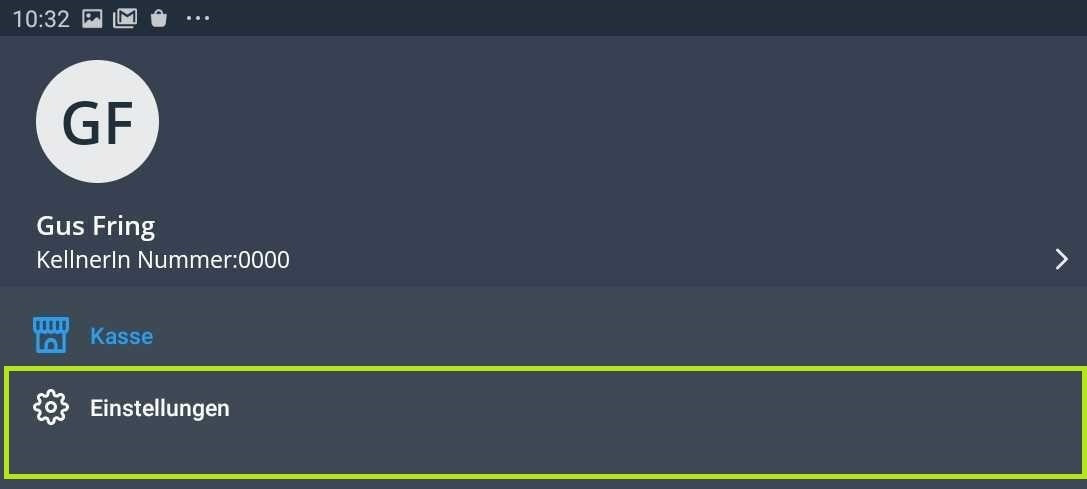
On the Orderpro device, all rooms and tables that you have previously set in the Tillhub Gastro App on the iPad are displayed. You can configure the arrangement of tables and rooms here independently of the layout defined in the Gastro App by changing the number of displayed rows and columns. To do this, tap the menu icon in the top left.
- Then go to “Settings”.
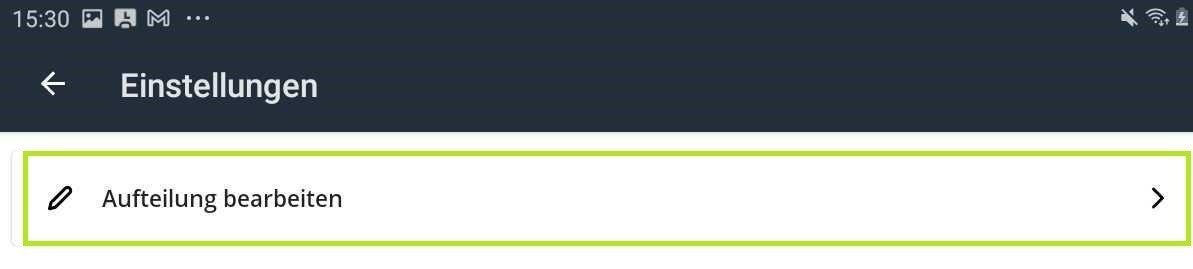
- Next, tap on “Edit layout”.
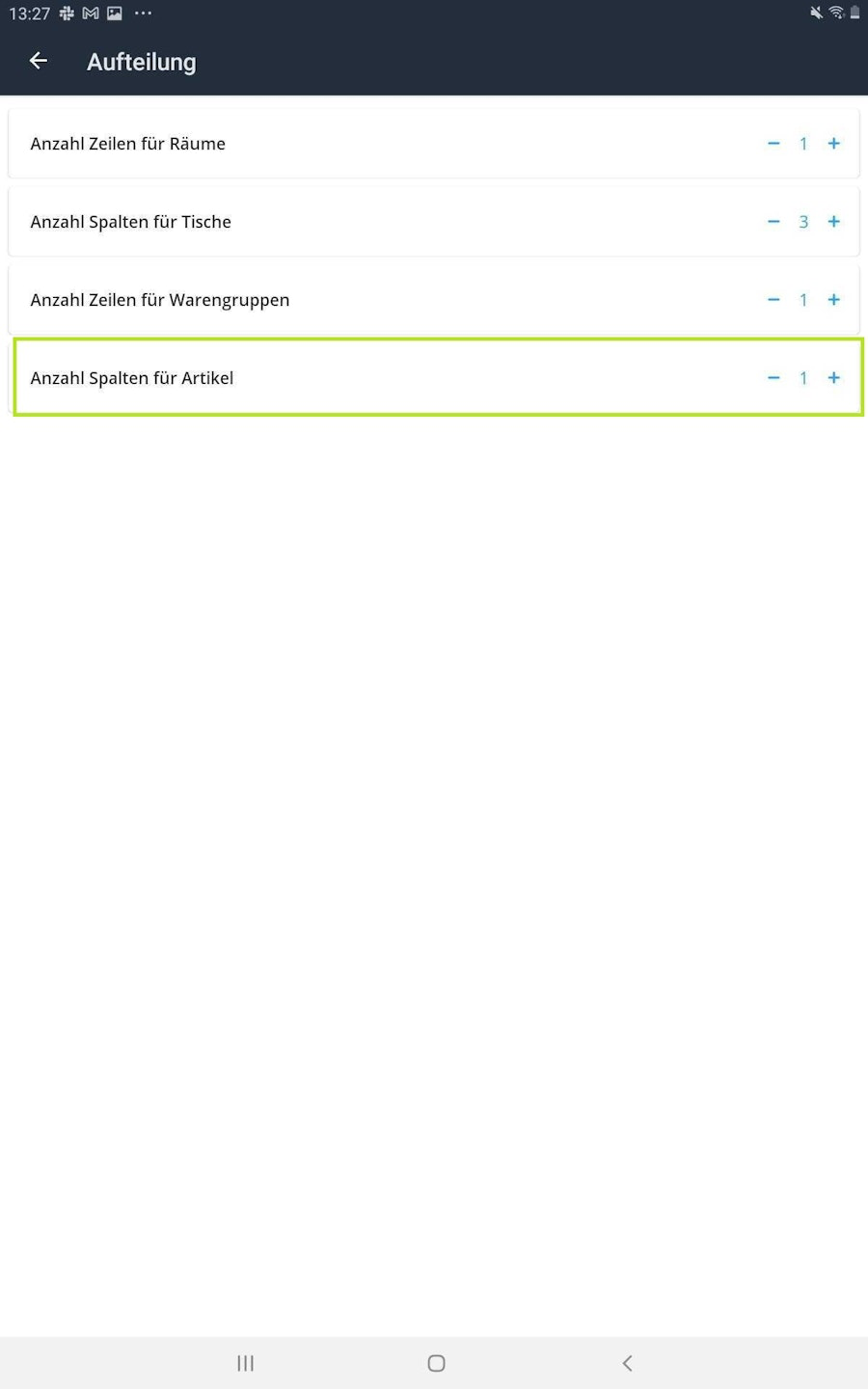
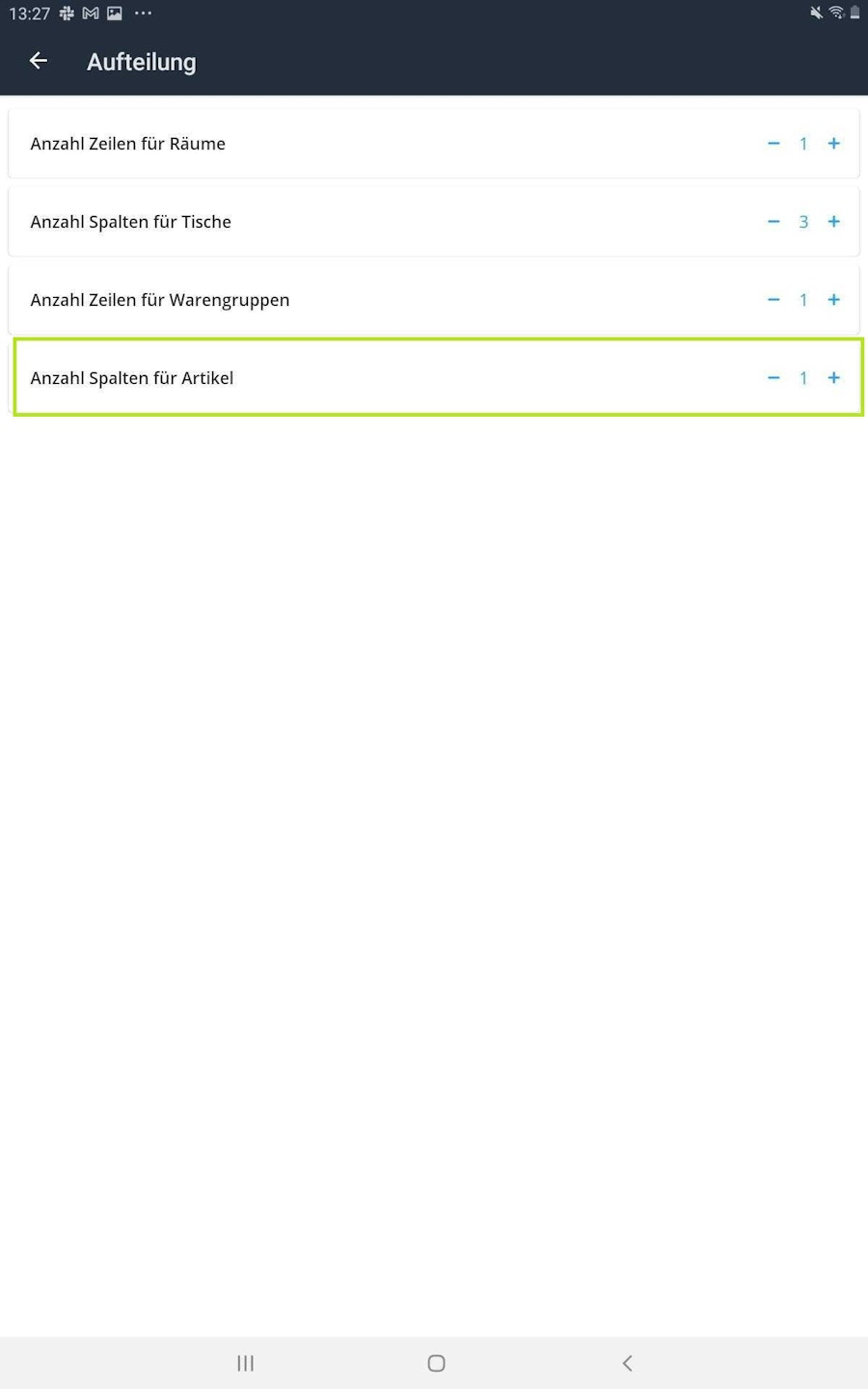
- You now have the option to choose between different settings:
- Number of rows for rooms
- Number of columns for tables
- Number of rows for product groups
- Number of columns for items
You can change the number of each setting by tapping the respective “+” or “–”. While the first two options are important for the view of rooms and tables, the last two options may be relevant for you if the names of items or product groups are not fully displayed.

Why are my product names not fully visible?
By changing the number of columns and rows, you can adjust the Orderpro user interface to the different screen sizes of your devices. This ensures that the names of your products and product groups are clearly visible in the Orderpro App. This customization may vary from device to device. For small Android devices such as smartphones, you should set the “Number of columns for items” to “1”.
- Number of rows for rooms
- Number of columns for tables
- Number of rows for product groups
- Number of columns for items
What should I consider with the different item types in the Tillhub Gastro App?
Standard items: For standard products, there’s nothing additional to consider. They are displayed as in the Tillhub Gastro App.
Items without a price: Products without a price (=0.00 EUR) cannot yet be displayed in the current version of Orderpro.
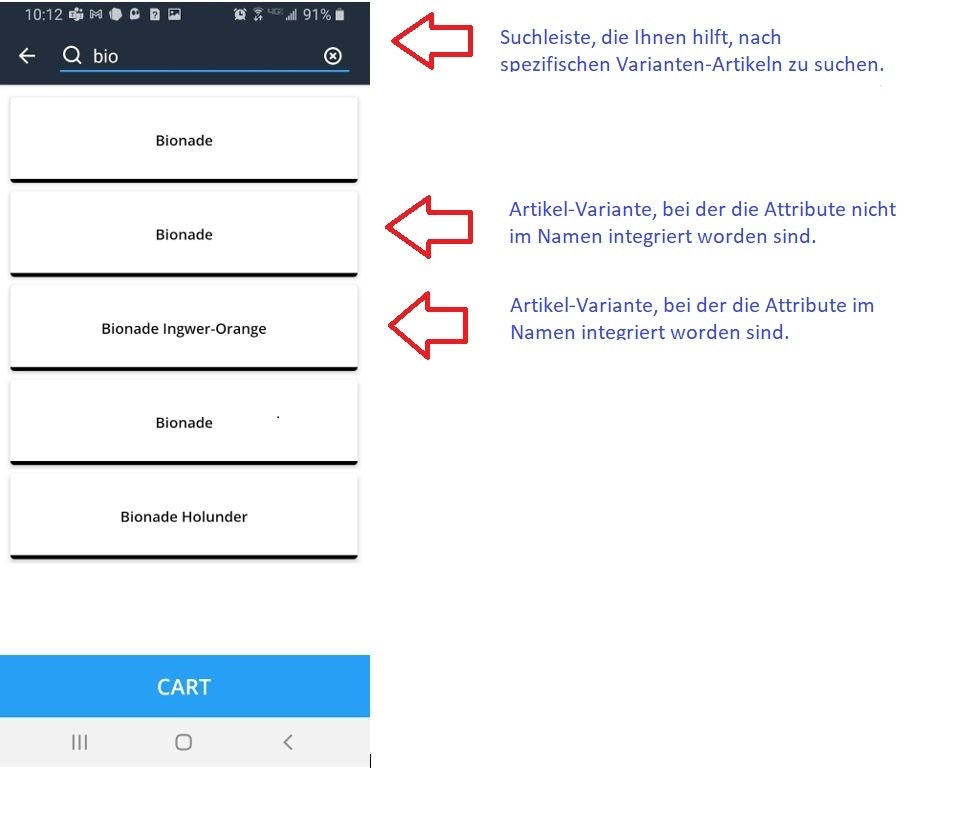
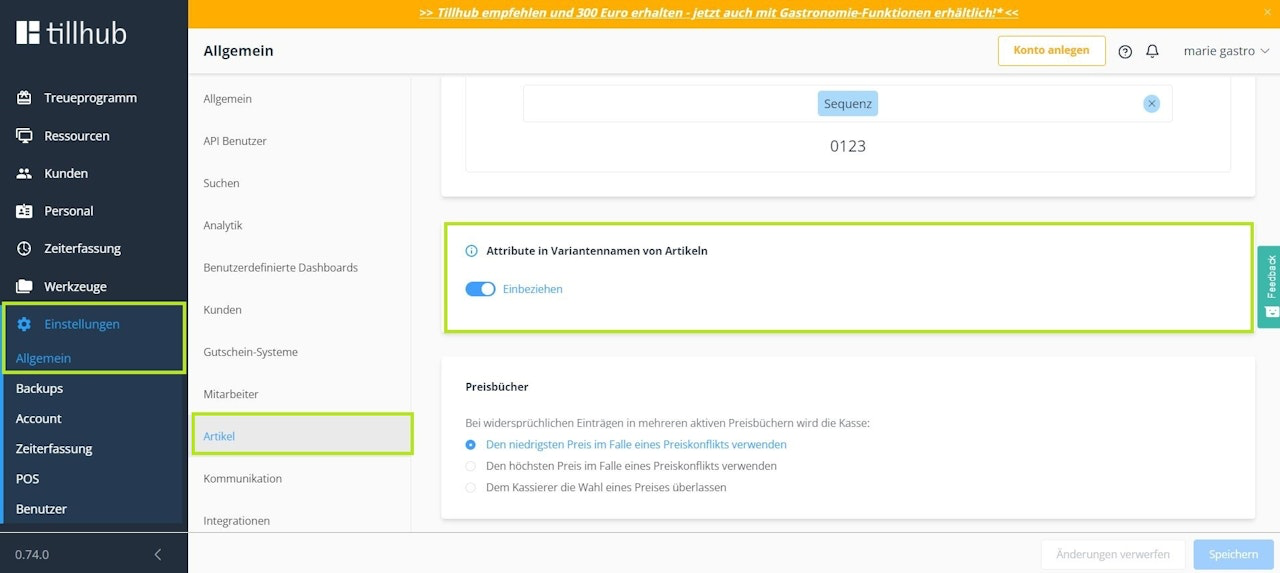
Variant items: For variant items, all variants are displayed individually. Unlike in the Gastro App, you cannot tap the base of the variant item and select between different attributes. To distinguish between the various variants in Orderpro, it is therefore important to include the attributes in the names of the variant items. There is a specific setting for this in the dashboard. To maintain an overview with individually listed variant items, we recommend using the search bar.
To automatically include the attributes in the names of variant items, navigate to “Settings” in the main menu of your dashboard. Go to the submenu “Items” and then on the right side of the screen, find “Attributes in variant names of items”. There, activate the toggle button “Include”.
If you use variant items in your register, we recommend setting the number of columns for items to “1” on a small Android device such as an Android phone, so that all variant item names remain easily readable even with the added attributes. You can find more information on this in the following subchapter.
Was this article helpful?
That’s Great!
Thank you for your feedback
Sorry! We couldn't be helpful
Thank you for your feedback
Feedback sent
We appreciate your effort and will try to fix the article
