Taking and editing orders
Modified on Thu, 26 Feb at 12:27 PM
In this section, you will learn how to take and edit orders.
TABLE OF CONTENTS
- How does the ordering process work?
- How can I add more products to an order?
- To what extent are my orders synchronized with the iPad register?
- Can I place orders on the iPad register at the same time?
- How can I change an order that has already been placed?
- How can I assign two different parties to a table?
- How can I place orders that should not be assigned to a table number?
How does the ordering process work?
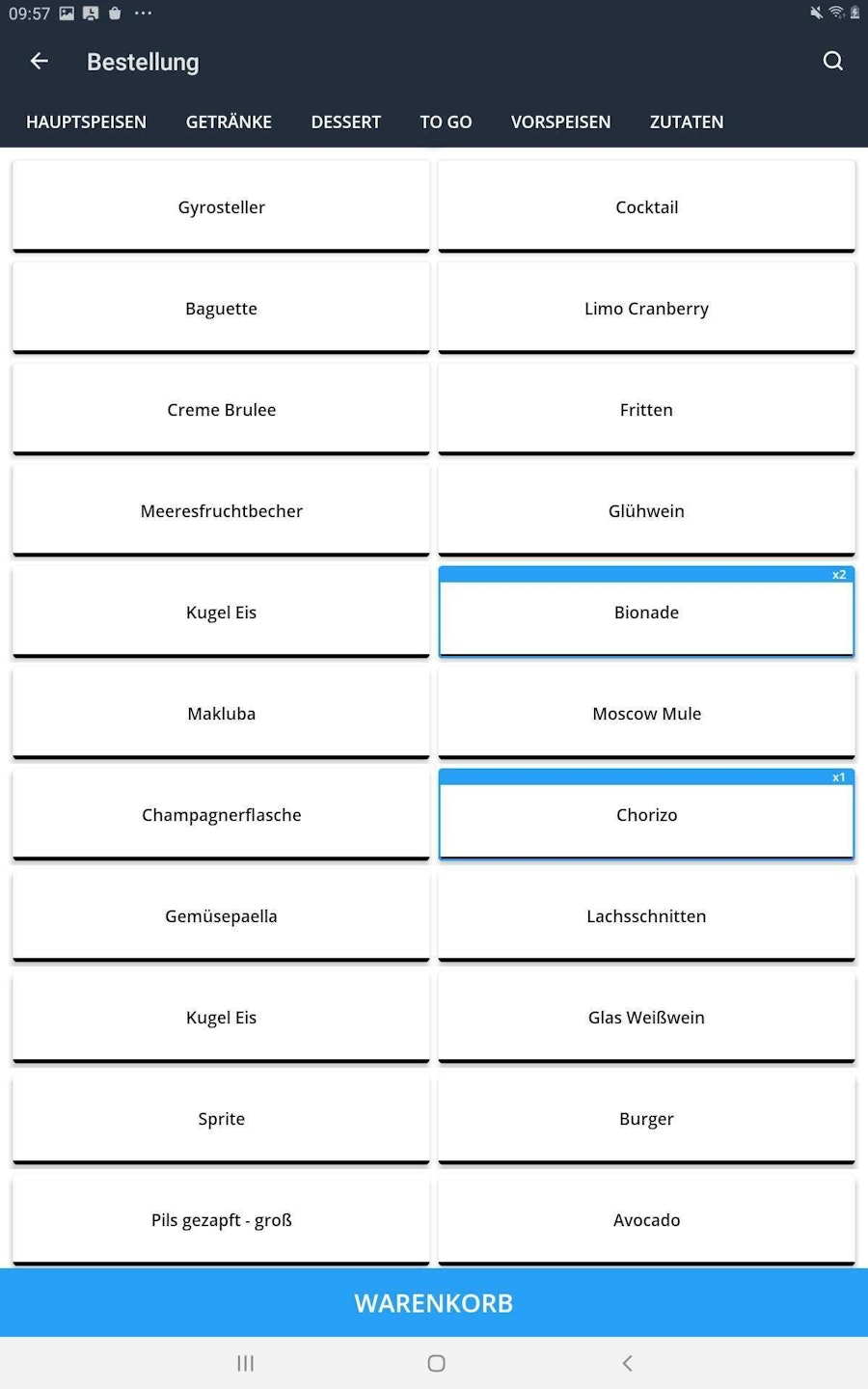
When you tap on an empty table, you automatically begin the ordering process. The order view opens, where you can choose between your different products. The products are arranged by product groups. The different product groups are displayed in the bar at the top. If you cannot read the names of the product groups, adjust the number of columns and rows.
Orders are automatically saved and sent when you tap the blue “Cart” button and then tap “Save”. It’s even easier if you tap the white arrow next to the word “Order” in the upper left of the order view.
How can I add more products to an order?
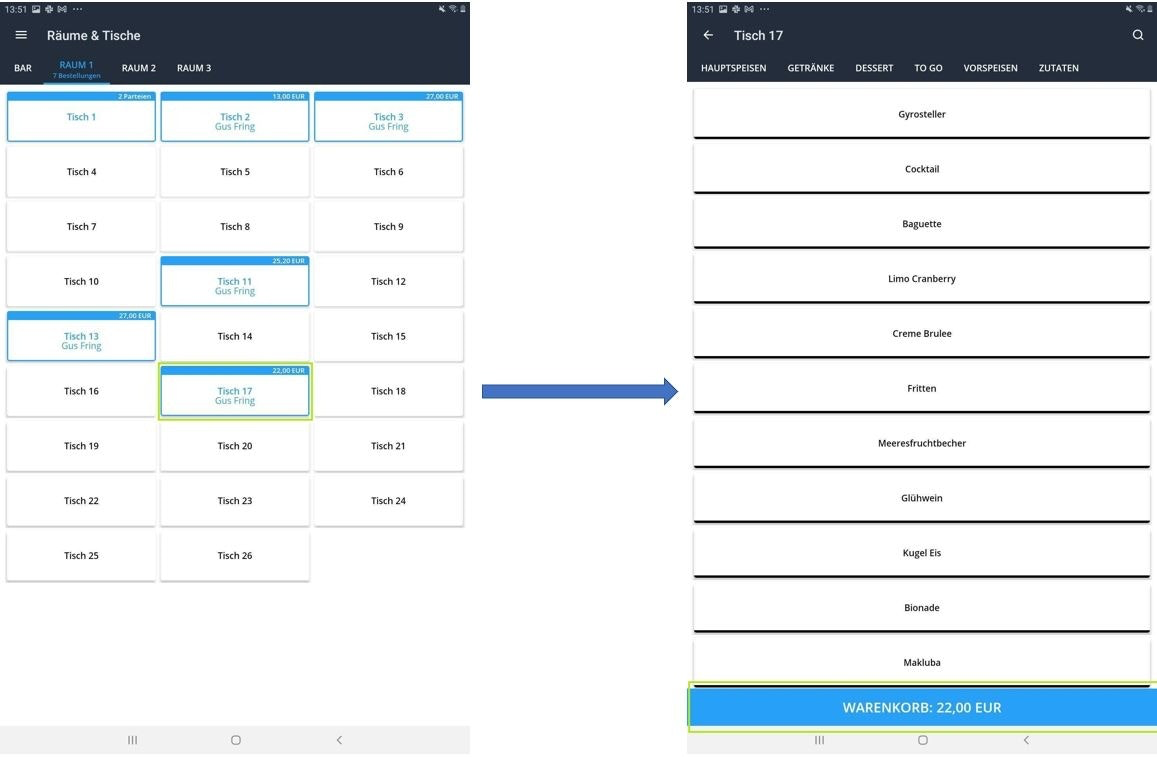
To add more products to an order, simply tap briefly on the table that already has the order.You will return to the order view, where the products and product groups are listed. When you select products there, they are automatically added to the existing order.
To what extent are my orders synchronized with the iPad register?
Your orders are synchronized in real time with the iPad register or (if connected) sent directly to the kitchen/receipt printer.
If a change is not immediately visible on the iPad or in Orderpro, you can also manually trigger an update by pulling the screen down from the top.
Can I place orders on the iPad register at the same time?
Yes, you can. However, if the same order is accidentally opened on both the iPad register and the Orderpro device at the same time, the order process on Orderpro can only be continued once the order has been completed on the iPad. The iPad user must have exited the table for this. This prevents one and the same order from being sent to the kitchen by two different employees.
If the order made on the iPad is not immediately visible on the table in Orderpro, pull the screen down from the top. This will also manually trigger the synchronization.
How can I change an order that has already been placed?
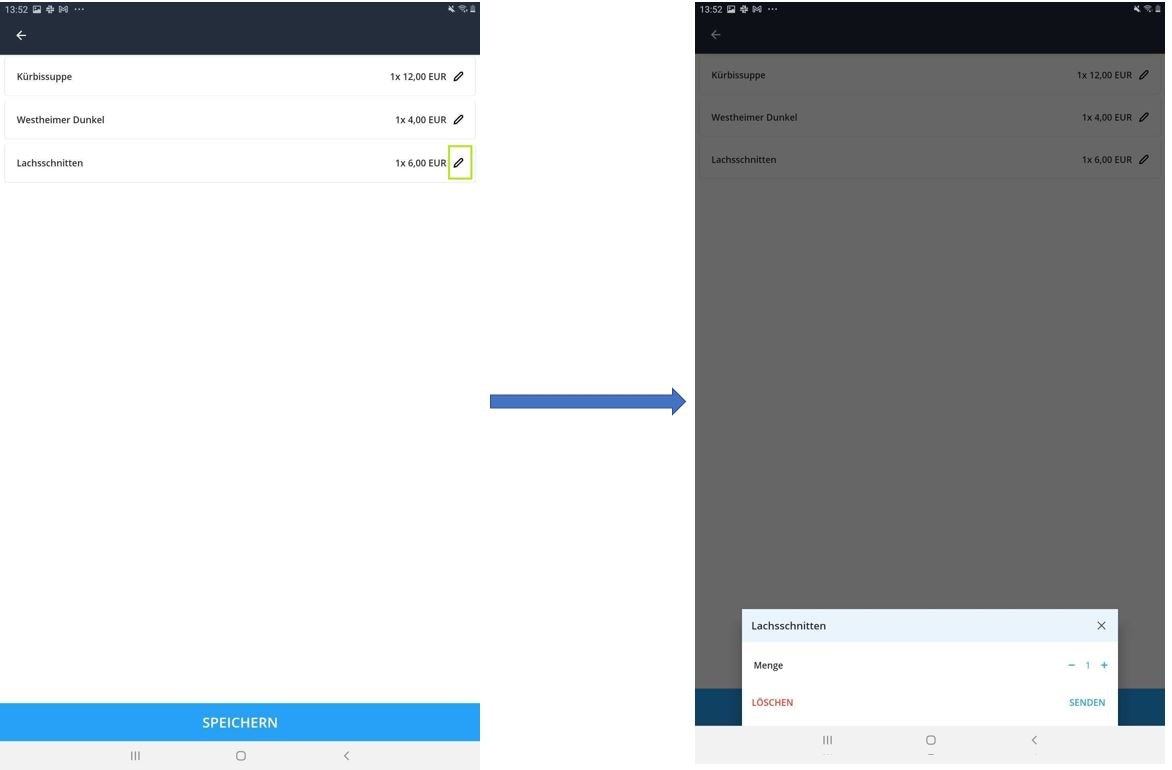
Tap briefly on the table where you want to make a correction. Then tap the blue “Cart” button at the bottom.
The various products you have already ordered will now be displayed. You can change the quantity by tapping the pencil icon on the right. A pop-up window appears at the bottom, where you can change the quantity using the “+” and “–” buttons. Then press “Send” to save your changes.
You can delete an already ordered product by swiping from right to left on it. The deletion is indicated by a red bar with the delete icon appearing during the swipe. You can also delete a product by tapping the pencil icon and then selecting “Delete” in the pop-up window at the bottom. In both cases, a brief message will appear at the bottom with the option to undo this action.

How can I assign two different parties to a table?
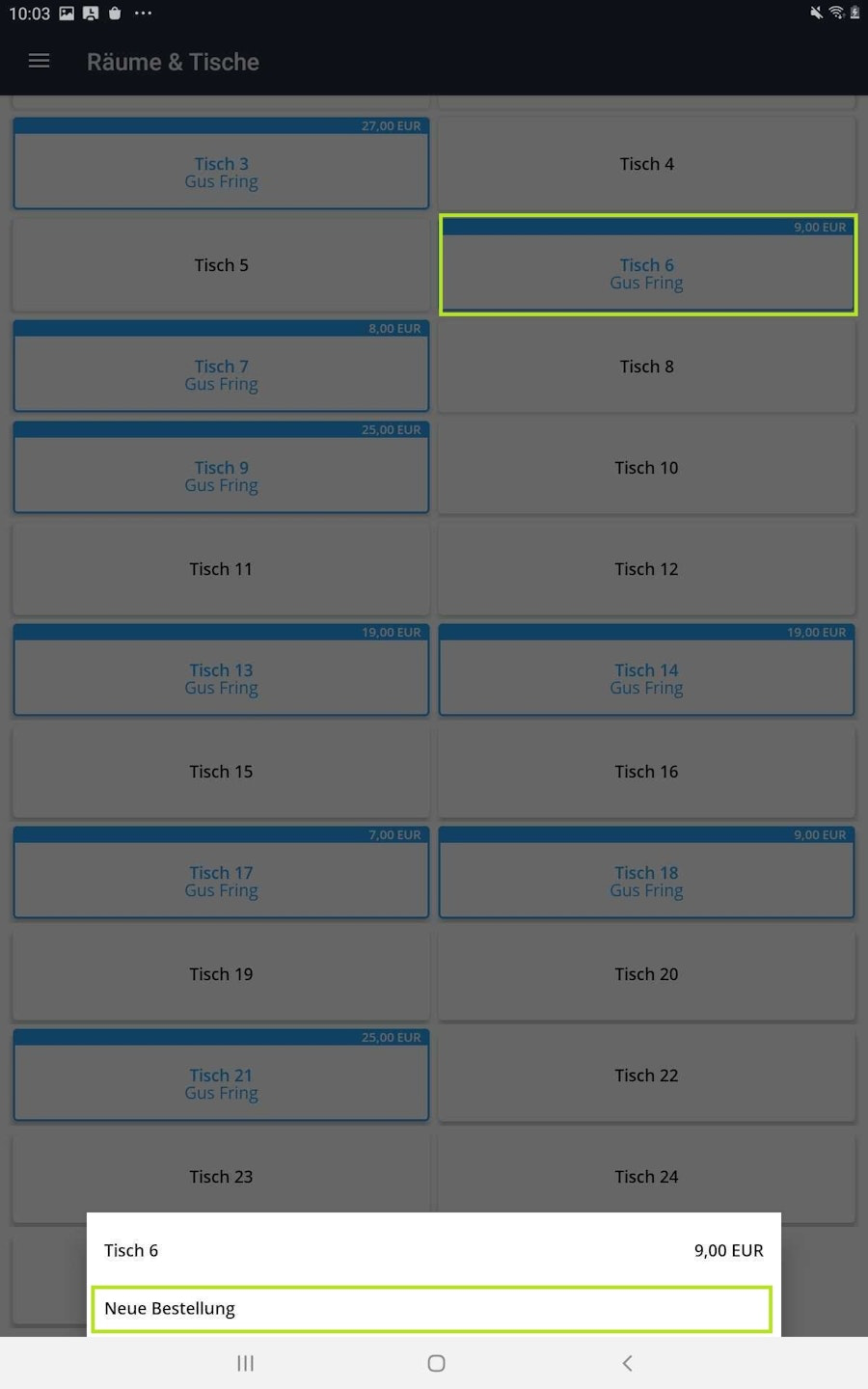
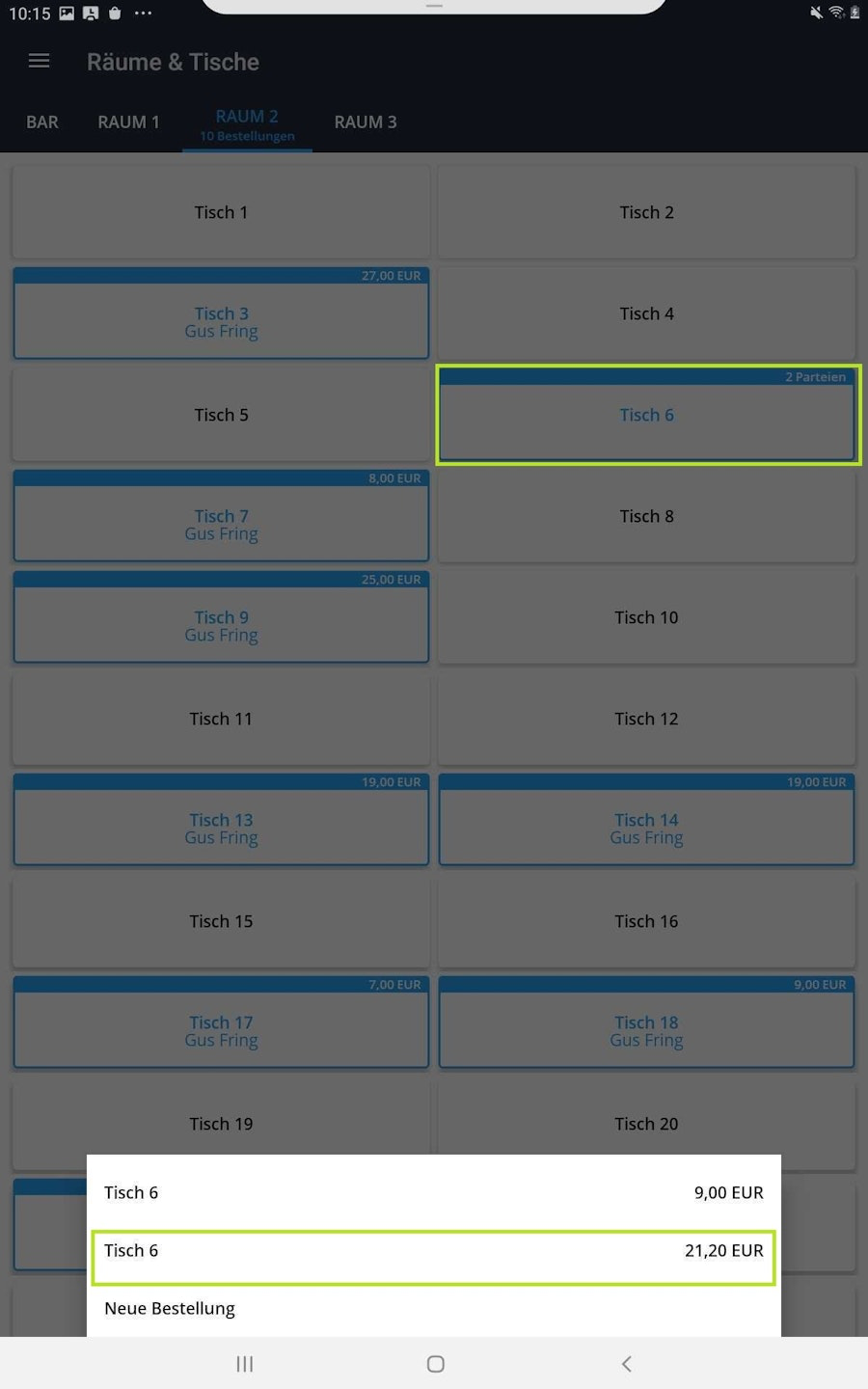
If you want to assign a second order to a table that already has an open order, you can do so by pressing and holding on the respective table. A pop-up window appears at the bottom with the table number, the amount of the existing order, and the note “New order”. Tap on “New order” to assign a second, separate order to the same table — for example, when two different parties are seated at one table.
After you have completed the order, you will see the note “2 parties” on the table in the table view, meaning that two independent orders have been registered at this table. If you now press and hold this table again, the same pop-up window will appear at the bottom with the table number, the note “New order”, and the number of order processes. This time, the two separate orders are visible. You now have two options: either you open a third separate order by tapping “New order”, or you add more products to one of the two existing orders by tapping on one of them.
How can I place orders that should not be assigned to a table number?
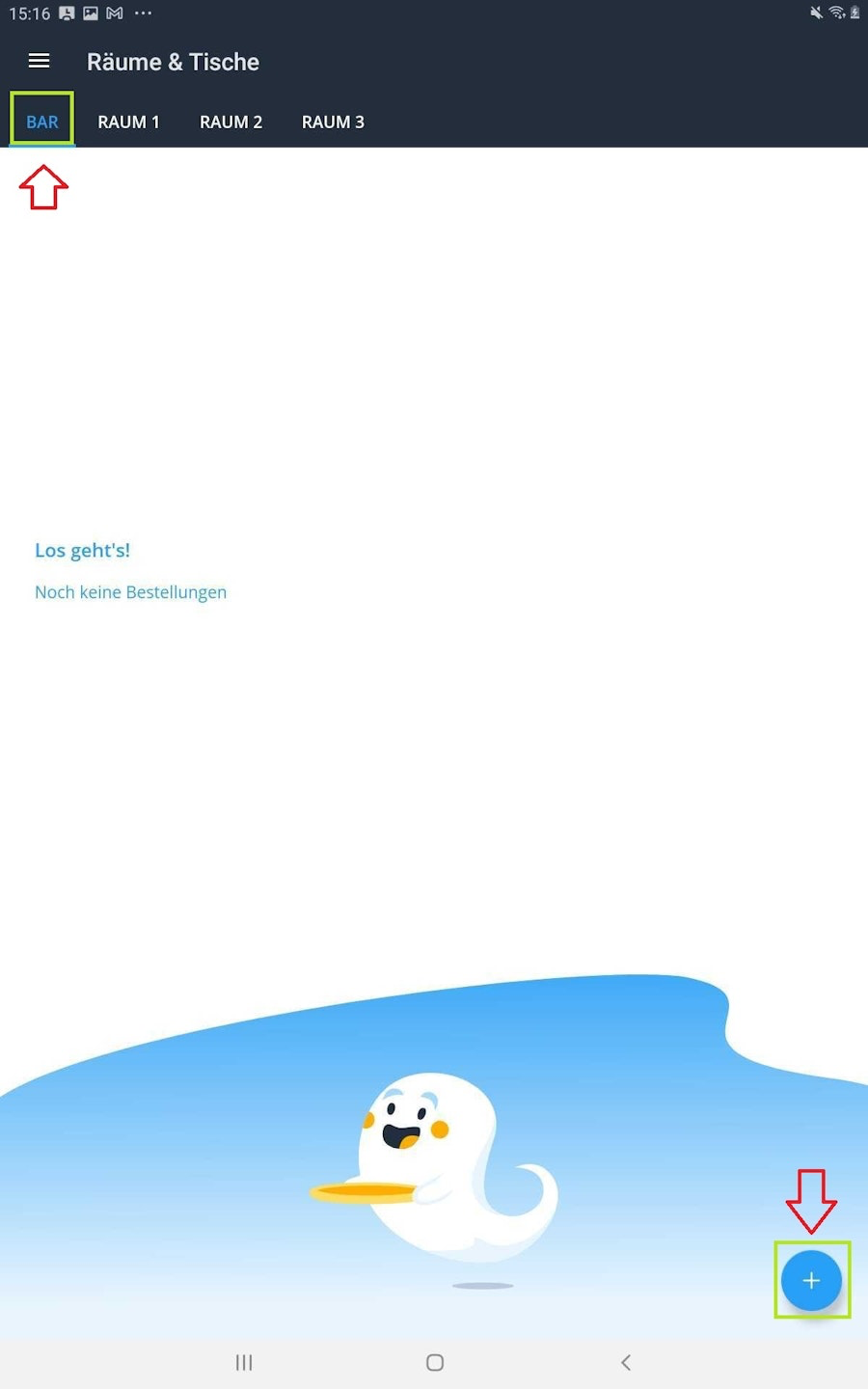
If you go to “Register” in the main menu, you will see various tabs at the top representing your different rooms. You will also see a tab called “Bar”, which shows all orders that are not assigned to a specific table. The orders shown there are identical to the “Bar” orders in the Tillhub Gastro App on your iPad.
Tap on the “Bar” tab and then on the “+” in the bottom right to place a new order at the “Bar”. A new window will open where you can select from your different products. The products are arranged by product groups. The different product groups are displayed in the bar at the top.
Was this article helpful?
That’s Great!
Thank you for your feedback
Sorry! We couldn't be helpful
Thank you for your feedback
Feedback sent
We appreciate your effort and will try to fix the article
