Integrations
Modified on Mon, 16 Feb at 10:11 AM
Step 1: Sign in
First, sign in to the Tillhub Dashboard with the master user.
If you do not yet have a Mailjet account, you need to create one first.
Note: You can easily register on the official website and create an account: Mailjet.
Step 2: Settings
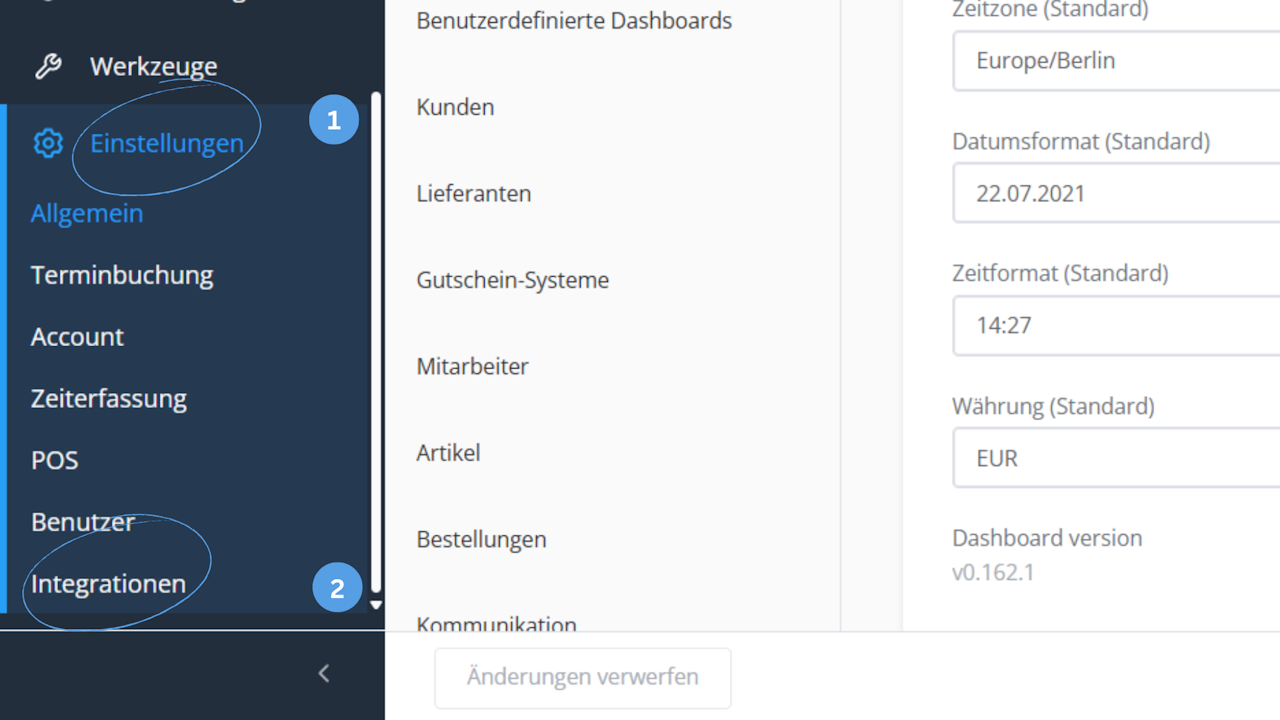
In the dashboard menu, scroll all the way down and click "Settings."
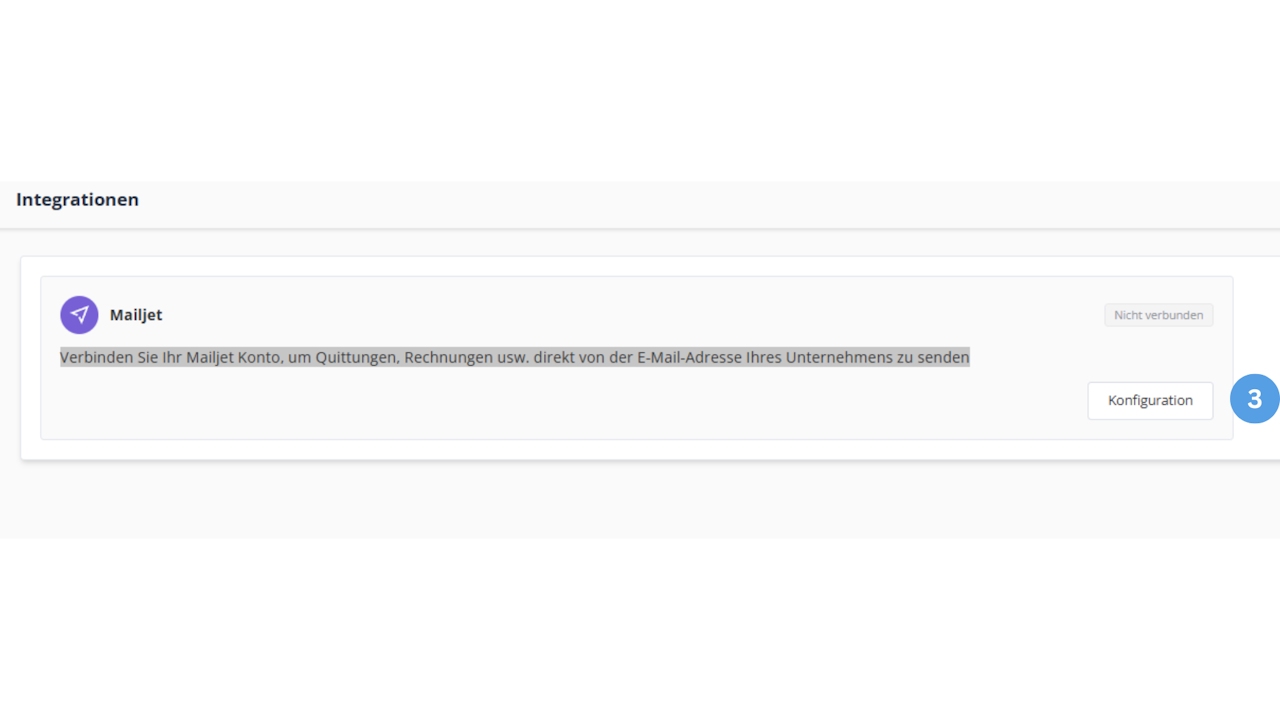
In the menu that opens, select "Integrations." Now click "Configuration" at the bottom right.
Step 3: Enter Mailjet API details
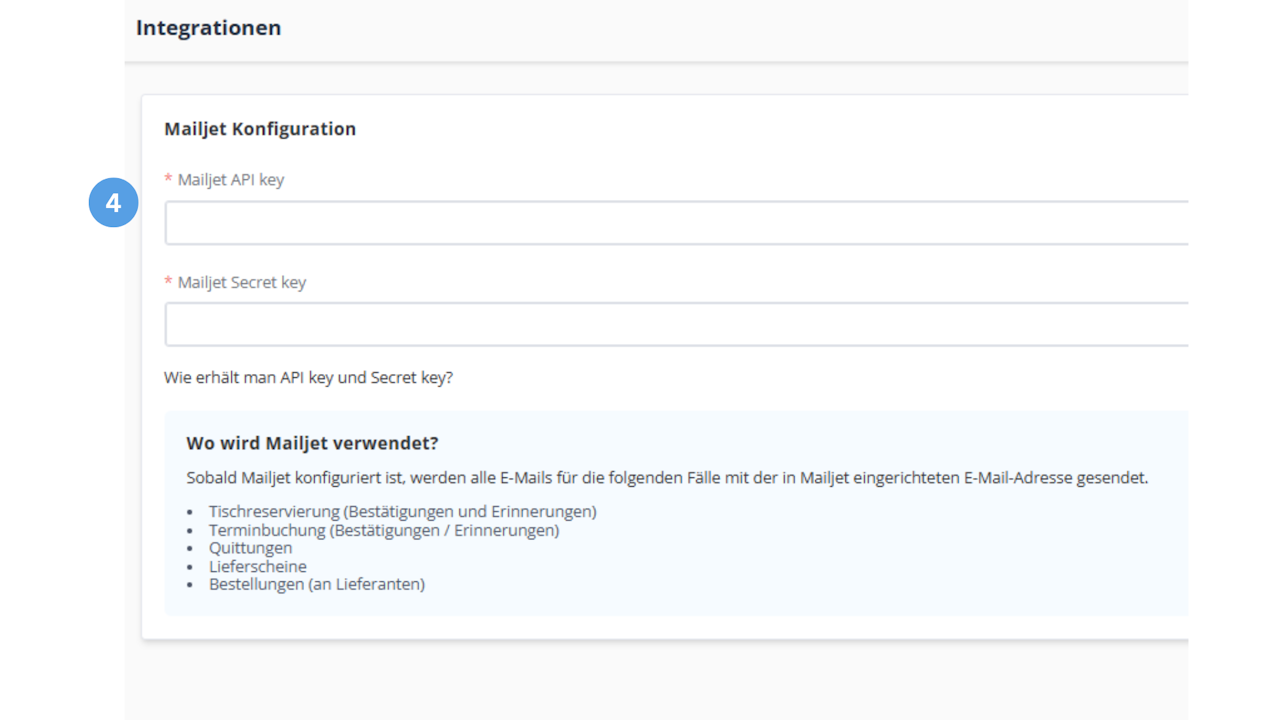
In the configuration, enter your Mailjet API Key and Mailjet Secret Key.
Note: You can obtain these credentials by following Mailjet’s instructions.
Follow those steps to retrieve your personal API credentials in Mailjet.
Then enter both keys into the corresponding fields in the Tillhub Dashboard. Click "Create" at the bottom right.
Once the connection has been successfully established, the sender email addresses you set up in Mailjet should automatically appear in the Tillhub Dashboard.
This means:
Your end customers will receive emails directly from the email address selected there.
Where is Mailjet used?
After Mailjet is successfully configured, all automatic emails in Tillhub are sent via the sender address set up in Mailjet.
This applies in particular to:
- Table reservations – confirmations and reminders
- Appointment bookings – confirmations and reminders
- Receipts
- Delivery notes
- Purchase orders to suppliers
Was this article helpful?
That’s Great!
Thank you for your feedback
Sorry! We couldn't be helpful
Thank you for your feedback
Feedback sent
We appreciate your effort and will try to fix the article
