Users
Modified on Mon, 16 Feb at 10:11 AM
TABLE OF CONTENTS
In this article, we show you how to create a new user.
A user is used to create dashboard access, allowing you to grant others access to selected areas of your dashboard (e.g., accounting).
In addition, this user can also be used to log in to the Tillhub app to set up the POS. Please note that this is different from staff—however, it can be linked to an individual staff member.
Create a new dashboard user
To create a new user, go to Settings and select “Users.” In the overview, you can see all users and create a new one using the “+ New” button.
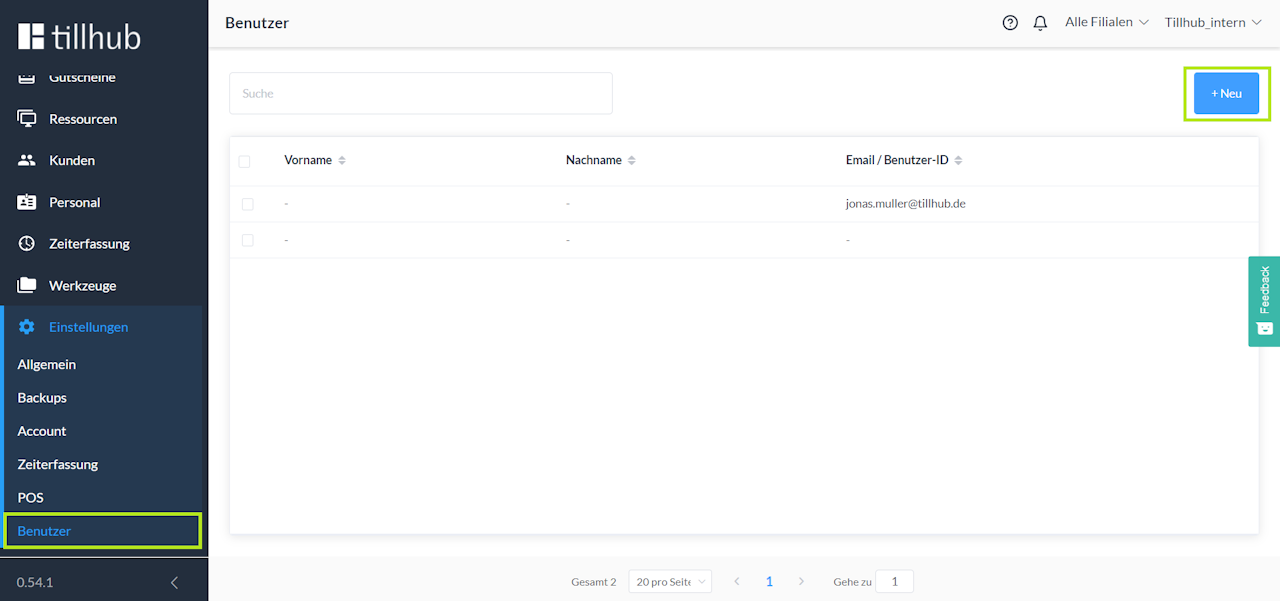
Clicking “+ New” opens a new screen.
In the “General” section, enter the new user’s first and last name. You can also define at which locations your new user should be available.
To do this, click the green-highlighted field to open an overview of all available locations and store groups. Select the desired locations individually or use the option Make available everywhere.
In the “Dashboard login”section, enter the individual login details consisting of email and password.
Important: For the new user to log in later, the organization name is also required.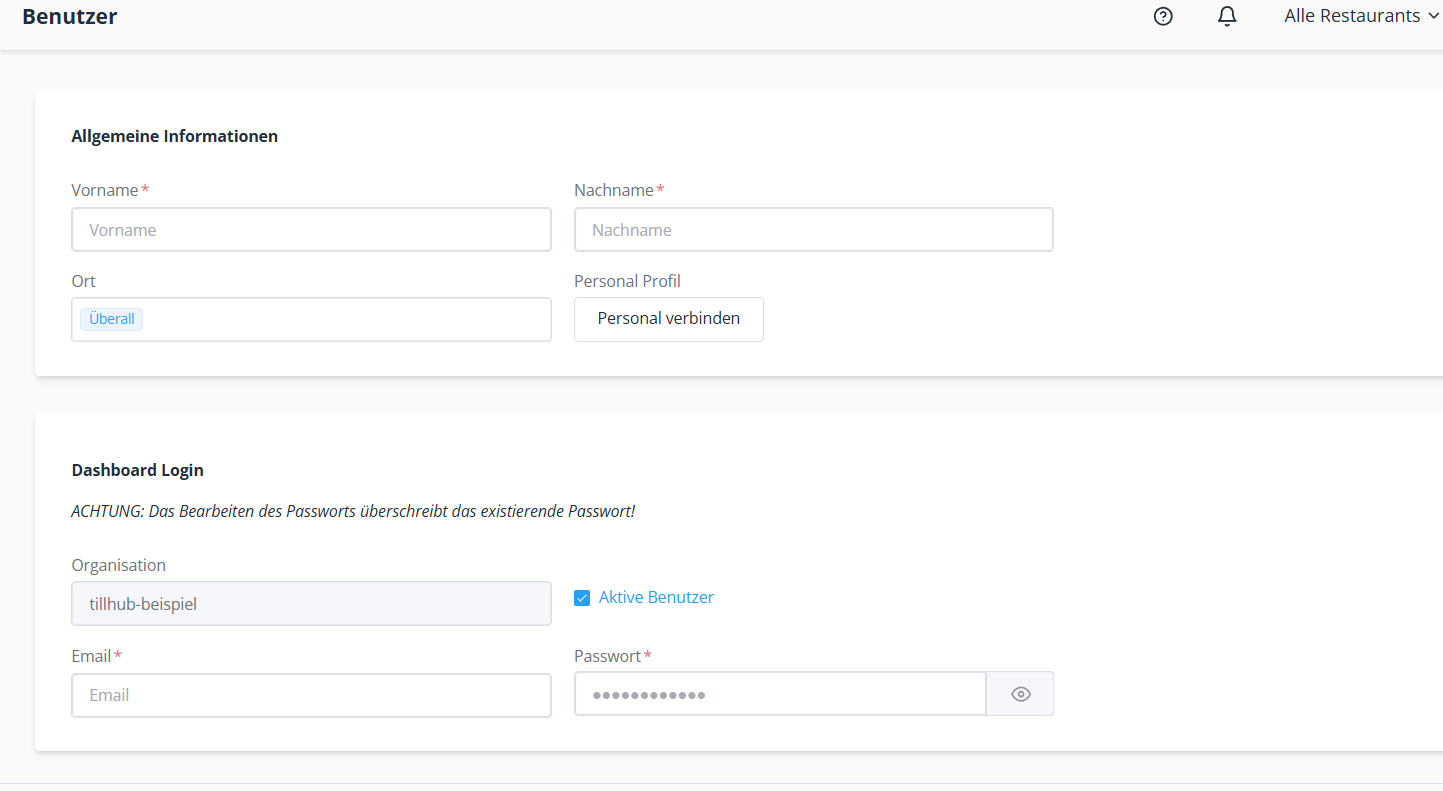
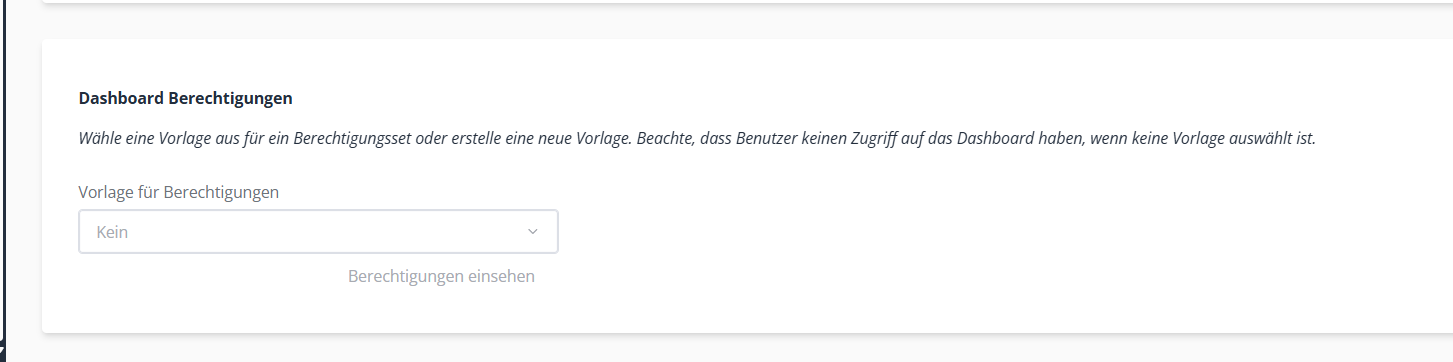
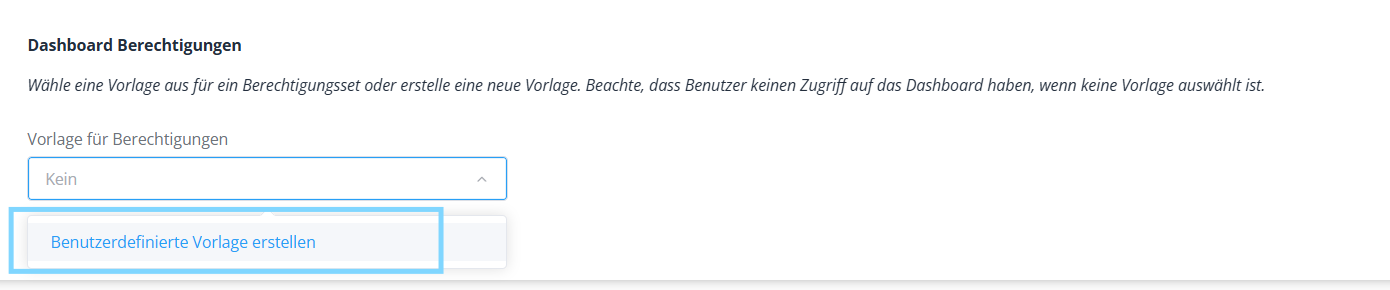
In the dashboard, scroll down to “Dashboard permissions.” There you create a permission template.
Click “Create custom template”, enter a name for the permission template, and then select which areas the person is allowed to view and/or edit in the dashboard. Then save the permission template.
Once you have configured everything, you can create your new user by clicking the “Create” button in the bottom right.
After that, the person can log in to the dashboard.
Link staff and dashboard permissions
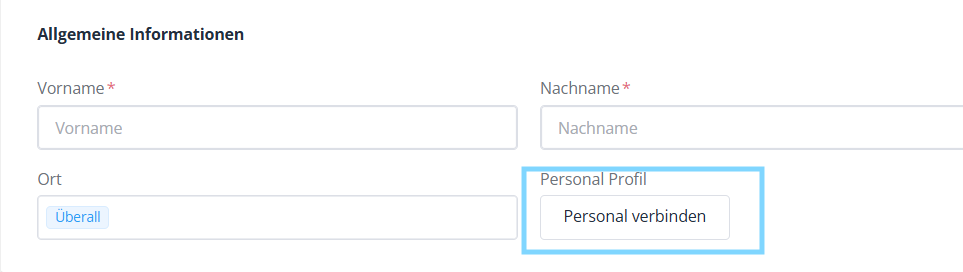
If you want to link your new user to existing staff, click “Link staff” in the “General information” section and then select the desired staff member.
Recommendation:
Send the user (e.g., your tax advisor) an email with:
- the dashboard link,
- the organization,
- the password
that you stored under “Dashboard login”.
This way, the person knows exactly where and with which credentials they can log in.
Was this article helpful?
That’s Great!
Thank you for your feedback
Sorry! We couldn't be helpful
Thank you for your feedback
Feedback sent
We appreciate your effort and will try to fix the article
