POS (Point of Sale)
Modified on Mon, 16 Feb at 10:11 AM
TABLE OF CONTENTS
General
To access the POS section, navigate in the dashboard to “Settings” and “POS.”
Here you can make various POS-related adjustments, which we explain in more detail in this article.
Discounts
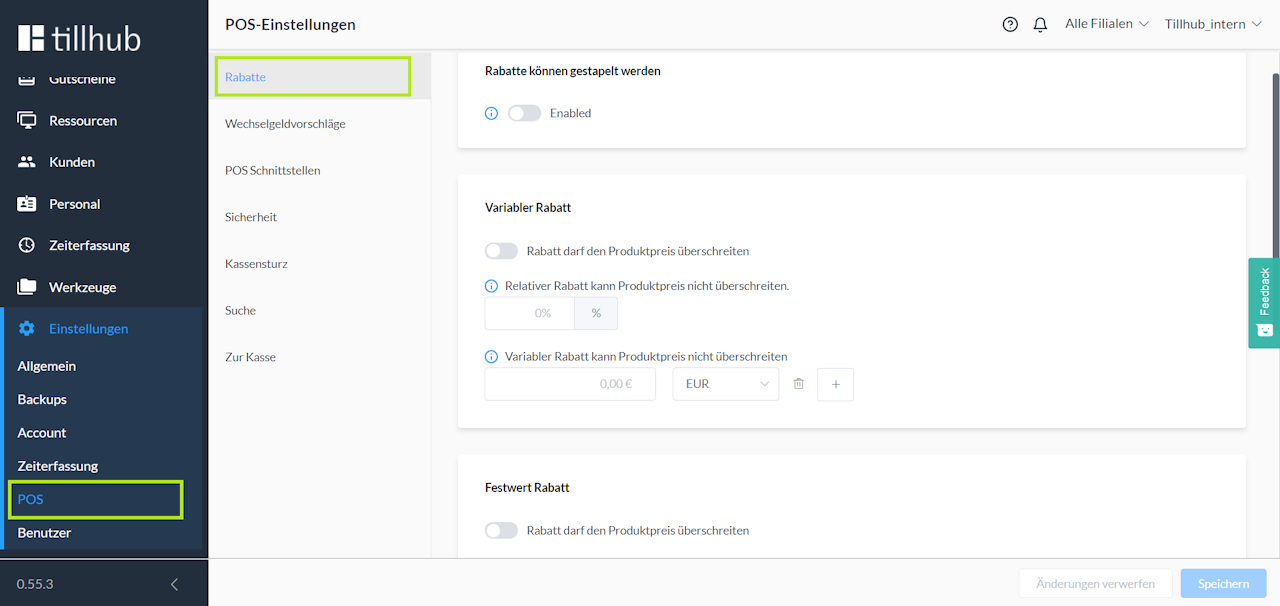
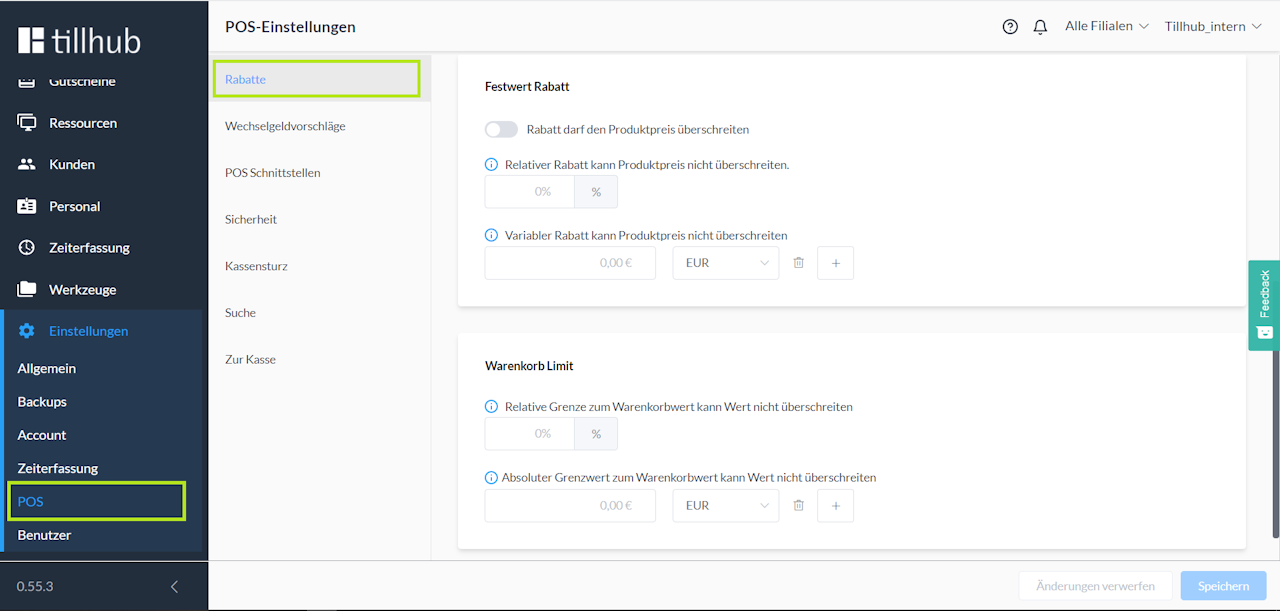
Here you can, for example, define whether discounts can be stacked—i.e., whether multiple discounts can be applied to one item.
You can also set limits for variable and fixed-amount discounts, and you can use a cart limit to cap the total value that can be applied to a cart.
Security
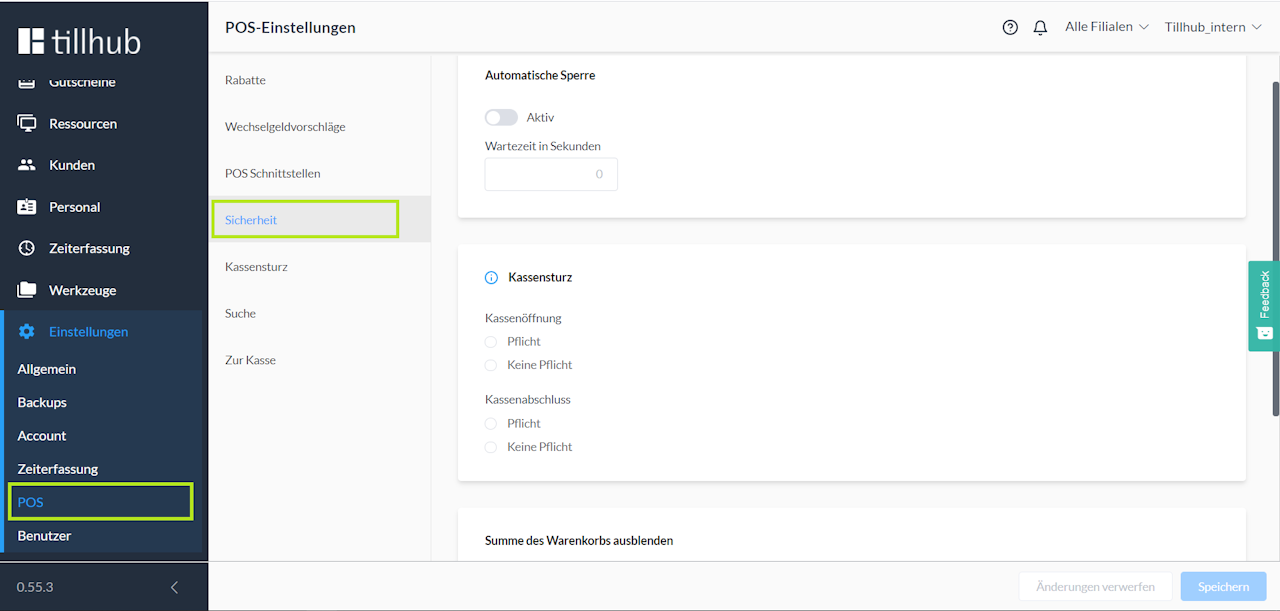
In this section, you can set up an automatic POS lock.
You can also define whether opening the cash drawer and/or closing the POS is mandatory during a cash count, and hide individual components in the cart total.
Cash count
Here you can enable or disable the manual cash count.
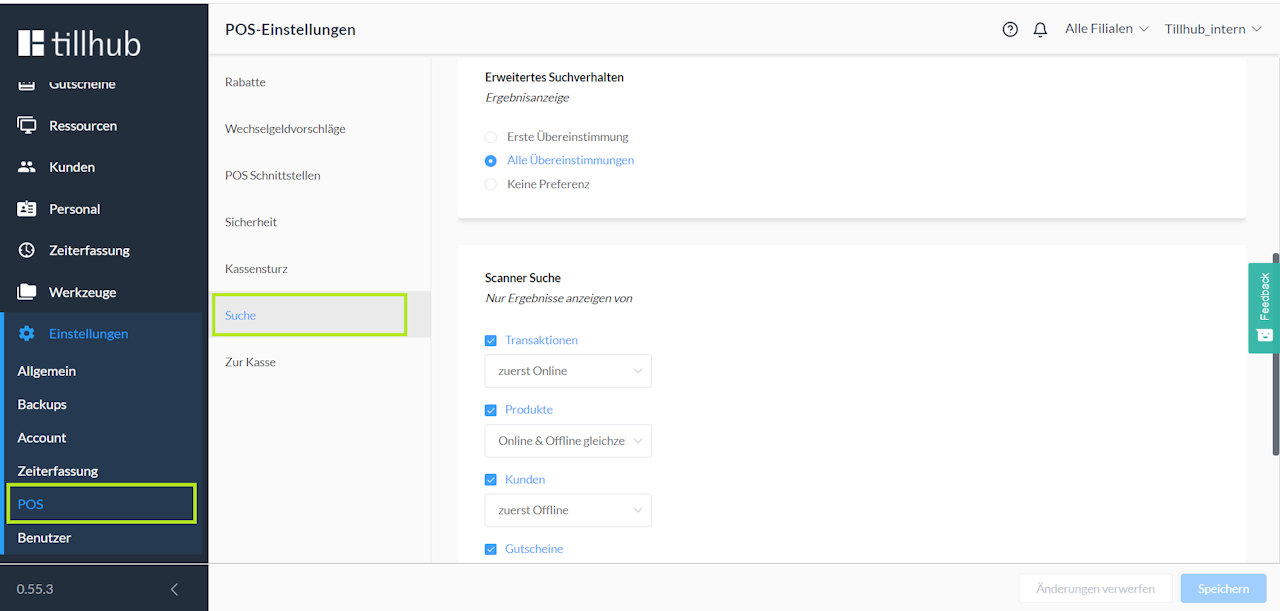
Search
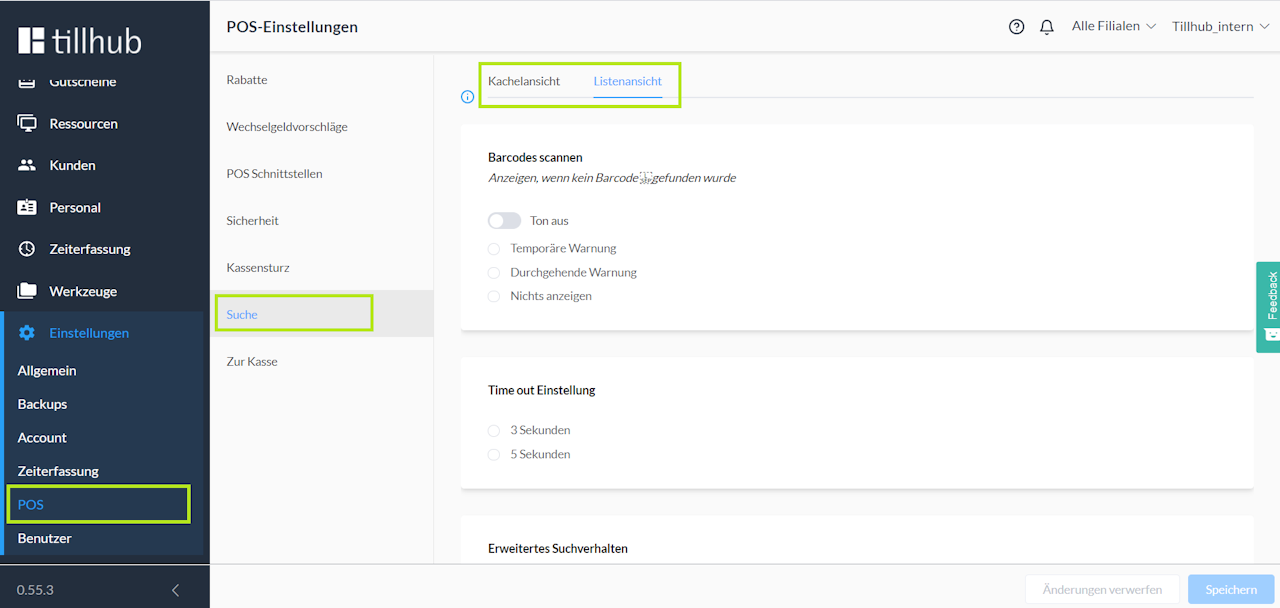
In this section, you can adjust the search settings for the tile view and list view. First select the desired view.
You can then, for example, define whether a warning is displayed when barcodes are scanned incorrectly, or customize the scanner search.
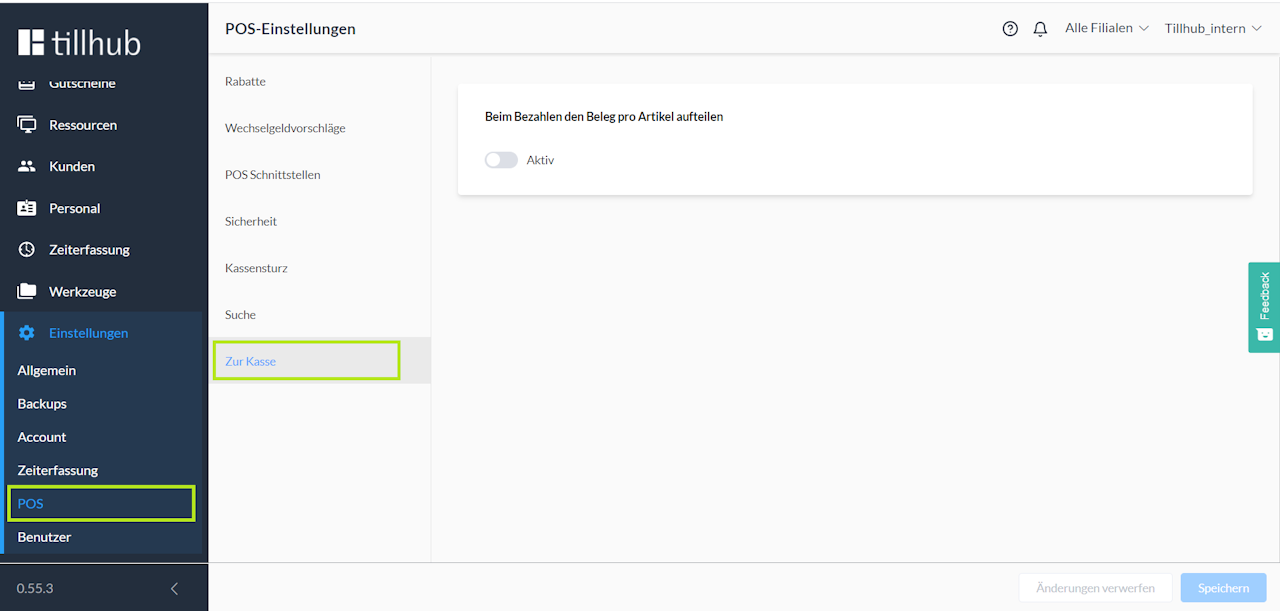
Checkout
In this section, you can set whether the receipt should be split per item when paying.
Was this article helpful?
That’s Great!
Thank you for your feedback
Sorry! We couldn't be helpful
Thank you for your feedback
Feedback sent
We appreciate your effort and will try to fix the article
