Time tracking
Modified on Wed, 18 Feb at 3:56 PM
TABLE OF CONTENTS
View time tracking via the dashboard
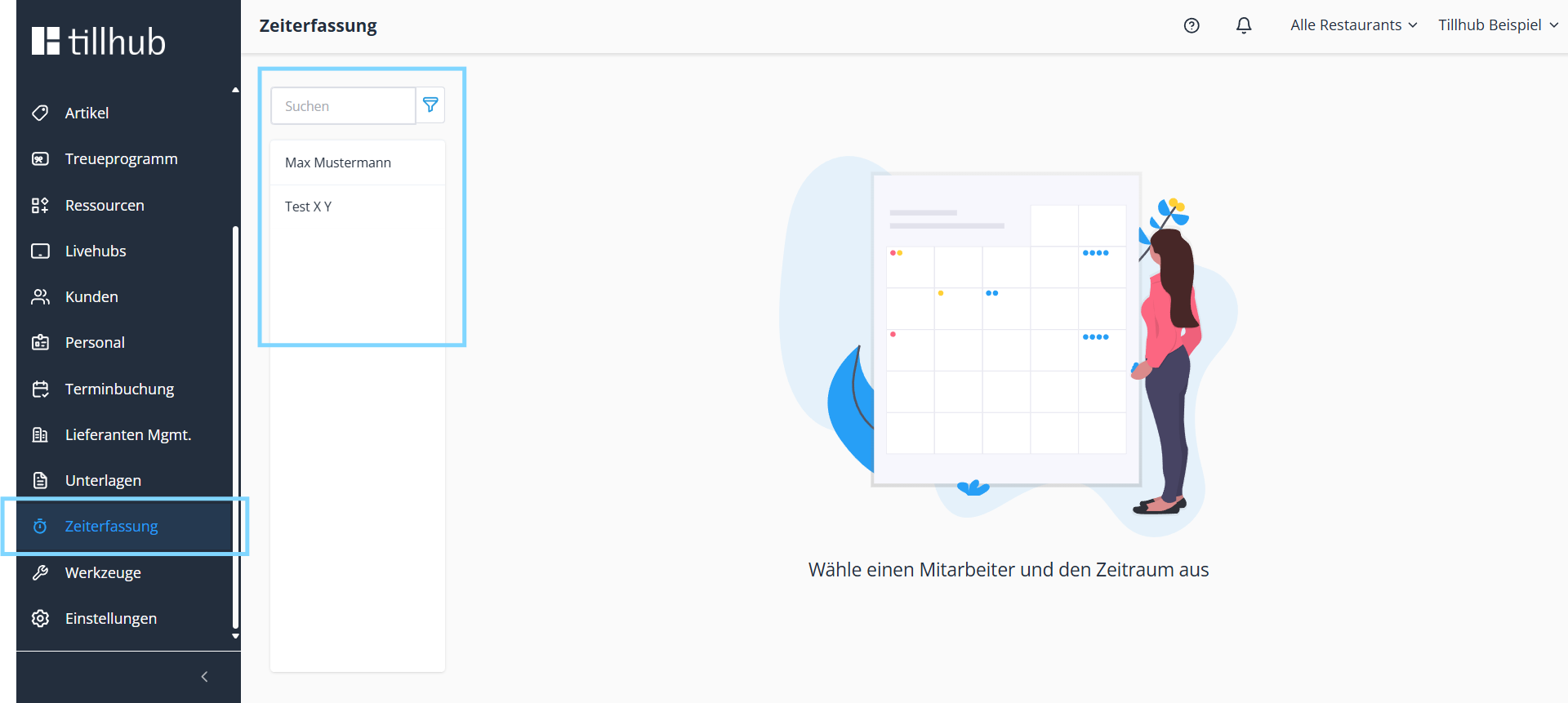
First, navigate in the dashboard to “Time tracking”.
There you will see an overview of all employees that have been created under the “Staff” menu item.
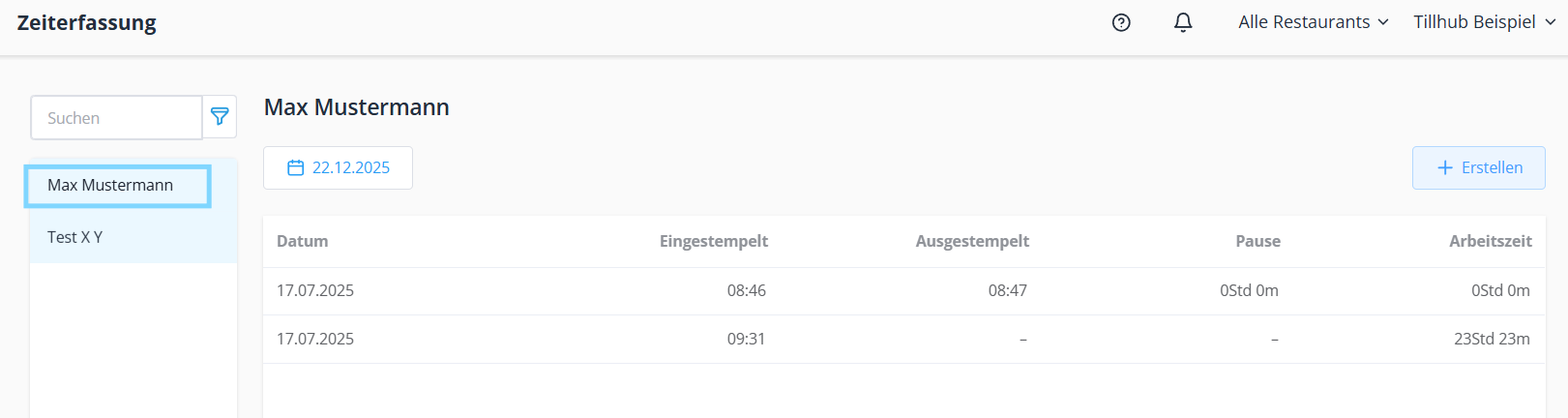
When you click on an employee, you will see the following information:
- Date of the working time
- Clock-in and clock-out times
- Recorded breaks
- Total working time for the respective day
This allows you to conveniently view and check the recorded times. The times shown are those that staff clocked in via the POS.
Manually record working hours
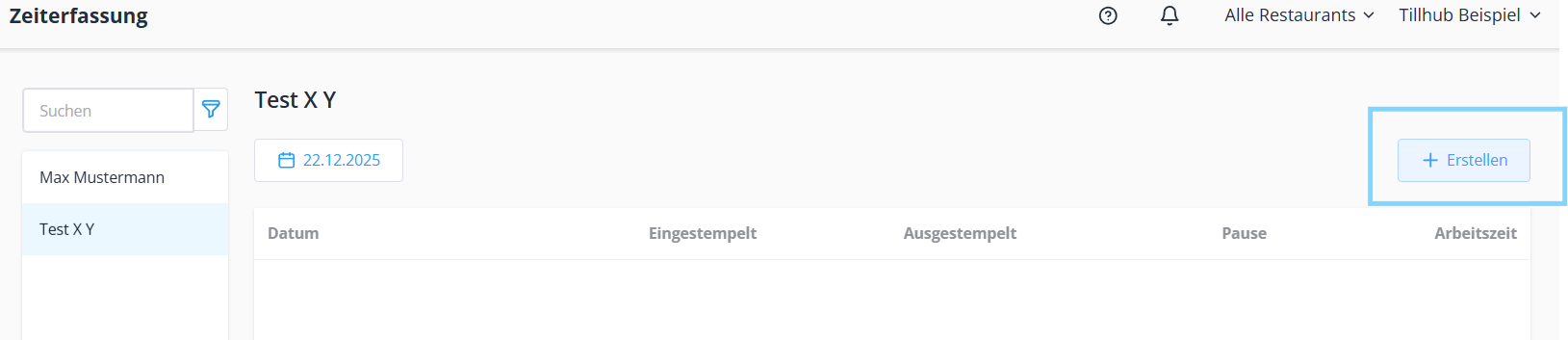
Alternatively, working hours can also be entered manually.
To do so, click on the employee and then click “Create” in the top right.
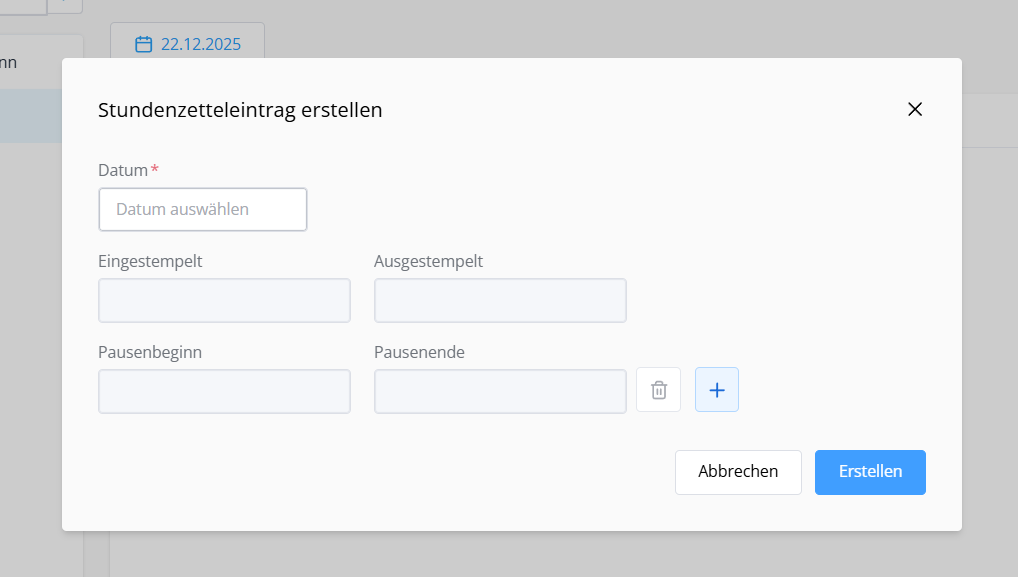
Here you can enter or correct working hours yourself, independently of clocking in at the POS.
Set up automatic time tracking
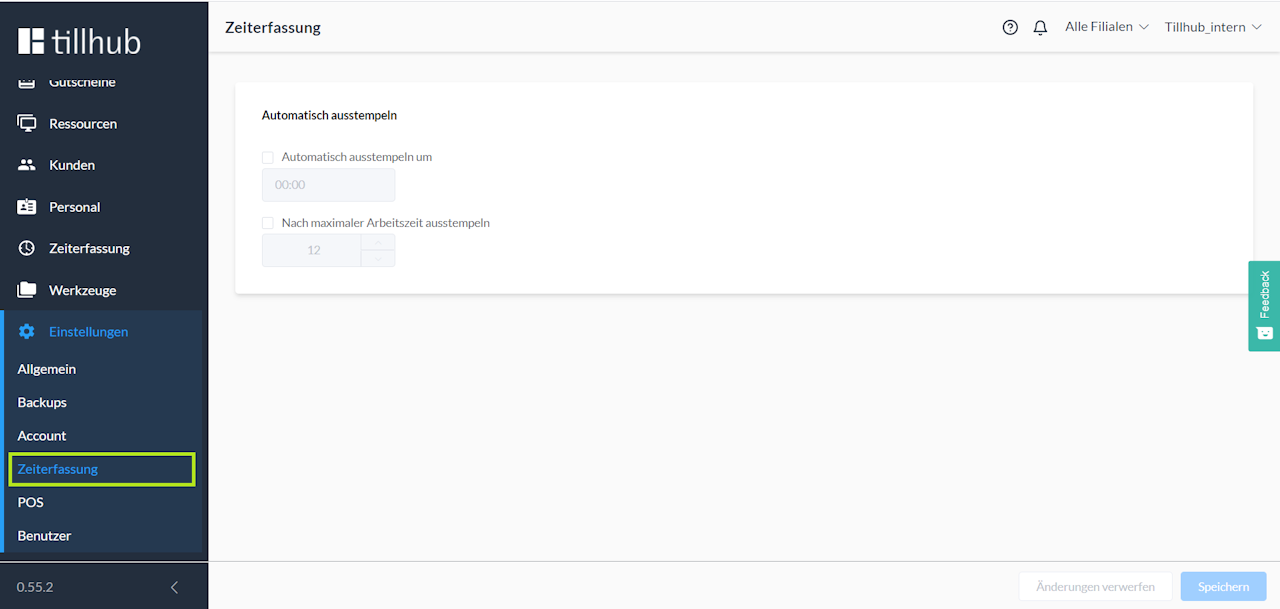
In addition, you can define that staff are automatically clocked out at a specific time or after a maximum working time.
To do so, navigate in the main menu to “Settings” and then to “Time tracking.”
Was this article helpful?
That’s Great!
Thank you for your feedback
Sorry! We couldn't be helpful
Thank you for your feedback
Feedback sent
We appreciate your effort and will try to fix the article
