Customers & Staff
Modified on Mon, 16 Feb at 10:11 AM
TABLE OF CONTENTS
Log out as cashier
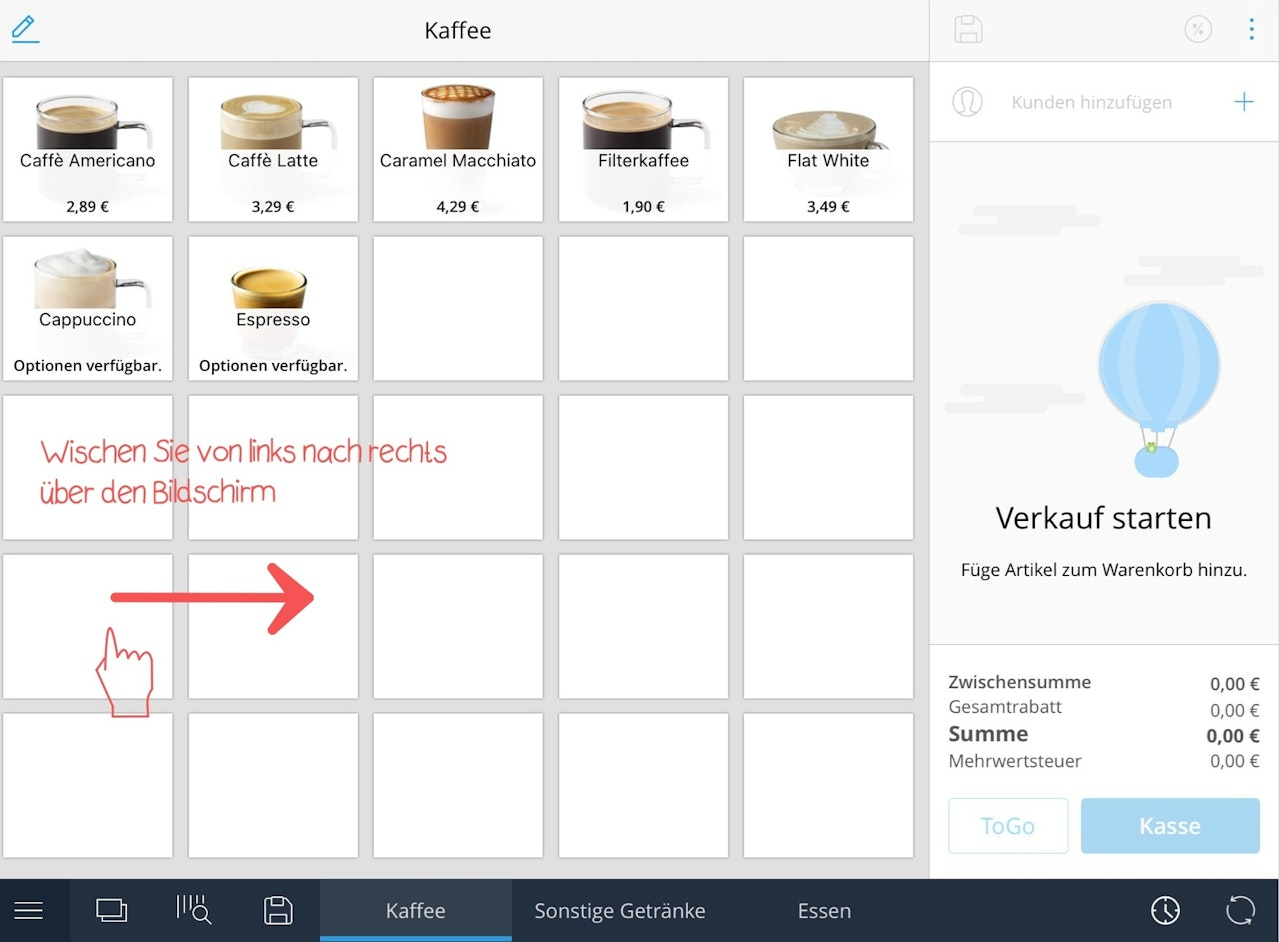
- To log out as cashier, simply swipe from left to right across the screen.
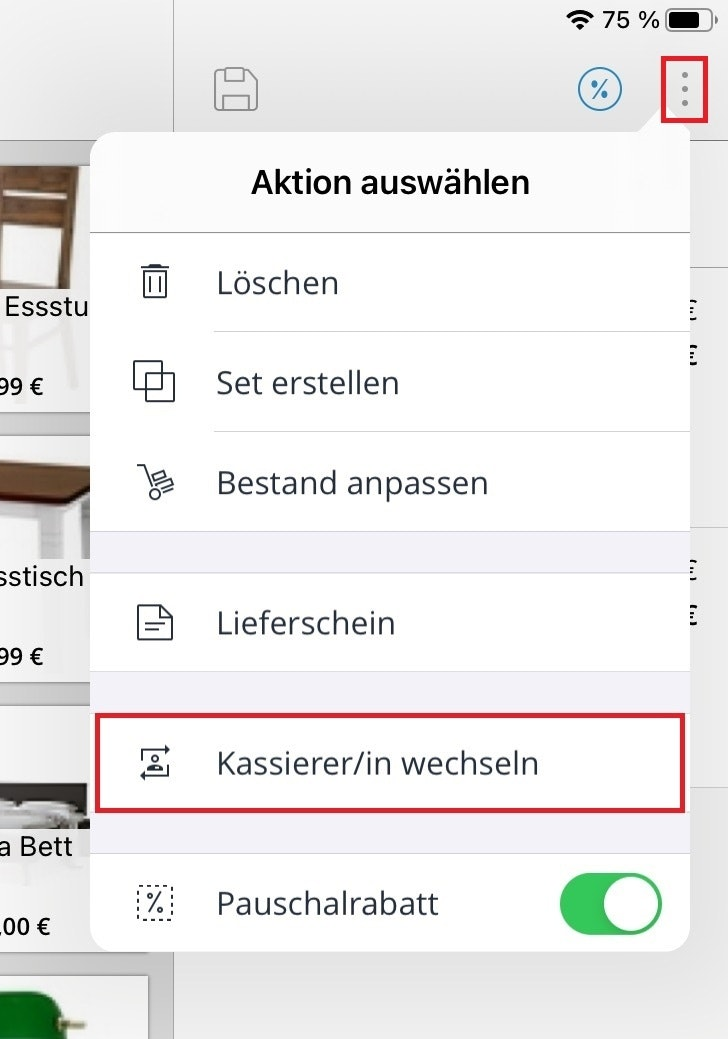
- Alternatively, open the three-dot menu at the top right and tap "Switch cashier".
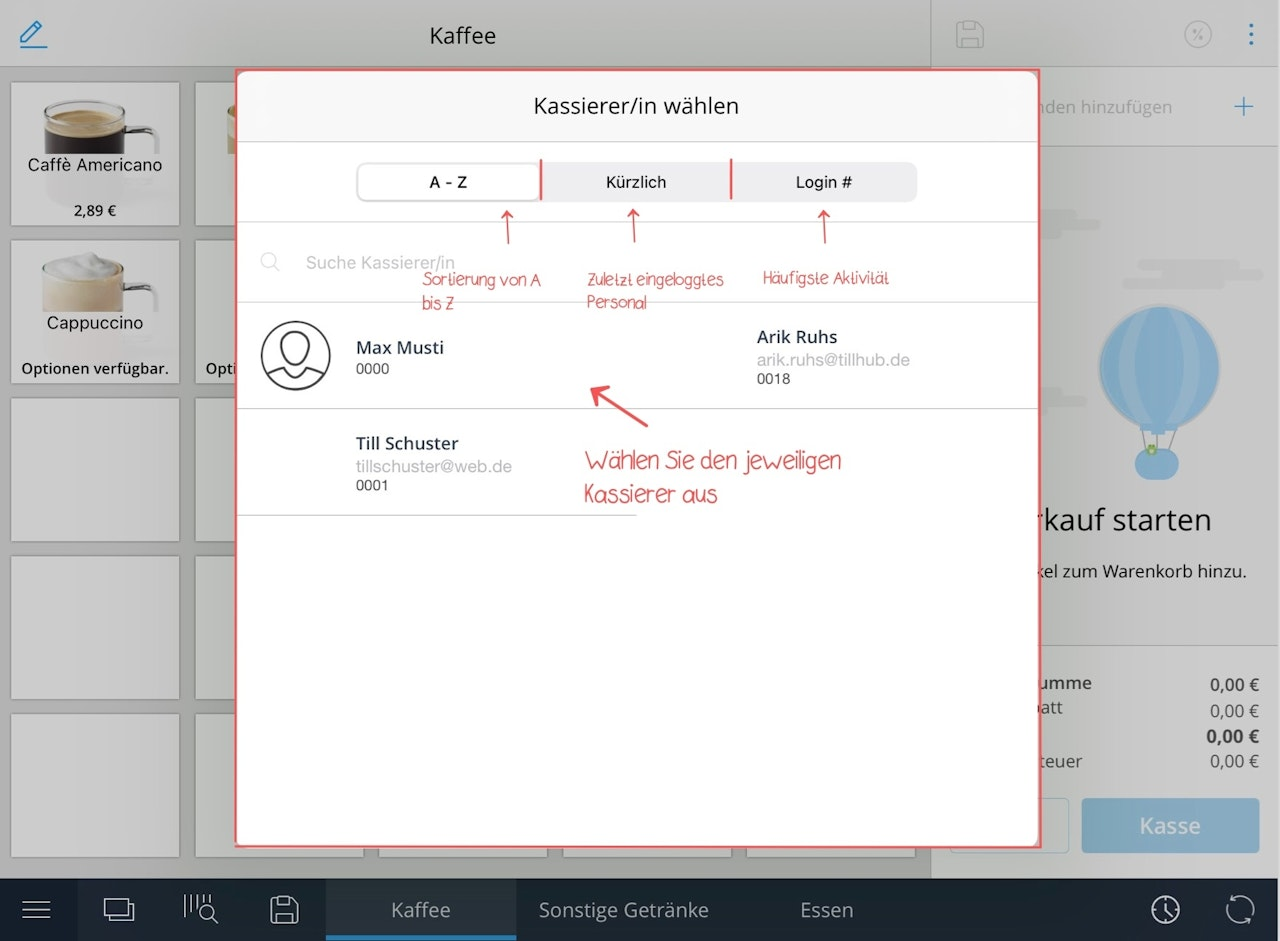
A pop-up window will appear with the different cashier profiles.
Create cashier profile
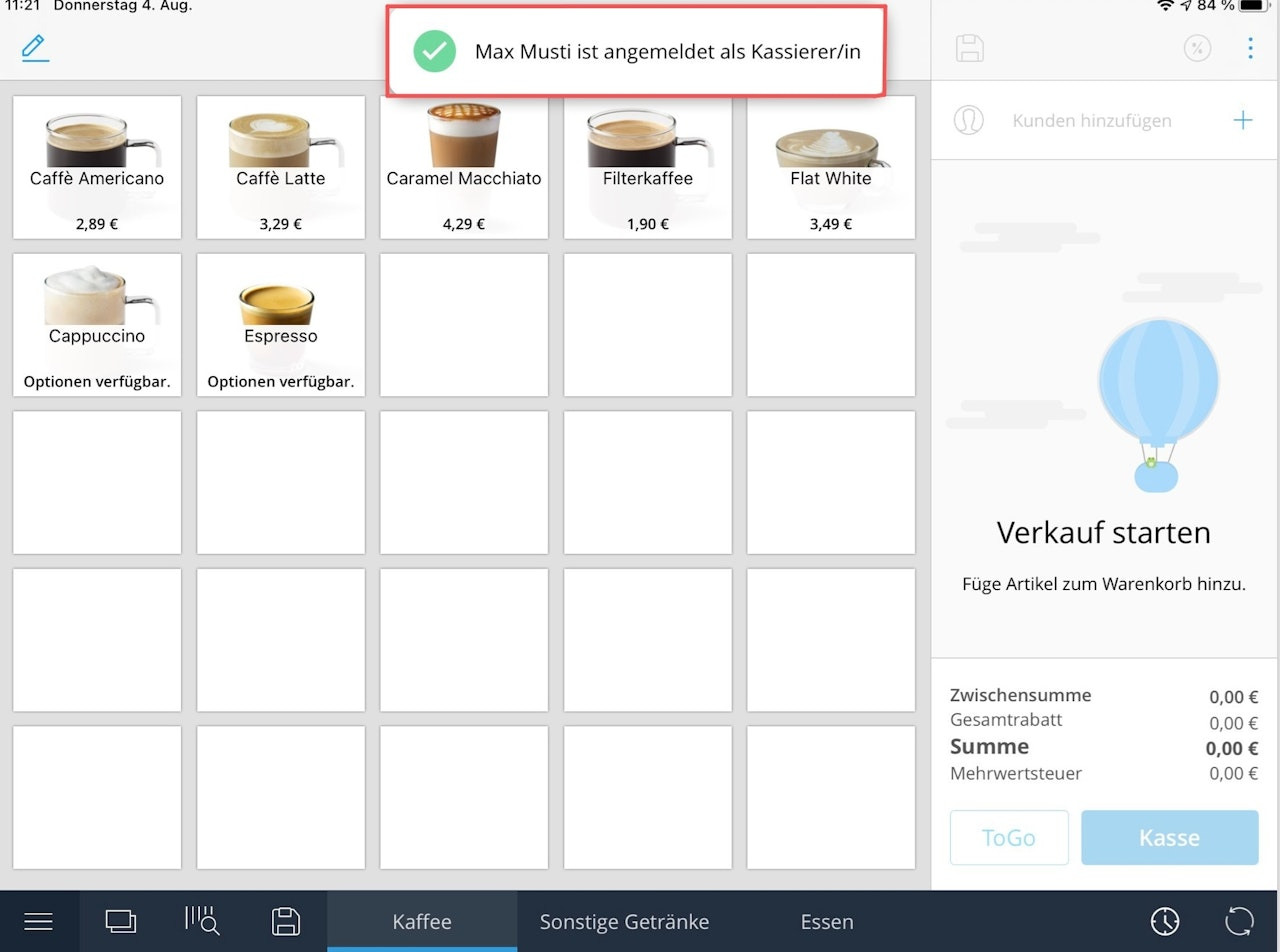
To sign in to a new profile, tap it and log in with the PIN of the respective employee profile.
The window with the different employee profiles is sorted into three categories:
- A–Z
- Recently logged-in staff
- Most frequent activity (default view)
Note: To prevent misuse or misunderstandings, you should always log out as cashier when you are no longer operating the register. This way, the next employee must identify themselves with their PIN.
This ensures that each employee operates the register according to the permissions of their cashier profile.

Switch salesperson
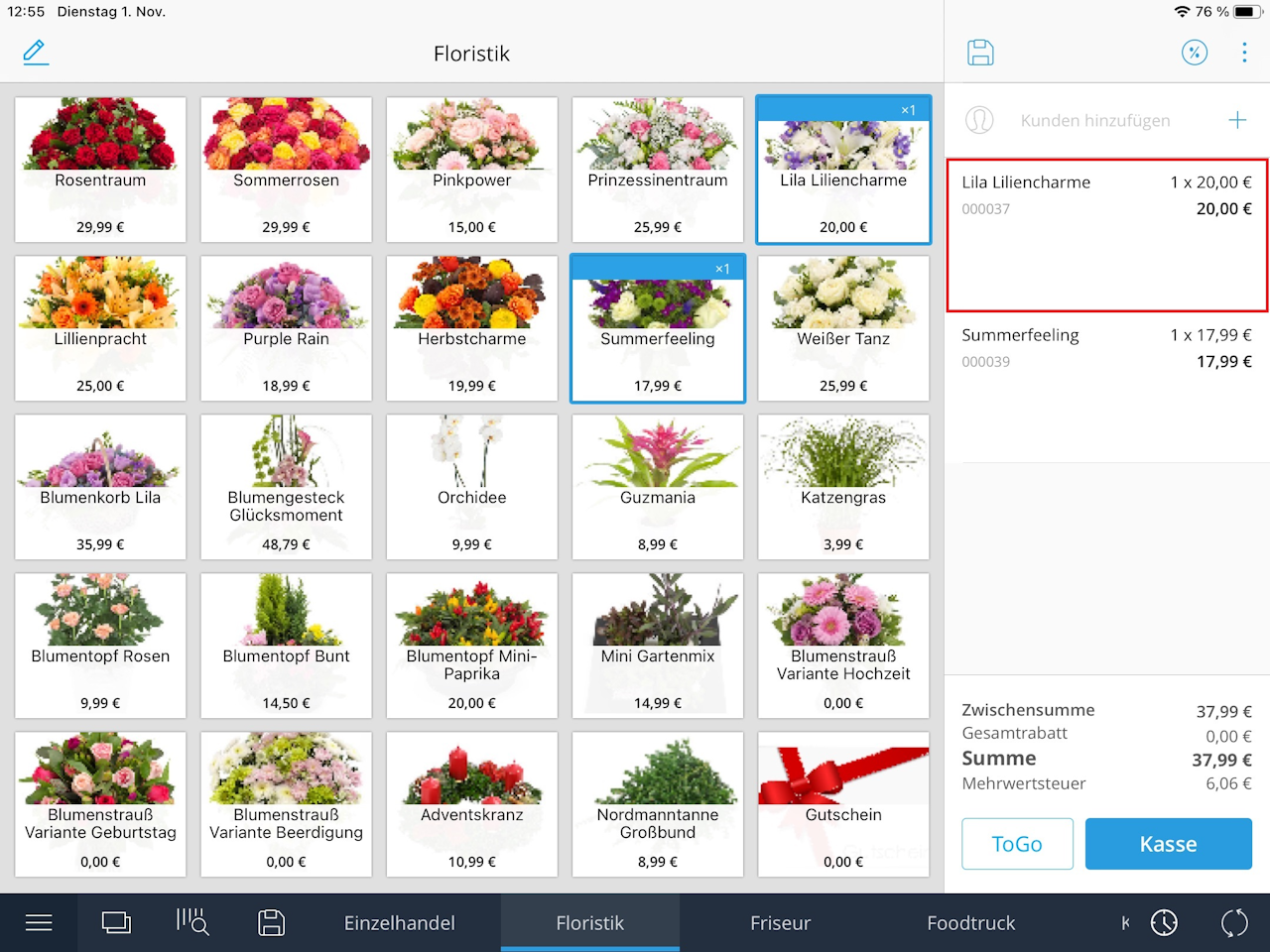
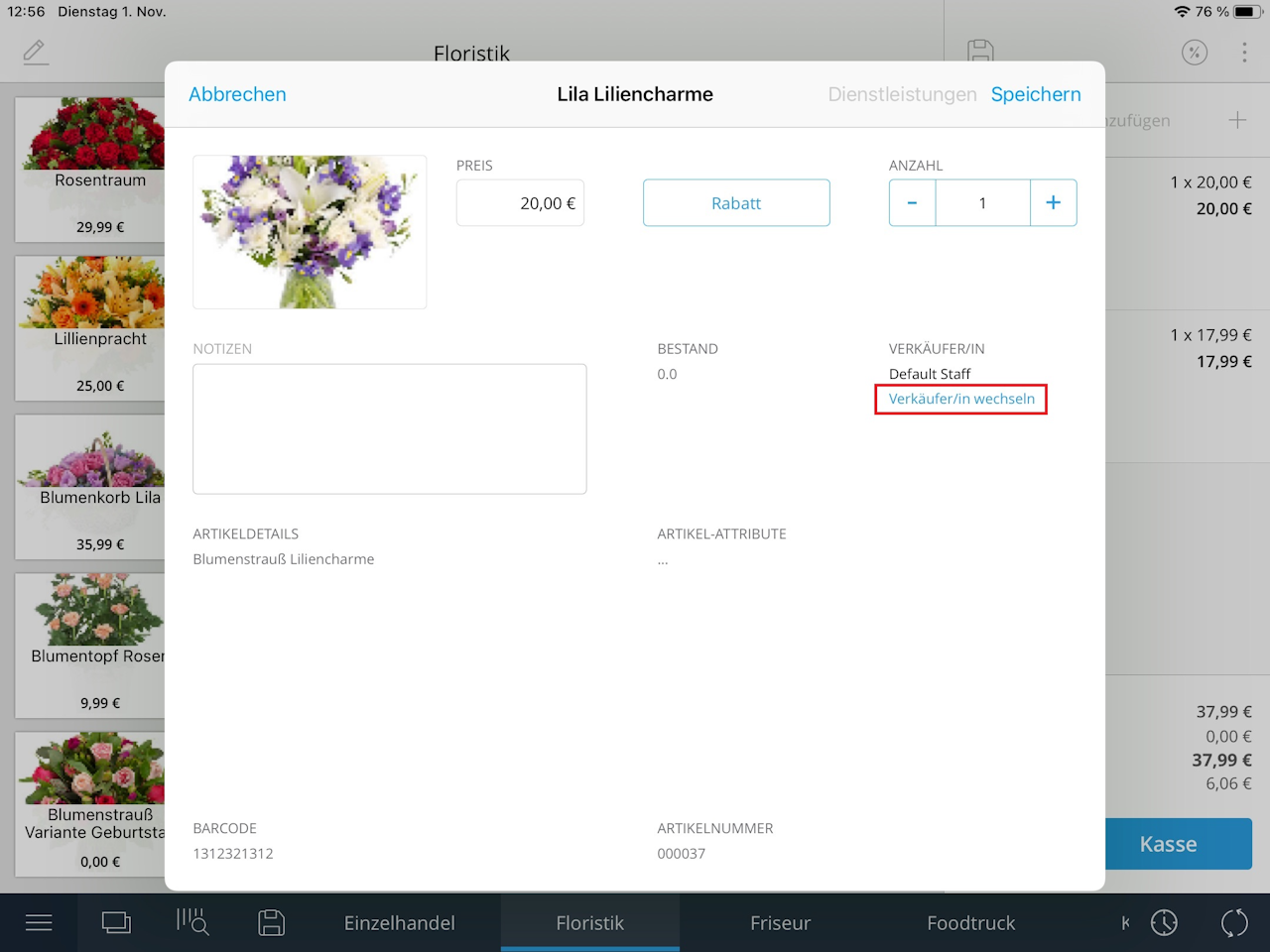
By default, the logged-in cashier profile is also shown as the salesperson profile. If the salesperson role differs from the cashier role in your company, proceed as follows:
- Tap the relevant line items in the cart to open the edit view.
- In the edit view, tap "Salesperson".
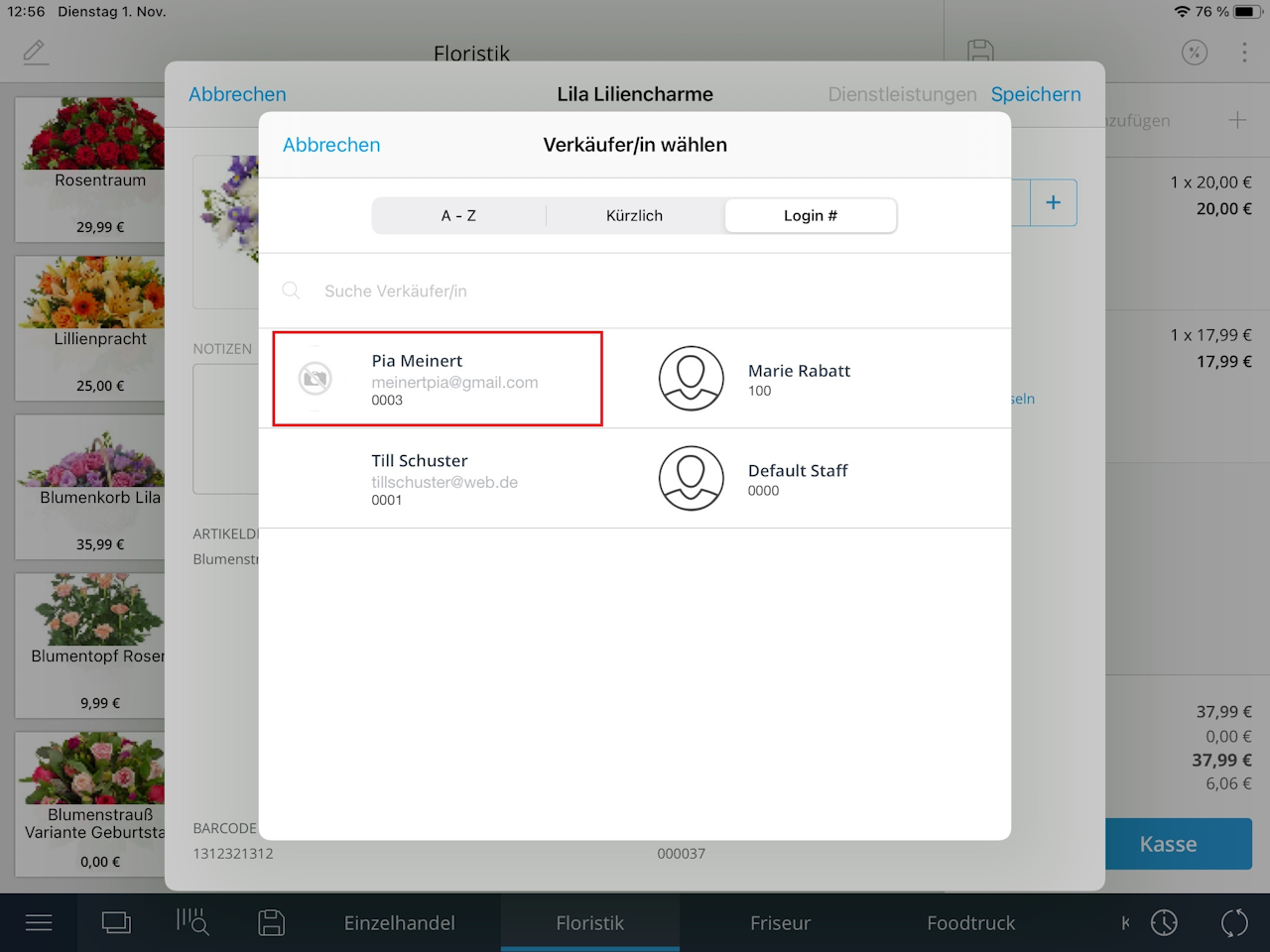
- Select the relevant employee profile as the salesperson profile.
- Then tap "Save".
Add customers
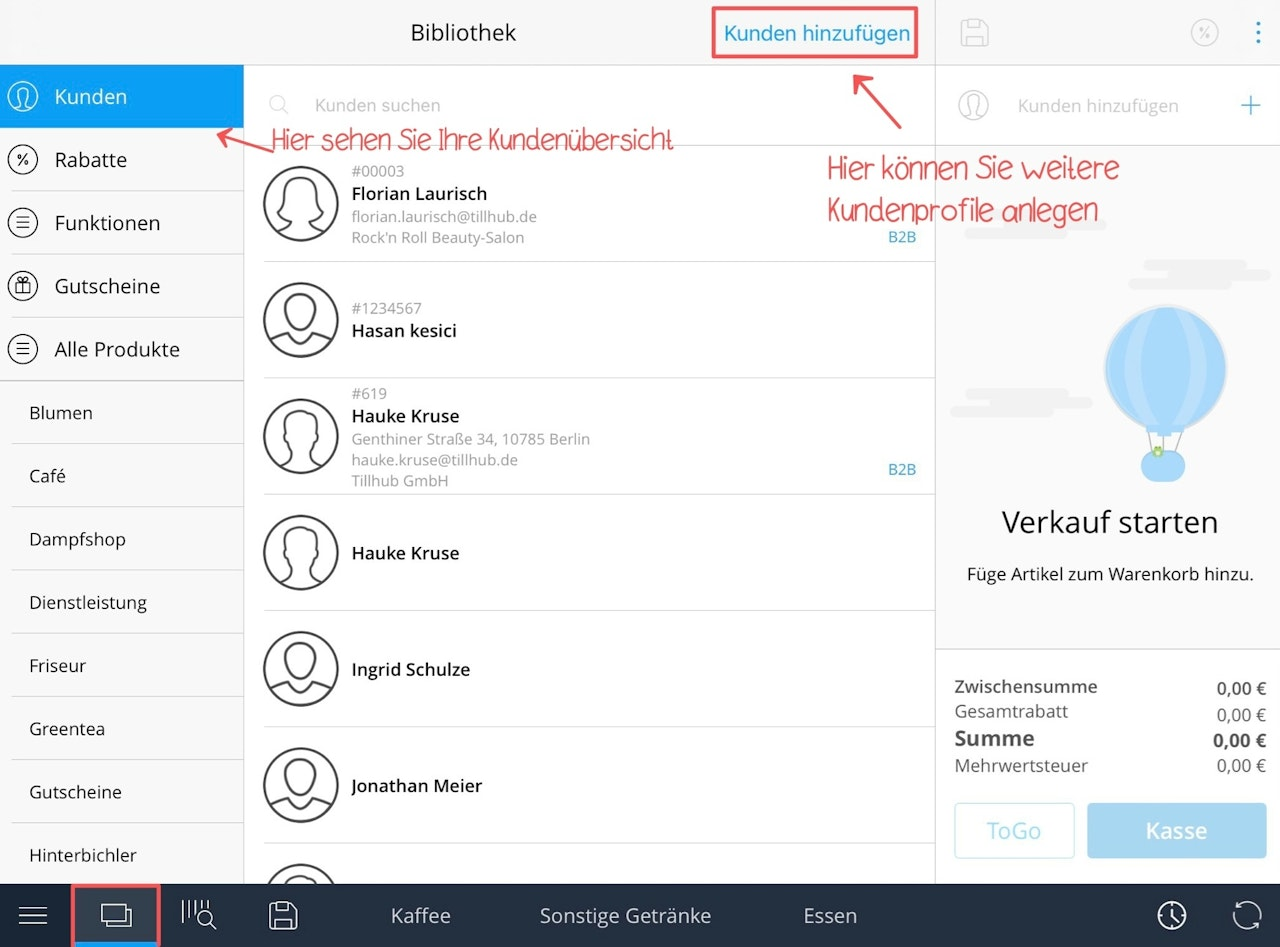
This article shows you how to add customers in the app.
- Navigate to your Library and select the "Customers" tab.
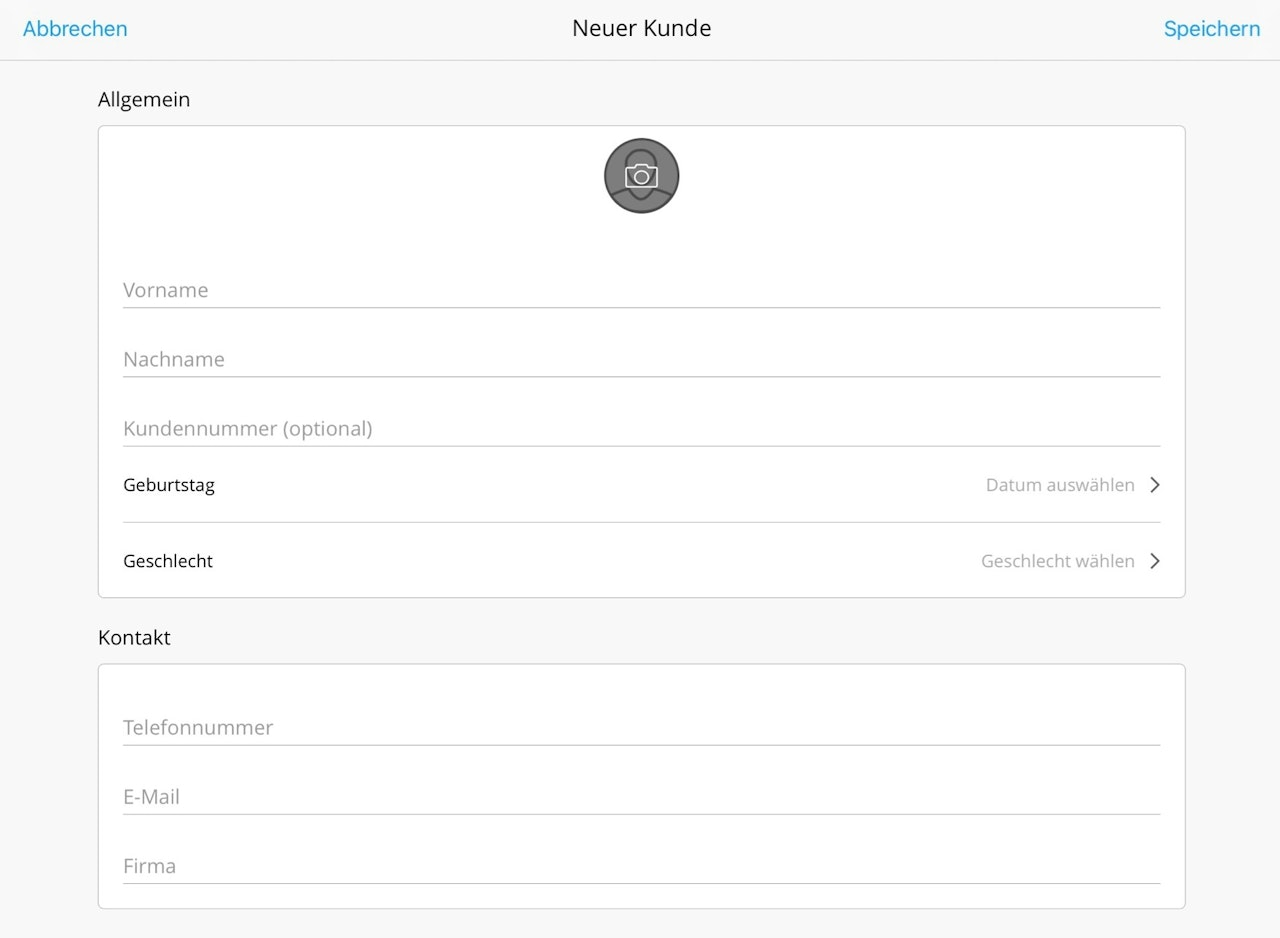
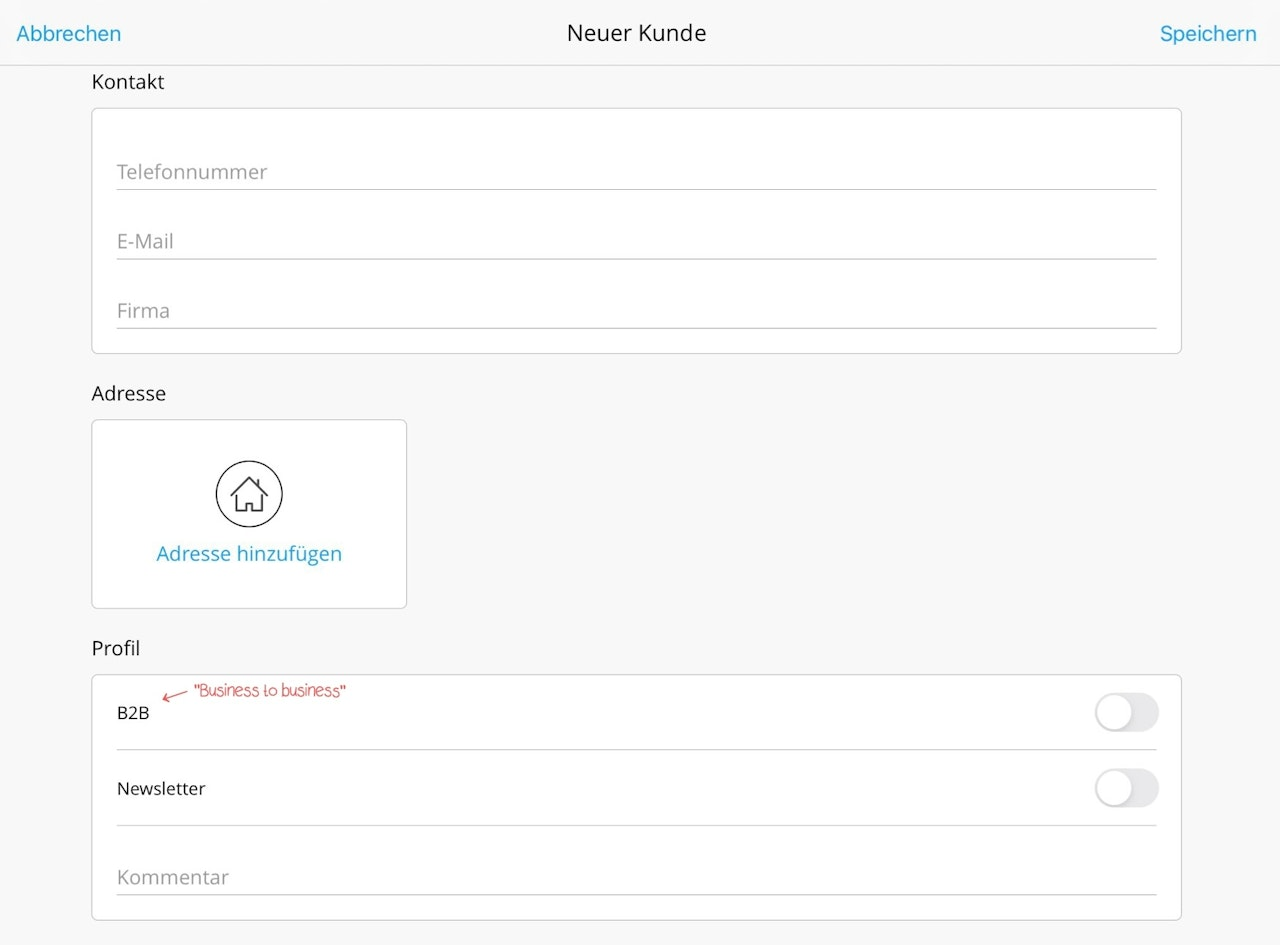
- Tap "Add customer" to open a new window.
Enter all relevant customer data as usual.
Note: If you do not choose a photo of your customer, the app will create an icon representing the selected gender.
Time tracking
With Tillhub, you and your employees can view and manage working and break times.
Start the workday
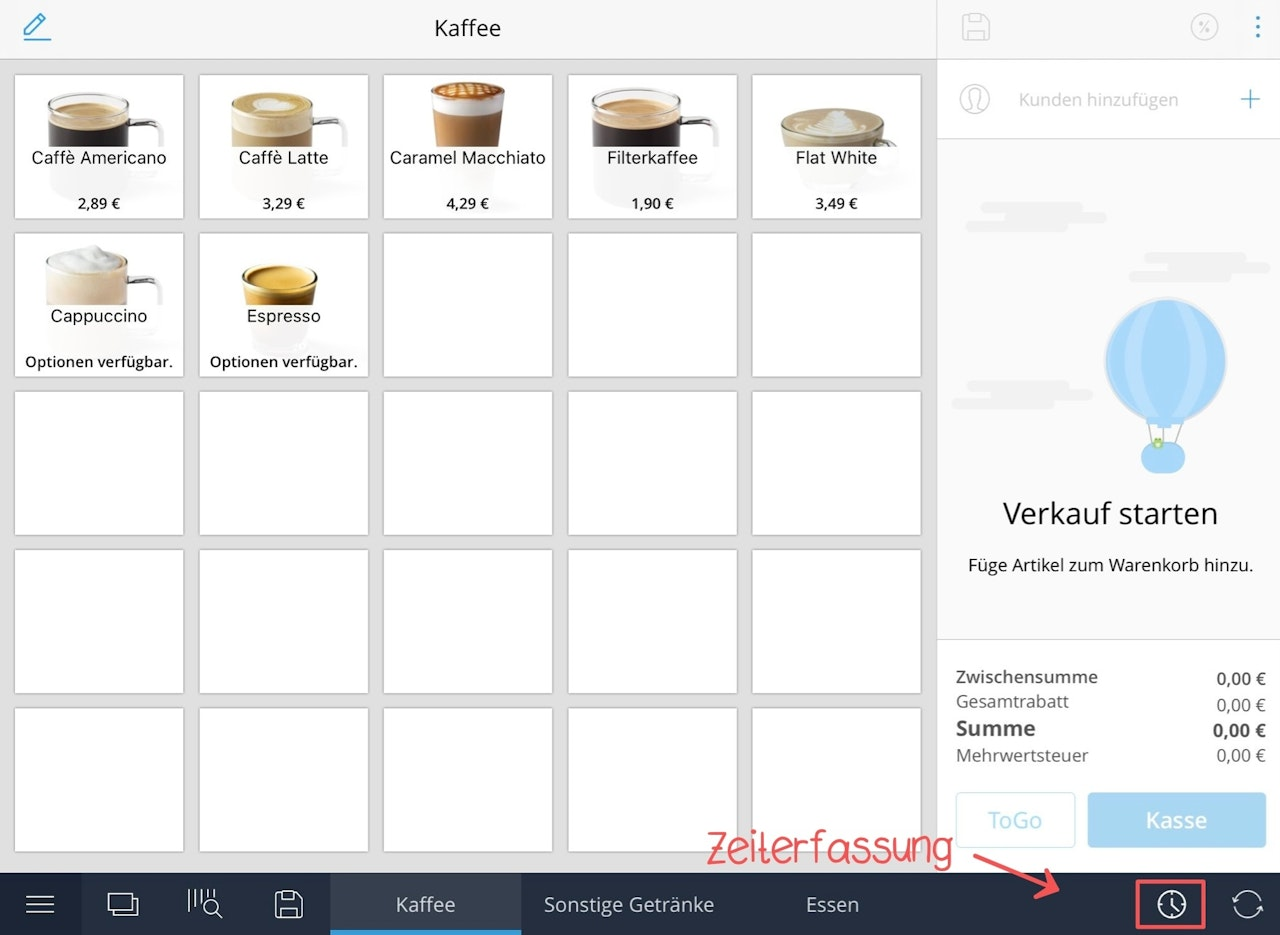
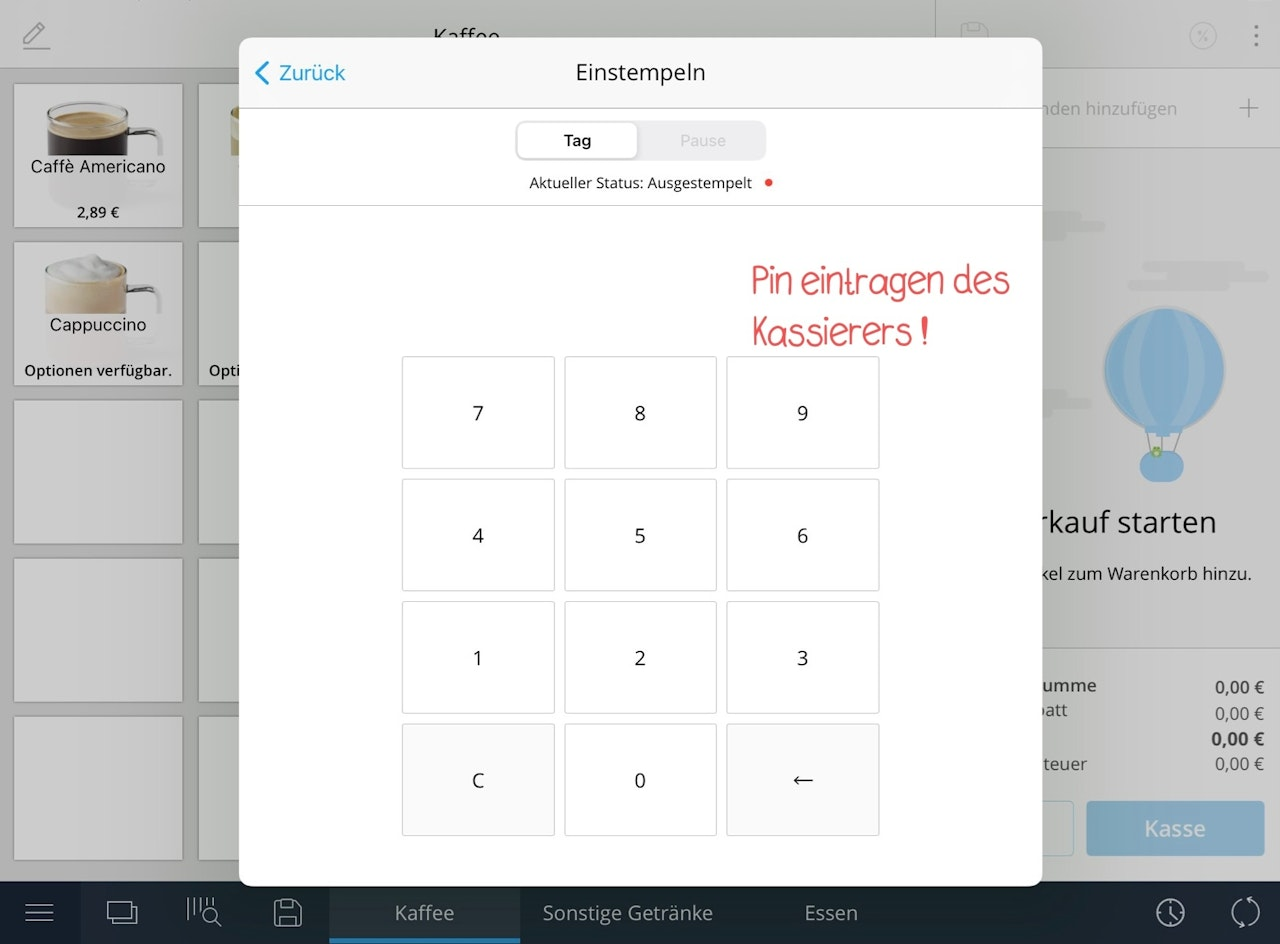
- To start time tracking, tap the clock icon at the bottom right of the screen.
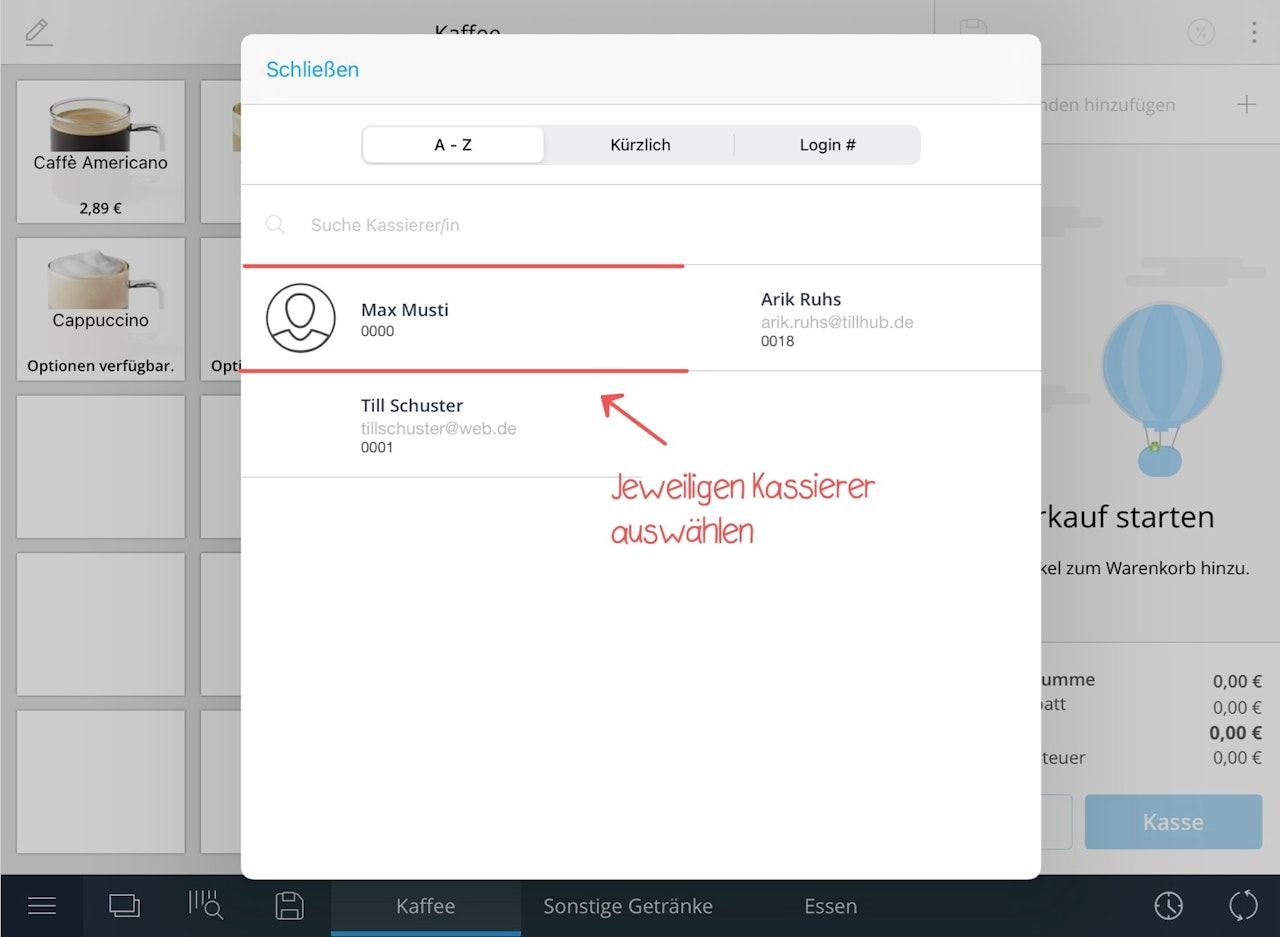
- The window with all employees opens. Choose your preferred sorting and tap your name to begin time tracking.
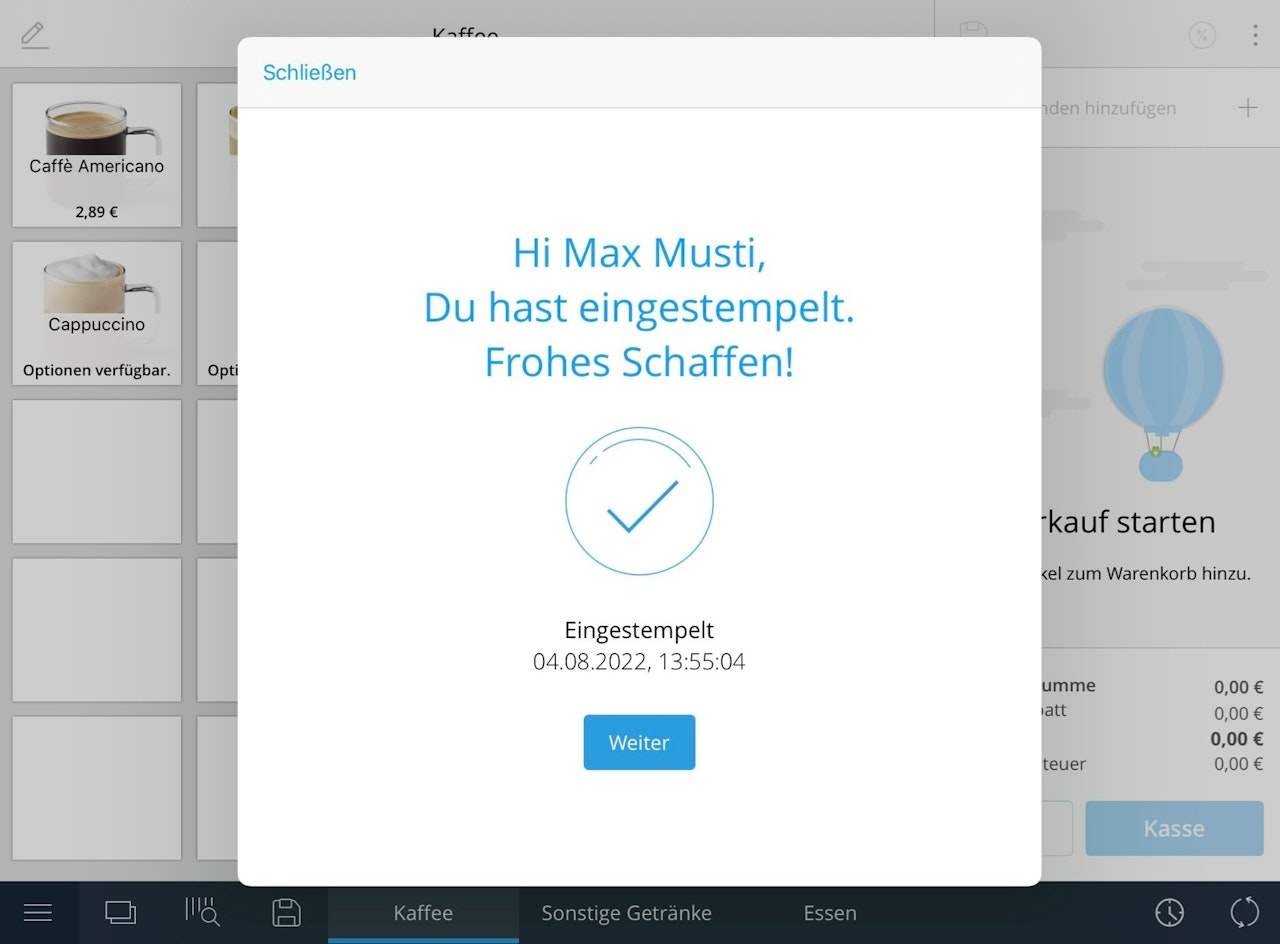
- After tapping your name, log in with your employee PIN.
Time tracking starts now.
Take a break or end the workday
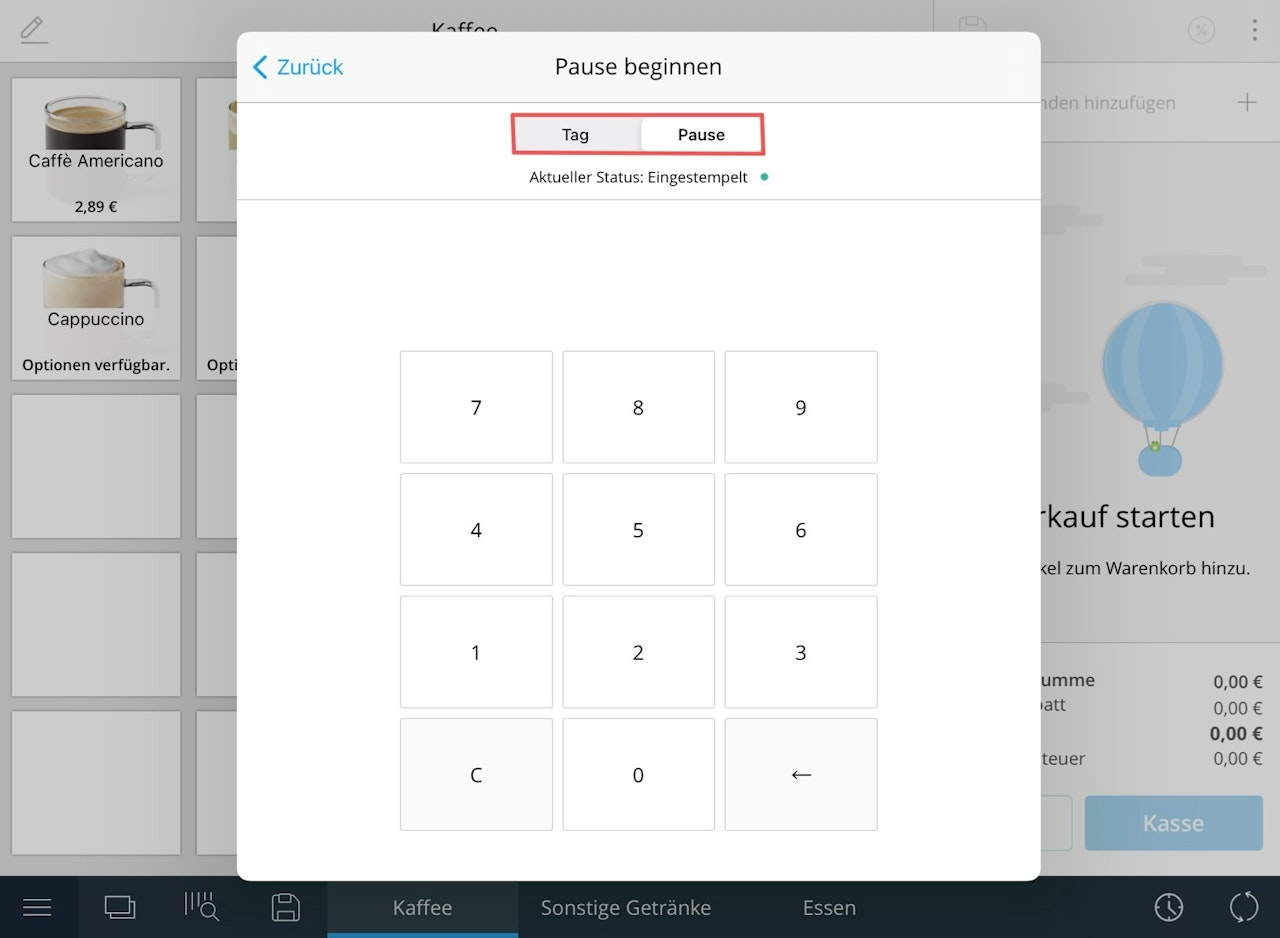
If you want to take a break or finish for the day, follow the same steps as above.
When clocking out at the PIN prompt, select whether you are going on a break or ending the workday.
Was this article helpful?
That’s Great!
Thank you for your feedback
Sorry! We couldn't be helpful
Thank you for your feedback
Feedback sent
We appreciate your effort and will try to fix the article
