Online appointment booking
Modified on Mon, 16 Feb at 10:11 AM
TABLE OF CONTENTS
- Step 1: Customizing the Booking Page
- Step 2: Setting Opening Hours & Days Off
- Step 3: Appointment Reminders
- Step 4: Entering Services and Service Categories
- Step 5: Staff Settings (Optional)
- Step 6: Creating a Shift Plan (Optional)
- Step 7: Additional Settings
- Step 8: Appointment Calendar for Your Business
- Step 8: Booking Page for Your Customers
Step 1: Customizing the Booking Page
To make changes to your booking page, first open the Settings section in the dashboard. You will automatically be redirected to the general settings, where you can select Appointment Booking.
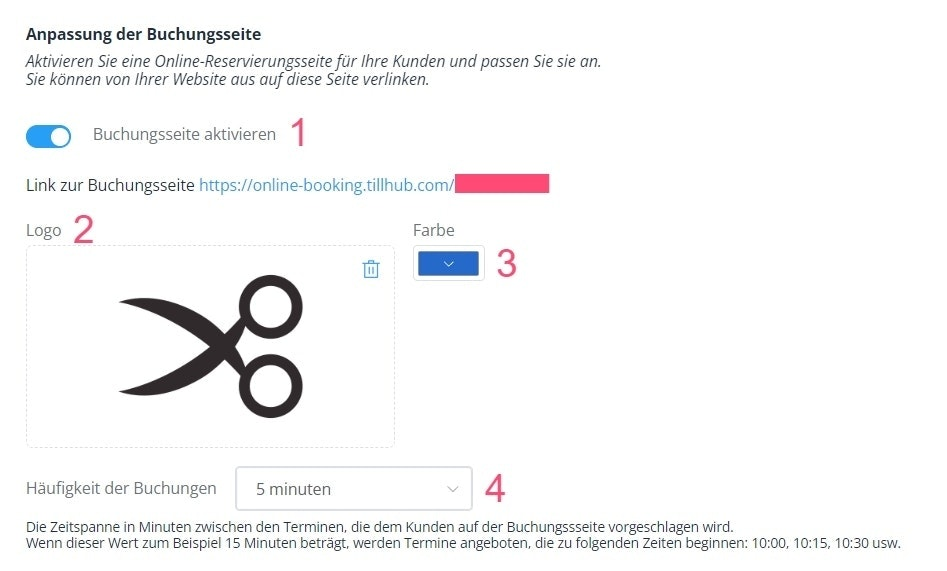
- Enable the booking page link by activating the toggle.
- Add your company logo by dragging and dropping an image or uploading it from your computer.
- Choose a color scheme for your reservation page.
- Define the booking frequency to determine the time intervals in which customers can book appointments.
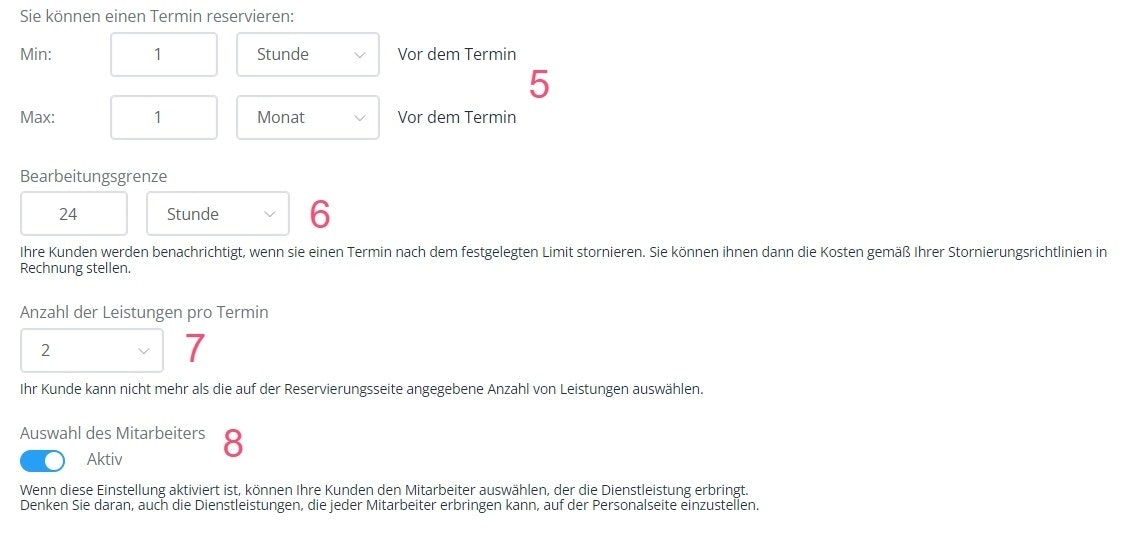
- Select the minimum and maximum advance notice within which appointments can be booked.
- Set a time limit for cancellations.
- Decide how many services can be selected per appointment.
- Enable employee selection if you want customers to choose a specific staff member to perform the service.
Step 2: Setting Opening Hours & Days Off
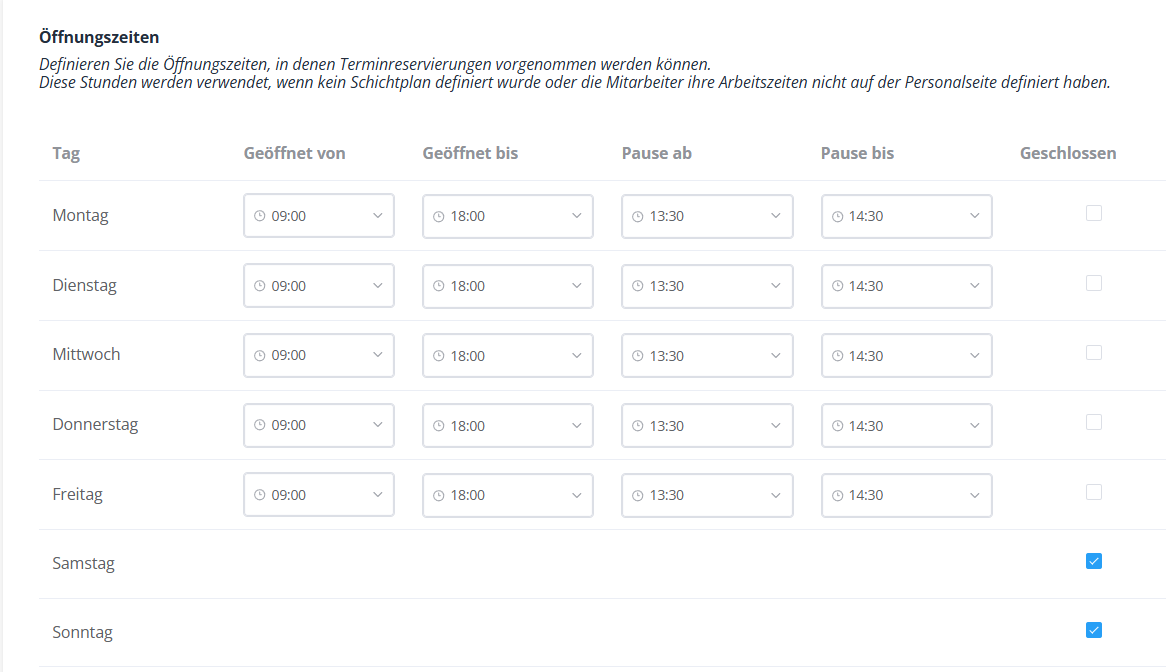
Navigate to the Opening Hours settings block at the bottom of the appointment booking settings.
Enter the relevant opening and break times for each weekday. If needed, you can create multiple time blocks per day by selecting times via the respective dropdown menus. If your business is closed on certain days, simply activate the corresponding checkbox.
You can also define individual days off. To do so, click on the date field, select the desired start and end dates, and confirm your entry by clicking “Add.” This allows you to set up any number of days off.
Your opening hours and days off are now fully configured.
Step 3: Appointment Reminders
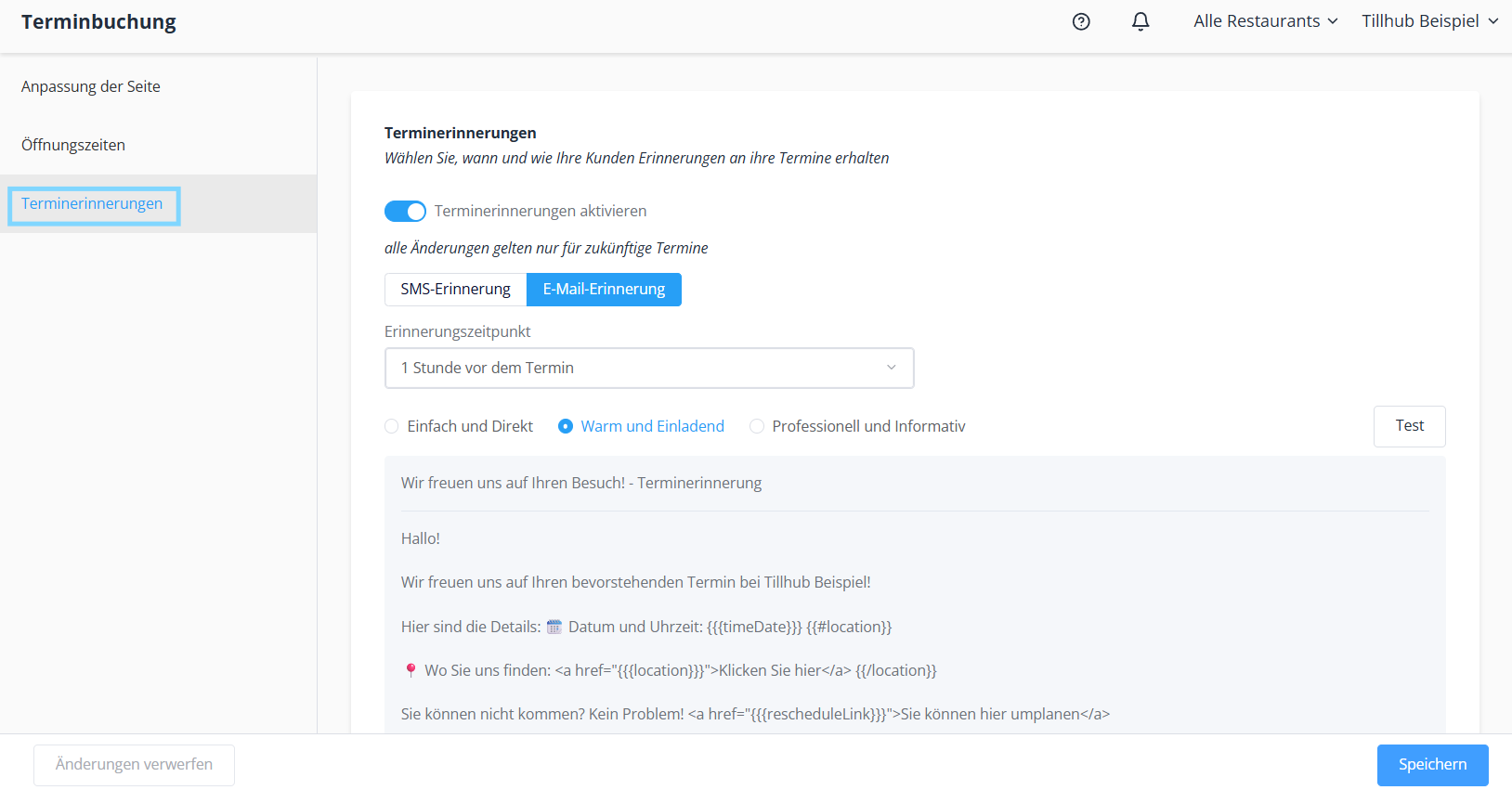
In the next step, you can define how your customers will be reminded of upcoming appointments. Open the Appointment Reminders section. There you can activate the reminder function and then choose how notifications should be sent—via email or SMS.
Once you have selected the reminder method, define the timing of the notification. You can choose whether the reminder is sent one hour before the appointment, one day in advance, or up to a week beforehand. After adjusting the settings, simply save them—your appointment reminders are now successfully set up.
Step 4: Entering Services and Service Categories
Service Categories
Start by creating a service category to which you can then assign specific services.
- In the dashboard, navigate to Appointment Booking.
- You will automatically be taken to Service Categories.
- Click the “+ New” button in the top-right corner.
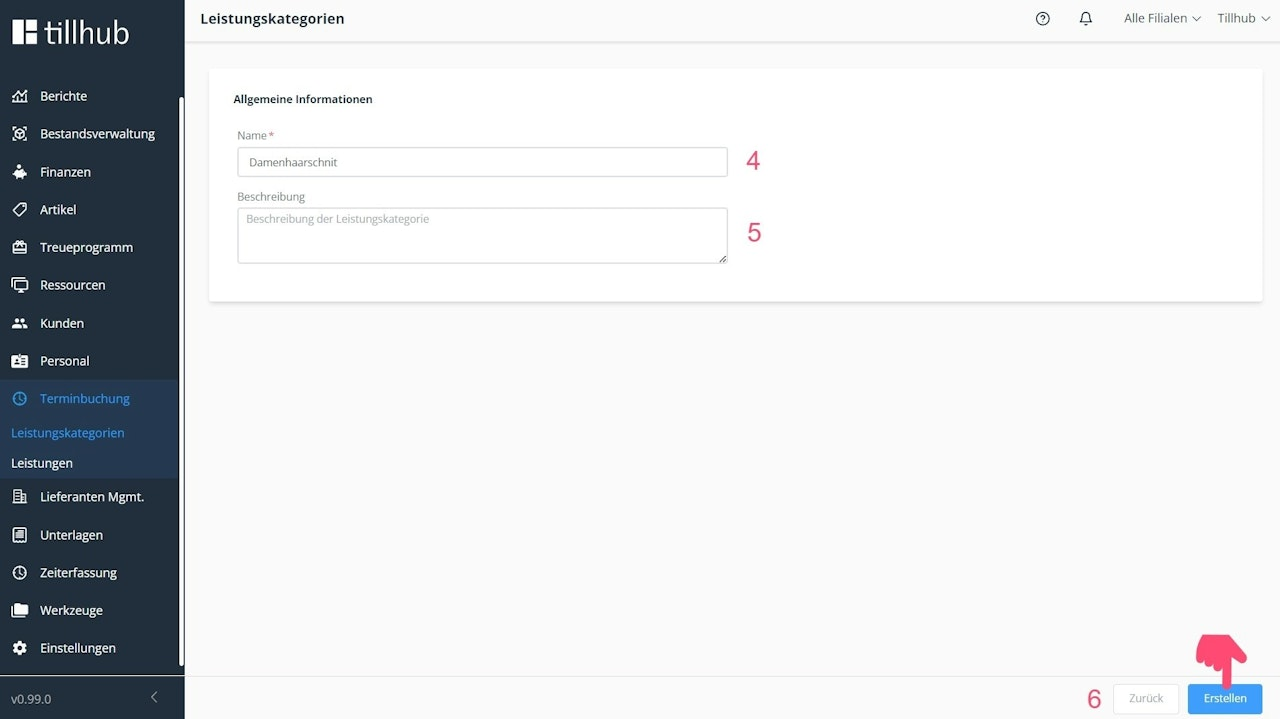
- Enter the name of the service category. This name will be displayed to customers and staff for selection in the appointment calendar.
- Optionally, add a description for the service category.
- Finally, click “Create” in the bottom-right corner.
Tip: Base service category names on your product groups. Example: Women’s haircut, etc.
Services
1. Within Appointment Booking, navigate to the Services section.
2. Click the “+ New” button in the top-right corner.
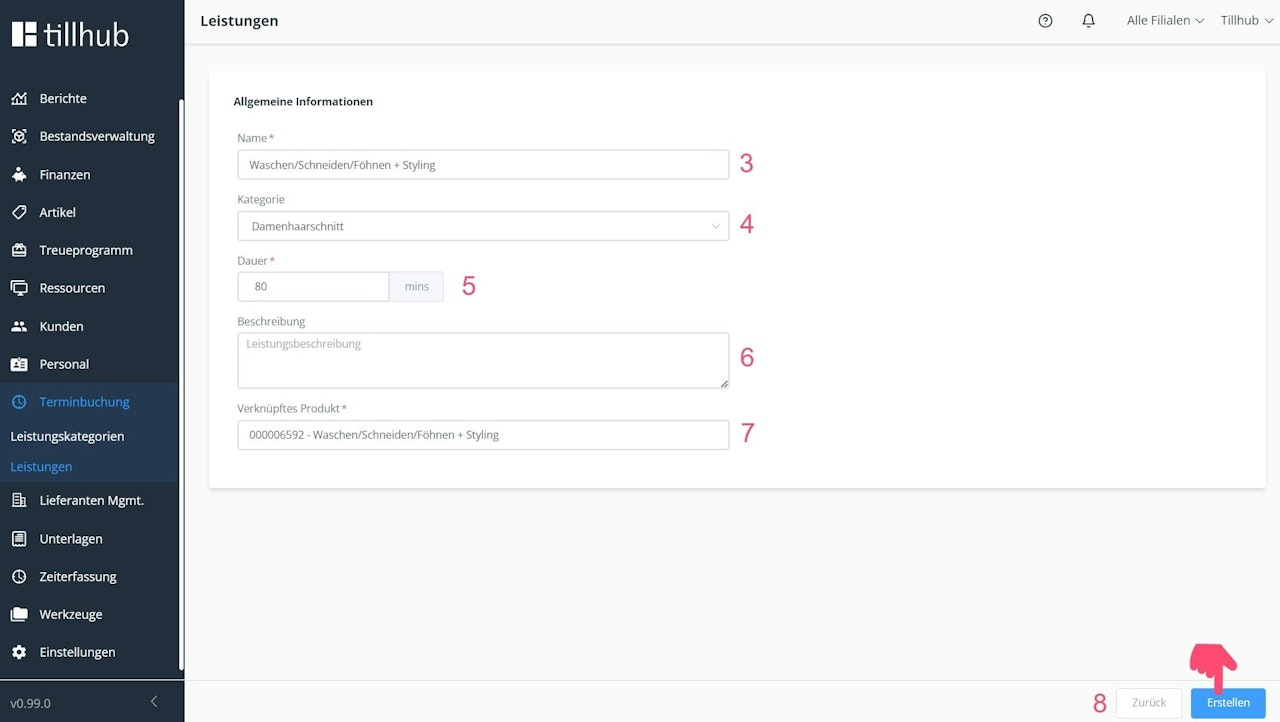
3. Enter a name for the service. This will be displayed to both customers and staff when selecting in the appointment calendar.
4. Assign the service to a service category.
5. Define the duration of the service in minutes.
6. Write a short description of the service.
7. Link the service to a product or service.
8. Click “Create” in the bottom-right corner.
Tip: Base service names on your product and service names.
Example: Wash–Cut–Blow-dry.
Example: Wash–Cut–Blow-dry.
Step 5: Staff Settings (Optional)
You can optionally assign specific services and individual booking times to certain staff members. To do this, navigate to Staff in the dashboard. You will automatically see the list of employees under All. Select a person and scroll down in their profile.
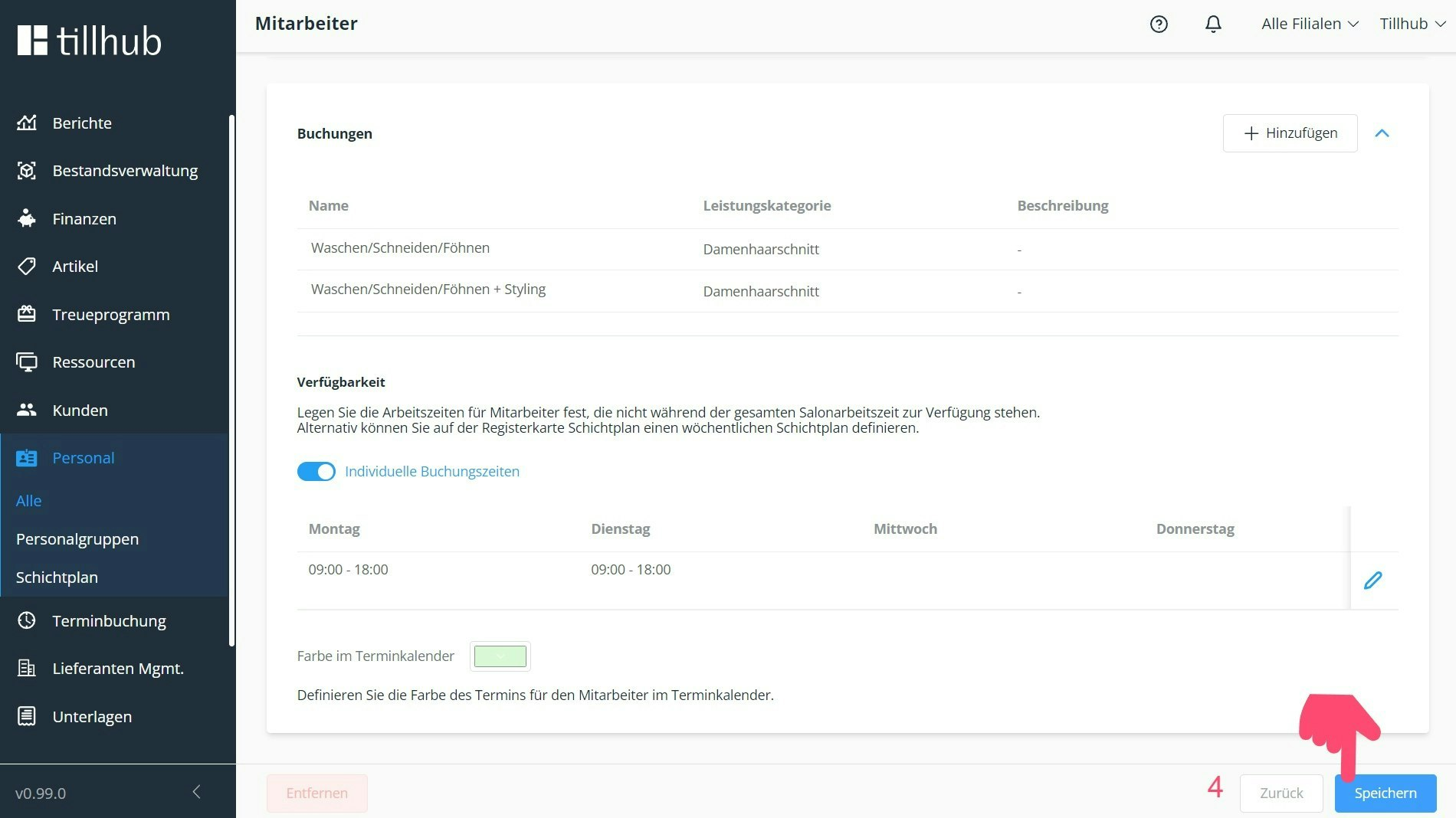
1. Add a service to the staff member by clicking “+ Add” in the top-right corner.
2. A list opens where you can select services by checking the boxes.
3. Confirm your selection to complete the setup.
4. If no further settings are required, click “Save” in the bottom-right corner of the staff profile card.
Alternatively, you can select all services by clicking “Perform all services” at the bottom-right of the list.
Setting Availability
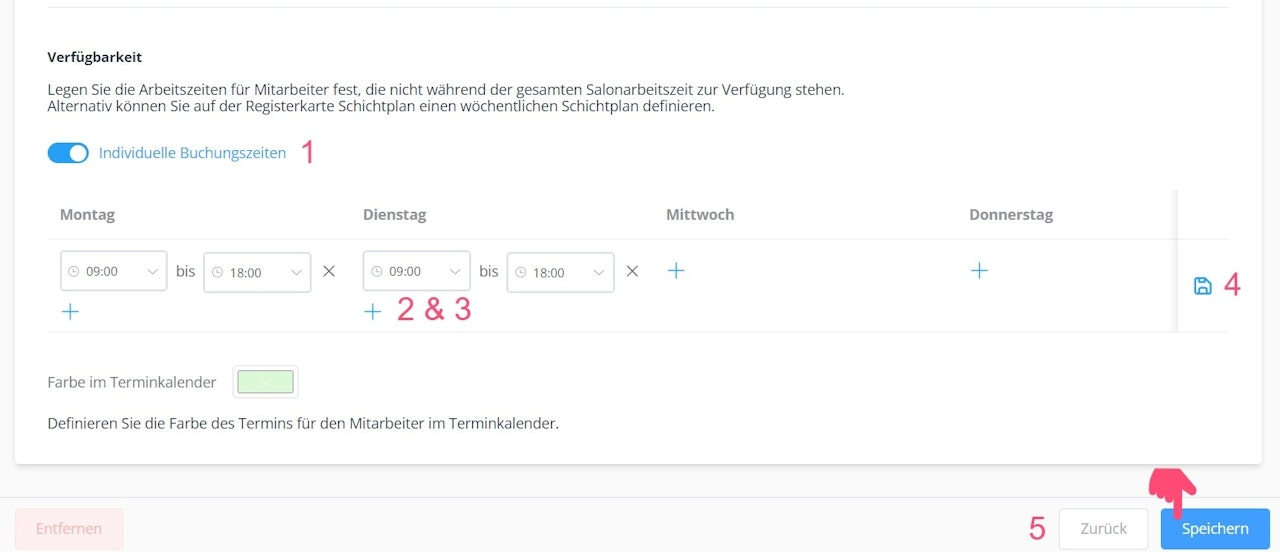
- Activate the “Individual booking times” toggle.
- Select a weekday from the list and click “+”.
- Define the staff member’s availability. You can set or delete multiple time slots.
- If no additional settings are needed, click the disk icon on the right side of the booking times.
- Click “Save.”
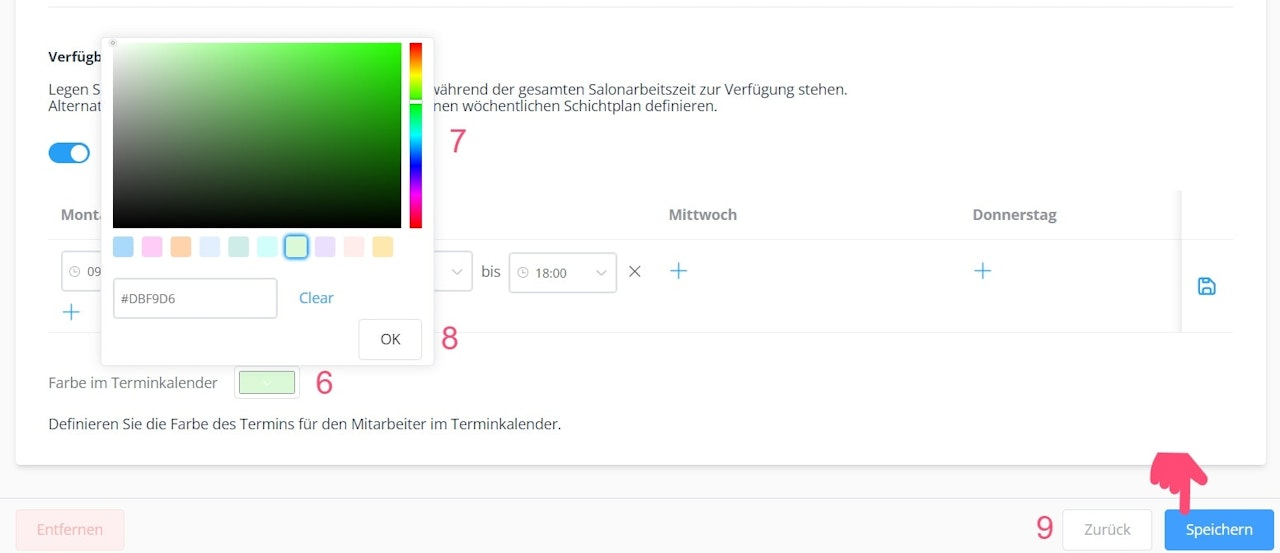
Setting the Color Scheme
- Click on the color block below the availability settings.
- Choose a preset or custom color for the staff member.
- Confirm your selection with “OK."
- Click “Save” in the bottom-right corner of the staff profile card.
Step 6: Creating a Shift Plan (Optional)
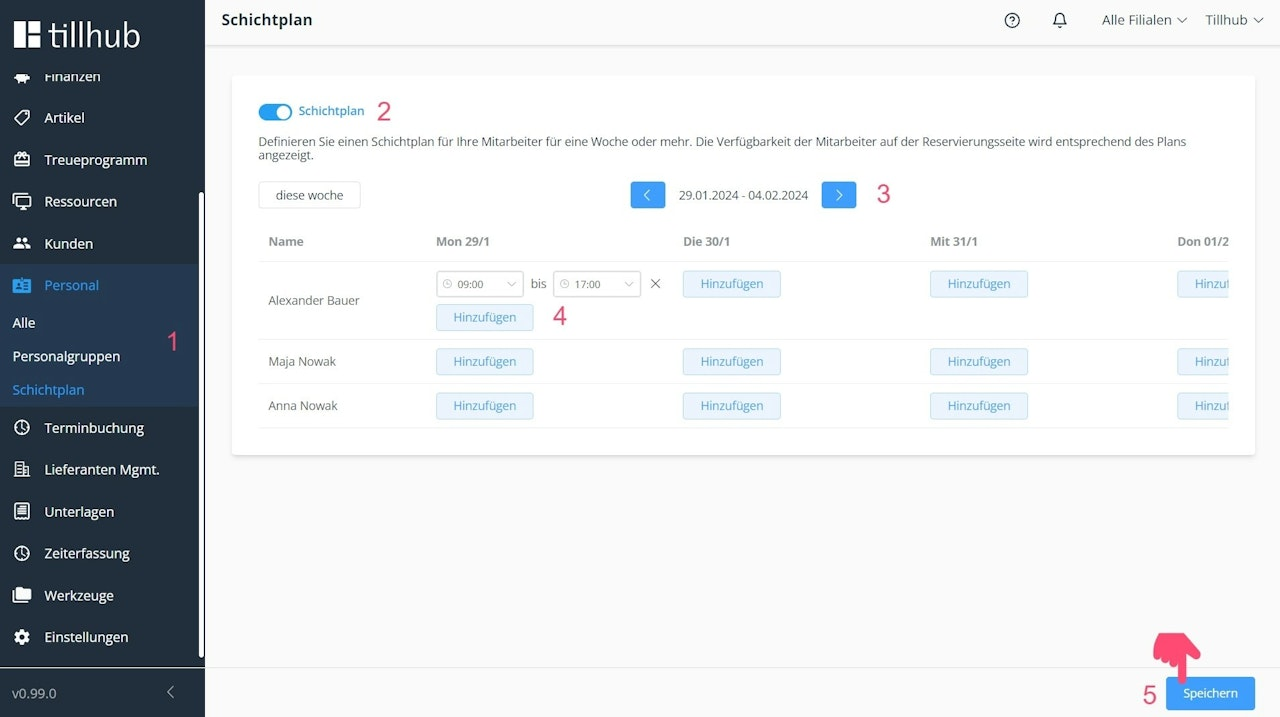
Create a shift plan for your staff for one week or longer. The booking page will automatically display staff availability based on this plan. Shift plan settings take priority over staff and basic settings.
1. In the dashboard, go to Staff and switch to Shift Plan.
2. Activate the Shift Plan toggle.
3. The view refers to the selected week, which you can define using the date selector.
4. Set the availability for each staff member.
5. Confirm the settings by clicking “Save” in the bottom-right corner.
Note: To use the shift plan, it must first be activated in Resources.
Step 7: Additional Settings
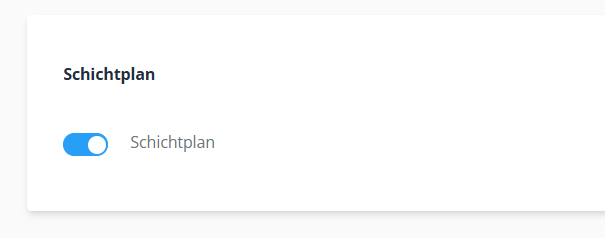
Next, switch to the additional settings in Resources. Open the relevant branch and scroll down to Opening Hours. There you can define individual opening hours and closing days. Make sure appointment booking is activated. Then activate the Shift Plan and save the settings.
Step 8: Appointment Calendar for Your Business
Using the appointment calendar, you can manage customer appointments and individual staff availability.
Access the appointment calendar via the following link:
https://appointment-calendar.tillhub.com/auth/login
Log in using your dashboard credentials.
Managing Customer Appointments
Here’s how to use your appointment calendar effectively. With this tool, you can create new customer appointments, manage existing ones, and even add new customers to your database.
Creating a New Customer Appointment
Click the blue “+” icon in the top-right corner.
- Select “Create appointment.”
- Link the appointment to an existing customer or create a new customer. The “Walk-in customer” option is optional.
- Select the service for the appointment. If the planned duration differs from the preset time, you can adjust it.
- Choose the staff member who will handle the appointment.
- Edit the date as needed and optionally add a note.
- Click “Create.”
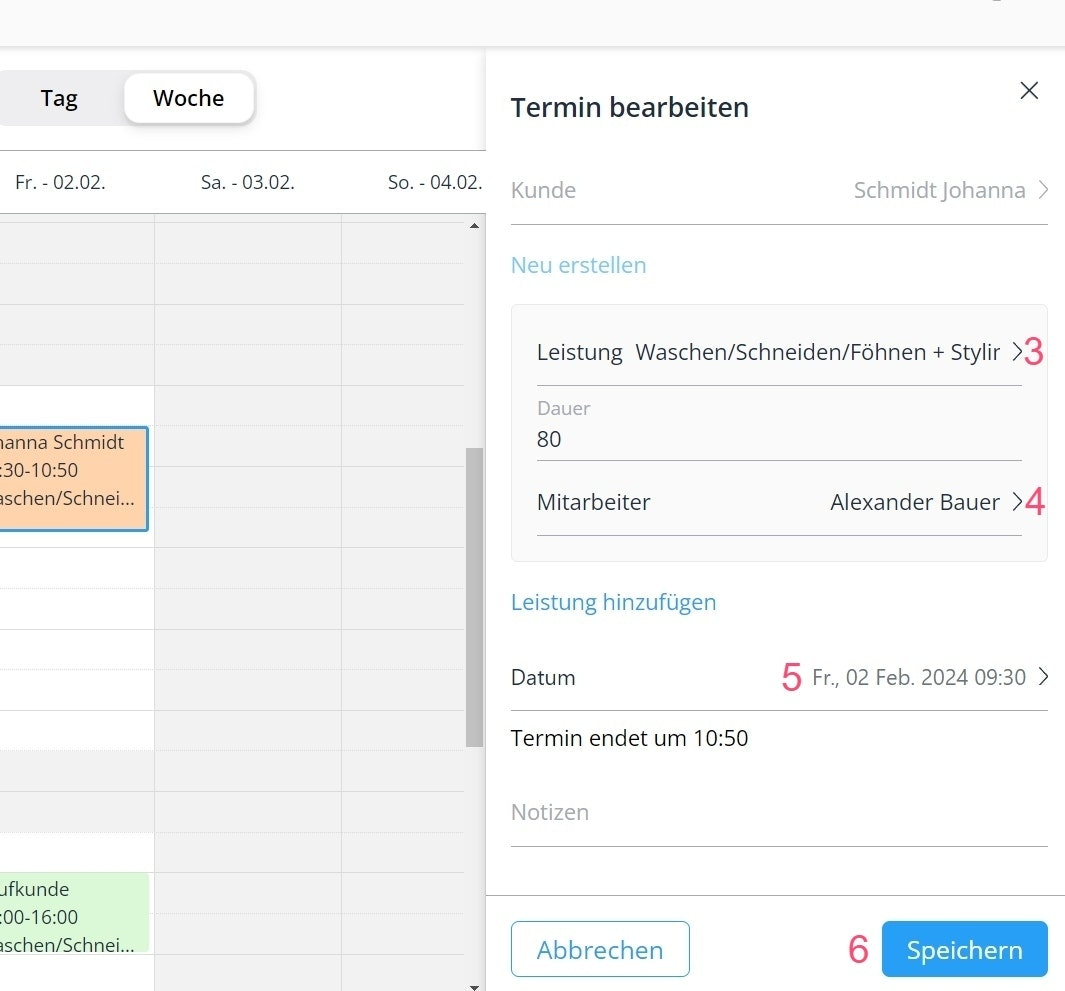
Editing a Customer Appointment
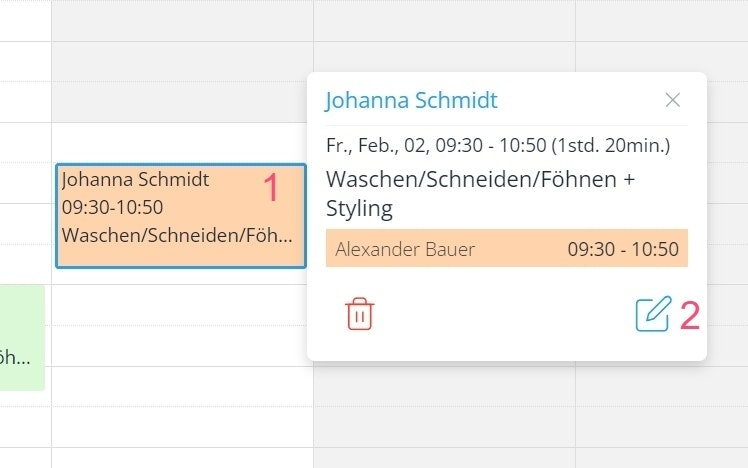
Click on the desired appointment in the calendar.
- You can either delete it using the red trash icon or edit it using the blue pencil icon.
- Change the service by clicking on it and selecting another service from the list. You can also enter a new service duration.
- Select a different staff member by clicking on the name.
- Adjust the date by clicking on it and selecting a new date and time via the pop-up calendar.
- Click “Save.”
Creating Customers
1. Click the blue “+” icon in the top-right corner.
2. Select “Create customer.”
3. Enter the required information, including first name, last name, and a unique customer number.
4. Add additional details such as contact information, gender, birthday, and optional comments.
5. Click “Create.”
Setting Staff Availability (Absences)
1. Click the blue “+” icon in the top-right corner.
2. Select “Plan absence.”
3. Switch to “Create absence” mode.
4. Select a staff member.
5. Enter the reason for the absence.
6. Define the start and end dates of the absence.
7. Optionally add a note.
8. Complete the process by clicking “Create.”
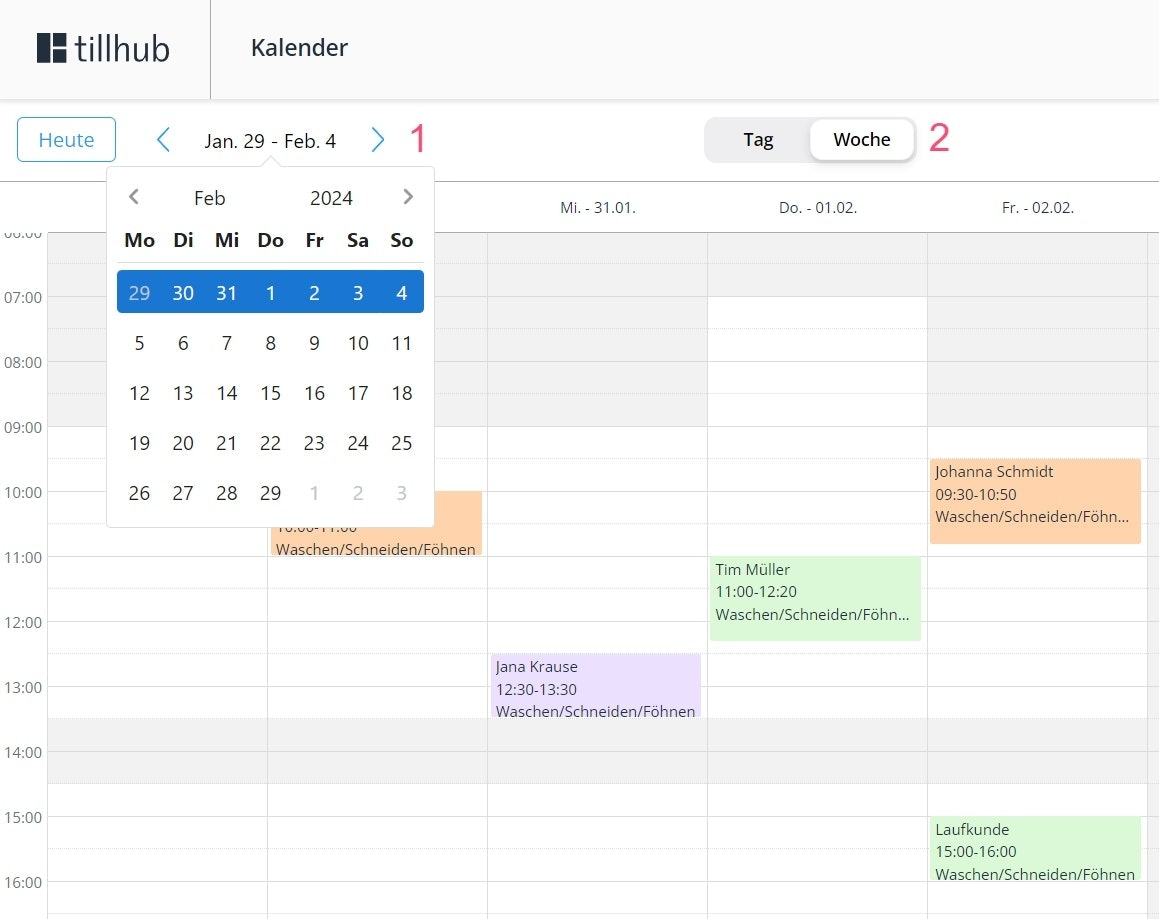
Additional Calendar Navigation
1. To return to the current day, click “Today.” To switch to a specific week, use the week selector and choose a date from the pop-up calendar.
2. Switch between weekly and daily views by selecting the corresponding tab.
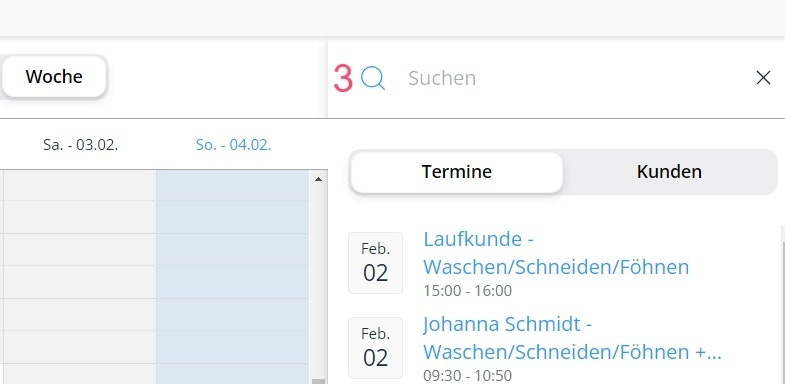
3. To search upcoming or past appointments, click the magnifying glass icon in the top-right corner. Switch to “Customers” if you want to search specifically for their appointments.
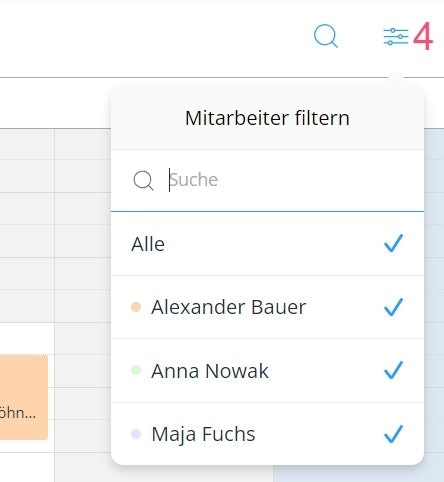
4. For an overview by staff members, filter the calendar accordingly. Use the checkboxes to customize the display.
Step 8: Booking Page for Your Customers
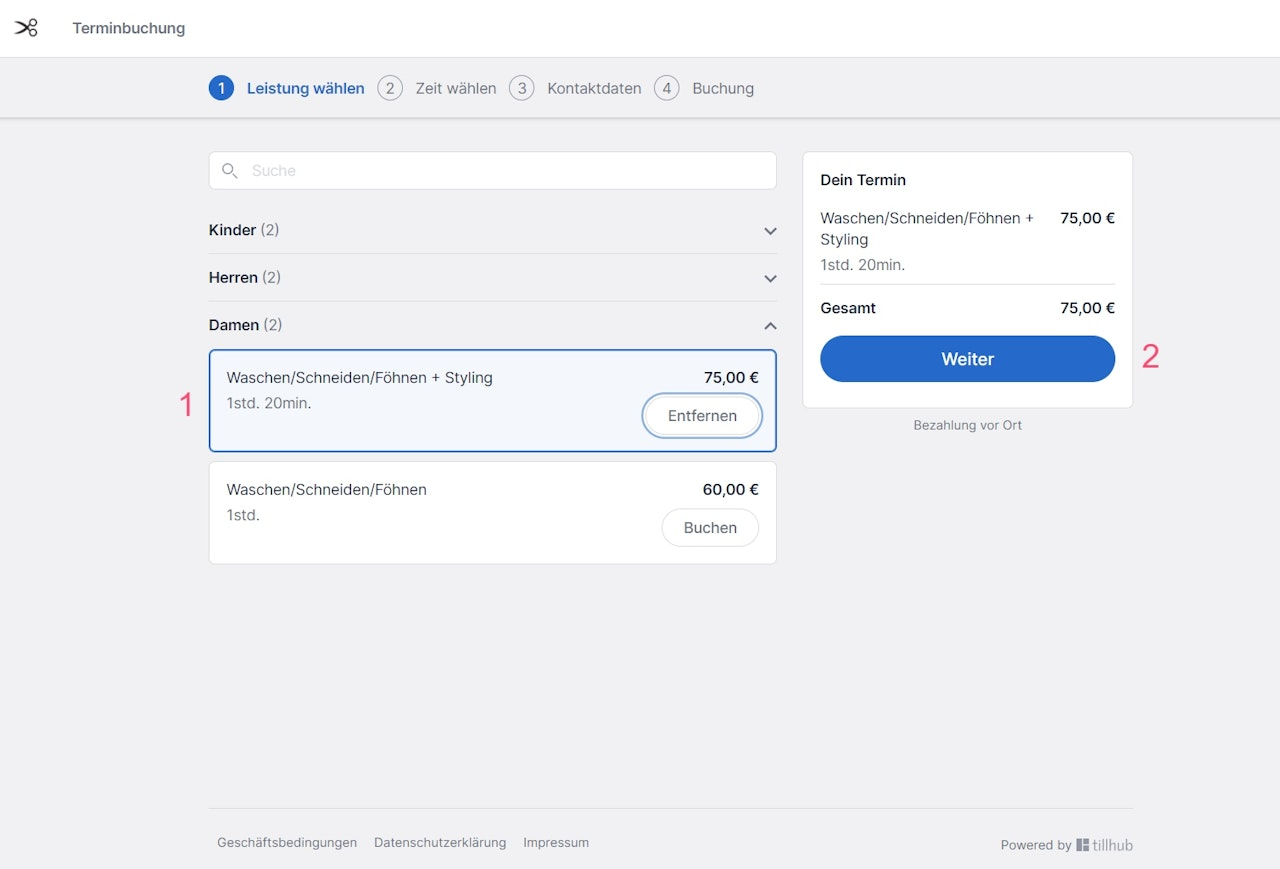
Your customers can use the booking page to reserve appointments. Simply activate it in the settings and share the generated link with your customers.
How customers can book an appointment:
1. Select a service within the service categories by clicking “Book.”
2. Confirm your selection with “Next.”
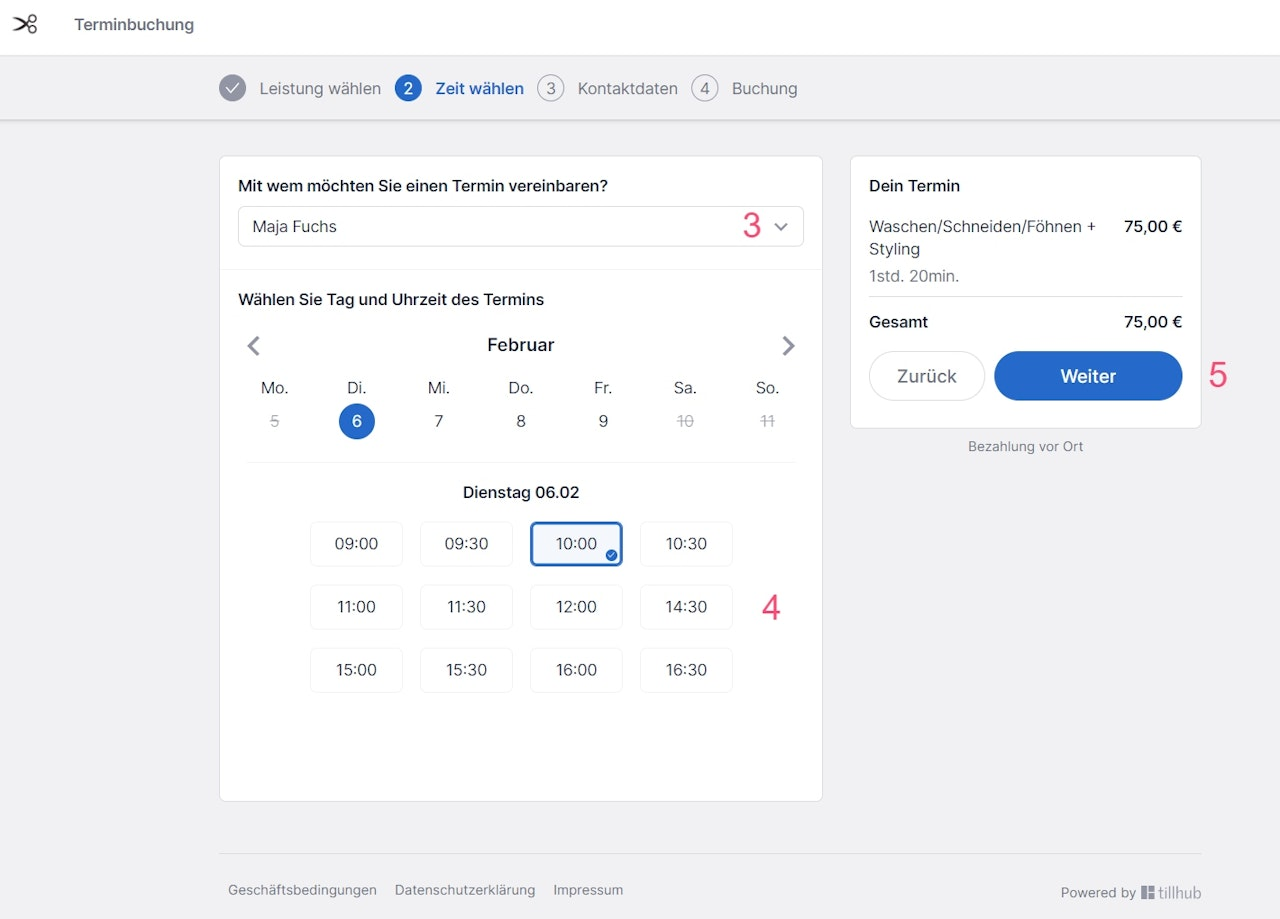
3. Choose a staff member for the selected service.
4. Select a day and time.
5. Confirm your selection with “Next.”
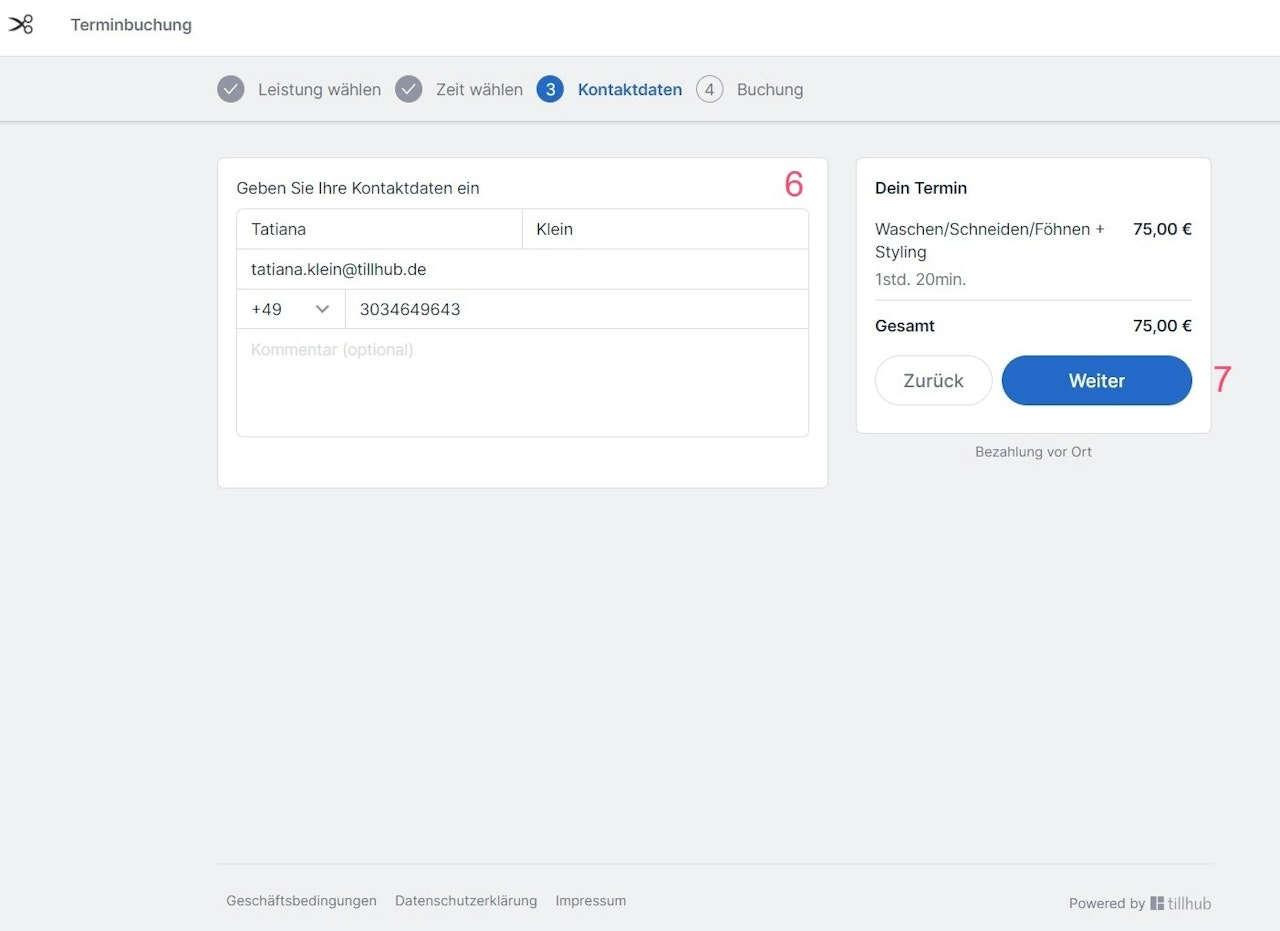
6. Enter contact details and optionally add a note.
7. Confirm the entries and continue by clicking “Next.”
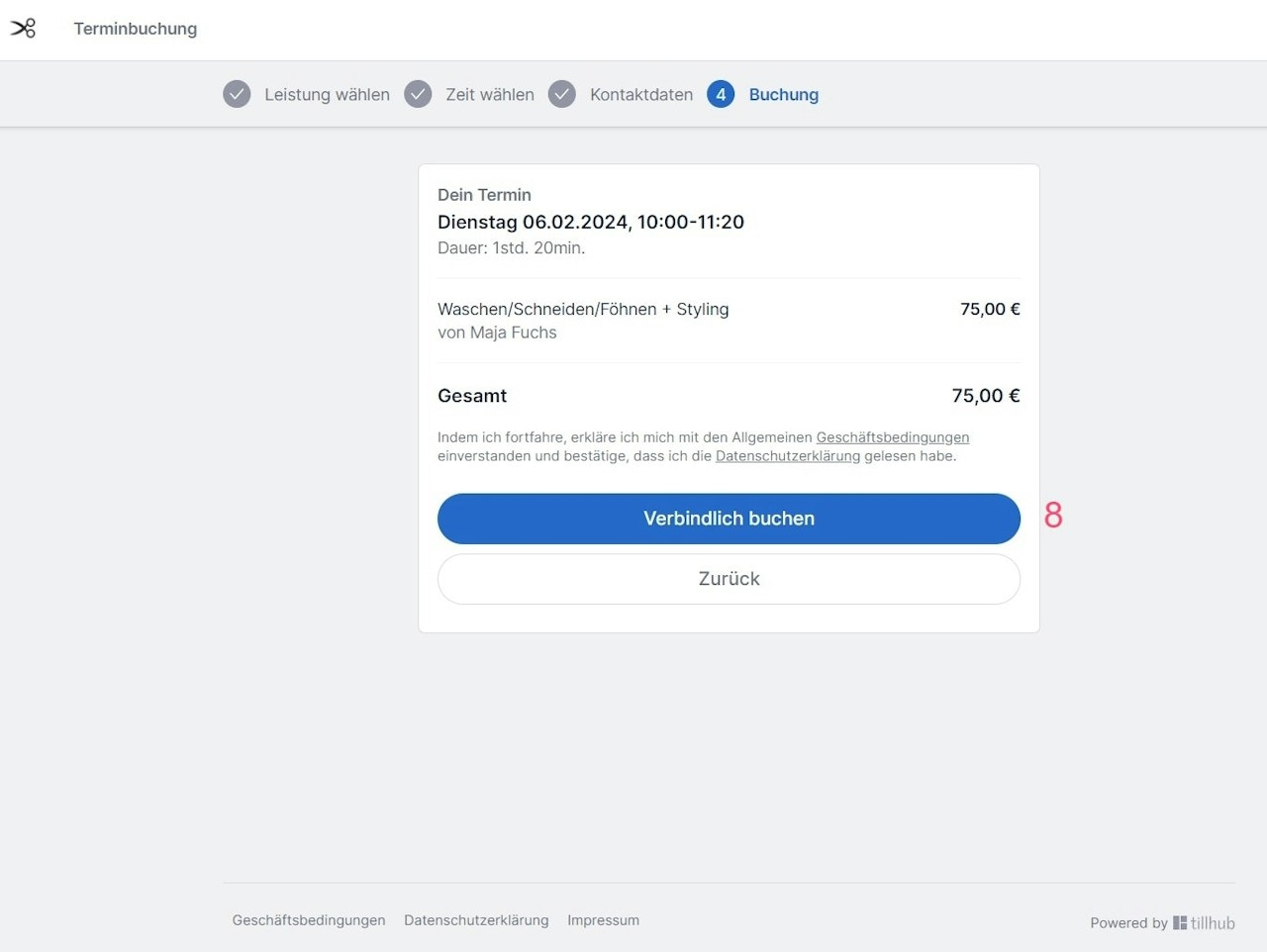
8. The booking is binding. Customers will receive a confirmation email containing a link to cancel the appointment.
Was this article helpful?
That’s Great!
Thank you for your feedback
Sorry! We couldn't be helpful
Thank you for your feedback
Feedback sent
We appreciate your effort and will try to fix the article
