User Interface Features
Modified on Mon, 16 Feb at 10:12 AM
With the new dashboard, we've taken a lot of feedback to heart, adding or adjusting and improving several features. This article discusses the changes you can use and see from each menu item.
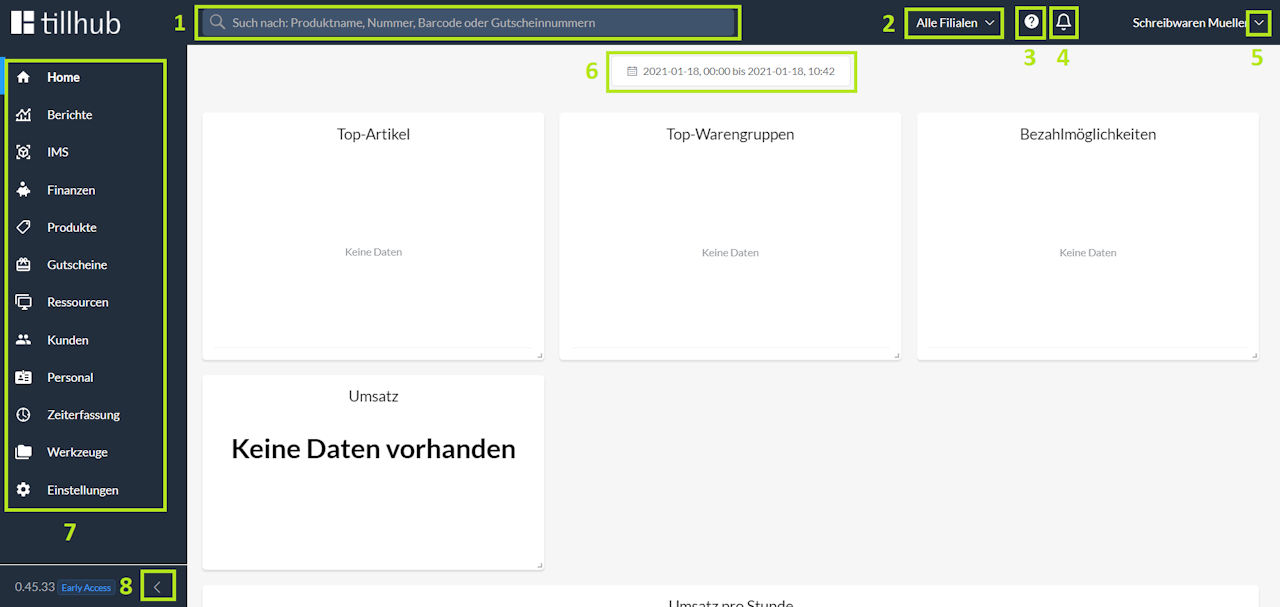
The most noticeable new feature is the search bar at the top of the screen. This allows you to search for articles and voucher numbers (as of the current development status).
To the right of the search bar, there are now more new functions and icons. The "All Branches" drop-down menu allows you to filter the dashboard results by individual branches.
The "?" icon opens a direct link to the Help Center with one click. Alternatively, you can use the search bar there to be directly suggested a suitable Help Center article.
The "bell" icon contains a menu that will show you notifications or information about activities.
The logout button is now found by clicking on your username, located at the top right of the screen.
By clicking on the "calendar" icon at the top center of the screen, you can also filter the dashboard results (top articles, top product groups, payment methods, etc.) by individual periods.
The entire menu on the left side has been extensively expanded and adjusted. All individual menu items are explained in further sections of this Help Center.
The menu can be collapsed using the arrow at the bottom end. Then only the icons are visible, which nonetheless make the respective menu items recognizable. This allows for a clearer view, especially on smaller screens.
Was this article helpful?
That’s Great!
Thank you for your feedback
Sorry! We couldn't be helpful
Thank you for your feedback
Feedback sent
We appreciate your effort and will try to fix the article
