Tip
Modified on Mon, 16 Feb at 10:12 AM
Follow our Step-by-Step Guide to Activate the Tip Function
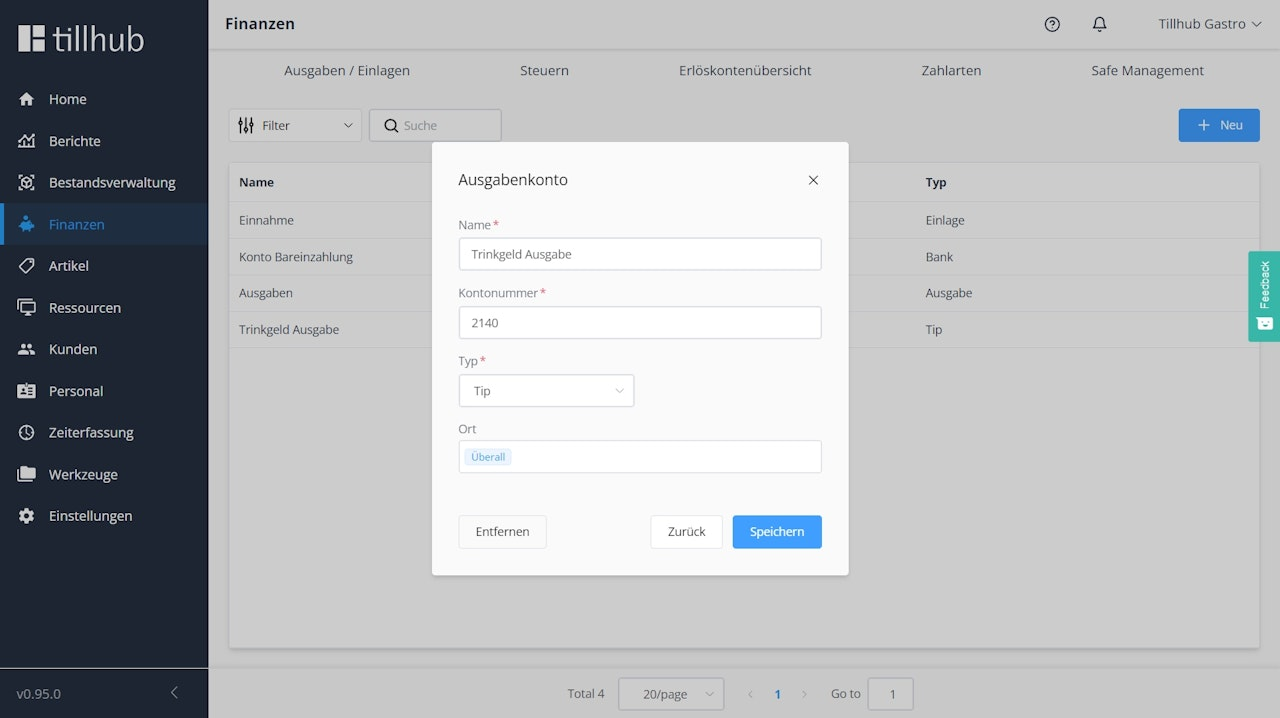
Creating a Tip Expense Account
First, we need an expense account for paying out tips:
- Navigate to the Finance menu in the dashboard.
- Click on the "New" button in the Expenses/Deposit section.
- Enter a title for the Expense Account (e.g., Tip Payout).
- Provide a ledger account for the Expense Account. The ledger account number will be provided by your accounting office.
- Select the type "Tip" for tips.
- Click "Create".
Revenue Accounts for Tips
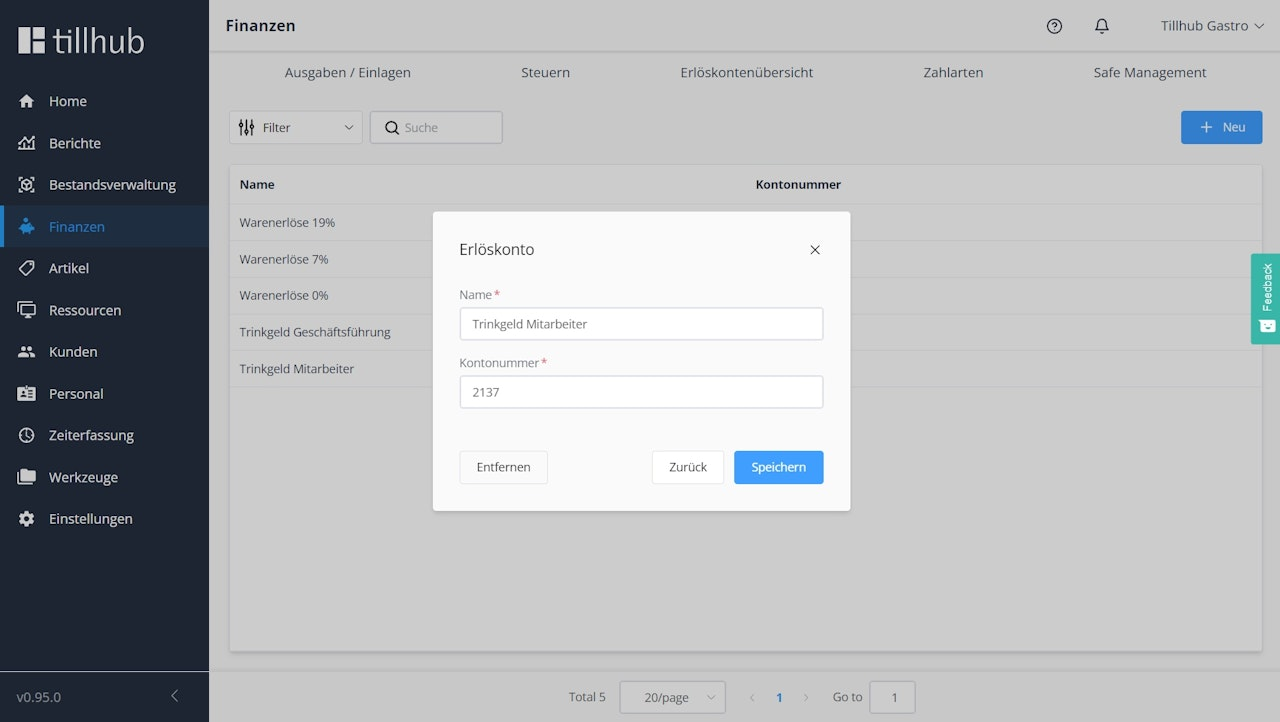
Tips are taxed differently for executives and employees, so separate revenue accounts for each are required. For the technical implementation of the activation, it is necessary for executives to specify a revenue account, even if they are not involved in receiving tips.
- Go to the Revenue Accounts Overview section.
- Click on the "New" button.
- Enter the designation for the tip account under "Name" (e.g., Executive Tips 19% and Employee Tips 0%).
- Enter the ledger accounts for each revenue account. The relevant ledger account number will be provided by your accounting office.
- Click "Create".
Assigning Ownership
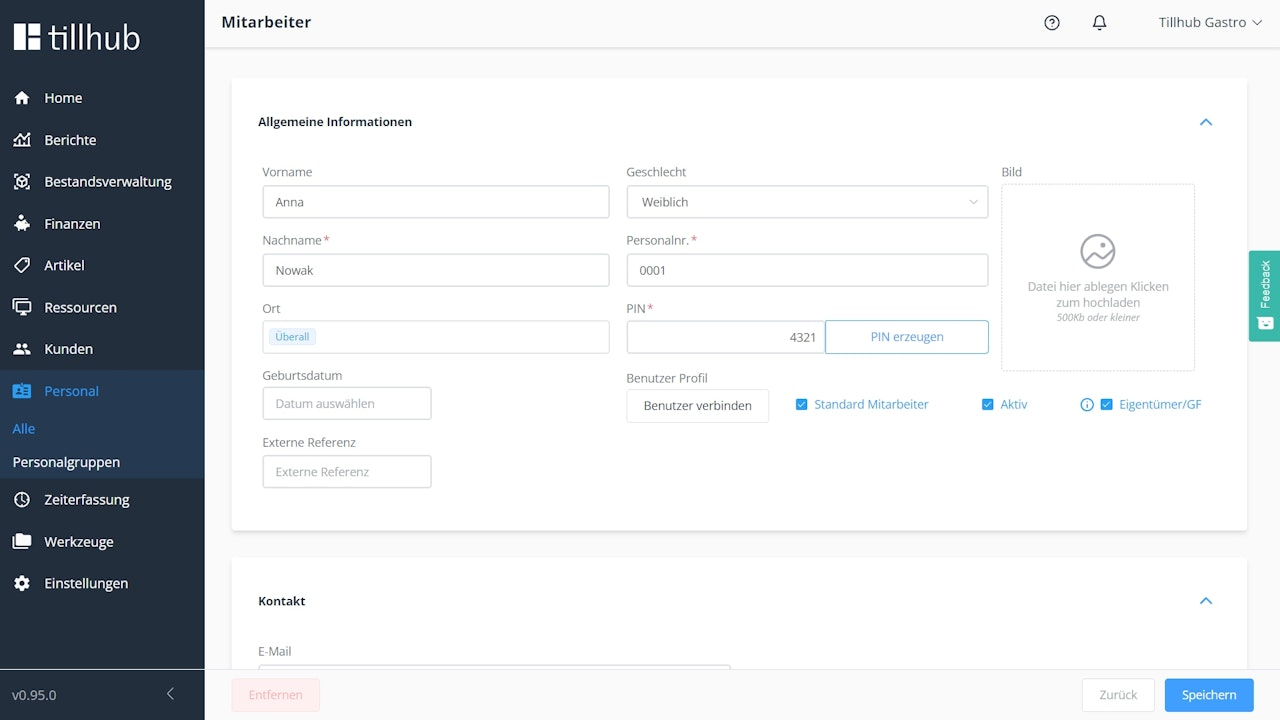
Since tips are taxed for executives, a personnel account must be assigned.
- Go to the Personnel menu.
- Select the personnel account of the executive management.
- Check the box next to "Owner/Exec".
- Confirm by clicking "Save".
Activating the Tip Function
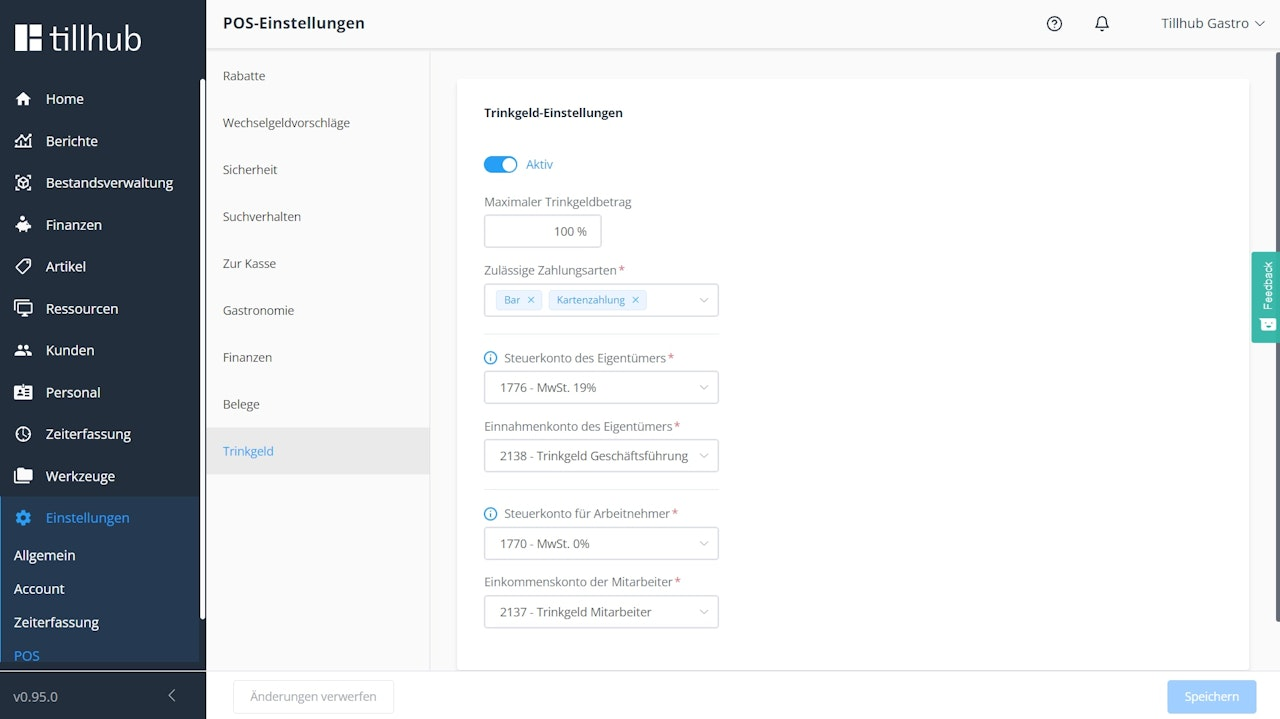
Let's activate the tip function.
- Navigate to the Settings menu.
- Select "POS".
- Navigate to "Tip".
- Set the top switch to "Active".
- Enter the maximum tip amount between 1% and 100%.
- Select the allowed payment methods.
- Set the tax and revenue accounts for executives and employees.
- Click "Save".
Was this article helpful?
That’s Great!
Thank you for your feedback
Sorry! We couldn't be helpful
Thank you for your feedback
Feedback sent
We appreciate your effort and will try to fix the article
