Fiskaly TSE in Austria
Modified on Mon, 16 Feb at 10:11 AM
TABLE OF CONTENTS
- General
- Link the registration code to a store/branch
- Generate a zero receipt
- Send RKSV (DEP-7) by email
- Create a FinanzOnline web service user
General
To connect your cash register/POS system with a legally compliant tamper-protection solution, certain preparations are required.
Every cash register operator in Austria must register their activity with FinanzOnline.
As part of the Tillhub onboarding process, our partner trustee will create the cash register web service user in FinanzOnline for you. You provide the BENID (user identification) and PIN that you have defined via the order form for TSE activation.
Step-by-step guide to TSE activation
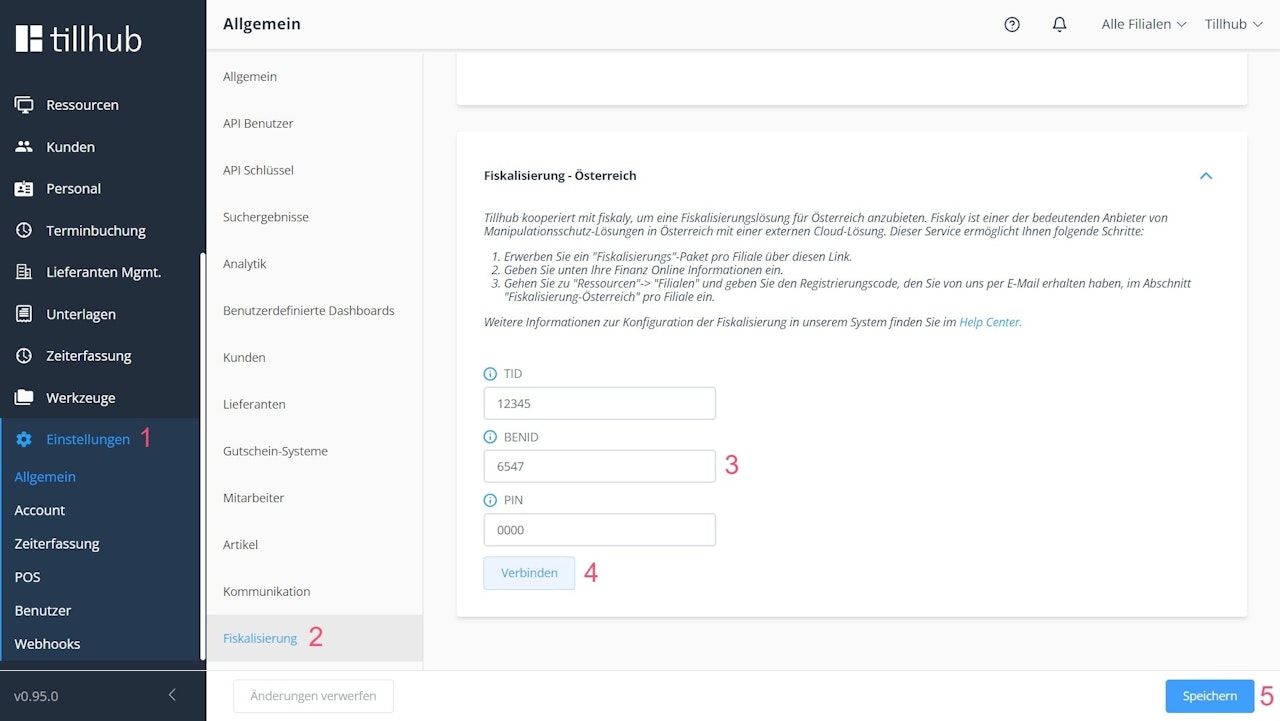
- Go to the dashboard and select “Settings.”
- Switch to “Fiscalization.”
- Under “Fiscalization – Austria,” enter your FinanzOnline information (TID, BENID and PIN).
- Click “Test connection” to check whether the FinanzOnline connection was successful.
- If the connection has been established successfully, click “Save” in the bottom right.
After you have entered and saved your data, please proceed to the next step to link one or more registration codes to your stores/branches.
Link the registration code to a store/branch
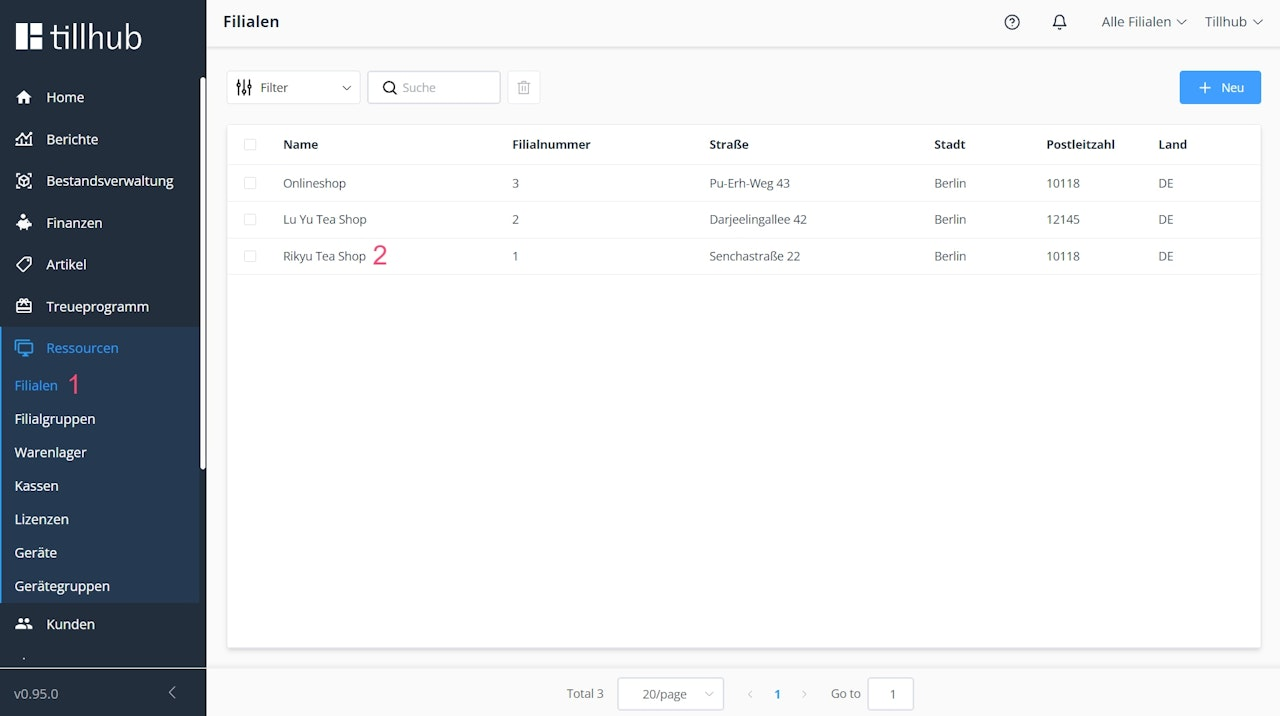
- In the dashboard, go to “Resources.” You will be redirected automatically to Stores/Branches.
- Select a store/branch that you want to fiscalize.
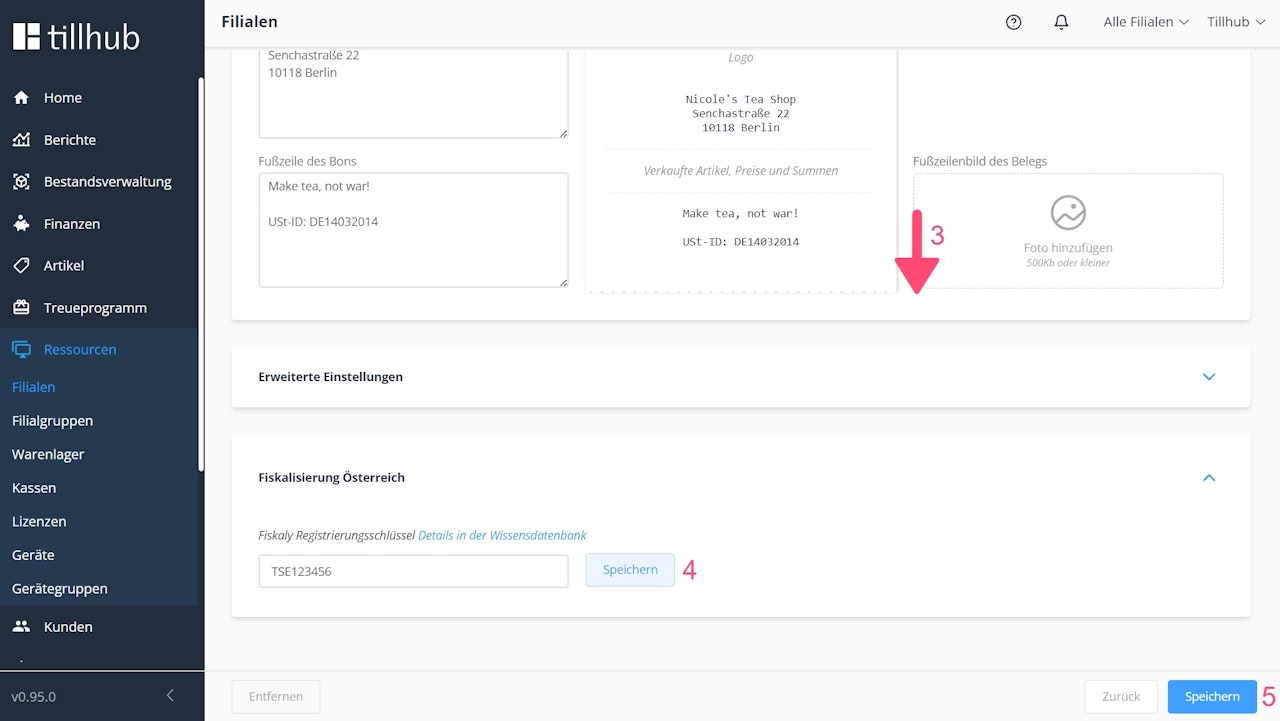
- Scroll to the bottom of the store/branch page.
- In the “Fiscalization” settings block, enter the TSE license.
- Click “Save” next to the input field.
Generate a zero receipt
After the store/branch to which the POS belongs has been fiscalized, zero receipts can be generated:
- Go to the Tillhub app and select Settings.
- Select “Fiscalization.”
- Click “Create zero receipts.”
- You can use your receipt printer to print the zero receipts.
Send RKSV (DEP-7) by email
If you are carrying out a tax audit, you can email the RKSV protocol (DEP-7) to your auditor:
- Go to the Tillhub app and select Settings.
- Select “Fiscalization.”
- Click “Email RKSV (DEP-7).” A pop-up window will appear where you can enter the auditor’s email address and select a protocol for a time period or an optional range of receipt numbers.
Create a FinanzOnline web service user
Before you can configure your POS system for secure fiscalization, you must first create a web service user in FinanzOnline.
Step-by-step guide
- Visit https://finanzonline.bmf.gv.at/ and log in with your participant identification, user identification and PIN.
a. If you want to log in to FinanzOnline for the first time, you can find detailed information about the initial registration here:
https://www.bmf.gv.at/services/finanzonline/informationen-fuer-buerger/einstiegsinformationen.html - In the top menu bar, select “Entries” and then “Cash registers.”
- You will be taken to “CASH REGISTERS – Function selection.” Navigate to the heading “Create a user for the cash register web service.”
- Here you can create a new user. Set a user identification and a PIN, and repeat them. Then confirm by clicking the “Create” button.
- Make a note of the participant identification, user identification, and PIN that are now displayed. With these details, you can continue the fiscalization process for your store/branch in the Tillhub dashboard.
Tip: Pay attention to the grey information box for entering the user identification and PIN, located below the user creation section.
Was this article helpful?
That’s Great!
Thank you for your feedback
Sorry! We couldn't be helpful
Thank you for your feedback
Feedback sent
We appreciate your effort and will try to fix the article
