Complete purchase
Modified on Fri, 20 Feb at 9:29 AM
In this article, we will inform you about the functions in the checkout area.
Checkout area and payment options
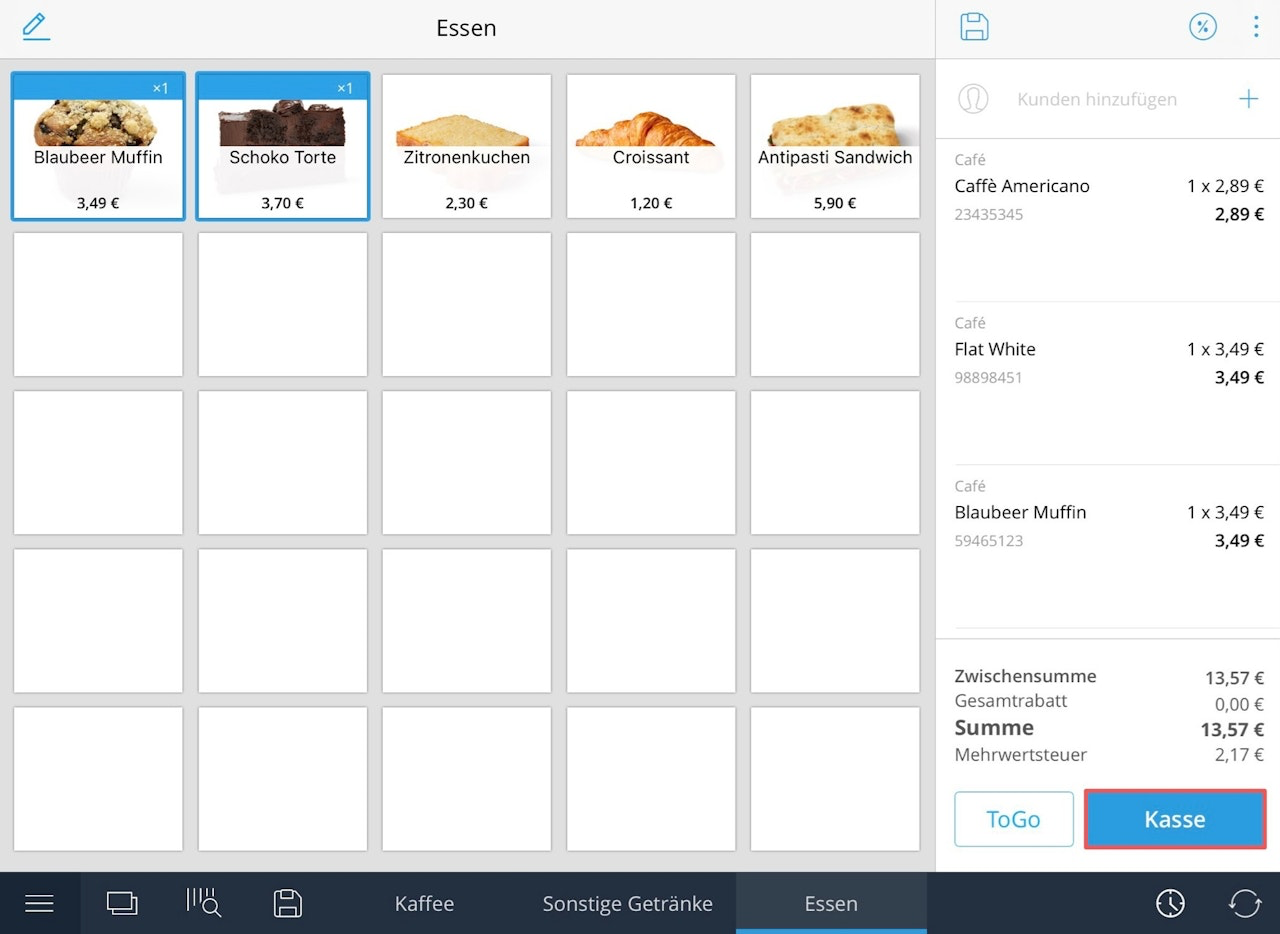
Once you have made all the settings in your shopping cart, it is time to proceed to payment.
Checkout Area & Payment Options
In this article, we inform you about the functions available in the checkout area.
Checkout Area and Payment Methods
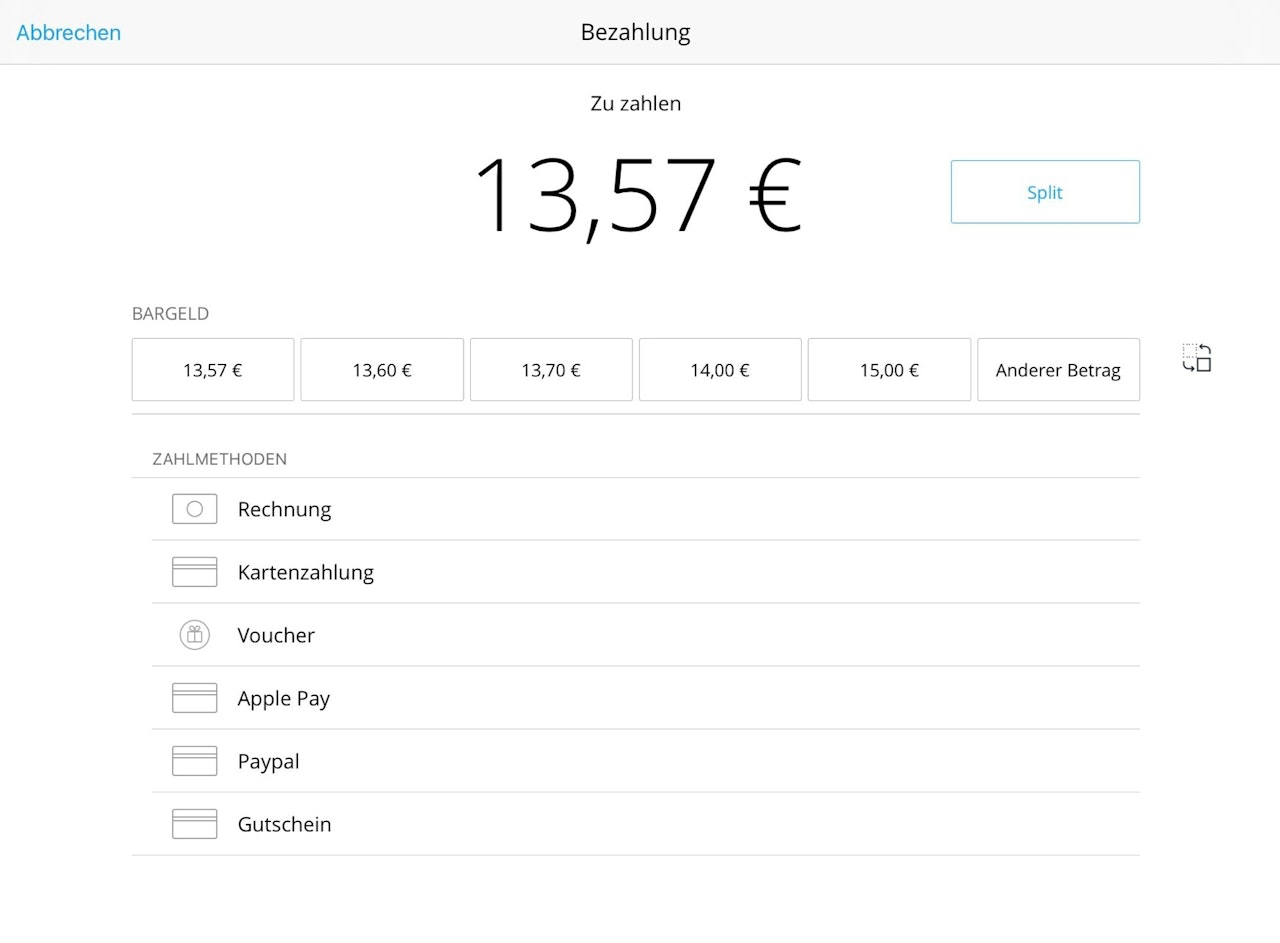
Once all settings have been made in the shopping cart, the next step is payment. Tap the "Checkout" button to open the payment window described below. In this window, you’ll find several payment options:
Cash Payment
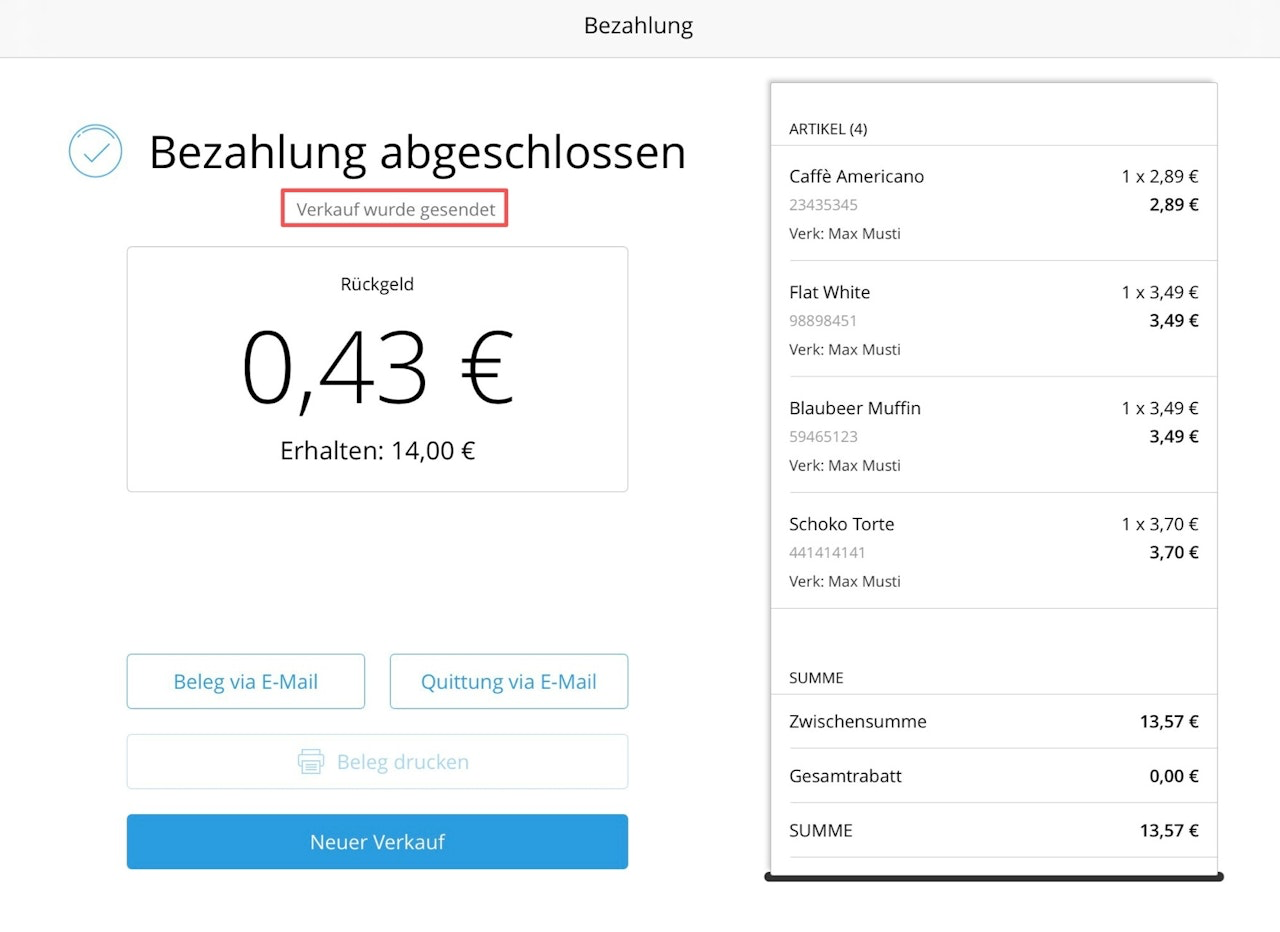
You’ll see several preset cash amounts. If the customer gives an amount not shown, tap "Other amount" to enter it manually. After selecting the amount, the "Payment" window opens where you can print the receipt or send it by email.
Gift Card
If you use gift cards or vouchers in your store, select the "Gift Card" tab. If the voucher doesn’t cover the full amount, use the "Split" function to combine payment methods.
Card Payment
For payments via EC card, Visa, etc., choose this option.
Note: Your Tillhub app must be connected to a terminal.
Invoice
For business customers who pay on account, choose this option.
In the pop-up window, you can set the number of copies to print.
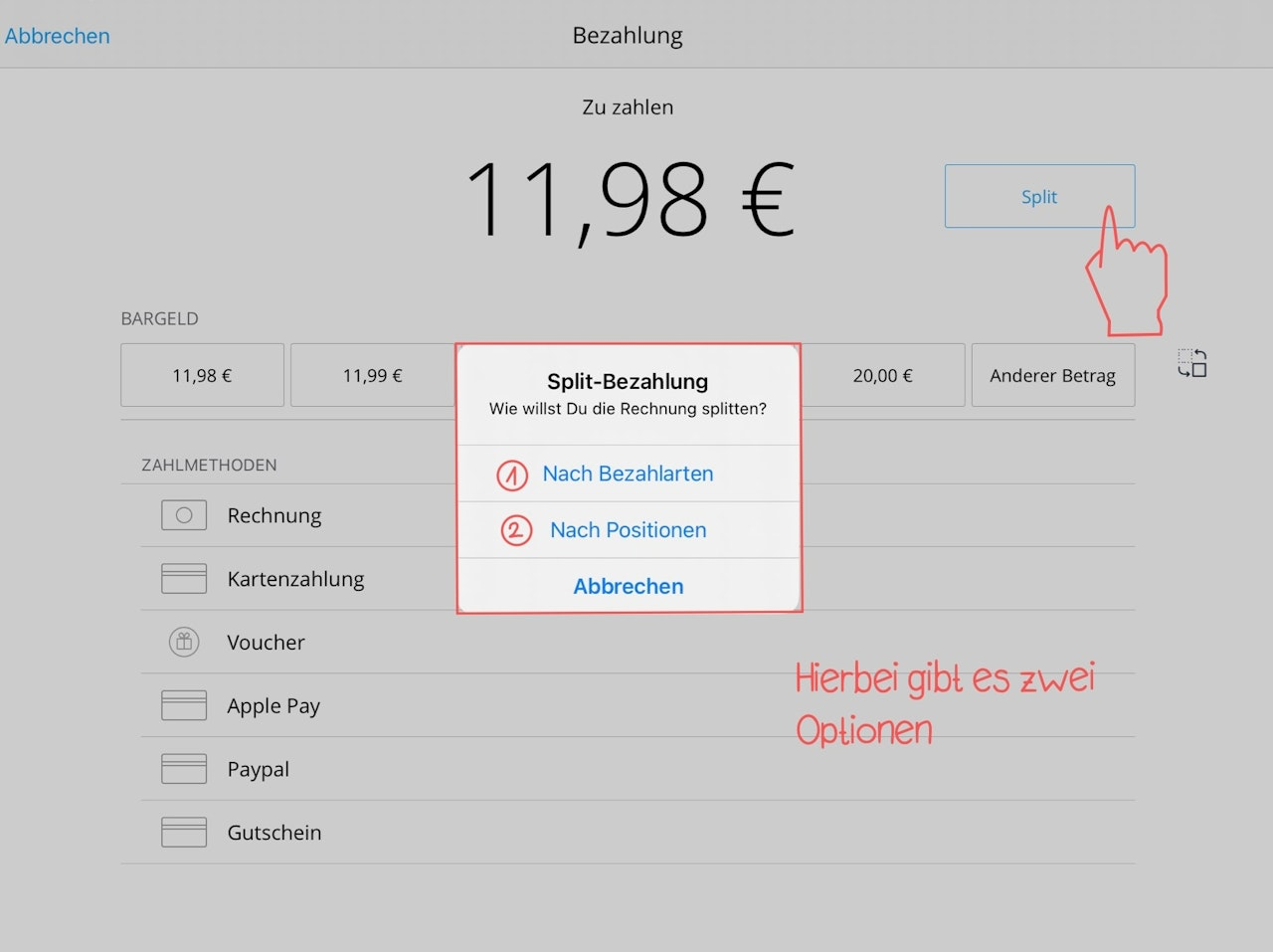
Split
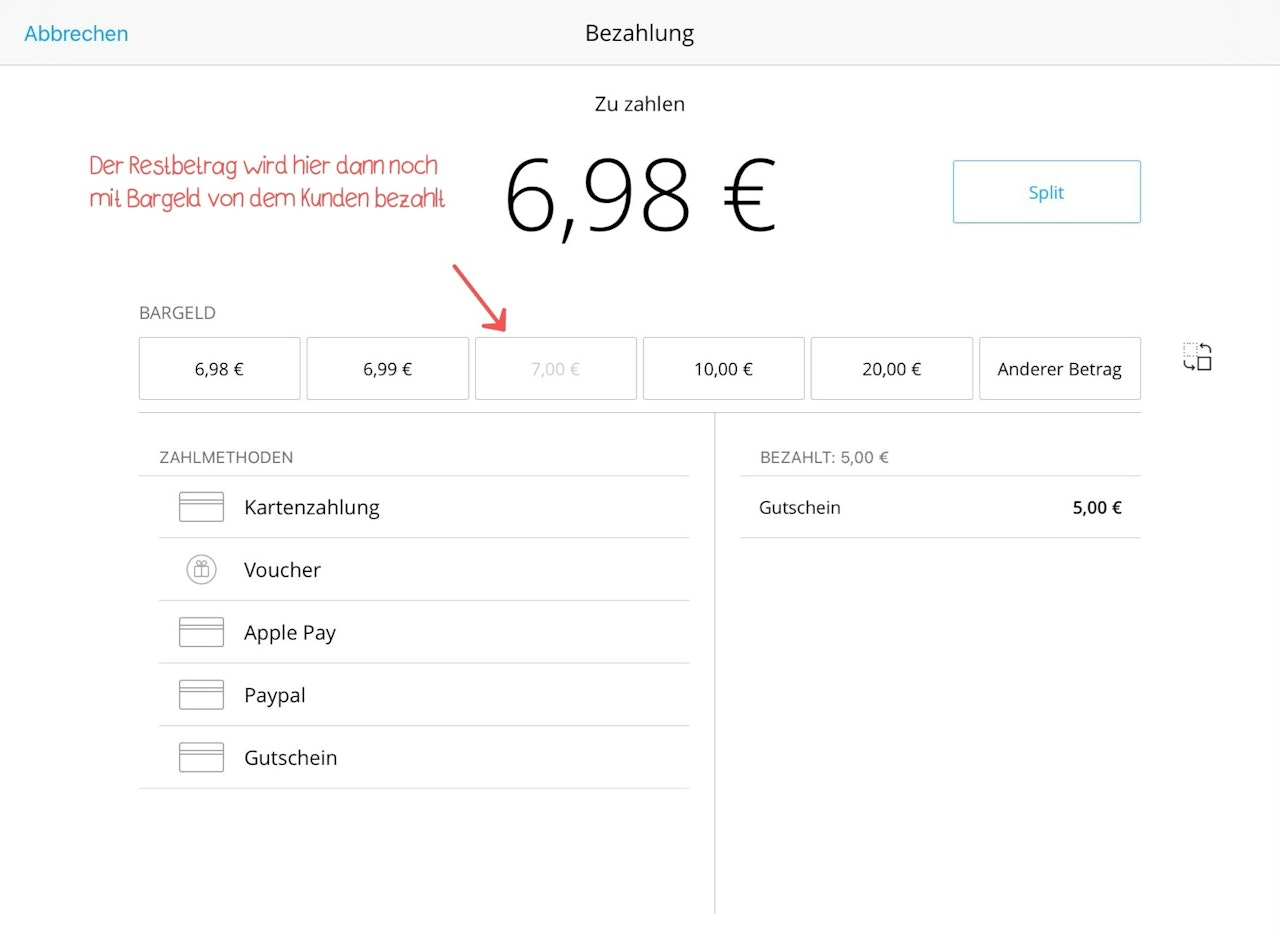
If the customer wants to pay using multiple payment methods, tap "Split".
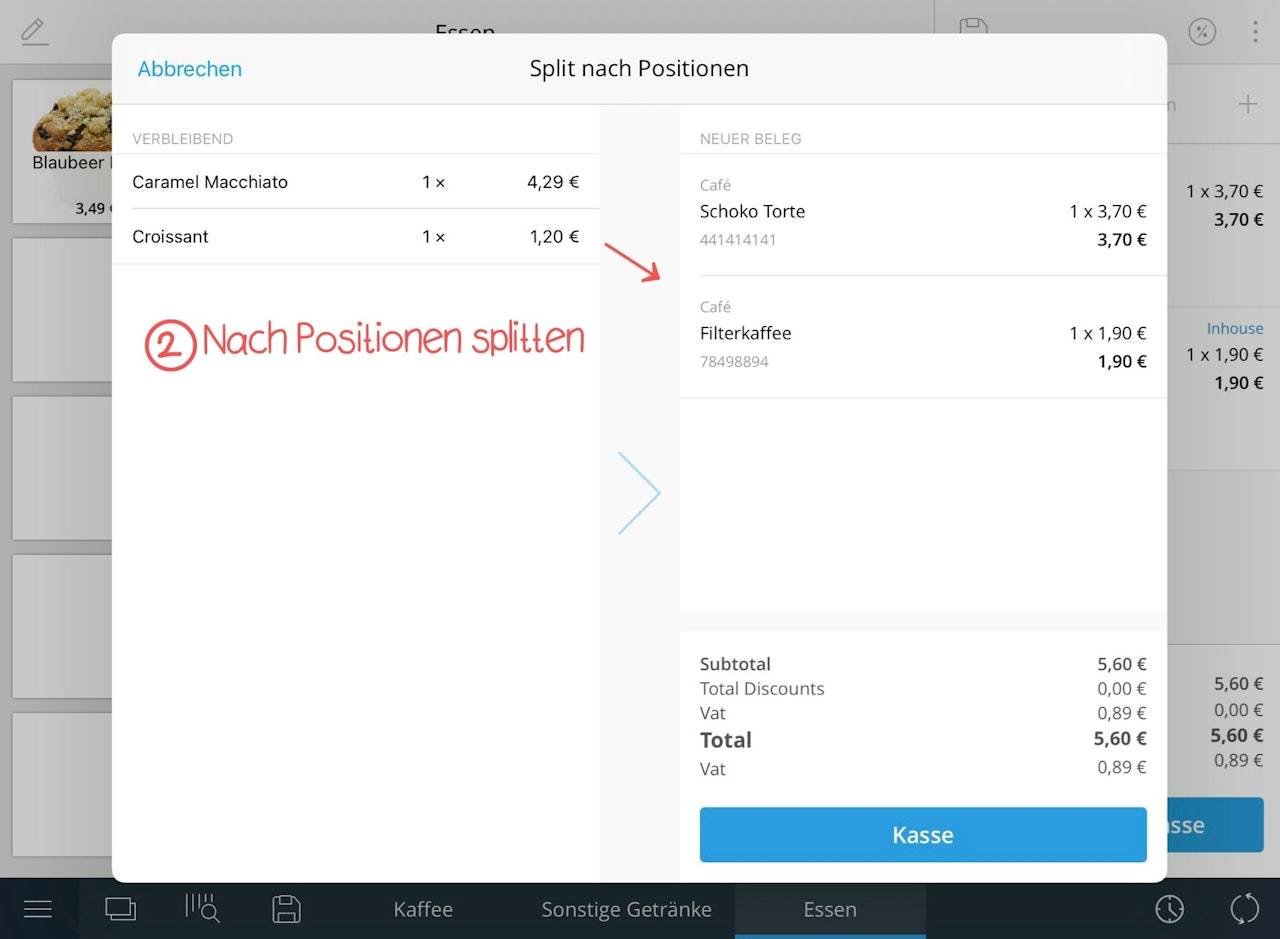
This function allows you to split payments by method or by individual items (see image 3).
After the payment is completed, a status bar will confirm that the sale has been synchronized with the Dashboard.
In the History section, you can review sales and verify their sync status.
If a sale is marked in red, the receipt can be uploaded manually by tapping the "Sync" button.
The system will attempt to re-upload failed syncs automatically within 24 hours.
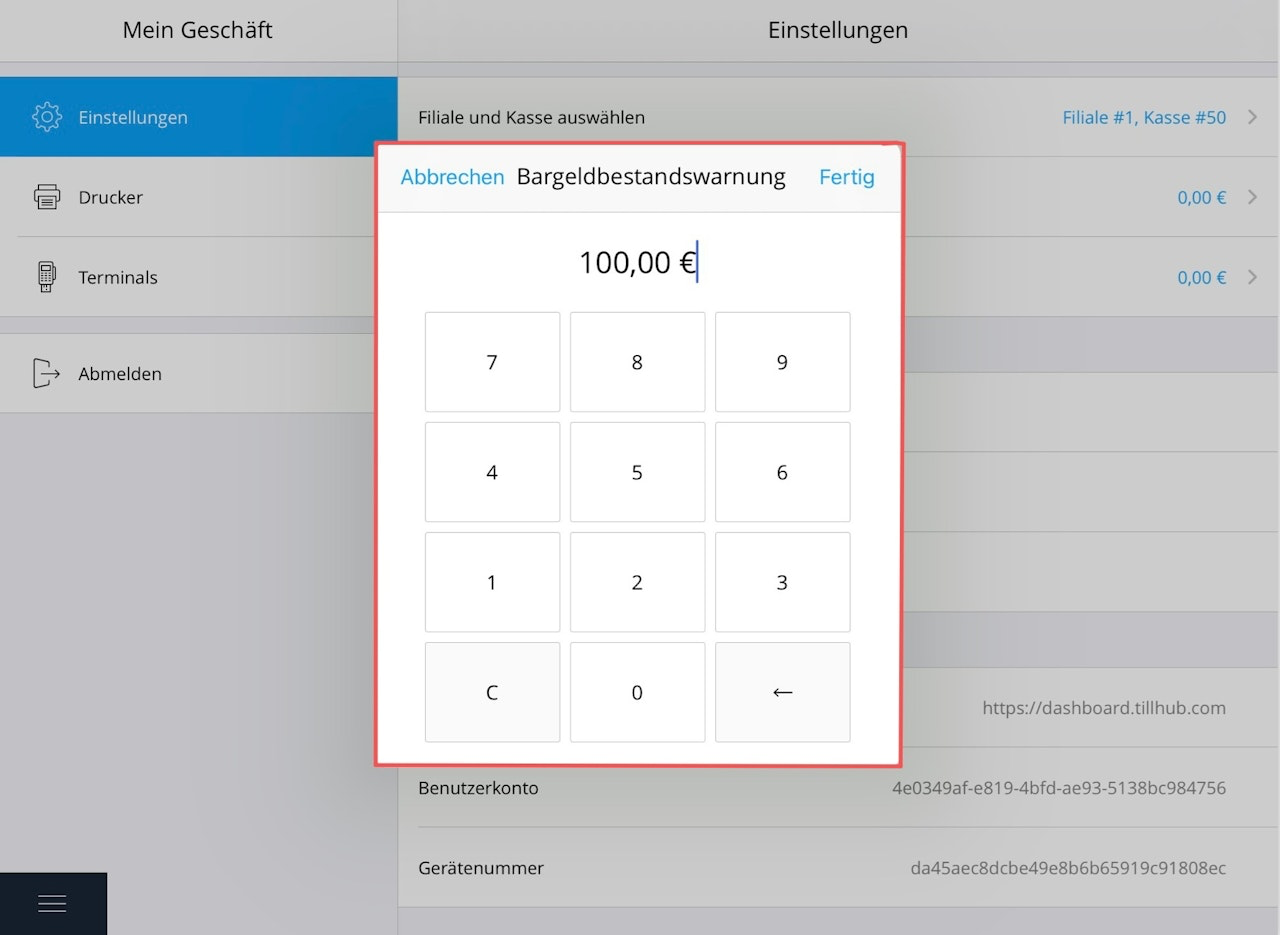
Cash Minimum Balance Warning
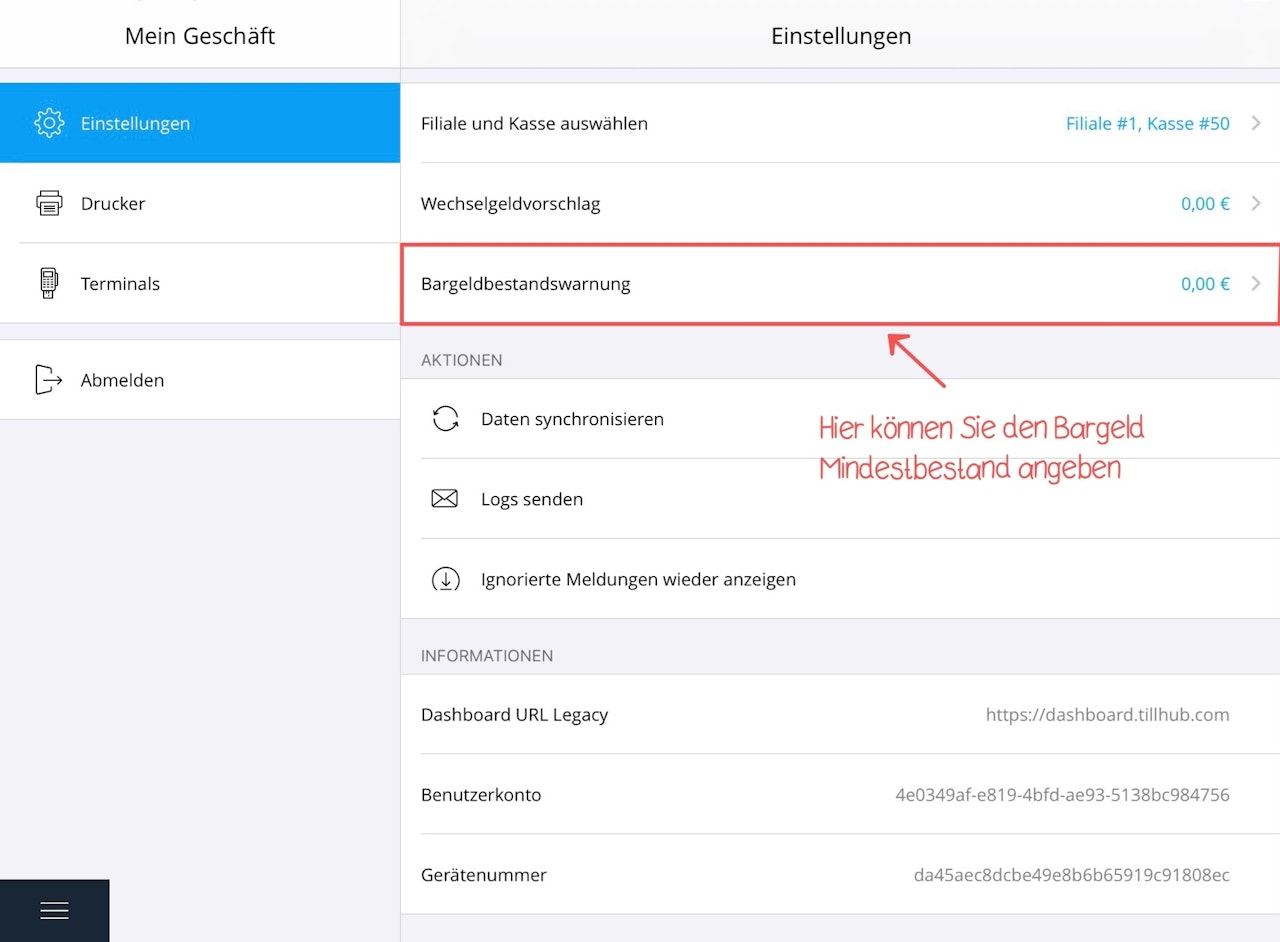
You can define a minimum cash balance for your register.
If this value is reached or dropped below, a warning will appear on the screen.
Activating the Minimum Balance Warning
Go to your App settings and look for "Cash balance warning".
By default, this is set to €0.00.
Tap the setting and enter your desired amount, then save the changes.
Note: When a transaction reduces the cash balance to or below this value, a non-blocking warning appears at the top of the screen — it's just a reminder, not a restriction.
Tipping function
In this section, we explain how to use the tipping function of your Tillhub app.
If this feature is relevant for your business and you want to use it, the following FAQ article may be relevant to you: How can I activate the tipping function?
Accessing the tip menu
As usual, select items to add to the shopping cart and then check them out.
If a sum is selected for cash payments that is higher than the invoice amount, the "Target price" window opens. For an EC terminal payment, the window is called up by default.
Handling the menu
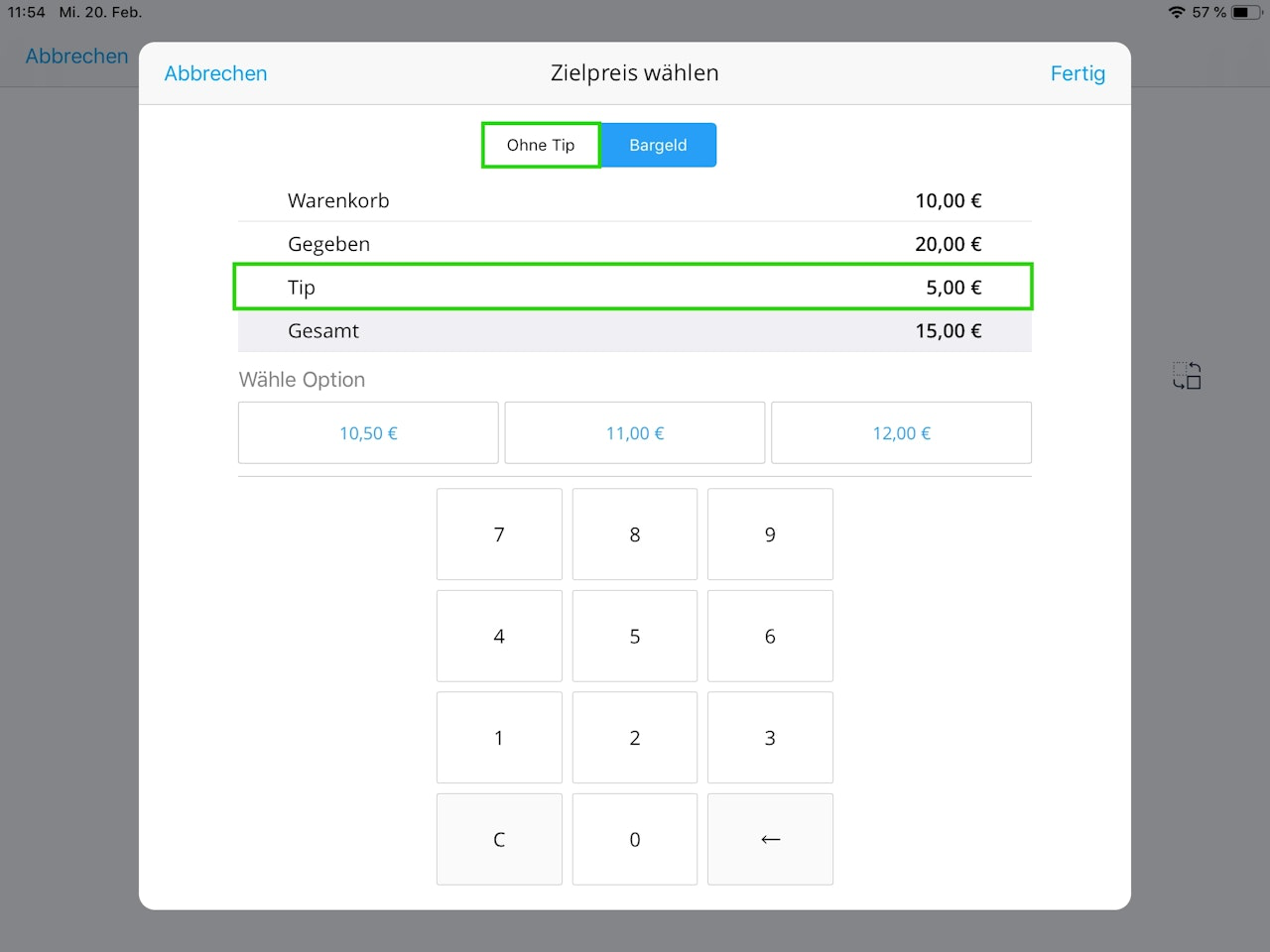
The target price menu offers you an overview of the total value of goods and the selected amount of the tip. If you or your customer do not want to give a tip, you can select "No tip" at the top of the menu and proceed as usual to print the receipt.
Below the overview, there are several suggested options for the total amount to be paid.
Note: Please note that the total amount is always displayed. That is, if the item costs €10.00 and the customer wants to give a €5.00 tip, the total must show €15.00!
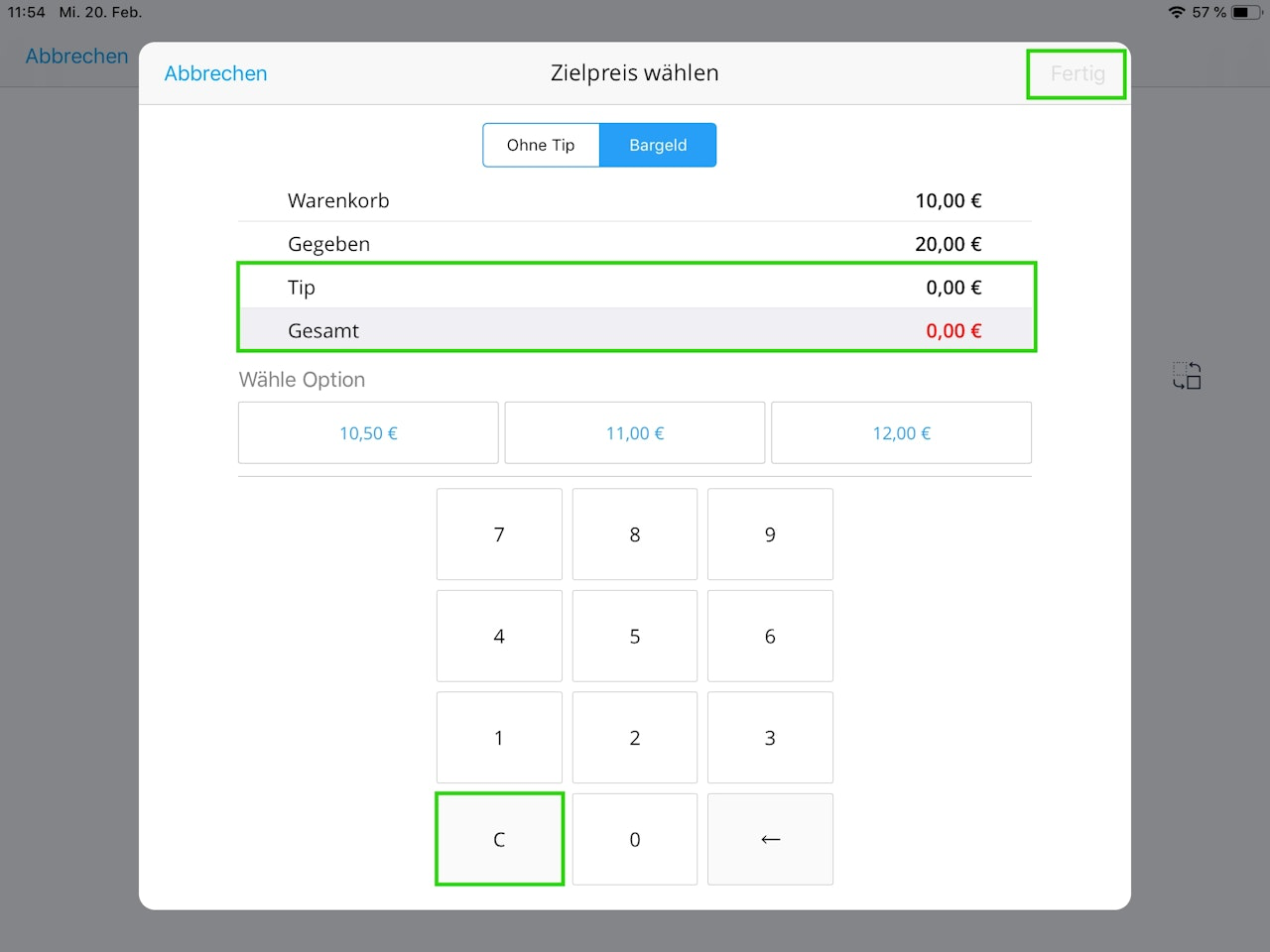
The number pad gives you the option to freely decide what total amount you want to charge.
Note that you must first delete the preset values using the "C" button. Once you have entered the desired amount, finish with the "Done" button in the top right.
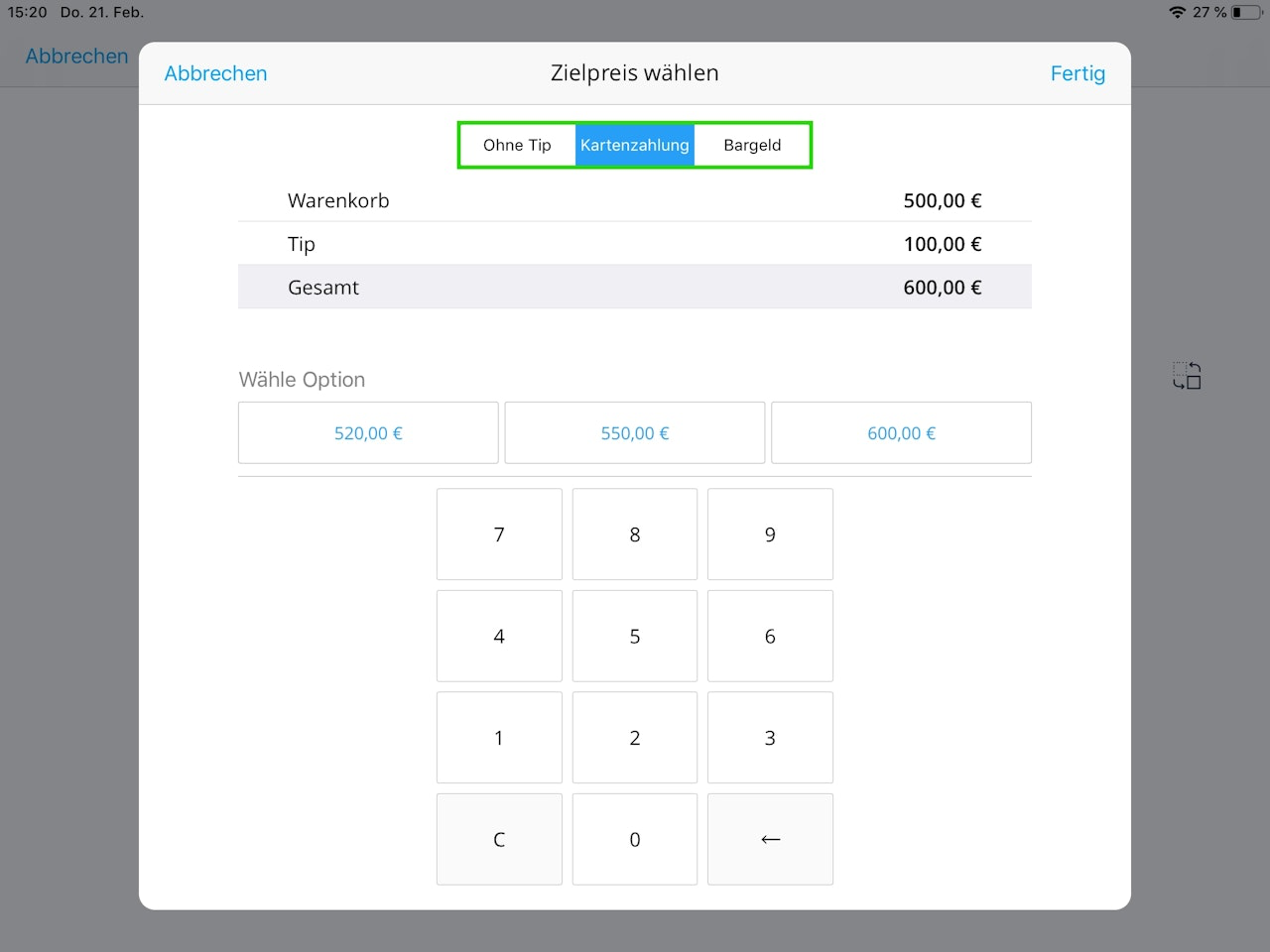
With an EC terminal payment, you have the same options and can also easily switch to a cash payment.
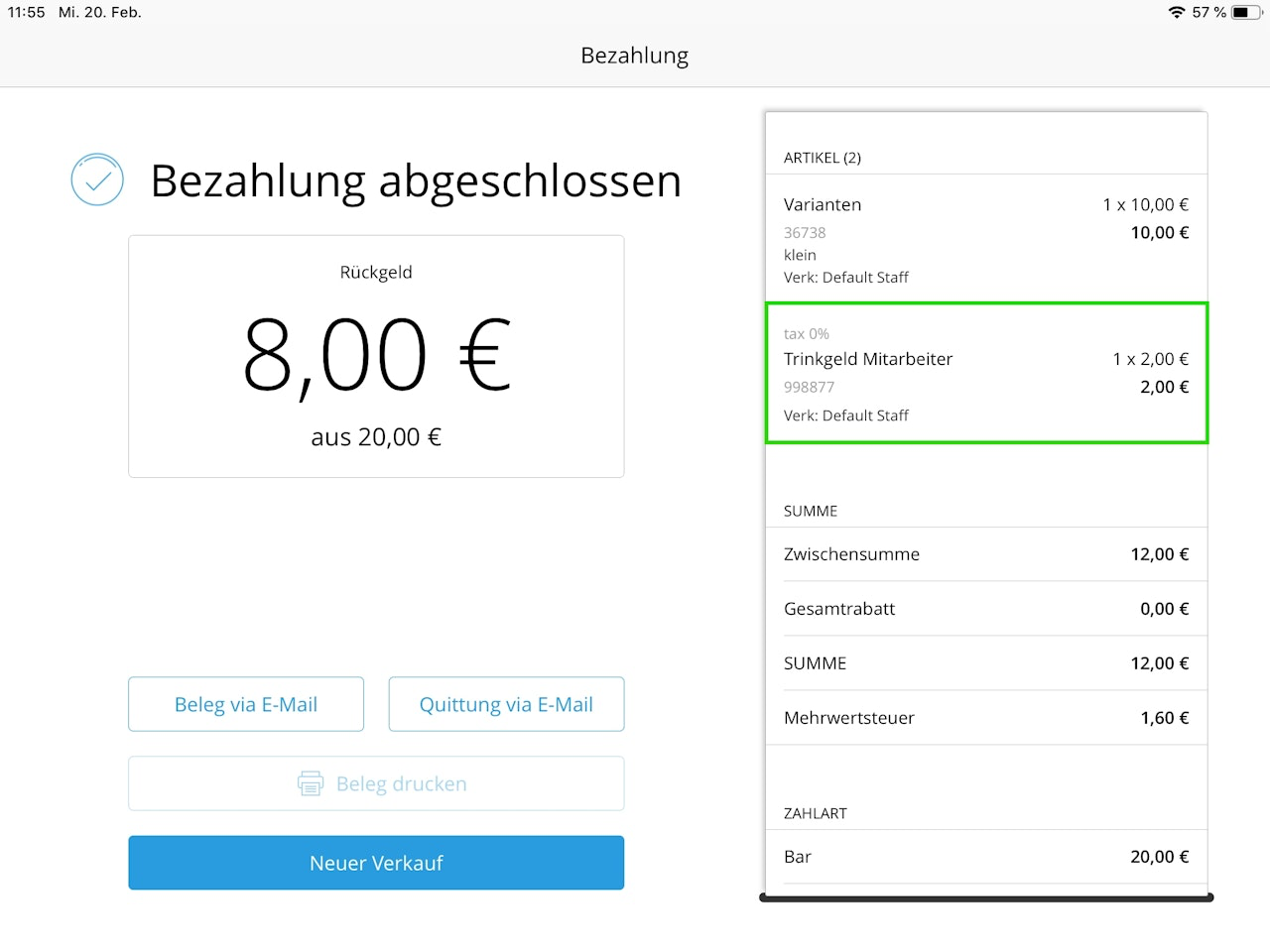
VAT on tips
Please note that according to the German Commercial Code (HGB), tips from employees are not taxed. However, if a tip is collected by the owner or managing director, it is taxed at 19%.
Note: Please let us know which staff profile is used by the managing director so that we can link the corresponding VAT account to it.
The taxation is automatically carried out by the app and is also shown on the invoice.
Split payment
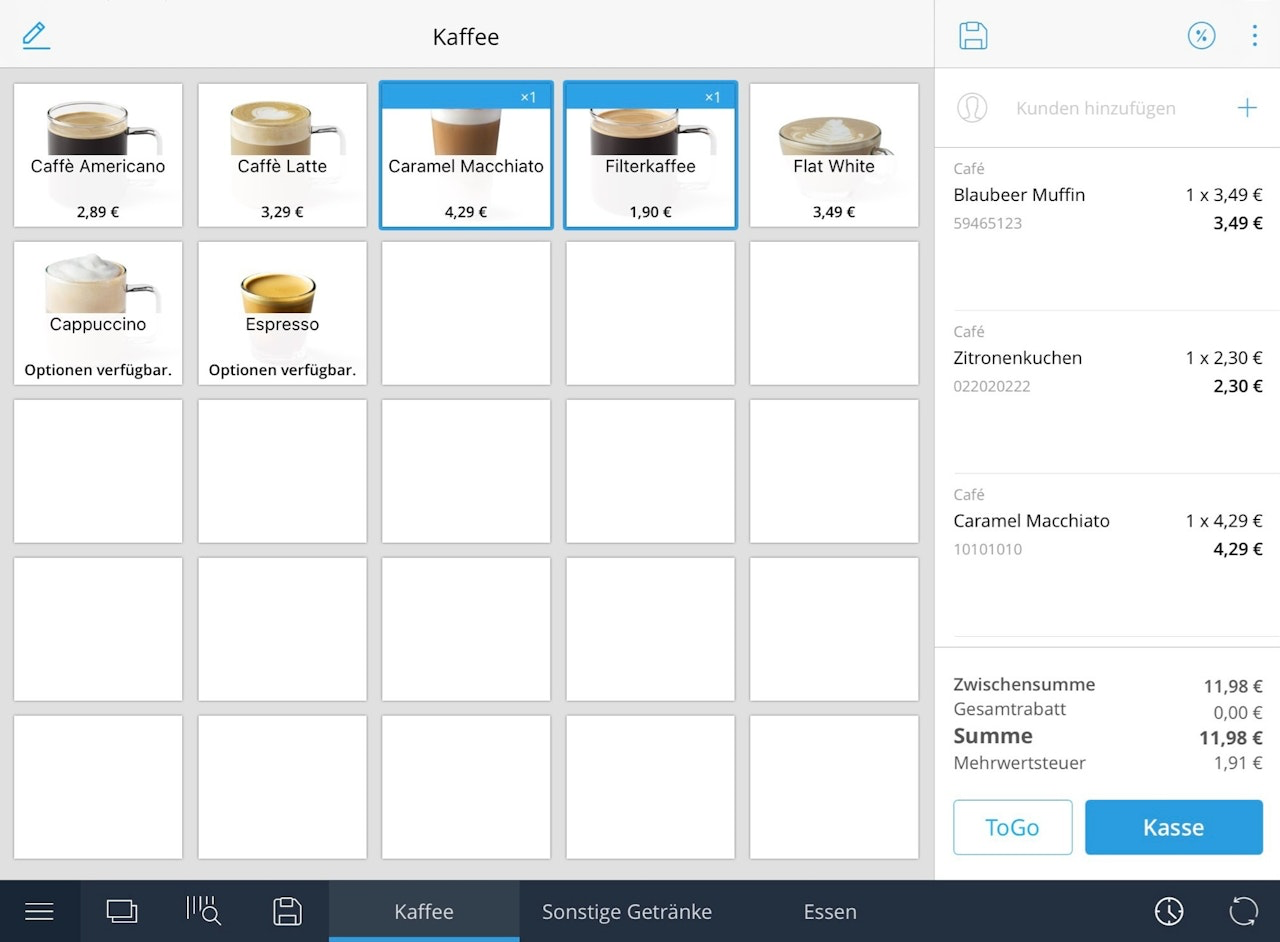
If a customer wants to split their payment, this is also easily possible with the Tillhub cash register.
To do this, add the items to the shopping cart as usual and then go to the checkout area.
Now select the "Split" option.
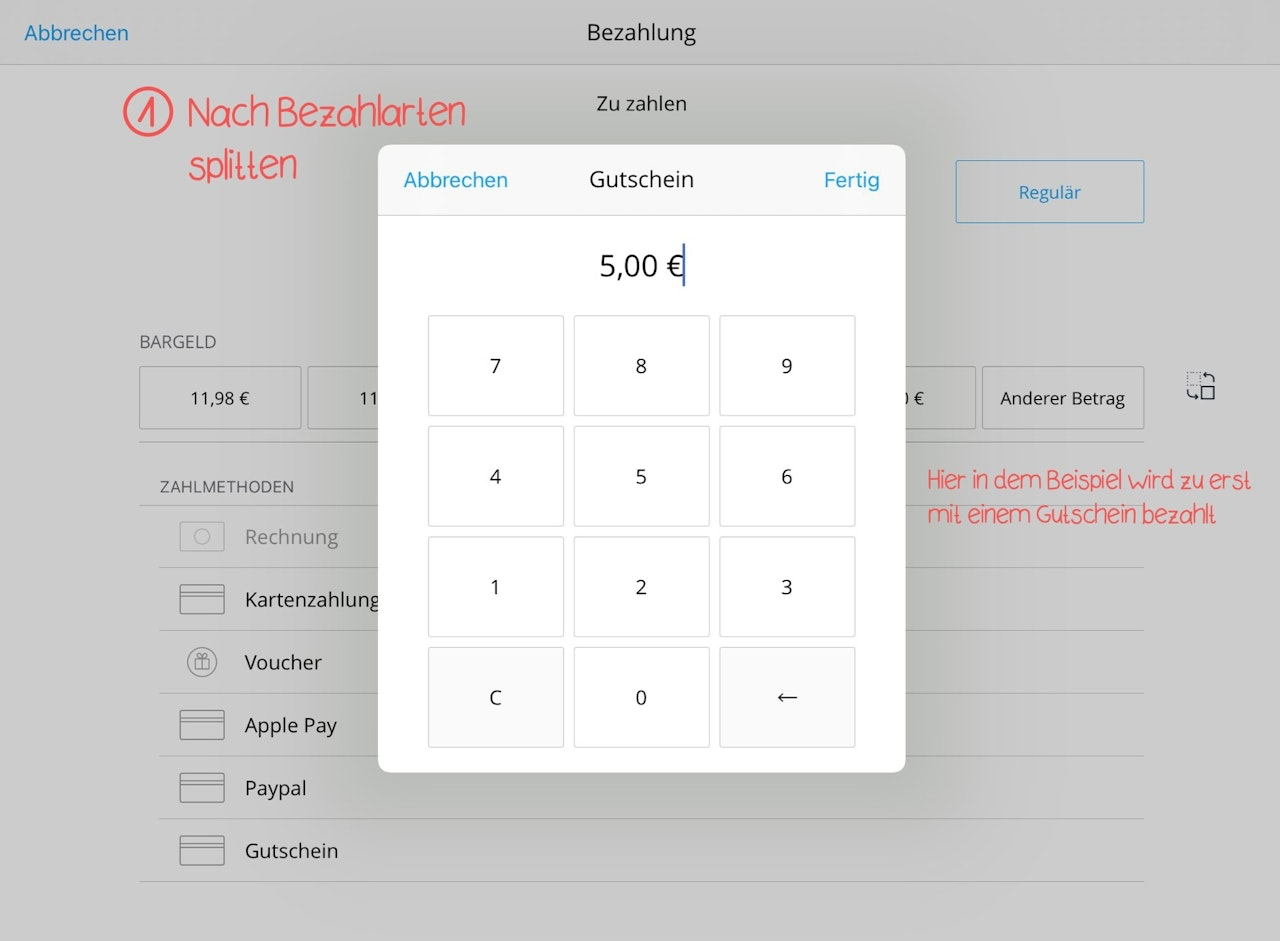
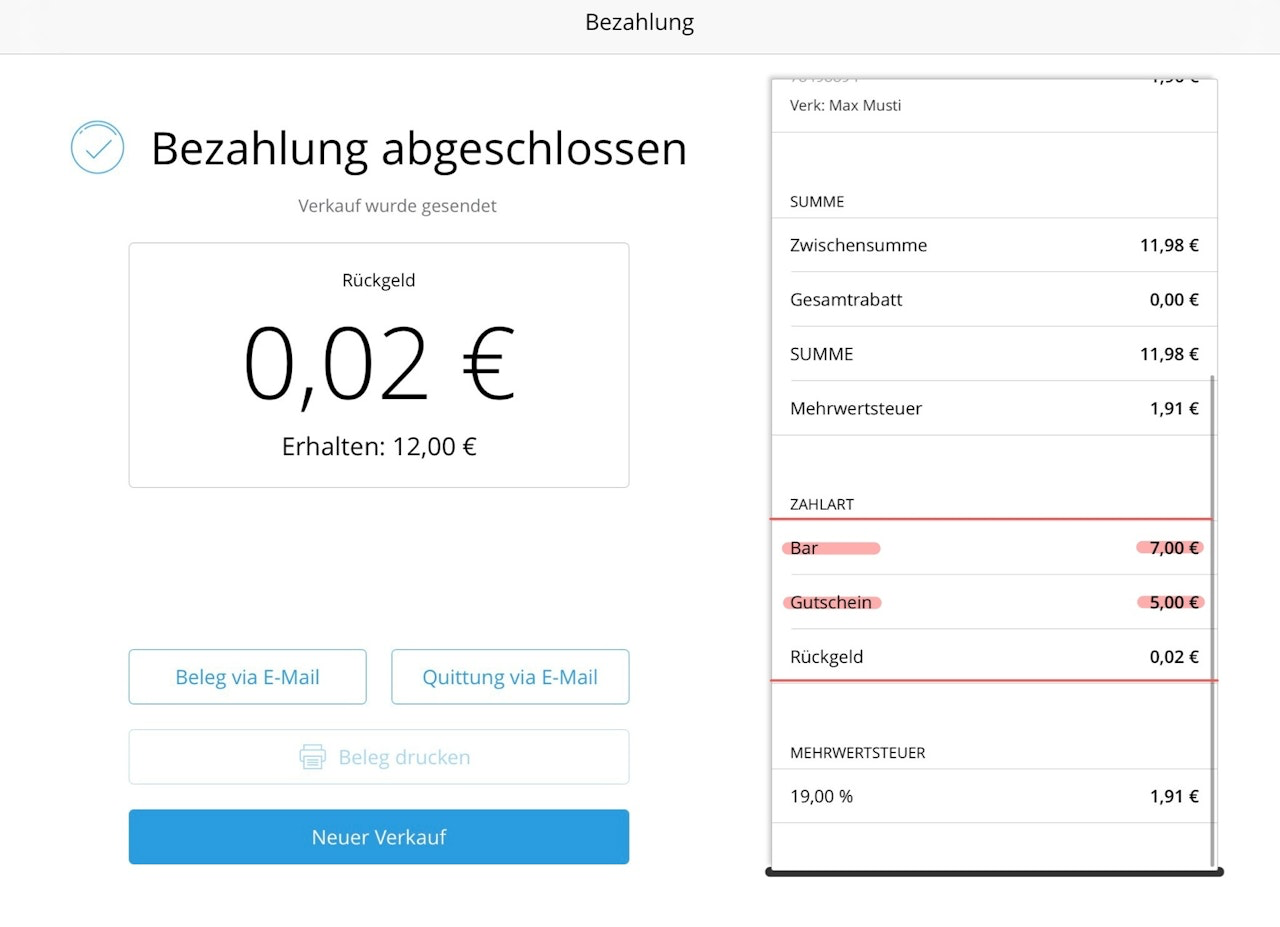
You are then taken back to the checkout area, where you can view the outstanding balance as well as the amount already paid.
Now select the payment method for the remaining amount.
After that, you are taken to the "Payment completed" area, where you still have the option to send the receipt by email or alternatively print it.
Another option is to split the payment by item – see image 3.
Was this article helpful?
That’s Great!
Thank you for your feedback
Sorry! We couldn't be helpful
Thank you for your feedback
Feedback sent
We appreciate your effort and will try to fix the article
