Customize the Booking Page
Modified on Tue, 17 Feb at 2:16 PM
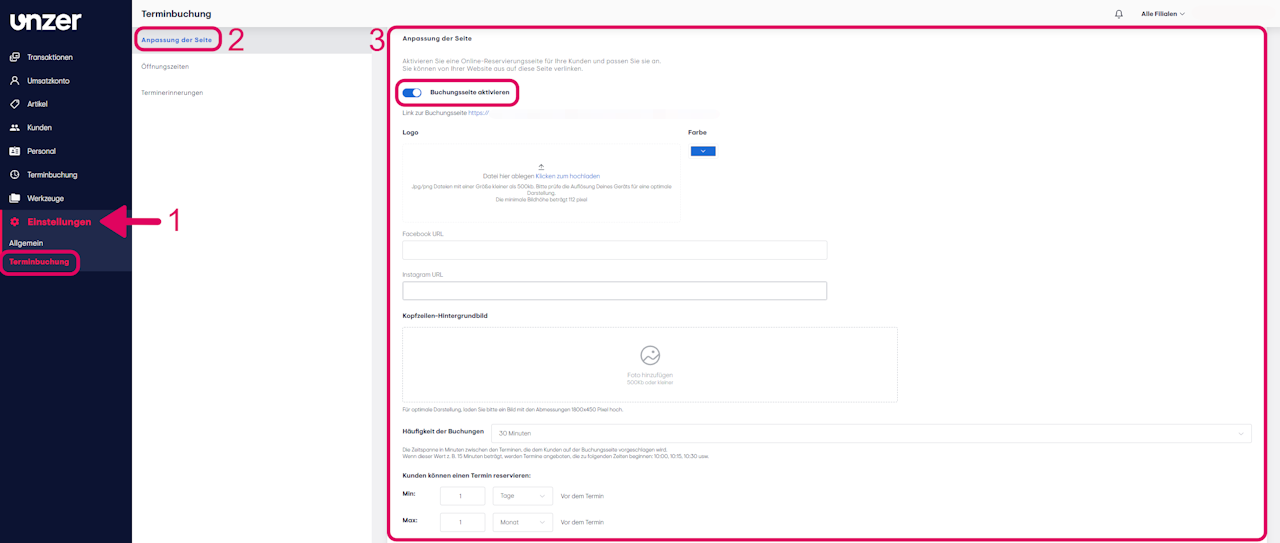
- Go to “Settings” in the dashboard. You will automatically land on the General Settings. There, select the “Appointment Booking” menu item.
- Activate and customize the online reservation page:
- Activate the online reservation page and tailor it to your preferences.
- Upload your logo and a header background image.
- Choose a color scheme that matches the look of your reservation page.
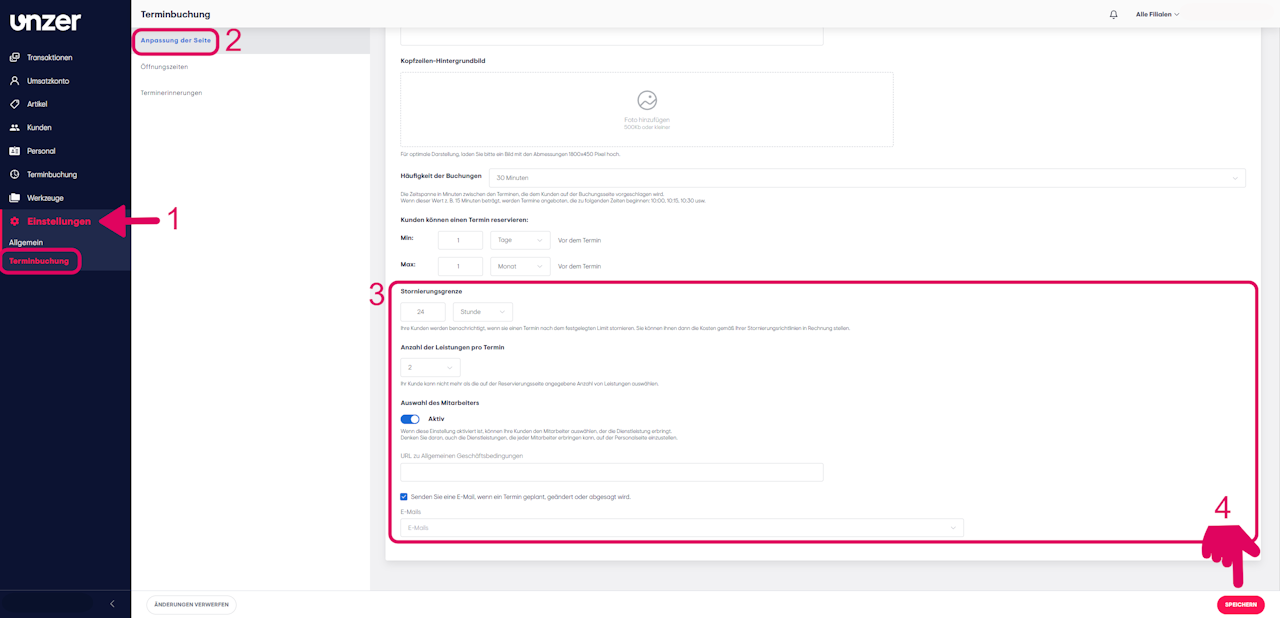
- Set important appointment booking options:
- Booking frequency: Define the intervals at which appointments are shown on the booking page (e.g., every 15 minutes: 10:00, 10:15, 10:30, etc.).
- Reservation and cancellation limits: Decide how far in advance customers may book or cancel appointments. If an appointment is canceled after the set limit, the customer will receive a notification and fees may be charged according to your cancellation policy.
- Number of services per appointment: Determine how many services your customers can book per appointment at most.
- Staff selection: Enable this option so your customers can choose the desired staff member for the service.
Note: Remember to assign the services each staff member can provide on the Staff page so that staff selection works correctly.
- Enable emails: Activate this option so that you are notified immediately when an appointment is booked, changed, or canceled.
- Click “Save” at the bottom right to secure your entries.
Was this article helpful?
That’s Great!
Thank you for your feedback
Sorry! We couldn't be helpful
Thank you for your feedback
Feedback sent
We appreciate your effort and will try to fix the article
