Entering Services in the Reservation System
Modified on Tue, 17 Feb at 2:16 PM
In this step, we explain how to create the services that will be displayed on the booking page. These services form the basis for appointment reservations and contain important information for the booking process, such as duration, availability, and booking options.
Note: Start by creating a service category to which you can then assign specific services.
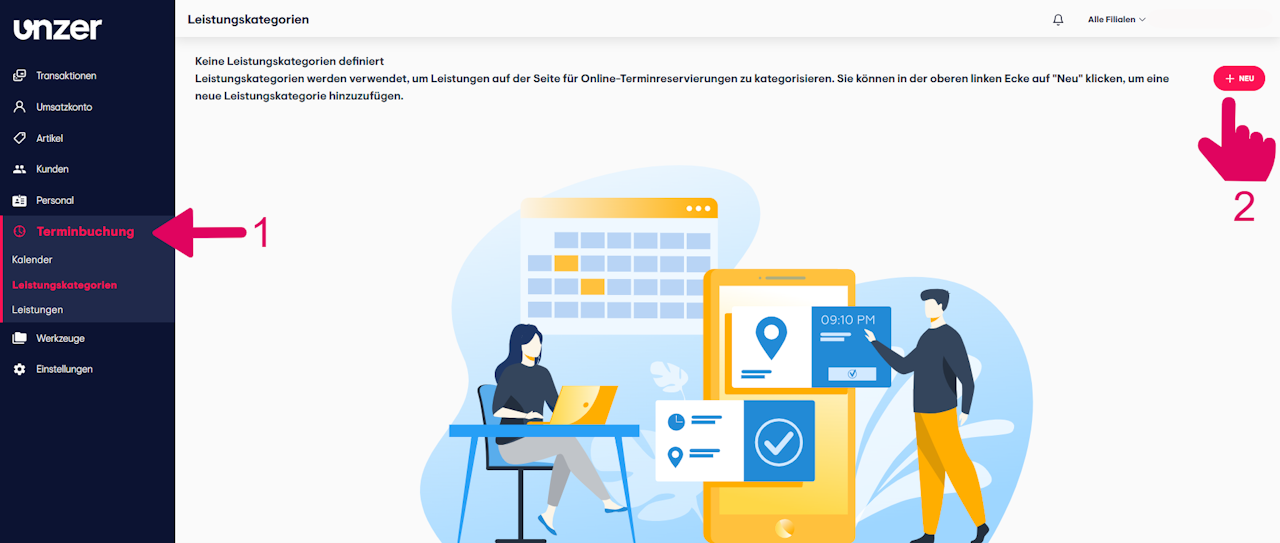
- In the dashboard, navigate to “Appointment Booking.”
- You will automatically be directed to the service categories.
- Click the “+New” button in the top right corner.
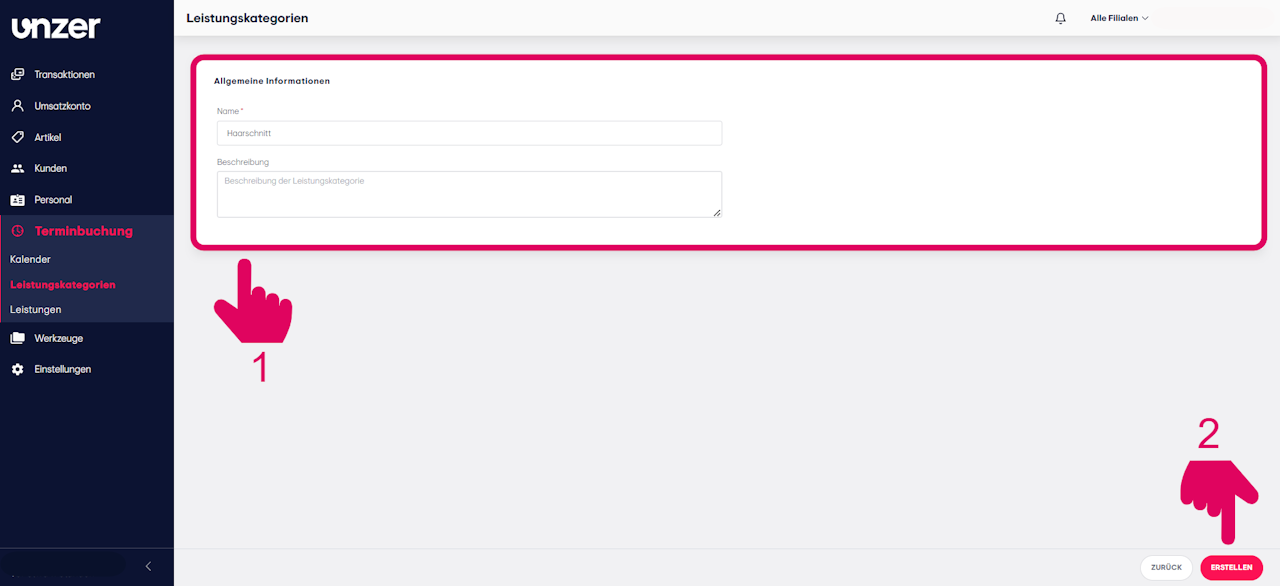
- Enter the name of the service category. The name will be displayed to your customers and employees as an option in the appointment calendar.
Tip: When naming service categories, you can, for example, use your product group names.
Example: Haircut, Manicure, Facial Treatments.
- Optionally, you can add a description for the service category.
- Finally, click “Create” in the bottom right corner.
Entering Services
- Within the “Appointment Booking” menu, navigate to the “Services” section.
- Click the “+New” button in the top right corner.
- Give your service a name. This name will be displayed to both your customers and your employees in the appointment calendar.
Tip: When naming your services, you can use your existing service names as a guide.
Examples:
- Wash–Cut–Blow-Dry
- Manicure with Polish
- Eyebrow Lamination
- Assign the service to a service category.
- Define the duration of the service in minutes.
- Write a short description for the service.
- Link the service to an item you previously created under “Items” → “Product Catalog.”
- Optional: If you have multiple branches, you can specify at which locations the service will be available.
- Finally, click “Create” in the bottom right corner.
Was this article helpful?
That’s Great!
Thank you for your feedback
Sorry! We couldn't be helpful
Thank you for your feedback
Feedback sent
We appreciate your effort and will try to fix the article
