Creating and Managing Staff
Modified on Tue, 17 Feb at 2:16 PM
In this section, you will learn how to add new employees, set individual settings such as PINs and assigned services, and efficiently manage your staff’s availability.
Creating Staff Members
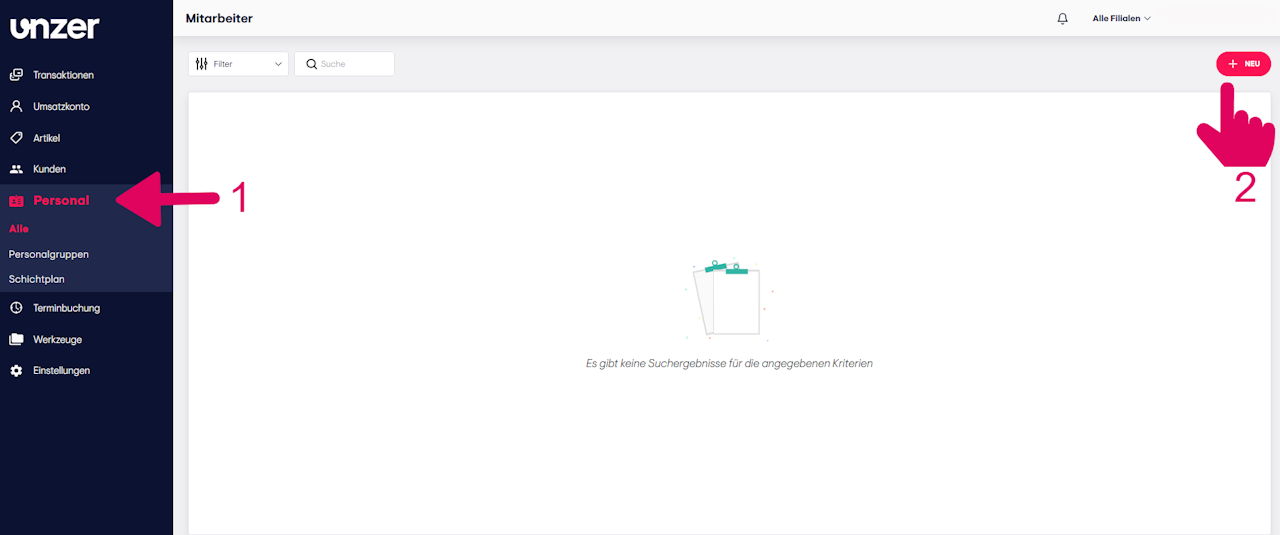
- In your dashboard, navigate to the “Staff” menu.
- Click the “+New” button in the top right corner.
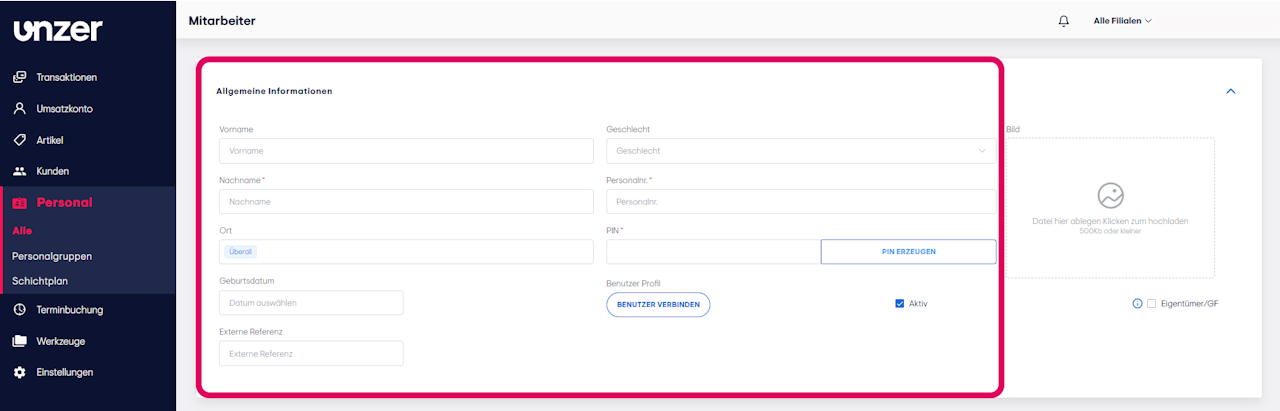
- Enter the required information such as last name, staff number, and PIN.
Note: Mandatory fields are marked with a red asterisk ().* - Finally, click “Create.”
Setting Availability
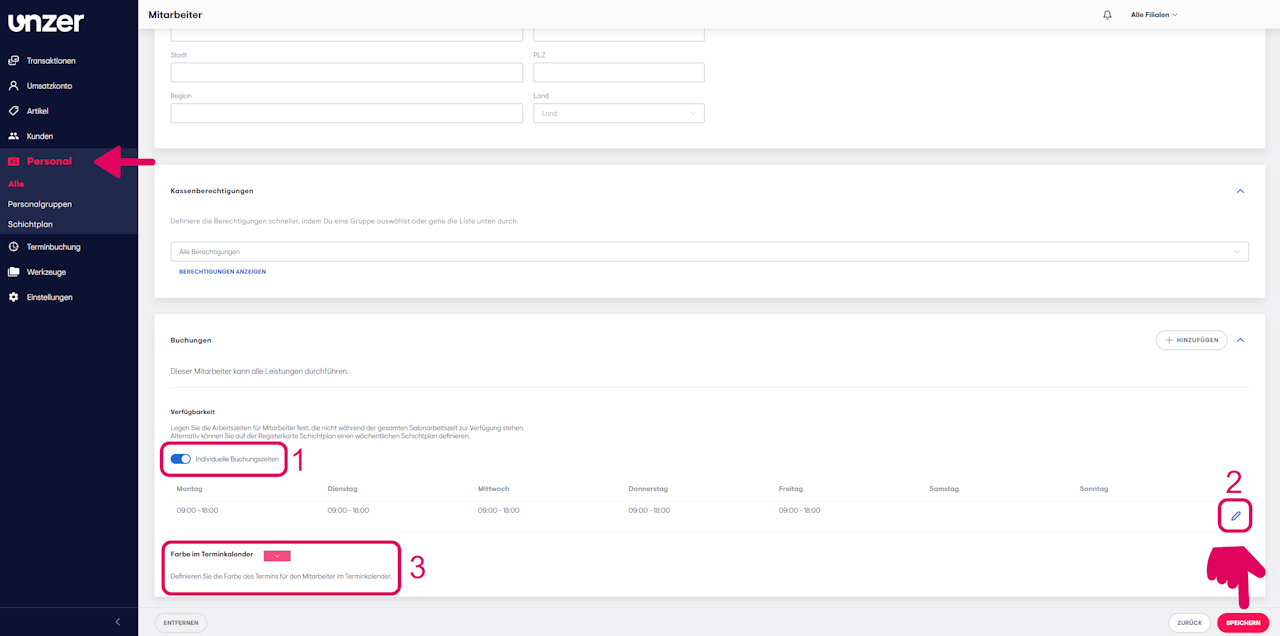
- To define individual working hours for each employee, scroll down to the “Availability” section in the employee profile.
- Enable the switch “Individual Booking Times” to set availability.
- Then define the regular working hours as well as any absences or breaks.
Tip: You can also assign an individual color code for each employee’s appointments in the calendar.
- Finally, click “Save” to confirm your entries.
Assigning Services
You have the option to optionally assign specific services and individual booking times to certain employees so that they only offer the services they are qualified for.
This way, your customers will always see the appropriate options on the booking page.
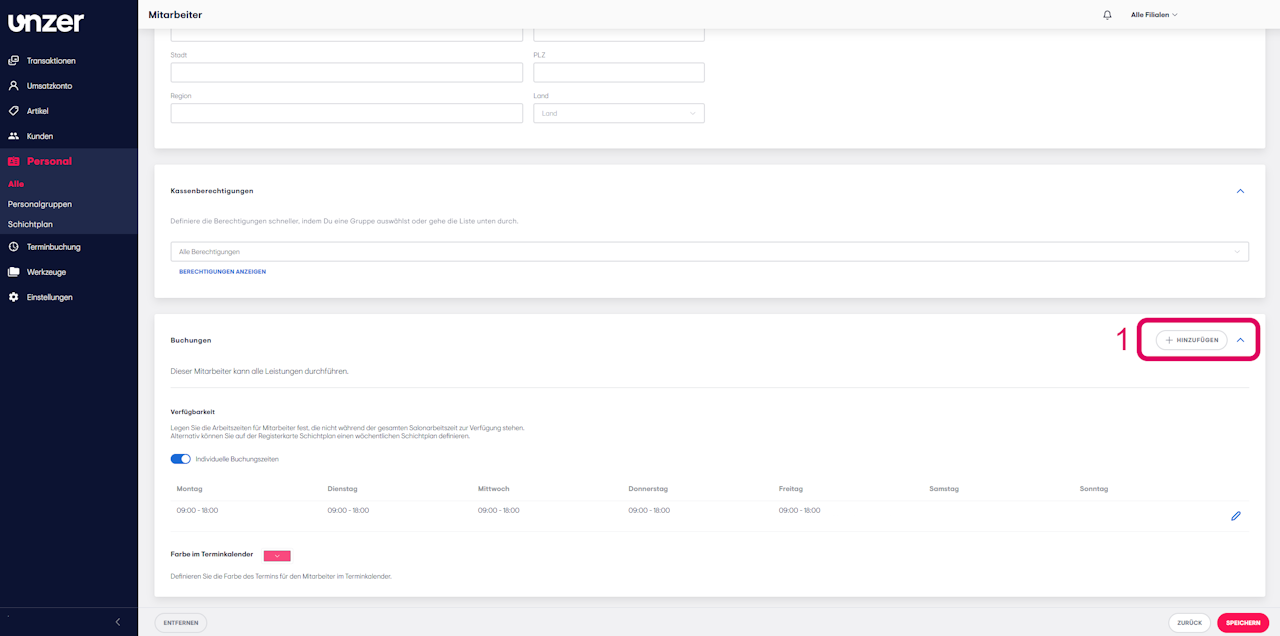
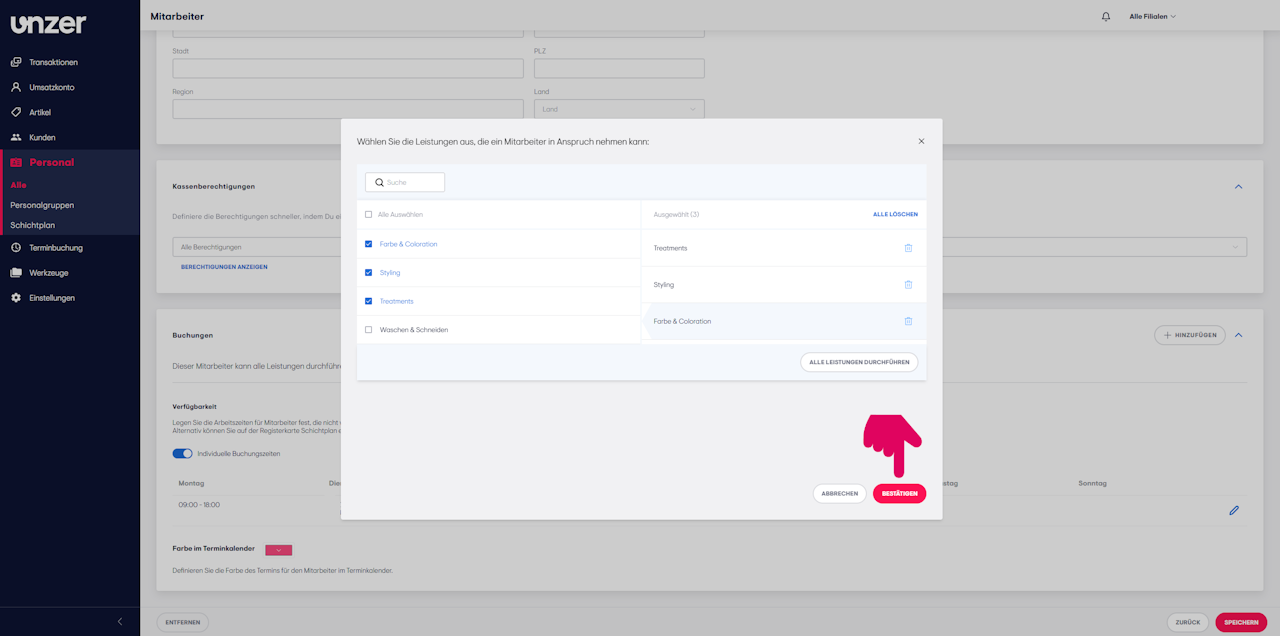
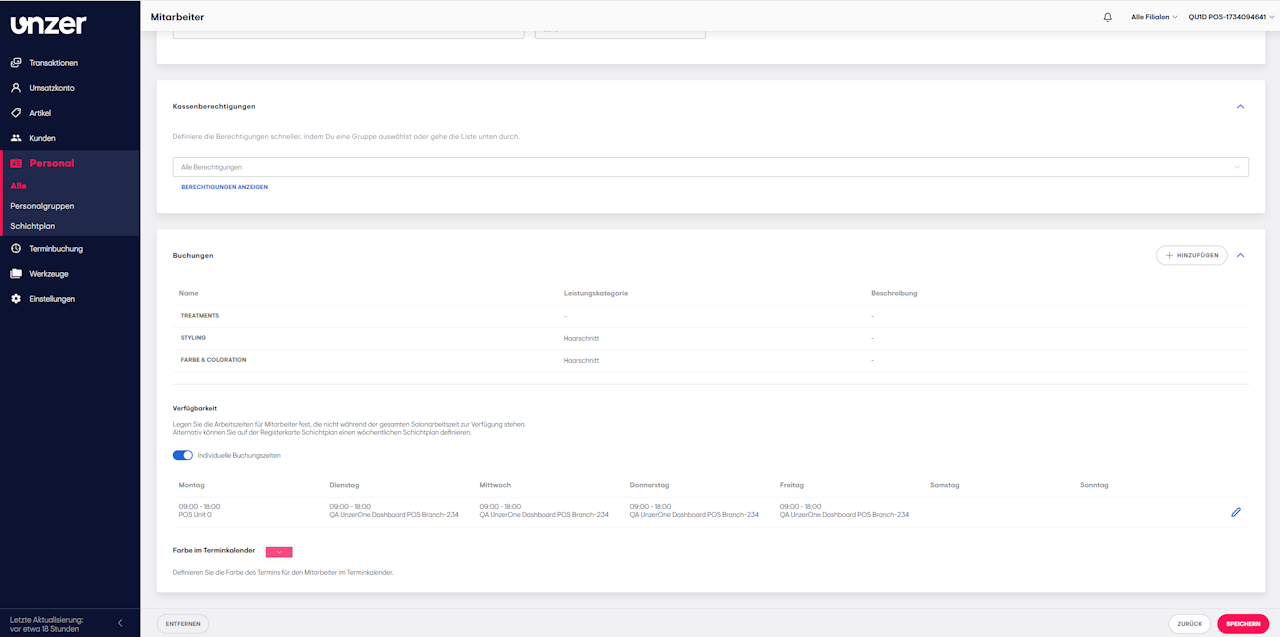
- In the employee profile, scroll down to the “Bookings” section.
- Click “+ Add” in the top right corner to assign a service to the employee.
- In the list displayed, select the desired services by checking them.
Tip: Alternatively, you can select all services by clicking “Perform All Services” at the bottom right of the list.
- Confirm your selection to complete the setup.
- If you do not want to make additional settings, click “Save” at the bottom right of the staff profile card.
Was this article helpful?
That’s Great!
Thank you for your feedback
Sorry! We couldn't be helpful
Thank you for your feedback
Feedback sent
We appreciate your effort and will try to fix the article
