Creating and Managing Customers
Modified on Tue, 17 Feb at 2:16 PM
In this section, you manage your customers and all related settings.
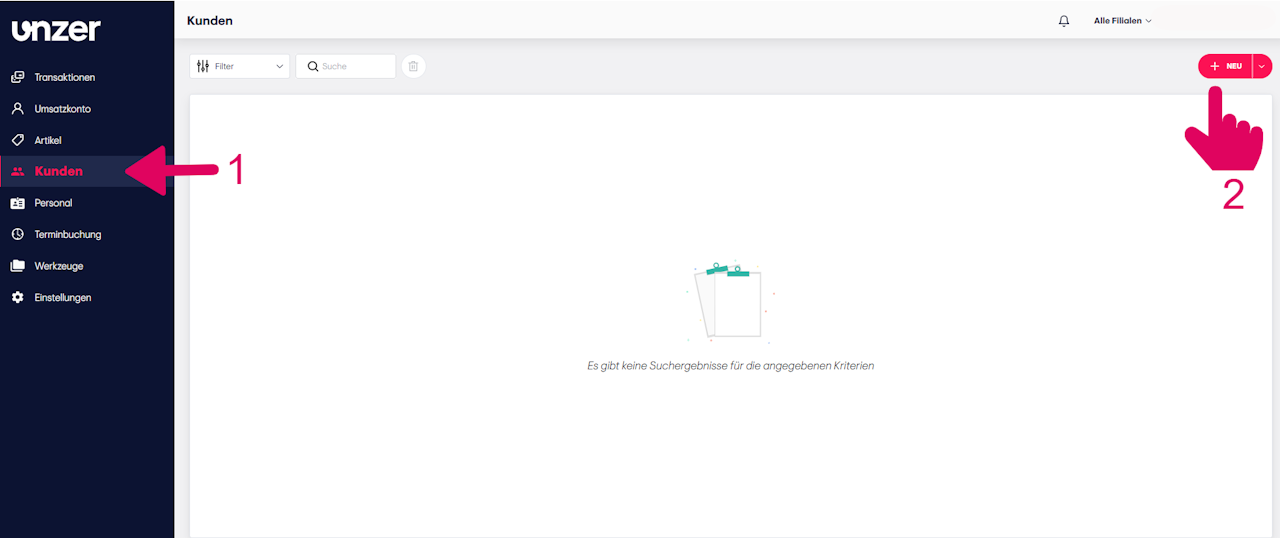
Follow these steps to create new customers or edit existing ones:
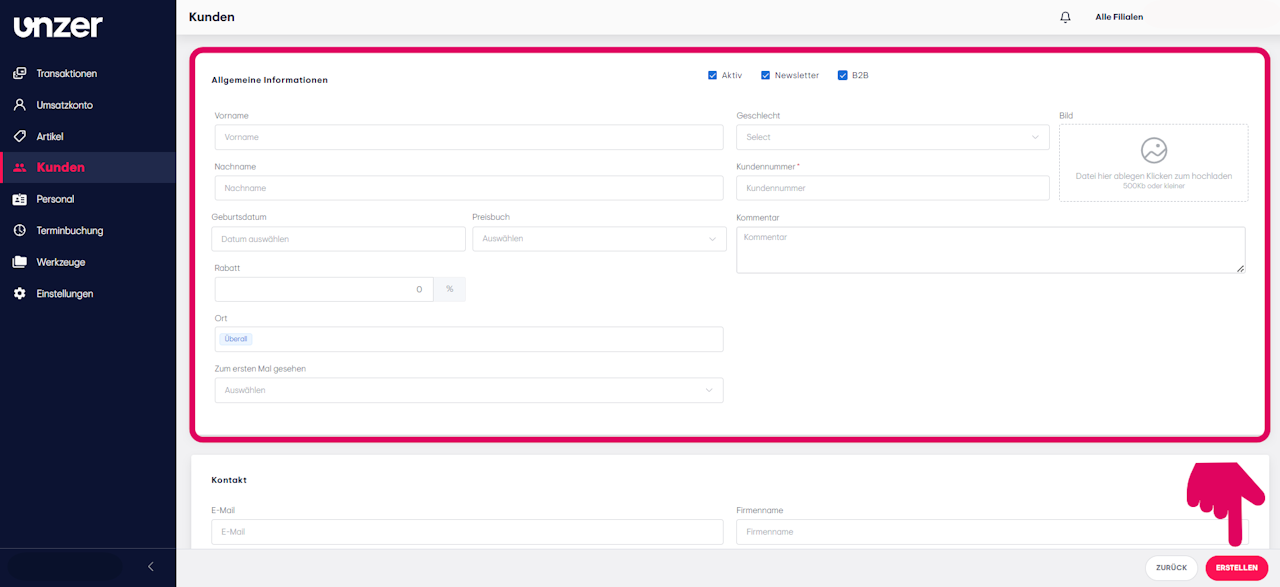
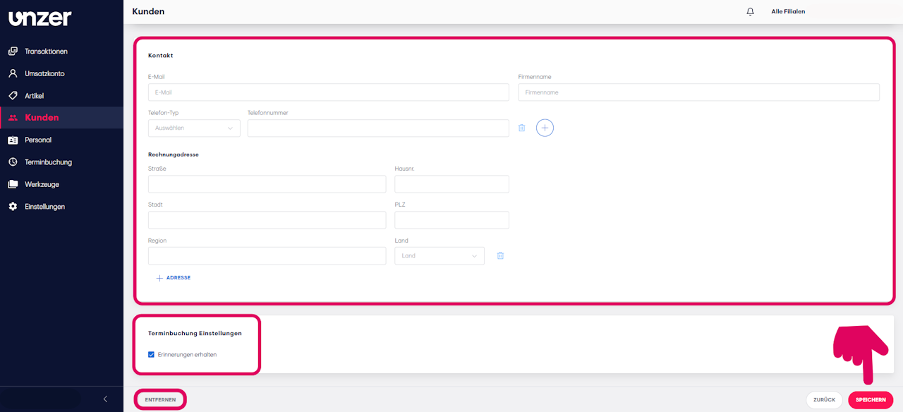
- Click “+ New” to create a customer. A window will open where you can enter general information such as name, customer number, contact details, and billing address.
- At the top center, specify whether this is a B2B customer and whether the account should be kept active. You can also decide whether the customer should receive newsletters.
- Use the “Comment” field to add internal notes that may be helpful for your staff during customer support.
- For regular customers, you can assign a discount or a special price list, which must first be created in the “Items”section.
Note: Only the fields marked with a red asterisk () are mandatory.* - Scroll down to activate appointment reminders for this customer.
- Click “Create” to save your entries.
Edit or delete existing customers:
Click on a customer in the overview to change the settings. There, you can also delete customers if necessary.
Was this article helpful?
That’s Great!
Thank you for your feedback
Sorry! We couldn't be helpful
Thank you for your feedback
Feedback sent
We appreciate your effort and will try to fix the article
