Customizing the Booking Page
Modified on Mon, 23 Feb at 10:36 AM
Design an appealing booking page with a color theme and customer-friendly settings to ensure a smooth booking experience.
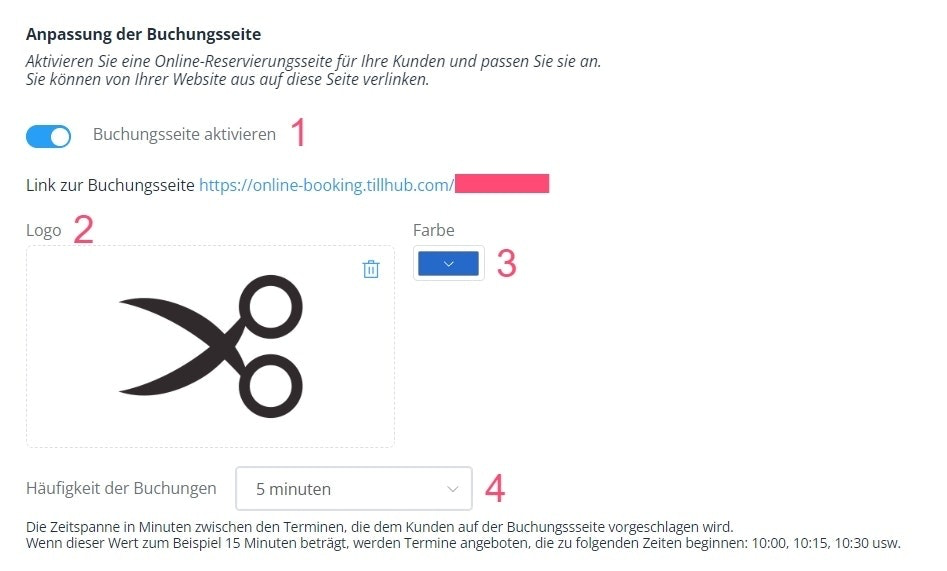
Navigate to the Booking Page Customization section at the bottom of the appointment booking settings:
- Enable the booking page link by switching the toggle on.
- Add your company logo by dragging and dropping an image or uploading it from your computer.
- Choose a color scheme for your booking page.
- Set the reservation frequency to determine the time intervals in which customers can book appointments.
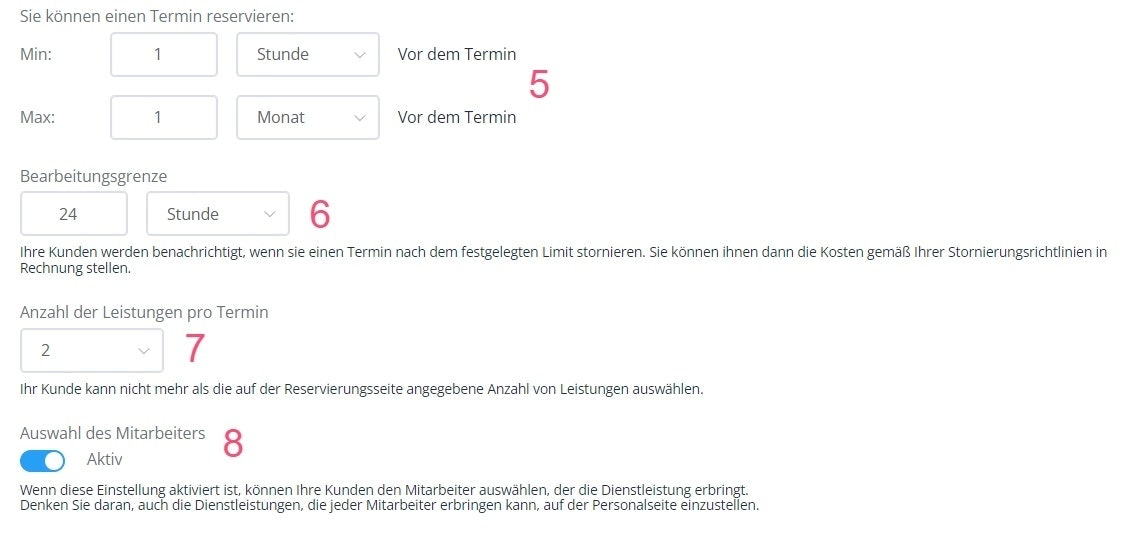
- Define the minimum and maximum lead time within which appointments can be booked.
- Set a time limit for cancellations.
- Decide how many services can be selected per appointment.
- Enable the employee selection option if you want customers to choose a specific staff member to carry out the service.
Was this article helpful?
That’s Great!
Thank you for your feedback
Sorry! We couldn't be helpful
Thank you for your feedback
Feedback sent
We appreciate your effort and will try to fix the article
