CFD (Customer Facing Display)
Modified on Mon, 16 Feb at 10:11 AM
TABLE OF CONTENTS
- First Start – App Download
- Connecting the Customer Display
- Customizing the Customer Display (CFD)
- Assigning Content to the Customer Display
First Start – App Download
Before you get started, please set up the Lenovo tablet as usual. During setup, create a Google account. This is important because it allows you to access the Google Play Store and install the required app.
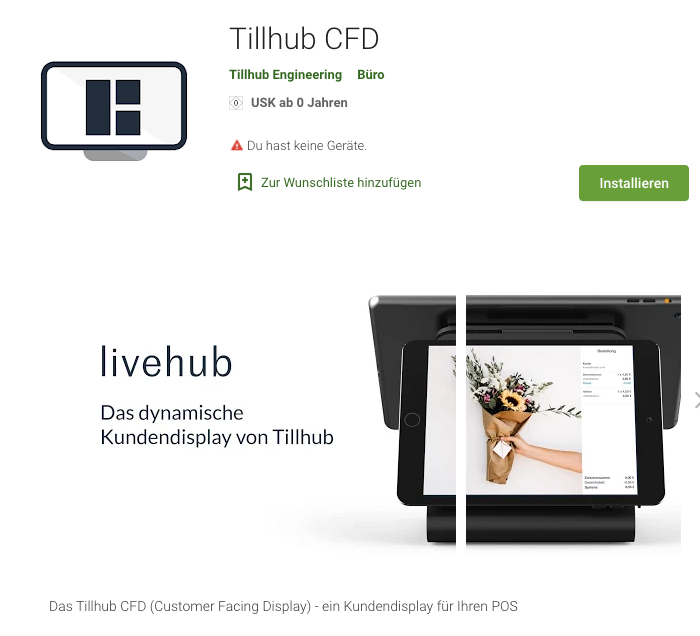
Once the tablet is set up, open the Google Play Store. Search for the LifeHub app and make sure it is the LifeHub app by Tillhub. Download the app and then open it.
Connecting the Customer Display
After opening the app, you will first see an overview with various pieces of information.
Next, go to the Dashboard and navigate to the LiveHubs section. In the top right corner, you will find the option “Add LiveHub” – click on it to start the setup.

You will now be guided step by step through the connection:
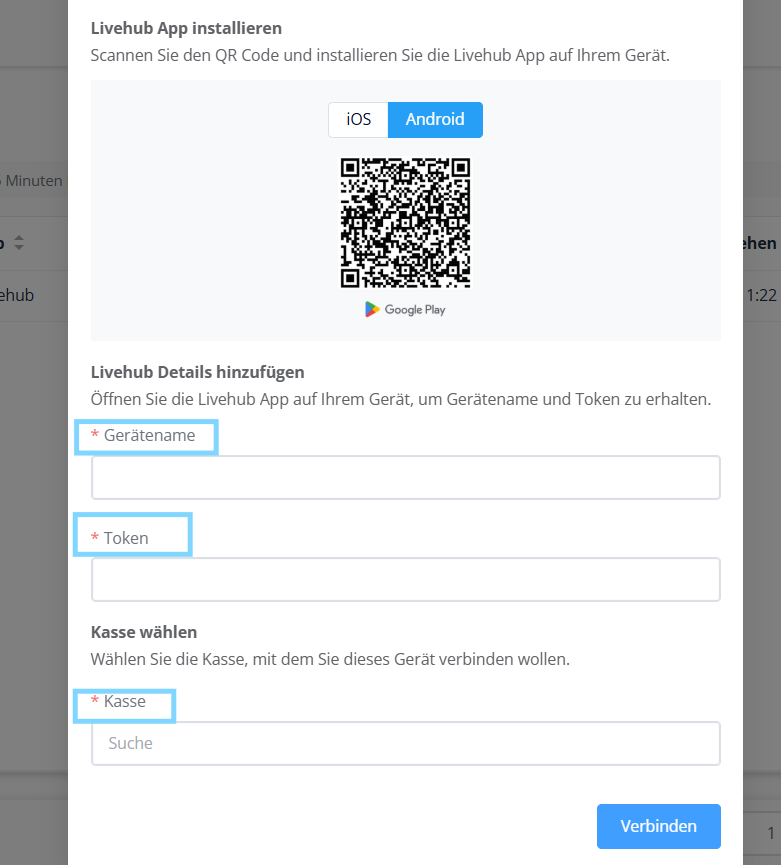
• First, you will be asked for the device name. This is displayed directly on the Lenovo tablet in the LifeHub app. Please enter it exactly as shown – it’s best to start with this step.
• Next comes the token. This changes every few seconds, so make sure to enter it quickly.
• Finally, select the cash register that the customer display should be connected to.
Customizing the Customer Display (CFD)
To personalize your customer display, you can easily upload images and videos. Go to LiveHubs → Media and click “+ New” in the top right corner to add new content.

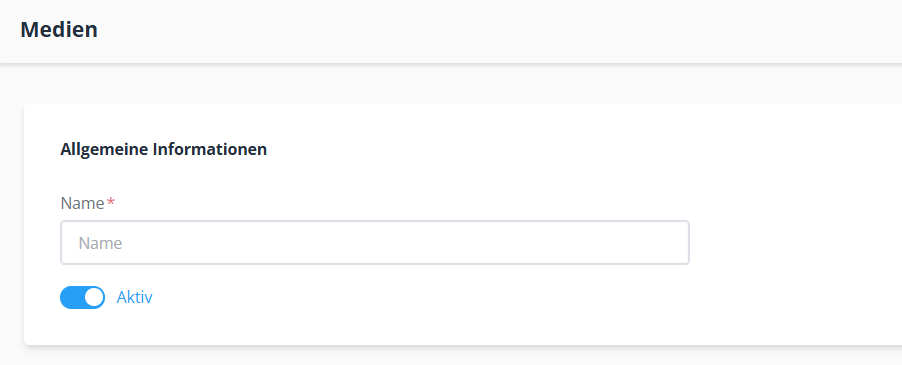
First, enter a name for the content, for example Background Image, Logo, or Promotional Video. The name helps you quickly find your content later.
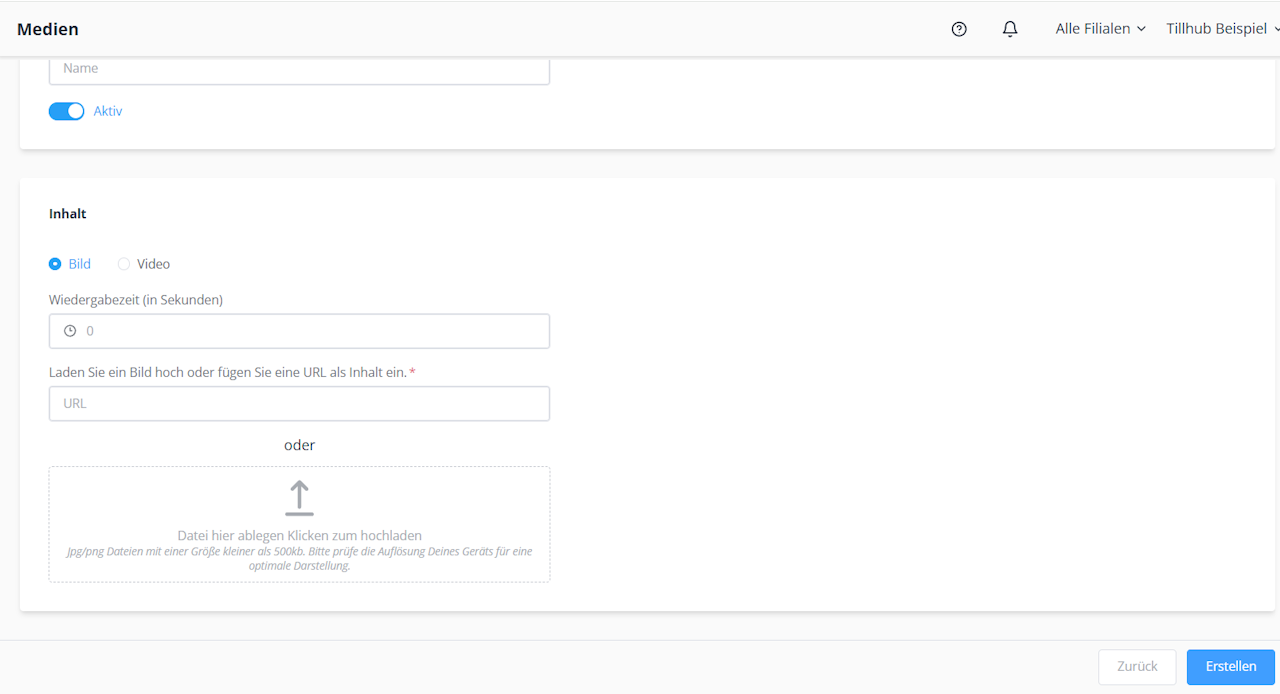
Next, under Content, choose whether you want to upload an image or a video. Optionally, you can also set a playback duration if the content should only be displayed for a certain period.
Uploading is simple. You can either provide the URL of the image or video, or upload the file directly from your computer. Once everything is selected, click “Create” and the content will be saved.
Assigning Content to the Customer Display
To make sure your image or video is displayed on the customer display, you now need to assign it:
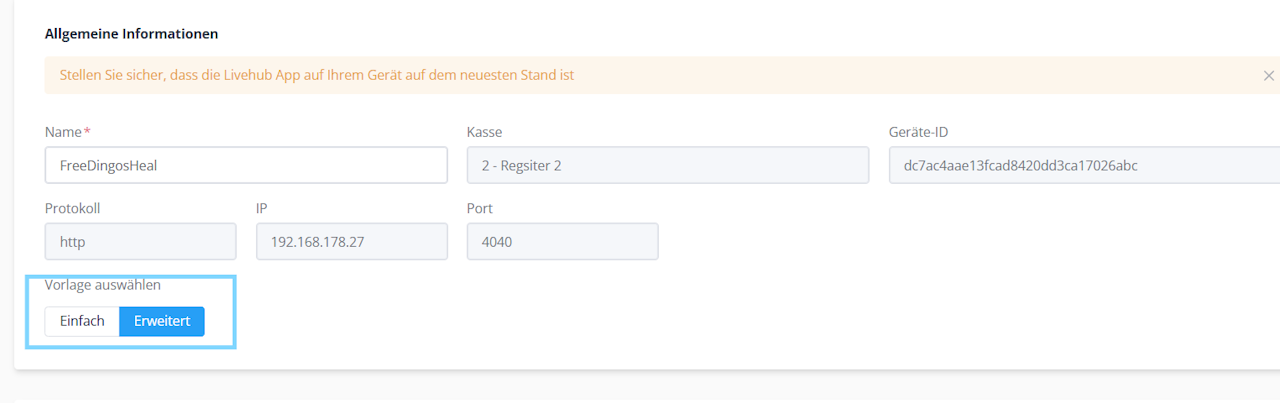
• Go to Devices, select the corresponding LiveHub license, and click Advanced.
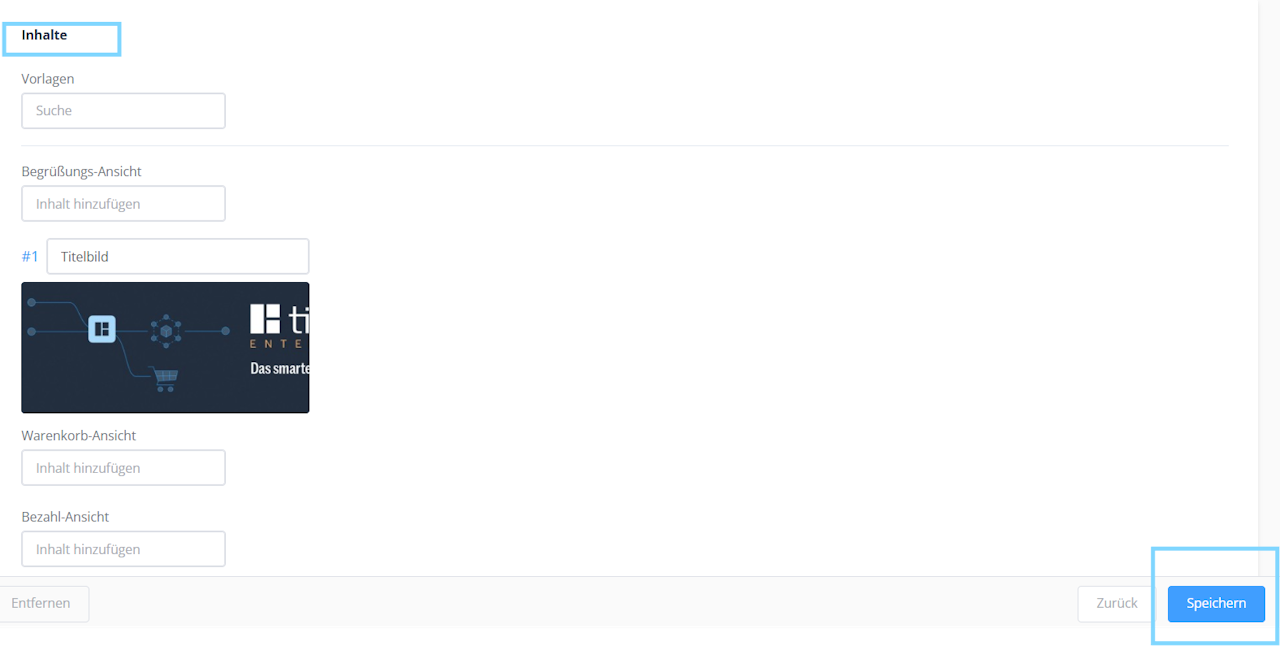
• Here you can choose where the content should be visible.
For example, if you select the Welcome Screen, you can choose the previously assigned name of your content and insert the desired image or video. Adjust any other display options as needed and then save your settings.
And that’s it! ✅
Your image or video will now appear on the customer display, ensuring that your content is presented exactly the way you want it.

Was this article helpful?
That’s Great!
Thank you for your feedback
Sorry! We couldn't be helpful
Thank you for your feedback
Feedback sent
We appreciate your effort and will try to fix the article
